


 Video Converter Ultimate
 Näytön tallennin
 Videon korjaus
 Suojattu lataus
Lopulliset ohjeet Canva-vesileiman poistamiseen [Ratkaistu]
Canvaa käyttävät usein verkossa toimivat ja ammattikäyttäjät, joiden täytyy tuottaa korkealaatuisia valokuvia, esityksiä ja videoita. Tässä ohjelmassa on monia etuja, kuten laaja valikoima työkaluja, malleja, suunnitelmia, teemoja ja paljon muuta. Valitettavasti Pro-elementeissä on nykyään vesileimat. Pro-elementeistä täytyy maksaa, jotta niitä voi käyttää ilman vesileimaa. Onneksi tämä artikkeli näyttää sinulle parhaat menetelmät, joilla voit yrittää poistaa Canvan vesileimat ostamatta Pro-elementtejä. Lue siis artikkeli ja opi, miten Canvan vesileimat saa poistettua.

Osa 1: Paras online-työkalu Canva-vesileimojen poistamiseen
Jos haluat oppia poistamaan Canvan vesileimat ilmaiseksi, voit käyttää työkalua FVC Free Watermark Remover. Tällä verkkopohjaisella työkalulla voit poistaa minkä tahansa objektin kuvasta maksamatta penniäkään. Se pystyy myös poistamaan Canvan vesileimat helposti eri poistotyökaluilla, kuten Suti (Brush), Monikulmio (Polygonal) ja Lassoköysi (Lasso). Lisäksi voit poistaa vesileimoja myös rajaustyökalulla, erityisesti silloin kun vesileima sijaitsee kuvan reunassa. Sinun ei myöskään tarvitse huolehtia tuetuista kuvamuodoista, koska työkalu tukee lähes kaikkia formaatteja, kuten JPG, PNG, BMP ja monia muita. Sen selkeän käyttöliittymän ja yksinkertaisten menetelmien ansiosta voidaan sanoa, että FVC Free Watermark Remover sopii kaikille käyttäjille, myös aloittelijoille. Tässä osiossa opastetaan, miten poistat Canvan vesileimat kuvistasi kaikilla poistotyökaluilla, kuten Suti-, Lasso- ja Monikulmiotyökalulla.
Voit käyttää Brush-työkalua, jos haluat poistaa vesileimat aivan kuin vain harjaisit niitä. Voit jopa muuttaa siveltimen kokoa mieltymystesi mukaan. Voit käyttää Lasso-työkalua kuvien tai muotojen suljettujen osien valitsemiseen. Lopuksi voit käyttää monikulmiotyökalua, jos haluat korostaa vesileimat suorakulmion muotoisena ja poistaa ne helposti noudattamatta vesileiman kuviota.
Brush Toolin käyttäminen
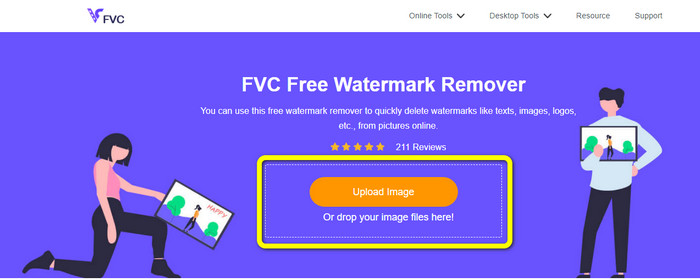
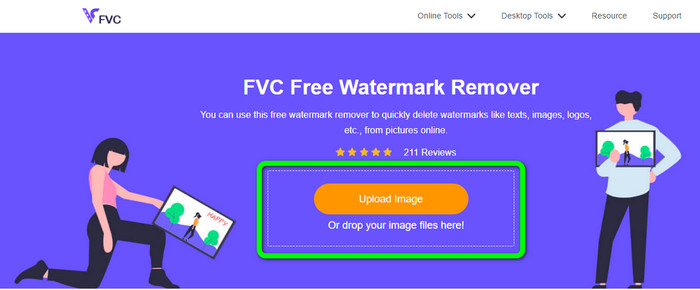
Vaihe 1: Mene ensin FVC Free Watermark Remover -sivustolle. Napsauta sitten Upload Image -painiketta ladataksesi kuvan, jossa on Canvan vesileima. Voit myös ladata kuvan vetämällä tiedoston ruutuun.
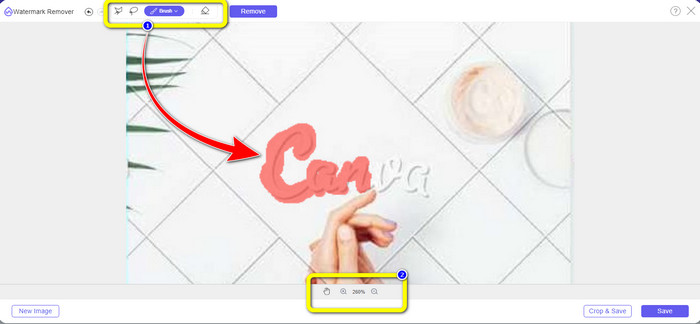
Vaihe 2: Valitse ylimmästä laatikosta Brush-työkalu. Käytä sitten tätä työkalua korostaaksesi Canvan vesileimat kuvasta. Sutin alla voit säätää siveltimen kokoa. Toisessa, alla olevassa laatikossa voit zoomata kuvaa sisään ja ulos nähdäksesi myös pienet vesileimat.
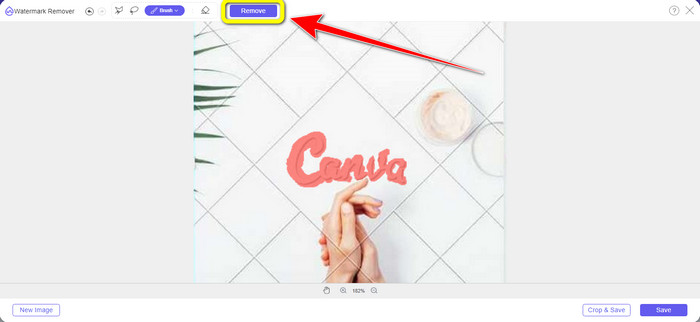
Vaihe 3: Kun olet korostanut kaikki Canvan vesileimat kuvasta, napsauta Remove-painiketta, jotta poistoprosessi käynnistyy. Odota sitten muutama sekunti.
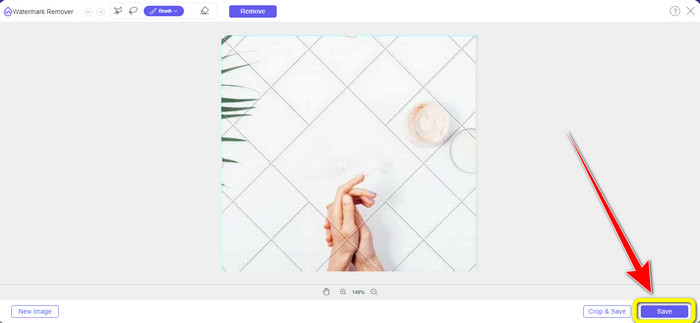
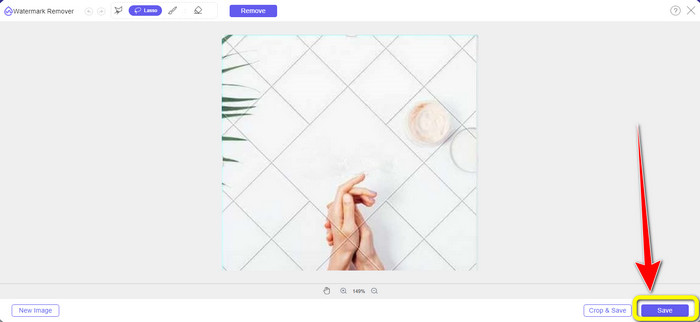
Vaihe 4: Poiston valmistuttua näet, että Canvan vesileima on jo kadonnut. Napsauta Save-painiketta tallentaaksesi kuvasi.
Lasso Toolin käyttö
Vaihe 1: Kun olet ladannut kuvan, jossa on Canvan vesileima, valitse Lasso-työkalu vesileimanpoistotyökaluista. Korosta sitten Canvan vesileima hiirelläsi.
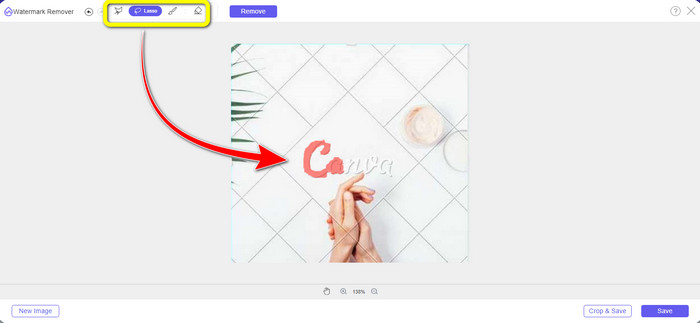
Vaihe 2: Keltaisessa laatikossa kuvan alapuolella voit napsauttaa +- tai --kuvaketta suurentaaksesi kuvaa ja nähdäksesi sen tarkemmin. Napsauta sitten Remove-painiketta, kun olet saanut Canvan vesileiman rajattua Lasso-työkalulla.
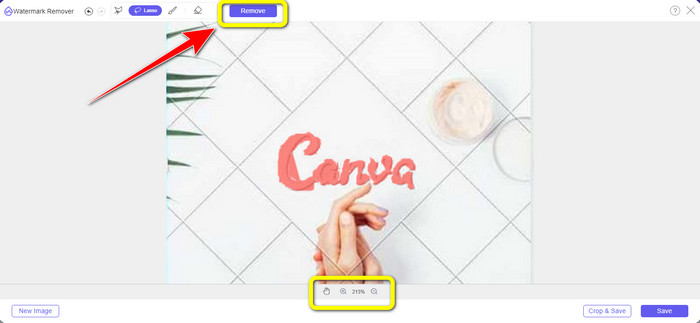
Vaihe 3: Kun poistoprosessi on valmis ja Canvan vesileima on poistettu, napsauta Save-painiketta tallentaaksesi lopullisen kuvasi.
Käytä monikulmiotyökalua
Vaihe 1: Kun olet lisännyt kuvasi FVC Free Watermark Remover -työkaluun, valitse vesileimanpoistotyökaluista Polygonal-työkalu.
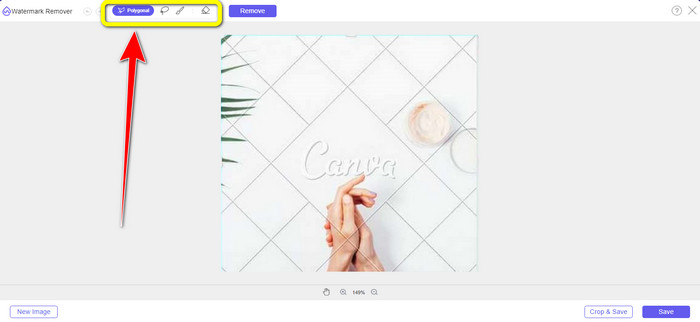
Vaihe 2: Tässä vaiheessa korostat Monikulmiotyökalun avulla Canvan vesileiman kuvastasi.
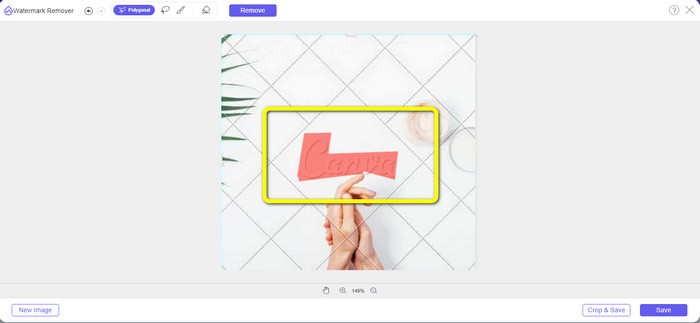
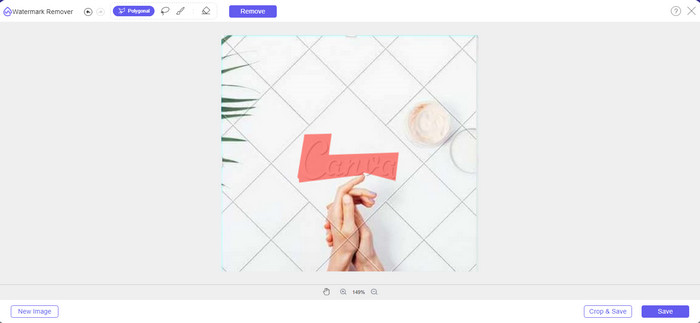
Vaihe 3: Korostuksen jälkeen voit poistaa Canvan vesileiman napsauttamalla Remove-painiketta.
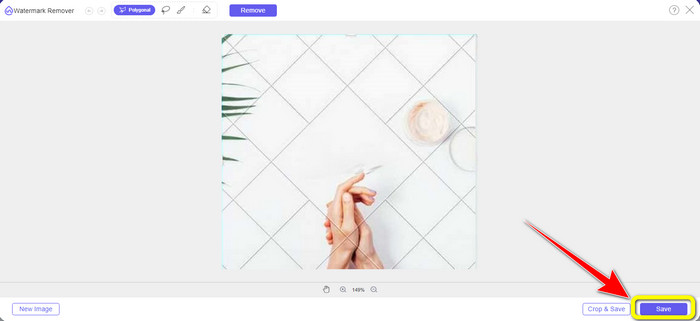
Vaihe 4: Poistoprosessin jälkeen voit siirtyä viimeiseen vaiheeseen eli tallentaa kuvasi napsauttamalla Save-painiketta.
Näiden kolmen vesileimanpoistotyökalun avulla voit nopeasti poistaa Canva-vesileimat kuvastasi. Käytämme tällä kertaa rajaustyökalua Canva-vesileiman poistamiseen kuvastasi.
Rajaustyökalun käyttäminen
Cropping-työkalu on paras tapa leikata vesileimat pois, etenkin jos vesileima sijaitsee kuvan reunassa tai kulmassa. Seuraa alla olevia ohjeita oppiaksesi, miten poistat Canvan vesileimat rajaustyökalulla.
Vaihe 1: Napsauta Upload Image -painiketta. Sen jälkeen tietokoneesi kansio avautuu näytölle. Valitse kuva, jonka Canvan vesileiman haluat poistaa.
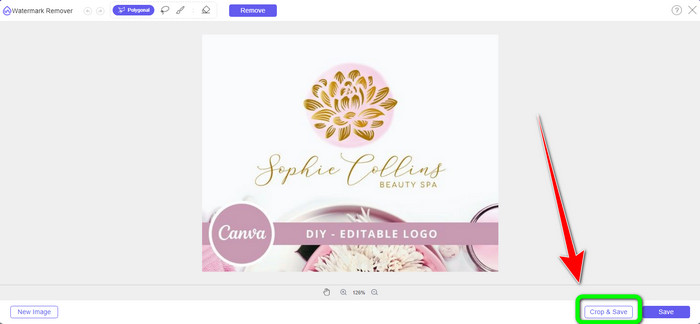
Vaihe 2: Kun olet valinnut kuvatiedoston, napsauta Crop&Save-painiketta. Siirry sitten seuraavaan vaiheeseen.
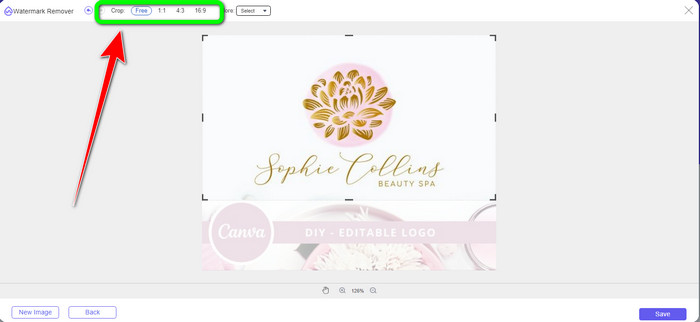
Vaihe 3: Tässä laatikossa voit valita, miten haluat rajata kuvan. Jos valitset Free-vaihtoehdon, voit rajata kuvaa käsin täysin haluamallasi tavalla.
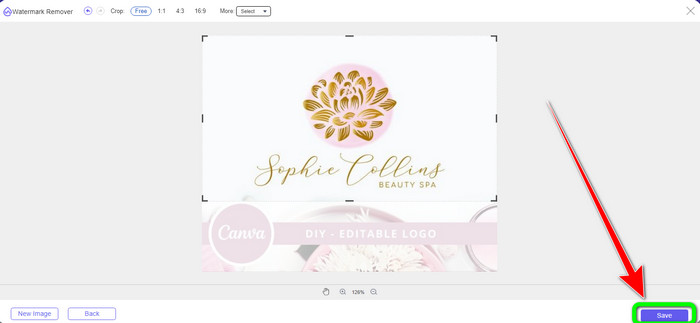
Vaihe 4: Kun olet rajannut kuvan niin, että Canvan vesileima on leikattu pois, napsauta Save-painiketta tallentaaksesi lopullisen kuvan.
Osa 2: Poista Canva-vesileimat Photoshopilla
Toinen tapa poistaa Canva-vesileima kuvista on käyttää Adobe Photoshopia. Se voi myös poistaa valokuvasta kaikki häiritsevät kohteet, kuten vesileimat, logot, tekstit, tarrat ja paljon muuta. Lisäksi tällä työkalulla on nopea poistoprosessi, joten sinun ei tarvitse käyttää enempää aikaa ei-toivottujen esineiden poistamiseen valokuvasta. Lisäksi Adobe Photoshopin kaltaisia ohjelmistoja käytetään laajalti graafiseen suunnitteluun, rasterikuvien muokkaamiseen ja digitaaliseen taiteeseen. Kerrostaminen lisää syvyyttä ja monipuolisuutta kehitys- ja muokkausprosesseihin ja tarjoaa tärkeitä muokkaustyökaluja, joita yhdistettäessä voidaan saada erinomaisia tuloksia. Adobe Photoshopia ei kuitenkaan ole helppo käyttää, varsinkin jos olet uusi käyttäjä. Photoshop on edistynyt muokkausohjelmisto, joka sopii kokeneille käyttäjille. Se tarkoittaa, että ei-ammattimaiset käyttäjät pitävät työkalun käytöstä monimutkaista. Adobe Photoshop ei myöskään ole ilmainen. Se voi tarjota vain seitsemän päivän ilmaisen kokeilujakson. Sitten sinun on ostettava sovellus, jotta voit käyttää sitä jatkuvasti.
Noudata alla olevia ohjeita poistaaksesi Canva-vesileiman Adobe Photoshopilla.
Vaihe 1: Lataa Adobe Photoshop tietokoneellesi ja asenna se. Käynnistä sitten ohjelma.
Vaihe 2: Siirry kohtaan File > Open lisätäksesi kuvan, jossa on Canvan vesileima.
Vaihe 3: Valitse käyttöliittymän vasemmalta puolelta Clone Stamp Tool.
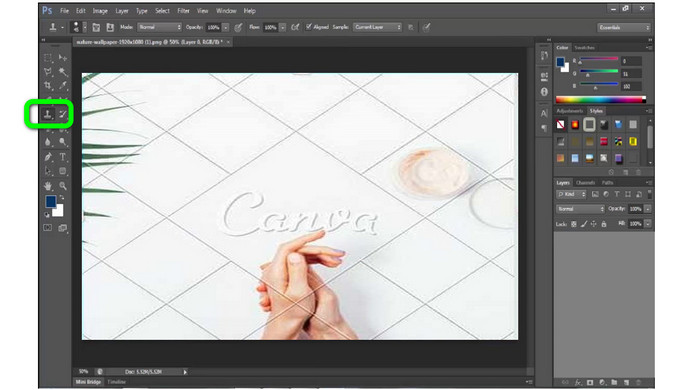
Vaihe 4: Kun olet valinnut Clone Stamp Tool -työkalun, napsauta Canvan vesileimaa hiirellä, kunnes olet poistanut kaikki vesileimat.
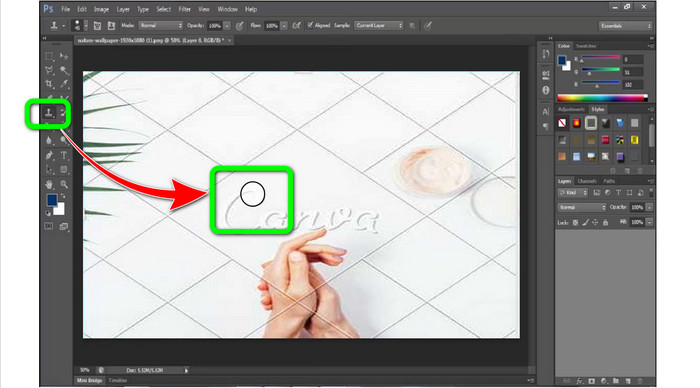
Vaihe 5: Kun Canvan vesileima on poistettu, mene kohtaan File > Save.
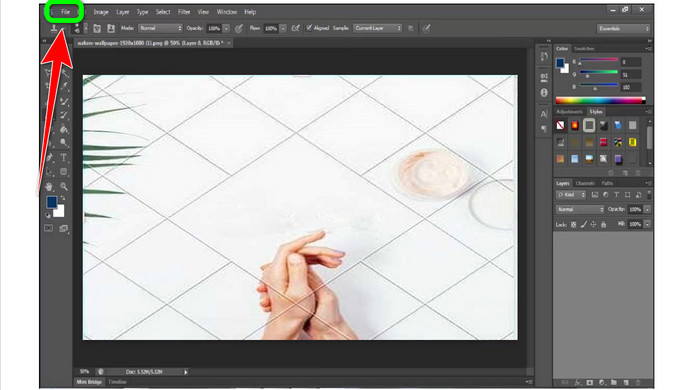
Liittyen:
Helpot vaiheet WOW Slider -vesileiman poistamiseen [Ratkaistu]
Helpot menetelmät Shootproof-vesileiman poistamiseen
Osa 3: Usein kysytyt kysymykset Canva-vesileimojen poistamisesta
1. Kuinka poistan ilmaisen Canva-vesileiman?
Jos haluat poistaa vesileiman kaikista malleistasi, sinun on ostettava Canva Pro. Toinen vaihtoehto on käyttää Canva Pron ilmaista kokeiluversiota, joka poistaa vesileiman. Voit myös poistaa vesileiman tallentamalla mallisi PDF- tai PNG-tiedostona.
2. Mitä eroa on Canva Pron ja Canva Pron välillä?
Canvassa suunnitelma on täysin ilmainen. Saat ilmaisia malleja, asetteluja, graafisia elementtejä, valokuvia ja paljon muuta. Mutta ilmaisessa versiossa on rajoituksia, kuten brändäystyökalujen puute, suodattimien puuttuminen ja rajoitetut tulostusvaihtoehdot. Canva Prossa on enemmän hienoja ominaisuuksia, joista voit nauttia. Se tarjoaa enemmän malleja, arkistokuvia, grafiikkaa ja videoita. Canva Pron käyttö on parempi kuin ilmainen versio.
3. Mikä on paras tapa poistaa Canva-vesileima?
Käytä työkalua FVC Free Watermark Remover. Tämän työkalun avulla voit poistaa Canvan vesileimat kuvistasi nopeasti. Se voi poistaa myös muita ei-toivottuja elementtejä, kuten logoja, tekstiä, hymiöitä jne.
Johtopäätös
Canva on erinomainen graafisen suunnittelun työkalu. Se kuitenkin lisää vesileimoja lähes kaikkiin kuviin. Jos kuitenkin haluat poistaa Canvan vesileimat, voit käyttää työkalua FVC Free Watermark Remover. Se on ilmainen ja helpompi käyttää kuin Photoshop.
-
 Helpoimmat menetelmät vesileiman poistamiseen valokuvista
 Ärsyttääkö valokuviesi vesileimat? Älä huoli! Tämä artikkeli tarjoaa yksinkertaisia ja helppoja tapoja poistaa vesileimat valokuvistasi
-
 Tapoja kuinka poistaa Reddit-vesileimat helposti kuvista
 Jos olet täällä, saatat etsiä erinomaista Reddit-vesileimanpoistoainetta. Siinä tapauksessa näytämme sinulle helpoimman tavan poistaa Reddit-vesileimat
-
 Vesileiman poistaminen Lightroom Mobilessa [Ratkaistu]
 Haluatko oppia poistamaan vesileimoja valokuvista? Tässä on helpoimmat tavat, joita voit kokeilla matkapuhelimillasi ja tietokoneillasi
