


 Video Converter Ultimate
 Näytön tallennin
 Videon korjaus
 Suojattu lataus
Paranna kuvanlaatua näiden nopeiden ja yksinkertaisten menetelmien avulla
Onko sinulla kuva, joka on epäselvä tai huonolaatuinen? Paras ratkaisu on parantaa kuvan laatua. Onneksi on olemassa lukuisia työkaluja, joiden avulla voit parantaa kuvan laatua. Kaikissa tietokoneen sovelluksissa tai työkaluissa ei kuitenkaan ole parhaita ominaisuuksia. Siksi etsimme suosituimpia kuvaparannusohjelmia verkossa, offline-tilassa ja iPhonelle. Jos haluat oppia, miten voit parantaa kuvan laatua, lue tämä artikkeli.

Osa 1. Kuvanlaadun parantaminen verkossa
Online-kuvanparannusohjelman käyttäminen on kätevämpää kuin ohjelmistosovelluksen lataaminen tietokoneellesi. Verkkotyökalun käytön etuna on, että voit käyttää sitä vapaasti verkossasi. Tämä osa näyttää, kuinka voit parantaa kuvasi laatua upeimmalla online-valokuvatehostimella.
FVC Free Image Upscaler on ilmainen, verkossa toimiva kuvanparannustyökalu, joka on monien suosiossa. Tällä verkkosovelluksella voit asettaa suurennuksen tasoille 2x, 4x, 6x ja 8x. Lisäksi se tukee yleisimpiä kuvaformaatteja, kuten PNG, JPG, JPEG ja BMP. Voit käyttää sitä myös kaikilla verkkoselaimilla, kuten Google Chromella, Firefoxilla ja Safarilla. Sinun ei myöskään tarvitse huolehtia tietojesi turvallisuudesta, koska tämä työkalu on turvallinen käyttää.
Lisäksi siinä on tehokas tekoälytekniikka, joka tunnistaa automaattisesti kuvan epäselvät osat. Lisäksi FVC Free Image Upscaler voi korjata kadonneita pikseleitä, värikuvioita ja muita yksityiskohtia. Jos haluat käyttää tätä erinomaista kuvan parannustyökalua, seuraa alla olevaa yksinkertaista ohjetta.
Kuinka parantaa kuvanlaatua verkossa FVC Free Image Upscaler -sovelluksella:
Vaihe 1. Avaa selaimesi ja etsi FVC Free Image Upscaler hakukentästä. Voit siirtyä suoraan heidän etusivulleen napsauttamalla annettua linkkiä.
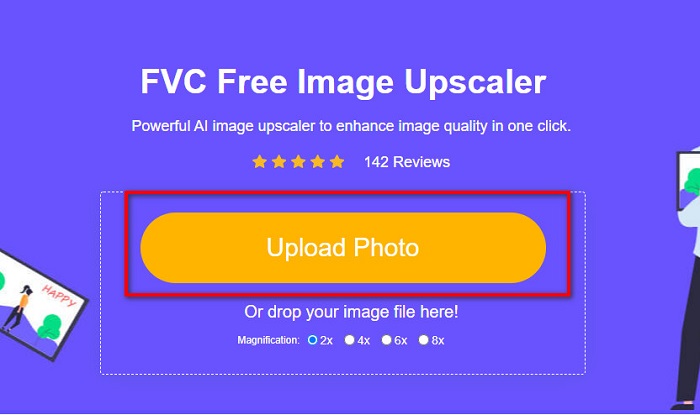
Vaihe 2. Napsauta sitten päänäkymässä Upload Photo -painiketta ladataksesi kuvan, jonka haluat suurentaa. Odota, että kuva latautuu, ja siirry sitten seuraavaan vaiheeseen.
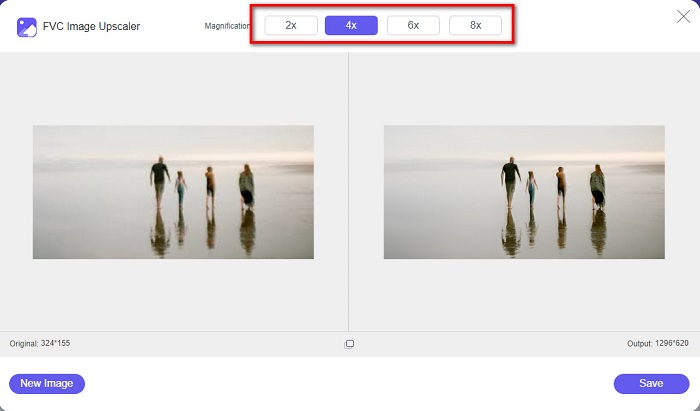
Vaihe 3. Valitse sitten kuvalle haluamasi Magnification-taso. Voit valita vaihtoehdoista 2x, 4x, 6x ja 8x.
Vaihe 4. Näet kuvastasi esikatselun, ja jos olet siihen tyytyväinen, napsauta Save-painiketta tallentaaksesi suurennetun kuvan laitteellesi.
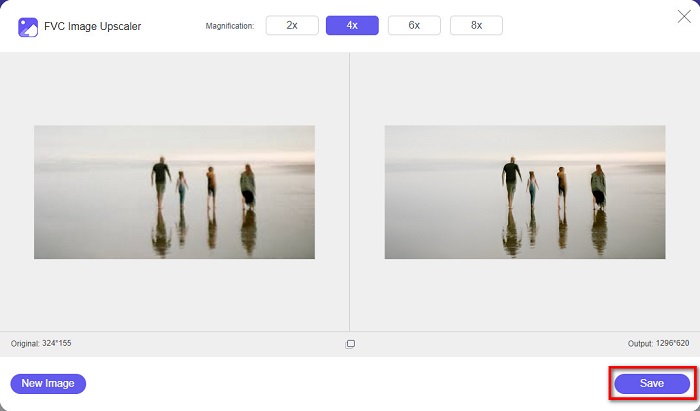
Ja siinä se! Voit nyt katsella kuvaasi korkealaatuisena tietokoneellasi.
Osa 2. Kuvanlaadun parantaminen Photoshopissa
Meillä on mitä haluat, jos haluat käyttää ammattimaista työkalua kuvanlaadun parantamiseen. Tämä osa opettaa sinulle, kuinka voit parantaa valokuvien laatua Adobe Photoshopilla.
Adobe Photoshop on ammattilaistason muokkaussovellus, jolla voit parantaa kuvan laatua. Adobe Photoshopissa on monia työkaluja kuvien muokkaamiseen. Lisäksi monet ammattilaiset käyttävät tätä työkalua, koska siinä on runsaasti toimintoja. Sovelluksella saa myös erittäin korkealaatuisia lopputuloksia, joita voi jakaa sosiaalisessa mediassa tai verkkosivuilla. Adobe Photoshop on lisäksi yksi Adoben parhaista tuotteista, ja sen voi ladata lähes kaikille alustoille. Tällä muokkaussovelluksella voit suunnitella esimerkiksi logoja, bannereita ja esitteitä. Monet käyttäjät eivät kuitenkaan tiedä, että sillä voi myös parantaa kuvan laatua. Toisaalta monet kokevat tämän työkalun käytön hankalaksi, koska sen käyttöliittymä on vaikeahko ja ohjelma on melko kallis.
Vaiheet kuvanlaadun parantamiseksi Photoshopissa:
Vaihe 1. Lataa ensin Adobe Photoshop tietokoneellesi. Seuraa asennusohjeita ja avaa sitten sovellus.
Vaihe 2. Mene päänäkymässä kohtaan File > Open ja valitse kuva, jonka laatua haluat parantaa.
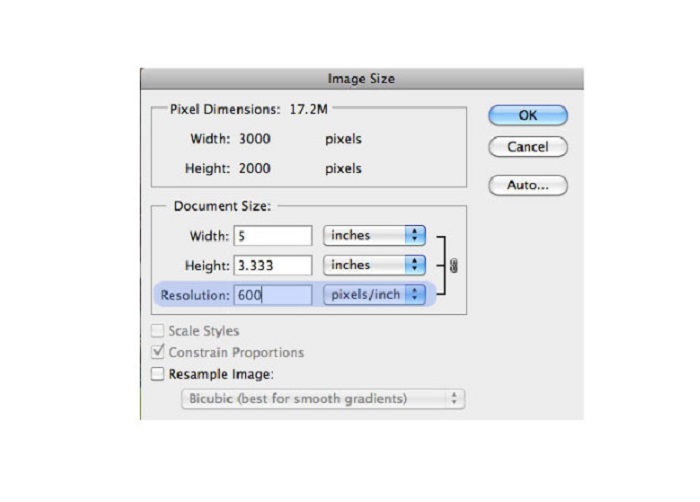
Vaihe 3. Siirry sitten kohtaan Image > Image Size. Esille avautuu valintaikkuna, jossa poistat valinnan Resample Image -ruudusta, jotta vain kuvan resoluutio muuttuu. Kirjoita sen jälkeen resoluutio-kenttään kuvalle haluamasi tarkkuus.
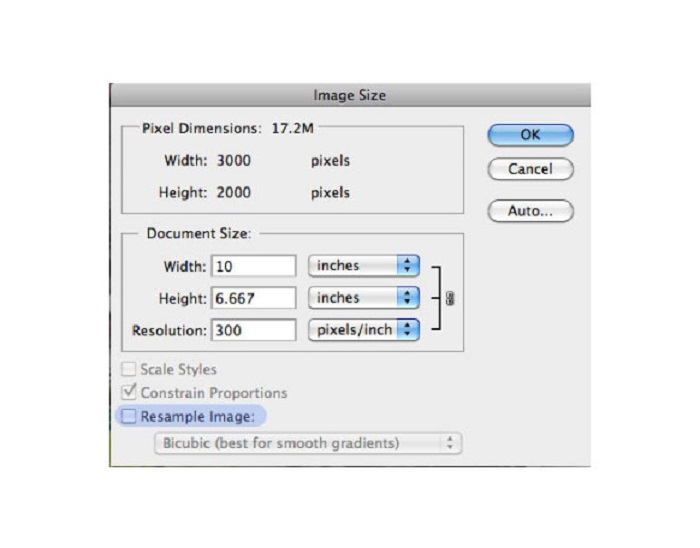
Vaihe 4. Kun muutat Resolution-asetusta, myös kuvan Width and Height muuttuvat. Napsauta sitten OK-painiketta tallentaaksesi kuvaan tekemäsi muutokset. Näin voit muuntaa matalan resoluution kuvat korkearesoluutioisiksi.
Osa 3. Valokuvan laadun parantaminen iPhonessa
Jotkut sovellukset voivat parantaa heikkolaatuista kuvaasi, jos käytät iPhonea. Vaikka AppStoresta on saatavilla monia valokuvien tehostamissovelluksia, valitsimme niistä tunnetuimman. Lue tämä osa oppiaksesi parantamaan valokuvan laatua iPhonessa.
Remini on yksi parhaista sovelluksista, joilla voit parantaa heikkolaatuisia kuvia. Tällä erinomaisella sovelluksella on yksinkertainen käyttöliittymä, joten sitä on helppo käyttää. Lisäksi se hyödyntää tekoälyä, joka tunnistaa automaattisesti kuvan sumeat kohdat. Sovellus on myös turvallinen käyttää, joten tiedostosi ovat turvassa. Haittapuolena on, että sinun täytyy katsoa mainos nähdäksesi ja ladataksesi tuloksen, ellei sinulla ole täysversiota, jolla voit ladata tulokset ilman mainoksia.
Kuinka parantaa kuvanlaatua iPhonessa Remini-sovelluksella:
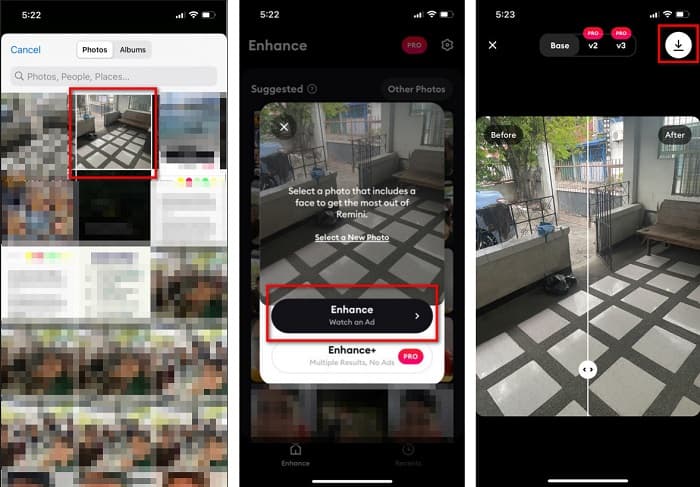
Vaihe 1. Lataa Remini-sovellus App Storesta. Avaa sovellus latauksen jälkeen puhelimessasi.
Vaihe 2. Valitse sitten sovelluksen päänäkymästä kuva, jonka haluat suurentaa.
Vaihe 3. Napauta seuraavaksi Enhance-painiketta parantaaksesi kuvan laatua. Jos käytössäsi on sovelluksen Pro-versio, sinun ei tarvitse katsoa mainosta. Muussa tapauksessa sinun on katsottava mainos, ennen kuin voit nähdä ja tallentaa tuloksen.
Vaihe 4. Nyt voit tarkastella parannettua kuvaa. Napauta sitten näytön oikeassa yläkulmassa olevaa Download-kuvaketta. Ja siinä kaikki – näillä helpoilla vaiheilla voit parantaa kuvan laatua.
Osa 4. Usein kysyttyä valokuvien laadun parantamisesta
Onko olemassa sovellusta, joka voi parantaa kuvanlaatua Androidilla?
Paranna valokuvalaatua -työkalu on yksi parhaista kuvanlaadun parantamissovelluksista kuvanlaadun parantamiseksi. Kuvan käyttäminen Beautifying Effects antaa kuvallesi ammattimaisen ilmeen.
Kuinka parantaa valokuvien laatua Lightroomissa?
Adobe Lightroom on toinen Adoben tuote, jolla voit parantaa kuvan resoluutiota. Lue alla olevat yksinkertaiset vaiheet oppiaksesi, miten kuvan laatua voi parantaa Lightroomissa. 1. Lataa Adobe Lightroom tietokoneellesi. 2. Avaa sitten kuva Lightroomissa. 3. Napsauta Choose Photo > Enhance. 4. Valitse seuraavaksi Super Resolution ja napsauta Enhance. 5. Tämän jälkeen näet, että Lightroom kasvattaa kuvan resoluutiota ja tallentaa sen DNG-tiedostona.
Vaikuttaako se tiedoston kokoon, jos muutat kuvaasi?
Tulostustarkkuuden muuttaminen ei muuta kuvan pikselien määrää eikä vaikuta kuvan kokoon.
Johtopäätös
Kuvan laadun parantaminen on helppoa, etenkin nyt kun sinulla on selkeä ohje. Lisäksi saatavilla on monia tietokone- ja iPhone-sovelluksia, joilla voit suurentaa kuvaa. Jos kuitenkin haluat käyttää ilmaista kuvan suurennustyökalua, joka parantaa sumean kuvan automaattisesti, käytä FVC Free Image Upscaler -palvelua nyt.
-
 5 tapaa B612-vesileiman poistamiseen parhaiden työkalujen avulla
 Haluatko tietää, kuinka B612-vesileimat poistetaan valokuvistasi? Voit poistaa B612-vesileiman vaivattomasti kuvistasi näiden erinomaisten työkalujen avulla.
-
 Helppoja vaiheita WOW Slider -vesileiman poistamiseen [Ratkaistu]
 WOW Slider on sovellus upean diaesityksen luomiseen. Se upottaa kuitenkin vesileimat tuotteeseensa. Lue alta, kuinka voit poistaa WOW Slider -vesileiman.
-
 Helppoja menetelmiä ampumisenkestävän vesileiman poistamiseen
 Poista Shootproof vesileima noudattamalla näitä helppoja menetelmiä. Käytä näitä upeita vesileimanpoistoaineita poistaaksesi Shootproof-vesileiman kuvastasi helposti.
