


 Video Converter Ultimate
 Näytön tallennin
 Videon korjaus
 Suojattu lataus
Poista esine valokuvista 6 tehokkaalla ohjelmistolla [ilmainen]
Miljoonat valokuvaajat, myös aloittelevat, ottavat useita kuvia auringonlaskuista, rannoista, turistinähtävyyksistä, kuusta ja monista muista maisemista. Kuvien avulla voimme ilmaista, keitä todella olemme. Yhdellä yksinkertaisella otoksella voit herättää kaikkien luovuuden ja heidän sisäisen taiteilijansa. Aina emme kuitenkaan onnistu saamaan täydellistä kuvaa; joskus on poistettava jokin tietty kohde, jonka et halua näkyvän ottamassasi valokuvassa. Tarvitsetko työkalun, jolla voit poistaa kohteita valokuvista? Tässä esittelemme erilaisia tapoja ja työkaluja, joilla voit välittömästi poistaa tarpeettomat objektit ottamastasi kuvasta.

Osa 1. Poista esine valokuvasta käyttämällä parasta objektinpoistajaa [verkkopalvelu]
FVC Free Watermark Remover on ensisijainen valintamme, kun haluat poistaa esineitä valokuvista ilmaiseksi verkossa. Sen avulla voit pyyhkiä hetkessä pois kaiken, mikä häiritsee täydellistä kuvaasi, ilman että ohjelmistoa tarvitsee ladata tietokoneelle, vaikka sinulla ei olisi lainkaan kokemusta tällaisesta editoinnista. Voit luottaa tähän työkaluun, sillä sinun tarvitsee vain korostaa poistettava kohde, ja se poistaa objektin kuvasta jättämättä jäänteitä. Pidämme tätä työkalua viihdyttävänä ja tehokkaana tarpeettomien asioiden poistossa; jos haluat käyttää sitä, kopioi alla antamamme vaiheet.
Vaihe 1. Avaa kuvasi ja poista FVC-kehitys napsauttamalla tätä linkkiä viralliselle sivustolle.
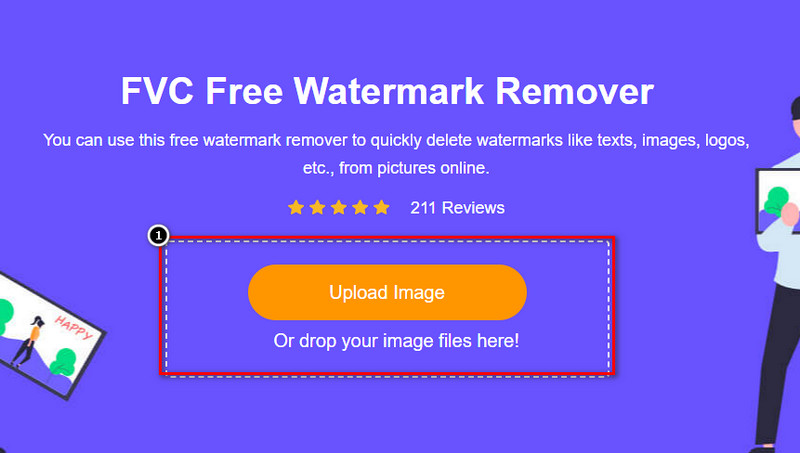
Vaihe 2. Napsauta Upload Image tuodaksesi kuvan, jossa on tarpeeton objekti.
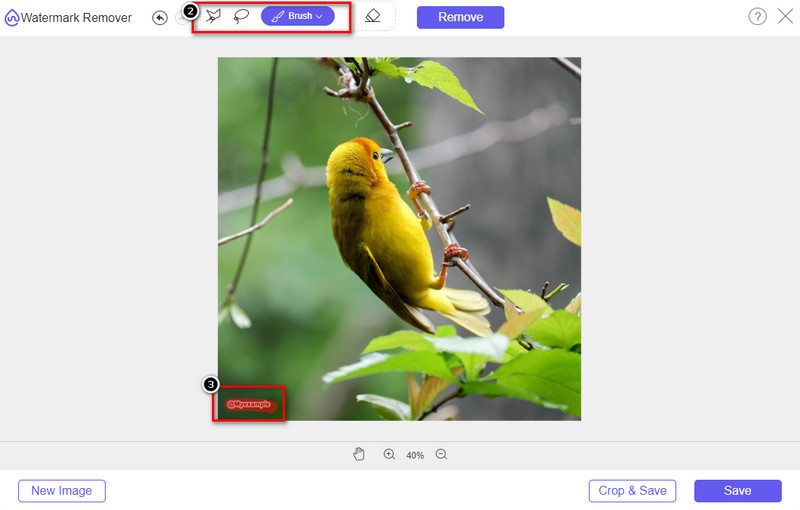
Vaihe 3. Korosta poistettava kohde käytettävissä olevilla työkaluilla.
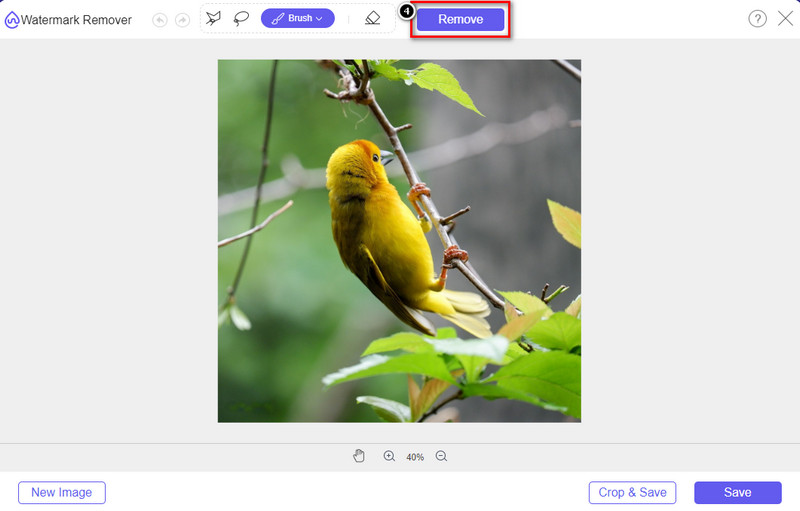
Vaihe 4. Paina Remove-painiketta poistaaksesi objektin hyödyntäen työkalun tukemaa tekoälyteknologiaa.
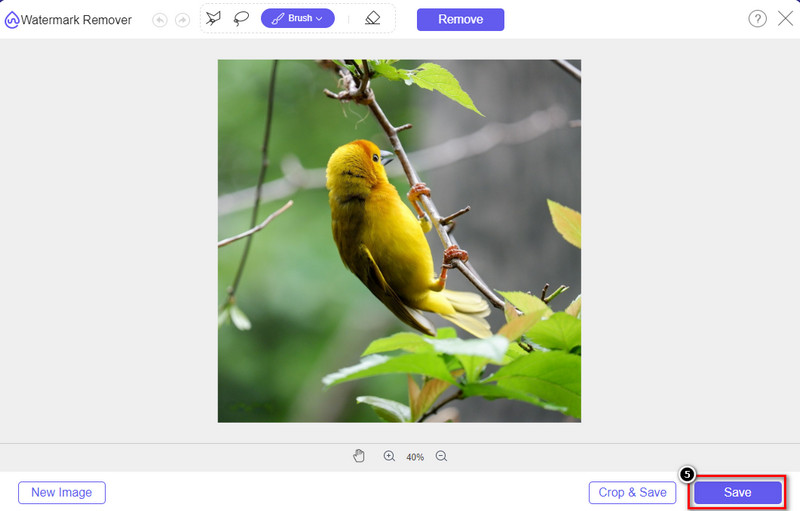
Vaihe 5. Lataa täällä muokkaamasi täydellinen kuva napsauttamalla Save.
Osa 2. Poista esine valokuvasta ammattimaisesti käyttämällä työpöytäohjelmia [Windows ja Mac]
Photoshop
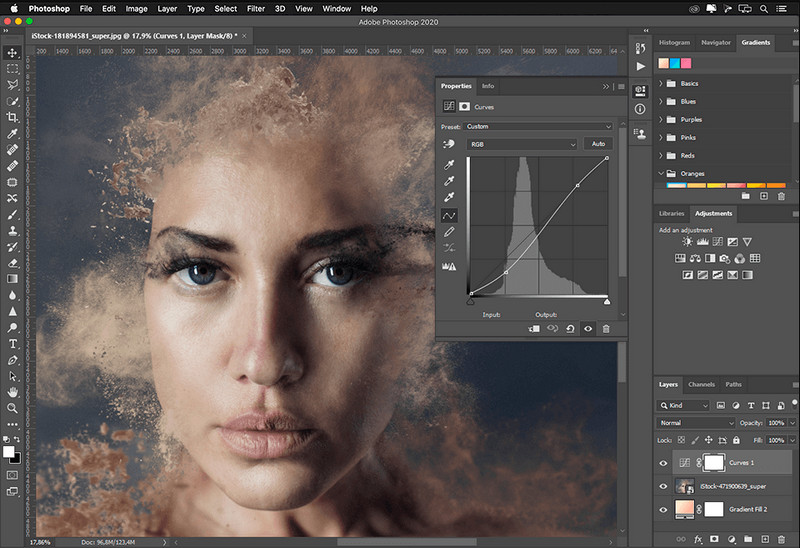
Jos tarvitset ammattimaisen työkalun esineiden poistamiseen valokuvista, Photoshop on vastaus! Tämä työkalu on täydellinen kuvankäsittelyohjelma, jonka Adobe ylpeänä esittelee meille. Mikään ei estä sinua saamasta kuvaa näyttämään uskomattomalta sen ominaisuuksien ja toimintojen ansiosta. Koska se on suosittu ammattilaisten keskuudessa, monet aloittelijat yrittävät käyttää tätä ohjelmistoa kuvien muokkaamiseen ja luomiseen. Joten, jos haluat tietää kuinka käyttää tätä ammattityökalua, voit seurata alla olevaa opetusohjelmaa.
Vaihe 1. Avaa Adoben virallinen verkkosivusto ja lataa Photoshop tietokoneellesi.
Vaihe 2. Napsauta File ja valitse Open ladataksesi kuvan, jota haluat muokata.
Vaihe 3. Valitse vasemmasta reunasta Magic Wand Tool jäljittääksesi automaattisesti kuvassa olevan kohteen.
Vaihe 4. Siirry Edit-valikkoon ja valitse sen alta Content-Aware Fill.
Vaihe 5. Kun avaat toiminnon, se poistaa automaattisesti vesileiman; napsauta sitten OK.
LINKUTTAA
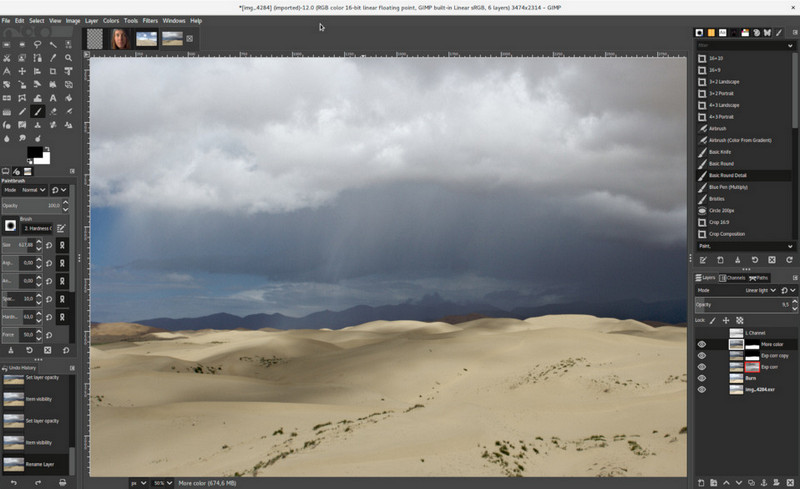
GIMP on monipuolinen kuvankäsittelyohjelma, jolla voit poistaa objekteja valokuvista ilmaiseksi Macilla, Linuxissa ja Windowsissa. Se on luotettava työkalu, aivan kuten Photoshop. Vaikka työkalu on noussut kärkeen, kun puhutaan Adobe Photoshopin vaihtoehdoista, sen kehitys on edelleen aktiivista. Tällä ohjelmalla voit muokata kuvia perusteellisesti, jotta niistä tulee katsojille visuaalisesti houkuttelevia. Voit myös mukauttaa käyttöliittymää helpottaaksesi työskentelyä. Jos harkitset tämän työkalun lataamista ammattilaistason editointiin, voimme vakuuttaa, että se on mahdollista saavuttaa. Vaikka se on avoimen lähdekoodin editori, työkalu ei ole vielä täysin viimeistelty, sillä sen graafinen käyttöliittymä on yhä kehitysvaiheessa. Jos haluat käyttää sitä, alla olevat vaiheet opastavat sinua objektin poistamiseen valokuvasta GIMPissä. Alla annetut vaiheet toimivat oppaana.
Vaihe 1. Lataa ja käynnistä ohjelma, jotta voit tuoda muokattavan kuvan. Lataa myös sen lisäosa, Resynthesizer-lisäosa.
Vaihe 2. Valitse vasemman reunan työkaluista Free Select ja vaihda tilaksi Add Current Selection.
Vaihe 3. Piirrä nyt sen kohteen ympärille, jonka haluat poistaa; kun olet onnistuneesti rajannut objektin, paina näppäimistöltäsi Enter.
Vaihe 4. Käyttääksesi lataamaasi lisäosaa, siirry valikkoon Filter, sitten Enhance ja napsauta Heal Selection.
Vaihe 5. Kun valintaikkuna tulee esiin, muuta tarvittaessa näytteenottoleveyttä, aseta näytteenottotavaksi all-around ja Filling the Order -asetukseksi random. Paina OK käynnistääksesi objektin synteesin kuvan sisällä.
Photo App Macissa
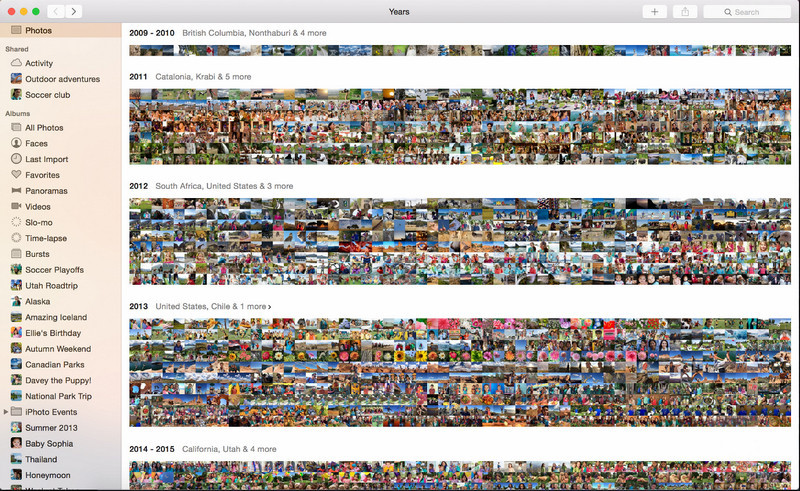
Photo App on Applen päivitettyihin laitteisiin, kuten Maciin, sisäänrakennettu ominaisuus. Sovellus on esiasennettuna, joten voit ohittaa latausvaiheen ja käyttää sitä heti. Ohjelma ei ole varsinainen kuvankäsittelytyökalu, sillä sen tarkoitus on toimia Macin tai iOS-laitteiden valokuvakirjastona ja katseluohjelmana. Vaikka sinulla ei olisi ammattilaistason editoria Macilla, voit hyödyntää näitä ominaisuuksia saadaksesi ammattimaisen lopputuloksen yhdellä napsautuksella. Jos siis haluat poistaa objektin Photo App -sovelluksessa, voit noudattaa alla annettuja vaiheita.
Vaihe 1. Avaa Kuvat-sovellus Macilla ja valitse kuva, jossa on tarpeeton objekti.
Vaihe 2. Napsauta oikeassa yläkulmassa olevaa Edit-painiketta aloittaaksesi kuvan muokkauksen.
Vaihe 3. Oikeasta reunasta löydät Retouch-vaihtoehdon; napsauta sitä käyttääksesi toimintoa.
Vaihe 4. Napsauta ja vedä hiirtä sen alueen yli, jonka haluat poistaa.
Vaihe 5. Paina Done-painiketta tallentaaksesi kuvaan tekemäsi muutokset.
Osa 3. Poista esine valokuvasta Android- ja iOS-sovelluksen avulla
Photoshop FIX
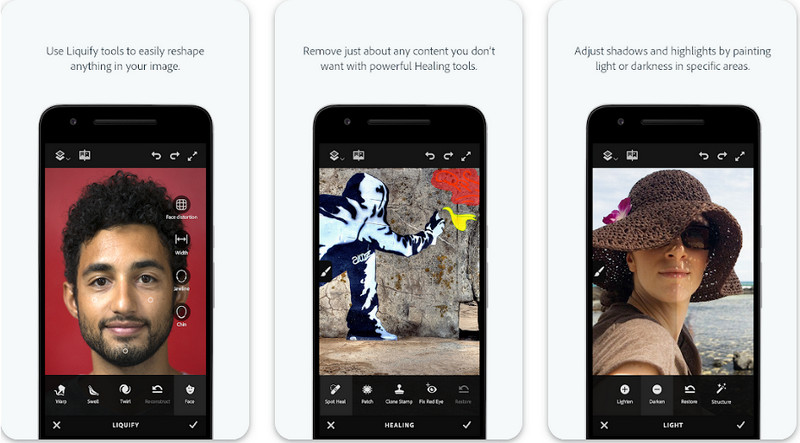
Photoshop FIX on tehokas Android-sovellus, jolla voi poistaa objekteja valokuvista ammattimaisesti, mutta silti helposti. Se on avoimen lähdekoodin sovellus, jonka voit ladata laitteellesi avaamalla Play Storen. Vaikka sovellus on avoimen lähdekoodin, sen objektien poistoominaisuus on kiistatta erinomainen. Se on yksi ladatuimmista Android-sovelluksista tämän tehtävän toteuttamiseen. Jos haluat oppia käyttämään tätä sovellusta, jatka lukemista alla.
Vaihe 1. Lataa sovellus Android-laitteellesi.
Vaihe 2. Paina On My Phone -vaihtoehtoa, jotta kaikki kirjastossasi olevat kuvat tulevat näkyviin. Valitse kuva, jota haluat muokata.
Vaihe 3. Käyttääksesi sovelluksen objektinpoistotoimintoa, napsauta Healing.
Vaihe 4. Voit käyttää kahta vaihtoehtoa poistaaksesi kohteen. Jos haluat harjata objektin pois, valitse Spot Heal. Jos taas haluat kloonata pikseleitä, valitse Clone Stamp. Korosta vesileima valitsemallasi työkalulla.
Vaihe 5. Tallenna kuva kameran rullaan – siinä kaikki!
Valokuvan retusointi
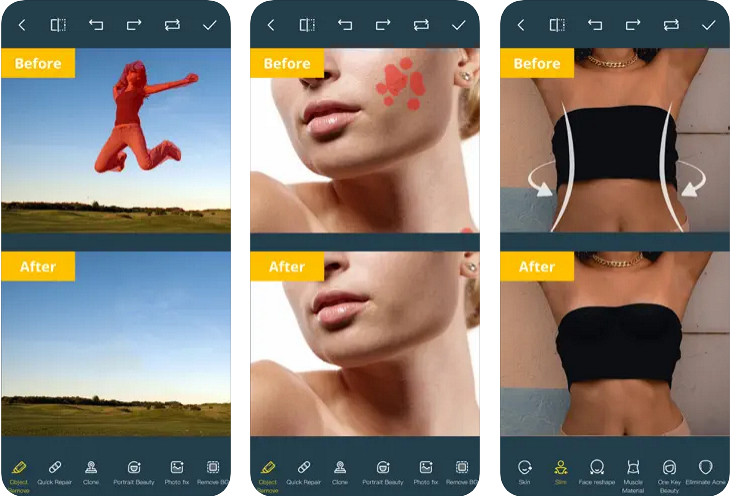
Photo Retouch on luotettava sovellus objektien poistamiseen valokuvista iPhonella vaivattomasti. Vaikka et olisi kokenut poistamaan objekteja kuvistasi, voit tehdä sen tehokkaasti. Voit ladata tämän sovelluksen ilmaiseksi App Storesta, jos haluat kokeilla sitä. Lisäksi voit poistaa kuvan taustan ja vesileiman, jos tarvitset tällaisia toimintoja. Kun olet valmis käyttämään sovellusta poistaaksesi objektin kuvastasi, seuraa lisäämiämme vaiheita.
Vaihe 1. Lataa virallinen sovellus ja käynnistä se.
Vaihe 2. Napsauta Photo Eraser ja sitten Photo. Valitse kuva, josta haluat poistaa tarpeettoman taustan, ja varmista, että kuva on iPhonesi Kuvat-kirjastossa.
Vaihe 3. Valitse alareunasta Object Removal -vaihtoehto.
Vaihe 4. Käytä sovelluksen tarjoamaa sivellintä jäljittääksesi poistettavan objektin ja napsauta GO poistaaksesi kohteen.
Aiheeseen liittyvää:
Poista Picsart-suodattimen vesileima
Osa 4. Usein kysyttyä objektien poistamisesta valokuvista
Miksi minun täytyy poistaa esineitä valokuvista?
On paljon aikaa, kun kuvaamme jotain, ja on olemassa Photobombereja. Tämä objekti on ongelma useimmille muiden ihmisten ammattilaisille, koska se ei korosta kuvaamaasi kuvaa. Joten sen sijaan, että otat kuvan uudelleen, voit lukea seuraavat ihanteelliset tavat poistaa esine valokuvasta.
Voinko rajata kuvan pois esineiden poistamiseksi?
Kyllä sinä voit. Jos objekti, jonka haluat poistaa, on valokuvan sivusta, voit yrittää rajata kuvaa sisäänrakennetulla editorillasi. Tämä valinta ei kuitenkaan ole vaihtoehto, varsinkaan jos kohde on keskellä tai lähellä kuvaamaasi kuvaa. Kuvan rajaaminen leikkaa kuvan pois, joten on parempi harkita kahdesti, jos haluat kokeilla tätä vaihtoehtoa.
Miksi en voi ladata kuvaa objektin poistamiseksi?
Et voi ladata kuvaa; joko kuva on vioittunut tai kuvalaajennusta ei tueta. Jos kuvasi on vioittunut, on olemassa tapoja korjata se. Löydät ne verkosta, jos etsit sitä. Yleensä se voi olla kuvan tiedostopääte; ratkaistaksesi tämän ongelman, sinun on muunnettava se.
Johtopäätös
Esineiden poistaminen valokuvasta on helppoa tässä artikkelissa käyttämämme työkalun ja sovelluksen ansiosta. Joten mistä työkalusta pidät eniten? Toivomme, että tämä lisäämämme opas auttaa sinua ratkaisemaan ongelman helposti.
-
 Kuinka muuntaa matalan resoluution kuva korkearesoluutioiseksi verkossa
 Jos haluat oppia muuttamaan matalaresoluutioisia kuvia korkearesoluutioisiksi kuviksi verkossa, tämä artikkeli on sinua varten. Lue kokonaan oppiaksesi kuinka.
-
 Helppoja menetelmiä ampumisenkestävän vesileiman poistamiseen
 Poista Shootproof vesileima noudattamalla näitä helppoja menetelmiä. Käytä näitä upeita vesileimanpoistoaineita poistaaksesi Shootproof-vesileiman kuvastasi helposti.
-
 Bandicam-vesileiman poistaminen vaivattomasti [3 tehokasta tapaa]
 Kuinka poistaa Bandicam-vesileima? Työkalujen avulla lisäämme tähän, tiedät kuinka käsitellä sitä tehokkaasti!
