


 Video Converter Ultimate
 Näytön tallennin
 Videon korjaus
WebM-tiedoston muunnosprosessi MOV:ksi: vaivattomat menetelmät, jotka sinun pitäisi tietää
Mitä tulee tuotantoon ja suoratoistoon, kaikki videomuodot eivät ole yhteensopivia kaikkien digitaalisten alustojen kanssa. Kun yrität syöttää, tuottaa, ladata tai ladata asiaankuuluvia tiedostoja, tämä voi aiheuttaa suuria ongelmia. Esimerkiksi Apple ei käytä perinteisiä selaimia, joista olemme aikoinaan kasvaneet – sillä on oma alusta nimeltään Safari. Tästä syystä vain Google Chromen, Mozilla Firefoxin, Operan ja Microsoft Edgen tukemat videomuodot eivät ole aina Mac-käyttäjien saatavilla selaimella.
Yksi tällaisista on WebM‑video, joka on HTML5:lle suunniteltu avoin videopakkausformaatti. Mac‑käyttäjänä tarvitset sen katsomiseen kolmannen osapuolen mediasoittimen. Jos kuitenkin haluat toistaa videosi vaivattomasti, tarvitset MOV‑tiedostomuodon, sillä se on Applen oma kehittämä formaatti Apple QuickTime Playerille. Toisin sanoen sinun on muunnettava WebM MOV‑muotoon Macillasi, ja tässä artikkelissa esittelemme siihen parhaat keinot.
Osa 1. Yleiskatsaus: WebM ja MOV
Jos olet jo pitkään ollut alttiina videoiden kuluttamiselle ja suoratoistolle, olet täytynyt katsoa paljon eri muotoisia videoita eri alustoilla. Olet ehkä joskus miettinyt, mitä nämä tiedostopäätteet edustavat tai miten ne eroavat toisistaan. Olet varmasti yrittänyt toistaa tietyn videon selaimessasi, mutta se ei tee niin sanoen, että sitä ei tueta. Esimerkiksi WebM:ää tukevat vain useat nykyaikaiset selaimet, kuten Chrome, Firefox ja Edge, koska se on tyypillisesti upotettu verkkosivuille HTML5:n avulla.
Osa 2. Paras muunnin, joka auttaa muuttamaan WebM:n MOV:ksi
Videotiedostojen muuntaminen ei ole niin vaikeaa kuin saattaisit luulla. Vaikka tarjolla on lukuisia ohjelmistoja ja työkaluja, yksi niistä hoitaa tehtävän nopeasti ja helposti. FVC Video Converter Ultimate on ilmaiseksi ladattava ohjelma, joka säästää sinut netin läpi kahlaamiselta parasta muunninta etsiessäsi. Haluamme tuoda parhaan ratkaisun suoraan sinulle. Sinun ei tarvitse huolehtia muunnettavan videon muodosta, sillä tämä ohjelma tukee monia eri formaatteja ja tarjoaa lisäksi runsaasti vaihtoehtoja videon muokkaamiseen varsinaisen muunnoksen aikana. Toimi seuraavien ohjeiden mukaan käyttääksesi ohjelmaa:
Vaihe 1: Ennen muunnosprosessia sinun on ensin ladattava ohjelma, minkä voit tehdä napsauttamalla Free Download ‑painiketta. Voit valita Windows‑ tai Mac‑version. Tässä tapauksessa valitse For Mac OS. Odota, että .exe‑tiedosto latautuu valmiiksi, ja avaa se, kun lataus on valmis, aloittaaksesi asennuksen.
Vaihe 2: Kun ohjelma on asennettu, käynnistä se; näet käyttöliittymän. Kun ohjelma käynnistyy, päädyt automaattisesti Converter‑välilehdelle. Ellei näin käy, napsauta kyseistä välilehteä.
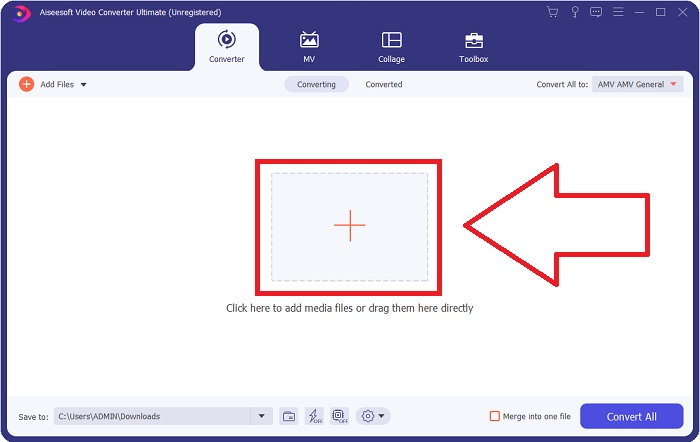
Vaihe 3: Käyttöliittymän keskellä on +‑painike, jota napsauttamalla voit tuoda muunnettavan videotiedoston. Voit myös vetää ja pudottaa videoita vaivattomasti.
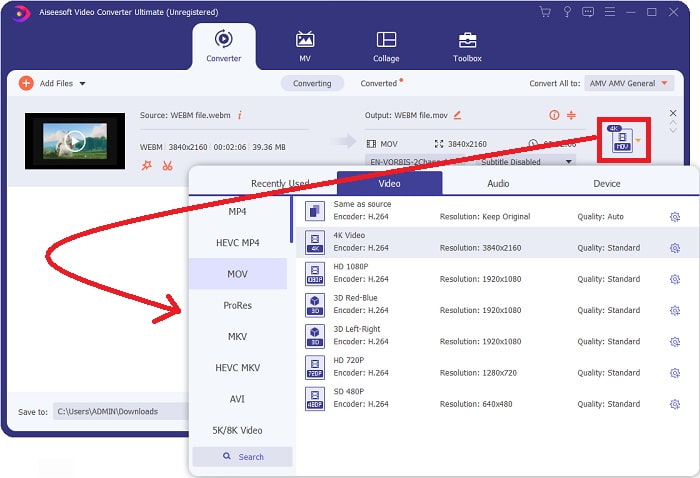
Vaihe 4: Kun videosi on tuotu onnistuneesti, avautuu toinen näkymä. Siellä näet oikeassa reunassa videon nykyisen formaatin. Sen vieressä on avattava valikko; napsauta sitä, jolloin näkyviin tulee useita vaihtoehtoja. Voit valita videollesi minkä tahansa muunnosmuodon, mutta tässä tapauksessa valitse MOV. Voit valita myös resoluution ja äänenlaadun. Lisäasetuksia varten napsauta laatua tai resoluutiota vastaavan vaihtoehdon vieressä olevaa hammasrataskuvaketta ja voit muokata videota tarkemmin tarpeidesi mukaan. Tallenna tekemäsi muutokset napsauttamalla Create New.
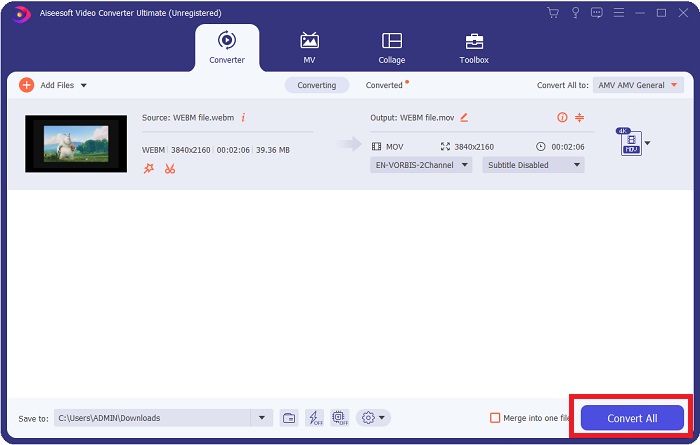
Vaihe 5: Kun olet valmis ja tyytyväinen tekemiisi muutoksiin, etsi Convert All ‑painike käyttöliittymän oikeasta alakulmasta ja napsauta sitä viedäksesi muunnetun videosi.
Osa 3. Bonusvinkit: Muut online-muuntimet, jotka muuntavat WebM:n MOV:ksi
Tapa 1: Käytä ilmaista muuntamista
Jos et halua enää ladata ohjelmistoa ja vain jatkaa muunnosprosessia, voimme näyttää sinulle vaihtoehtoja tälle. Tämä tehdään puhtaasti verkossa, mutta silti se tarjoaa sinulle ominaisuudet, joita tarvitset muokkaustarpeisiisi. Jos haluat vaivattoman menetelmän, tämä verkkotyökalu on yksi tapa edetä.
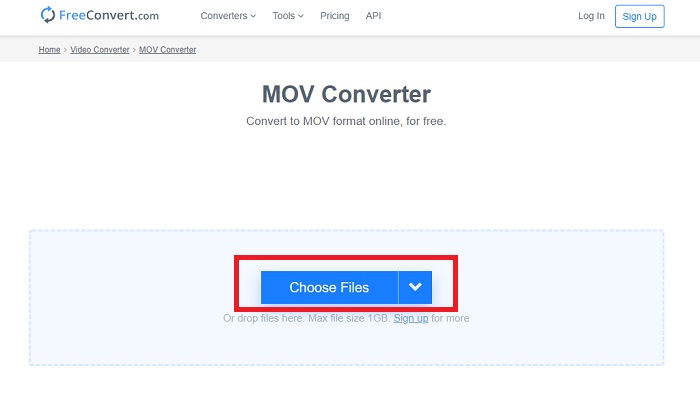
Vaihe 1: Siirry palvelun sivulle, ja näet käyttöliittymän, jonka keskellä on Choose Files ‑painike. Napsauta sitä tuodaksesi muunnettavan videotiedoston.
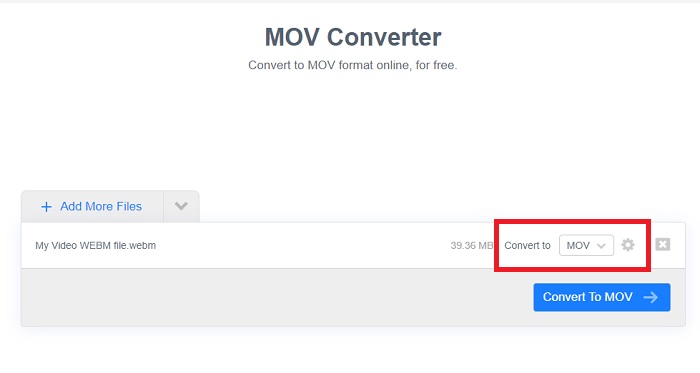
Vaihe 2: Aivan kuten itse ohjelmassa, näet videon nykyisen formaatin oikealla, ja sen vieressä on avattava valikko. Napsauta sitä ja valitse se muoto, johon haluat videon muunnettavan. Lisäasetuksia varten napsauta hammasrataskuvaketta ja muokkaa videota tarkemmin. Napsauta Apply Settings ‑painiketta säilyttääksesi tekemäsi muutokset.
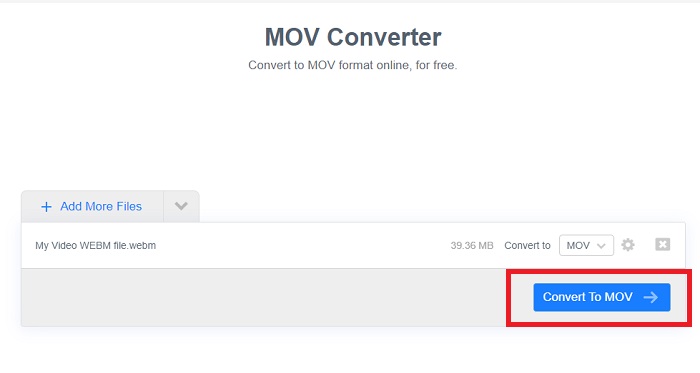
Vaihe 3: Kun olet valmis kaikkien muutosten kanssa, voit aloittaa muunnoksen napsauttamalla alla olevaa Convert to MOV ‑painiketta ja odottamalla prosessin valmistumista. Tämän jälkeen voit viedä muunnetun videon napsauttamalla Download MOV.
Tapa 2: Käytä Cloud Convert
Tämä verkkotyökalu tarjoaa sinulle muutaman lisävaihtoehdon, kun muunnat WebM-tiedoston MOV-muotoon verkossa. Et voi muokata vain resoluutiota tai äänenlaatua, vaan myös fps:ää, tekstityksiä ja monia muita. Noudata näitä helppoja ohjeita käyttääksesi tätä online-muunninta:
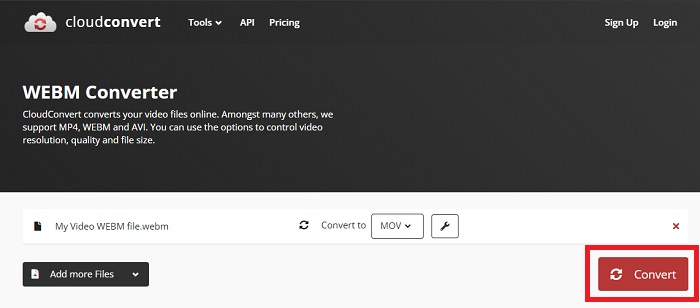
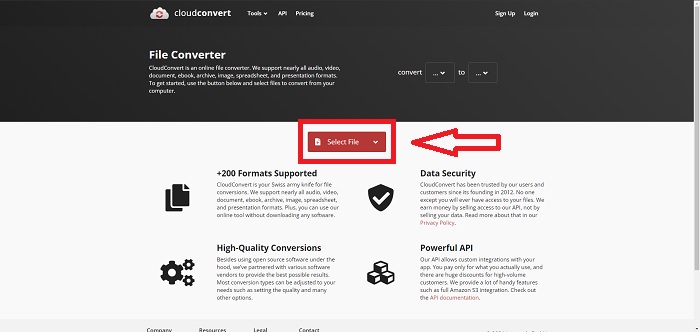
Vaihe 1: Tuo ensin muunnettava videotiedosto napsauttamalla sivun keskellä olevaa Select File ‑painiketta. Jos haluat muuntaa useita tiedostoja samanaikaisesti, napsauta Add more Files.
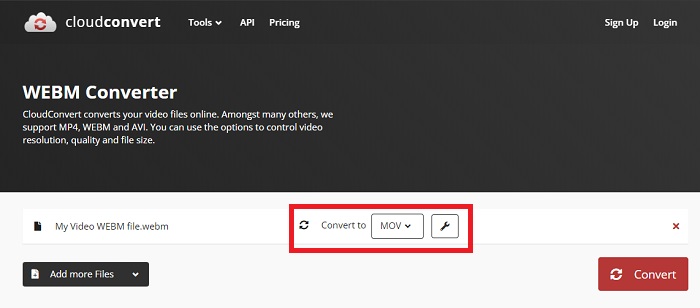
Vaihe 2: Tiedoston vieressä voit valita videoformaatin napsauttamalla avattavaa valikkoa. Napsauta myös jakoavaimen kuvaketta saadaksesi lisää vaihtoehtoja. Sieltä voit muokata videon ja äänen tiettyjä osa‑alueita. Napsauta lopuksi OK tallentaaksesi muutokset.
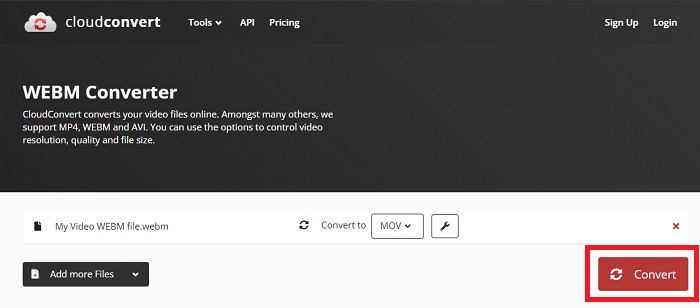
Vaihe 3: Kun olet tehnyt kaikki muokkaukset, napsauta punaisella korostettua Convert‑painiketta ja odota muunnoksen valmistumista. Lopuksi napsauta vihreällä korostettua Download‑painiketta viedäksesi valmiiksi muunnetun videosi.
Tapa 3: Käytä ZamZar Convertia
Tämä verkkotyökalu tarjoaa vähemmän vaihtoehtoja videollesi, koska se muuntaa vain video- ja äänimuodon. Se kuitenkin saa työn tehtyä nopeammin kuin muut mainitut menetelmät. Voit käyttää tätä online-muunninta noudattamalla annettuja ohjeita:
Vaihe 1: Sivun keskellä on vain kolme painiketta, joita käyttämällä videosi voidaan muuntaa. Napsauta ensin Add files tuodaksesi videotiedoston.
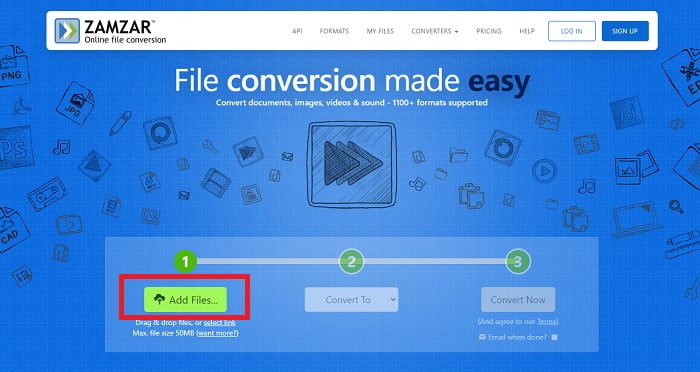
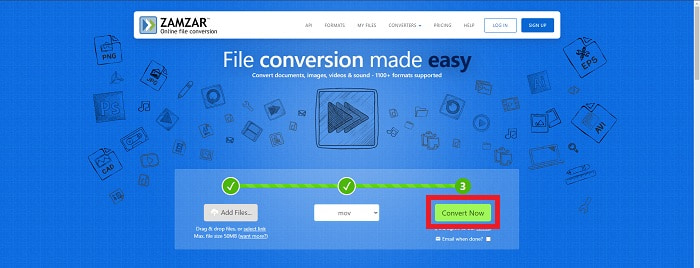
Vaihe 2: Toisella painikkeella voit valita videolle ja äänelle haluamasi formaatin. Tässä tapauksessa valitse MOV‑formaatti.
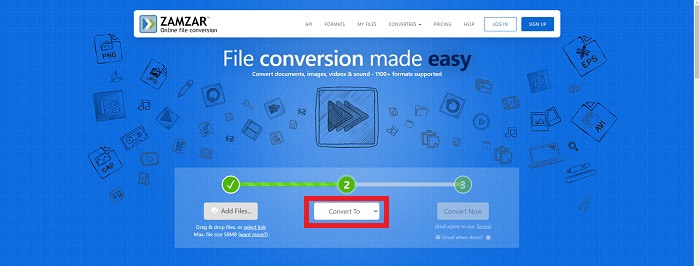
Vaihe 3: Lopuksi napsauta kolmatta ja viimeistä painiketta, Convert Now, aloittaaksesi varsinaisen muunnoksen ja odota, että se valmistuu. Kun prosessi on valmis, napsauta Download viedäksesi videosi lopullisesti tietokoneellesi.
Osa 4. Usein kysyttyä WebM:n muuntamisesta MOV:ksi
Mikä WebM-muoto oikein on?
WebM on verkkokohtainen avoin mediatiedostomuoto, joka sisältää VP8- tai VP9-videokoodekeilla pakattuja videovirtoja, Vorbis- tai Opus-äänikoodekeilla pakattuja äänivirtoja sekä WebVTT-tekstejä. WebM-tiedostorakenne perustuu Matroska-mediasäiliöön. Useimmat verkkoselaimet hyväksyvät WebM-tiedostot, koska niitä käytetään joskus HTML5-sivustoilla online-elokuvien toistamiseen. Esimerkiksi YouTube käyttää WebM Video -tiedostomuotoa kaikille sivullaan oleville videoille aina 360p:stä muihin erittäin korkealaatuisiin ominaisuuksiin. Wikimedia ja Skype ovat sama asia.
Mitä mediasoittimia tarvitsen WebM-videoiden toistamiseen, jos en halua muuntaa sitä MOV-muotoon?
Jos et halua käydä läpi koko muunnosprosessia WebM‑videosi toistamista varten, on olemassa vaihtoehto. Voit käyttää kolmannen osapuolen sovellusta eli niin sanottua monialustaista mediasoitinta. Muutamia tällaisia soittimia ovat VLC, KM Player, Media Player Classic, Winamp, jetAudio Basic, Moovidia, Persian ja XBMC; voit ladata ne niiden omilta sivustoilta ja toistaa WebM‑tiedostojasi.
Onko MOV korkea vai huonolaatuinen?
Videon toisto on melko korkealaatuista MOV-tiedostoilla. MOV on erityisen hyödyllinen, koska se voi sisältää sekamediaa, kuten kuvia, videoita ja 360 asteen animaatioita. Se sisältää myös kaikki video- ja äänitiedot. Tämä tekee tiedoston muokkaamisesta paljon yksinkertaisempaa.
Johtopäätös
On todellakin monia työkaluja, joiden avulla voit muuntaa videosi yhdestä muodosta toiseen riippumatta siitä, käytätkö ohjelmistoa tai verkkotyökalua, jonka löydät verkosta. Ne kulkevat kuitenkin edelleen käsi kädessä tarjoamiensa vaihtoehtojen tai mukavuuden suhteen. Jotkut vain tekevät työn valmiiksi ja jotkut tarjoavat erilaisia vaihtoehtoja, joista voit valita. Tämä artikkeli keskittyy tähän auttaakseen sinua tietämään, mitä sinun tulisi käyttää tarpeidesi mukaan. Siksi suosittelemme Video Converter Ultimatea eniten, sillä se tarjoaa kaikki lisävaihtoehdot, joita et ehkä koskaan tiedä milloin tarvitset sitä. On parempi, että tämä ohjelmisto on vierelläsi koko ajan, jotta vältyt vaivalta löytää muunnin verkosta aina, kun tarvitset sellaisen.
-
 Kuinka muuttaa GIF WebM -muotoon menettämättä tiedostojen laatua
 Muunna Gifit WebM-videomuotoon HTML5-videotunnisteen saamiseksi. Luota tähän alla olevaan työkaluun, jotta tiedät, mikä niistä on paras työhön.
-
 3 tapaa muuntaa WebM MP3:ksi menettämättä äänenlaatua
 Onko sinulla ongelma, koska WebM-tiedostoja ei voida käyttää tallentamaasi äänen toistamiseen? Lue sitten tämä artikkeli, sillä tarjoamme tehokkaan avun muuntamalla WebM MP3:ksi.
-
 3 Upea ohjelmisto, jota käytetään WebM-tiedoston muuntamiseen AVI-muotoon
 Eikö sinulla ole aavistustakaan kuinka WebM muunnetaan AVI:ksi? Aloitetaan sitten tämän artikkelin lukeminen. Kuten määritämme kaikki WebM:n tiedot ja kolme muuntajaa, joita voit käyttää muuntamiseen.
