


 Video Converter Ultimate
 Näytön tallennin
 Videon korjaus
 Suojattu lataus
MP4 - M4V - 4 tehokasta MP4 - M4V -muunninta, jota sinun ei pitäisi missata
Voitteko yksinkertaisesti vaihtaa tiedostopääte MP4: stä M4V: ksi suoraan? Mitkä ovat erot MP4: n ja M4V: n välillä? Kun nimeät MP4: n uudeksi nimeksi M4V, voit todennäköisesti toistaa M4V-tiedostot suurimmalla osalla mediasoitinta ilman mitään ongelmia. Mutta tiedostotunnisteen muuttaminen ei tosiasiallisesti muunna tiedostoa M4V: ksi. Vain lisätietoja artikkelista 4 tehokkaasta MP4-M4V-muuntimesta ja valitse haluamasi vastaavasti.

Vaihe 1: 4 tapaa muuntaa MP4 M4V: ksi Windows / Macissa
Tapa 1: Kuinka muuntaa MP4 M4V Online -palveluksi ilmaiseksi
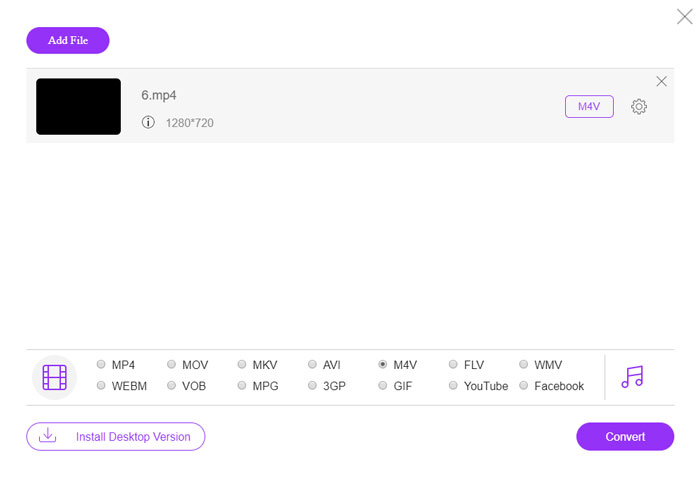
Kun haluat muuntaa MP4:n M4V:ksi verkossa ilmaiseksi ilman mitään rajoituksia, FVC Free Online Video Converter on monipuolinen videomuunnin, jolla voit muuntaa useimmat videoformaatit, säätää video- ja ääniasetuksia ja jopa säilyttää alkuperäisen videon laadun vaivattomasti.
- 1. Muunna MP4 M4V: ksi, AVI, MKV ja enemmän muita alkuperäisellä laadulla.
- 2. Säädä kehysnopeutta, videokoodekkia, videon laatua, äänikoodekkia ja muuta.
- 3. Tarjoa yksinkertainen ja intuitiivinen käyttöliittymä videotiedostojen muuntamiseksi napsautuksella.
- 4. Voit muuntaa videoita ilman vesileimaa, kokorajoituksia jne.
Vaihe 1. Siirry online-MP4–M4V-muuntimeen ja napsauta Add Files to Convert -painiketta ladataksesi MP4-tiedostot, jotka haluat muuntaa. Ensimmäisellä kerralla sinun on ladattava videomuuntimen asennusohjelma.
Lataa työpöytäversio muuntaaksesi tiedostoja erissä.

Vaihe 2. Valitse M4V-tiedostomuoto käyttöliittymästä. Kun haluat säätää videoasetuksia, voit mukauttaa videokooderin, tarkkuuden, videon bittinopeuden, kuvataajuuden, näytteenottotaajuuden ja paljon muita asetuksia tarpeidesi mukaan.

Vaihe 3. Tämän jälkeen voit napsauttaa Convert-painiketta muuntaaksesi MP4:n M4V:ksi. Halutun tiedoston luominen voi kestää muutaman sekunnin, minkä jälkeen voit tallentaa videon tietokoneellesi tai jakaa sen sosiaalisen median sivustoilla.
Tapa 2: Kuinka muuntaa MP4 M4V: ksi VLC Media Playerilla
VLC Media Player on avoimen lähdekoodin MP4-M4V-muunnin, jonka avulla voit muuntaa videoita Windowsissa ja Macissa. Se toimii useimmissa muodoissa ja koodekeissa, joiden avulla voit muuntaa videoita eri formaattien välillä. Tässä on yksityiskohtainen prosessi, jonka sinun pitäisi tietää.
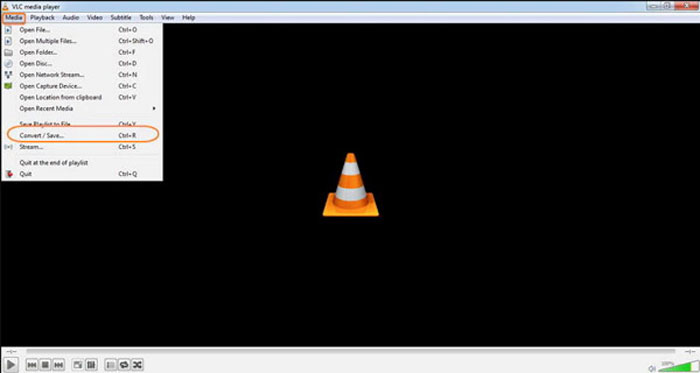
Vaihe 1. Avaa VLC Media Player tietokoneellasi, valitse Media-valikko ja napsauta Convert/Save-vaihtoehtoa siirtyäksesi Media-valintaikkunaan. Tämän jälkeen voit napsauttaa Add-painiketta selataksesi tiedostoja.
Vaihe 2. Kun olet tuonut videot, voit napsauttaa Convert/Save-painiketta tai painaa suoraan Enter-näppäintä. Sen jälkeen voit valita M4V:n tulostusmuodoksi ja säätää muita parametreja.
Vaihe 3. Valitse määränpään tiedostonimi muunnetulle ja tallennettavalle tiedostolle. Napsauta Browse-vaihtoehtoa valitaksesi sijainnin. Anna esimerkiksi nimi 'final' ja napsauta Save ennen kuin napsautat Start-painiketta muuntaaksesi MP4:n M4V:ksi.
Tapa 3: Kuinka muuntaa MP4 M4V: ksi FFmpegin kautta
FFmpeg on MP4 - M4V-muunnin, jonka avulla voit koodata videon koodekilla. Jos tunnet koodekin, voit vaihtaa videotiedostot alkuperäisellä laadulla. Opi vain lisätietoja menetelmästä MP4 muuntamiseksi M4V: ksi alla.
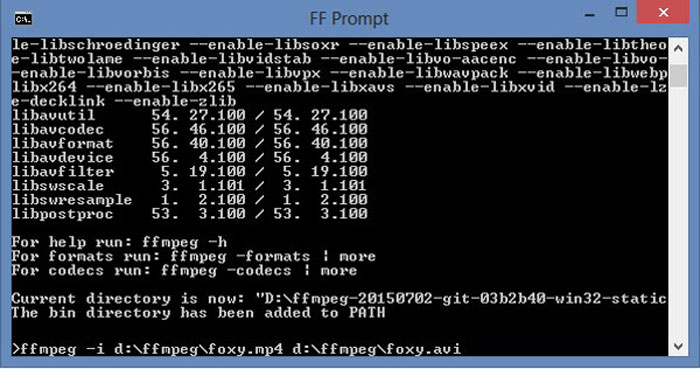
Vaihe 1. Avaa komentokehoteikkuna Windows-tietokoneellasi ja asenna FFmpeg komentorivillä asentaaksesi ilmaisen videomuuntimen. Siinä on kokonainen sarja komentorivejä videon transkoodausta varten.
Vaihe 2. Syötä seuraava komento muuntaaksesi MP4:n M4V:ksi. Lisäksi voit säätää videokoodekkia, kuvataajuutta ja muita asetuksia saadaksesi halutun videon.
ffmpeg \-i input.mp4 \
-vcodec copy \
-koodekinkopio \
lähtö. m4v
Tapa 4: Kuinka muuntaa MP4 M4V: ksi käsijarrulla
HandBrake on toinen avoimen lähdekoodin MP4-M4V-muunnin. Sen avulla voit vain koodata videotiedostot, mutta myös poistaa DRM-suojauksen Windowsissa ja Macissa. Tietysti voit myös purkaa videotiedostot DVD-levyltä vaatimuksesi mukaan.
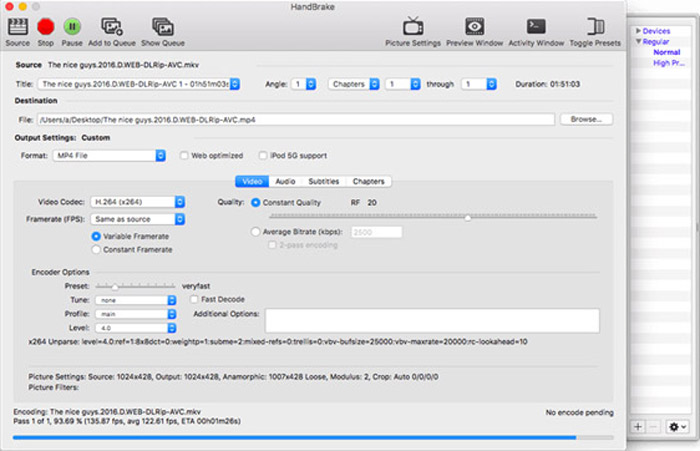
Vaihe 1. Lataa ja asenna HandBrake ja käynnistä ohjelma tietokoneellasi. Valitse ylhäältä Source-vaihtoehto lisätäksesi MP4-videot ohjelmaan.
Vaihe 2. Siirry Output Settings -asetuksiin ja valitse muodoksi MP4-tiedostot. Voit luonnollisesti myös säätää videokoodekkia, laatua, FPS:ää, bittinopeutta, esiasetusta ja muita koodausasetuksia.
Vaihe 3. Sen jälkeen voit napsauttaa Start-painiketta muuntaaksesi MP4:n M4V:ksi helposti. Kun saat halutut M4V-tiedostot, voit yksinkertaisesti tallentaa videot iTunesiin tai siirtää ne iOS-laitteille.
MP4 vs. M4V
Moving Picture Experts Groupin (MPEG) vuonna 2001 julkaisema MP4-muoto voi auttaa sinua tallentamaan video-, ääni-, tekstitys- ja kuvatiedot eri raidoille. Se on lyhenne sanoista MPEG-4 Part 14. Lisäksi se on yksi suosituimmista videoiden suoratoistoon ja jakamiseen käytetyistä muodoista.
M4V:n on kehittänyt Apple, joka käyttää myös MPEG 4:ää. M4V-tiedostoja käytetään usein Apple iTunes Storesta ladattujen videoiden, kuten musiikkivideoiden, TV-jaksojen jne. tallentamiseen. Jotkin M4V-tiedostot saattavat olla kopiosuojattuja, koska se käyttää Applen FairPlay DRM -tekijänoikeussuoja.
Vaihe 2: UKK MP4: n muuntamisesta M4V: ksi
1. Mitkä ovat erot MP4: n ja M4V: n välillä?
Aivan kuten edellä mainittiin, suurin ero MP4: n ja M4V: n välillä on DRM Fairplay -rajoitukset. M4V-tiedostomuoto on videokonttimuoto, jonka Apple on kehittänyt koodaamaan videotiedostoja iTunes Storessa. Kun haluat toistaa videoita iOS-laitteille tai MacBookille, voit muuntaa MP4: n M4V: ksi.
2. Voitteko käyttää samoja menetelmiä muuntaa M4V MP4: ksi?
Et. iTunes Store -kaupan DRM-suojauksen vuoksi et voi muuntaa M4V:tä suoraan MP4:ksi. Voit yksinkertaisesti vaihtaa MP4-tiedoston pääteeksi M4V, mikä toimii useimmissa mediasoittimissa. Mutta M4V-tiedostojen DRM-suojaus sallii videoiden toiston vain valtuutetulla laitteella. Suojauksen poistamiseen tarvitset ammattimaisen videomuuntimen.
3. Voinko muuntaa MP4: n M4V: ksi Macin QuickTime Playerilla?
Joo. Koska QuickTime Player ei tue M4V: tä lähtömuodona, kun sinun on muunnettava MP4 M4V: ksi QuickTime Playerilla, sinun on asennettava joitain laajennuksia, jotta haluttu video saadaan helposti MacBookiin ilmaiseksi.
Johtopäätös
Kun sinun on tuotava videoita iTunes-kirjastoon muille iOS-laitteille, sinun tulisi muuntaa MP4 M4V: ksi. Opi vain lisätietoja 4 yleisimmin käytetystä menetelmästä M4V-tiedostojen muuntamiseksi helposti. Jos sinun tarvitsee vain muuntaa MP4-videot verkossa alkuperäisellä videolaadulla, FVC Free Online Video Converter on paras vaihtoehto, jonka sinun tulisi ottaa huomioon.
-
 Kuinka muuntaa M4V MP4: ksi / ilman DRM: ää
 Tämä viesti on yksityiskohtainen opas muuntaa M4V MP4: ksi kaikille soittimille. Voit vaihtaa M4V: stä MP4: ksi, jopa suojatut M4V-tiedostot, jotta voit toistaa M4V-videoita rajoituksetta.
-
 Mikä on ero MP3: n ja MP4: n välillä
 MP3 tai MP4, mikä on parempi? Mitä eroa on MP3: lla ja MP4: llä? Tässä artikkelissa verrataan MP3: ta MP4: ään kaikilla näkökohdilla, joita voit kuvata.
-
 Kuinka muuntaa MP4 WMV: ksi Macille / Windowsille
 Tämä viesti jakaa miten MP4-video voidaan muuntaa WMV-muotoon Macissa tai Windowsissa. Tarjoamme sinulle myös useita vaihtoehtoja, mukaan lukien sekä työpöytäohjelmistot että verkkopohjaiset verkkomuuntimet. Oletko valmis tuntemaan parhaat MP4 - WMV -muunnostyökalut?

