


 Video Converter Ultimate
 Näytön tallennin
 Videon korjaus
 Suojattu lataus
3 parasta tapaa muuntaa PNG MP4:ksi [Quick Solutions]
Nykyään ihmiset innostuvat yhä useammin muuttamaan valokuviaan videoiksi, joihin voi lisätä tehosteita, tekstiä, siirtymiä ja filttereitä. Vaikka PNG on erinomainen kuvamuoto valokuville, sitä voidaan hyödyntää luovemmin muuntamalla PNG-tiedostot MP4-muotoon. Se saattaa kuulostaa oudolta joidenkin mielestä, mutta osa ihmisistä muuntaa näitä tiedostoja luodakseen lyhyen elokuvan tai hauskan videon. Jos siis etsit muunnostyökalua, joka muuttaa tiedostot muodosta PNG MP4:ksi, olet oikeassa paikassa.
Siksi olemme valmistaneet 3 työkalua, joiden avulla voit muuntaa kuvan helposti videomuotoon. Tutustu jokaiseen niistä ja opi käyttämään niitä nyt!

Osa 1: Muunna PNG MP4:ksi parhaalla laadulla työpöydällä
Yksi parhaista tavoista muuntaa PNG MP4-muotoon on käyttää ohjelmaa FVC Video Converter Ultimate. Tämä muunnostyökalu ei ole tavallinen muunnin, sillä siihen on integroitu erilaisia ominaisuuksia, kuten MV, jonka avulla voit muuttaa PNG-tiedostot MP4-videoksi. Ohjelmassa on erilaisia valmiita teemoja, joita voit käyttää vapaasti. Voit myös lisätä oman taustamusiikin, lisätä filttereitä ja tehosteita sekä tehdä videosta henkilökohtaisemman lisäämällä siihen vesileiman. Lisäksi voit helposti kiertää, rajata ja leikata kuvaa omien mieltymystesi ja luovan näkemyksesi mukaisesti. Jos siis todella pidät luovasta työskentelystä ja haluat muuttaa kuvasi dynaamiseksi MP4-tiedostoksi, tämä on täydellinen muunnostyökalu sinulle.
Vaihe 1. Lataa ensin ohjelmisto Windows- tai Mac-tietokoneellesi ja asenna se.
Ilmainen latausWindows 7 tai uudempiTurvallinen lataus
Ilmainen latausMacOS 10.7 tai uudempiTurvallinen lataus
Vaihe 2. Avaa sen jälkeen työkalu ja napsauta MV-välilehteä.

Vaihe 3. Lisää sitten PNG-tiedostot, jotka haluat muuntaa MP4-muotoon, napsauttamalla Add File -painiketta.

Vaihe 4. Kun olet tuonut PNG-tiedostot MV-työkaluun, voit lisätä, muokata ja rajata ne videoksi. Napsauta vain painiketta, joka on Add File -painikkeen yläosassa. Voit myös valita valmiin teeman napsauttamalla yläpuolella olevaa Theme-välilehteä.

Vaihe 5. Napsauttamalla alla olevaa Edit-kuvaketta voit lisätä filttereitä ja tehosteita sekä rajata ja kiertää kuvia. Voit myös personoida MP4-videosi lisäämällä siihen vesileiman.

Vaihe 6. Kun kaikki on valmista, tallenna MP4-video napsauttamalla Export-painiketta. Muista ennen vientiä määrittää kansio, johon haluat tallentaa tulostiedoston, ja varmistaa, että tulostusmuodoksi on asetettu MP4.

Voit myös muokata kuvanopeutta, resoluutiota ja videolähdön laatua.
Vaihe 7. Lopuksi voit avata viedyn videon valitsemastasi kansiosta.
Kun muunnat PNG:n MP4:ksi FVC Video Converter Ultimate -sovelluksella, voit todella taata laadukkaan tulosteen. Sen intuitiivinen käyttöliittymä tekee muunnoksen helposti käsiteltäväksi, ja sen muokkausominaisuudet voivat parantaa videosi visuaalista ulkonäköä. Lisäksi voit valita haluamasi videoresoluution aina 4K asti varmistaaksesi yhteensopivuuden laitteesi ja eri mediasoittimien kanssa.
Osa 2: Muunna PNG MP4:ksi FFmpegillä
Toinen tapa muuntaa PNG MP4-muotoon on käyttää FFmpegiä. Tämä työkalu on ilmainen ja avoimen lähdekoodin, ja se tarjoaa kattavan valikoiman kirjastoja ja ohjelmia erilaisten multimediatiedostojen ja -virtojen käsittelyyn. FFmpegin avulla voit vaivattomasti muuntaa JPG-kuvasekvenssin MP4-videotiedostoksi komentorivitoiminnon kautta. Sinun tarvitsee vain käyttää komentoa tai koodia, jonka liität terminaaliin tai komentokehotteeseen, ja se käsittelee muunnoksen ja luo tulostiedoston sen mukaisesti.
Vaihe 1. Lataa ja asenna FFmpeg tietokoneellesi.
Vaihe 2. Avaa Terminal tai Command-kehotteesi.
Vaihe 3. Siirry hakemistoon, jossa kuvasekvenssisi sijaitsee.
Vaihe 4. Käytä seuraavaa komentoa videon luomiseksi. Oletetaan, että kuvatiedoston nimi on happy: ffmpeg -framerate 1 -i happy%d.png -c:v libx264 -r 30 output.mp4

Vaihe 5. Halutessasi voit määrittää kuvasekvenssisi aloitusnumeron käyttämällä -start_number -valintaa. Jos esimerkiksi kuvasekvenssisi alkaa tiedostosta happy3.png, lisäät komentoon -start_number 3.
Vaihe 6. Paina Enter suorittaaksesi komennon. FFmpeg alkaa käsitellä kuvia ja luo videon.
Vaihe 7. Kun prosessi on valmis, voit avata videon määrittämästäsi hakemistosta.
Vaikka tällä työkalulla näyttää olevan lupaava muunnosprosessi ja tulos, sen haittapuolena on sen käyttöliittymän monimutkaisuus, minkä vuoksi käyttäjien on vaikea navigoida PNG:n muuntamisessa MP4:ksi.
Plussat
- Ilmainen ja avoimen lähdekoodin.
- Tehokas komentorivikäyttöliittymä.
Haittoja
- Jyrkkä oppimiskäyrä aloittelijoille.
- Graafisen käyttöliittymän puute.
Osa 3: Muunna PNG MP4-muotoon verkossa
Toinen tapa muuntaa PNG MP4-muotoon on käyttää muunnostyökalua. Verkkopohjaisilla muuntimilla voit varmistaa yhteensopivuuden eri laitteiden kanssa, sillä ne vaativat vain selaimen ja internet-yhteyden. Yksi parhaista suositeltavista verkkotyökaluista on FlexClip. Se on monipuolinen online-työkalu, jonka avulla voit muuntaa PNG-kuvat MP4-videoiksi. Sinun tarvitsee vain tuoda PNG-tiedostot, minkä jälkeen helppokäyttöinen käyttöliittymä opastaa sinua muuttamaan ne videotiedostoksi viennin yhteydessä.
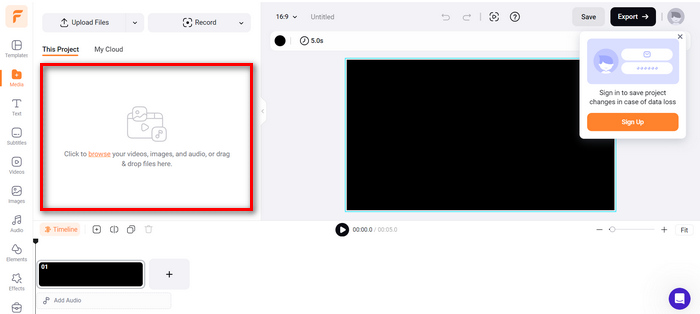
Vaihe 1. Mene ensin Media-välilehdelle ja napsauta Browse-painiketta tuodaksesi PNG-tiedostosi.
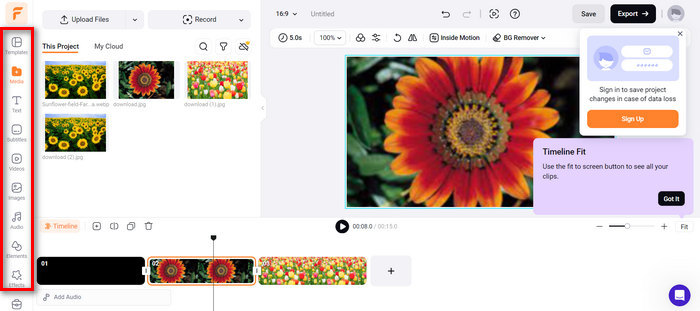
Vaihe 2. Vedä sen jälkeen PNG-tiedostot aikajanalle, jotta voit rajata niitä ja lisätä siirtymiä lopputulokseen. Lisäksi voit ohjelman käyttöliittymän vasemmasta välilehdestä parantaa videon visuaalista laatua lisäämällä tekstiä, tekstityksiä, ääntä, elementtejä ja tehosteita.
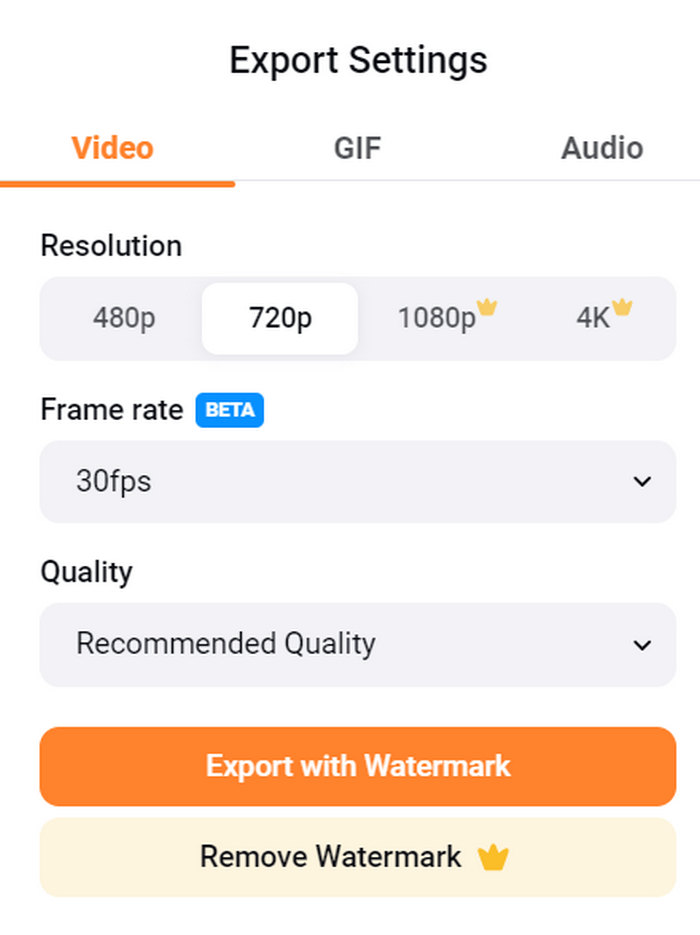
Vaihe 3. Nyt voit ladata MP4-videosi napsauttamalla Export-painiketta, mutta muista ensin valita haluamasi videoresoluutio, kuvanopeus ja laatu.
FlexClipin avulla voit helposti muuntaa PNG:n MP4-muotoon verkossa ilman, että sinun tarvitsee huolehtia laitteesi tallennustilan kulutuksesta. Jos kuitenkin käytät sen ilmaista versiota, et voi nauttia kaikista sen ominaisuuksista, mikä estää sinua muokkaamasta haluamaasi tulostetta.
Plussat
- Helppokäyttöinen käyttöliittymä.
- Monipuoliset muokkausominaisuudet.
- Mukautettavat tulostusvaihtoehdot.
- Nopea muunnosprosessi.
Haittoja
- Edellyttää internet-yhteyttä.
- Rajoitettuja ominaisuuksia ilmaisessa versiossa.
- Viedyissä videoissa on vesileimoja.
Osa 4: Usein kysyttyä PNG:n muuntamisesta MP4:ksi
Miksi haluaisin muuntaa PNG:n MP4:ksi?
Muuntamalla PNG-tiedostot MP4-muotoon käyttäjät voivat muuttaa staattiset kuvat dynaamisiksi videoiksi, mikä on hyödyllistä esimerkiksi diaesitysten, animaatioiden tai äänellä varustettujen sisältöjen luomisessa. MP4-muoto on myös laajasti tuettu ja yhteensopiva monien laitteiden ja alustojen kanssa. Tästä syystä PNG:n muuttaminen MP4-muotoon tekee sisällöstä helpommin jaettavaa ja paremmin suoratoistoon sopivaa.
Mikä on paras tapa muuntaa PNG MP4:ksi?
Paras menetelmä riippuu käyttäjien mieltymyksistä ja tarpeista. Jos he haluavat työpöytäohjelmiston edistyneillä muokkausominaisuuksilla, he voivat käyttää työkaluja, kuten FVC Video Converter Ultimate. Jos he haluavat avoimen lähdekoodin ratkaisun komentoriviliittymällä, FFmpeg on hyvä vaihtoehto. Jos he haluavat yksinkertaisen verkkoratkaisun, FlexClip on suositeltavaa.
Miten PNG ja MP4 eroavat toisistaan?
PNG tai Portable Network Graphics on tiedostomuoto, jota käytetään yleisesti still-kuvissa häviöttömällä pakkauksella. Se sopii erinomaisesti grafiikalle ja läpinäkyville kuville. Toisaalta MP4 tai MPEG-4 on videotiedostomuoto, joka tunnetaan pakkausominaisuuksistaan ja joka tallentaa sekä video- että äänidataa.
Johtopäätös
PNG:n muuntaminen MP4:ksi ei ole pelkkää teknistä muunnosta. Siinä on kyse luovuudesta ja intohimosta. Kuvittele, että muutat staattiset ja liikkumattomat kuvat dynaamisiksi videoiksi. Se vaatii paljon luovuutta ja tietenkin myös täydellisen muunnostyökalun. Älä siis jätä tätä tilaisuutta käyttämättä, vaan kokeile jotakin näistä menetelmistä jo tänään!
-
 Täysimittaiset tavat muuntaa JPG PNG-muotoon online- ja offline-tilassa
 Etsitkö hyödyllisiä tapoja muuntaa JPG PNG-tiedostomuotoon? Tässä oppaassa on vastaus, jota tarvitset. Löydät nämä menetelmät lukemalla artikkelin.
-
 5 parasta opetusohjelmaa PNG:n muuntamiseksi JPG:ksi nopeasti
 Jos sinun on muutettava PNG-tiedostosi JPG-muotoon, voit oppia parhaat tavat täältä. Opit myös eron PNG- ja JPG-tiedostomuotojen välillä.
-
 Vaiheittaiset opetusohjelmat ICO:n muuntamisesta PNG-muotoon
 Napsauta tätä opasviestiä saadaksesi selville helpoimmat menetelmät muuntaa ICO PNG:ksi. Tutustutaanpa ICO-PNG-muuntimiin online- ja offline-toimenpiteitä varten.
