


 Video Converter Ultimate
 Näytön tallennin
 Videon korjaus
 Suojattu lataus
3 tapaa toistaa MKV-tiedostoja Windows Media Playerissa
Etkö voi avata MKV‑tiedostoa Windows Media Playerissa?
MKV on eräänlainen suosittu videoformaatti. Saatat ladata monia korkealaatuisia elokuvia, TV‑sarjoja tai muita videoita MKV‑muodossa. Windows‑käyttäjänä oletuksena oleva soitin Windows Media Player ei kuitenkaan tue MKV‑säiliöiden jakamista (avaamista) alkuperäisesti. Palaamme siis kysymykseen, miten toistaa MKV‑tiedostoja Windows Media Centerissä?

Vaikka päivität Windows Media Playerin uusimpaan versioon, ei ole mitään takeita siitä, ettet kohdata MKV-soittoon liittyviä ongelmia. Ottaen huomioon tämän, tämä viesti haluaa jakaa 3 tehokasta tapaa auttaa soittamaan MKV-tiedostoja Windows-tietokoneellasi.
Osa 1. Kuinka avata MKV-tiedosto Windows Media Playerissa
Windows Media Player ei pysty toistamaan MKV‑tiedostoja pääasiassa koodekin yhteensopimattomuuden vuoksi. Sinun on hyvä tietää, että MKV on itse asiassa mediasäiliö video‑ ja äänivirroille, tekstityksille ja muulle sisällölle. Sinun täytyy asentaa WMP:hen oikea MKV‑splitteri sekä koodekit ja suodattimet video‑ ja äänitiedostoille. Tässä osassa neuvotaan, miten voit toistaa MKV‑tiedoston Windows Media Playerissa.
Vaihe 1. Avaa Windows Media Player ja avaa MKV‑tiedosto sillä. Voit myös napsauttaa MKV‑tiedostoa hiiren oikealla painikkeella ja valita Avaa ohjelmalla WMP.
Vaihe 2. Näet nyt virheilmoituksen, jossa lukee, että Windows Media Player ei voi toistaa tiedostoa. Napsauta valintaikkunassa Web‑ohje.
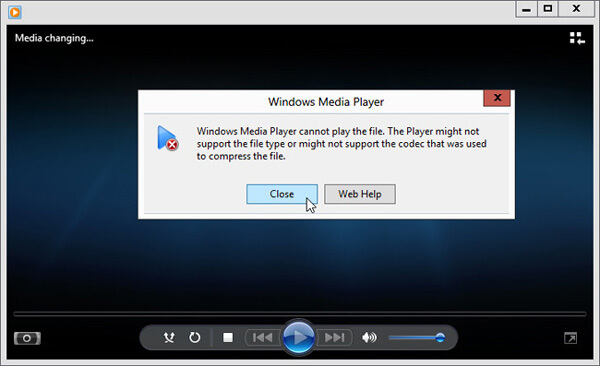
Vaihe 3. Napsauta koodekkilinkkiä kohdasta Koodekki puuttuu. Kopioi ja liitä linkki selaimeesi. Tätä kautta saat oikean Windows Media Playerin MKV‑koodekin. Latauksen jälkeen seuraa ohjeita suorittaaksesi Windows Media Playerin MKV‑asennuksen loppuun.
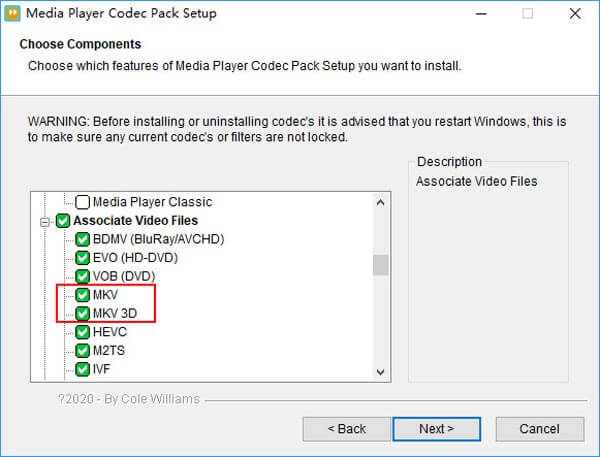
Vaihe 4. Käynnistä Windows Media Player uudelleen ja yritä sitten toistaa MKV‑tiedosto uudelleen.

Osa 2. Parempi tapa toistaa MKV-tiedostoja Windows Media Player -vaihtoehdossa
Oikealla MKV-koodekilla voit kätevästi avata MKV-tiedoston Windows Media Playerissa. Monet käyttäjät ilmoittivat kuitenkin, että MKV: tä WMP: n kanssa toistettaessa on vielä joitain muita toistoon liittyviä ongelmia. Siinä tapauksessa voit valita Windows Media Player -vaihtoehdon MKV-tiedostojen toistamiseksi.
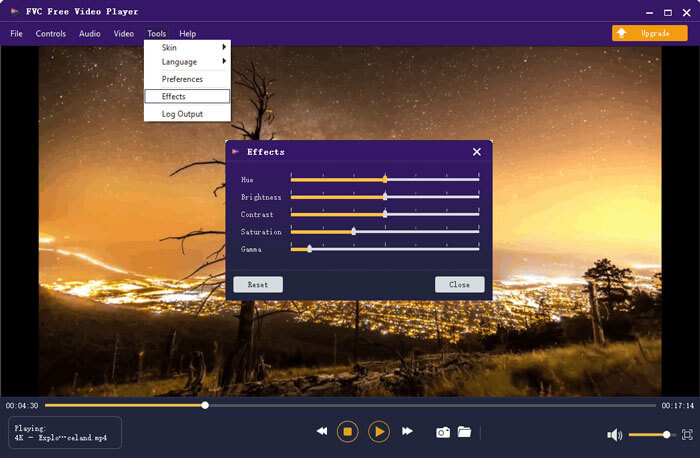
FVC Free MKV Player on erinomainen vaihtoehto Windows Media Playerille. Se tukee alkuperäisesti kaikkia yleisimmin käytettyjä video‑ ja ääniformaatteja, kuten MKV, MOV, MP4, FLV, AVI, RMVB, MPEG, AAC, MP3, M4A, WMA ja muita. Sen avulla voit katsoa MKV‑elokuvia korkealla laadulla.

Vaihe 1. Avaa selaimesi ja siirry tämän ilmaisen MKV‑soittimen sivustolle. Napsauta Play Now ‑painiketta asentaaksesi pienen käynnistystiedoston MKV‑toistoa varten. Tämän jälkeen varsinainen MKV‑toistoikkuna tulee näyttöön.

Vaihe 2. Napsauta Open File ‑painiketta selataksesi ja tuodaksesi MKV‑tiedostosi soittimeen. Tämän jälkeen video alkaa toistua automaattisesti. Kehittyneen videokoodaus‑tekniikan ansiosta se voi toistaa MKV‑tiedoston sujuvasti ja korkealla laadulla. Lisäksi se tukee DTS‑HD:tä ja Dolby TrueHD:tä.

Sinulle annetaan kaikki MKV-toiston ohjaimet. Perustoimintojen, kuten toisto, tauko, taaksepäin, eteenpäin, äänenvoimakkuuden säätäminen ja paljon muuta, avulla voit myös säätää tehosteita, vaihtaa ääniraitaa ja tekstitystä ja mukauttaa muita asetuksia.
Osa 3. Muunna MKV toistettavaksi Windows Media Playerissa
Jos haluat toistaa MKV‑tiedoston Windows Media Playerissa, voit myös muuntaa MKV:n tuettuun videoformaattiin, kuten MP4:ään. Tässä esittelemme sinulle työkalun nimeltä Free Online Video Converter, jonka avulla voit muuntaa MKV:n MP4:ksi ilman laadun heikkenemistä.
Vaihe 1. Mene selaimellasi tälle ilmaiselle MKV–MP4‑muunnossivulle. Se on yhteensopiva kaikkien suosittujen selainten kanssa, mukaan lukien Chrome, IE, Safari ja Firefox.
Vaihe 2. Kun olet sivulla, napsauta Add File to Convert ‑painiketta. Tässä vaiheessa sinun on asennettava pieni käynnistysohjelma MKV‑muunnosta varten. Tämän jälkeen näytölle avautuu ponnahdusikkuna, jossa voit valita MKV‑tiedostosi.
Vaihe 3. Näet luettelon monista suosituista videoformaateista, kuten MP4, MOV, AVI, MKV, FLV jne. Varmista, että tulostusmuotona on MP4, ja napsauta sitten Convert ‑painiketta.
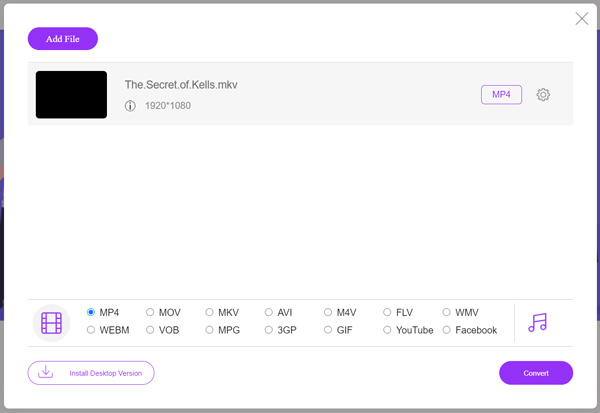
Kun MKV–MP4‑muunnos on valmis, voit toistaa tulostiedoston Windows Media Playerissa. Muunnoksen aikana ei tapahdu kuvan tai äänen laadun heikkenemistä.
Osa 4. Usein kysyttyjä kysymyksiä MKV: n toistamisesta Windows Media Playerissa
Kysymys 1. Kuinka videon muoto muutetaan Windows Media Playerissa?
Avaa Windows Media Player ja lataa muunnettava videotiedosto. Napsauta pientä nuolta Kopiointi-välilehden yläreunassa. Valitse Lisää vaihtoehtoja ja napsauta sitten avattavaa valikkoa, jonka nimi on Muoto. Täällä voit valita sopivan tulostusmuodon ja aloittaa muuntamisen.
Kysymys 2. Mikä videomuoto on Windows Media Player?
Windows Media Playerin oletustiedostomuoto on WMV, Windows Media Video ja WMA, Windows Media Audio. Lisäksi se tukee Advanced Systems Formatia ja omaa XML-pohjaista soittolistamuotoa, Windows Playlist.
Kysymys 3. Voiko Windows 10 toistaa MKV-tiedostoja?
Ei. Sisäänrakennettu Windows Media Player 12 Windows 10: ssä ei voi toistaa MKV-tiedostoja. Toiston saamiseksi sinun on asennettava MKV-koodekki.
Johtopäätös
Kun Windows Media Player ei tunnista MKV‑koodekkia, se näyttää yksinkertaisesti virheilmoituksen. Jos haluat toistaa MKV‑tiedoston Windows Media Playerissa, sinun täytyy asentaa oikea koodekki. Vaihtoehtoisesti voit käyttää kolmannen osapuolen soitinta tai muuntaa MKV‑muodon toistettavaksi. Jos sinulla on vielä kysyttävää siitä, miten avata MKV‑tiedosto Windows Media Playerissa, jätä meille viesti.
-
 8 parasta MKV-pelaajaa, jotka voivat toistaa MKV-tiedostoja halutulla tekstityksellä
 Kun haluat toistaa MKV-videota haluamallasi tekstityksellä, voit oppia lisää 8 parhaasta MKV-tiedostosoittimesta PC / Mac-tietokoneille ja valita haluamasi toiveidesi mukaan.
-
 MKV MOV: ksi - Kuinka muuntaa MKV MOV: ksi
 Kuinka muuntaa MKV MOV: ksi Macissa? Voiko iMovie lukea MKV: tä? Mitä MOV-muoto tarkoittaa? Tämä viesti kertoo 2 yksinkertaista tapaa auttaa muuntaa MKV MOV: ksi ilmaisilla online- ja ammattimaisilla videomuuntimilla.
-
 AC3 Player - Katsaus 10 parhaaseen ilmaiseen AC3-pelaajaan vuodelta 2021
 Mikä on paras AC3-soitin? Voiko MX Player avata AC3: n? Tämä viesti sisältää luettelon 10 ilmaisesta AC3-soittimesta Mac-, Windows PC-, iOS- ja Android-laitteille.
