


 Video Converter Ultimate
 Näytön tallennin
 Videon korjaus
 Suojattu lataus
Kolme parasta tapaa toistaa MP4: ää Chromebookilla
Chromebook ei enää toista MP4-videoita? Viime aikoina monet käyttäjät ovat valittaneet, että videota ei toisteta Chromebook-ongelmalla. Onko sinulla sama tilanne?
Chromebook on Googlelta tuleva kannettava tietokone. Se käyttää Chrome OS -käyttöjärjestelmää ja tukee monia tiedostotyyppejä ja pilvitallennuspalveluja. Se pystyy tallentamaan videoita Google Driveen ja Googlen pilvitallennustilaan katselua varten. Tiedätkö, miten toistaa MP4-videoita Chromebookilla?

Chromebookissa on sisäänrakennettu videosoitin mediatiedostojen toistamiseen. Jotkut MP4-tiedostot kuitenkin epäonnistuvat sen toistossa. Sen vuoksi tämä artikkeli haluaa jakaa 3 tehokasta tapaa, joiden avulla voit toistaa MP4-tiedostoja Chromebookilla.
Osa 1. Kuinka toistaa MP4: ää Chromebookilla Google Driven avulla
Kun natiivi Chrome-käyttöjärjestelmän videosoitin ei pysty lukemaan MP4-säilön koodekkia, se ei voi toistaa MP4: ää Chromebookilla. Siinä tapauksessa voit halutessasi toistaa MP4-tiedostoja Google Driven kautta. Chromebookin avulla voit tallentaa MP4-videoita Google Driveen, Dropboxiin ja muihin pilvitallennuspalveluihin. Voit avata MP4-videon Google Drivella Chromebookilla.
Kun haluat toistaa MP4: ää Chromebookilla, sinun on ensin ladattava MP4-tiedostot Google Driveen. Sitten voit etsiä MP4: n Google Drivesta ja toistaa sitä.
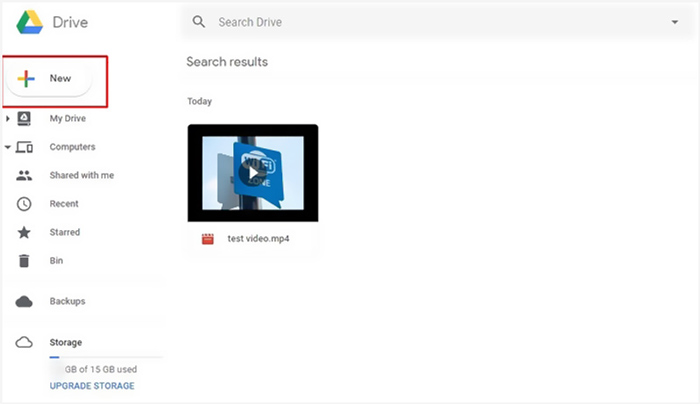
Huomaa, että MP4-tiedostojen toistamiseksi Chromebookilla Google Driven kautta tarvitaan hyvä verkkoyhteys.
Osa 2. Asenna VLC Chrome OS: lle MP4: n toistamiseksi Chromebookilla
Edellä mainitun menetelmän lisäksi voit hankkia myös kolmannen osapuolen mediasoittimen MP4-toistoa varten Chromebookillesi. Koska Chromebook käyttää Chrome OS:ää, hyviä soitinvaihtoehtoja ei välttämättä ole kovin paljon. Onneksi suosittu VLC Media Player tarjoaa Chrome OS -version, jonka avulla voit nauttia kaikentyyppisistä video- ja äänitiedostoista Chromebookilla. Sen avulla voit vaivattomasti toistaa MP4-tiedostoja Chromebookilla.
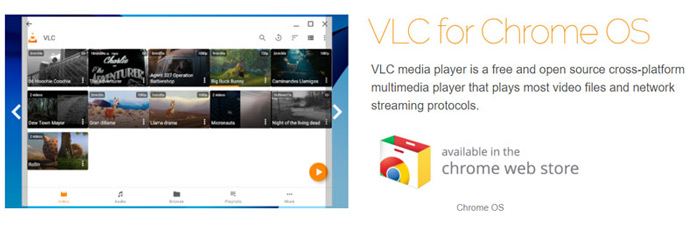
Avaa Chrome Web Store Chromebookillasi ja etsi VLC:tä. Kun löydät sovelluksen VLC for Chrome OS, seuraa ohjeita sen asentamiseksi. Sen jälkeen voit toistaa MP4-tiedostoja Chromebookilla VLC:llä. Se tukee erittäin hyvin useimpia mediatiedostoja, verkkovirtoja ja DVD-levyjä. MP4:n lisäksi VLC for Chrome OS voi toistaa myös MOV-, MKV-, AVI-, OGG-, TS-, M2TS-, AAC-, MP3-, FLAC-tiedostoja ja paljon muuta.
Osa 3. Muunna MP4-toiston videomuoto Chromebookilla
MP4 on video- ja äänikoodekkien tiedostosäiliö. Chromebook tukee vain MP4-videoita, jotka on koodattu H.264- tai MPEG-4-pakkauskoodekilla. Joten, kun haluat toistaa MP4: ää Chromebookilla, sinun on muunnettava MP4 Chromebookin tukemaan muotoon. MP4: n lisäksi Chromebook tukee myös 3GP-, WebM-, MOV- ja AVI-videoita tietyllä koodekilla.
Muuntaaksesi MP4:n Chromebookin tukemaan formaattiin voit turvautua ammattimaiseen video–Chromebook-muuntimeen, Video Converter Ultimate -ohjelmaan. Siinä on erillinen Chromebook-kategoria, jonka avulla voit suoraan muuntaa MP4-tiedostot Chromebookin tukemaan muotoon. Vielä tärkeämpää on, että se voi muuntaa videot ilman laadun heikkenemistä.
- • Muunna MP4-video Chromebookin tukemaksi tiedostoksi laadun heikkenemättä.
- • Muunna 8K/5K/4K, 1080p/720p HD- ja SD-videota yli 500 muotoon, kuten MOV, MP4, AVI, FLV, MP3 ja paljon muuta.
- • Tehokkaat muokkausominaisuudet, lisää suodattimia ja erilaisia tehosteita ja paranna laatua.
- • Tukee ennennäkemätöntä laitteistokiihdytystä ja moniytimisprosessorin optimointia.
Vaihe 1. Asenna ensin tämä MP4–Chromebook-muunnin maksutta tietokoneellesi. Se on yhteensopiva sekä Windows 10/8/7 -PC:n että Macin kanssa.
Ilmainen latausWindows 7 tai uudempiTurvallinen lataus
Ilmainen latausMacOS 10.7 tai uudempiTurvallinen lataus
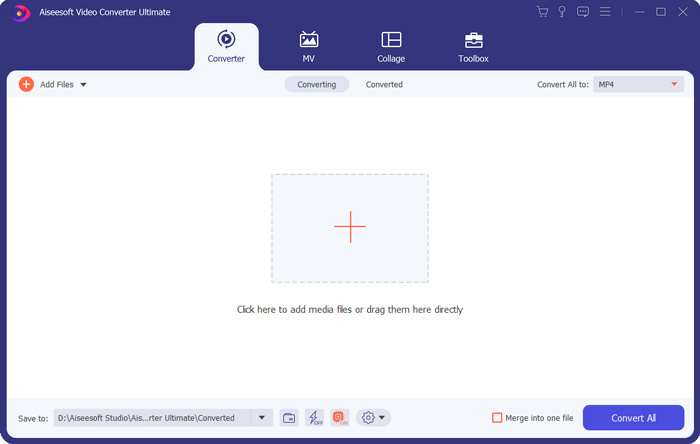
Vaihe 2. Käynnistä ohjelma ja varmista, että käytät Converter-ominaisuutta. Napsauta sitten isoa +-kuvaketta tai Add Files -painiketta tuodaksesi MP4-tiedostosi. Voit lisätä ja muuntaa yhden tai useampia videoita kerralla.
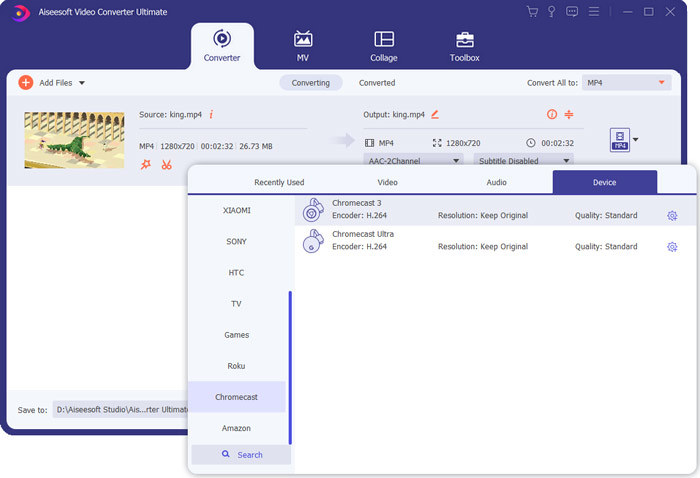
Vaihe 3. Napsauta tuodun videon oikealla puolella olevaa format-kuvaketta. Valitse sopiva tulostusmuoto avattavasta luettelosta. Voit napsauttaa Device-välilehteä löytääksesi Chromebookin tukeman formaatin.
Vaihe 4. Ennen lopullista muuntamista voit käyttää erilaisia muokkaustoimintoja videon muokkaamiseen, laadun parantamiseen ja ulostulotehosteiden räätälöintiin. Kun kaikki nämä toimet on tehty, voit yksinkertaisesti napsauttaa Convert All -painiketta käynnistääksesi MP4–Chromebook-muunnoksen.
Vain muutamalla napsautuksella voit muuntaa videon helposti Chromebook-tuetuksi tiedostoksi. Sitten voit siirtää sen Chromebookiisi toistoa varten.
Osa 4. Usein kysyttyjä kysymyksiä MP4: n toistamisesta Chromebookilla
Kysymys 1. Mitä videoformaatteja toistetaan Chromebookilla?
Chromebookit voivat tukea monia tiedostotyyppejä, ulkoisia laitteita ja pilvitallennusjärjestelmiä. Videoformaatteja varten se voi toistaa MP4, MOV, M4V, MKV, OGG, 3GP, OGM, WebM, WAV, AVI ja paljon muuta.
Kysymys 2. Miksi en voi käyttää Google Playta Chromebookissa?
Sinulla on oikeus käyttää Google Playta Chromebookissa. Mutta sinun on ensin otettava tämä ominaisuus käyttöön. Voit siirtyä Asetukset Chromebookiin, valita Google Play Kauppa -osion ja ottaa ominaisuuden käyttöön. Tämän jälkeen voit käyttää Google Playta Chromebookissa normaalisti.
Kysymys 3. Kuinka ottaa Flash Player käyttöön Chromessa?
Kun haluat käyttää Flash-soitinta Google Chromessa, voit napsauttaa osoitekentän vasemmalla puolella olevaa lukkokuvaketta. Napsauta Flash-ruutua ja valitse sitten Salli-painike. Tallenna muutos napsauttamalla Lataa. Näin voit käyttää Flash-soitinta Chromessa.
Johtopäätös
Eikö MP4 toistu Chromebookilla? Tämän artikkelin luettuasi saat 3 hyödyllistä vinkkiä ongelman ratkaisemiseksi. Jos sinulla on lisää kysymyksiä siitä, miten toistaa MP4-tiedostoja Chromebookilla, voit jättää meille viestin.
-
 Opetusohjelma ARF-tiedostojen avaamiseen ja muuntamiseen WebEx ARF Player -sovelluksella
 Tässä on yksityiskohtaiset ohjeet WebEx ARF Playerin käyttämiseen. Voit toistaa ja muuntaa WebEx ARF -tiedostoja helposti Windows- ja Mac-tietokoneilla. Lisäksi voit parantaa toistokokemusta myös kolmannella ARF-soittimella.
-
 Hanki paras MP4-soitin toistamaan MP4-tiedostoja korkealla visuaalisella laadulla
 Lue ja hanki paras MP4-soitin 10 uusimman MP4-videosoitinohjelmiston suosituksista. Voit toistaa MP4-videotiedostoja Windowsissa ja Macissa sujuvasti ilman viivettä.
-
 AVI VS MP4 - Erot ja samankaltaisuudet AVI- ja MP4-formaattien välillä - FVC
 Mikä on parempi videomuoto, AVI tai MP4? Jos haluat saada yksityiskohtaisen vertailun, voit tarkistaa tämän AVI VS MP4 -artikkelin. Voit tietää AVI: n ja MP4: n erot ja yhtäläisyydet monista näkökohdista.
