


 Video Converter Ultimate
 Näytön tallennin
 Videon korjaus
 Suojattu lataus
Kuinka toistaa MP4: ää Windows Media Playerissa Windows 10 -tietokoneessa
Joskus MP4-tiedostoa ei toisteta Windows Media Playerissa, mutta se voidaan toistaa muilla soittimilla, kuten VLC Media Player tai KM Player. Koska MP4 on suosituin videomuoto, joka on yhteensopiva kaikkien mediasoittimien ja multimedialaitteiden kanssa. Sinulla voi olla monia videotiedostoja, jotka on tallennettu MP4-muotoon. On melko ärsyttävää, jos MP4-tiedostoa ei voitu toistaa Windows Media Playerissa. Joten kuinka toistaa MP4-tiedostoja Windows 10: ssä? No, ei tarvitse huolehtia. Tässä on kaikki ratkaisut korjata Windows Media Player, joka ei toista MP4-tiedostoja.

Osa 1. Miksi Windows Media Player ei toista MP4: tä
Microsoftin mukaan kaikki Windows Media Player -versiot eivät tue MP4-tiedostomuotoa. Windows Media Player 7, Windows Media Player for Windows XP, Windows Media Player 9 Series sekä Windows Media Player 10/11 eivät tue MP4-tiedostomuotoa.
Jos Windows Media Player ei pysty toistamaan MP4-videoleikettä, MP4-video on ehkä vioittunut. Tässä tapauksessa voit yrittää toistaa toistamattoman MP4-tiedoston toisella mediasoittimella.
Toinen syy siihen, että Windows Media Player ei toista MP4: ää, on se, että MP4-tiedostossa ei ole siihen sopivaa koodekipakettia.
Osa 2. Toista MP4 parhaalla vaihtoehdolla Windows Media Playerille
Jos MP4-videot eivät edelleenkään toistu, voit vaihtaa mediasoittimeen, kuten FVC Free Video Player. Se on ilmainen verkkovideosoitin, joka toistaa kaikki suositut multimediatiedostot, kuten MP4, MKV, FLV, MOV, AVI, 3GP, MP3, FLAC, AAC jne. Windowsissa ja Macissa. HTML5-teknologiaan perustuen voit toistaa mitä tahansa videotiedostoja, olivatpa ne paikalliselta tietokoneelta tai ladattuja.
Vaihe 1. Vieraile FVC Free Video Playerin virallisella sivustolla (https://www.free-videoconverter.net/free-video-player/). Napsauta Play Now -painiketta ladataksesi ja asentaaksesi käynnistysohjelman.

Vaihe 2. Napsauta Open File -painiketta ladataksesi MP4-tiedoston, jonka haluat toistaa. Voit myös napsauttaa File-valikkoa ja valita Open File lisätäksesi MP4-tiedoston.

Kun MP4-video on ladattu, se alkaa toistua automaattisesti Windows-tietokoneellasi. Jos haluat muokata videoefektejä, voit napsauttaa Tools-valikkoa ja valita Effects-vaihtoehdon, jossa voit säätää sävyä, kirkkautta, kontrastia, kylläisyyttä ja gammakorjausta videon parantamiseksi.

Osa 3. Muunna MP4 toistettavaksi Windows Media Playerissa
Jos Windows Media Player ei voi toistaa MP4-tiedostoa, yksi yksinkertainen tapa on muuntaa MP4-tiedosto toiseen muotoon, jota Windows Media Player tukee. Voit käyttää videomuunnostyökalua, kuten FVC Video Converter Ultimate, muuntaaksesi MP4-tiedoston Windows Media Playerin oletusmuotoihin, kuten WMV, ASF tai WMA.
Ilmainen latausWindows 7 tai uudempiTurvallinen lataus
Ilmainen latausMacOS 10.7 tai uudempiTurvallinen lataus
Vaihe 1. Lataa, asenna ja käynnistä Video Converter Ultimate ilmaiseksi Windows-tietokoneellasi. Napsauta Add Files -painiketta lisätäksesi MP4-tiedoston, jonka haluat toistaa.

Vaihe 2. Jos haluat lisätä joitakin efektejä MP4-tiedostoosi, voit napsauttaa Edit-kuvaketta siirtyäksesi muokkausnäkymään. Täällä voit lisätä efektejä, käyttää suodatinta, kiertää tai rajata MP4-tiedostoa, lisätä vesileiman sekä säätää ääniraitaa ja tekstityksiä.
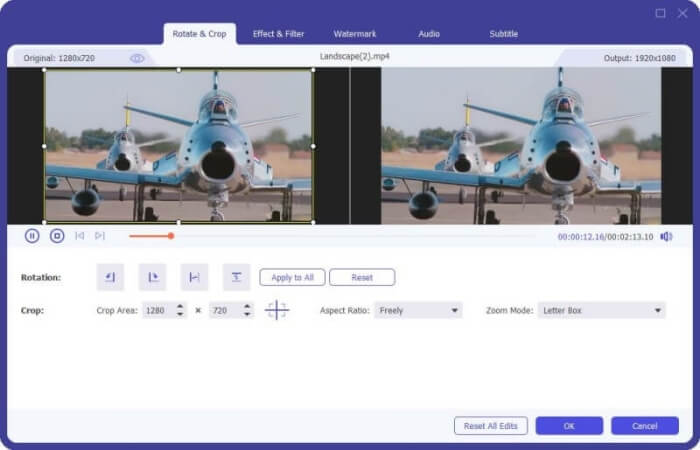
Vaihe 3. Napsauta sitten pudotusnuolta Convert All to -kohdan vieressä, siirry Video-välilehdelle ja valitse ASF tai WMV tulostusmuodoksi.
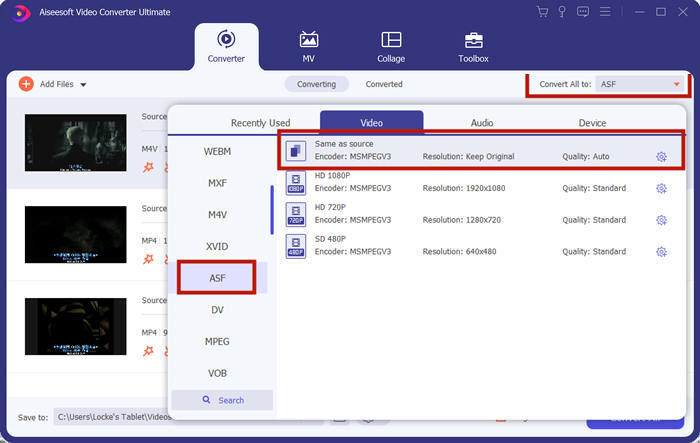
Vaihe 4. Määritä lopuksi kohdekansio, johon muunnettu MP4-tiedosto tallennetaan. Napsauta Convert All -painiketta muuntaaksesi MP4-tiedoston. Muunnoksen jälkeen voit toistaa muunnetun MP4-tiedoston Windows Media Playerissa.

Osa 4. Yleisiä vinkkejä MP4: n toistamiseen Windows Media Playerissa
MP4-tiedoston toistamiseksi Windows 10:ssä siirry kansioon, jossa MP4-tiedostot sijaitsevat. Napsauta hiiren oikealla painikkeella MP4-tiedostoa, jonka haluat toistaa, valitse Open with ja sen jälkeen Windows Media Player. Vaikka tämä on yksinkertaista, joskus MP4-tiedoston avaaminen Windows Media Playerissa voi silti epäonnistua. Ongelman korjaamiseksi voit kokeilla seuraavia vinkkejä.
1. Toista MP4 muiden mediasoittimien kanssa
Jos MP4-tiedostosi ei toistu Windows Media Playerissa, voit kokeilla muita mediasoittimia avataksesi MP4-tiedoston. Markkinoilla on monia mediasoittimia, kuten FVC Free Video Player, VLC Media Player, KM Player, Real Player, GOM Player, BS Player, DivX Player ja muita.
2. Asenna oikea koodekki Windows Media Playerille
Kodekkeja puuttuu, jos Windows Media Player ei toista MP4-tiedostoa. Ongelman ratkaisemiseksi sinun on asennettava oikea koodekki Windows Media Playerille.
Vaihe 1. Avaa Windows Media Player. Napsauta Organize-valikkoa ja valitse Options.
Vaihe 2. Siirry Privacy-välilehdelle ja valitse Download usage rights automatically when I play or sync a file -asetus.
Vaihe 3. Napsauta OK-painiketta tallentaaksesi muutokset ja toistaaksesi MP4-tiedoston.
3. Suorita vianmääritysohjelma Windowsissa
Jos MP4: n toisto epäonnistui Windows Media Playerissa, voit käyttää vianmääritystyökalua ongelman ratkaisemiseen Windows 10: ssä. Noudata ohjeita vianmäärityksessä.
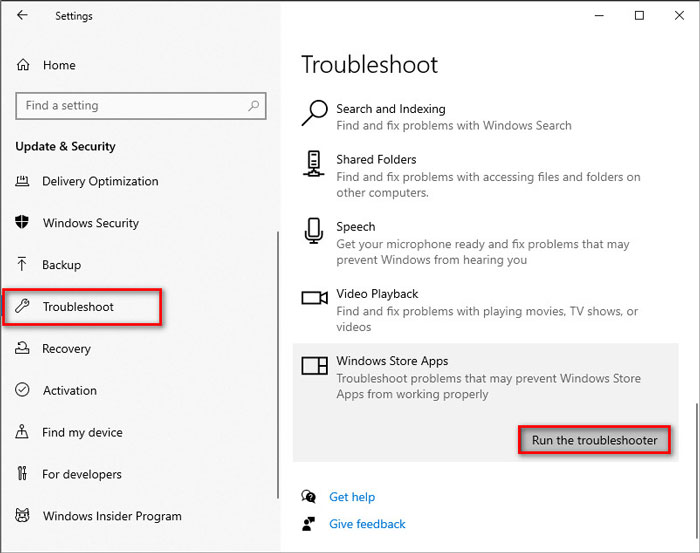
Vaihe 1. Avaa Windows 10 -tietokoneellasi Settings ja valitse Update & Security.
Vaihe 2. Siirry Troubleshoot-osioon ja napsauta Windows Store Apps.
Vaihe 3. Napsauta Run the troubleshooter -painiketta ratkaistaksesi Windows Media Playerin toisto-ongelman.
Osa 5. Usein kysyttyjä kysymyksiä MP4: n toistamisesta Windows Media Playerissa
Mikä on Windows Media Playerin oletusvideomuoto?
Windows Media Playerin oletustiedostomuoto on WMV (Windows Media Video) ja WMA (Windows Media Audio). Se tukee myös ASF: ää (Advanced Systems Format) ja omaa XML-pohjaista soittolistamuotoa, Windows Playlist.
Mikä on paras MP4-soitin?
Markkinoilla on monia suosittuja MP4-soittimia, kuten FVC Free Video Player, VLC Media Player, KM Player, QuickTime Player, RealPlayer, Media Player Classic, GOM Player, PotPlayer ja muita.
Voinko toistaa MKV: tä Windows Media Playerissa?
Sisäänrakennettu Windows Media Player 12 Windows 10: ssä ei tue MKV-toistoa. Sinun on asennettava oikea koodekki toistoa varten.
Johtopäätös
MP4 on suosituin digitaalinen multimediamuoto, jota käytetään yleisesti videon ja äänen tallentamiseen. On turhauttavaa, jos MP4-tiedostoa ei voitu toistaa Windows Media Playerissa. Toivottavasti voit toistaa MP4-tiedostoja sujuvasti Windows 10: ssä kaikkien vinkkien ja ratkaisujen avulla. Voit kokeilla toista videosoitinta, kuten FVC Free Video Player, toistaa MP4-tiedostojasi.
-
 Kuinka toistaa MP4-tiedostoja Google Drivessa
 MP4 ei toistu Google Drivessa? Kuinka toistaa MP4-tiedostoja Google Drivessa? Tämä viesti kertoo 3 tapaa toistaa MP4-videoita Google Drivessa.
-
 Toista MP4-tiedostoja Chromebook 2021: llä
 Voitko toistaa videoita Chromebookilla? Kuinka toistaa MP4-tiedostoja USB: ltä Chromebookilla? Tämä viesti jakaa kolme tapaa toistaa MP4: ää Chromebookilla.
-
 Kuinka toistaa DVD-levyä Windows Media Playerissa vuonna 2021
 Miksi DVD-levyäni ei voi toistaa Windows Media Playerissa? Kuinka toistaa DVD-levyä Windows 7-mediasoittimella? Tämä viesti jakaa 3 tapaa toistaa DVD-levyjä WMP: n kanssa tai ilman sitä.
