


 Video Converter Ultimate
 Näytön tallennin
 Videon korjaus
 Suojattu lataus
5 ratkaisua videoiden toistamatta jättämiseen iPhonessa
Oletko koskaan kohdannut tilannetta, jossa videot eivät toistu iPhonella? Kun olet valmistanut sisältösi ja olet aikeissa katsoa sen puhelimesi korkearesoluutioiselta näytöltä, eteen ilmestyykin virheikkuna. Ongelma on todella ärsyttävä. Johtuuko se videosta vai laitteesta? Mitä asialle voi tehdä?
Olemme sitoutuneet auttamaan sinua ratkaisemaan tämän ongelman. Mahdollisia ratkaisuja on yhteensä viisi, ja tässä suositellaan kahta parasta kolmannen osapuolen työkalua. Olemme varmoja, että tämä opas auttaa sinua palauttamaan videosi normaaliksi nopeasti.

Osa 1. Muunna ei-tuetut videomuodot
Todennäköisin syy siihen, miksi videota ei lueta eikä toisteta, on se, että tiedostomuotosi ei ole yhteensopiva iPhonen kanssa. Huomaa, että iPhone tukee tällä hetkellä videomuotoja, kuten MP4, MP3, MPEG-4, MOV, AAC, M4A ja niin edelleen. Videossasi käytetty koodekki voi olla H.264 tai H.265.
Jos avattava video ei ole yllä mainituissa muodoissa, saatat kohdata ongelmia kuvien videoiden toistumisen kanssa iPhonessa.
Muunna ensin tiedosto yhteensopivaan formaattiin. Tämän vaiheen suorittamiseen saatat tarvita ammattimaisen muunnostyökalun. Suosittelemme ohjelmaa FVC Video Converter Ultimate. Se tukee jopa tuhatta multimediaformaattia. Laitteistokiihdytyksen ansiosta voit muuntaa kaikki iPhonen kanssa yhteensopimattomat tiedostot jopa 30 kertaa nopeammin. Alustalla on myös esikatselu- ja muokkaustoiminnot. Voit rajata, yhdistää ja kiertää videota haluamallasi tavalla tai lisätä tekstiä, vesileimoja, suodattimia jne. muunnoksen jälkeen.
Ilmainen latausWindows 7 tai uudempiTurvallinen lataus
Ilmainen latausMacOS 10.7 tai uudempiTurvallinen lataus
Näin muunnat videoita FVC Video Converter Ultimate -ohjelmalla.
Vaihe 1. Lataa ja asenna FVC Video Converter Ultimate tietokoneellesi. Napsauta Add Files ladataksesi muunnettavan videon.

Vaihe 2. Napsauta Convert All to ja avaa avattava luettelo. Valitse iPhonen kanssa yhteensopiva formaatti, esimerkiksi MP4.
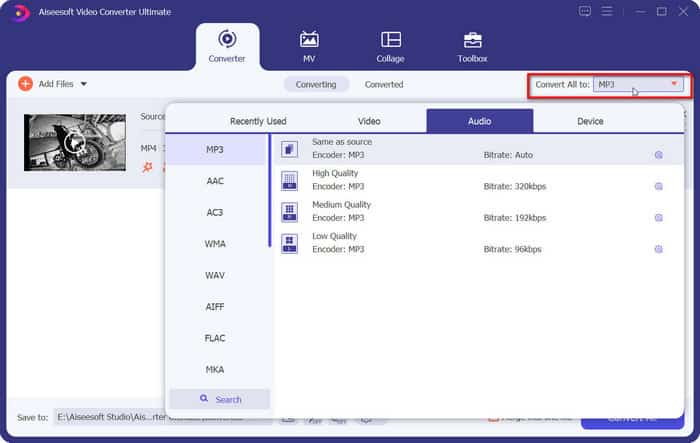
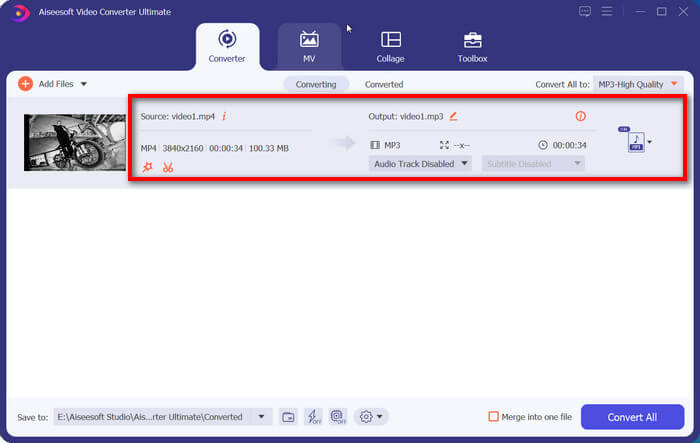
Vaihe 3. Palaa pääikkunaan. Valitse ladattu video. Napsauta lopuksi Convert All.
Osa 2. Korjaa vioittuneet videot
Videoiden toistaminen iPhonella voi epäonnistua, jos videomuoto ei ole oikea. Jos iPhone-videot eivät kuitenkaan toistu tietokoneella eikä useiden soitinten vaihtaminen ratkaise ongelmaa, videossa on jokin ongelma. Tiedostosi ovat todennäköisesti vioittuneet kuvaamisen, tallennuksen tai siirron aikana.
Olemme valmistelleet ratkaisun myös tähän tilanteeseen. FVC Video Repair korjaa vioittuneet videosi kaikissa tilanteissa. Sinun tarvitsee vain lähettää vaatimukset täyttävä esimerkkivideo. Alusta käyttää uusimpia tekoälyalgoritmeja palauttaakseen kuvan normaaliksi. Erittäin helpot vaiheet ja erittäin korkea onnistumisprosentti tekevät siitä monien käyttäjien luottotyökalun.
Ilmainen latausWindows 7 tai uudempiTurvallinen lataus
Ilmainen latausMacOS 10.7 tai uudempiTurvallinen lataus
Näin korjaat rikkinäiset iPhone-videot FVC Video Repair -ohjelmalla.
Vaihe 1. Siirrä vioittunut videosi tietokoneelle. Lataa ja asenna FVC Video Repair laitteellesi.
Vaihe 2. Napsauta punaista pluspainiketta lisätäksesi vioittuneen videon. Napsauta violettia pluspainiketta lisätäksesi esimerkkivideon.
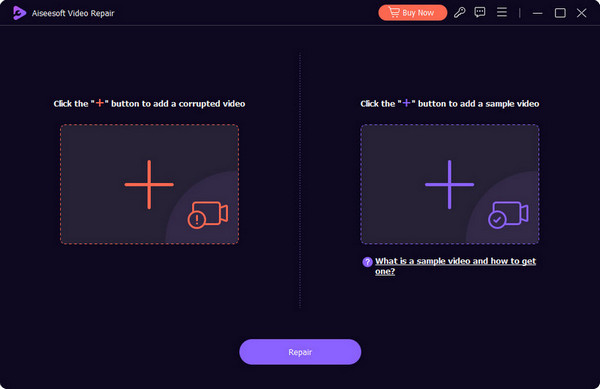
Näytevideon on oltava samassa muodossa kuin vaurioitunut video, ja mitä lähempänä toisiaan parametrit ovat, sitä parempi. Mieluiten molempien tulisi olla samalta laitteelta tai alustalta.
Vaihe 3. Napsauta Repair aloittaaksesi korjauksen.
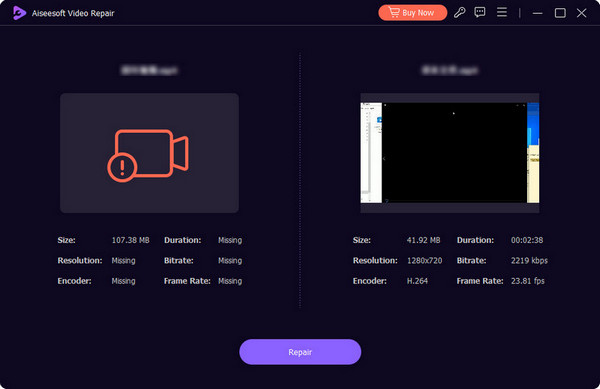
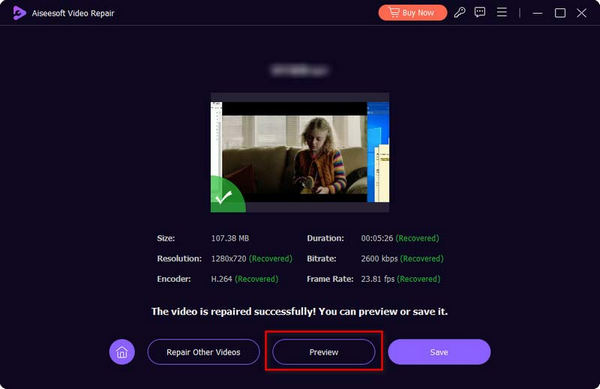
Korjauksen jälkeen voit napsauttaa Preview tarkistaaksesi korjatun videon. Napsauta lopuksi Save.
Osa 3. Tarkista Internet-yhteys
HDR-videon toistumisen estyminen iPhonella ei koske ainoastaan paikallisia videoita. Ihmiset ovat kertoneet, että katsoessaan videoita verkkoalustoilta, kuten YouTubesta, TikTokista, Instagramista jne., iPhonella he kohtaavat usein myös toisto-ongelmia.
Tämä voi johtua siitä, että käyttämäsi verkko ei ole riittävän vakaa online-videon lataamiseen kokonaan. Voit tarkistaa, onko puhelimesi yhteydessä vakaaseen Wi-Fi- tai dataverkkoon. Yritä sitten katkaista verkkoyhteys ja muodostaa yhteys uudelleen. Yritä sen jälkeen toistaa video uudelleen.
Jos YouTube-videot eivät toistu iPhonessa, ongelma ei ole vieläkään ratkennut; kokeile toista verkkoyhteyttä.
Osa 4. Pakota videosovelluksen sulkeminen
Jos huomaat, ettei iPhone toista videoiden ääntä tai että videot pätkivät, syy voi olla iPhonen videosoittimessa tai sovelluksessa jostain tuntemattomasta syystä. Tässä tilanteessa sovelluksen uudelleenkäynnistäminen on nopein ratkaisu.
Voit aloittaa painamalla Home-painiketta kahdesti, kunnes näytölle ilmestyy useita ikkunoita käynnissä olevista sovelluksista. Etsi videosovellus ja pyyhkäise se pois päältä sulkeaksesi sovelluksen. Avaa se sitten uudelleen ja yritä toistaa video uudestaan.
Osa 5. Päivitä vanhentunut iOS-versio
Verkko-, video- ja sovellusongelmien vianmäärityksessä on toinenkin syy, joka estää kamerarullavideoiden toistamisen iPhonessa. Meidän tulisi olla tästä tietoisia. Jos laitettasi ei ole päivitetty järjestelmän uusimpaan versioon, siinä saattaa olla satunnaisia virheitä, jotka voivat vaikuttaa normaaliin käyttöön.
Voit siirtyä iPhonesi Settings-sovellukseen ja tarkistaa, onko saatavilla uutta järjestelmäversiota. Jos on, seuraa ohjeita latauksen ja päivityksen viimeistelemiseksi.
Osa 6. Usein kysyttyjä kysymyksiä videoista, jotka eivät toistu iPhonessa
Miksi iPhoneni ei toista ääntä videoissa?
Syynä voi olla se, että videotiedoston ääni sisältää koodekkeja, joita iPhone ei tue. Voit muuntaa tiedoston äänikoodekin tai -formaatin esimerkiksi muodosta WMA MP3:ksi, AAC:ksi tai muuksi suosituksi muodoksi.
Miksi iPhoneni ei toista videoita taustalla?
Tämä ongelma voi ilmetä, kun iPhonen virta on vähissä tai kun taustalla on käynnissä liian monta ohjelmaa. Voit ladata laitteen täyteen ja sammuttaa sitten käynnissä olevat sovellukset. Muista tarkistaa, onko puhelimeesi kytketty Bluetooth-kuulokkeet.
Miksi iPhoneni ei pysty lataamaan videoita?
Kokeile käynnistää laite uudelleen ja vaihtaa se sitten toiseen verkkoyhteyteen. Tämä voi auttaa joissakin järjestelmävirheissä ja muissa ongelmissa.
Johtopäätös
Ongelmalle, jossa videot eivät toistu iPhonella, on monia ratkaisuja. Videon puolelta voit kokeilla formaatin muuntamista ja vioittuneen videon korjaamista; laitteen puolelta voit pakottaa iPhonen uudelleenkäynnistyksen ja vaihtaa internet-yhteyttä. Jos käytät videosovellusta, käynnistä se uudelleen ja katso, ratkeako ongelma.
-
 Android DVD-soitin – DVD-videoiden toistaminen Android-puhelimissa
 Kuinka toistaa DVD -tiedostoja Android -matkapuhelimissa? Onko Android -DVD -soittimia? Tässä artikkelissa opit kolmesta tavasta toistaa DVD -videoita Android -matkapuhelimissa ulkoisen ohjaimen kanssa tai ilman.
-
 [Ratkaistu] Toista MP4-tiedostoja Chromebook 2025:llä
 Voitko toistaa videoita Chromebookilla? Kuinka toistaa MP4-tiedostoja USB: ltä Chromebookilla? Tämä viesti jakaa kolme tapaa toistaa MP4: ää Chromebookilla.
-
 Nopeat ratkaisut videon toiston epäonnistumisen 150 korjaamiseen
 Oletko koskaan kohdannut turhauttavaa kyvyttömyyttä toistaa videovirhettä 150 videon katselukokemuksesi aikana? Älä huoli, sillä olemme neuvoneet sinua korjaamaan sen.
