


 Video Converter Ultimate
 Näytön tallennin
 Videon korjaus
 Suojattu lataus
VLC Rip DVD: Kuinka muuntaa DVD helposti VLC:n avulla [2024]
Oliko elokuvien katsominen DVD-soittimella varmasti joskus osa elämääsi? Kerro meille, missä katsoit ensimmäisen sarjakuvasi tai elokuvasi, kun olit lapsi? Nostalginen fiilis, eikö? Nykyään Netflixin valtaessa kaikki median suoratoistoalustat, elokuvien katselu ei ole koskaan ollut helpompaa ja helpompaa kuin koskaan. Tämän ansiosta monet levyt jäävät nyt huomiotta ja odottavat pilaantumista ajan myötä.
Nyt, jos etsit tapaa tallentaa kokoelmasi, ainoa tapa tehdä se on kopioida (rippaa) jokainen niistä VLC:n avulla. VLC on ilmainen multimediatoistin, jonka avulla käyttäjät voivat toistaa, muuntaa ja korjata erilaisia videotiedostoja. Lisäksi tämä työkalu voi rippata DVD-levyjä, eli purkaa niiden medi sisällön. Tässä artikkelissa olemme valmistelleet oppaan, joka auttaa sinua rippaamaan DVD-levyjä VLC:llä. Lisäksi artikkelin lopussa odottaa VLC:n vaihtoehto, joka voi tarjota helpompia ja entistä parempia ominaisuuksia. Mitä vielä odotat? Selaa alas ja syvenny tähän artikkeliin.

Osa 1. Kopioi DVD VLC:llä
VLC on mediasoitinohjelmistosovellus, joka on saatavana Windows-, macOS- ja Linux-käyttäjille. Tämä työkalu tunnetaan laajalti faset-ominaisuuksistaan, joiden avulla käyttäjät voivat toistaa erilaisia videoita sen kautta, mutta myös kopioida DVD-levyjä, mikä tekee siitä helpommin käytettävyyden ja toistettavan eri laitteilla. Tämä työkalu poimii sisällön levyltä ja muuntaa sen sitten digitalisoiduksi videotiedostoksi, joka voidaan helposti tallentaa tai jakaa.
Hinta: 100% ilmainen
Tässä on vaiheittainen opas DVD-levyjen rippaamiseen VLC:llä:
Vaihe 1: Lataa ja asenna ensin VLC laitteellesi. Sen jälkeen aseta levy asemaan.
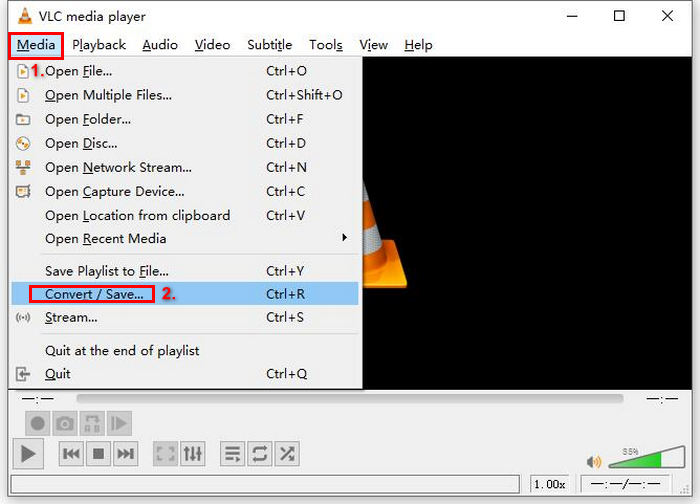
Vaihe 2: Siirry seuraavaksi Media-välilehdelle ja valitse listasta Muunna / Tallenna -vaihtoehto.
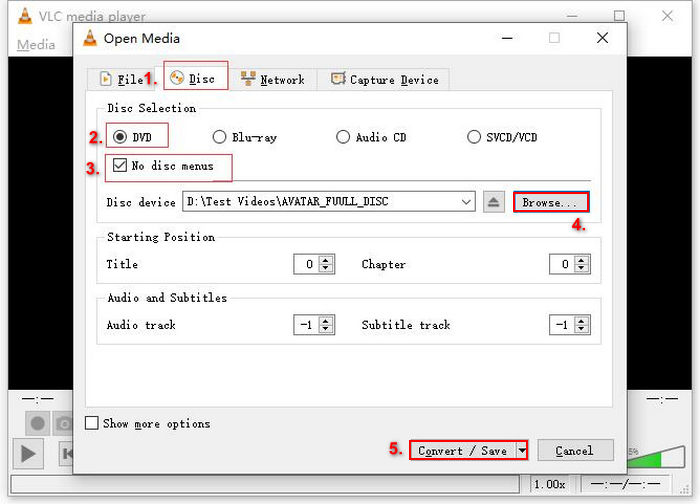
Vaihe 3: Tämän jälkeen napsauta ylävälilehdestä Levy, ota käyttöön DVD-vaihtoehto ja valitse rippattava DVD kohdasta Levylaite.
Vaihe 4: Napsauta nyt Muunnos / Tallenna -painiketta ja aseta tulostiedoston muodoksi MKV napsauttamalla alla olevaa profiilin avattavaa valikkoa.
Vaihe 5: Sen jälkeen, Kohde-osiossa alhaalla, napsauta Selaa, valitse kansio ja anna tulostiedostolle nimi.
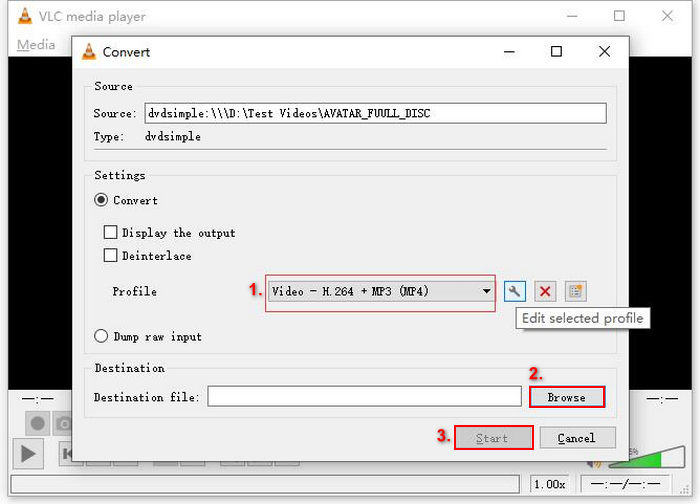
Vaihe 6: Kun kaikki on valmista, napsauta Aloita-painiketta rippataksesi DVD-levyn VLC:llä.
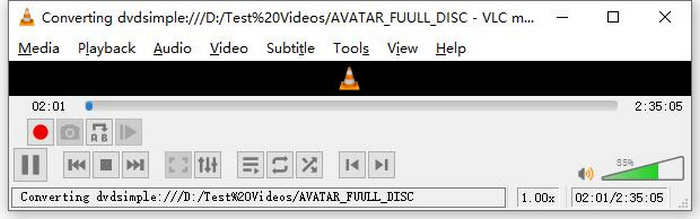
Huomautus: Näet Muunnos-tilannepalkin alareunassa. Odota vain, että VLC saa rippauksen valmiiksi.
Kommentti:
Rakastamme VLC Media Playerissa sitä, että se on todella luotettava ja monipuolinen, erityisesti käyttäjille, jotka etsivät ilmaista DVD-levyjen kopiointivaihtoehtoa. Tästä ominaisuudesta huolimatta sen käyttöliittymä voi kuitenkin olla hieman tekninen aloittelijoille, ja prosessi voi tuntua pitkältä verrattuna erikoistuneempiin ja omistettuihin DVD-ripperiohjelmistoihin. Lisäksi se voi vaikeuksia joidenkin kopiosuojattujen levyjen kanssa, mikä rajoittaa sen tehokkuutta näissä tapauksissa. Siitä huolimatta on suositeltavaa kopioida DVD-levyt VLC:llä.
Osa 2. VLC DVD Ripper -vaihtoehdot
Jos etsit vaihtoehtoista työkalua DVD-levyjen rippaamiseen VLC:n lisäksi, AnyMP4 DVD Ripper on sinua varten. Tämä VLC DVD -ripperin vaihtoehto on täysin varusteltu työkalu, joka tukee useita laajalti käytettyjä videolähtömuotoja, kuten MP4, MOV, AVI, MKV ja paljon muuta. Tämän avulla voit helposti muuntaa DVD-levyjä digitaalisiin muotoihin toistettavaksi eri laitteilla menettämättä laatua. Sen DVD-rippausominaisuudet ovat erinomaiset, ja se tukee minkä tahansa DVD-levyn muuntamista, kuten kotitekoisten, kaupallisten, harjoitus- ja 99 nimikkeen DVD-levyjen.
Ilmainen latausWindows 7 tai uudempiTurvallinen lataus
Ilmainen latausMacOS 10.7 tai uudempiTurvallinen lataus
Vaiheet DVD-levyn kopioimiseen AnyMP4 DVD Ripperillä:
Vaihe 1: Lataa ja asenna ensin työkalu laitteellesi. Muista asettaa DVD tietokoneesi DVD-asemaan ja odottaa muutama minuutti, kunnes se tunnistetaan.
Ilmainen latausWindows 7 tai uudempiTurvallinen lataus
Ilmainen latausMacOS 10.7 tai uudempiTurvallinen lataus
Vaihe 2: Käynnistä nyt työkalu ja napsauta "Load DVD" ladataksesi levyn.
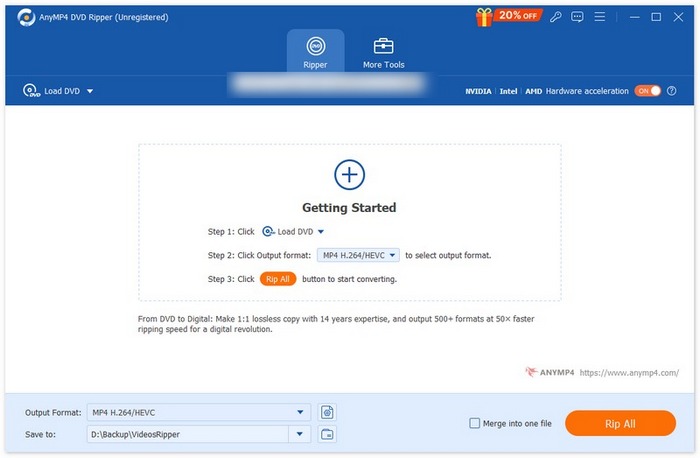
Vaihe 3: Napsauta sen jälkeen alhaalla kohtaa "Output Format" ja valitse haluamasi videoformaatti "Video"-välilehdeltä. Tämän prosessin avulla voit muuntaa DVD-levysi videotiedostomuotoon, joka on helpommin käytettävä ja jota tukevat monet eri laitteet. Kun olet valmis, napsauta vain "Rip All" -painiketta aloittaaksesi DVD-levysi rippaamisen.

Paljon helpompaa, eikö? AnyMP4 DVD Ripper on todella loistava vaihtoehto VLC DVD -ripperille. Käyttöliittymältään, rippausprosessiltaan ja muilta tarvittavilta ominaisuuksiltaan tämä työkalu on mullistava ja paljon parempi kuin VLC:n käyttämä DVD-rippaus.
Osa 3. Usein kysytyt kysymykset DVD-levyjen kopioimisesta VLC:llä
Mikä on paras muoto DVD-levyn kopioimiseen?
Paras muoto DVD-levyn kopioimiseen riippuu käyttäjän laitteesta. MP4 on kuitenkin laajalti ja yleisesti käytetty videomuoto. Joten, kun kopioit DVD-levyä, turvallisin muoto, jonka voit valita, on MP4.
Voinko kopioida DVD-levyn Windows 7:ssä?
Kyllä. Voit kopioida DVD-levyn Windows 7:ssä VLC Media Playerin avulla. VLC tukee useita käyttöjärjestelmiä, mukaan lukien Windows 7. Kun on kyse DVD-levyjen kopioimisesta VLC:llä, noudata samaa prosessia kuin muissa Windows-versioissa. Varmista kuitenkin, että DVD-asemasi on toimiva ja VLC on ajan tasalla yhteensopivuusongelmien välttämiseksi.
Kuinka kauan DVD-levyn kopioiminen kestää?
DVD:n rippaamiseen kuluva aika vaihtelee useiden tekijöiden mukaan. On tärkeää ottaa huomioon DVD:n koko, DVD-asemasi nopeus sekä rippauksessa käyttämäsi asetukset, kuten resoluutio, formaatti jne. Tavallisesti vakiomittaisen DVD-levyn rippaaminen voi kestää 20 minuutista yli tuntiin. Korkealaatuiset rippaukset ja suuremmat tiedostokoot vievät yleensä pidemmän käsittelyajan. Jos haluat tietää, mikä on VLC:n toistonopeus, katso täältä.
Voinko kopioida kopiosuojattuja DVD-levyjä VLC:llä?
Ei. Minkä tahansa ohjelmiston on vaikea kopioida kopiosuojattuja DVD-levyjä salauksen ja digitaalisten oikeuksien hallintasuojausten vuoksi.
Johtopäätös
Nyt kun tiedät, miten rippaat DVD-levyjä VLC:llä, sinulla ei ole enää syytä säilyttää kaikkia DVD-levyjäsi ikuisesti. Seuraa vain tätä opasta, niin voit muuntaa kaikki levysi digitaalisiksi tiedostoiksi, joita voit toistaa missä ja millä laitteella haluat. Sillä välin, jos VLC ei toimi sinulla, voit kokeilla vaihtoehtona AnyMP4 DVD Ripper -ohjelmaa. Oletko innoissasi tästä? Sukelletaan asiaan ja aloitetaan rippaaminen.
-
 Kuinka suoratoistaa DVD-elokuvia tietokoneelta / Macista televisioon Chromecastin kautta
 Etkö tiedä kuinka katsella DVD-elokuvia televisiosta Chromecastin kautta? Tämä artikkeli näyttää helpoimman tavan suoratoistaa DVD-elokuvasi tietokoneesta televisioon Chromecastin kautta.
-
 Android DVD-soitin – DVD-videoiden toistaminen Android-puhelimissa
 Kuinka toistaa DVD -tiedostoja Android -matkapuhelimissa? Onko Android -DVD -soittimia? Tässä artikkelissa opit kolmesta tavasta toistaa DVD -videoita Android -matkapuhelimissa ulkoisen ohjaimen kanssa tai ilman.
-
 3 parasta vaihtoehtoa DVDFab -soittimelle DVD -videoiden toistamiseen tietokoneella
 Kannattaako DVDFab -soitin ostaa? Voiko se toistaa 4K -videoita? Entä sen maksullinen versio? Tässä artikkelissa esitellään sen ominaisuudet yksityiskohtaisesti, ja voit valita 3 parhaasta vaihtoehdosta DVDFab Playerille.
