


 Video Converter Ultimate
 Näytön tallennin
 Videon korjaus
 Suojattu lataus
Kuinka tallentaa MP4 iPhonessa: Asetukset ja parhaat ratkaisut löytämiseen
Tallentaako iPhone MP4-muodossa? Yleensä iPhonet tallentavat videot MOV-muodossa, mikä toimii useimmiten hyvin. Jos kuitenkin haluat jakaa näitä iPhone-videoita laitteille, jotka eivät tue MOV-muotoa, kohtaat ongelmia. Siksi on tärkeää ymmärtää iPhonen videotiedostomuodot, olitpa sitten katsomassa, kuvaamassa tai muokkaamassa videoita iPhonellasi. Tämä ymmärrys ja tieto auttavat välttämään toisto-ongelmia käyttämällä oikeaa tiedostotyyppiä ja koodekkeja. Tässä artikkelissa näytänkin sinulle kolme helppoa tapaa tallentaa videoita MP4-muodossa iPhonellasi, jotta videot olisivat yhteensopivia toistoa ja muokkausta varten.

Osa 1. Tallentaako iPhone videoita MP4-muodossa
Monet ihmiset, varsinkin muut kuin iPhone-käyttäjät, ihmettelevät, tallentaako iPhone MP4-muodossa. No, vastataksesi tähän nopeasti, iPhonet voivat tallentaa videoita kahdessa muodossa. Mutta tämä riippuu silti asetuksista. Oletusvaihtoehto on MOV, joka on laajalti käytetty Apple-laitteiden muoto, joka toimii hyvin joissakin laitteissa. iPhonet tarjoavat kuitenkin myös tilaa säästävän vaihtoehdon, jota kutsutaan korkeaksi tehoksi tai HEVC:ksi. Tämä käyttää eri muotoa, mutta voit silti katsella näitä tallenteita suoraan iPhonellasi.
Nyt mitä tulee näytön tallennukseen, iPhonen sisäänrakennettu näytöntallennin tallentaa tallennukset vain MOV-muodossa. Jos siis tarvitset MP4-tallenteita ja haluat muokata näitä MP4-videoita suoraan iPhonellasi, sinun on turvauduttava ammattimaiseen näytön tallentamiseen tai muokkausohjelmistoon tietokoneellasi App Storen rajoitusten vuoksi.
Osa 2. Kuinka tallentaa MP4 iPhonessa ilman muuntamista
iPhonella tapahtuvaan MP4-videotallennukseen liittyen tässä on ammattimainen ohjelmisto nimeltä FVC Screen Recorder, joka auttaa sinua nauhoittamaan kaiken iPhoneltasi, myös videot, ja tuottamaan niistä MP4-lähtötiedoston. FVC Screen Recorder sisältää erilaisia tallentimia, mukaan lukien iPhone-tallentimen. Se peilaa puhelimesi näytön ja tallentaa sitten kaiken, mitä sillä näkyy, myös järjestelmä-äänet. Sille on ominaista, että se tarjoaa annotointityökaluja, joiden avulla voit personoida tekemäsi nauhoitukset. Tämän FVC Screen Recorderin avulla sinun ei todellakaan tarvitse muuntaa iPhone-videoita saadaksesi laadukkaita MP4-videoita. Sinun tarvitsee vain noudattaa alla olevaa ohjetta MP4-tallennuksesta iPhonella, ja olet valmis.
Vaihe 1. Ensimmäiseksi sinun on hankittava tallennin tietokoneellesi. Voit ladata sen työpöydälle tai Macille napsauttamalla alla olevia Lataa-painikkeita. Vinkki: Voit jo valmistella iPhonesi ja yhdistää sen samaan WLAN-verkkoon, johon tietokoneesi on yhdistetty.
Ilmainen latausWindows 7 tai uudempiSuojattu lataus
Ilmainen latausMacOS 10.7 tai uudempiSuojattu lataus
Vaihe 2. Käynnistä näytön tallennin ja napsauta Phone-tallennustyökalua. Valitse sitten iOS-vaihtoehto. Mene iPhonesi Ohjauskeskukseen, napauta Näytön peilaus -toimintoa ja valitse sieltä Screen Recorder -vaihtoehto. Tämä yhdistää laitteesi ja aloittaa tallennuksen.
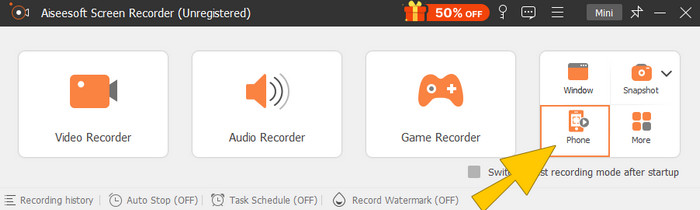
Vaihe 3. Kun yhteys on muodostettu, voit nyt napsauttaa Record-painiketta. Napsauta sitten Stop-painiketta, kun olet valmis.
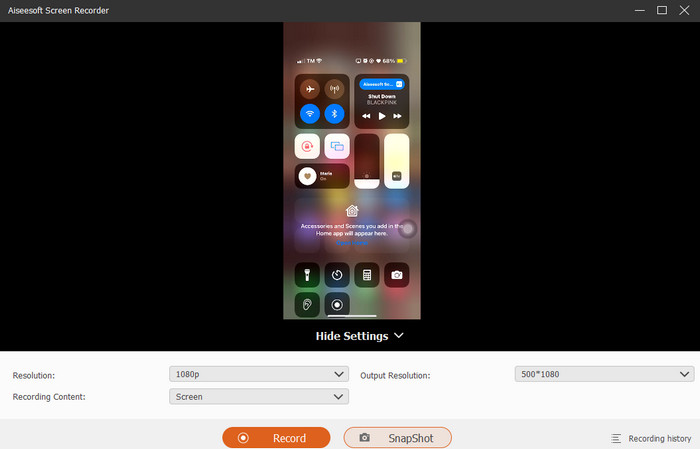
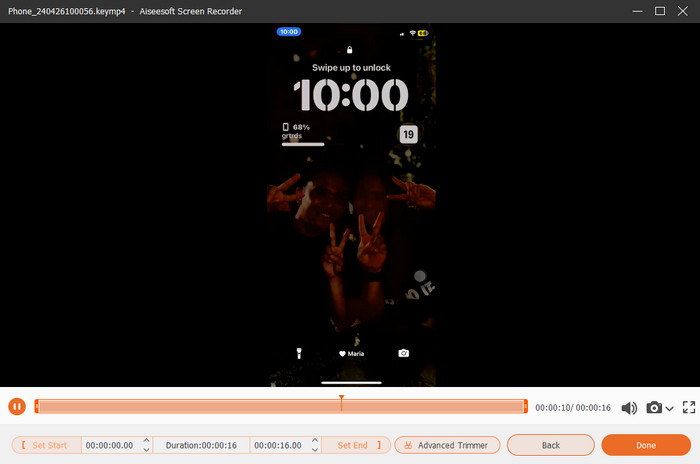
Vaihe 4. Tallennuksen jälkeen työkalu vie sinut tallennuksen tallennusosioon, jossa voit muokata raakaa tallennetta. Muokkaus sisältää äänenvoimakkuuden säädön, rajauksen ja kuvakaappauksen. Muussa tapauksessa napsauta Valmis-painiketta tallentaaksesi tallennetun MP4-tiedoston.
Osa 3. Kuinka tallentaa MP4 iPhone-asetusten kautta
Yleensä iPhonella kuvaamiasi videoita ei tallenneta MP4-tiedostoina. Jos kuitenkin haluat ne MP4-muodossa, sinun on säädettävä asetuksia, mikä on luultavasti yksinkertaisin tapa tehdä niin. Mutta odota, on tärkeää huomata, että MP4:ään vaihtaminen saattaa kaataa puhelimeesi paljon tallennustilaa. Joten ennen asetusten säätämistä harkitse, kannattaako sitä kokeilla. Muussa tapauksessa katso alla olevia vaiheita.
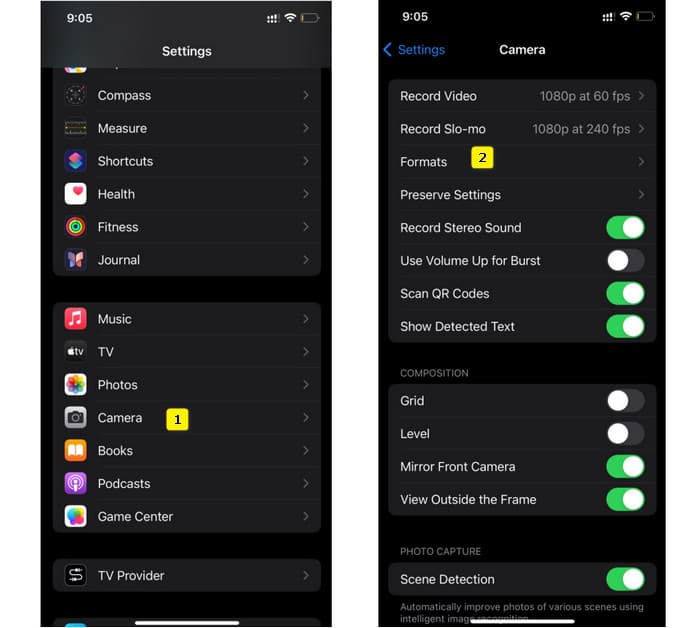
Vaihe 1. Avaa puhelimesi Asetukset-sovellus, etsi Kamera-sovellus ja napauta se auki.
Vaihe 2. Siirry nyt Muoto-osioon ja napauta sitä. Aseta se sitten Eniten yhteensopiva -vaihtoehtoon, jotta saat MP4-muodon oletuksena.
Vaihe 3. Sen jälkeen voit aloittaa iPhonesi tallentamisen käyttämällä sen sisäänrakennettua näytön tallenninta.
Osa 4. Muunna iPhone-tallenteet MP4-muotoon verkossa ilmaiseksi
Myönnä pois: kun MP4-muotoon tallentaminen ei ole sinun juttusi, viimeinen keinosi on muuntaminen. Voit tällöin käyttää ilmaista verkkopohjaista muunninta, joka tarjoaa sinulle helpomman ja nopeamman ratkaisun videoillesi. Tutustu ohjelmaan FVC Free Video Converter Online, ilmaiseen työkaluun, jonka avulla voit muuntaa videoita ja musiikkia eri muotoihin. Se toimii yleisten video- ja äänitiedostojen kanssa ja voi muuntaa ne muotoihin kuten MP4, FLV, AVI, WMV, MOV, MKV ja moniin muihin. Jopa teräväpiirtovideot voidaan muuntaa nopeasti ilman laadun heikkenemistä! Voit myös muuntaa useita videoita kerralla, mikä säästää aikaa muuntamisessa. Käytöstä tekee entistä kätevämpää se, ettei sinun tarvitse ladata muunnettuja tiedostoja erikseen, vaan sinun tarvitsee vain valita kohdekansio, johon tulostiedostot tallennetaan suoraan! Kokeillaan siis tätä upeaa työkalua ja muunnetaan iPhone-videosi nopeasti!
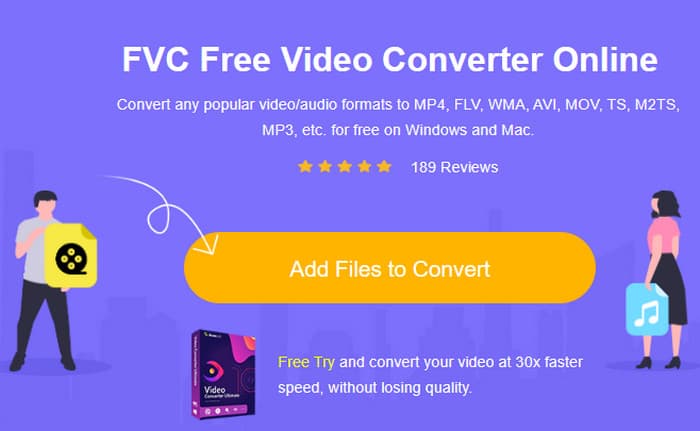
Vaihe 1. Siirry työpöytäselaimellasi työkalun viralliselle verkkosivustolle. Napsauta sitten Add Files to Convert -painiketta ladataksesi käynnistysohjelman. Kun se on ladattu, napsauta painiketta uudelleen lähettääksesi iPhone-videosi.
Vaihe 2. Kun olet päässyt pääkäyttöliittymään ja haluat lisätä lisää muunnettavia iPhone-videoita, napsauta vain Add File -painiketta. Aseta tiedostojen muodoksi MP4 napsauttamalla niitä ja valitsemalla formaatti alareunasta.
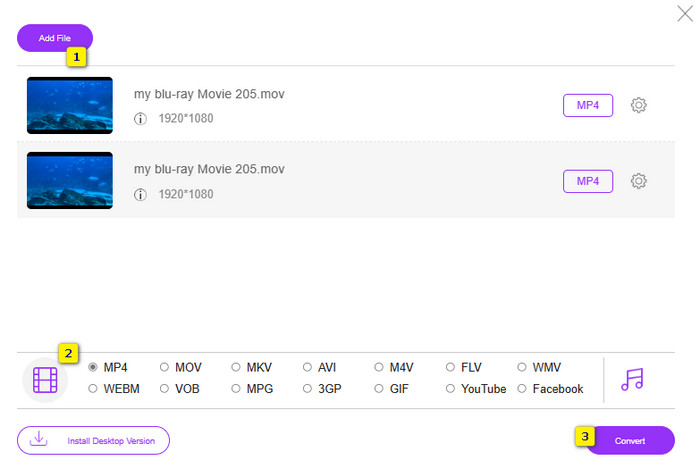
Vaihe 3. Kun olet valmis, napsauta Convert-painiketta ja valitse tiedostojen tallennussijainti. Heti sijainnin valitsemisen jälkeen muunnosprosessi alkaa.
Yllä olevien vaiheiden avulla voit helposti muuntaa iPhonen MOV-videot MP4-muotoon ilmaiseksi.
Osa 5. Usein kysytyt kysymykset iPhone MP4 -videotallenteista
Voinko muokata iPhonellani tallennettuja MP4-videoita?
Kyllä, voit muokata MP4-videoita iPhonellasi. Käytä tätä varten erilaisia videonmuokkaussovelluksia, jotka ovat saatavilla App Storesta. Muussa tapauksessa voit siirtää videot tietokoneellesi ja muokata niitä ammattimaisella videonmuokkausohjelmistolla.
Kuinka voin siirtää MP4-videoita iPhonesta tietokoneeseen?
Videoiden siirtämiseen iPhonesta PC:lle on useita tapoja. Voit käyttää USB-kaapelia, ladata videoita pilvitallennustilaan tai käyttää ohjelmistoa, joka auttaa sinua siirtämään ne.
Mitä videon laatua ja resoluutiota iPhone tallentaa MP4-muodossa?
Tämä riippuu iPhonesi mallista. iPhonet tallentavat videoita yleensä MP4-muodossa erilaisilla resoluutioilla ja laatuvaihtoehdoilla. Vaihtoehdot vaihtelevat vakiotarkkuudesta teräväpiirtotarkkuuteen ja jopa 4K uudempiin malleihin.
Johtopäätös
Nämä ovat menetelmiä, jotka antavat sinulle ohjeita MP4-tiedoston tallentamiseen iPhonellasi helposti. Valitse itsellesi sopivin ja jaa se myös ystäviesi kanssa!
-
 Kuinka muuntaa MP4 MOViksi Mac / PC / Online
 Kuinka muuntaa MP4 MOV: ksi Macissa? Onko olemassa mitään ilmaista tapaa muuntaa MP4 MOV: ksi ilman laadun heikkenemistä? Tämä viesti jakaa 4 yksinkertaista tapaa auttaa sinua tekemään videon muunnos MP4: stä MOV: ksi Macissa, Windows PC: ssä ja verkossa.
-
 Opetusohjelma - 4 ilmaista tapaa yhdistää iPhonen videot uuteen
 Haluatko yhdistää videot yhdeksi iPhonellasi? Lue ja hanki 4 helppoa tapaa kaikilla tuetuilla iPhone-malleilla ja iOS-versioilla.
-
 [Ratkaistu] Kuinka korjata videot, jotka eivät toistu iPhonessa yksityiskohtaisilla vaiheilla
 Gallerian paikallisia videoita ei voi toistaa iPhonellasi oletusvideosoitimen kautta? Tapahtuuko aina online -YouTube -videoita, joita ei toisteta iPhonessa? Tässä on 5 ratkaisua, jotka auttavat sinua tässä artikkelissa.
