


 Video Converter Ultimate
 Näytön tallennin
 Videon korjaus
 Suojattu lataus
Pelin tallentaminen PS5:llä ilman rajoituksia [Kattavat ohjeet]
Vain kolmessa vuodessa PlayStation 5 on kadonnut kauppojen hyllyiltä ennätystahtiin. Konsolia on myyty jo yli 50 miljoonaa kappaletta sen julkaisun jälkeen, eikä ihme – se on tehokas laite, joka tarjoaa 4K-pelit. Jos haluat esitellä pelitaitojasi tai jakaa eeppisiä pelimomenttejasi seuraajillesi, pelaamisen tallentaminen PlayStation 5:llä on loistava vaihtoehto. Jos mietit, kuinka tallentaa PS5:llä, konsolissa on kätevä toiminto, jolla voit kaapata, muokata ja jakaa peliseikkailusi eri alustoille. Mutta miten tämä kaikki käytännössä toimii? Jatka lukemista, niin opit, miten nauhoitat ja otat kuvakaappauksia PS5:lläsi – ja jopa, miten voit tehdä sen rajattoman tallennuksen tekniikalla.

Osa 1. Pelin tallentaminen PS5:llä
Varmasti PS5:n mukana tulee sisäänrakennettu tallennin, jonka avulla voit tallentaa henkeäsalpaavan pelin. On kuitenkin syytä huomata, että konsolisi tallentimessa on rajoituksia ja tehokkuutta. Mitä tulee tehoon, voidaan turvallisesti sanoa, että se on erittäin tehokas korkealaatuisten tallennettujen videoiden tuottamisessa. Toisaalta, mitä tulee sen rajoituksiin, sinun on pidettävä mielessä, että tällä konsolilla voit tallentaa vain enintään 60 minuuttia peliaikaa. Sen lisäksi sen avulla voit tuottaa videoita vain MP4- ja WebM-muodossa tuetuina tulostusmuotoina.
Sillä välin kysymykseen siitä, kuinka näytön tallentaminen tapahtuu PS5:n sisäänrakennetulla pelitallentimella, anna alla olevien vaiheiden vastata sinulle.
Tallenna peli
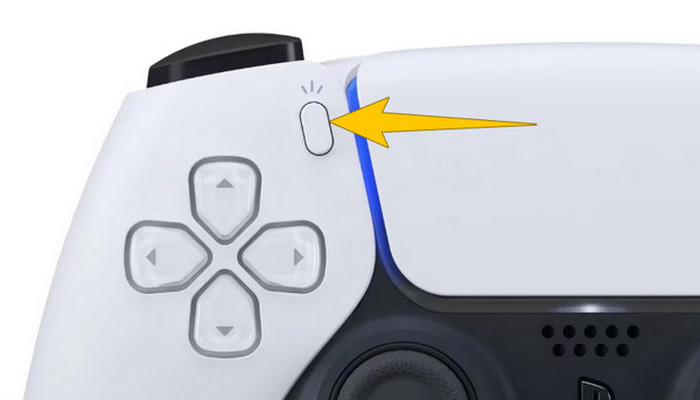
Vaihe 1. Ota DualSense-ohjain käteesi ja paina nuolinäppäinten yläpuolella olevaa painiketta. Se vastaa Luo-toimintoa ja sitä painetaan, kun olet aloittamassa pelitallennusta.
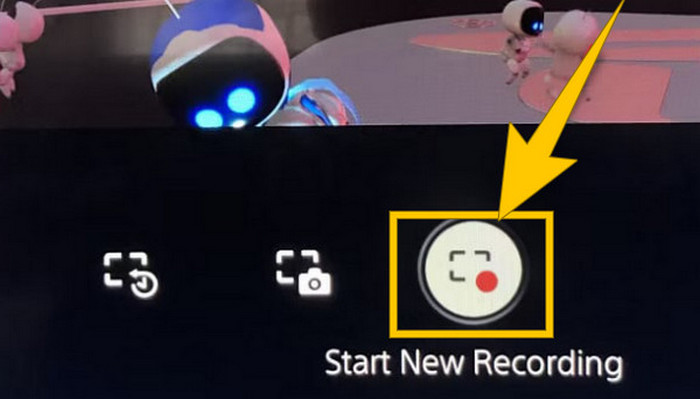
Vaihe 2. Kun olet painanut painiketta, katso näyttöäsi ja valitse alareunasta Aloita uusi tallennus -vaihtoehto. Tallennus käynnistyy heti, ja voit aloittaa pelaamisen.
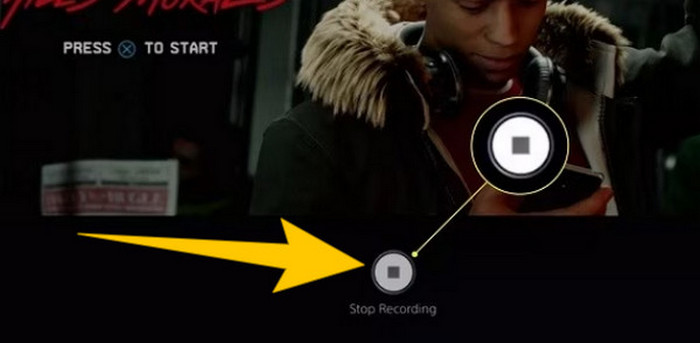
Vaihe 3. Kun olet pelisi kanssa valmis, näin lopetat pelitallennuksen PS5:llä. Paina uudelleen Luo-painiketta ja valitse tällä kertaa näytöllä näkyvä Stop Recording (Lopeta tallennus).
Lataa tallenteet
Nauhoituksen jälkeen PS5 tallentaa tulosteen automaattisesti Media Galleryyn, jossa kaikki tiedostot säilytetään. Nyt, jos haluat säilyttää kopion erilliselle laitteellesi, on valitettavaa kertoa, että mainitussa galleriassa ei ole latausvaihtoehtoa. On kuitenkin olemassa tapa säilyttää tiedostot.
Vaihe 1. Kytke ulkoinen SD- tai USB-asema konsoliisi. Siirry sitten Media Galleryyn (Mediagalleria) ja avaa se.
Vaihe 2. Valitse ruuduntallennus, jonka tallensit äsken. Napsauta sitten näytön alaosassa näkyvää Ellipsis-painiketta eli kolmen pisteen kuvaketta muiden vaihtoehtojen joukosta.
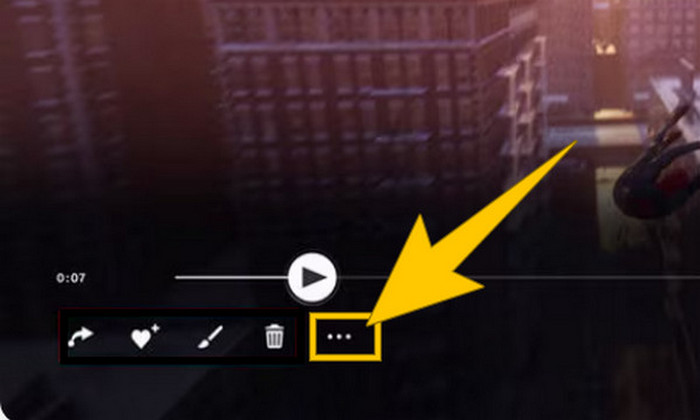
Vaihe 3. Kun olet klikannut, valitse Copy to USB Drive (Kopioi USB-asemaan) aloittaaksesi tallennetun videon kopioinnin USB:lle. Kun kopiointi on valmis, siirrä video laitteelle, jolle haluat tallennetun tiedoston talteen.
Osa 2. Näytön tallennus PS5:llä 4K-laadulla ilman rajoituksia
Älä huolestu, vaikka PlayStation 5 sallii hyvällä laadulla vain tunnin mittaisen pelitallennuksen. Tiedämme, kuinka turhauttavaa se on monille pelaajille, eikä kaikkiin peleihin edes voi soveltaa tätä rajoitusta. Jos haluat rajattoman tallennuksen 4K-laadulla kaikissa PS5-peleissä, kannattaa tutustua ohjelmaan FVC Screen Recorder. Tämä ruudunkaappausohjelma ei rajoita tallennusaikaa – vain tietokoneesi tallennustila asettaa rajat. Lisäksi se ei hidasta pelaamistasi. Tällä erinomaisella pelitallentimella voit myös hienosäätää tallenteita ennen niiden tallentamista. Voit esimerkiksi leikata, yhdistää, pakata, muuntaa, muokata metatietoja, parannella tallenteen laatua sekä jakaa sen vaivattomasti valitsemillesi alustoille.
On myös syytä huomata, että FVC Screen Recorder tarjoaa erilaisia tallennustyökaluja tallennustehtäviisi. Sen avulla voit tallentaa videota, ääntä, ikkunoita, web-kameroita, puhelimia jne. On huomattava, että voit nauttia tallenteistasi ilman niihin upotettuja vesileimoja! Joten saadaksesi lisätietoja FVC Screen Recorderista, seuraa alla olevia ohjeita nähdäksesi kuinka näytön tallentaminen tapahtuu PS5:llä.
Vaihe 1. Hanki FVC Screen Recorder lataamalla se tietokoneellesi. Napsauta Ilmainen lataus -painiketta ja seuraa ohjeita asentaaksesi ja avataksesi ohjelman.
Ilmainen latausWindows 7:lle tai uudemmalleTurvallinen lataus
Ilmainen latausmacOS 10.7:lle tai uudemmalleTurvallinen lataus
Vaihe 2. Kun FVC:n käyttöliittymä avautuu, etsi ja napsauta Game Recorder -työkalua. Se sijaitsee näytön oikeassa keskiosassa. Napsauta sitten Select the Game -kohdan vieressä olevaa pientä nuolta valitaksesi ikkunan, jossa PS5-näkymäsi näkyy.
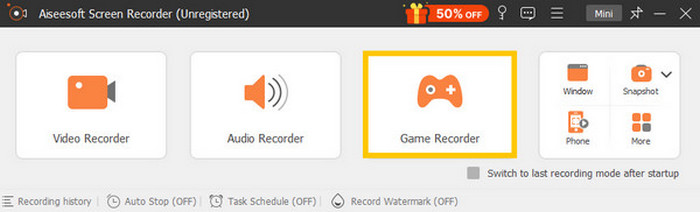
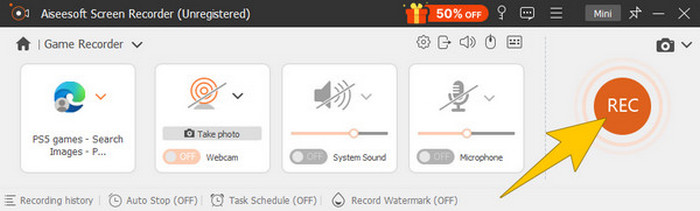
Vaihe 3. Kun olet valinnut ikkunan, huomaat, että tallennin kohdistuu siihen. Voit myös halutessasi lisätä kuva-kuvassa -webkamerakuvan, järjestelmä-äänet ja mikrofonin äänen tallennukseesi. Kun asetukset ovat valmiit, napsauta REC-painiketta aloittaaksesi pelin ja tallennuksen.
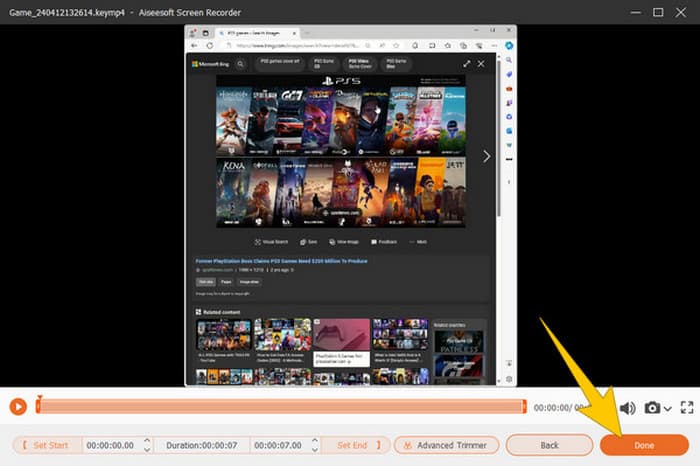
Vaihe 4. Kun olet lopettanut tallennuksen, napsauta kelluvan työkalupalkin Stop-painiketta. Sen jälkeen voit muokata videota uuden ikkunan tarjoamilla editointityökaluilla. Lopuksi napsauta Valmis-painiketta tallentaaksesi nauhoituksen galleriaasi.
Vaihe 5. Tämä vaihe on vapaaehtoinen. Jos haluat jakaa tallenteen sosiaalisen median tileillesi, voit napsauttaa uusinta pelitallennettasi hiiren oikealla ja valita Share (Jaa). Lisäksi voit käyttää lisättyjä edistyneitä editointityökaluja tallenteidesi viimeistelyyn.
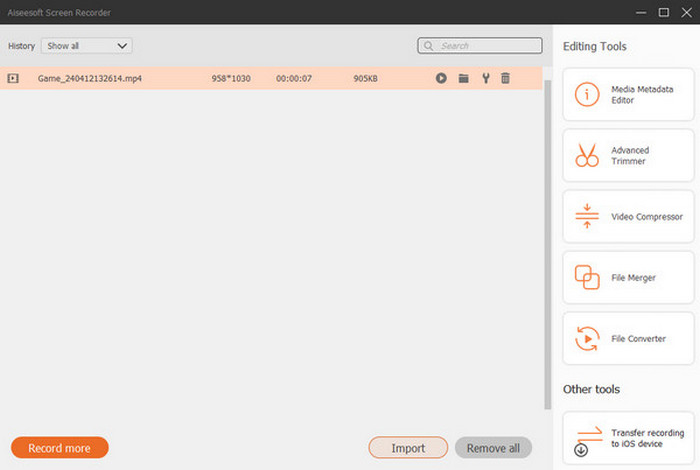
Jos haluat tietää lisää tästä tallentimesta, tässä on lisää vinkkejä.
Lisälukemista
5 tehokasta tapaa tallentaa näyttö GIF-muotoon Macilla ja Windowsilla
Näin tallennat eeppiset temput, clutcheja ja opastusvideot Minecraftissa
Osa 3. Usein kysyttyä pelin tallentamisesta PS5:llä
Kuinka sammutat pelin tallennuksen PS5:llä?
Voit sammuttaa tai lopettaa pelin tallennuksen PS5:lläsi painamalla peliohjaimen Luo-painiketta. Napsauta sitten näytölläsi Lopeta tallennus -vaihtoehtoa.
Missä voin nähdä tallennetut pelileikkeet PS5:lläni?
Tallennetut pelileikkeet tallennetaan päägallerian Capture-osioon. Pääset tähän galleriaan aloitusnäytöstä. Sen avulla voit katsella, muokata ja jakaa leikkeitäsi gallerian sallimalla tavalla.
Kuinka jaan tallenteeni PS5:llä?
Voit jakaa leikkeet PS5:llä tallennuksen jälkeen suoraan Capture Gallerysta. Sinun tarvitsee vain valita leike, jonka haluat jakaa, napsauttaa ohjaimen Asetukset-painiketta ja valita Jaa-vaihtoehto.
Johtopäätös
Sinun ei enää tarvitse kysyä, kuinka tallentaa PS5:llä, sillä tämä artikkeli esitteli oletus- ja parhaat menetelmät. Saat siis laadukkaita ja pitkiä pelitallenteita haluamistasi peleistä. Jaa nämä ratkaisut myös pelikavereillesi, jotta hekin saavat yhtä innostavan tallennuskokemuksen PS5:llään!
-
 5 johtavasta pelintallennusohjelmistosta, joka pelaajan on tiedettävä [2024]
 Oletko pelaaja, joka haluaa tallentaa pelin? Sitten tämä artikkeli antaa sinulle parhaan pelitallentimen, jonka avulla voit kokea uusia pelin korkeuksia.
-
 5 parasta Android Screen Recorder -sovellusta, jotka sinun on hankittava vuonna 2024
 Onko sinulla ongelmia, koska et voi tallentaa näyttöä Android-laitteellasi? Jos näin on, tässä artikkelissa tarkasteltiin Android-näytön tallentimia, joihin voit ladata.
-
 5 parasta Zoom-kokoustallentinta, jotka tallentavat kokouksia zoomilla [2024]
 Haluatko tallentaa zoomauskokouksen, jotta et jää paitsi kokouksen tärkeistä yksityiskohdista? Jos näin on, tämä artikkeli tarjoaa parhaat zoom-tallentimet, jotka sinun pitäisi tietää.
