


 Video Converter Ultimate
 Näytön tallennin
 Videon korjaus
 Suojattu lataus
Yksinkertaistettu tapa tallentaa Blu-ray OBS Studiolla ja muilla mahdollisilla työkaluilla
Blu-ray-levylle voidaan tallentaa levymuodon paras mahdollinen laatu. Se voi tallentaa videota jopa 1080 pikseliin asti. Samoin kuin äänessä, se tuottaa kristallinkirkkaan äänen toisin kuin CD-levyt. Eikä Blu-ray-levyn tallennustilasta tarvitse huolehtia, koska siinä on runsaasti tilaa. Edetessämme eteenpäin, OBS Studio on ilmaiseksi ladattava avoimen lähdekoodin ohjelma. Se tukee alustoja kuten Windows, macOS ja Linux. Lisäksi se sopii täydellisesti tietokoneen näytöllä näkyvän äänen ja videon tallentamiseen. Jotkut käyttäjät pitävät hankalana Blu-ray-levyn tallentamista studiossa. Joten pysy paikallasi ja lue artikkeli, niin opit, miten tallentaa Blu-ray-elokuvia OBS:llä ja mitä asiantuntijatason tallenninta sinun kannattaa käyttää saadaksesi korkealaatuisen videotulosteen.

Osa 1. Blu-ray-elokuvien tallentaminen OBS Studiolla
Tehokkaana suoratoistovapaana työkaluna tunnettu OBS Studio saa säännöllisesti päivityksiä vaikutusvaltaisten sponsoriensa Youtube, Twitch, Facebook, API.video, own3d.pro ja monien muiden alustojen ansiosta. Sinun ei tarvitse huolehtia suoratoistosta näiden tärkeiden alustojen takia. Toisaalta se rakentaa nimensä monimutkaisimpana tallennusvälineenä ja vähemmän ohjauksena. Mutta jos haluat yksinkertaista suoratoistoa, sinun ei tarvitse sukeltaa monimutkaisiin asetuksiin. Muuta vaikeasta hallittavaksi lukemalla tämä artikkeli OBS Studion vaiheet ja tiedot.
Tässä on joitain vaiheita OBS Studion käyttämiseen:
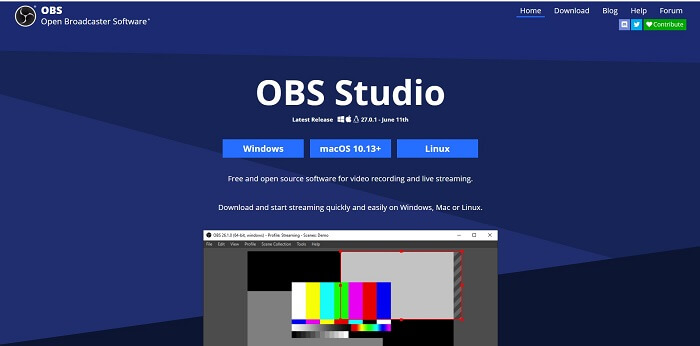
Vaihe 1. Avaa selaimesi. Valitse sitten käyttöjärjestelmä, jota tällä hetkellä käytät, lataa ohjelma, suorita määritykset, asenna se ja napsauta lopuksi Valmis (Finish) käynnistääksesi työkalun.
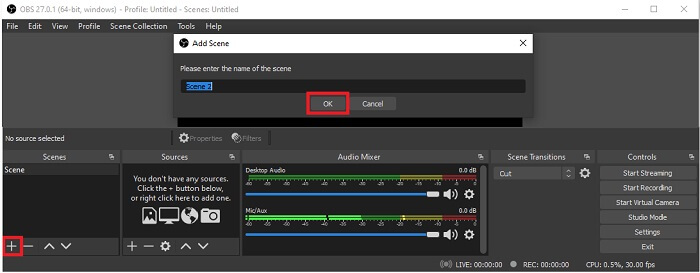
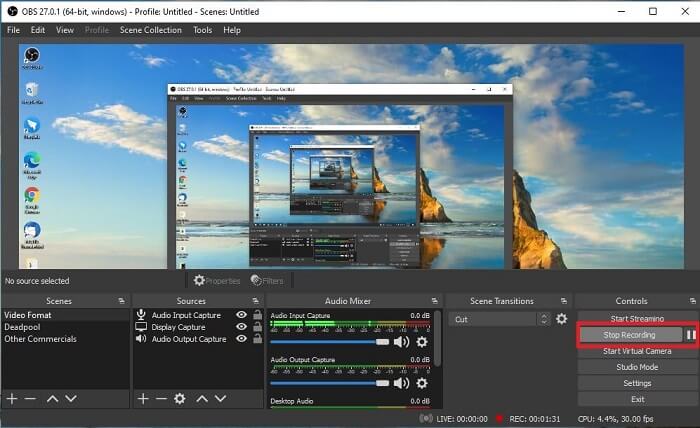
Vaihe 2. Siirry Scenes-paneeliin, napsauta Add-kuvaketta lisätäksesi kohtauksen ja nimeä se. Napsauta sitten OK jatkaaksesi.
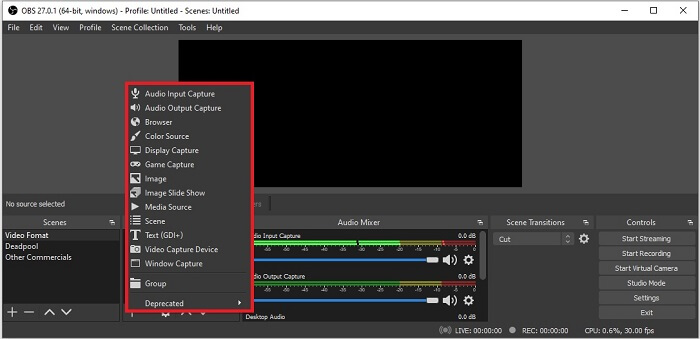
Vaihe 3. Siirry Lähde-painikkeiden (source panel) puolelle. Napsauta Plus-kuvaketta, jolloin näkyviin tulee erilaisia vaihtoehtoja. Tässä on joitakin perusvaihtoehtoja, jotka on lueteltu tässä. Audio Input Capture tallentaa äänesi mikrofonista. Seuraavaksi Audio Output Capture tallentaa järjestelmästä tulevan äänen. Display Capture tallentaa koko näytön. Viimeiseksi Game Capture tallentaa pelikoosteet. Napsauta OK tallentaaksesi. Kun kaikki tarvittavat lähteet on lisätty, säädä äänenvoimakkuutta Audio Mixer -välilehdellä.
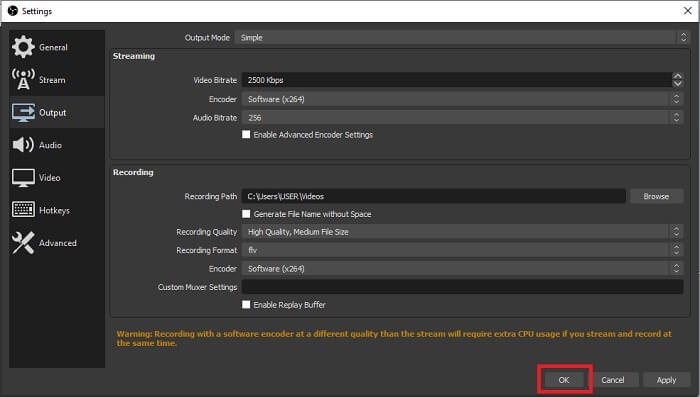
Vaihe 4. Napsauta Settings-painiketta Control Panel -osion alla käyttöliittymän oikeassa alakulmassa. Siirry Output-välilehdelle, määritä formaatti ja säädä asetuksia tarpeidesi mukaan. Aseta muut vaihtoehdot ja napsauta OK tallentaaksesi.
Vaihe 5. Napsauta Start Recording -painiketta aloittaaksesi tallennuksen. Kun tallennus on valmis, napsauta jälleen oikeasta alakulmasta samaa painiketta lopettaaksesi tallennuksen. Voit tarkistaa tallenteen tiedostonhallinnasta.
Plussat
- Se sopii minkä tahansa videon tallentamiseen ja suoratoistoon.
- Se ei tarjoa sinulle ilmaista kokeiluversiota. Koska se on ilmainen.
- Tarjoaa paljon valinnanvaraa.
Haittoja
- Ei paras valinta aloittelijalle, koska asennettavaa on paljon.
- Se ei tue videoeditointia, joten sinun on asennettava toinen työkalu editointia varten. Ja itse työkalu on 85,6 Mt, mikä on näytöntallentimen suurin tallennustila.
Osa 2. Online-menetelmä Blu-säteiden kaappaamiseen OBS-vaihtoehdolla
OBS studio on todellakin hyvä valinta äänitykseen ja suoratoistoon. Mutta työkalun käyttöliittymässä on paljon, joten uudelle käyttäjälle on vaivaa tallentaa. Tässä on vaihtoehtoinen online-työkalu, jota voit käyttää.
FVC Free Screen Recorder (online-työkalu)
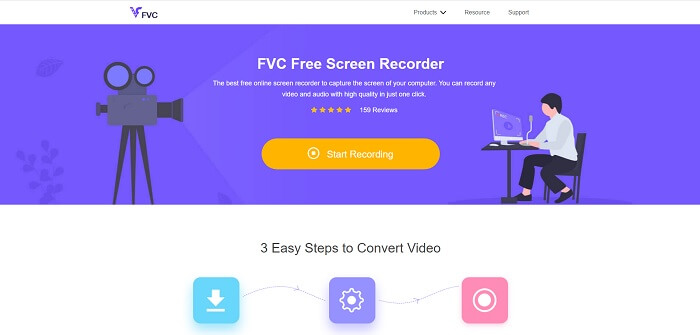
Helppokäyttöinen, vaivaton ja ilmainen työkalu on FVC Free Screen Recorder. Se toimii samalla tavalla kuin Blu-ray-tallennus OBS Studiossa, mutta on helpompi käyttää hallittavan kelluvan työkalupalkin ansiosta. Tämä täsmällinen ja yksityiskohtainen työkalu auttaa sinua tallentamaan minkä tahansa saatavilla olevan video- ja äänialustan. Se tarjoaa selkeän äänen ja teräväpiirtovideon, jonka voit tallentaa Blu-ray-levylle. Sen sijaan, että lataisit suuren ohjelman vain kerran käytettäväksi, mikset kokeilisi tätä verkkotyökalua? Tutustutaan nyt siihen, miten työkalu toimii. Tässä ovat vaiheet tämän verkkotyökalun käyttämiseen.
Vaihe 1. Avaa selaimesi ja käy osoitteessa https://www.free-videoconverter.net/free-screen-recorder/. Napsauta sitten Start Recording -painiketta käynnistääksesi verkkotyökalun. Kelluva palkki ponnahtaa esiin näytöllesi työkalun käynnistyksen jälkeen.
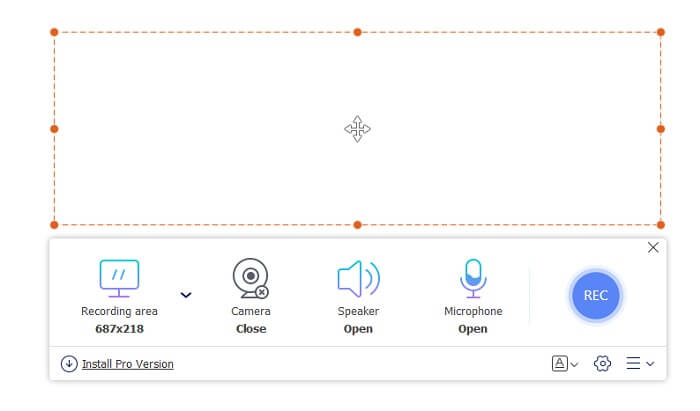
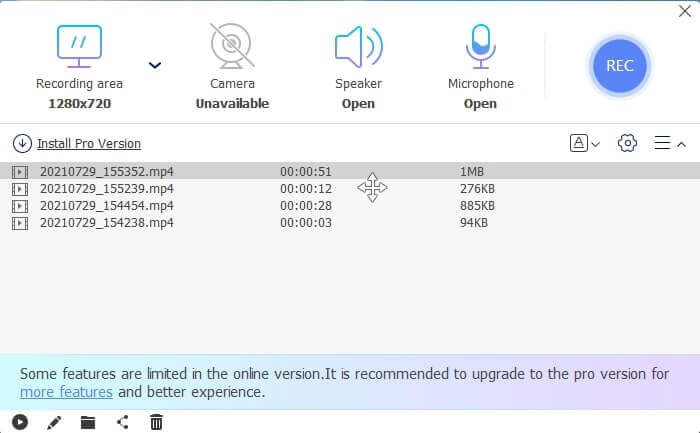
Vaihe 2. Kelluvassa työkalupalkissa on 4 erilaista paneelia, joista voit valita. Voit säätää kehyksen kokoa tai napsauttaa koko näytön tilaa. Seuraavaksi napsauta Speaker-kuvaketta järjestelmän äänenvoimakkuudelle. Voit myös lisätä oman äänesi ja kasvokuvasi napsauttamalla Microphone- ja Webcam-kuvakkeita päälle. Jos et halua lisätä niitä, napsauta ne pois päältä. Napsauta sitten pyöreää REC-painiketta aloittaaksesi tallennuksen.
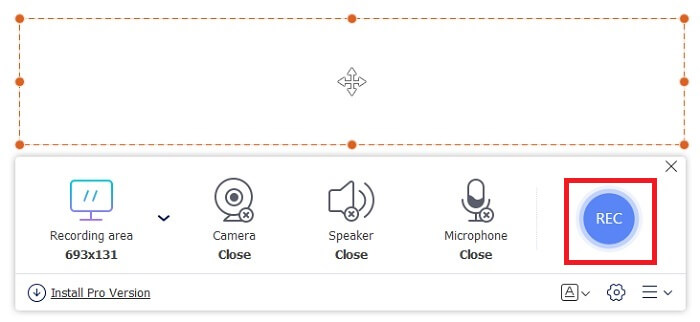
Vaihe 3. Kun tallennus on valmis, napsauta neliö-painiketta lopettaaksesi tallennuksen. Kaikki tallentamasi videot näkyvät history dropdown -luettelossa. Napsauta ensimmäistä tallennettua videota, koska se on uusin.
Plussat
- Avoin ilmainen lähdekoodi verkossa. Ei latausta, joten ei vaivaa.
- Paras näytön tallennin online-palveluihin, joka tukee kaikkia alustoja.
- Helppokäyttöinen työkalun täsmällisen ohjeen ansiosta.
Haittoja
- Se tarvitsee Internet-yhteyden, jotta työkalu toimii.
- Premiumin ominaisuuksia ei tueta ilmaiseksi.
Osa 3. Paras OBS-korvaus Blu-ray-elokuvien tallentamiseen
Toinen OBS Studion paras Blu-ray-levy on tämä FVC Screen Recorder. Jos haluat tallentaa online- ja offline-tilassa ja kaikkien alustojen käytettävissä, tämä on sinua varten.
FVC -näytön tallennin
Toisin kuin OBS Studio, tämä työkalu on käyttäjäystävällinen hallittavalla työkalurivillä. FVC Screen Recorder on yksi parhaista tallennusvaihtoehdoista. Se sisältää OBS:n kaltaisia ominaisuuksia, jotka ovat täsmällisempiä ja helppoja ymmärtää. Tallenna esimerkiksi näyttöä, verkkokameraa, ääntä ja järjestelmän ääntä ja paljon muuta. Tällä työkalulla on myös lukitusominaisuus, jota obsilla ei ole. Paitsi että tämä työkalu on maksullinen. Lisäksi, jos käytät tätä näytön tallenninta, teet oikean valinnan.
Seuraa alla olevia ohjeita, kuinka voit käyttää tätä työkalua täysimääräisesti.
Vaihe 1. Napsauta latauspainiketta asentaaksesi ohjelmiston, määritä haluamasi asetukset ja napsauta Finish jatkaaksesi. Tämän jälkeen työkalu käynnistyy.
Ilmainen latausWindows 7:lle tai uudemmalleTurvallinen lataus
Ilmainen latausmacOS 10.7:lle tai uudemmalleTurvallinen lataus
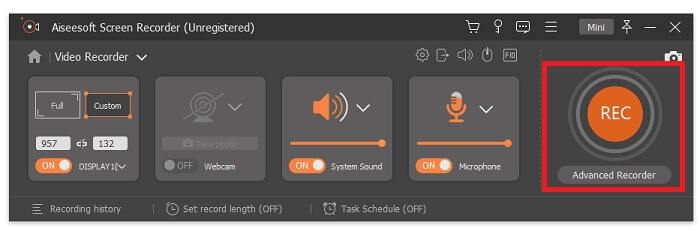
Vaihe 2. Napsauta Video Recorder. Tämän jälkeen näkyviin tulee 4 erilaista paneelia. Ensimmäisessä paneelissa voit säätää kehyskokoa muuttaaksesi kuvasuhdetta tai napsauttaa Full tallentaaksesi koko näytön. Toinen paneeli, Webcam, on tarkoitettu kasvojentallennukseen samanaikaisesti näytön tallennuksen kanssa. Seuraava paneeli on System Sound, joka tallentaa järjestelmän äänen. Viimeisenä on microphone omaa ääntäsi varten. Napsauta levyn muotoista -painiketta aloittaaksesi tallennuksen.
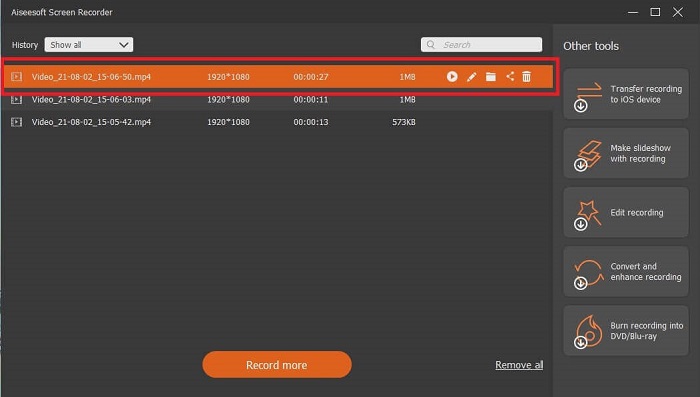
Vaihe 3. Kun videotallennus on valmis, napsauta neliö-painiketta lopettaaksesi sen. Napsauta Play-painiketta toistaaksesi tallennetun videon.
Plussat
- Siinä on tämä ainutlaatuinen ominaisuus, jota kutsumme lukitusnäytöksi, jotta vältetään häiriöt tallennuksen aikana.
- Se voi tallentaa 24 tuntia ilman audio-video-häiriöitä.
- Tallennus- ja käyttäjäystävällinen, koska sen tietomuoto on pakattu ja tiedot on helppo suorittaa.
Haittoja
- Sen hankkimiseksi on maksettava joko kuukausi, vuosi tai elinikäinen.
- Se on ladattava verkkosivustolta käyttääksesi sitä.
Lue lisää
1. Tallenna näytön video VLC Media Playerilla
2. Tallenna näyttö ja ääni Macilla käyttämällä QuickTimea
Osa 4. Usein kysyttyä Blu-ray-levyn tallentamisesta OBS Studiolla
Mitä eroa on Blu-ray-, DVD- ja CD-levyillä?
Suurin ero kunkin optisen levyformaatin välillä on lähtö ja tallennustila, jonka se voi tallentaa itsenäisesti. Siinä todetaan, että CD-levylle voi tallentaa jopa 700 Mt tiedostoa, DVD-levylle jopa 4,7 Gt tietoa ja Blu-ray-levylle jopa 25 Gt. Joissakin tapauksissa kaksikerroksinen Blu-ray voi säilyttää 50 Gt tietoa. Siinä on myös kolminkertainen levykerros ja nelikerros.
Onko OBS ilmainen työkalu? Onko sen lataaminen turvallista?
Kyllä, OBS Studio on maksuton työkalu, jossa ei ole piilokuluja. Voit myös ladata sen kaikille eri alustoille. Toinen Kyllä, se on suojattu haittaohjelmilta, viruksilta, matoilta, selaimen kaappaajilta ja muilta.
Mitkä videokoodekit tukevat Blu-ray-levyä?
Videolle: MPEG-2, MPEG-4 AVC ja SMPTE VC-1.
Äänelle: Linear PCM (LPCM), Dolby Digital® (DD), Dolby Digital® Plus (DD+), Dolby® TrueHD, DTS Digital Surround® ja DTS-HD®.
Johtopäätös
Loppujen lopuksi näytön tallentimet ovat hyödyllisiä ominaisuuksiensa vuoksi. OBS on hyvä valinta nauhoitukseen, mutta eri vaihtoehtojen ansiosta se saa käyttäjän arvailemaan ja kysymään, tekeekö se oikein. Mutta koska luettelo online- ja offline-tilassa tukee kaikkia eri alustoja. Nyt sinulla on valinnan valta. Valitsemaan mikä on sinulle parasta.
Kuten FVC Screen Recorder. Se on käyttäjäystävällinen ja täsmällinen työkalu, jonka avulla käyttäjä voi tallentaa missä ja milloin tahansa. Vaikka se on maksullinen työkalu. Silti se on jokaisen käytetyn pennin arvoinen. Muista, että älä stressaa itseäsi vaikeasta käytöstä, jos helppokäyttöinen voi tehdä paremmin.
-
 Toiminta! Screen Recorder Review - haitat, edut ja sen paras vaihtoehto
 Onko Action Screen Recorder haluttu pelitallennusohjelmisto pelivideoiden kaappaamiseen? Opi vain lisätietoja tarkastelusta ja sen vaihtoehdosta artikkelista.
-
 3 parasta Facebook-puhelun tallenninta tietokoneille, iOS: lle ja Androidille
 Kun haluat tallentaa Facebook-puheluita säästääksesi arvokkaita asioita, on paljon Facebook-puhelun tallentimia, joista valita. Täältä voit oppia 3 parasta työkalua Facebook-videopuheluiden tallentamiseen tietokoneelle, iOS: lle ja Androidille.
-
 Top 6 ilmaista WAV-tallenninta, jotka ovat saatavana Windowsille ja Macille
 Tässä artikkelissa jaetussa parhaassa WAV -tallennusohjelmistossa on useita hyödyllisiä ominaisuuksia, joiden avulla voit kaapata ääntä ja ääntä ammattilaisten tavoin.
