


 Video Converter Ultimate
 Näytön tallennin
 Videon korjaus
 Suojattu lataus
5 parasta WebM -tallenninta WebM -videon tallentamiseen korkealla laadulla
WEBM-tiedostopäätettä käyttävät yleensä verkkoselaimet. Useimmat niistä ovat moderneja selaimia, kuten Google Chrome, Opera, Firefox, Safari ja Edge. Yleensä nämä selaimet tukevat HTML5-verkkosivustoja, joilla voi suoratoistaa videoita. Hyviä esimerkkejä ovat YouTube, Twitch ja muut mediapalvelut. Muoto tukee videotarkkuuksia 360p:stä aina korkeimpaan resoluutioon asti. Jos vertaamme tätä formaattia muihin, se on pakattu formaatti, joka muistuttaa MKV-, MOV- ja MP4-muotoja. Ero piilee tiedoston sisällössä. Sekä Windows- että Mac-käyttöjärjestelmillä voi toistaa tämän tyyppisiä tiedostoja, kunhan toistimessa on oikeat koodekit ja liitännäiset. Jos etsit parempaa tapaa tallentaa tai hankkia WebM-tiedostoja, katso alta lista parhaista WebM-tallentimista.

Osa 1. Paras WebM -tallennin: FVC -näytön tallennin
Hanki helpoin tapa ottaa tilannekuvia, tallentaa näyttösi ja tallentaa WebM -videotiedostot kolmessa helpossa vaiheessa FVC Screen Recorder -ohjelmalla. Tämä .webm -näytön tallennin Windowsille ja Macille voi tallentaa WebM -sivustoja, kuten YouTubea, Skype -puheluita ja suoratoistoa, ja muut sivustot tukevat WebM -muotoa. Tallenna pelisi suoratoisto ilman, että videon laatu heikkenee. Lisäksi voit tallentaa videota, ääntä ja mikrofonia. Taustalla ei ole taustamelua, koska se tallentaa järjestelmän äänet. Koe siis saumaton tallennus ja erinomaiset muokkausominaisuudet video -opetusohjelmassasi FVC -näytön tallennuksella. Toisaalta tässä on työkalun käyttötapa.
Vaihe 1. Lataa FVC Screen Recorder alla olevista latauspainikkeista.
Ilmainen latausWindows 7:lle tai uudemmalleTurvallinen lataus
Ilmainen latausmacOS 10.7:lle tai uudemmalleTurvallinen lataus
Vaihe 2. Asenna ja käynnistä sovellus asennusohjelman ohjeiden mukaisesti.
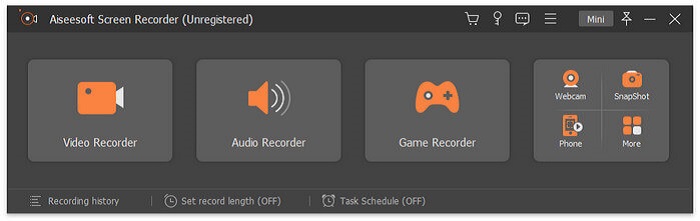
Vaihe 3. Kun kelluva palkki tulee näkyviin, napsauta Video Recorder.
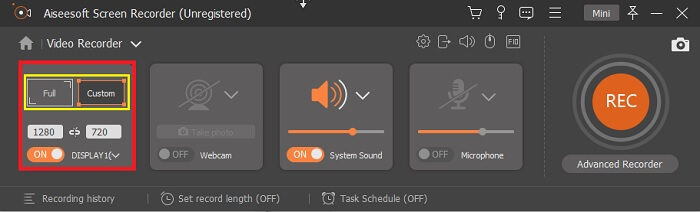
Sen jälkeen avautuu uusi ikkuna. Tällä kertaa napsauta Custom tai Full Screen. Jos valitset mukautetun tilan, säädä kuva-alue haluamaasi kokoon.
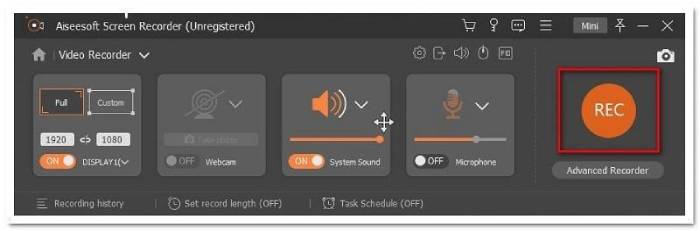
Vaihe 4. Aloita tallennus napsauttamalla REC-painiketta ja jatka sen jälkeen toimintoja normaalisti.
Voit sitten merkitä, lisätä nuolia ja kirjoittaa tekstin tallenteeseen.
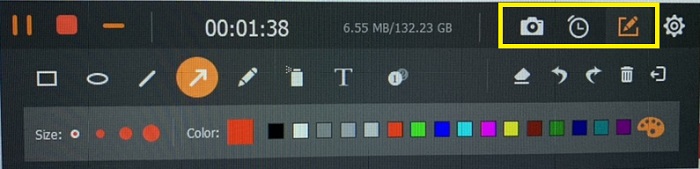
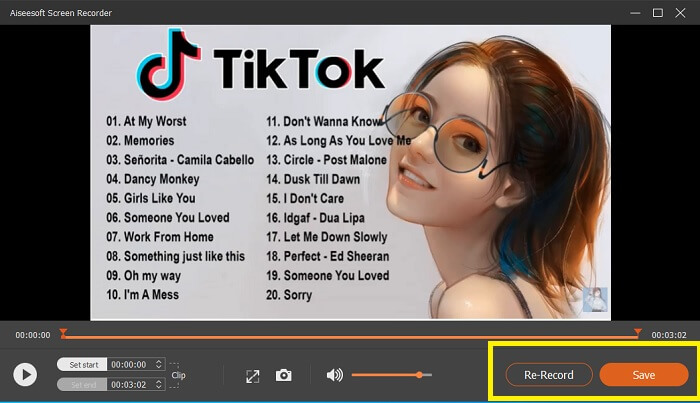
Vaihe 5. Pysäytä tallennus napsauttamalla punaista neliöpainiketta. Näkyviin tulee uusi ikkuna, jossa voit valita tallentamisen tai uudelleentallennuksen. Tarkista tallenne kelluvan palkin alaosassa olevasta luettelosta.
Osa 2. Muut suositut WEBM -tallentimet tietokoneellesi
1. FVC Free Screen Recorder
Erityisominaisuus: Vapaa haittaohjelmista. 100% turvallinen
Jos ensimmäinen työkalu ei tyydyttänyt sinua, saatat etsiä käytännöllisempää vaihtoehtoa. FVC Free Screen Recorder on kätevä työkalu, jos haluat hyödyntää monipuolisia ominaisuuksia ilman kustannuksia. Vaikka ilmaisohjelmien tiedetään usein tuottavan heikompilaatuisia videoita kuin maksulliset versiot, tämä työkalu nostaa rimaa hieman korkeammalle. Se pystyy tuottamaan korkealaatuisia videoita ja kirkasta, selkeää ääntä, vaikka onkin ilmainen. Lisäksi se on helppokäyttöinen. Seuraa alla olevia vaiheita oppiaksesi lisää.
Vaihe 1. Käynnistä sovellus tietokoneellasi verkkoselaimella. Selaimella ei ole väliä, tämä työkalu on riittävän joustava toimiakseen millä tahansa selaimella. Napsauta linkkiä siirtyäksesi suoraan viralliselle verkkosivulle.
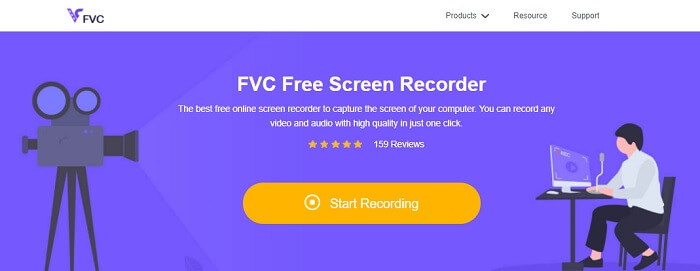
Vaihe 2. Käynnistä työkalu napsauttamalla Start Recording -painiketta.
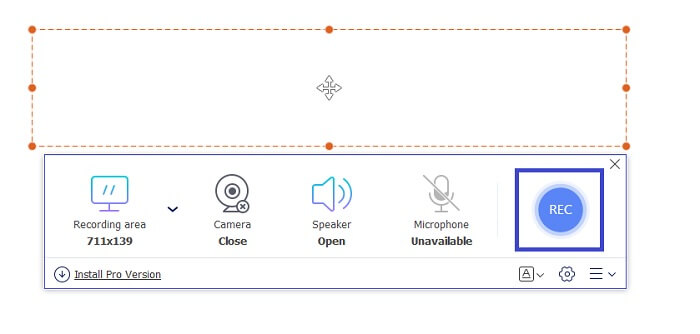
Vaihe 3. Kun työkalu on käynnistetty, näet kelluvan työkalupalkin. Säädä kuva-alueen kokoa muuttamalla kehyksen kokoa ja aloita tallennus napsauttamalla REC-painiketta.
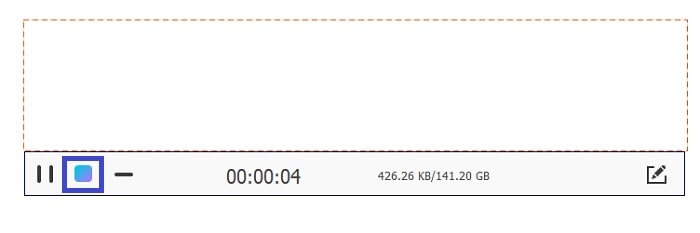
Vaihe 4. Pysäytä tallennus napsauttamalla alla olevassa kuvassa näkyvää neliöpainiketta.
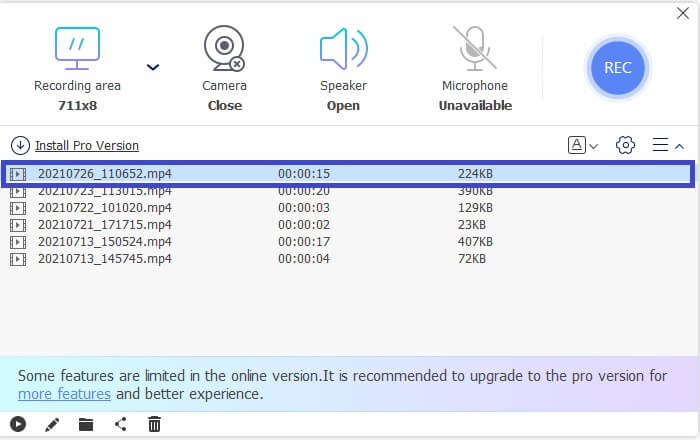
Vaihe 5. Näet tallentamasi tiedoston tarkistamalla kelluvan työkalupalkin alapuolella olevan luettelon.
Plussat
- 100% suojattu haittaohjelmilta.
- Se on joustava kuvasuhteen, bittinopeuden ja kuvataajuuden säätämisessä.
- Kuva kuvassa -tuki tuettu.
Haittoja
- Se ei tue laitteistokiihdytystä.
2. Pieni otos
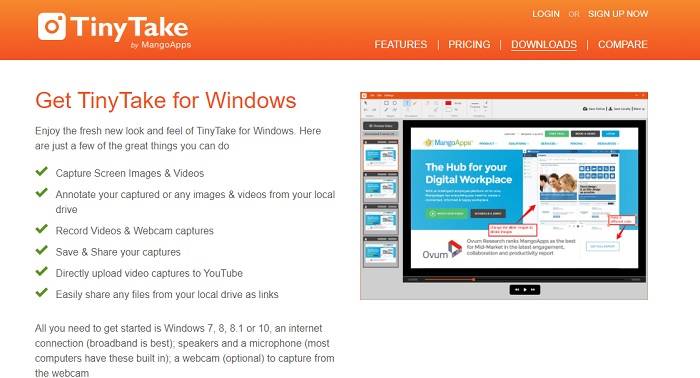
Erityisominaisuus: Tukee yhteistyötä ja etätyöskentelyä.
TinyTake on Mango -sovellusten kehittämä videotallennus- ja ilmainen näytön kaappaustyökalu. Tiny Take tarjoaa upeita ratkaisuja yksinkertaiseen näytön kaappaamiseen tai ammattimaisten tai henkilökohtaisten kokousten tallentamiseen. Tämän työkalun suosio on yhteistyöominaisuus, jossa voit työskennellä etänä, jakaa tiedostoja joukkojakolla, käyttää huomautusominaisuuksia ja pitkäaikaista tallennustilaa sekä Galleria (Online).
Plussat
- Se voi kaapata kuvia ja videoita paikallisesta asemasta.
- Jaa se suoraan YouTubessa.
- Huomautus tallennuksen aikana.
Haittoja
- Ei lukitusikkunaominaisuutta.
3. Screencast-O-Matic
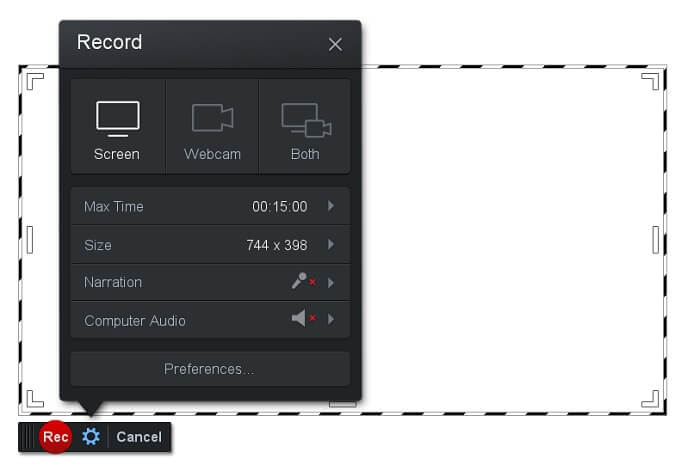
Erityisominaisuus: Työkalussa on helppokäyttöinen ja selkeä käyttöliittymä. Erittäin suoraviivainen.
Screencast-O-Matic on yksi yleisimmin käytetyistä ohjelmista. Sen avulla voit tallentaa tietokoneen näyttöä ilmaiseksi rekisteröitymisen jälkeen. Suositeltavaa on luoda tili ilmaistyökalun käyttöä varten. Lisäksi kehittäjä on lisännyt ominaisuuden, jolla voit muokata videota suoraan ennen vientiä. Voit hakea inspiraatiota työkalun sisäänrakennetusta materiaalikirjastosta ja jatkaa videoidesi parantamista. Voit myös ottaa kuvakaappauksia ja jakaa kaiken sisällön sosiaalisen median tileillesi.
Plussat
- Siinä on Cloud Hosting -ominaisuus.
- Lataa video muokattavaksi.
- Isäntäsisältö.
Haittoja
- Rekisteröinti vaaditaan.
4. Screencastify
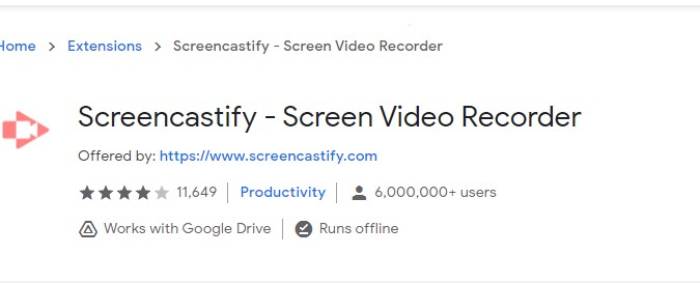
Erityisominaisuus: Verkkoselainlaajennus
Annetaan luettelolle hieman monimuotoisuutta. Screencastify on verkosta riippuvainen työkalu, joka on nimenomaan Chrome-selaimen laajennus. Tätä käyttävät enimmäkseen opettajat ja opiskelijat. Lähinnä työkalun yksinkertaisuuden ja huomautusominaisuuksien ansiosta, jotka pitävät opettajan ja oppilaan keskittyneinä luokkaan. Useimmat ihmiset, jotka opiskelevat Udemyn ja tällaisten oppimissivustojen kautta, käyttävät tätä näytön tallenninta. Jos teet saman, voit harkita sen käyttöä. Tässä välissä on tarkempia tietoja työkalusta.
Plussat
- Yhteensopiva kaikkien media -alustojen kanssa.
- Isäntäsisältö.
- Lataa video muokattavaksi.
Haittoja
- Vaikka se on helppo käyttää, koska se on selainriippuvainen, se voi myös olla haitallista.
- Sen käyttö vaatii paljon käyttöoikeuksia.
Osa 3. Usein kysyttyjä kysymyksiä WebM Recorderistä
Miksi WebM -tiedostoni ei avaudu?
Ymmärrän hämmennyksen: saatat ajatella käyttäväsi modernia selainta, mutta video ei silti toistu. Oletko tarkistanut, käytätkö selaimen uusinta versiota? Jos et, päivitä se. Tämä on yksi yleisimmistä syistä siihen, miksi video ei toistu. Huomaa kuitenkin, että tässä on joitakin WebM-tiedoston tukemia selainversioita: Chrome 6, Firefox 4 ja Internet Explorer 9 tai uudempi. Vaihtoehtoisesti voit kokeilla käyttää WebM-soittimia tiedoston avaamiseen.
Miksi en voi toistaa WebM -videota Macillani?
Suosittelen lataamaan VLC -soittimen tai VLC: n Mac OS X -laajennukseen. Siinä on oltava 64-bittinen Intel-prosessori.
Osa 4. Vertailukaavio
| Ominaisuus | FVC -näytön tallennin (Premium) | FVC -näytön tallennin ilmainen | TinyTake | ScreenCast-O-matic | NäyttöCastify |
| Äänen ja videon tallennus |  | | | | |
| Videon editointiominaisuus | | |  | | |
| Lukittava ikkuna -ominaisuus | | | | | |
| Huomautusominaisuus | | | | | |
| WebM tuettu | | | | | |
| Haittaohjelmaturvallinen | | | | | |
| Säädettävä bittinopeus ja kuvasuhde | | | | | |
Johtopäätös
Kaikki tässä artikkelissa tarkastellut WebM -tallennustyökalut ovat luotettavia ja tehokkaita. Sinun tarvitsee vain nähdä, mikä työkalu sopii tietokoneesi ja käyttöjärjestelmäsi vaatimuksiin. Useimmat ihmiset menevät turvalliseen maahan käyttämällä verkkopohjaista sovellusta. Mutta sinun tehtäväsi on silti päättää.
-
 Puolueeton Cinch Review -äänitallennin ja paras vaihtoehto
 Cinch Audio Recorder on paras tapa ladata musiikkia suoratoistosivustoilta. Lue vain puolueeton arvostelu ja paras vaihtoehto artikkelista.
-
 Viisi parasta parasta hiiri- ja näppäimistötallenninta Windowsille ja Macille
 Tässä on viisi parasta hiiren ja näppäimistön tallenninohjelmaa, jotka voivat tallentaa hiiren liikkeet ja näppäimistön napsautukset ja toistaa tapahtumat.
-
 Suosituimmat 4 ilmaista AVI-näytön tallenninta, joiden avulla voit kaapata ruutuvideoita AVI-tiedostoina
 Jos haluat tallentaa näytön korkealaatuisissa AVI-tiedostoissa, artikkeli tunnistaa ja jakoi tämän viestin neljä parasta AVI-näytön tallenninta. Lue lisätietoja löytääksesi haluamasi.
