


 Video Converter Ultimate
 Näytön tallennin
 Videon korjaus
Online- ja offline-muunnosprosessi: SWF WMV:ksi
SWF is a legacy file format created by Adobe for the Shockwave Flash player. Flash is no longer supported by many browsers, was never supported by iOS devices, and the SWF file format is seldom used these days due to performance and security problems. On the other hand, WMV is a set of video compression codecs created for early internet video streaming and physical media such as HD-DVD and Blu-Ray. Video in this file format is natively viewable on Windows devices, so you may wish to convert SWF files to WMV because Flash players are becoming more unsupported, and you can no longer play SWF files. Hence, we provide you with two options to convert your SWF to WMV.

Osa 1. SWF:n muuntaminen WMV:ksi Windowsissa ja Macissa helposti
Video Converter Ultimate is a multimedia converter that converts practically all major video and audio files to your desired output format. It can convert video files in batches, making it more potent than it seems. It does not stop at converting; it also enables users to modify their videos with the help of helpful editing tools. Furthermore, this video converter supports various formats, including the most widely used nowadays. More significantly, it converts at a faster rate than comparable software. To use this particular software, follow these simple steps:
Step 1: Click the Free Download button to download the .exe file you will need to install the software. Wait for it to finish, open it, and follow the installation process promptly. Click Start Now and launch the software.
Ilmainen latausWindows 7 tai uudempiTurvallinen lataus
Ilmainen latausMacOS 10.7 tai uudempiTurvallinen lataus
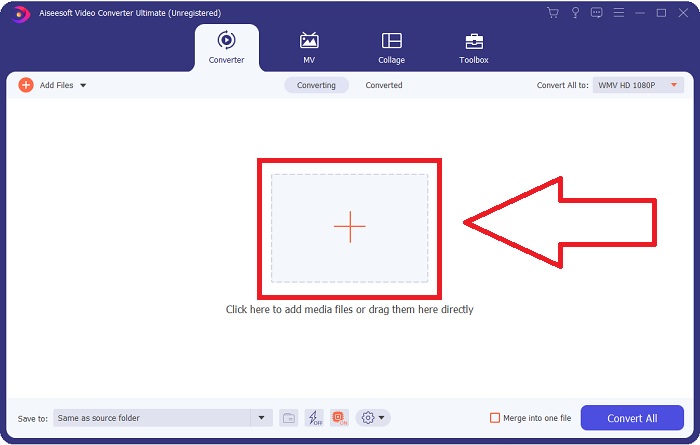
Step 2: Upload the video file you wish to convert by clicking the + button in the middle of the interface. Alternatively, drag the file from your desktop and drop it on the interface, and it will automatically import.
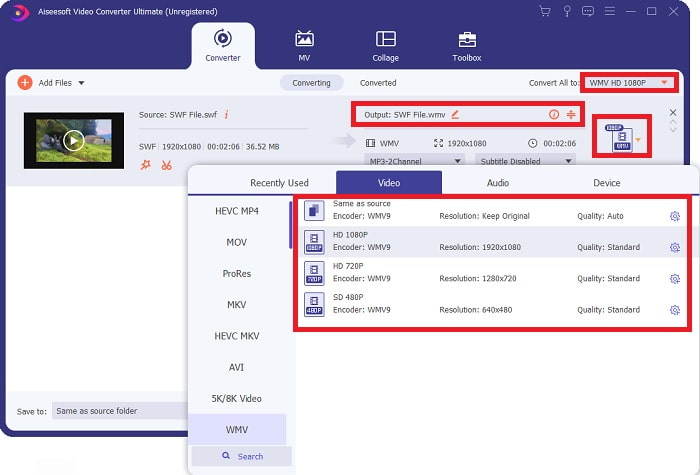
Step 3: Click the drop-down arrow on the right in which you will see the current format your video is in, and it will show you all the available formats to choose. In this case, scroll down and select WMV or just type it in the search bar. All video qualities are also available to choose from on the right panel.
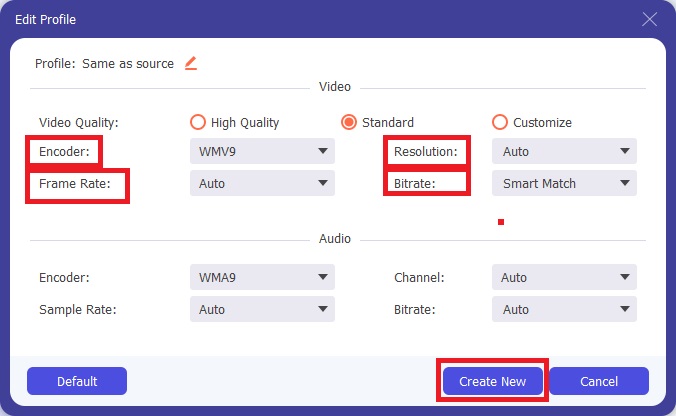
Step 4: To further edit your video, click on the gear icon on the right to show all the handy editing tools. From there, you can make all the necessary adjustments that best suit your needs. Just click the Create New button once you are finished.
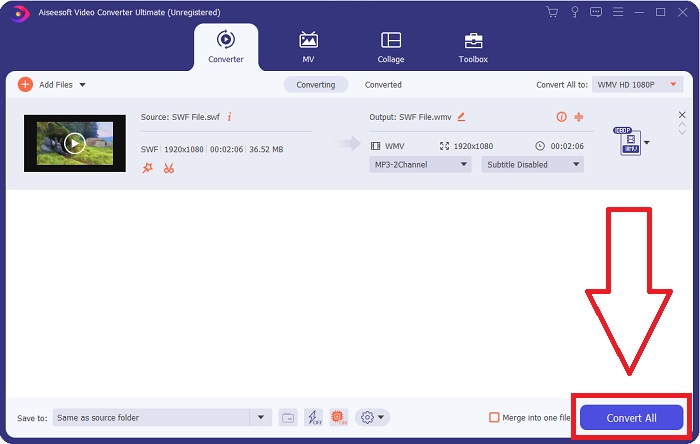
Step 5: Finish the conversion process by finally clicking the Convert All button on the window's bottom right corner and waiting for it to finish.
Osa 2. Toinen vinkki SWF:n muuntamiseen WMV Online -muotoon
FVC Free Video Converter on aina ilmainen eikä vaadi rekisteröintiä. Jotkut ilmaiset online-videomuuntimet rajoittavat muunnosaikatauluja tai tiedostokokoa. Jos olet käyttänyt kaikki ilmaiset muunnosajat tai tiedostosi on liian suuri, sinun on ostettava suunnitelma, vaikka muunnat videoita harvoin. Mutta FVC Free Video Converterilla ei ole tällaisia rajoituksia, ja se voi muuntaa videoita milloin tahansa.
Lisäksi tämä palvelu ei vaadi rekisteröintiä suurempien tiedostojen muuntamiseen, toisin kuin useimmat online-videomuuntimet vaativat rekisteröinnin konvertoidakseen yli 1 Gt:n videoita. Tässä ovat vaiheet, jotka sinun on noudatettava tätä upeaa työkalua varten:
Step 1: To go to the website, click this link. Then, download the launcher quickly by clicking the Add Files to Convert button and waiting for it to finish.
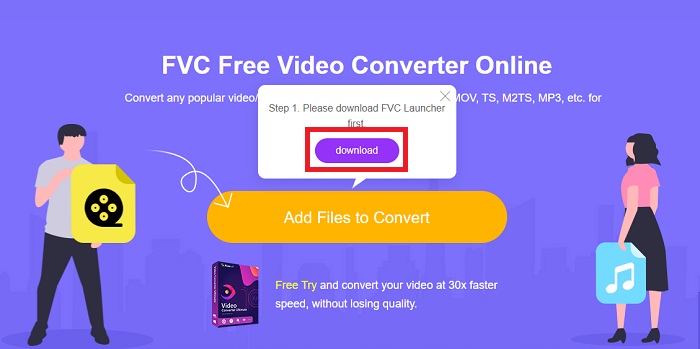
Step 2: Click the said button again, and this time, it will allow you to upload the video file you wish to convert. After that, select WMV among all the available formats.
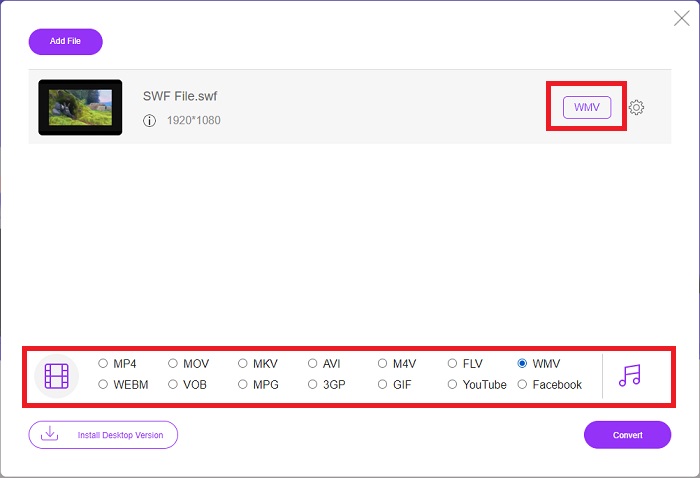
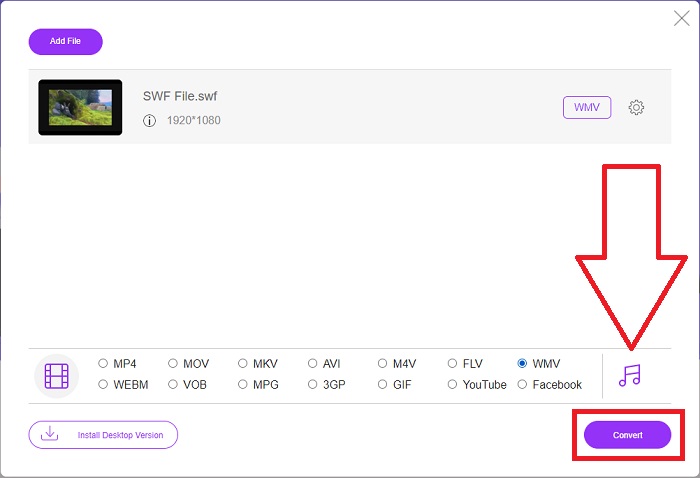
Step 3: You can still use handy editing tools like the software itself. Just click the gear icon, and it will show you all the adjustments you can make. To save the changes made, click OK and once you finish adjusting, click Convert to start the process.
Aiheeseen liittyvää:
Osa 3. Laaja tietämys SWF- ja WMV-muodoista
Jos haluat tietää lisää näistä kahdesta muodosta, jatka tämän artikkelin lukemista. Tarjoamme kaikki tarvittavat ja olennaiset tiedot, joita saatat tarvita taustaksi.
Adobe käyttää SWF-tiedostomuotoa elokuvien ja vektoripohjaisten animaatioiden tallentamiseen. Small Web Format on lyhenne; Se tunnetaan kuitenkin myös nimellä ShockWave Format. Sitä käytetään yleensä videoiden lähettämiseen Internetin kautta, erityisesti selainpohjaisissa peleissä. Valitettavasti Adobe ilmoitti lopettavansa Flash-muodon tukemisen vuoden 2020 loppuun mennessä suorituskyky- ja tietoturvaongelmien vuoksi.
Toisaalta WMV-tiedosto on Windows Media Video -tiedosto, joka voi pakata käyttämällä yhtä tai useampaa Microsoftin videopakkausmuotoa. Se on suosittu videotallennusmuoto Windowsissa, minkä vuoksi tietyt kolmannen osapuolen sovellukset käyttävät sitä esimerkiksi lyhyiden animaatioiden luomiseen. Se on suunniteltu toimimaan Microsoftin mediasoittimien, kuten Windows Media Playerin ja Movies & TV:n, kanssa. Digital Rights Management (DRM) -järjestelmien kanssa käytettävät WMV-tiedostot voivat olla salattuja.
| Pieni Web-muoto | Windows Media Video | |
| Tiedostopääte | .swf | .wmv |
| Kehittäjä | Adobe Systems Incorporated | Microsoft |
| Tukiohjelmat | ◆ Adobe Flash Player ◆ Adobe Flash ◆ Ammattimainen CC ◆ GOM Player ◆ Adobe Dreamweaver 2020 | ◆ VLC Media Player ◆ MPlayer ◆ Media Player Classic ◆ Windows Media Player |
Osa 4. Usein kysyttyä SWF- ja WMV-muuntamisesta
Mitä hyötyä WMV-tiedostoista on?
WMV-videotiedostot ovat paras muoto videomateriaalin myymiseen verkossa tai HD DVD- ja Blu-ray-levyjen kautta.
Mitä hyötyä SWF-tiedostosta on?
Flash-tiedostoja tai SWF-tiedostoja käytetään usein multimediatietojen tehokkaaseen jakeluun Internetissä.
Voidaanko SWF-tiedostoja muokata?
Adobe Flash on Adoben käyttämä tiedostomuoto. Toisin kuin muut multimediatiedostot, SWF-tiedosto vaatii Flash Player -laajennuksen verkkoselaimen katseluun. Lisäksi käyttäjät eivät voi muokata SWF-tiedostoja suoraan.
Johtopäätös
FVC Video Converter Ultimate on täydellinen vaihtoehto sinulle, jos olet aloittelija tai vain amatööri videon muuntamisen suhteen. Et muunna videomuotoja kovin usein. Sen edut, kuten jatkuva videoformaatin muuntaminen, nopea videotiedostojen muunnos verrattuna vastaaviin ohjelmiin, yksinkertainen käyttö, tuki eri formaateille ja niin edelleen, auttavat siitä tulemaan parhaan videon muuntimen. Mitä tulee videon muuntamiseen, Video Converter Ultimate ja sen online-vastine ovat hyväksyttävimmät vaihtoehdot.
-
 [2 Ratkaisut] Kuinka muuntaa SWF helposti GIF -tiedostoiksi ilmaiseksi
 Kun GIF-formaatin vieminen Flash-ohjelmiston kautta epäonnistuu, voit yrittää ensin tallentaa tiedostot SWF-muodossa. Sitten voit oppia 2 helppoa tapaa muuntaa SWF GIF-tiedostoiksi tästä artikkelista.
-
 Huippuluokan 5 parasta ilmaista SWF-AVI-muunninta [verkko- ja työpöytäpohjainen]
 Haluatko tietää kuinka muuntaa SWF-tiedostosi AVI:ksi? Joten jos ei, lue tämä artikkeli, sillä tarjoamme ratkaisun SWF-ongelman muuntamiseen.
-
 [Ilmainen ja helppo] Poikkeukselliset työkalut SWF:n muuntamiseen MOV-muotoon
 Oletko yrittänyt muuntaa SWF-tiedostoja MOV-muotoon, koska et voi muokata videoita? Kuka on syypää videonmuokkausohjelmasi yhteensopimattomuuteen? Jatka lukemista löytääksesi ratkaisusi.
