


 Video Converter Ultimate
 Näytön tallennin
 Videon korjaus
Tekstityksen lisääminen työpöydällesi tallentamiin videoihin
Subtitles are the best way to translate dialogues of other countries into your native language to a text. This is created for those who don't understand the dialogues of the actor or actresses. Also, they improve the overall engagement of the audience to the film, series, and movies as well. But in some cases, the video you download has no subtitles or has a separate file for it. So, the best way to add subtitles to videos is presented in this article. So, keep on reading this write-up as we provide steps on how to insert your subtitles and what are the different tools you can use.

Osa 1. 4 parhaista työkaluista, joilla voit lisätä tekstityksiä videoosi
1. Video Converter Ultimate (Windows ja Mac)
Did you know that you can add subtitles to Video Converter Ultimate? This phenomenal converter has a lot of different features that keep us amaze every time. The overall performance of this software is phenomenal in the line of converting files, editing, making, adding and more. But for now, we will now be going to explain how to add subtitles to a video on a perfect sequence of text. In addition, this tool supports all of the subtitle formats you can use to add it to your video. So, without any more delays, let's proceed on how to add the subtitles by following this step provided only for you below.
5 Easy Steps on How to Add Subtitles on your Video with the Video Converter Ultimate
Step 1. Download the software into your Windows or Mac drive. Next, install it and do the quick set-up then click finish.
Ilmainen latausWindows 7 tai uudempiTurvallinen lataus
Ilmainen latausMacOS 10.7 tai uudempiTurvallinen lataus
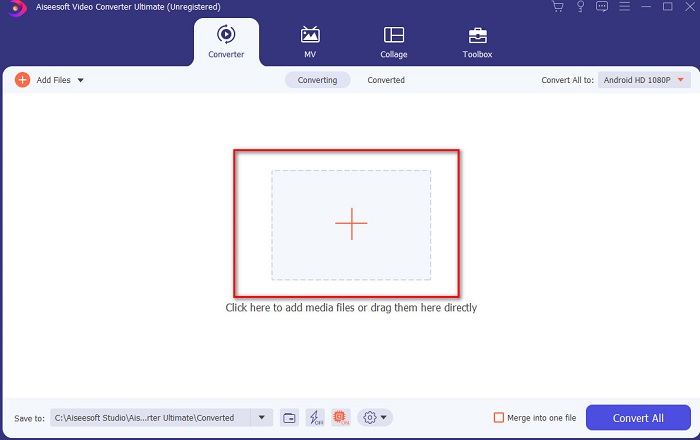
Step 2. Launch the tool, and click the plus button at the middle of the interface. Then locate the video on the folder and click Open.
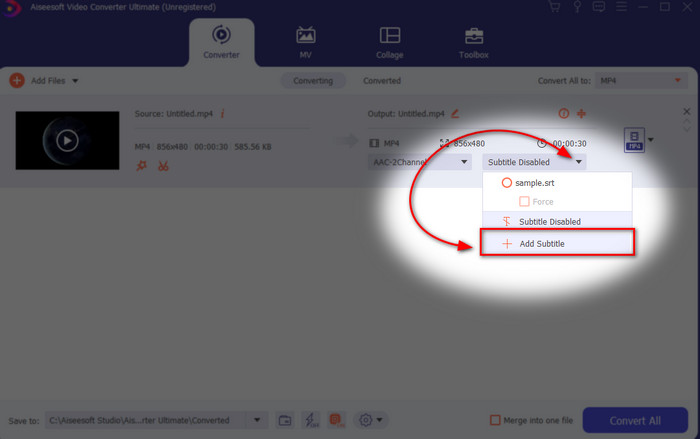
Step 3. On the interface, click the drop-down button for Subtitle and click Add Subtitle. Select the subtitle file on the file folder and click open.
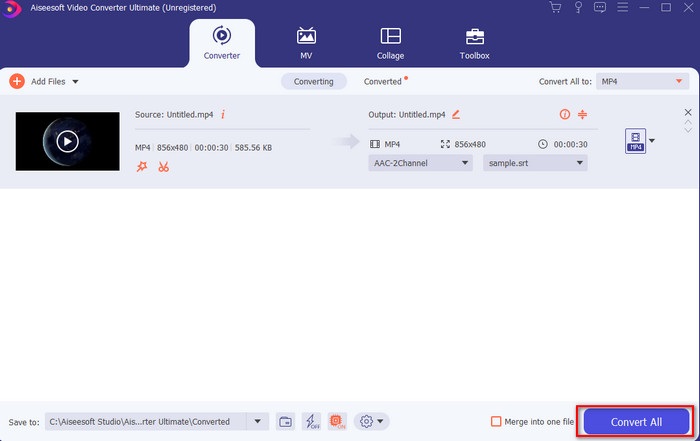
Step 4. After you add the subtitle you can now export it by clicking the Convert All.
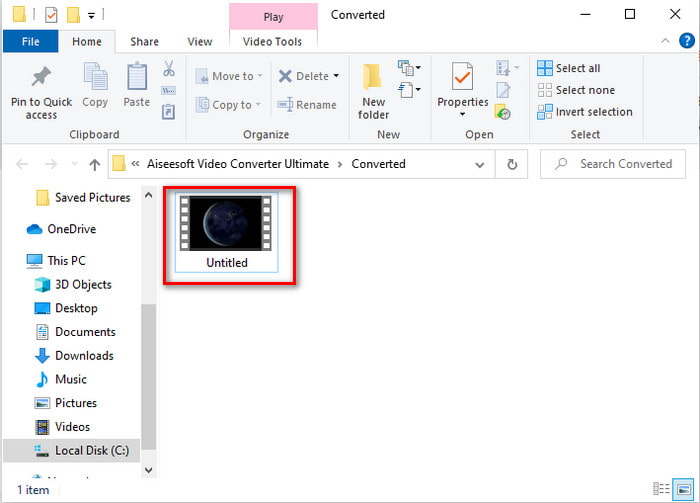
Step 5. The file explorer will pop up next to your screen with the video file that has a subtitle on it. Hit the file to watch and read the subtitle without delays.
Aiheeseen liittyvää:
How to Cut and Merge Songs Online
2. iMovie (Mac ja iPhone)
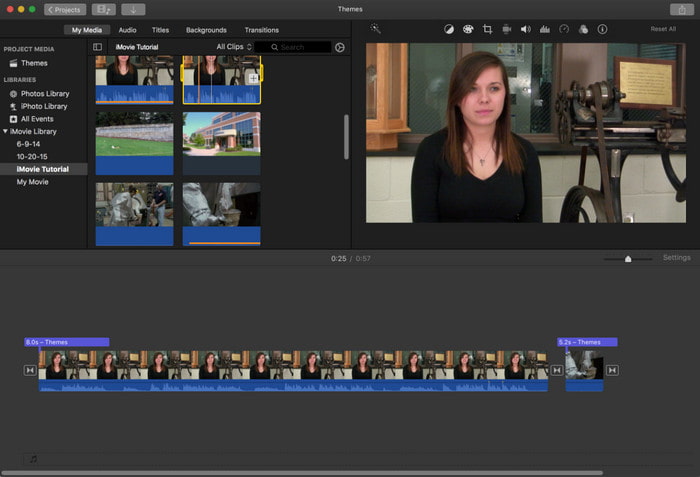
One of the best tools Apple can offer to their users, so adding subtitles to a video on iMovie is easy and free. This default tool is the best in editing and more on Mac, so adding subtitles here is easy as it is. But you can't use SRT subtitle format and add it to your video because this format is not supported by the iMovie. However, the overall performance of this Mac default editor is great to be used by anyone who is on a tight budget. Also, this tool offers a premium version that supports a lot of editing features you can use.
3. Adobe Premiere Pro (Windows ja Mac)
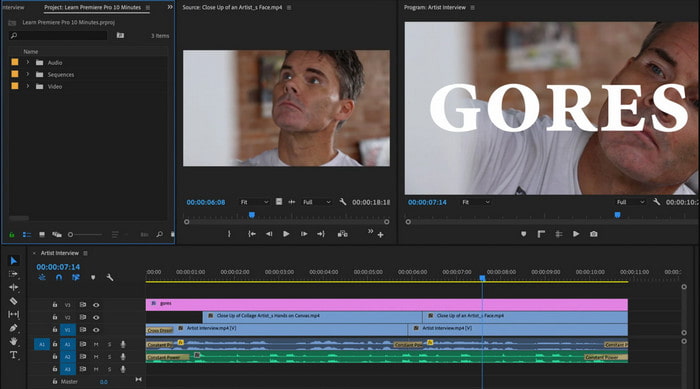
Adobe Premiere Pro offers the best editing features used by professionals in the editing industry. Also, this tool can add SRT subtitle format unlike on iMovie you can't. Moreover, this tool supports almost all of the subtitle formats you can use. Although the tool seems flawless, the price of it is enormous and if you just want to add subtitles to video on Adobe Premiere Pro this is an okay choice but not the best. Especially if you are on a tight budget and don't want to spend a lot. Also, if you are a beginner this is not the best choice because you will need a lot of time to study it first.
4. Clideo (online)
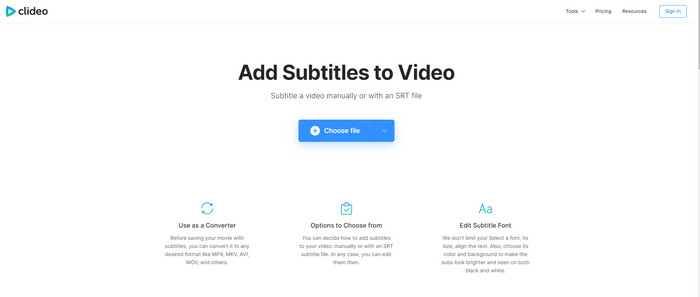
Clideo supports editing features you can use for free if you have an internet connection. This tool can be used in all devices as long as you have a browser. Although the tool is flexible the subtitle format it supports is only .srt. So, if your subtitle is not in the format of SRT then you must manually do it here which is a bit of a hassle for you. Also, the process of adding the video here will depend on your internet. With that being said, if you have a slow internet then expect a lot of time waiting than adding subtitles to video online.
Osa 2. Usein kysyttyä tekstityksen lisäämisestä videoon
Mitkä ovat eri tekstitysmuodot?
Verkossa on paljon erilaisia tekstitysmuotoja, mutta yleisin jo kohtaamasi muoto on SRT-, WEBVTT- ja SBV-tekstitysmuoto. Koska nämä ovat parhaita ja joustavia muotoja, joita voit käyttää helposti, mutta olemassa on SSA, TTML, DFXB, TXT ja paljon muuta. Vaikka ne toimivatkin hyvin, ensimmäinen mainittu tekstitysmuoto on paras mitä voit käyttää.
Mikä on pääasiallinen ero tekstityksissä?
Vaikka ne käyttävät samaa muotoa, kuvatekstien ja tekstitysten välillä on kuitenkin suuria eroja. Ensinnäkin videoon sisällytetään tekstitykset, jotka kääntävät näyttelijän tai näyttelijän puhutun kielen katsojan kielelle. Tätä käytetään useimmiten niille, jotka kuulevat äänen, mutta eivät ymmärrä, mitä he sanovat. Kuvatekstit on tehty kuvaamaan, mitä tapahtuu, ja tekstin, kuten äänitehosteiden, avulla. Nämä on tehty niille, jotka voivat katsoa videoita, mutta eivät kuule ääntä selvästi tai kuuroille.
Dub vs. Sub; Kumpi on parempi?
Jotkut muut katsojat pitävät Dubista kuin subista, kun taas toiset katsovat päinvastoin. Vaikka ne ovatkin tehokas tapa kääntää media paremmin yleisölle. Dubilla ja subilla on paljon eroja, esimerkiksi tekstitykset ovat käännettyjä versioita äänestä ja muuttuvat tekstiksi videossa. Vaikka katsojat, joilla on vaikea lukea, käyttävät dubaatteja. Joten kontekstin lukemisen sijaan he käyttävät dubauksia keskittyäkseen paremmin katsomaansa. Joten, se riippuu aina sinusta, mitä haluat käyttää, jos pystyt lukemaan katsellessasi subit ovat parhaita, mutta jos haluat laserfokusoida itse videoon, käytä dub.
Johtopäätös
Finally, we now understand and learn how to add subtitle files to your video permanently. As we make your searching easier and present different solutions for you to use. Still, it is undeniable that the Video Converter Ultimate is the best choice on the list. Because it supports all of the subtitle formats for you to use. So, instead of a huge amount of money to the other tool that has the same function or even better than the other tool. Then why don't you acquire it first and try it for yourself? To know what we are talking about.
-
 Opetusohjelma - 4 ilmaista tapaa yhdistää iPhonen videot uuteen
 Lue ja hanki neljä helppoa tapaa yhdistää videoita iPhoneen. Kaikki iPhone-mallit ja iOS-versiot ovat tuettuja. Voit yhdistää vähintään kaksi iPhonen videota uudeksi videoksi nopeasti.
-
 Kuinka pakata M4V-tiedostot pienempään kokoon (ilmainen ja online)
 Jos etsit yksinkertaista tapaa pienentää M4V-tiedostosi kokoa, sinun tulee tulla lukemaan tämä artikkeli. Täällä jaamme helpoimman tavan pakata M4V-tiedostot kanssasi.
-
 Pakkaa WebM - Kuinka pakata WebM-tiedosto verkossa
 Kuinka pakata WebM-tiedosto verkossa? Mikä on nopein tapa pakata suuria tiedostoja? Tämä viesti kertoo 2 ilmaista tapaa pakata WebM.
