


 Video Converter Ultimate
 Näytön tallennin
 Videon korjaus
 Suojattu lataus
Helpoin tapa yhdistää kappaleita Audacityssä [2025 Guide]
Elementtien, kuten muiden äänien, musiikin tai kappaleiden yhdistäminen on välttämätöntä, jotta ääniprojektista tulee luova ja ainutlaatuinen. Tämä prosessi tehdään yleensä käyttämällä erillistä äänieditorisovellusta, jossa on ominaisuus kappaleiden yhdistämiseen yhdeksi. Nykyään useiden kappaleiden yhdistämiseen käytetään yleisesti yhtä työkalua, ja se on Audacity.
Monet tuntevat tämän työkalun sen maksuttomuuden ja avoimen lähdekoodin ansiosta, mutta sillä on myös todella hyvät muokkausominaisuudet, jotka vetävät käyttäjiä puoleensa. Jos siis etsit opasta siitä, kuinka yhdistää raitoja Audacityssa tai vaihtoehtoista, helpompaa tapaa tehdä se, jatka tämän artikkelin lukemista.

Osa 1. Kappaleiden yhdistäminen Audacityssä
Audacity on laajalti käytetty ilmainen äänenmuokkausohjelmisto, joka tarjoaa monia muokkausominaisuuksia, mukaan lukien kuuluisan Audacityn yhdistämisraidan.
Tämän ominaisuuden avulla käyttäjät voivat helposti tuoda erilaisia äänielementtejä muokkausaikajanalle. Sitten muokkausaikajanalta he voivat kohdistaa raidat yhdeksi kappaleeksi siirtämällä ne manuaalisesti haluamaasi järjestykseen. Tämän lisäksi tällä työkalulla on hienoja muokkausominaisuuksia, jotka ovat välttämättömiä yhdistetyn raidan kiillottamiseksi. Häivytys- ja häivytysominaisuudet voivat luoda tasaisen siirtymisen raitojen välillä. Samaan aikaan äänenvoimakkuuden säätöominaisuus saa kaikki raidat kuulostamaan tasapainoiselta, kun ne yhdistetään.
Miksi äänieditorit yhdistävät kappaleita?
Saumattomien siirtymien luomiseksi. Useiden raitojen yhdistäminen mahdollistaa sulavammat siirtymät ilman selviä leikkauksia tai taukoja eri ääniraitojen välillä.
Työnkulun yksinkertaistamiseksi. Useiden raitojen yhdistäminen kokoaa useat äänikerrokset yhdeksi. Näin raitoja on helpompi hallita ja muokata ilman, että tarvitsee tasapainoilla erillisten tiedostojen kanssa.
Tasapainoisen äänen luomiseksi. Eri äänielementtien yhdistäminen antaa äänieditoijille mahdollisuuden säätää äänenvoimakkuustasoja, synkronoida ajoitusta ja sulauttaa eri raitoja keskenään.
Voit yhdistää kappaleita Audacityssä seuraavasti:
Vaihe 1: Lataa ja asenna ensin Audacity tietokoneellesi.
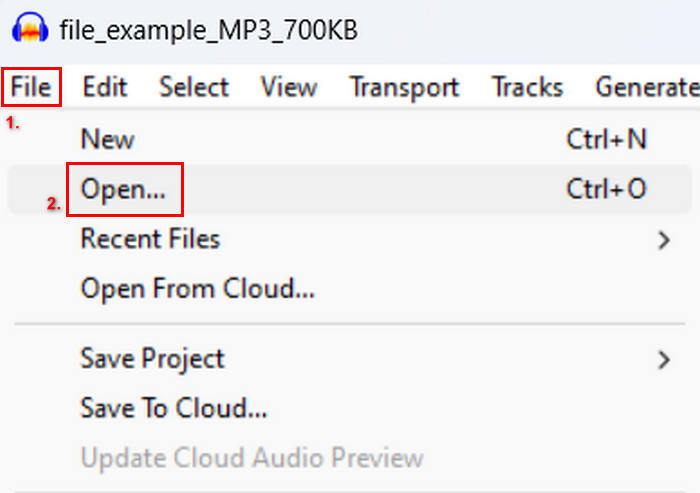
Vaihe 2: Avaa työkalu, siirry File-välilehteen, napsauta Open ja tuo raitojen tiedostot, jotka aiot yhdistää.
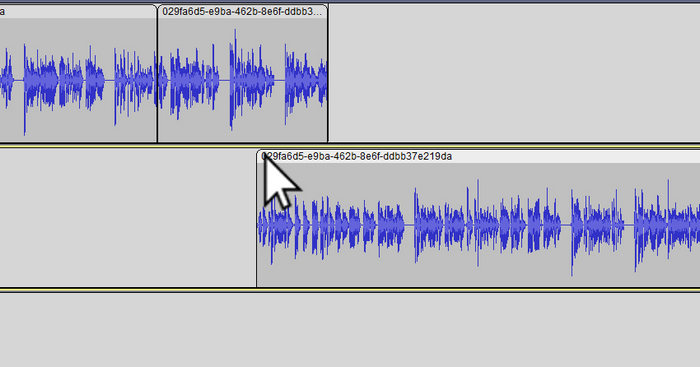
Vaihe 3: Kun kaikki raitasi on tuotu aikajanalle, seuraava tehtäväsi on napsauttaa raidan leikeotsikkoa (Clip head) ja siirtää ja järjestää raidat haluamaasi järjestykseen.
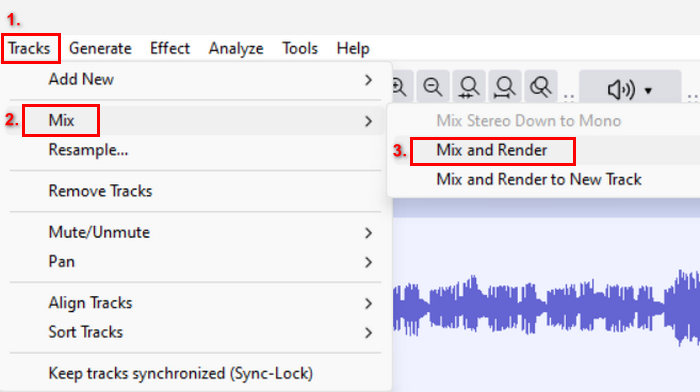
Vaihe 4: Kun olet asettanut raidat kohdilleen, yhdistä ne yhdeksi kokonaisuudeksi. Valitse yhdistettävät raidat painamalla ja pitämällä Ctrl-näppäintä pohjassa ja napsauttamalla raitoja. Tämän jälkeen, yhdistääksesi valitut raidat yhdeksi raidaksi, siirry valikkoon Tracks, napsauta Mix ja valitse Mix and Render.
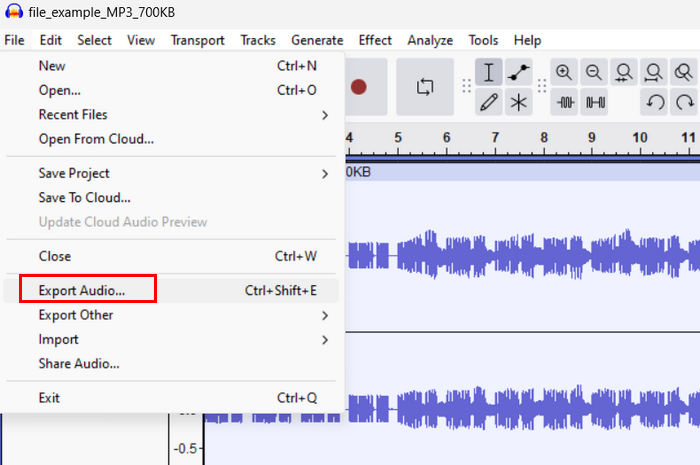
Vaihe 5: Viedäksesi tiedoston, mene File -välilehteen ja valitse Export Audio.
Jotta yhdistetyistä ääniraidoista tulee tasapainoiset ja siirtymät sujuvat, käytä työkalun sisäisiä Amplify- tai Normalize-tehosteita. Lisäksi voit käyttää häivytyksiä sisään ja ulos (fade-in ja fade-out) luodaksesi pehmeitä siirtymiä raitojen välille ammattimaisemman ja viimeistellymmän äänen saamiseksi. Katso täältä, miten teet häivytyksen Audacityssa.
Osa 2. Yhdistä kappaleet Audacityn vaihtoehtoon
Jos etsit erinomaista vaihtoehtoa, koska Audacityn raitojen yhdistämistoiminto tuntuu hankalalta käyttää, voit tällöin hyödyntää FVC:n valitsemaa Video Converter Ultimate -ohjelmaa. Tämä on monipuolinen työkalu, joka tarjoaa joukon ääni- ja videotiedostojen käsittelyyn tarkoitettuja ominaisuuksia, kuten äänien yhdistämisen. Työkalu toimii siten, että kun olet tuonut yhdistettävät äänet, voit helposti muuttaa raitojen järjestystä haluamallasi tavalla ja muokata niitä heti ennen kuin yhdistät ne yhdellä napsautuksella.
Pääominaisuudet:
• Se voi yhdistää useita äänitiedostoja 1000 muodossa, kuten MP3, AAC, WAV, FLAC, OGG ja paljon muuta.
• Sisältää perusmuokkausominaisuuksia, kuten trimmauksen, nopean jaon, häivytys- ja häivytystehosteet.
• Mahdollistaa äänilähdön muokkauksen kuten kooderin, näytetaajuuden, bittinopeuden, kanavan jne.
• Nopea yhdistämisprosessi.
• Saatavilla sekä Windowsille että MacOS:lle.
Näin voit yhdistää kappaleita FVC:n valitun Video Converter Ultimaten kanssa:
Vaihe 1: Lataa ja asenna työkalu ensin laitteellesi.
Ilmainen latausWindows 7 tai uudempiTurvallinen lataus
Ilmainen latausMacOS 10.7 tai uudempiTurvallinen lataus
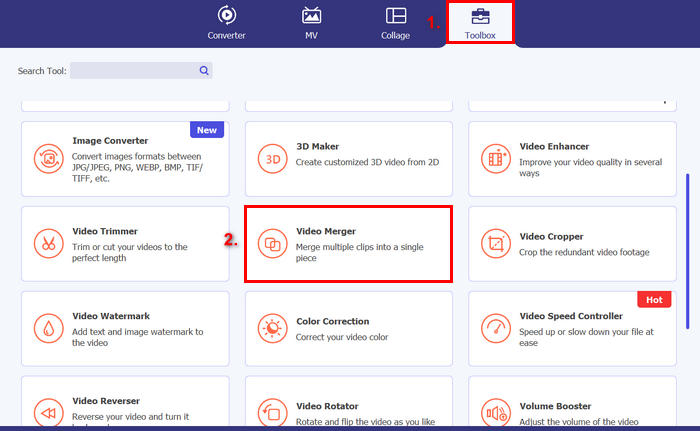
Vaihe 2: Avaa työkalu, siirry Toolbox-välilehteen ja valitse Video Merger. Napsauta sen jälkeen plus-kuvaketta tuodaksesi helposti äänitiedostot, jotka aiot yhdistää.
Vaihe 3: Nyt kaikki tuomasi ääniraidat näkyvät alareunassa. Jos sinun täytyy säätää niiden järjestystä, vedä äänileike oikeaan paikkaan. Vaihtoehtoisesti voit valita leikkeen ja napsauttaa Forward- tai Backward-painiketta. Tämän jälkeen napsauta Export-painiketta tallentaaksesi projektisi.
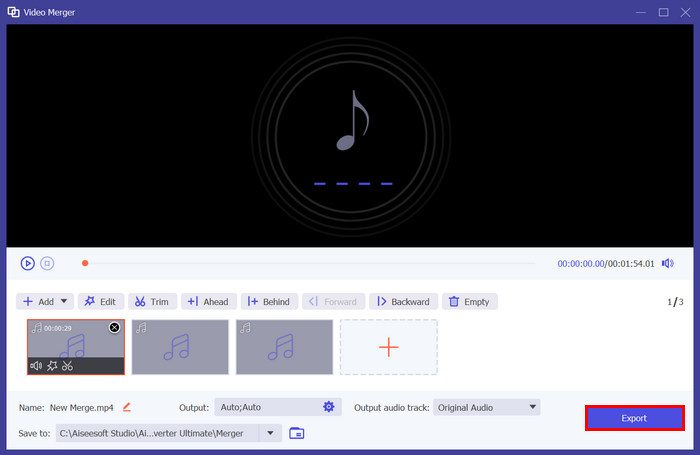
Huomautus: Jos sinun tarvitsee muuttaa äänimuotoa tai mukauttaa joitakin ääniasetuksia, siirry Output-asetuksiin. Siellä voit muuttaa ääniraidoillesi formaattia, koodekkia, näytetaajuutta, kanavamäärää ja bittinopeutta. Kun olet valmis, napsauta Export-painiketta.
Siinä se on. FVC:n valitsema Video Converter Ultimate on todella loistava vaihtoehto Audacitylle. Sen erittäin käyttäjäystävällisen ja intuitiivisen käyttöliittymän ansiosta jopa aloittelijat voivat helposti käyttää työkalua yhdistäessään useita raitoja.
Osa 3. Usein kysyttyä kappaleiden yhdistämisestä Audacityssä
Kuinka tuon useita äänitiedostoja yhdeksi Audacityn raidalle?
Tuodaksesi useita äänitiedostoja Audacityyn, mene File-välilehteen, napsauta Open ja valitse äänitiedostot, jotka haluat yhdistää. Kukin tiedosto ilmestyy omalle raidalleen aikajanalla. Sieltä voit käsin kohdistaa ja yhdistää raidat käyttämällä Mix and Render -vaihtoehtoa Tracks-valikosta.
Kuinka siirrän ääntä raidasta toiseen Audacityssä?
On kaksi tapaa siirtää raitaa, kun yhdistät useita raitoja Audacityssä. Jos haluat siirtää yksittäistä raitaa, napsauta ja vedä raidan leikekahvaa ja aseta se haluamaasi järjestykseen. Sillä välin, jos haluat siirtää useita raitoja, valitse kaikki raidat, jotka haluat siirtää käyttämällä valintatyökalua. Vedä sitten mitä tahansa leikkeen kahvaa valitulla alueella siirtääksesi kaikki valitut leikkeet samanaikaisesti.
Kuinka monta kappaletta Audacityllä on?
Audacityllä ei ole kiinteää rajoitusta muokattavien kappaleiden määrälle. Sen avulla voit luoda ja tuoda niin monta kappaletta kuin haluat. Kun työskentelet useiden raitojen kanssa, sinun on kuitenkin otettava huomioon tietokoneesi kapasiteetti, koska suorituskyky voi riippua järjestelmän prosessointitehosta ja muistista.
Johtopäätös
Nyt kun tiedät, kuinka yhdistää raitoja Audacityssa, voit helposti luoda projekteihisi sujuvia siirtymiä ja tasapainoista ääntä. Lisäksi voit tutkia muita ominaisuuksia, kuten häivytyksiä sisään ja ulos sekä äänenvoimakkuuden säätöä paremman soundin saavuttamiseksi. Mikäli taas haluat yksinkertaisemman tai kehittyneemmän vaihtoehdon, kokeile FVC:n valitsemaa Video Converter Ultimate -ohjelmaa. Sitä on helppo käyttää ja se tarjoaa enemmän mukautusmahdollisuuksia äänitiedostoillesi.
-
 Kuinka käyttää Audacityä äänen kääntämiseen Windows 10/11:ssä
 Jos muokkaat äänitiedostoa Audacityssä ja mietit, kuinka voit kääntää sen kokonaan tai osittain, lue tästä ja opi kääntämään ääntä helposti Audacityssä.
-
 Kuinka vaimentaa ääntä Audacityssä: 4 eri tapaa [2025]
 Tutustu vaiheisiin äänen häivyttämiseen tehokkaasti Audacityssä ja lisätietoa Audacityn häivytystehosteista. Kiinnitä nyt solki ja sukeltakaamme sisään.
-
 Äänen jakaminen Audacityssä erittäin tarkasti [opas]
 Yritätkö oppia jakamaan kappaleita Audacityssä? Olet oikealla sivulla! Tässä artikkelissa opit, kuinka voit erottaa yhden raidan kahdeksi helposti.
