


 Video Converter Ultimate
 Näytön tallennin
 Videon korjaus
2 helppoa tapaa pakata MKV-tiedostot menettämättä laatua
Haluatko pienentää MKV‑tiedoston kokoa menettämättä videon laatua? Onko olemassa yksinkertaista ja ennen kaikkea ilmaista tapaa pakata MKV‑tiedostoja?
MKV‑tiedosto tarjoaa hyvän video- ja äänenlaadun, mutta sen tiedostokoko on yleensä suuri. Kun haluat ladata ja jakaa MKV‑videon, sen pakkaaminen on varsin tarpeellista. Kysymys kuuluu, kuinka pakata MKV‑tiedostoja ilman laadun heikkenemistä?

Markkinoilla on itse asiassa lukuisia videopakkausohjelmia, myös ilmaisia verkkotyökaluja, jotka voivat auttaa pienentämään MKV‑videoidesi tiedostokokoa. Tässä artikkelissa esittelemme 2 yksinkertaista tapaa pakata MKV.
Osa 1. Kuinka vapaasti pakata MKV-tiedostoja verkossa
Kuten edellä mainittiin, monet ilmaiset verkkopohjaiset videopakkaimet tai editorit voivat auttaa sinua pakkaamaan MKV‑tiedostoja ja pienentämään niiden kokoa. Ensimmäiseksi suosittelemme suosittua online‑työkalua, Free Video Compressor, joka hoitaa tehtävän puolestasi.
Tämä ilmainen online MKV-tiedostojen kompressori on suunniteltu erityisesti videon pakkaamiseen. Se tukee erittäin lähes kaikkia videoformaatteja, mukaan lukien MKV, MP4, MOV, FLV, AVI ja paljon muuta. Se pystyy pienentämään 4K-, HD- tai SD-videotiedostojen kokoa menettämättä laatua. Lisäksi tällä MKV-pakkaustyökalulla on eräpakkaustoiminto, jolla varmistetaan, että videopakkaus voidaan suorittaa nopeammin.
Vaihe 1. Avaa selaimesi ja siirry tämän MKV‑tiedostojen pakkausohjelman viralliselle sivustolle. Se toimii kaikilla yleisesti käytetyillä selaimilla, kuten Google Chrome, IE, Firefox, Safari ja monet muut.
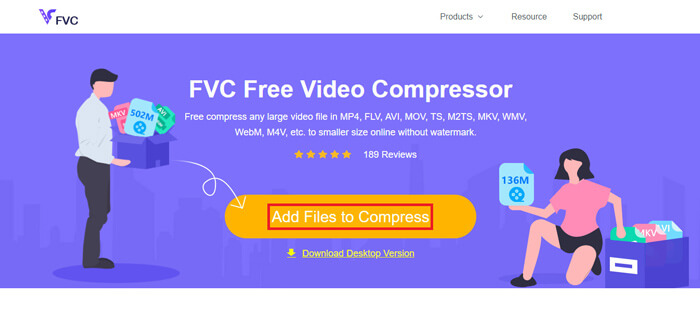
Vaihe 2. Napsauta Add Files to Compress ‑painiketta ladataksesi ja asentaaksesi pienen käynnistysohjelman MKV‑tiedostojen pakkausta varten.
Vaihe 3. Valitse ja lisää pakattava MKV‑tiedosto. Tämän jälkeen näet MKV‑tiedoston koon ja videon keston oikeassa yläkulmassa.
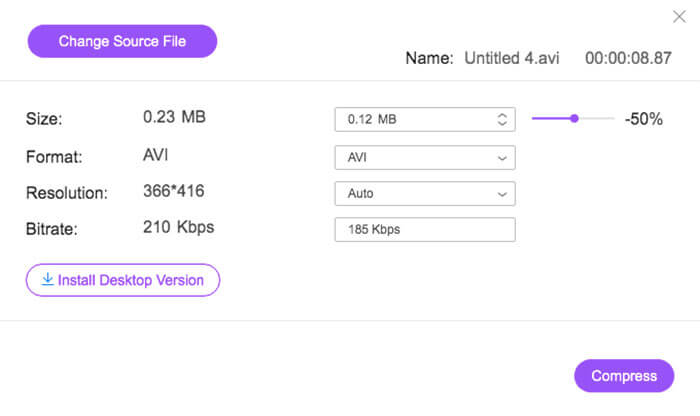
Vaihe 4. Voit säätää MKV‑videon tarkkuutta, kuvanopeutta ja bittinopeutta. Lisäksi voit valita pakatulle videolle sopivan tulostusmuodon. Kun kaikki asetukset on tehty, napsauta Compress‑painiketta MKV‑tiedoston pakkaamisen aloittamiseksi.
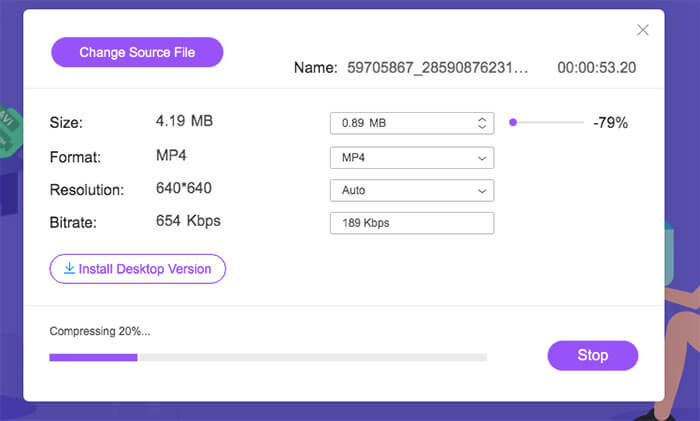
Muutamalla napsautuksella voit kätevästi pakata MKV-tiedoston tiedostokoon pienentämiseksi. Vielä tärkeämpää on, että vesileimaa ei lisätä pakattuun videoosi. Sinun pitäisi tietää, että useimmat online-videokompressorit lisäävät vesileiman tulostetiedostoon.
Osa 2. Ammattimainen tapa pakata MKV-tiedostoja
Edellä mainitulla menetelmällä voit helposti pakata MKV‑tiedoston ilmaiseksi verkossa. Jos kuitenkin pakkaat MKV‑videosi liikaa, seurauksena on todennäköisesti huonolaatuinen pakattu tiedosto. Voitkin valita, että leikkaat tarpeettomat osat pois ja pienennät näin tiedostokokoa ilman laadun heikkenemistä. Esittelemme tähän tarkoitukseen tehokkaan videonmuunnos‑ ja editointityökalun, Video Converter Ultimate, jonka avulla voit pakata MKV‑tiedostosi ilman laadun menetystä.
Video Converter Ultimate on suunniteltu erityisesti erilaisiin videon muunnos‑ ja editointitehtäviin. Sen avulla voit trimmata videota ja tallentaa vain tarvittavan osuuden. Lisäksi siinä on Video Compressor ‑toiminto MKV‑tiedostojen pakkaamiseen.
Ilmainen latausWindows 7 tai uudempiTurvallinen lataus
Ilmainen latausMacOS 10.7 tai uudempiTurvallinen lataus
Vaihe 1. Kaksoisnapsauta yllä olevaa latauspainiketta asentaaksesi tämän MKV‑tiedostojen pakkausohjelman ilmaiseksi ja käynnistääksesi sen tietokoneellasi. Tällä videopakkaimella voit pakata MKV‑tiedostoja sekä Windows‑tietokoneella että Macilla.
Vaihe 2. Kun olet pääikkunassa, napsauta Toolbox‑välilehteä ja valitse sitten Video Compressor ‑toiminto.
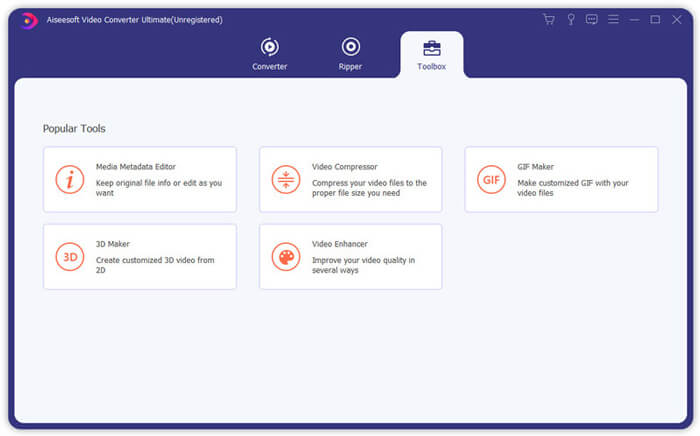
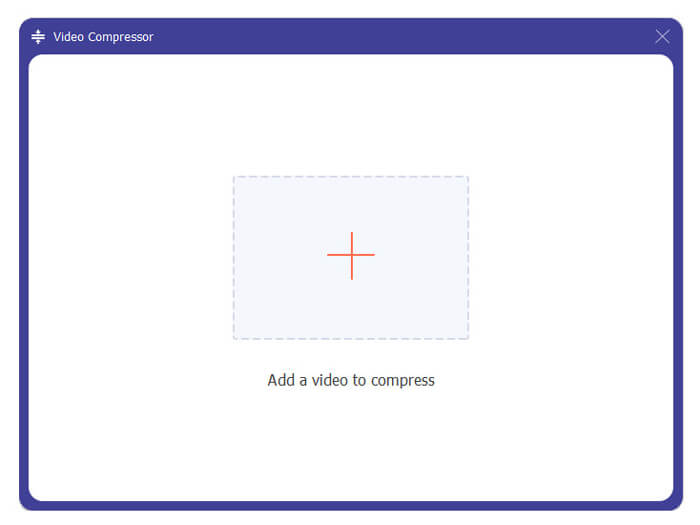
Vaihe 3. Napsauta +‑kuvaketta tuodaksesi pakattavan MKV‑tiedoston.
Nyt voit helposti pienentää MKV-tiedostokokoa tarpeen mukaan. Tämän vaiheen aikana voit myös mukauttaa videon tarkkuutta, bittinopeutta, kestoa ja tiedostonimeä haluamallasi tavalla. Lisäksi voit valita sopivan lähtömuodon pakatulle videolle.
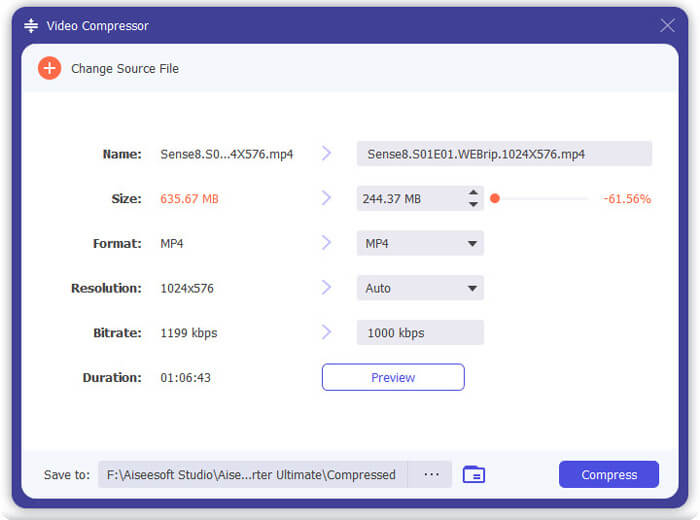
Vaihe 4. Napsauta Compress‑painiketta aloittaaksesi MKV‑videosi pakkaamisen pienemmäksi tiedostoksi.
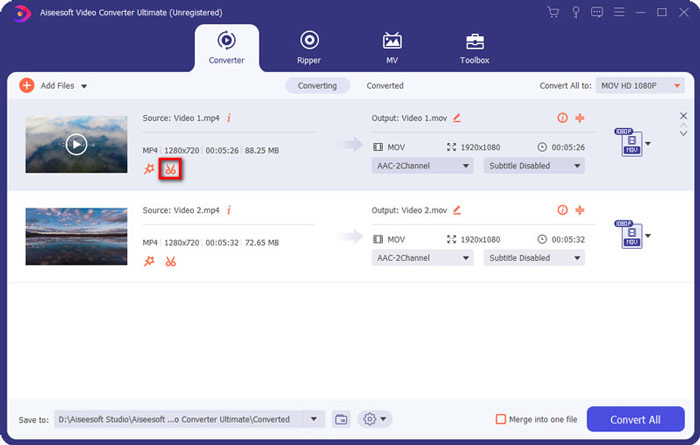
Vaihe 5. Jos haluat pienentää MKV‑tiedoston kokoa leikkaustoiminnon avulla, voit palata etusivulle ja valita Converter‑vaihtoehdon. Kun olet tuonut MKV‑videon, voit napsauttaa Cut‑kuvaketta poistaaksesi tarpeettomat osat.
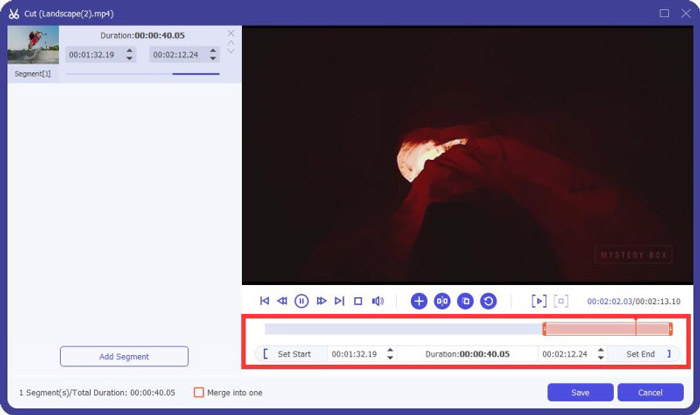
Vaihe 6. Voit vetää leikkuumerkkejä aikajanalla tai syöttää suoraan aloitus‑ ja lopetusajan trimmataksesi MKV‑tiedoston. Sen jälkeen voit napsauttaa Save‑painiketta vahvistaaksesi toimenpiteen.
Tämän jälkeen palaat takaisin etusivulle. Täällä voit napsauttaa Convert All ‑painiketta viedäksesi MKV‑videon. Tämä MKV‑tiedostojen pakkausohjelma sisältää sisäänrakennetun mediasoittimen, jonka avulla voit katsoa pakkaustuloksen suoraan.
Olipa tarkoituksesi pakata video sähköpostia tai WhatsAppia varten, voit tehdä sen helposti tässä ohjelmassa.
Osa 3. MKV-tiedoston pakkaamisen usein kysytyt kysymykset
Kysymys 1. Kuinka pakata video menettämättä laatua?
Voit rajata videota pienentääksesi tiedostokokoa. Näin voit pakata videon ilman laadun heikkenemistä. Jos valitset ilmaisen online- tai ammattikompressorin, video menettää varmasti kuvan tai äänenlaadun. Mutta et ehkä huomaa laadun heikkenemistä silmissäsi.
Kysymys 2. Kuinka muuntaa MKV-tiedosto MP4-tiedostoksi?
Jos haluat ilmaiseksi muuntaa MKV‑tiedoston MP4‑videoksi, voit luottaa luotettavaan työkaluun Free Online Video Converter. Sen avulla voidaan tehdä MKV–MP4‑muunnoksia ja muita video‑/äänimuunnoksia vaivattomasti.
Kysymys 3. Miksi MKV-tiedostot ovat niin suuria?
MKV on konttiformaatti, joka käytti parempaa koodekkia korkeammalla pakkaussuhteella. MKV-tiedostot otetaan yleensä Blu-Rays-levyiltä, ja niiden tarkkuus on suurempi.
Johtopäätös
Tämän artikkelin luettuasi saat 2 helppoa tapaa pakata MKV‑tiedostoja. Suositeltujen videopakkaimien avulla voit kätevästi pienentää MKV‑tiedostojesi videokokoa. Jos sinulla on jokin parempi tapa pakata MKV‑tiedostoja, jaa se kommenteissa muiden lukijoiden kanssa.
-
 Opetusohjelma videon pakkaamiseen sähköpostille iPhonessa / Androidissa / Online
 Etkö voi lähettää videota liian suurella sähköpostilla? Jos sinulla on tämä ongelma, voit saada toimivia tapoja pakata video sähköpostitse täältä. Tässä artikkelissa kerrotaan, kuinka suuria videotiedostoja voidaan kutistaa ilmaiseksi.
-
 Opetusohjelma GIF-tiedostojen pakkaamiseen ja tiedostokoon pienentämiseen korkealaatuisina
 Tässä on 2 helppoa tapaa pakata GIF tietokoneellasi tai matkapuhelimellasi. Voit käyttää FVC Free Online Video Compressoria ja Photoshopia pienentämään GIF-tiedostokokoa eri näkökulmista.
-
 2 tapaa pakata AVCHD-videot pieniksi tiedostokokoiksi ilmaiseksi
 ja hanki 2 helppoa tapaa pakata AVCHD-videotiedostot. Voit pienentää AVCHD-videokokoa ilmaiseksi online- ja offline-videokompressoreilla tietokoneellasi.
