


 Video Converter Ultimate
 Näytön tallennin
 Videon korjaus
 Suojattu lataus
Merkittäviä tapoja leikata video Snapchatissa [mukaan lukien offline-tapa]
Snapchat-sovellus on toinen viime aikoina suosiota saavuttanut sovellus. Snapchatin alkuperäinen pääpaino oli yksityisten, personoitujen valokuvien vaihto. Nykyään sitä voi kuitenkin käyttää moniin eri tehtäviin, kuten videoiden lähettämiseen ja live-videokeskusteluihin osallistumiseen. Lisäksi voit käyttää tätä sovellusta myös videoidesi leikkaamiseen. Kuten tiedämme, Snapchat hyväksyy vain enintään 60 sekunnin pituisia videoita. Videon rajaaminen onkin paras ratkaisu, jos aiot ladata tai julkaista videon tässä mobiilisovelluksessa. Tässä tapauksessa lue tämä artikkeli nähdäksesi yksityiskohtaiset menetelmät, joilla voit opetella, miten rajata video Snapchatissa ja miten leikata videoita Snapchatia varten.

Osa 1. Videon leikkaaminen Snapchatia varten PC:llä
Snapchatissa on rajoitus videoita julkaistaessa. Yksi parhaista ratkaisuista tähän ongelmaan on videon lyhentäminen. Näin, kun rajaat tai leikkaat videon, voit jo lisätä sen Snapchatiin. Jos haluat parhaan videonmuokkausohjelman pitkän videon leikkaamiseen Snapchatia varten, käytä ohjelmaa Video Converter Ultimate. Tässä ohjelmassa on erinomainen jakotoiminto, jolla voit pilkkoa videosi osiin. Lisäksi videoiden jakaminen on tehty hyvin helppokäyttöiseksi myös ei-ammattilaisille. Voit jakaa videota vain muutamalla napsautuksella. Myös sen käyttöliittymä on käyttäjäystävällinen, joten jokaisen valikon ja asetuksen ymmärtäminen on helppoa. Lisäksi siinä on monia muitakin hyödyllisiä ominaisuuksia jakamisen lisäksi. Video Converter Ultimate -ohjelmalla voit rajata, kiertää ja parannella videoitasi mieltymystesi mukaan. Se tukee myös useita eri videoformaatteja, kuten MP4, MOV, MKV, AVI ja monia muita. Ohjelma toimii sekä Windows- että Mac-tietokoneilla, joten sekä Windows- että Mac-käyttäjät voivat hyödyntää sitä.
Vaihe 1. Napsauta alla olevaa Lataa-painiketta ladataksesi ohjelman Video Converter Ultimate. Koska ohjelma on saatavilla sekä Mac- että Windows-tietokoneille, alla on kaksi painiketta. Napsauta painiketta sen laitteen mukaan, jota käytät. Käynnistä sen jälkeen ohjelma.
Ilmainen latausWindows 7 tai uudempiTurvallinen lataus
Ilmainen latausMacOS 10.7 tai uudempiTurvallinen lataus
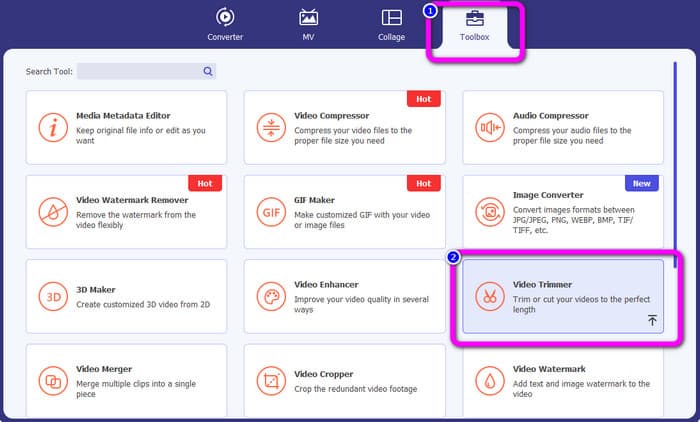
Vaihe 2. Napsauta käyttöliittymän yläosassa olevaa Työkalupakki-välilehteä. Kun työkalut tulevat näkyviin Työkalupakki-kohdassa, valitse Videoleikkuri-työkalu.
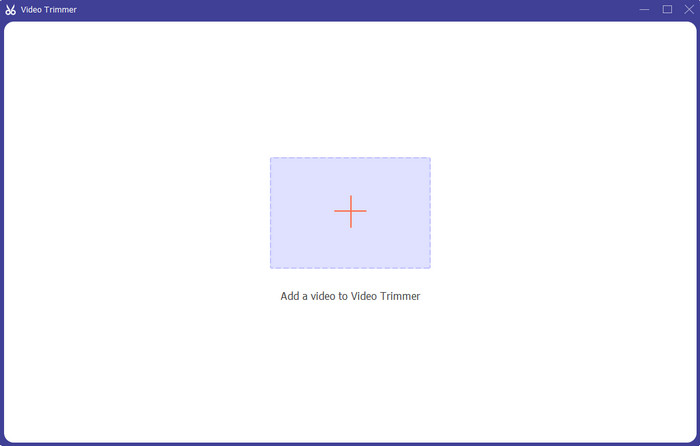
Vaihe 3. Napsauta käyttöliittymän keskellä olevaa Plus-kuvaketta. Valitse sen jälkeen tiedostokansiosta video, jonka haluat leikata.
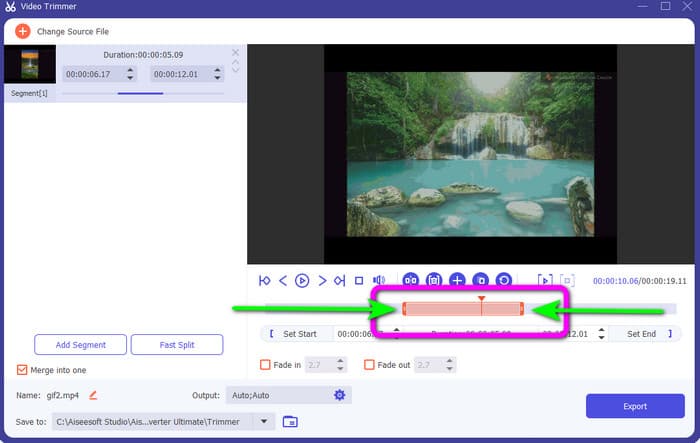
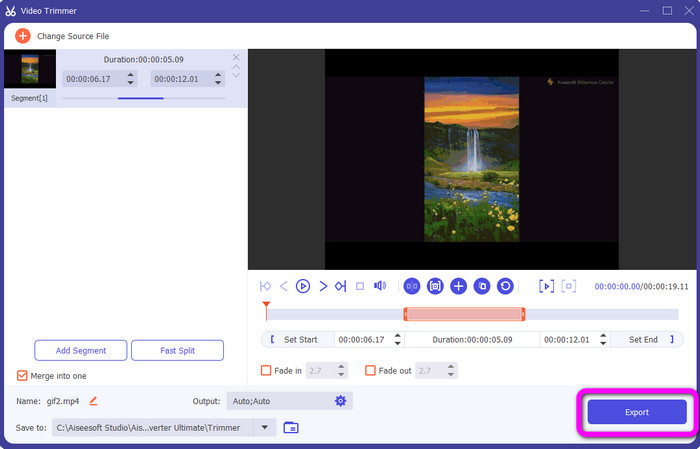
Vaihe 4. Voit leikata videota säätämällä videon alaosassa näkyvää oranssia palkkia. Palkilla on reunat molemmissa päissä. Säädä palkin reunoja rajataksesi videon haluamallasi tavalla.
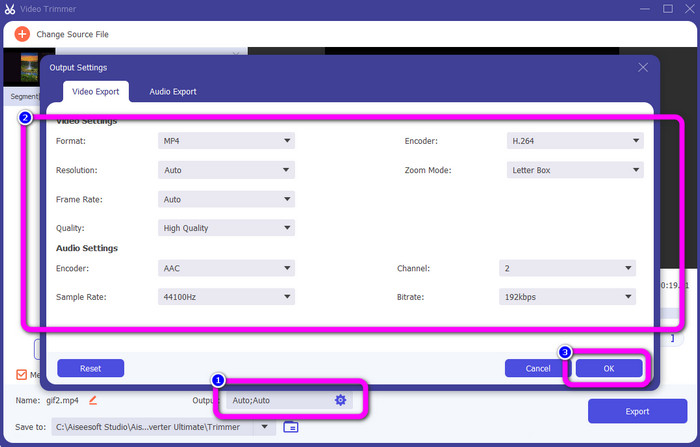
Vaihe 5. Napsauttamalla Lähtöasetukset-vaihtoehtoa voit muokata videon ruudunpäivitysnopeutta, laatua, resoluutiota ja zoomaustilaa lisäsäätöjä varten. Lisäksi voit muuttaa äänen näytetaajuutta ja bittinopeutta. Napsauta lopuksi OK.
Vaihe 6. Viimeisessä vaiheessa napsauta Vie-painiketta. Odota viimeistelyä, ja muutaman sekunnin kuluttua voit tallentaa valmiin, muokatun videon tietokoneellesi.
Osa 2. Videon leikkaaminen Snapchatissa
Tässä osassa opit leikkaamaan videota Snapchatissa. Tämä mobiilisovellus sopii erinomaisesti valokuvien ja videoiden kuvaamiseen. Se tarjoaa monia tehosteita niiden parantamiseksi ja käyttäjien tyydyttämiseksi. Sitä pidetään myös muiden ihmisten viestintäalustana. Lisäksi Snapchat ei pysty vain sellaisiin asioihin. Mobiilisovelluksen avulla voit myös leikata tai leikata videota helposti. Tämän lisäksi Snapchatin avulla voit muokata videotasi muuttamalla suodattimia, lisäämällä tehosteita, rajaamalla ja paljon muuta. Kuitenkin, kuten muutkin sovellukset, Snapchat keskittyy kuvien ja videoiden kuvaamiseen. Joten et voi käyttää edistyneitä muokkaustyökaluja sovelluksesta. Lisäksi se hyväksyy vain lyhyitä videoita, mikä ei tyydytä käyttäjiä, jotka haluavat ladata pitkiä videoita. Katso alla olevat toimenpiteet videon lyhentämiseksi Snapchatissa.
Leikkaa video tallennuksen jälkeen
Vaihe 1. Lataa Snapchat App Storesta tai Google Play -kaupasta. Kun olet asentanut mobiilisovelluksen, avaa se puhelimessasi.
Vaihe 2. Tämän jälkeen tallenna video Snapchatilla. Kun olet lopettanut tallennuksen, näytön alaosaan ilmestyy pieni videoleike. Napsauta sitä aloittaaksesi rajaamisen.
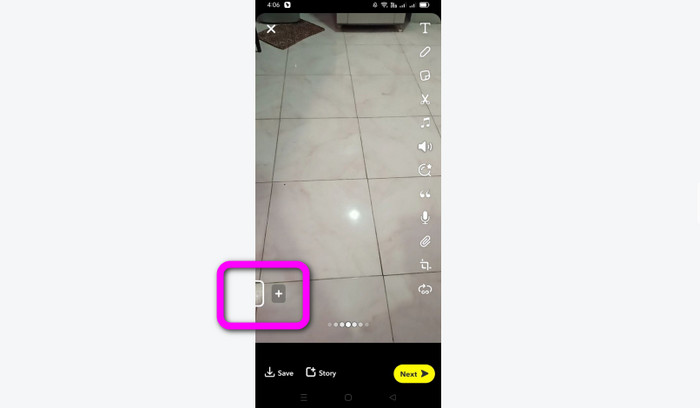
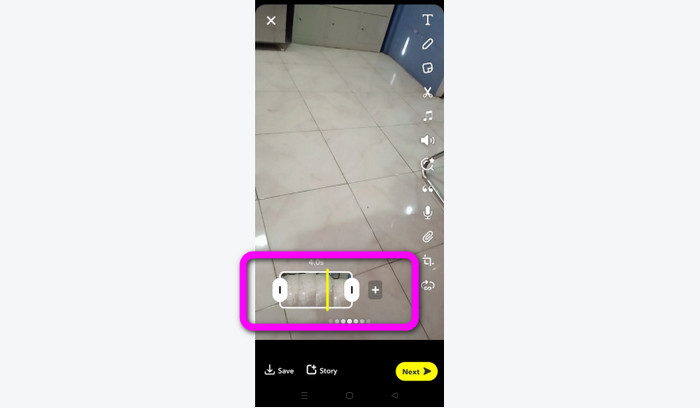
Vaihe 3. Kun leike näkyy näytöllä, voit jatkaa käsittelyä. Vedä leikkeen reunoja ja rajaa video mieltymystesi mukaan.
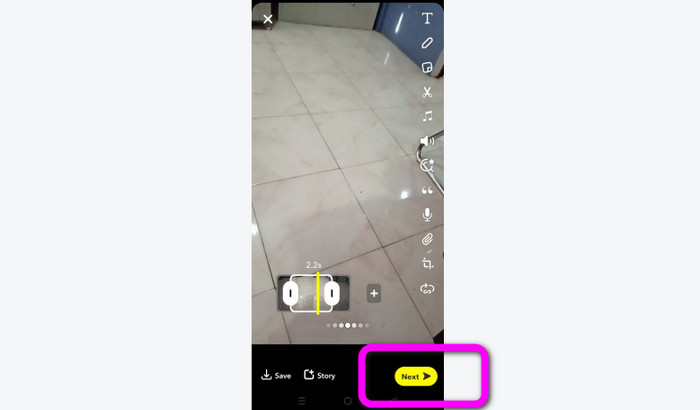
Vaihe 4. Kun olet tyytyväinen lopputulokseen, paina käyttöliittymän vasemmassa alakulmassa olevaa Seuraava-painiketta. Näin voit tallentaa rajatun videosi.
Leikkaa video muistoista
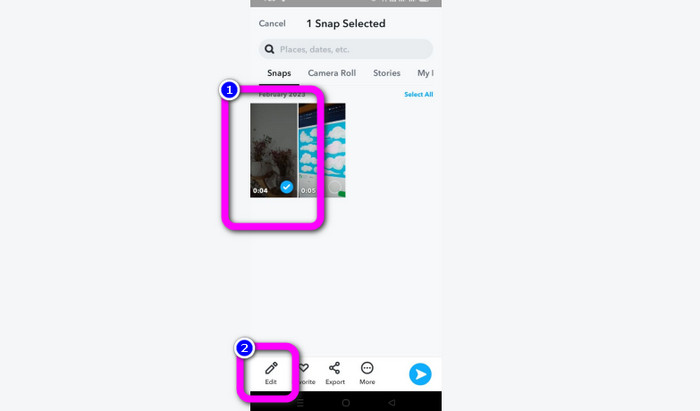
Vaihe 1. Avaa Snapchat-sovellus puhelimestasi. Siirry sitten kohtaan Memories (Muistot). Tässä osiossa näet videosi. Pidä videota hetki painettuna ja napauta Muokkaa-vaihtoehtoa.
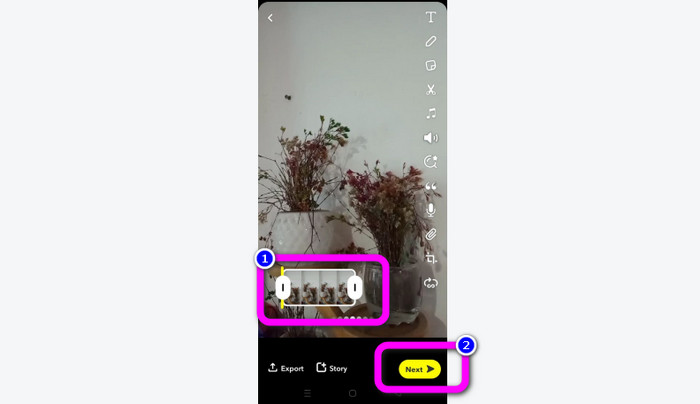
Vaihe 2. Näet sitten videon näytön alaosassa. Tämän videopalkin avulla voit säätää videon reunoja ja aloittaa rajaamisen. Kun olet valmis, napauta Seuraava-painiketta tallentaaksesi lopullisen videosi.
11 vaikuttavaa videoleikkuria käytettäväksi [ilmaiset ja maksulliset]
Erinomaisia tapoja, joilla voit leikata videota kätevästi verkossa
Osa 3. Usein kysyttyä videon leikkaamisesta Snapchatissa
1. Mitä videon leikkaaminen Snapchatissa tarkoittaa?
Videon leikkaaminen tarkoittaa leikkauksen tekemistä, joka määrittää tietyn osan videoleikkeen alun ja tietyn osan lopuksi. Tämän vaihtoehdon avulla voit valita videon alku- ja loppupaikat Snapchatissa. Tämä vaihtoehto on ihanteellinen, jos haluat ladata osia videosta, joka alun perin kesti yli 10 sekuntia.
2. Voitko käyttää split-ominaisuutta snapchatissa?
Et voinut käyttää tätä ominaisuutta, jos latasit videon kameran rullasta. Jos käytit kuvaamiseen Snapchat-kameraa, voit. Split-työkalulla voit jakaa elokuvan muokattavissa oleviin osiin ja poistaa kaikki osat, joita et halua säilyttää.
3. Mikä on yksittäisen snapchat-videon enimmäiskoko?
Jos lähetät valokuvia tai videoita kamerarullalta Snapchatiin, voit lähettää vain yhden enintään 2,5 megatavun videon. Tiedostosi pakataan ennen toimittamista.
Johtopäätös
Jos käytät Snapchatia videon rajaamiseen, tämä artikkeli on tarkoitettu sinulle. Tässä artikkelissa esiteltiin paras tapa, miten rajata video Snapchatissa. Jos taas haluat rajata Snapchat-videoitasi tietokoneella, käytettävissä on siihen sopiva ohjelma. Video Converter Ultimate on erinomainen ohjelma videoiden rajaamiseen tietokoneella. Siinä on selkeä, intuitiivinen käyttöliittymä ja sen käyttö on täysin maksutonta.
-
 6 suosikkivalintaa Snapchat-animoidut Snapchat-suodattimet Snapchatissa
 Haluatko tietää parhaat tavat lisätä suodattimia Snapchat-videoihin? No, voit napsauttaa tätä ja oppia erilaisia suodattimia, joita voit käyttää Snapchat-videoissa.
-
 Kuinka hidastaa videota Snapchatissa helposti kaikilla laitteilla
 Paras tapa hidastaa videota Snapchatissa on jo täällä. Jos haluat tietää, mitkä ovat nämä tekniikat videon hidastamiseksi, seuraa sitä huolellisesti.
-
 Helpoimmat tavat poistaa Snapchat-teksti kuvakaappauksesta
 Poistetaan Snapchat-teksti valokuvista ja videoista luotettavien online- ja offline-työkalujen avulla. Tarjoamme sinulle helppoja tapoja. Kokeile nyt, niin kokeillaan!
