


 Video Converter Ultimate
 Näytön tallennin
 Videon korjaus
 Suojattu lataus
Kuinka Video Colorizer toimii: 3 parasta käytettävää työkalua vuonna 2023
Onko sinulla niitä vanhoja videoita, jotka on kuvattu mustavalkoisina? Vaikka menneitä päiviä voisi muistella jo yhdellä toistokerralla, voit nyt tehdä videoistasi ajattoman teoksen värittämällä ne. Digiaika on onneksi tuonut mukanaan monia teknologisia innovaatioita, mukaan lukien työkalun, joka voi värittää mustavalkoisen videon. Tässä oppaassa esittelemme sinulle parhaat, hyvin toimivat ohjelmat, jotka hyödyntävät värejä ja älykkäitä algoritmeja – säätäen videomateriaalisi värejä saumattomasti.

Osa 1. Väritä video offline-tilassa
Vanhat filmit ei enää tarvitse jättää mustavalkoisiksi, kun käytät tehokasta ohjelmistoa, kuten Video Converter Ultimatea. Vaikka tätä työkalua käytetään pääasiassa videoiden ja äänitiedostojen muuntamiseen, siinä on myös videoeditori, jonka avulla voit herättää mustavalkoiset videot henkiin. Lisäksi Video Converter Ultimate tarjoaa reaaliaikaisen esikatselupaneelin, jossa näet tekemäsi muutokset jo muokkausvaiheessa. Voit myös rajata ja kiertää videota sekä lisätä lukuisia erilaisia suodattimia antamaan luovaa lisäilmettä materiaaliisi. Seuraa alla olevaa yksinkertaista ohjetta, jolla voit värittää mustavalkoisen videon tällä erinomaisella työkalulla.
Vaihe 1. Käynnistä paras videon värittäjä
Lataa ensin Video Converter Ultimate -asennusohjelma napsauttamalla laitteellesi parasta käyttöjärjestelmää. Suorita sen jälkeen ohjattu asennustoiminto käynnistääksesi ohjelman tietokoneellasi.
Ilmainen latausWindows 7 tai uudempiSuojattu lataus
Ilmainen latausMacOS 10.7 tai uudempiSuojattu lataus
Vaihe 2. Tuo tiedosto ohjelmaan
Siirry seuraavaksi Video Converter Ultimaten MV-osioon päästäksesi videoeditoriin. Napsauta sitten Plus-painiketta tuodaksesi raakavideosi ja odota, että se latautuu näytölle.
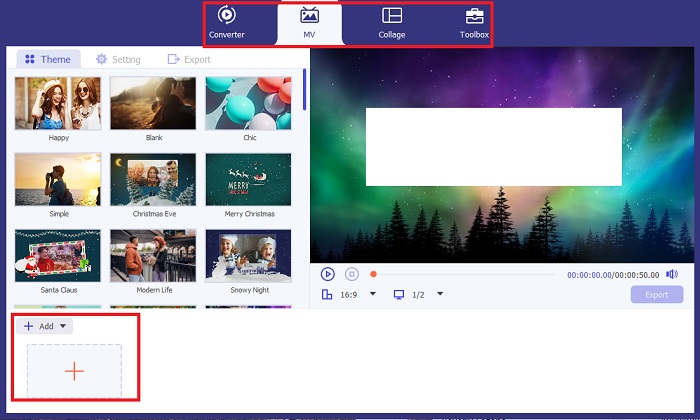
Vaihe 3. Väritä videomateriaali
Kun olet ladannut tiedoston, lisää värisäädöt vetämällä nuolta. Siellä on myös ennalta määrättyjä suodattimia, jotka lisäävät videoosi välittömän tehosteen.
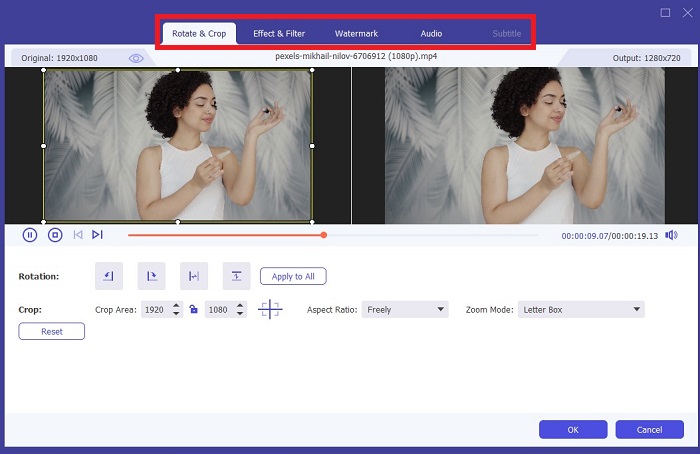
Vaihe 4. Tallenna lopputulos
Kun olet tyytyväinen väritettyyn videoosi, napsauta Export-painiketta viimeistelyä varten. Sen jälkeen voit muuttaa tiedoston kuvanopeutta (fps), nimeä, tarkkuutta ja muotoa ja painaa Start Export tallentaaksesi lopputuloksen paikalliseen kansioosi.
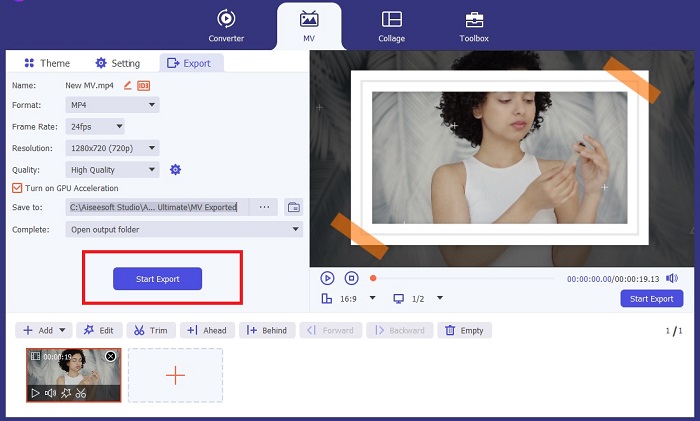
Osa 2. Väritä video verkossa ilmaiseksi
Online-työkalut ovat hyviä tapoja asentaa offline-ohjelmia, jos sinulla ei ole tallennustilaa. Tekoälyteknologian avulla tylsät videosi tai valokuvasi heräävät eloon välittömästi. PickFrom on värillinen online-video, jonka avulla käyttäjät voivat lisätä värisävyjä materiaaliinsa käyttämällä värikalibrointialgoritmia. Se toimii useimmissa verkkoselaimissa, mukaan lukien Opera, Chrome, Safari ja Internet Explorer. Lisäksi tämä ohjelma on 100%-prosenttisesti turvallinen tiedon salauskanavien ansiosta tietojen tunkeutumisen estämiseksi.
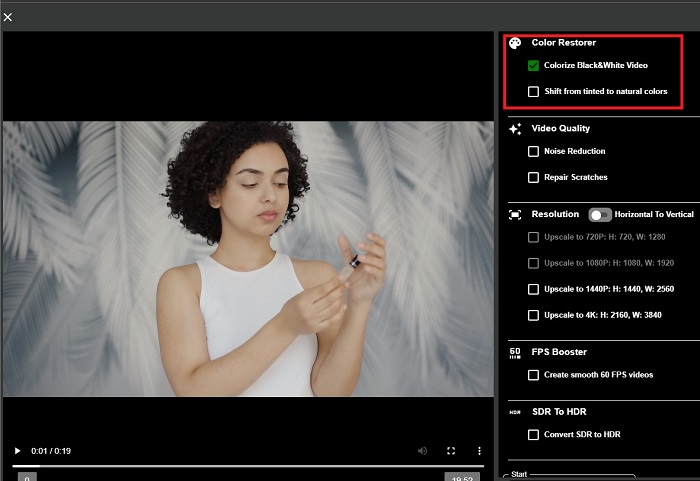
Vaihe 1. Avaa ensin verkkoselaimesi ja siirry PickFrom-sivustolle. Mene sitten Video Colorizer -osioon ja napsauta Add Files ladataksesi raakavideosi.
Vaihe 2. Videon lataamisen jälkeen työkalu näyttää automaattisesti tekoälyn värittämän videoesityksen. Voit myös avata Settings-kohdan Colorize Video -työkalusta ja valita tiedostosi tarkkuudeksi joko 780p tai 1080p.
Vaihe 3. Valitse lopuksi tiedoston Output-muoto laajentamalla Format-välilehteä. Voit valita muodoista MP4, AVI ja MKV. Kun olet tyytyväinen lopputulokseen, napsauta Start-painiketta ladataksesi väritetyn mustavalkovideosi.
Osa 3. Väritä video mobiililaitteella
Muuta kuvamateriaalia taitavasti käyttämällä Googlen kehittämää Colorize-sovellustyökalua! Kuten nimestä voi päätellä, tämä ohjelma on erinomainen valinta iOS- ja Android-käyttäjille värien lisäämisessä vanhentuneeseen materiaaliisi. Tämän lisäksi voit maksimoida mustavalkoisen videosovelluksen lisäämällä erityisiä suodattimia ja tehosteita ulostuloosi ja mukauttamalla tulostesi valintasuhdetta. Tässä on pikaopas värin lisäämiseen mustavalkoiseen videoon tällä mobiilisovelluksella.
Vaihe 1. Napsauta ohjelmassa Upload-painiketta ja valitse mustavalkoinen tiedosto, jonka haluat korjata.
Vaihe 2. Latauksen aikana työkalu lisää automaattisesti värit projektiisi, ja käsittelyaika riippuu vain sen pituudesta ja koosta.
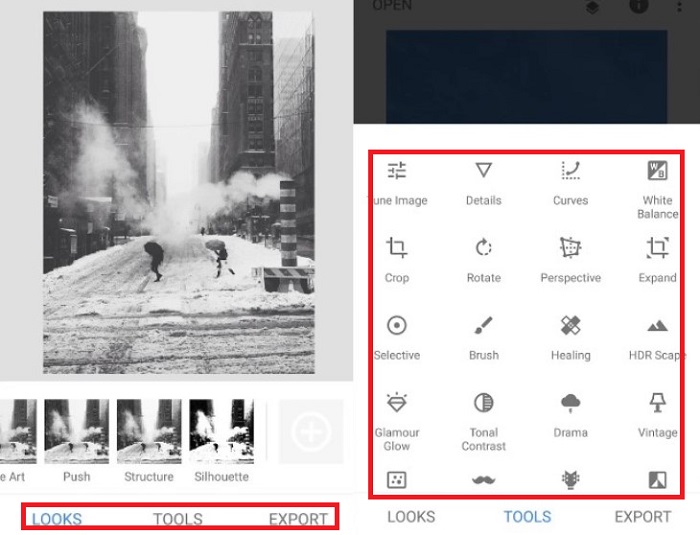
Vaihe 3. Kun väritetty kuva näkyy, voit hienosäätää sen yksityiskohtia siirtymällä Enhance-osioon. Voit säätää kuvan sävyä (hue), kylläisyyttä (saturation) ja elävyyttä (vibrance). Tämän jälkeen napauta Download-painiketta tallentaaksesi tiedoston laitteellesi.
Lisälukemista:
Tehokkaita ratkaisuja videon kirkastamiseen alle minuutissa
5 parasta Windows-videoeditoria ammattilaisille ja aloittelijoille [2023]
Osa 4. Usein kysyttyä AI Colorize Video -ohjelmistosta
Miten ihmiset värittävät vanhoja videoita?
Mustavalkoisten videoiden ja valokuvien värittäminen on nyt mahdollista digitaalisten manipulointityökalujen, kuten videon väritystyökalujen tai videoeditorien, avulla. Joskus sinun on säädettävä asetuksia manuaalisesti saavuttaaksesi mieltymyksesi tai käyttää tekoälyn väritysohjelmistoa.
Onko mahdollista värittää mustavalkoinen video?
Ehdottomasti kyllä! Videomateriaalisi visuaalisen sävyn korjaaminen on 100% mahdollista tänään. Vinkkinä on, että on parempi normalisoida videoidesi väri ennen niiden muokkaamista.
Miksi minun täytyy väriluokitella video?
Väriluokittelu on olennainen prosessi, joka elokuvantekijöiden on suoritettava viimeistellessään tuotantoaan. Tämän prosessin avulla he voivat saavuttaa yhtenäisen värisävyn lisätäkseen yleisölleen erinomaisen visuaalisen tehosteen.
Kuinka kauan valokuvien ja videoiden värittäminen kestää?
Kunhan sinulla on oikeat työkalut laitteessasi, vanhojen valokuvien ja videoiden väritys onnistuu välittömästi. Toisaalta harkitse videosi kokoa ja pituutta.
Ovatko värilliset videoni tarkkoja?
Video Colorizer antaa sinulle lähes tarkan värin videosta. Voit myös pyytää ohjeita asiantuntijoilta, joiden avulla voit määrittää, mikä on alkuperäinen väri kartoittamalla video.
Johtopäätös
Siinä kaikki! Nyt kun olet oppinut 3 parasta tapaa värittää mustavalkoinen video offline-, online- ja mobiilityökaluilla, päätöksenteko ei ole enää vaikeaa. Tekoälyyn perustuva videon värittäjä lisää värit videoihisi automaattisesti, mutta se ei anna sinun säätää keskeisiä väriasetuksia yhtä monipuolisesti kuin offline-ratkaisut, kuten Video Converter Ultimate.
-
 Ongelmattomat menetelmät kuvien muuntamiseksi mustavalkoisiksi
 Haluatko tehdä kuvistasi nostalgisen näköisiä? Meillä on sinulle vastaus. Tämä viesti tarjoaa merkittäviä tapoja muuntaa värikuva mustavalkoiseksi.
-
 Esittelyopas: Paras 7 äänenvoimakkuuden tehostin, joka on saatavilla kaikilla alustoilla
 Haluatko tietää käytettävissä olevat äänenvoimakkuuden tehostimet PC:ssä, Macissa, Onlinessa, Androidissa ja iOS:ssä? Lue sitten tämä artikkeli erilaisilla työkaluilla, jotka voit valita.
-
 Parhaat Instagram-videon koon muuttajat Instagram-sisältösi optimoimiseksi
 Tutustu oppaaseemme videoiden koon muuttamiseen Instagramia varten. Opi hiomaan sisältöäsi ja lisäämään sitoutumista maailman suosituimmalla sosiaalisen median alustalla.
