


 Video Converter Ultimate
 Näytön tallennin
 Videon korjaus
 Suojattu lataus
Videon pakkaaminen verkossa 3 merkittävällä työkalulla
Yksi haaste pitkän, korkean resoluution videon tallentamisessa mobiililaitteella on sen siirtäminen muille verkossa. Tämä johtuu siitä, että sosiaalisen median tileillä on rajoitettu vastaanotettavien tiedostojen koko. Siksi monilla on mielessään vain yksi ratkaisu: videon leikkaaminen tai trimmaaminen. Tästä päivästä alkaen käyttäjien ei kuitenkaan tarvitse huolehtia pitkien videoiden tallentamisesta, sillä alla on lueteltu useita videopakkaimia verkossa.

Osa 1. 3 tapaa pakata video verkossa
1. FVC Video Compressor Online
FVC Video Compressor Online on ylivoimainen valinta käyttäjille, jotka etsivät vaivatonta videonpakkauskokemusta. Tutustu tämän verkkotyökalun ainutlaatuiseen helppouteen ja yksinkertaisuuteen, jotka tekevät siitä erottuvan muihin online-videopakkaimiin verrattuna. Siirtämällä liukusäädintä vasemmalta oikealle voit helposti määrittää, kuinka paljon haluat pakata tiedostojasi. Lisäksi tämä erinomainen videopakkain verkossa antaa sinulle vapauden valita juuri sen formaatin, joka sopii parhaiten haluttuun videotulokseen. Voit hyödyntää monipuolisesti erilaisia formaatteja, kuten suosittuja MP4, MOV, MKV, AVI, WMV ja monia muita. Laajasta valikoimasta voit valita juuri sinulle parhaiten sopivan formaatin median toistamiseen. Lisäksi sinulla on loistava mahdollisuus parantaa tiedostosi resoluutiota ja bittinopeutta.
Plussat
- Käyttäjät voivat kokea sen käyttöliittymän helppouden ja yksinkertaisuuden.
- Se mahdollistaa saumattoman videon pakkaamisen ilman vesileimoja.
- Sen avulla käyttäjät voivat valita optimaalisen bittinopeuden ja resoluution videotiedostoilleen.
- Se muuttaa heidän videonsa vaivattomasti monenlaisiin muotoihin.
Haittoja
- Pakkausprosessi riippuu Internetin nopeudesta.
Vaihe 1: Kun olet siirtynyt FVC Free Video Compressorin pääkäyttöliittymään, napsauta Add Files to Compress -painiketta ja lataa käynnistysohjelma. Kun asennus on valmis, napsauta painiketta uudelleen ja lisää video, jota haluat pakata.
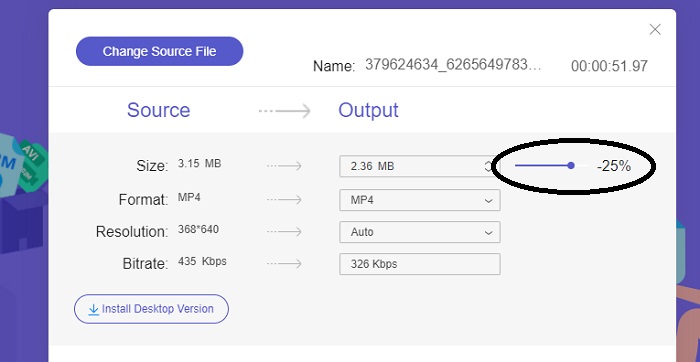
Vaihe 2: Aloittaaksesi videon pakkaamisen siirrä liukupalkkia oikealta vasemmalle, kun olet lisännyt videon. Voit muuttaa videosi formaattia valitsemalla jonkin käytettävissä olevista formaateista.
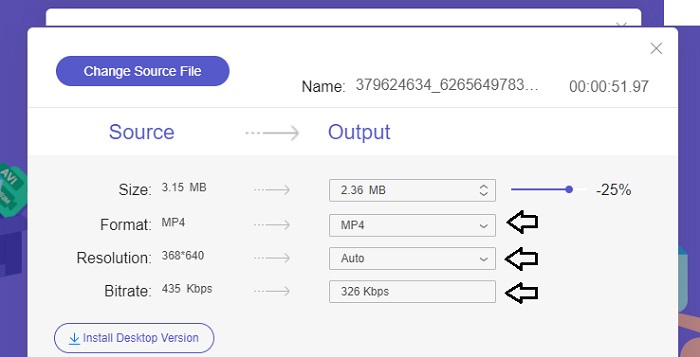
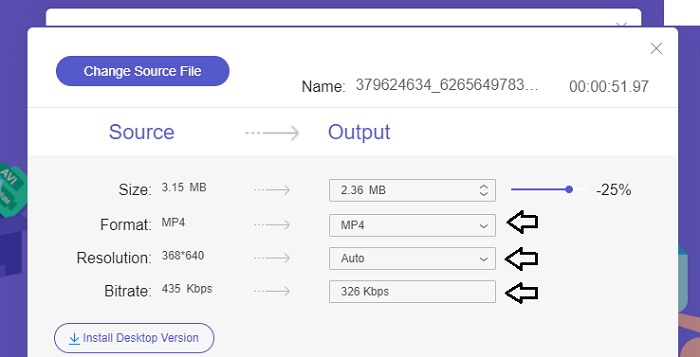
Lisäksi voit mukauttaa videosi Bitrate- ja Resolution-asetuksia valitsemalla haluamasi vaihtoehdot.
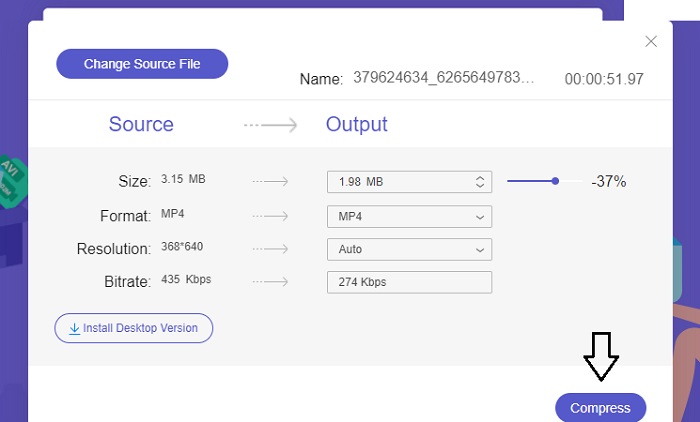
Vaihe 3: Kun olet tehnyt kaikki tarvittavat muutokset, voit tallentaa videosi napsauttamalla Compress-painiketta. Valitse sen jälkeen kansio, johon haluat tallennetun videon sijoittaa. Siinä kaikki!
2. FreeConvert
FreeConvert on helppokäyttöinen online-työkalu videoiden pakkaamiseen. Käyttäjät voivat kohdistaa pakkaamiseen tiettyjä näkökohtia, kuten tiedostokokoa, videon laatua, resoluutiota tai bittinopeutta. Pakkausprosessi on nopea ja helppo, ja se koostuu vain muutamasta yksinkertaisesta vaiheesta, joita on helppo seurata. Koska tämä työkalu on kuitenkin saatavana yksinomaan verkossa, käyttäjät tarvitsevat huomattavan kaistanleveyden sekä lataamiseen että lataamiseen. FreeConvertin ilmaisella versiolla on tiettyjä rajoituksia tiedostokokoille ja kuukausittain muunnettavien tiedostojen määrälle.
Plussat
- Käyttöliittymä on aloittelijaystävällinen.
- Sillä on nopea latausnopeus.
Haittoja
- Suurten tiedostokokojen pakkaamiseksi käyttäjien on maksettava premium-tili.
- Ilmaisessa versiossa on päivittäinen konversioraja.
Vaihe 1: Hae hakukoneestasi FreeConvert Video Compressor. Kun olet pääkäyttöliittymässä, napauta Choose Files -painiketta ladataksesi videon, jota haluat pakata.
Vaihe 2: Kun olet ladannut videosi, napsauta Compress-painiketta ja odota rauhassa, että prosessi valmistuu.
Vaihe 3: Tallentaaksesi pakatun videon napauta Download-painiketta ja valitse haluamasi kansio, johon haluat tallettaa videon.
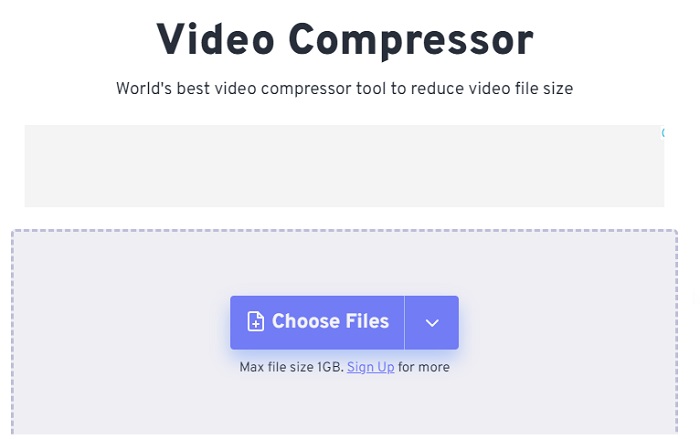
3. Zamzar
Zamzar on kätevä online-työkalu, jonka avulla voit muuntaa ja pakata tiedostoja ilmaiseksi. Sitä voidaan käyttää millä tahansa tietokoneella, jossa on Internet-yhteys. Tämän online-videon koon pienentimen avulla käyttäjät, olivatpa he aloittelijoita tai ammattilaisia, voivat pakata videoleikkeensä nopeasti ja vaivattomasti. Ohjelmistolla on kyky tukea monenlaisia tiedostotyyppejä. On kuitenkin tärkeää huomata, että ilmainen versio rajoittaa vain kahta pakkausta tai muuntamista 24 tunnin aikana.
Plussat
- Teknisissä ongelmissa on saatavilla sähköpostituki.
- Tiedostot säilytetään enintään 24 tuntia.
- Navigointi on erittäin käyttäjäystävällinen.
Haittoja
- Ilmaisessa versiossa käyttäjät on rajoitettu enintään kahteen tiedostoon 24 tunnin sisällä.
- Jos haluat käyttää yli 400 megatavua tiedostoja, sinun on päivitettävä premium-versioon.
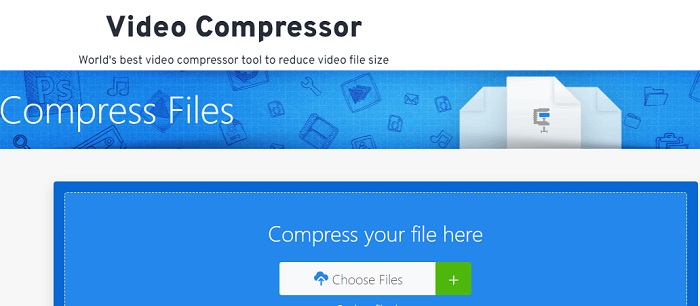
Vaihe 1: Siirry aluksi Zamzarin etusivulle, josta löydät koko käyttöliittymän. Lisätäksesi videon työpöydältäsi napsauta Choose Files -painiketta.
Vaihe 2: Kun olet ladannut videon, odota muutama sekunti, että pakkausprosessi valmistuu ja tila päivittyy.
Vaihe 3: Lopuksi voit ladata pakatun tiedoston työpöydällesi.
Osa 2. Paras videokompressori offline-tilassa
Jos haluat ohjelmiston, joka yhdistää videon pakkauksen, muunnoksen ja editoinnin, harkitse siirtymistä ohjelmaan Video Converter Ultimate. Ohjelmisto tarjoaa kokonaisratkaisun, johon sisältyy videon peruseditointi-, muunnos- ja pakkaustoiminnot. Lisäksi se tarjoaa edistyneitä toimintoja, joiden ansiosta käyttäjät voivat luoda korkealaatuisia, ammattimaisia videoita vaivattomasti. Se sisältää laajan valikoiman tehokkaita ominaisuuksia. Ratkaisuun sisältyy myös työkalu, jonka avulla käyttäjät voivat luoda vaikuttavia videoita tehokkaasti lyhyemmässä ajassa. Videon muuntaminen tällä työkalulla on yksinkertainen kolmivaiheinen prosessi.
Vaihe 1: Käyttääksesi tätä tehokasta videonpakkausohjelmistoa lataa ja asenna se tietokoneellesi. Käynnistä tämän jälkeen ohjelma aloittaaksesi sen ominaisuuksien käytön.
Ilmainen latausWindows 7 tai uudempiSuojattu lataus
Ilmainen latausMacOS 10.7 tai uudempiSuojattu lataus
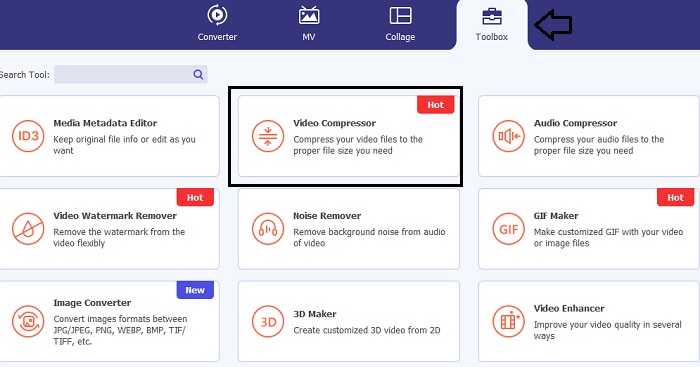
Vaihe 2: Siirry ensin Toolbox-osioon ja napsauta Video Compressor -vaihtoehtoa. Tämän jälkeen voit ladata videosi.
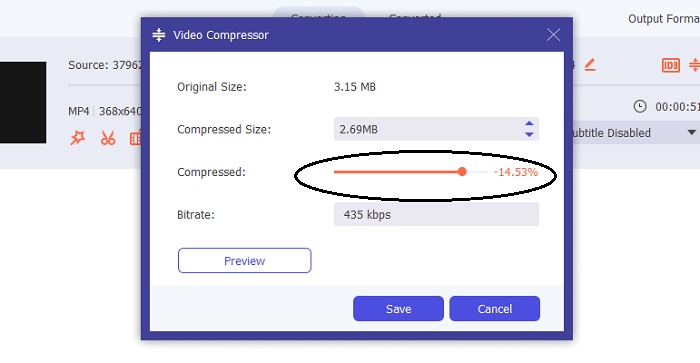
Kun siirryt Video Compressor -asetuksiin, liikuta Slider-palkkia, kunnes saat haluamasi tiedostokoon. Napsauta sitten Save-painiketta ottaaksesi muutokset käyttöön.
Valitaksesi sopivan videoformaatin napsauta Profile-vaihtoehtoa ja valitse haluamasi formaatti avattavasta luettelosta. Voit myös säätää asetuksia, kuten Encoder, Resolution, Bitrate sekä erilaisia ääniasetuksia. Muista napsauttaa Create New -painiketta vahvistaaksesi nämä asetukset.
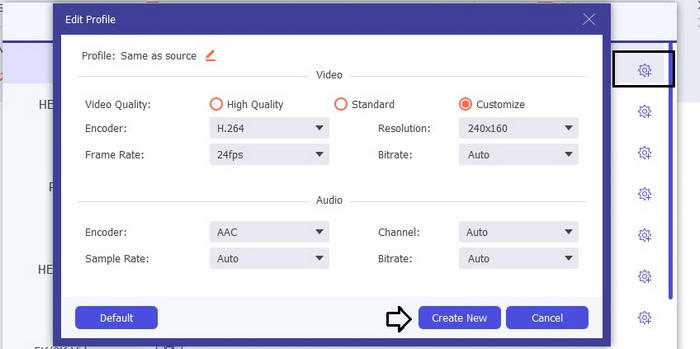
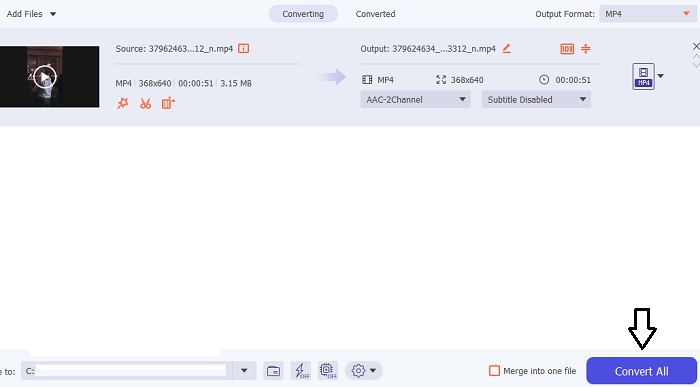
Vaihe 3: Aloittaaksesi videon pakkaamisen napsauta Compress-painiketta.
Lisälukemista:
Kuinka pakata video verkkoa varten tehokkaasti ilman laadun heikkenemistä
Pakkaako Google Drive videoita? Ota selvää täältä
Osa 3. Usein kysyttyä Video Compressor Onlinesta
Kuinka pienennän videon MB kokoa?
Pidä sekä kuvan tarkkuus että kuvataajuus alhaisena aina kun mahdollista. Voit pienentää tiedoston kokoa megatavuina alentamalla videosi bittinopeutta ja resoluutiota. Mutta muista, että kun pienennät MB:tä, myös laatu vaarantuu.
Kuinka voin pienentää videon kokoa laadun heikkenemättä?
Saatavilla on lukuisia menetelmiä videotiedoston koon pienentämiseksi laadusta tinkimättä. Voit parantaa videotasi käyttämällä videokompressoria, leikkaamalla sen pituutta, säätämällä bittinopeutta tai muuntamalla sen webille sopivaan muotoon.
Heikentääkö videon koon pienentäminen laatua?
Muista, että videon pakkaaminen vaikuttaa sen laatuun. Siksi on erittäin tärkeää, että sinulla on käytettävissäsi sopiva työkalu. Voit käyttää joko Video Converter Ultimate- tai FVC Video Compressor Online -toimintoa.
Johtopäätös
Saatavilla on lukuisia tapoja pakata videoita, mukaan lukien videokoon pienentäminen verkossa toimivilla pakkaimilla. Jos haluat varmistaa, että videotiedostojesi laatu säilyy muuttumattomana myös pakkauksen jälkeen, Video Converter Ultimate on kokeilemisen arvoinen työkalu.
-
 Kuinka pakata MP4-video pienempään kokoon
 MP4-video on liian suuri lataamista varten? Haluatko pienentää videon kokoa? Tässä on 3 tehokasta tapaa pakata MP4-tiedosto pienempään kokoon ilman rajoituksia.
-
 Opetusohjelma videon pakkaamiseen sähköpostille iPhonessa / Androidissa / Online
 Etkö voi lähettää videota liian suurella sähköpostilla? Jos sinulla on tämä ongelma, voit saada toimivia tapoja pakata video sähköpostitse täältä. Tässä artikkelissa kerrotaan, kuinka suuria videotiedostoja voidaan kutistaa ilmaiseksi.
-
 2 tapaa pakata video YouTubeen
 YouTube-videot ovat suuria ja hitaita ladata? Pakkaa videotiedostokoko pienemmäksi YouTubelle kahdella tavalla verkossa ja tietokoneella.
