


 Video Converter Ultimate
 Näytön tallennin
 Videon korjaus
 Suojattu lataus
Tutustu videon koon muuttamiseen Androidissa tehokkailla menetelmillä
Olitpa sitten sosiaalisen median vaikuttaja tai vain jakamassa viimeisintä matkaasi ystäville ja perheelle, videoidesi koon muuttaminen voi tehdä suuren eron. Se ei ainoastaan auta optimoimaan tiedostokokoa helpompaa jakamista varten, vaan voi myös parantaa yleisösi katselukokemusta. Tässä artikkelissa näytämme sinulle, miten muuttaa videoiden kokoa Androidilla – kuvasuhteen säätämisestä videon tarkkuuden vaihtamiseen. Yksinkertaisen ja helppotajuisen oppaamme avulla voit muokata videoidesi kokoa kuin ammattilainen ja viedä sisältösi seuraavalle tasolle.

Osa 1. Opastus Videon rajaamiseen Androidilla Samsung Galleryn avulla
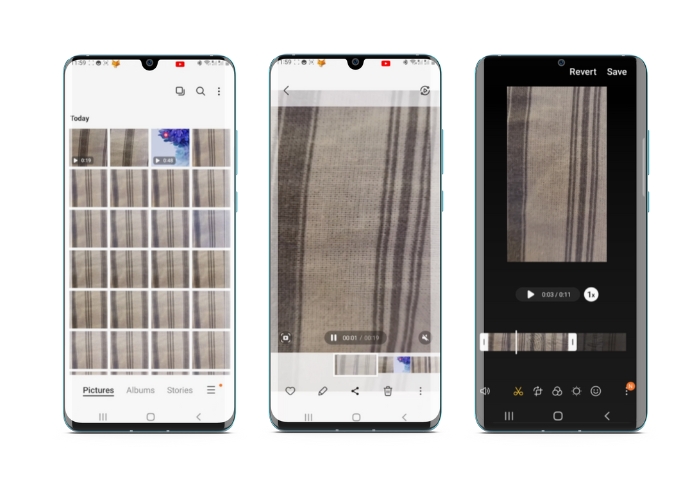
Samsung Gallery -sovellus on pakollinen visuaalisen sisällön hallintaan ja muokkaamiseen, jos omistat Samsung-laitteen. Yksi sovelluksen hyödyllisistä ominaisuuksista on kyky rajata videoita liikkeellä ollessasi. Sen avulla käyttäjät voivat poistaa ei-toivottuja osia videosta tai säätää kuvasuhdetta. Rajaustoiminto tekee siitä helppoa ja intuitiivista. Samsung Galleryn avulla voit helposti luoda ja jakaa korkealaatuisia videoita, jotka on räätälöity tarpeisiisi. Katso alla olevat vaiheet, jotka auttavat sinua käyttämään tätä Android-videoeditorin rajaustyökalua.
Vaihe 1. Avaa laitteellasi Samsung Galleria -sovellus ja etsi video, jota haluat rajata.
Vaihe 2. Napauta videota avataksesi sen ja napauta sitten näytön alalaidassa olevaa Muokkaa-painiketta (kynäkuvake). Valitse Muokkaa-näkymästä Rajaa-vaihtoehto.
Vaihe 3. Näet nyt videon päällä suorakulmion, jonka jokaisessa kulmassa on kahva. Vedä kahvoista muuttaaksesi suorakulmion kokoa tarpeen mukaan, jotta saat rajattua videon. Esikatsele rajattu video napauttamalla Toista-painiketta.
Vaihe 4. Jos olet tyytyväinen lopputulokseen, tallenna rajattu video Galleriaan napauttamalla Tallenna-painiketta.
Osa 2. Videon rajaaminen Androidilla Google-kuvien avulla
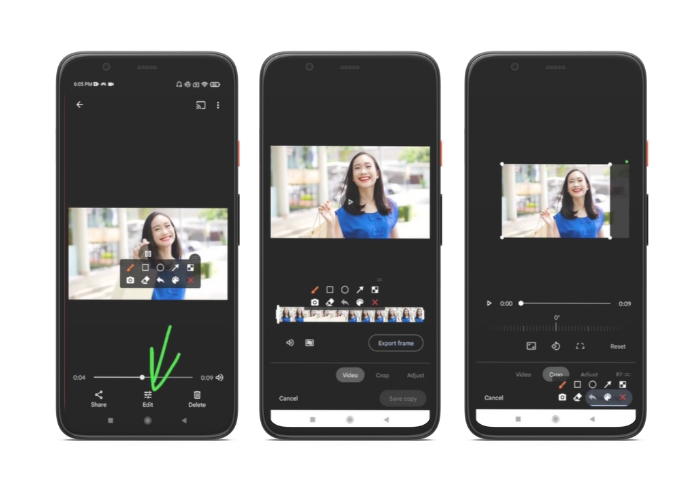
Google Photos on suosittu valokuvien ja videoiden hallintasovellus Android-käyttäjille, ja se sisältää laajan valikoiman ominaisuuksia, joiden avulla voit muokata ja parantaa visuaalista sisältöäsi. Yksi tämän työkalun hieno ominaisuus on kyky rajata videoita, jonka avulla voit poistaa ei-toivotut osat ja keskittyä tärkeimpiin hetkiin. Voit rajata videoita muutamalla napautuksella, jolloin on helppoa ja intuitiivista luoda hienostunutta ja ammattimaista videosisältöä Android-laitteellasi. Tässä näytämme sinulle, kuinka voit rajata videoita Google Kuvien avulla vaihe vaiheelta.
Vaihe 1. Käynnistä Google Kuvat -sovellus Android-laitteellasi ja etsi video, jota haluat rajata. Napauta sitten näytön alareunassa sijaitsevaa Muokkaa-painiketta.
Vaihe 2. Valitse Muokkaa-näkymästä Rajaa ja kierrä -vaihtoehto.
Vaihe 3. Näet nyt videon päällä suorakulmion, jonka jokaisessa kulmassa on kahva. Käytä kahvoja muuttaaksesi suorakulmion kokoa tarpeen mukaan videon rajaamiseksi.
Vaihe 4. Napauta lopuksi Tallenna, jotta tekemäsi muutokset tallentuvat videoon.
Osa 3. Opas videon rajaamiseen Androidissa kolmannen osapuolen sovelluksella
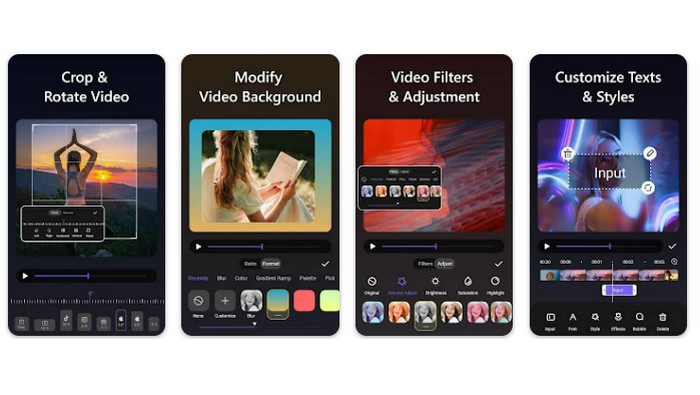
Helppo videonluonti ja -muokkaus on nyt kaikkien Android-puhelimen omistajien ulottuvilla kiitos sovelluksen Vid.fun. Tämän ohjelman avulla käyttäjät voivat muokata videoitaan monin tavoin, kuten lisäämällä musiikkia, tekstiä ja tehosteita, leikkaamalla ja yhdistämällä osia ja paljon muuta. Voit oppia, miten videon kokoa muutetaan Androidilla, seuraamalla alla olevia tämän ohjelman vaiheita.
Vaihe 1. Lataa Vid.fun-sovellus Google Play -kaupasta ja aloita uusi projekti.
Vaihe 2. Valitse laitteen galleriasta tai kameran rullasta leikattava klippi ja pudota se aikajanalle.
Vaihe 3. Valitse haluamasi videon osa aikajanalla napauttamalla sitä ja käytä sitten näytön alalaidassa olevaa Rajaa-painiketta segmentin muokkaamiseen.
Vaihe 4. Videon päälle on lisätty suorakulmio, ja voit vetää sen kulmia tehdäksesi säätöjä. Rajataksesi videon tartu kulmakahvoihin ja vedä ne haluamaasi kohtaan. Kun olet valmis, voit lähettää videon läheisillesi tai julkaista sen verkossa.
Osa 4. Sovellussuositus
Toki mobiilisovellusten lisäksi suosittelemme myös työpöytäsovellusta. FVC:n Video Converter Ultimate on monipuolinen ohjelmisto videoformaattien muuntamiseen, ja siinä on monia editointityökaluja. Erityisen hyödyllinen ominaisuus on mahdollisuus säätää videon kuvasuhdetta.
Tällä ohjelmalla voit helposti muokata videon muotoa ja kokoa muuttamalla kuvasuhdetta. Jos haluat jakaa videon sosiaalisessa mediassa tietyllä kuvasuhteella tai jos haluat vain sovittaa videosta tiettyyn näyttökokoon, FVC Video Converter Ultimate auttaa sinua. Opi rajaamaan videoita Androidilla tämän ohjelman avulla.
Vaihe 1. Lataa ja asenna FVC Video Converter Ultimate
Voit ladata sovelluksen napsauttamalla jotakin alla olevista Lataa ilmaiseksi -painikkeista. Kun ohjelma on ladattu, asenna ja käynnistä se tietokoneellasi.
Ilmainen latausWindows 7 tai uudempiSuojattu lataus
Ilmainen latausMacOS 10.7 tai uudempiSuojattu lataus
Vaihe 2. Tuo rajattava video
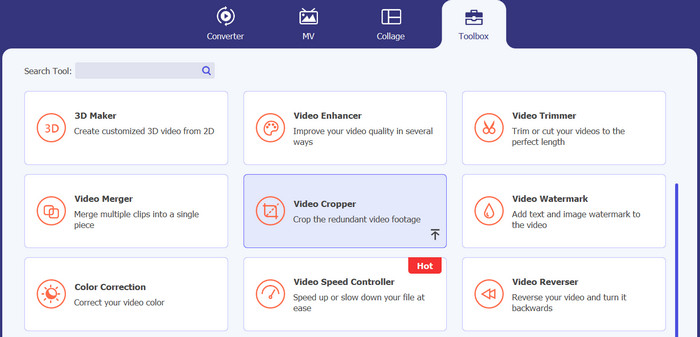
Siirry seuraavaksi ohjelman yläreunassa olevaan Toolbox-välilehteen. Valitse sitten Video Cropper -vaihtoehto ja lisää tiedosto napsauttamalla plus-kuvaketta.
Vaihe 3. Rajaa videotiedosto
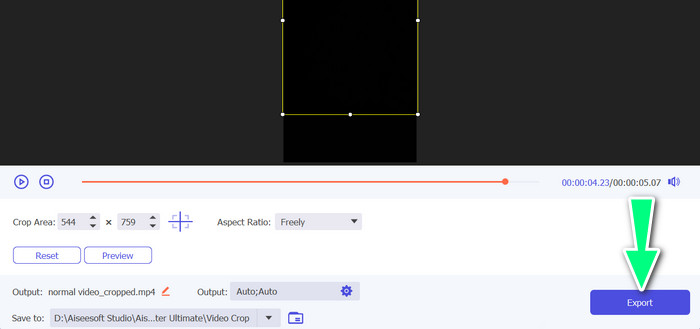
Voit nyt rajata tuodun videon. Säädä aluetta, jonka haluat rajata videosta, käyttämällä rajausalueen liukusäätimiä. Voit myös valita tietyn kuvasuhteen avattavasta valikosta. Esikatsele rajattua videota varmistaaksesi, että haluttu osa videosta on rajattu.

Vaihe 4. Vie rajattu video
Lopuksi napsauta oikeassa alakulmassa olevaa Vie-painiketta viimeistelläksesi rajausprosessin ja tallentaaksesi rajatun videon.
Osa 5. Usein kysyttyä videoiden rajaamisesta Androidissa
Kuinka rajaan videoita laadun heikkenemättä?
Yksi tapa rajata videoita laadun heikkenemättä on käyttää videonmuokkaustyökalua, joka tukee tuhoamatonta rajausta. Tämä tarkoittaa, että alkuperäistä videotiedostoa ei muuteta ja vain rajattu osa tallennetaan uutena tiedostona.
Vaikuttaako videon rajaaminen Androidilla sen laatuun tai resoluutioon?
Kyllä, videon rajaaminen Androidissa voi vaikuttaa sen laatuun tai resoluutioon, koska prosessiin kuuluu alkuperäisen videon osan poistaminen. Se, kuinka paljon laatua tai resoluutiota vaikuttaa, riippuu kuitenkin useista tekijöistä, kuten rajauksen koosta, alkuperäisen videon laadusta ja videon rajaamiseen käytetystä menetelmästä.
Onko mahdollista rajata videota ja lisätä tehosteita tai suodattimia samanaikaisesti Androidissa?
Kyllä, Androidilla on mahdollista rajata video ja lisätä siihen samaan aikaan tehosteita tai suodattimia. Google Play -kaupassa on useita videoeditointisovelluksia, jotka tarjoavat sekä rajaus- että videoefekti- ja videosuodatin-vaihtoehtoja. Joitakin suosittuja esimerkkejä ovat FVC Video Converter Ultimate, Filmora jne.
Johtopäätös
Videon rajaamisen oppiminen Androidilla on yksinkertainen prosessi, joka onnistuu monilla eri sovelluksilla ja ohjelmistoilla. Samsung Galleria, Google Kuvat ja FVC Video Converter Ultimate ovat vain muutamia esimerkkejä työkaluista, joiden avulla voit rajata videoitasi Android-laitteilla.
-
 Opas videoiden korjaamiseen, joita ei toisteta Android -puhelimissa
 Haluatko tietää, mistä syistä Android-laitteellasi olevia videoita ei voi toistaa? Ja jos on, onko olemassa keinoja korjata ongelma itse? Jatka lukemista saadaksesi lisätietoja.
-
 Helpoimmat tavat videon nopeuttamiseen Android-laitteillasi [2023]
 Tiesitkö, että voit nopeuttaa videon katselua Android-laitteellasi? Joten jos haluat tietää, kuinka nopeuttaa videota Android-puhelimellasi, lue tämä kirjoitus.
-
 3 erinomaista menetelmää videon leikkaamiseen Androidilla
 Haluatko leikata videon Android-laitteellasi? Sitten tämä postaus on sinua varten. Keskustelemme arvokkaista tavoista videon lyhentämiseen Androidissa.
