


 Video Converter Ultimate
 Näytön tallennin
 Videon korjaus
Hyödyllisiä vinkkejä hidastettujen videoiden tekemiseen iMoviessa
iMovie on loistava videoeditointiohjelma, joka on saatavilla kaikissa iOS- ja Mac-käyttöjärjestelmissä. Sovellus on ilmaiseksi ladattavissa, ja siinä on erilaisia työkaluja, joilla voi tehdä merkittäviä muutoksia videoon – erityisesti kun on kyse toiston nopeudesta tai hidastusvideon tekemisestä. Vaikka sovellus on käyttäjäystävällinen, sen käyttö ja halutun hidastusefektin toteuttaminen videossa voi silti olla hankalaa. Jos haluat ymmärtää kaikki yksityiskohdat siitä, miten tehdä hidastusvideoita iMoviessa, lue tämä artikkeli ja seuraa ohjeita huolellisesti.

Osa 1. Kuinka tehdä hidastettuja videoita iMoviessa iPhonella
Kuten yllä on esitetty, iMovie toimii vain iOS-järjestelmissä, kuten iPhone. Jotta voit tehdä parhaita hidastettuja videoita tällä sovelluksella, tässä on toimitettuja menettelyjä, jotka opastavat sinua myös tämän sovelluksen käytössä.
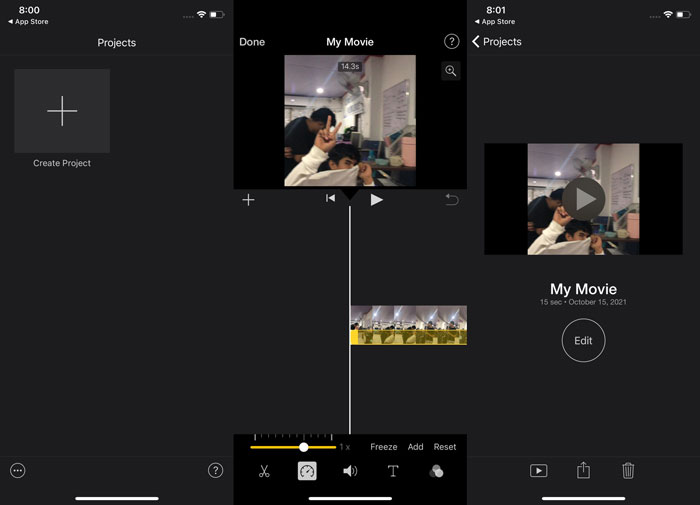
Vaihe 1. Avaa iMovie-sovellus iPhonellasi tai iPadillasi. Jos käyttöliittymästä näytetään yleiskatsaus, näkyviin tulee Jatka-painike. Valitse Projektit-välilehdeltä plusmerkki +, jotta voit alkaa muokata uutta videoleikettä. Jatka siirtymällä Uusi projekti -ikkunaan ja valitse Elokuva.
Vaihe 2. Kun olet valinnut videon kameran rullasta ja painanut näytön alareunassa olevaa Luo elokuva -painiketta, napauta aikajanalla olevaa videoleikettä ja odota, että muokkaustyökalut tulevat näkyviin. Nopeustyökalun, joka näyttää nopeusmittarilta, löydät näistä vaihtoehdoista. Kelaa videoleikettä eteen- tai taaksepäin siirtämällä keltaista liukusäädintä alhaalla oikealle tai vasemmalle. Voit nopeuttaa kuvamateriaalia jopa kaksinkertaiseksi alkuperäiseen verrattuna tai hidastaa sen yhteen kahdeksasosaan alkuperäisestä nopeudesta.
Vaihe 3. Kun kaikki on valmista, napauta puhelimesi näytön vasemmassa yläkulmassa olevaa Valmis-painiketta. Tallenna valmis video klikkaamalla sivun alareunassa olevaa Jaa-kuvaketta ja valitsemalla sijainnin, johon haluat tallentaa sen.
Osa 2. Kuinka tehdä hidastettuja videoita iMoviessa Macilla
iMovie on saatavilla myös Macille, mikä tekee parhaista hidastettuista videoista helpoimmalla mahdollisella tavalla. Jotta tiedät, kuinka voit saavuttaa tällaiset videot, joita haluat noudattaa, sinun on noudatettava seuraavia ohjeita:
Vaihe 1. Muuta leikkeen nopeutta iMovie-ohjelmassa Macilla valitsemalla leike aikajanalta ja säätämällä sen toistonopeutta.
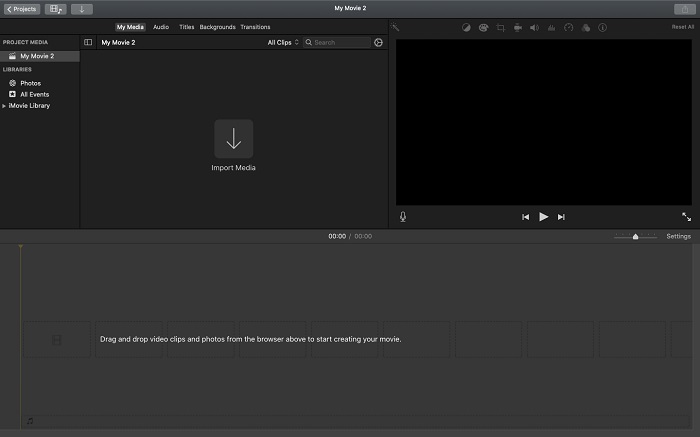
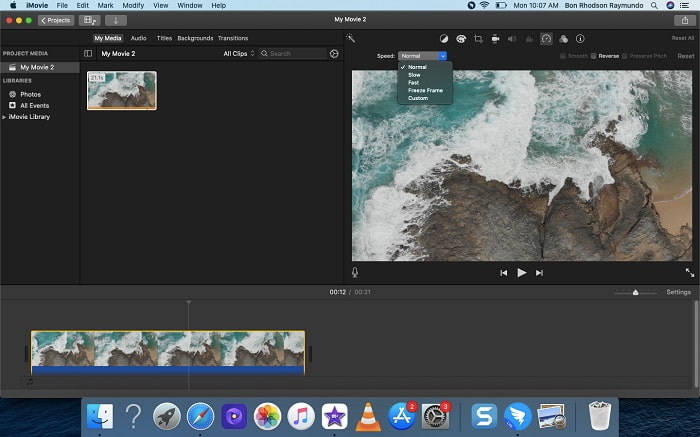
Vaihe 2. Nopeusasetuksiin pääsee klikkaamalla näytön oikeassa yläkulmassa olevaa Nopeus-painiketta. Voit hienosäätää nopeutta valitsemalla hitaat (Slow) tai nopeat (Fast) nopeudet työpöydän nopeuspainikkeesta.
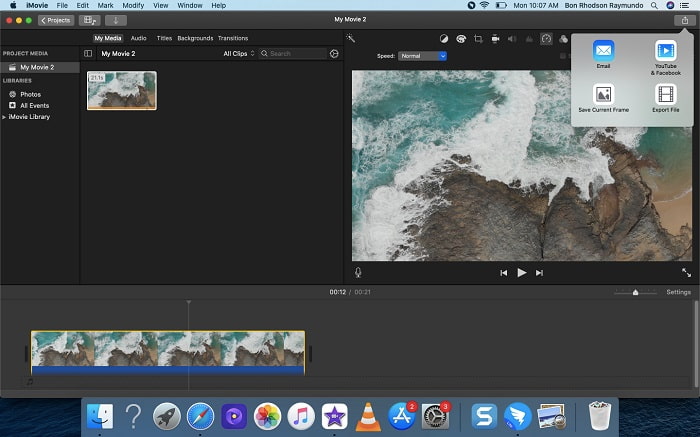
Vaihe 3. Tallenna tiedosto tietokoneesi kiintolevylle klikkaamalla näytön oikeassa yläkulmassa olevaa Lataa/Vie-kuvaketta.
Osa 3. Paras vaihtoehto hidastettujen videoiden luomiseen
iMovien lisäksi hidastusvideoiden tekemiseen on olemassa erinomainen vaihtoehto kaikille pöytäkone- ja kannettavien käyttäjille. Video Converter Ultimate on ilmaiseksi ladattava ohjelmisto, joka on saatavilla sekä Windows- että Mac-käyttöjärjestelmissä. Sitä on helppo käyttää, ja sen selkeä käyttöliittymä estää turhan säätämisen, kun etsit sopivia työkaluja hidastusvideoiden tekoon. Yksi sen parhaista työkaluista on Video Speed Controller, jolla voit säätää videon toistonopeutta; näin voit tehdä hidastusvideon normaalinopeudella kuvatusta materiaalista. Jos haluat tietää tarkemmin, miten ohjelmaa käytetään halutun hidastusefektin saavuttamiseksi, tutustu seuraaviin vaiheisiin:
Vaihe 1. Ennen ohjelman käyttöä sinun on ladattava se klikkaamalla alla olevaa latauslinkkiä käyttöjärjestelmäsi mukaan. Asennus on yhtä helppoa kuin tiedoston lataaminen tietokoneellesi ja klikkaaminen Aloita nyt -painiketta.
Ilmainen latausWindows 7 tai uudempiTurvallinen lataus
Ilmainen latausMacOS 10.7 tai uudempiTurvallinen lataus
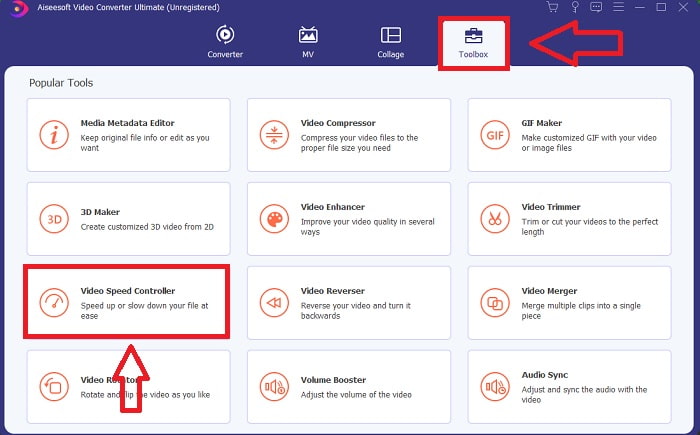
Vaihe 2. Kun olet käynnistänyt ohjelman, näet sen pääikkunassa Muunnin (Converter) -ominaisuuden. Seuraavaksi avaa Työkalupakki (Toolbox) löytääksesi hidastusvideoiden tekoon sopivat työkalut. Jos haluat muuttaa videon nopeutta tai yksinkertaisesti tehdä hidastusvideon, valitse Video Speed Controller käytettävissä olevien työkalujen luettelosta.
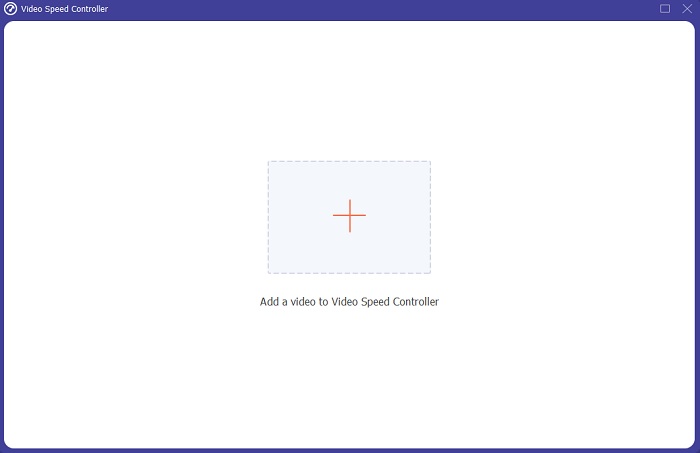
Vaihe 3. Kun jatkat, näytölle avautuu uusi ikkuna. Aloita muokkaus klikkaamalla plusmerkkiä +.
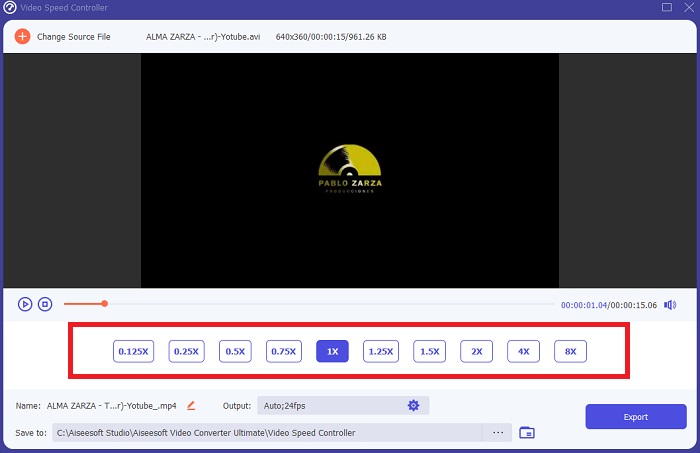
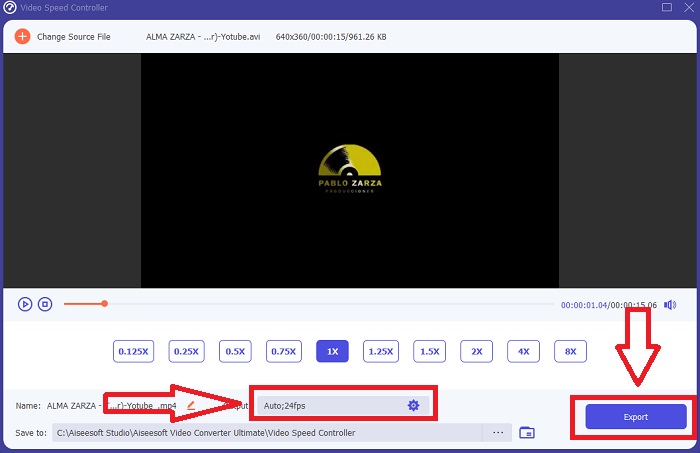
Vaihe 4. Aloita muokkaus valitsemalla, montako kertaa videon toistonopeus kasvaa tai pienenee, jotta näet, kuinka nopeasti tai hitaasti se toistuu – tämä määrittää hidastusefektin, jonka lisäät videoosi. Koska olet tekemässä hidastusvideota, pienennät nopeutta valitsemalla videonopeuden, joka on alle normaalin. Kun olet tyytyväinen videon nopeuteen, voit viimeistellä laadun säätämällä formaattia, resoluutiota, kuvanopeutta ja niin edelleen. Voit myös halutessasi nimetä videon lopputiedoston uudelleen.
Vaihe 5. Klikkaa Vie (Export) ja valitse sijainti tietokoneesi tiedostojärjestelmästä, johon haluat tallentaa työn tuloksen.
Aiheeseen liittyvää:
Osa 4. Usein kysytyt kysymykset hidastettujen videoiden tekemisestä iMoviessa
Entä jos iMovie ei toimi?
Ellei vaihtoehto ole käytettävissä, videoleike ei ole tarpeeksi pitkä tukemaan nopeutettua toistoa. On myös mahdollista, että joudut muuntamaan videosi. Tietyntyyppiset videot, kuten iPhonella kuvatut tai Flip-videokameralla H.264-muodossa kuvatut videot, on muunnettava ennen nopeuden muuttamista. Napsauta projektiselaimessa ja kaksoisnapsauta videotiedostoa avataksesi sen. Jos näet avautuvassa asetuksissa Muunna koko leike -painikkeen, valitse se. Toista leike ja jatka sitten Slow Motion / Fast Forward -prosessia.
Voitko hidastaa ajastettua videota iMoviessa?
Nopeutetun videon toisto alkaa heti, kun vapautat suljinpainikkeen tallennuksen lopettamiseksi. Ajastetun nopeuden liukusäädin löytyy aivan näytön alareunasta. Kun lopetat tallennuksen suljinpainiketta painettuna, ajastettu videosi alkaa toistaa automaattisesti. Ajastetun nopeuden liukusäädin löytyy aivan näytön alareunasta.
Kuinka hidastat Youtube-videoita?
Toista video Youtube-sovelluksessa, etsi rataskuvake tai asetuskuvake. Napsauta Toistonopeus ja valitse normaalin nopeuden yläpuolella olevat vaihtoehdot alkaaksesi hidastaa toistamaasi videota.
Johtopäätös
Yhteenvetona: iMovie on erinomainen videoeditointiohjelma, mutta se on saatavilla vain iOS- ja Mac-käyttöjärjestelmissä. Entä jos käytät Windowsia hidastusvideon tekoon? Suosittelemme käyttämään Video Converter Ultimate -ohjelmaa halutun hidastusvideon saavuttamiseksi. Tämä ohjelmisto on saatavilla sekä Windowsille että Macille. Lisäksi se on ilmainen ja sisältää monipuolisia työkaluja videon editointiin. Siinä on myös erityinen työkalu toistonopeuden säätöön, jonka avulla voit helposti tehdä hidastusvideoita. Ohjelma tukee lisäksi useita eri videoformaatteja, joten videon muuntaminen käy vaivattomasti.
-
 [Ilmainen ja maksullinen] GIF Speed Changer: Vuoden 2021 suosituimmat
 Oletko tyytymätön verkossa tekemääsi GIF-tiedostoon, koska se on tylsää ja hidasta? Tämä on onnenpäiväsi, koska esittelemme artikkelin GIF-nopeudenvaihtajasta ja yksityiskohdista, jotka auttavat sinua käyttämään ja hallitsemaan sitä.
-
 Neljä parasta videosoitinta nopeussäätimellä vuonna 2021
 Etkö ole huomannut jokaisen mediasoittimen toistonopeutta aina kun toistat videota? Tämä artikkeli sopii sinulle, jos haluat oppia kaiken videosoittimista, joissa on nopeussäätö.
-
 3 tapaa nopeuttaa videoiden käyttöä iPhonessa [Todistettu&93;
 Onko sinulla ongelmia videosi toistonopeuden säätämisessä, koska käytät iPhonea? Tämä on erinomainen artikkeli, joka auttaa sinua ongelmaasi.
