


 Video Converter Ultimate
 Näytön tallennin
 Videon korjaus
 Suojattu lataus
Kuinka liittyä MOV (QuickTime) -tiedostoihin ilmaiseksi
Kerättyään useita MOV-videomateriaaleja kannattaa ehkä järjestää materiaalit ja liittää ne yhteen tiedostoon. Aloittelijoille tai amatöörivideotuottajille teknisen työkalun käyttö, kuten Adobe Premiere Pro, voi kuitenkin olla liian monimutkaista. Ehkä vietät päiviä tai jopa kuukausia opiskellaksesi ohjelman käyttöä.
Itse asiassa, jos haluat vain yhdistää videoleikkeitä, voit käyttää yksinkertaista ja tehokasta videoyhdistintä ongelman ratkaisemiseen – näin voit muutamassa minuutissa yhdistää kaksi tai useampia MOV‑tiedostoja yhdeksi.
Seuraavien vaiheiden avulla voit helposti yhdistää MOV‑tiedostoja sekä Macilla että Windowsilla. Jatka siis lukemista ja kokeile menetelmiä itse.

Osa 1. MOV-videoiden yhdistäminen QuickTimessa
MOV, joka tunnetaan myös nimellä QuickTime File Format (QTFF), on digitaalinen videoformaatti, jossa käytetään MPEG‑4‑koodekkia. Apple esitteli sen vuonna 1998 tukemaan QuickTime Playeria. Jos siis käytössäsi on Mac, voit itse asiassa käyttää QuickTime Playeria yhdistääksesi MOV‑tiedostoja vaivattomasti.
Yllättäen QuickTime ei ole vain mediasoitin, mutta myös videoeditori, jonka avulla voit yhdistää erillisiä videoita, muokata videoleikkeitä ja jopa tallentaa ääntä tai videota Mac-tietokoneellesi. Lisäksi se on helppokäyttöinen ja pitää videoiden alkuperäisen laadun.
Tässä on vaiheet videoleikkeiden liittämiseen QuickTimessa.
Vaihe 1. Etsi videot, jotka haluat yhdistää, ja avaa jokin niistä QuickTime Playerilla. (Voit ensin siirtää ne samaan kansioon tai työpöydälle, jotta työ helpottuu.)
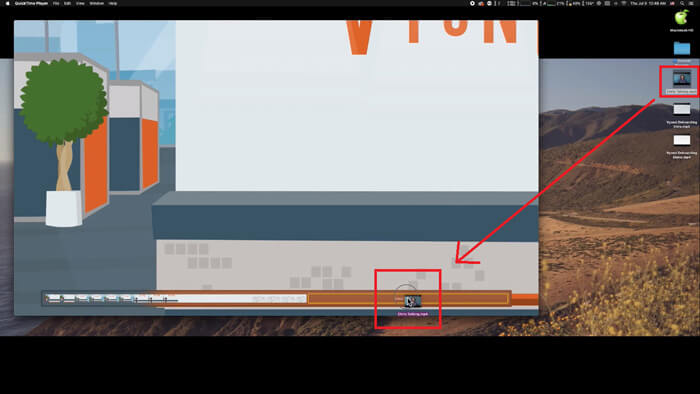
Vaihe 2. Kun olet avannut tiedoston, näytölle ilmestyy toistoikkuna. Vedä nyt toinen videoleike QuickTime Playeriin. Voit pitää videoleikettä painettuna ja vetää sen oikeaan järjestykseen. Kun vapautat hiiren, videoleikkeiden viereen ilmestyy Valmis-painike. Napsauta sitä.
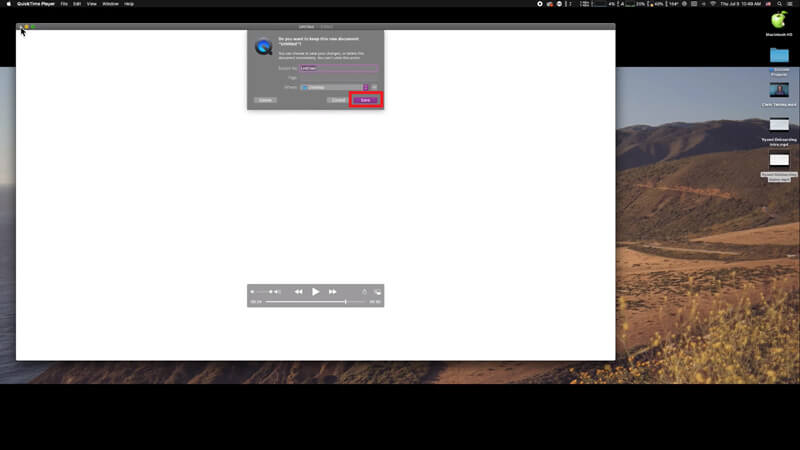
Vaihe 3. Sulje QuickTime, jolloin saat heti kehotteen tallentaa yhdistetyn videon. Kirjoita vain uusi nimi, valitse tallennuspaikka ja napsauta sitten Tallenna-painiketta.
Osa 2. MOV-tiedostojen yhdistäminen verkossa ja ilmaiseksi
QuickTime ei kuitenkaan pysty auttamaan sinua yhdistämään eri muodossa olevia videotiedostoja, kuten MP4, MOV, AVI, WMV, FLV jne., yhdeksi MOV‑tiedostoksi. Tässä tapauksessa tarvitset ammattimaisemman videoyhdistimen, joka tukee useita videoformaatteja.
Tutustu siis työkaluun FVC Free Online Video Merger, joka on paras ilmainen videoyhdistin videoiden yhdistämiseen. Tämän työkalun avulla voit ladata rajattoman määrän videoita ilman rajoituksia. MOV:n lisäksi voit viedä videon myös muihin suosittuihin muotoihin, mikä tekee videon jakamisesta suoratoistosivustoille, kuten YouTubeen, erittäin kätevää.
Sen sijaan, että asennat vakavan ja kalliin ohjelman tietokoneellesi, voit liittyä mihin tahansa videoon ja tuottaa yhden upean videon verkossa tällä helppokäyttöisellä videoyhdistimellä, jonka avulla voit myös luoda videon ilman vesileimaa. Riippumatta siitä, mitä järjestelmää käytät, Windows, Mac tai Linux, se voi toimia hyvin. Tarvitset vain selaimen ja vakaan verkon.
Seuraavat vaiheet opastavat, kuinka tätä videon yhdistämistyökalua käytetään.
Vaihe 1. Napsauta yllä olevaa linkkiä avataksesi FVC Free Online Video Merger ‑verkkosivuston selaimessasi.
Vaihe 2. Napsauta ensin bannerissa olevaa Upload Videos to Merge ‑painiketta. Seuraa sitten näytöllä näkyviä ohjeita ladataksesi ja asentaaksesi käynnistysohjelman tietokoneellesi.
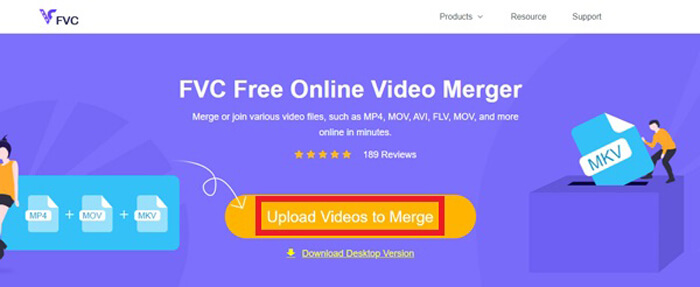
Vaihe 3. Kun asennus on valmis, ikkuna ponnahtaa esiin välittömästi. Nyt voit valita ja lisätä kaikki MOV‑tiedostot, jotka haluat yhdistää, videoyhdistimeen.
Vaihe 4. Tarkista lataamisen jälkeen, että videoleikkeiden järjestys on oikea. Muuta sitten Resolution-asetusta tarpeesi mukaan ja Format-asetusta MOV:ksi tai muuksi haluamaksesi muodoksi.
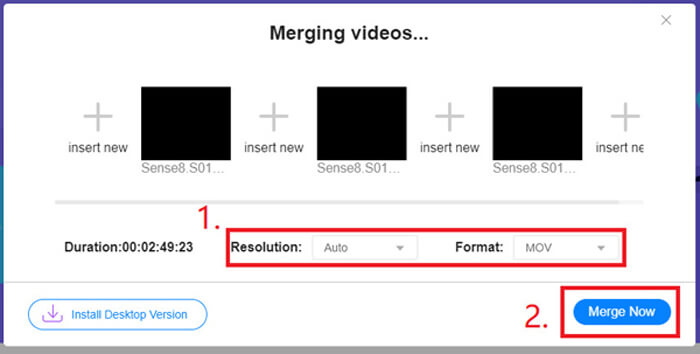
Vaihe 5. Napsauta Merge Now aloittaaksesi yhdistämisen.
Osa 3. MOV-tiedostojen yhdistäminen Windows 10: ssä
Jos sinulla ei ole Macia, mutta omistat tietokoneen, jossa on Windows 10, voit kokeilla seuraavia vaiheita liittyäksesi MOV-tiedostoihin.
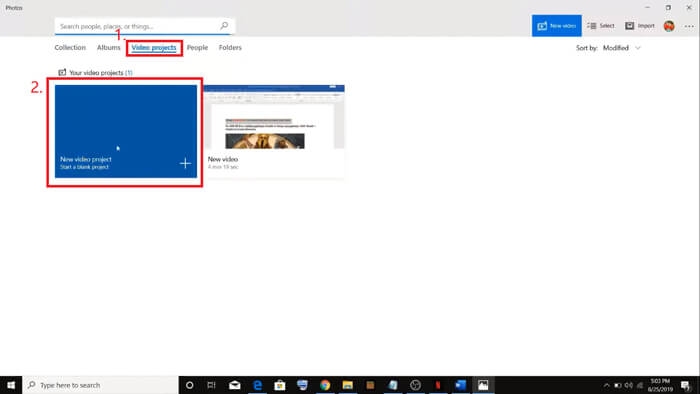
Vaihe 1. Avaa Kuvat-sovellus PC:lläsi. Löydät sen etsimällä sitä Haku-palkista. Valitse sitten ylhäältä Videoprojektit-välilehti ja napsauta Uusi videoprojekti. Nimeä videoprojekti.
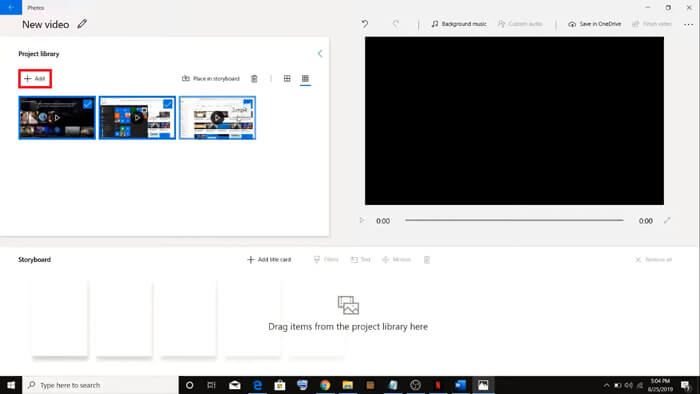
Vaihe 2. Napsauta vasemmassa yläkulmassa olevaa Lisää-painiketta ja valitse kaikki videot, jotka haluat muuntaa, tietokoneeltasi.
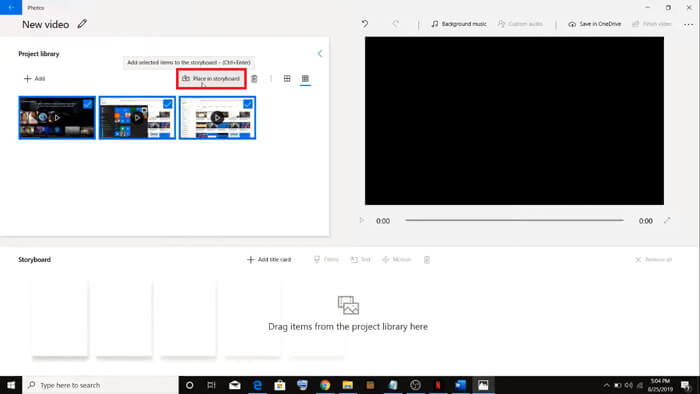
Vaihe 3. Napsauta sitten Aseta kuvakäsikirjoitukseen ‑painiketta yhdistääksesi kaikki MOV‑tiedostosi.
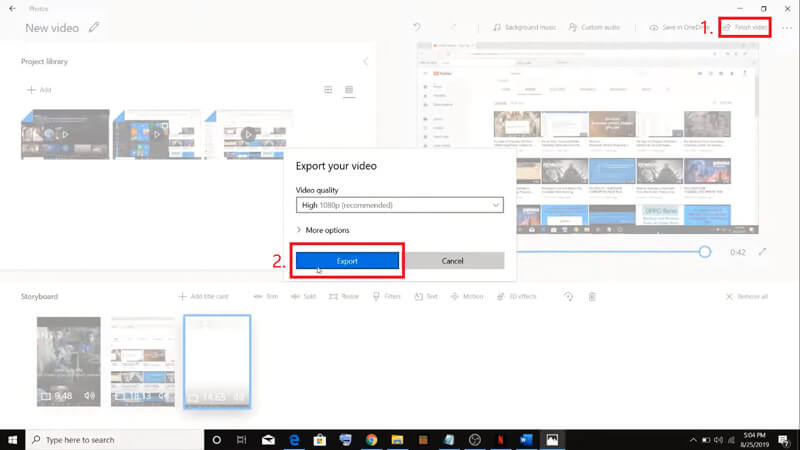
Vaihe 4. Kun olet säätänyt videoiden järjestyksen, napsauta oikeassa yläkulmassa Valmis video. Vie sitten yhdistetty video tietokoneellesi.
Osa 4. MOV: n sulautumisen usein kysytyt kysymykset
1. Voinko käyttää QuickTime Playeria Windowsissa?
Vaikka Apple ei enää tue QuickTimea Windowsille, sen asennuspaketti on yhä löydettävissä Internetistä. Huomaa kuitenkin, että voit käyttää sitä vain videoiden toistamiseen. Kyseessä on siis lähinnä tavallinen soitin, josta ei ole juuri apua.
Jos olet Windows‑käyttäjä ja haluat yhdistää MOV‑tiedostoja, voit käyttää tehokasta työkalua FVC Free Online Video Merger.
2. Mikä on parempi YouTubelle, MOV: lle tai MP4: lle?
Kun olet saanut aikaan hienon videon yhdistämällä kaikki videomateriaalisi, saatat haluta ladata sen YouTubeen, Facebookiin, Instagramiin tai muille alustoille. Siinä tapauksessa MP4 on parempi valinta, koska sen tiedostokoko on pienempi ja sitä on helpompi jakaa Internetissä.
Ehkä haluat tietää lisää MOV‑ ja MP4‑muodon eroista.
3. Voiko QuickTime Player viedä MP4-videoita?
Ei ja kyllä. QuickTime ei itsessään tue MP4‑tiedostojen vientiä. Jos kuitenkin olet maksanut ja päivittänyt QuickTimesi QuickTime Pro ‑versioon, voit yhdistää MOV‑tiedostoja ja saat muunnetun MP4‑tiedoston automaattisesti. Jos et halua maksaa, mutta haluat silti muuntaa MOV:n MP4:ksi Macilla, voit kokeilla ilmaista verkkotyökalua nimeltä FVC Free Online Video Converter, joka toimii sekä Macissa että Windowsissa.
Johtopäätös
Nämä ovat siis menetelmät, joita voit käyttää, kun tarvitset MOV‑tiedostojen yhdistämistä yhdeksi. Jos käytät Macia, voit käyttää suoraan sisäänrakennettua QuickTime Playeria saadaksesi yhdistetyn MOV‑tiedoston. Windows 10 ‑käyttäjät voivat kokeilla Kuvat‑sovellusta. Muiden Windows‑tietokoneiden käyttäjät voivat valita työkalun FVC Free Online Video Merger ja nauttia loistavasta videoyhdistyskokemuksesta ilman rajoituksia, ilman mainoksia ja ilman viruksia.
Jos pidät tästä viestistä ja pidät sitä käytännöllisenä, voit jakaa sen ystäviesi kanssa. Ja älä epäröi jättää meille kommenttisi. Nyt on sinun vuorosi kokeilla menetelmiä ja yhdistää tiedostot.
-
 Kuinka muuntaa QuickTime MP4: ksi Windows / Mac / Online / iOS / Android
 Lue ja hanki neljä tapaa muuntaa QuickTime MP4-videoiksi ilmaiseksi puhelimellasi tai tietokoneellasi. Voit vaihtaa tiedostomuodon MOV: stä MP4: ksi Windows / Mac / iPhone / Android / verkossa helposti.
-
 Suosituimmat 4 tapaa muuntaa MP4 MOV: ksi
 Kuinka muuntaa MP4 MOV: ksi Macissa? Onko olemassa mitään ilmaista tapaa muuntaa MP4 MOV: ksi ilman laadun heikkenemistä? Tämä viesti jakaa 4 yksinkertaista tapaa auttaa sinua tekemään videon muunnos MP4: stä MOV: ksi Macissa, Windows PC: ssä ja verkossa.
-
 Kuinka muuntaa M2TS MOV: ksi Windows / Macissa (online / offline)
 Tarvitseeko muuntaa M2TS MOV: ksi videotiedostojen toistamiseksi useilla soittimilla ja alustoilla? Tämä artikkeli auttaa sinua löytämään parhaan online / offline-menetelmän M2TS: n muuntamiseksi MOV: ksi Windows / Macissa.
