


 Video Converter Ultimate
 Näytön tallennin
 Videon korjaus
5 parasta MP4-leikkuria: Opi leikkaamaan videoita PC:llä, Macilla ja mobiililaitteilla
Jos olet vloggaaja tai yrittäjä, videon ottaminen itsestäsi on niin yleistä. Tämä vaatisi paljon vaivaa ja itseluottamusta, samoin kuin kuvaat kameran edessä. Myös yleisin asia, jonka kaikki ammattilaiset ja uudet vloggaamisessa ovat, ovat tekemäsi virheet. Videon uudelleenkuvaamisen sijaan he yleensä leikkaavat sen ja yhdistävät sen alkuperäisiin videoihin. Tehdäkseen yhden kokonaan uuden videon, joka koostuu eri kuvakulmista, näkymistä, montaaseista ja muusta, se leikataan eri videoista ja lisätään yhdeksi. Mutta koska olet uusi tällaisessa työssä tai jopa ammattilainen, oikean trimmerin valitseminen on vaikeaa. Koska kaikki toiminnot, kuten työkalun mainoksessa sanottiin, eivät ole työkaluissa. Sen sijaan, että siirryt toiseen artikkeliin ja lukisit suosituksen, miksi et oppisi ensin tästä. Keräsimme vain todellisia todisteita omaksi hyödyksesi. Joten tässä luettelossa on MP4-leikkurit, joiden avulla voit aloittaa vloggaamisen. Pysy keskittyneenä tietääksesi, mitkä ovat parhaat trimmerit, joita voit käyttää ja jotka tarjoavat yksinkertaisen mutta ammattimaisen näkymän videoihisi.

Osa 1. Lataa paras MP4 Video Cutter -ohjelmisto PC:lle ja Macille
Jos aiomme puhua parhaasta, tämä on se, jonka lukemiseen sinun on ensiksi keskityttävä. Kuten aiemmin todettiin, vlogien tekeminen on paljon vaikeampaa kuin odotimme – kyse ei ole vain kameran edessä esiintymisen itsevarmuudesta ja videon julkaisemisesta. Sinulla on myös hyvä olla monikäyttöinen työkalu, joka tuottaa jokaiselle katsojalle houkuttelevamman videon. FVC Video Converter Ultimate tarjoaa erinomaiset muokkausominaisuudet ja muunnostoiminnot, joita kuka tahansa voi käyttää. Olitpa aloittelija tai ammattilainen, kannattaa etsiä markkinoiden parasta. Vaikka tämä on maksullinen versio, se tarjoaa silti kaiken, mitä parhaimmillaan tarvitset. Ja jos valitset tämän omaksi ratkaisuksesi, tulevaisuus näyttää valoisalta. Haluatko aloittaa vloggaamisen jo tänään? Seuraa sitten näitä ohjeita siitä, miten tätä MP4-videoleikkuria käytetään.
Vaihe 1. Napsauta alla olevaa latauspainiketta ja asenna ohjelma PC- tai Mac-tietokoneellesi. Seuraa työkalun asennusohjeita ja napsauta Lopeta käynnistääksesi ohjelmiston.
Ilmainen latausWindows 7 tai uudempiTurvallinen lataus
Ilmainen latausMacOS 10.7 tai uudempiTurvallinen lataus
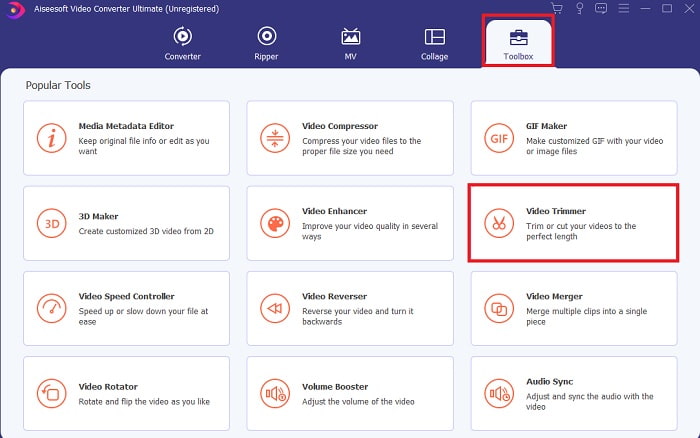
Vaihe 2. Jos tämä näkyy näytölläsi, napsauta Toolbar-valikkoa ja etsi alta Video Trimmer.
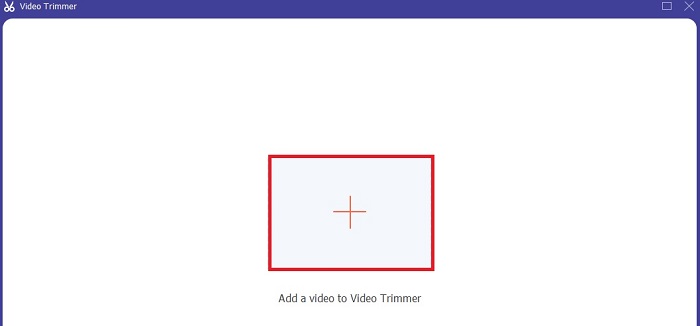
Vaihe 3. Napsauta plus-painiketta lisätäksesi tiedoston. Valitse levyltäsi tiedosto, jonka haluat leikata, ja napsauta open lisätäksesi videon.
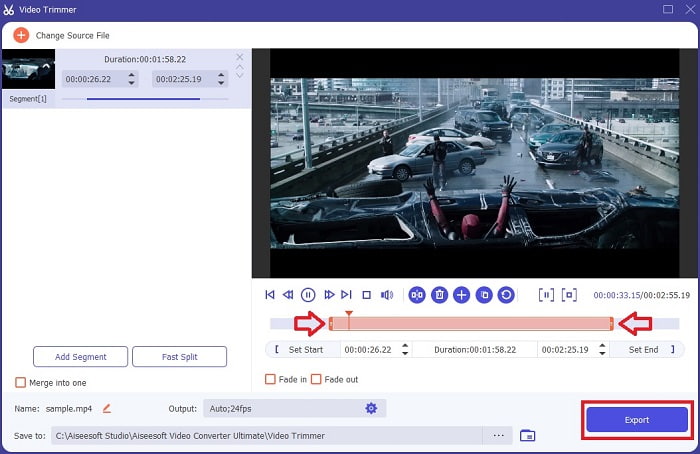
Vaihe 4. Säädä videosi aloitus- ja lopetuskohta muokkaamalla playback in and out -asetuksia halutun keston mukaan. Lisää halutessasi häivytys alussa ja lopussa. Voit myös muuttaa median ulostuloasetuksia napsauttamalla cog-painiketta. Kun olet valmis, napsauta Export-painiketta aloittaaksesi leikkausprosessin.
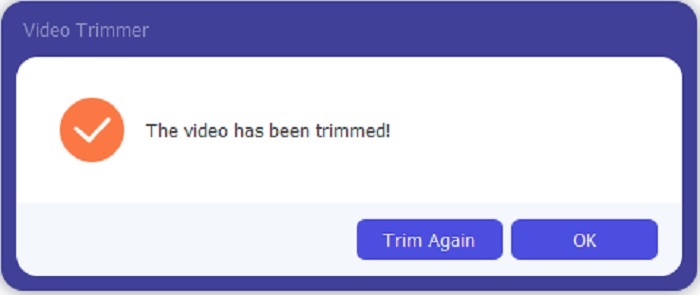
Vaihe 5. Odota hetki, ja videosi on leikattu. Napsauta sitten OK tai Trim Again, jos sinun täytyy leikata toinen video. Jos haluat parantaa juuri tekemääsi videota, napsauta työkalupalkkia uudelleen ja etsi videoenhancer-toiminto.
FVC Video Converter Ultimate with Steps -työkalun tarjoaman yhdistämistyökalun etu
Toisin kuin muut sovellukset, videoiden yhdistäminen FVC Video Converter Ultimatessa on erittäin helppoa. Tämä on bonusominaisuus, jos hankit tämän työkalun. Kuten sanottu, tämä työkalu on monikäyttöinen, joten aletaan liittää eri videoita yhdeksi.
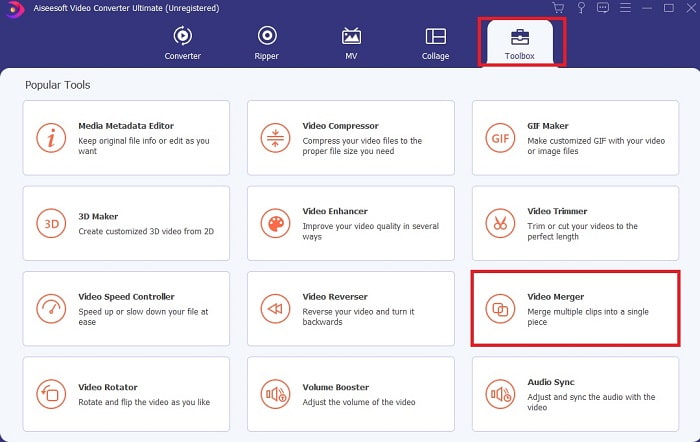
Vaihe 1. Avaa ohjelmisto ja siirry Toolbar-valikkoon, etsi Video Merger ja napsauta sitä.
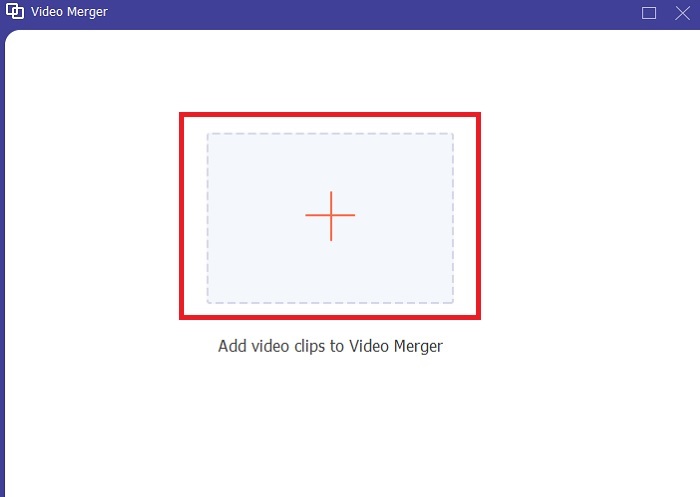
Vaihe 2. Napsauta add-painiketta, valitse video, jonka haluat yhdistää, ja napsauta open jatkaaksesi. Kun olet valinnut ensimmäisen tiedoston, napsauta plus-kuvaketta lisätäksesi toisen tiedoston, jonka haluat yhdistää.
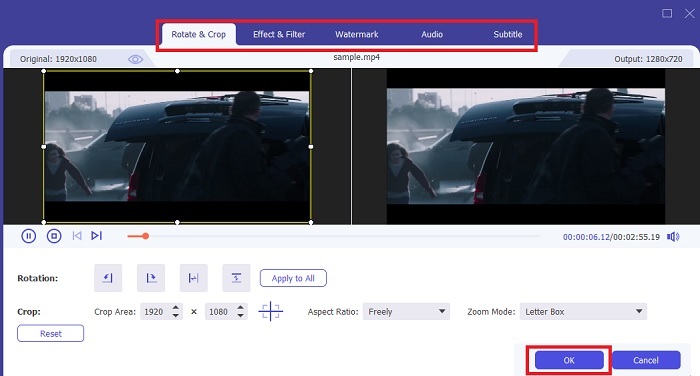
Vaihe 3. Käyttöliittymässä napsauta wand-painiketta lisätäksesi tehosteita, parantaaksesi ääntä, kääntääksesi tai rajataksesi videota ja lisätäksesi tekstityksiä. Tallenna tekemäsi muokkaukset napsauttamalla OK. Voit halutessasi toistaa saman toimenpiteen myös muille videoille.
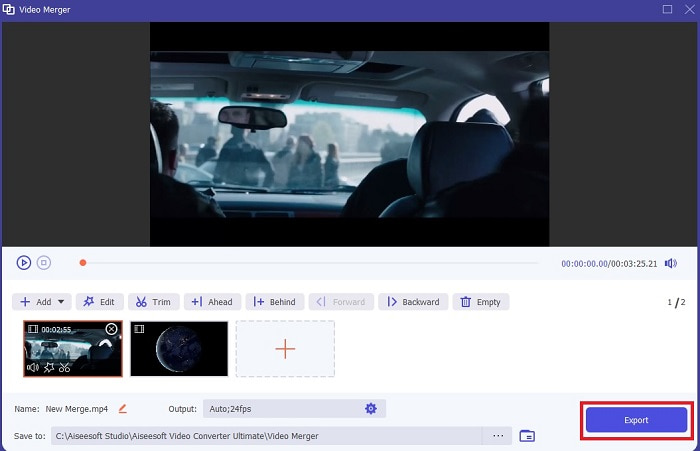
Vaihe 4. Kun olet valmis aloittamaan yhdistämisprosessin, napsauta Export. Kun vienti on valmis, näytölle avautuu tiedostonhallintaikkuna. Katso viety video napsauttamalla sitä ja nauti.
Osa 2. Parhaat MP4-leikkurit verkossa
Tämä on varmasti hyvä leikkuri, mutta ei yhtä hyvä kuin FVC Video Converter Ultimate. Silti näiden online-MP4-leikkureiden kokeileminen on vähintäänkin vaivan arvoista.
1. 123Apps Online Video Cutter
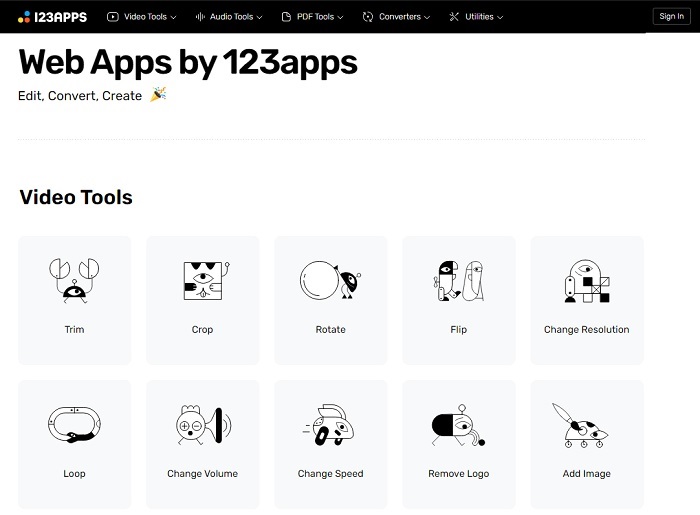
Tämä ensimmäinen verkkotyökalu on tarkoitettu parantamaan videoitasi. Se voi säätää videon kestoa, rajata, lisätä tekstiä ja paljon muuta. Mutta tämän työkalun vienti vie paljon aikaasi. Viennin jälkeen sinun on ladattava se, ja tämä prosessi riippuu Internet-nopeudestasi. Et myöskään voi säätää videoidesi laatua. Joten jos videosi on hieman epäselvä ja sen fps-asetuksia on säädettävä, et voi tehdä sitä täällä. Mutta silti kannattaa yrittää.
2. Clideo
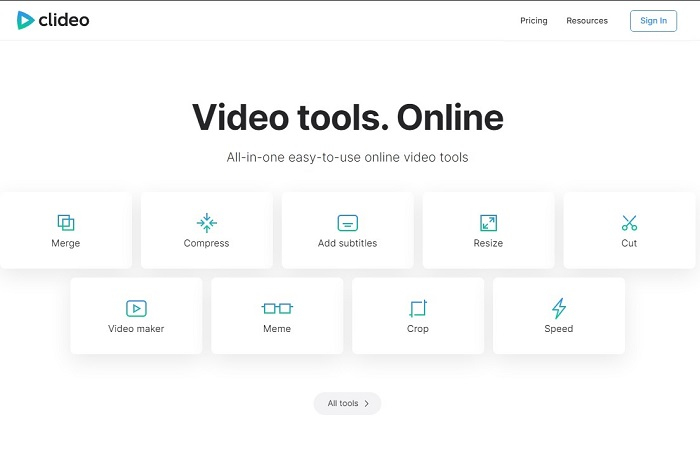
Jos puhumme leikkaamisesta, tämä on myös varsin hyvä vaihtoehto. Clideo on yksi parhaista MP4-leikkureista, joita verkosta löytyy. Aiemmin mainitun verkkotyökalun tavoin tämäkin tarjoaa perusmuokkausominaisuudet. Vaikka se tukee vain perustason editointia, se ei aina riitä, jos tavoitteena on todella katseenvangitseva video. Voit kuitenkin kokeilla sitä verkossa – se on ilmainen ja turvallinen käyttää.
Osa 3. 3 parasta MP4 Cutter -sovellusta Androidille ja iOS:lle
Entä jos sinulla ei ole työpöytää yllä olevien työkalujen käyttämiseen ja haluat olla vloggaaja, onko se silti mahdollista? Jos sinulla on puhelin, kuten Android tai iOS, voit käyttää näitä sovelluksia muokataksesi puhelimissasi. Mutta on joitain ominaisuuksia, jotka ovat saatavilla yllä ja joita ei ole täällä. Joten jatka lukemista alla saadaksesi tietää, mitä nämä työkalut ovat, ja valitse niistä.
1. iMovie iOS:lle
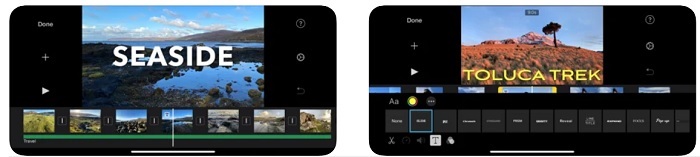
Jos haluat lisätä videoosi hieman Hollywood-tunnelmaa, iMovie on oikea ohjelma. Tämä MP4-leikkurisovellus on tehty vain iOS-käyttäjille. Vaikka työkalu tarjoaakin huipputason editointiominaisuuksia, kaikkia bugeja ei ole vielä korjattu. Joissakin tapauksissa sovellus kaatuu aina, kun yrität muokata videota ja näyttö menee mustaksi. Toisinaan videon ja äänen synkroni ei toimi erilaisten häiriöiden takia. Nämä ovat vain joitakin esimerkkibugeja – ne voivat vaikuttaa pieniltä, mutta ovat käytännössä hyvin ärsyttäviä. Jos kuitenkin haluat kokeilla iMoviea, voit yhä ladata sen App Storesta.
2. Video Editor & Maker – Viva Video Androidille
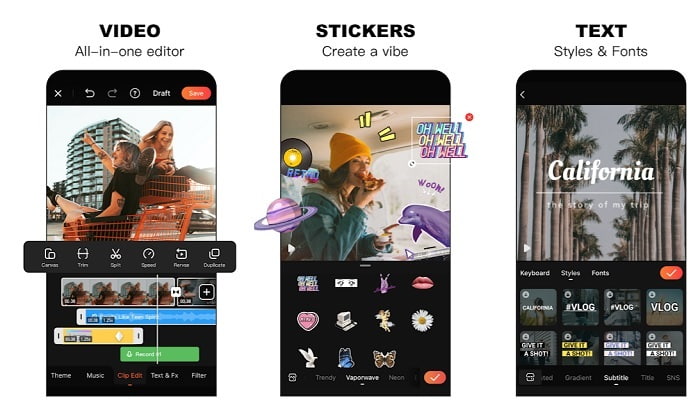
Yksi Androidin parhaista ilmaisista MP4-leikkureista on Video Editor & Maker – Viva Video. Kuten edellä mainittu työkalu, myös tämä tarjoaa puhelimeen erinomaiset editointiominaisuudet, kuten siirtymät, glitch-tehosteet ja paljon muuta, mutta kyseessä on maksullinen sovellus. Yksi ongelma on, ettei tilausta voi helposti lopettaa sovelluksen sisältä. Luonteva ratkaisu voisi olla sovelluksen poistaminen, mutta sekään ei lopeta tilausta. Maksu veloitetaan luottokortiltasi edelleen, jos olet valinnut sen maksutavaksi. Kaiken kaikkiaan työkalu on kuitenkin A-luokkaa – ei enempää eikä vähempää.
Osa 4. Usein kysyttyä MP4 Cutterista
Mikä on MP4?
MP4 tunnetaan myös monikäyttöisenä mediamuotona. Koodin tallentamisen sijaan se tallentaa tiedot videoista, still-kuvista, tekstityksistä tai teksteistä. Se on myös yleisimmin käytetty videomuoto kaikkialla maailmassa.
Onko MP4 häviöllinen vai häviötön?
Koska MP4 on monikäyttöinen muoto, se on häviöllinen pakkaus.
Mikä on paras muu muoto kuin MP4?
On olemassa myös formaatteja, jotka tarjoavat MP4:ää paremman kuvanlaadun, mutta eivät ole yhtä joustavia. Esimerkiksi WMV:llä voi olla pienempi tiedostokoko kuin MP4:llä, mutta se ei ole yhteensopiva Applen laitteiden kanssa, koska se on suunniteltu Windows Media Playerin alkuperäiseksi muodoksi. Voit halutessasi muuntaa MP4-tiedostosi WMV-muotoon paremman toiston takaamiseksi.
Johtopäätös
Yhteenvetona voidaan todeta, että nyt on helpompi ymmärtää eri työkalujen väliset erot ja valita itselle sopivin. Kuten aiemmin mainittiin, kaikissa niissä ei ole yhtä kehittyneitä leikkausominaisuuksia kuin FVC Video Converter Ultimatessa. Tämä on erityisen tärkeää, jos haluat tehdä visuaalisesti mahdollisimman houkuttelevia videoita, joilla tavoitat enemmän katsojia ja voit ansaita tuloja. Sen sijaan, että tyytyisit väliaikaiseen ratkaisuun, mikset valitsisi FVC Video Converter Ultimatea ja panostaisi tulevaisuuteen sekä omaan parhaaseen versioosi?.
-
 Opas RMVB: n muuntamisesta MP4: ksi Windows / Macissa (3 ilmaista tapaa)
 Haluatko muuntaa RMVB:n MP4:ksi helppoa toistoa varten tietokoneellasi tai matkapuhelimellasi? Löydät yksinkertaisia tapoja muuntaa RMVB-tiedostosi MP4-muotoon tästä oppaasta.
-
 4 parasta MP4-M4V-muunninta MP4-videoiden muuttamiseksi M4V: ksi helposti
 Kun sinun on vaihdettava MP4-tiedostot M4V-tiedostoiksi, sinun kannattaa oppia lisätietoja artikkeleista kahden muodon eroista sekä parhaista MP4-M4V-muuntimista.
-
 AMV-muunnin - 3 parasta tapaa muuntaa MP4 AMV: ksi Win / Macissa
 Mitkä ovat parhaat MP4-AMV-muuntimet videoiden muuttamiseksi Amine-musiikkivideoksi, voit oppia lisää 3 tehokkaimmasta tavasta saada haluamasi videot helposti artikkelista.
