


 Video Converter Ultimate
 Näytön tallennin
 Videon korjaus
 Suojattu lataus
Kuinka poistaa Animaker-vesileima parhailla vesileiman poistotyökaluilla
Oletko koskaan yrittänyt käyttää Animakeria videosi muokkaamiseen? Jos et ole, älä missaa mahdollisuuttasi. Tällä alustalla useat suunnittelijat, animaattorit, aloittelijat, ammattilaiset, sisällöntuottajat ja muut voivat luoda animaatioelokuvan pian. Ja kyllä, se on täydellinen työkalu; kaikki tarvitsemasi mallit ovat saatavilla täältä. Kaikkien animaatio- ja live-toimintoominaisuuksien ansiosta sinun on ostettava ohjelmisto, jotta voit käyttää sitä säännöllisesti ilman, että sinulla on ongelmia vesileiman ja rajoitusten kanssa.
Oletko surullinen, koska et voi ostaa ohjelmistoa? Onneksi työkalut, jotka esittelemme täällä, voivat poistaa vesileiman, jonka se lisää luomaasi animaatioon. Tässä opetamme sinulle, kuinka poistaa Animaker-vesileima alle viidessä minuutissa. Jatka tämän artikkelin lukemista, jotta ymmärrät idean; myöhemmin tiedät, miksi valitsimme juuri nämä työkalut.

Osa 1. Animaker-vesileiman poistaminen Windowsissa, macOS:ssä ja verkossa [ilmainen ja maksullinen]
Onko Animakerissa vesileima? Kyllä, se lisää vesileiman täällä muokkaamiisi animoituihin videoihin, varsinkin jos et käytä kaupallista versiota. Sen lisäämä vesileima on vältettävissä, jos ostat kaupallisen version, mutta jos et halua kuluttaa, sinun on käytettävä alla lisäämäämme vesileimanpoistoainetta.
FVC Video Converter Ultimate [Windows ja macOS]
Jos tarvitset tehokkaan työkalun vesileiman käsittelemiseen, sinun kannattaa valita FVC Video Converter Ultimate. Tämä työkalu on käytettävissä kaikilla pöytäkoneilla, olitpa sitten Windows- tai Mac-käyttäjä. Tämän työkalun avulla voit tehokkaasti poistaa Animakerilla luotujen animaatiovideoiden vesileiman ilman jälkiä. Vaikka sinulla ei olisi kokemusta tämän ongelman käsittelystä, tätä ohjelmistoa kannattaa silti käyttää, koska se on helppokäyttöinen ja sen käyttöliittymä on selkeä.
Tämä työkalu ei ole vain tehokas vesileimanpoistaja, vaan se on myös tehokas yleistyökalu eri tarkoitukseen. Voit ladata työkalun työpöydällesi tarkistaaksesi, mitä muita toimintoja siinä on. Jos haluat videon, vie se Animakeriin ilman vesileimaa. noudata alla olevia ohjeita.
Vaihe 1. Saadaksesi tämän monitoimityökalun, napsauta latauspainiketta ladataksesi siitä Windows- tai Mac-version. Asenna ohjelmisto ja napsauta sitten Start Now avataksesi työkalun.
Ilmainen latausWindows 7 tai uudempiTurvallinen lataus
Ilmainen latausMacOS 10.7 tai uudempiTurvallinen lataus
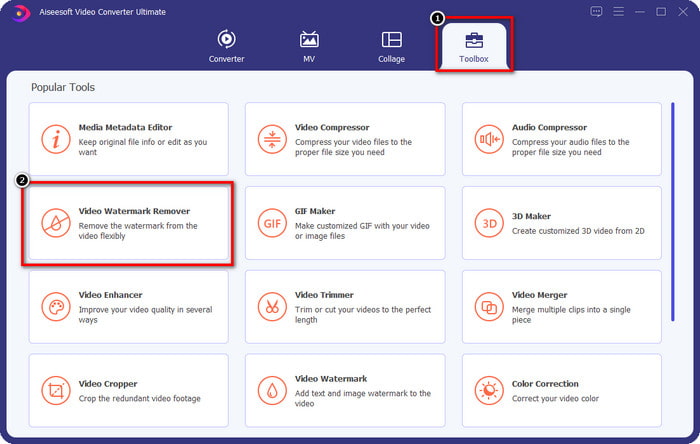
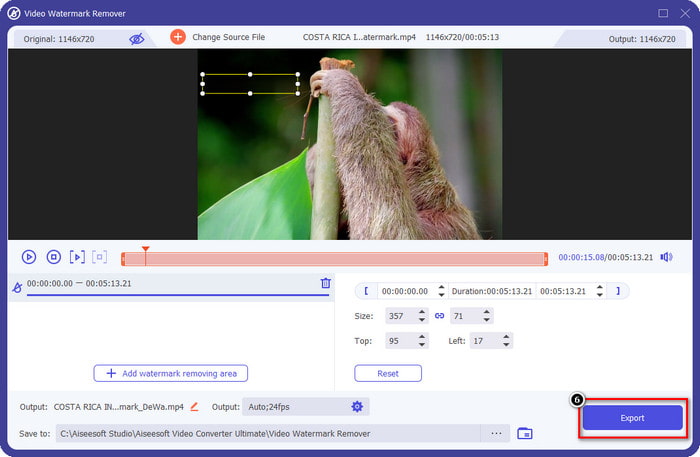
Vaihe 2. Napsauta käyttöliittymän vasemmassa yläkulmassa Toolbox ja avaa Video Watermark Remover. Toolbox-välilehden alla näet, että työkalulla on myös muita toimintoja ja ominaisuuksia.
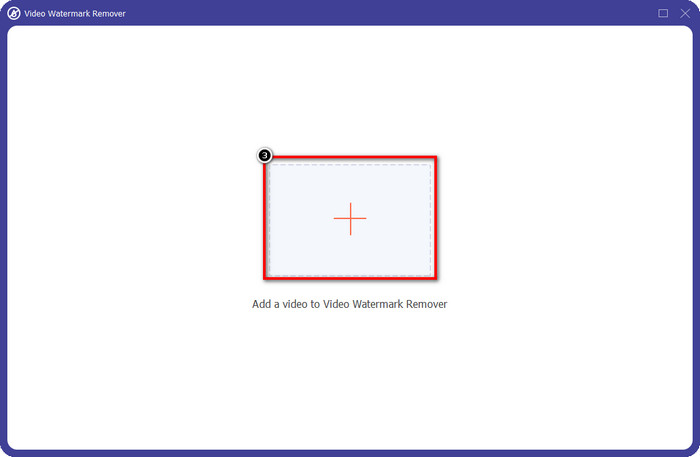
Vaihe 3. Lataa Animakerilla luomasi animaatiovideo napsauttamalla +-kuvaketta. Valitse tiedosto paikalliselta levyltäsi, napsauta sitä ja paina sitten Open.
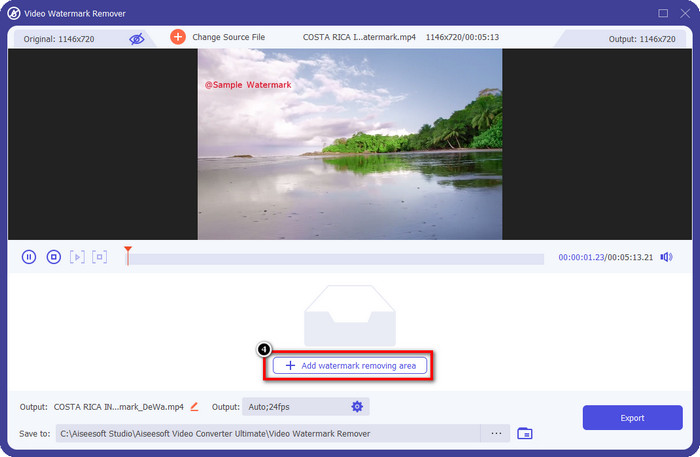
Vaihe 4. Jatkaaksesi vesileimanpoistajan käyttöä, napsauta Add Watermark Removing Area.
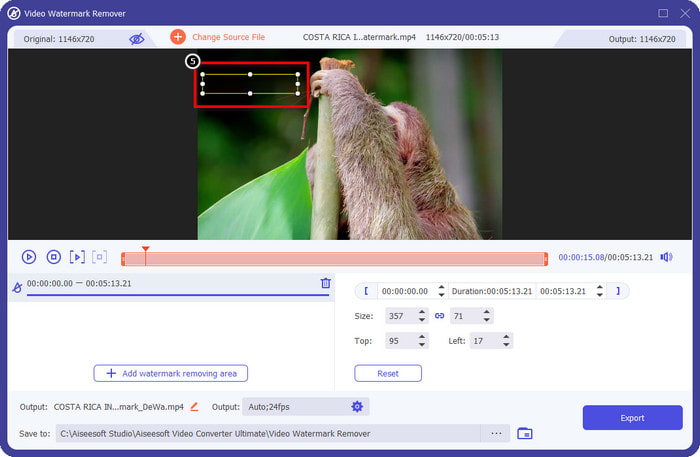
Vaihe 5. Aseta valintaruutu vesileiman kohdalle, jotta vesileiman poisto vaikuttaa juuri siihen alueeseen.
Vaihe 6. Paina Export ladataksesi videon ilman Animaker-vesileimaa. Helppoa, eikö? Intuitiivisen käyttöliittymänsä ansiosta tämän työkalun valitseminen on erinomainen ratkaisu vesileiman poistamiseen.
Poista logo videoista 123 APPS:n kautta [Online]
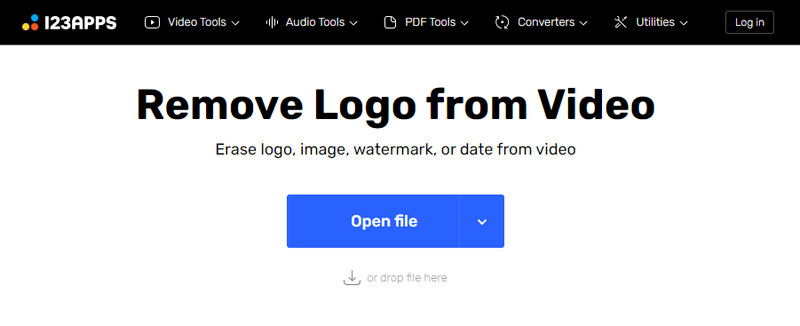
Remove Logo from Videos via 123 APPS antaa sinun käsitellä videon vesileimaa tehokkaasti sen poistoominaisuuksien avulla. Toisin kuin ladattavat vesileimanpoisto-ohjelmat, et tarvitse asennusohjelmaa käyttääksesi tätä työkalua laitteellasi, koska se toimii suoraan verkossa. Se on myös turvallinen käyttää, joten ei ole ihme, että siitä on tullut luotettava vesileimanpoistaja, joka pystyy käsittelemään videoiden vesileimat. Haluatko käyttää tätä verkkotyökalua saadaksesi videon ilman Animaker-vesileimaa? Alla olevat vaiheet näyttävät, miten se tehdään.
Vaihe 1. Avaa verkkoselain avataksesi vesileimanpoistajan verkossa.
Vaihe 2. Virallisella sivustolla napsauta Open File ladataksesi videon, josta haluat poistaa vesileiman.
Vaihe 3. Valitse alue, jossa videossasi on vesileima.
Vaihe 4. Napsauta Save-painiketta ladataksesi animaatiovideon ilman vesileimaa.
Gilisoft Video Watermark Removal Tool [Windows]
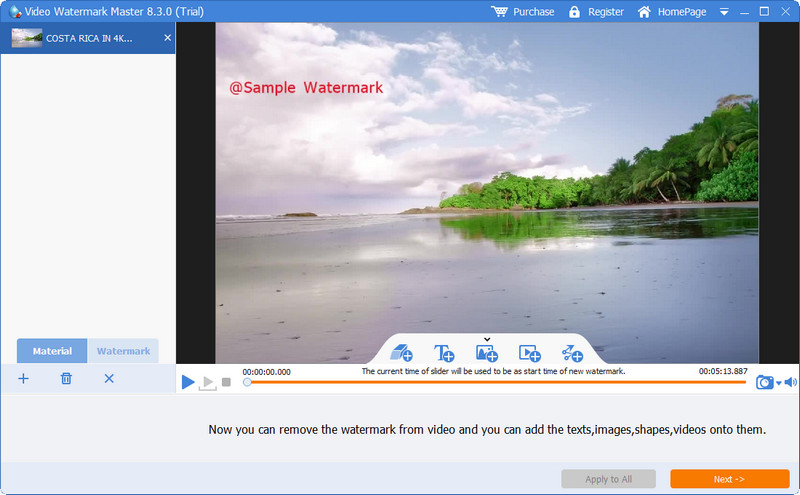
Gilisoft Video Watermark Removal Tool on Windowsille tarkoitettu vesileimanpoistaja, jota voit käyttää poistaaksesi Animakerilla luomasi animaatiofilmin vesileiman. Tämä on työkalu, joka täytyy ladata Windows-tietokoneellesi, jotta voit poistaa paikallisesti tallennetun videon vesileiman. Mac-käyttäjille ohjelmisto ei ole saatavilla. Sen avulla voit myös lisätä vesileiman kuvien, tekstin tai muodon muodossa, jos tarvitset sellaista. Jatka lukemista oppiaksesi, kuinka poistat Animakerin vesileiman Windowsissa tämän työkalun avulla.
Vaihe 1. Lataa vesileimanpoistotyökalu Windowsiin, seuraa asennusohjeita ja napsauta sitten Launch Video Watermark Master.
Vaihe 2. Paina Add File/s tuodaksesi Animakerilla ilmaiseksi muokkaamasi, vesileimalla varustetun animaatiovideon.
Vaihe 3. Napsauta eraser-kuvaketta lisätäksesi vesileiman poistettavan alueen ja kohdistamalla sen alueelle, jossa vesileima on.
Vaihe 4. Kun olet valmis määrittämään poistettavan alueen videossa, napsauta Next, minkä jälkeen näytölle avautuu pieni ikkuna. Voit säätää formaattia, vaihtaa halutessasi tulostekansion ja napsauttaa sitten Start aloittaaksesi prosessin.
Lisälukemista:
Kuinka poistaa B612-vesileima kuvistasi
Kuinka poistaa WOW Slider -vesileima ilmaiseksi
Osa 2. Usein kysyttyä Animaker-vesileiman poistamisesta
Miksi en voi käyttää muita Animakerin malleja?
Tämä johtuu siitä, että ilmaisella versiolla on rajoitettu pääsy Animakerin malleihin. Premium-mallit eivät ole saatavilla rekisteröimättömälle Animakerille. Jos haluat käyttää pro-versiota, sinun on nähtävä tämän työkalun tarjoamat hinnoittelusuunnitelmat.
Kuinka monta kertaa voin ladata mallin Animakerin ilmaisessa versiossa?
Animakerin ilmaisen version avulla käyttäjät voivat luoda ja ladata animoituja videoita viisi kertaa vesileiman kanssa. Oletetaan, että haluat luoda lisää animoituja videoita tällä alustalla. Siinä tapauksessa sinun on ostettava perus-, aloitus-, pro- tai yritysversio.
Miksi en voi luoda 6 minuutin animaatiovideota Animakerissa?
Oletetaan, että käytät Animakerin ilmaista versiota. Siinä tapauksessa sinulla on vaikeuksia ladata tai luoda 6 minuutin pituista videota. Voit ratkaista tämän ongelman käyttämällä tämän työkalun suunnitelmaa tai käyttämällä FVC Video Converter Ultimatea luodaksesi videon ilman pituusrajoituksia.
Johtopäätös
Joten mitä työkalua käytät mieluiten? Voit valita työkalut täältä nyt, kun olet lukenut jokaisen tiedot, ja olemme opettaneet sinulle kuinka poistaa Animaker-vesileima jokaisesta. Onko sinulla ongelmia sen kanssa, mitä valita? Jos näin on, FVC Video Converter Ultimate on turvallisin käytettävä ohjelmisto. Koska se tekee työn eri ongelmissa tehokkaasti, kun käytät tätä työkalua, voit tehdä sen. sinun on enää huolehdittava videossasi olevista vesileimoista. Ratkaisu on sinun käsissäsi, jos valitset parhaan ohjelmiston Windowsille ja Macille.
-
 3 lähestymistapaa Viva-videovesileiman poistamiseksi videoista [nopein tapa]
 Tarvitset erillisen vesileimanpoistoaineen poistaaksesi Viva Video -vesileiman videoista. Lue tämä artikkeli saadaksesi lisätietoja siitä!
-
 Äärimmäiset työkalut vesileiman poistamiseen Renderforestin vietyistä videoista
 Vesileiman poistamiseen Renderforestista tarvitset vesileimanpoistoaineen laitteellesi, kaikki työkalut joita voit käyttää, ovat täällä.
-
 Täydellinen katsaus tehokkaista PlaceIt-vesileimanpoistajista [2022]
 Tässä tarkastelemamme PlaceIt-vesileimanpoistoaine ovat tehokkaita työkaluja, joiden avulla voit poistaa vesileiman PlaceIt-palveluun vietävästä videosta.
