


 Video Converter Ultimate
 Näytön tallennin
 Videon korjaus
 Suojattu lataus
Kuinka poistaa purettavan vesileiman videoistasi vaivattomasti
Jos etsit parhaita ja helpoimpia tapoja poistaa Biteablen vesileimat videoistasi, sinun ei tarvitse enää nähdä vaivaa. Rehellisesti sanottuna vesileimalla varustetun videon katsominen on ärsyttävää ja turhauttavaa. Videosta ei pysty nauttimaan kunnolla. Lisäksi vesileimat häiritsevät katsojia. On ymmärrettävää, että vesileimat suojaavat videon omistajaa. Mutta suuren vesileiman lisääminen ei ole hyvä asia. Se antaa vain kielteisen vaikutelman ihmisille, jotka haluavat katsoa lempivideoitaan. Yksi esimerkki ovat Biteablen vesileimat. Nämä Biteablen vesileimat tulevat Biteable-sovelluksesta, jossa vesileima liitetään videoon automaattisesti videon tekemisen tai tallentamisen jälkeen. Onneksi voit käyttää erilaisia sovelluksia poistaaksesi nämä vesileimat videoistasi. Voit katsoa lempivideoitasi ilman ärsytystä ja turhautumista. Jos haluat tietää parhaat ja luotettavimmat sovellukset, joilla vesileimat saa poistettua, jatka tämän artikkelin lukemista.

Osa 1: Paras tapa purettavan vesileiman poistamiseen videoista
Video Converter Ultimate on erinomainen sovellus, jota voit käyttää Biteablen vesileimojen poistamiseen videoistasi. Lisäksi tämä loistava ohjelma pystyy poistamaan myös muita epäolennaisia ja häiritseviä objekteja, kuten logoja, tekstejä, allekirjoituksia jne. Myös poistamis- ja tallennusprosessi on erittäin nopea, joten sinun ei tarvitse käyttää siihen paljon aikaa. Video Converter Ultimate tarjoaa kaksi helppoa tapaa poistaa vesileimoja videoista: videon rajaus -työkalun ja videon vesileimanpoistajan. Siinä on myös monia muita muokkaustyökaluja, joista voit nauttia, kuten videon nopeudensäädin, videomuunnin, videonpakkaaja, värinkorjaus, kollaasintekijä, GIF-työkalu, videon rajaus, kuvamuunnin ja paljon muuta. Parasta tässä työkalussa on se, että sitä on helppo käyttää, sillä siinä on selkeä ja suoraviivainen käyttöliittymä, joka sopii täydellisesti aloittelijoille. Se tukee myös monia tiedostomuotoja, kuten MP4, MOV, FLV, MKV, OGV, DIVX ja muita. Lopuksi, Video Converter Ultimate on saatavilla sekä Windowsille että Macille, mikä on käyttäjille erittäin kätevää. Jos haluat poistaa vesileiman videosta, noudata alla olevia yksinkertaisia ja helppoja vaiheita.
Video Watermark Remover -työkalun käyttäminen
Vaihe 1: Siirry Video Converter Ultimaten verkkosivulle ja lataa sovellus. Jatka sitten asennusprosessiin. Käynnistä sovellus asennuksen jälkeen.
Ilmainen latausWindows 7 tai uudempiTurvallinen lataus
Ilmainen latausMacOS 10.7 tai uudempiTurvallinen lataus
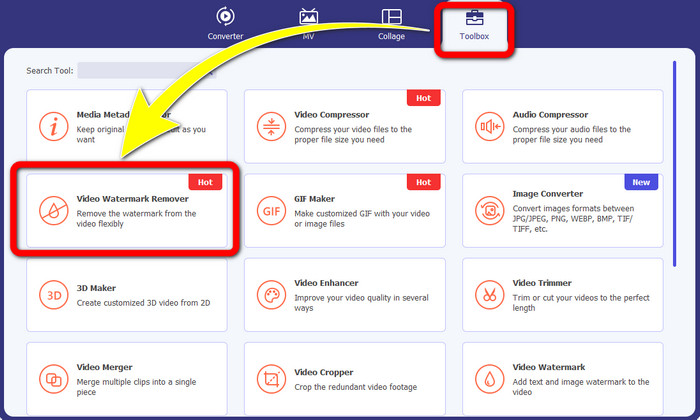
Vaihe 2: Kun olet avannut Video Converter Ultimaten, napsauta Toolbox > Video Watermark Remover -painiketta. Sen jälkeen näytölle avautuu uusi käyttöliittymä.
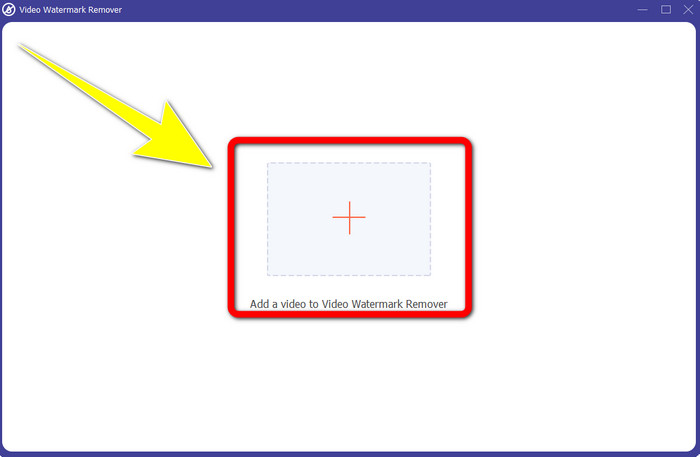
Vaihe 3: Kun uusi käyttöliittymä on ilmestynyt näytöllesi, napsauta Plus-kuvaketta lisätäksesi videosi, jossa on Biteablen vesileima.
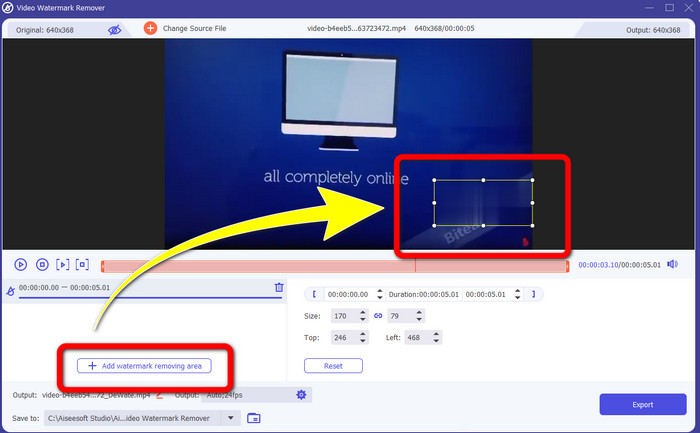
Vaihe 4: Kun olet lisännyt videosi, napsauta Add Watermark Removing Area. Tämän jälkeen videolle ilmestyy pieni laatikko. Vedä laatikkoa niin, että se peittää vesileimat.
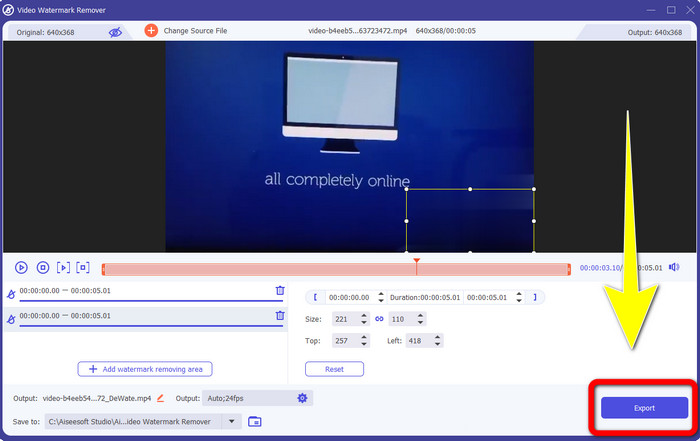
Vaihe 5: Kun olet poistanut Biteablen vesileiman videostasi, napsauta Export-painiketta tallentaaksesi lopullisen tuloksen.
Video Cropper -työkalun käyttäminen
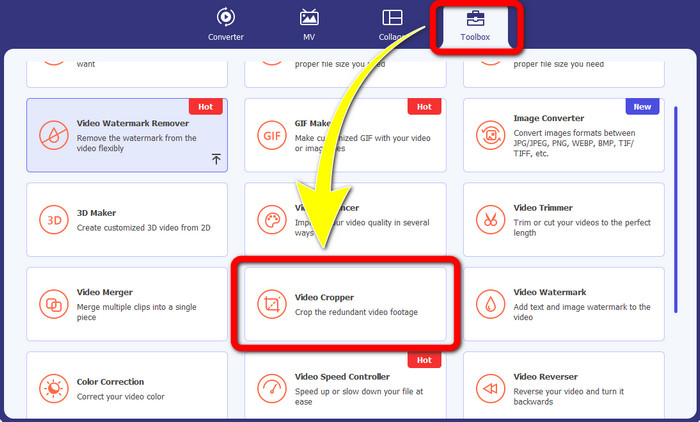
Vaihe 1: Käynnistä Video Converter Ultimate. Napsauta Toolbox > Video Cropper -painiketta.
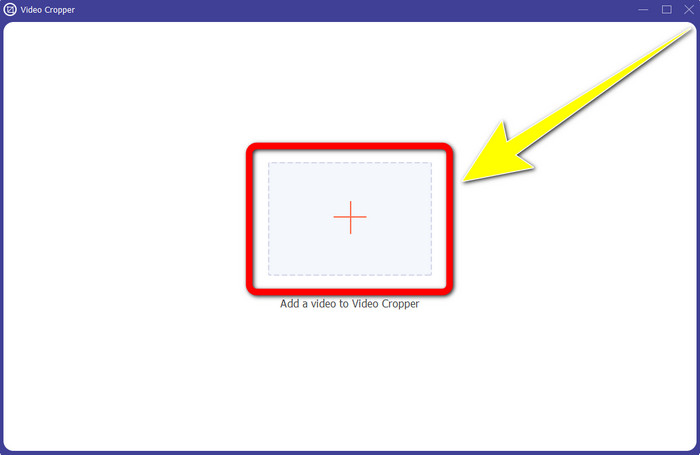
Vaihe 2: Kun olet napsauttanut Video Cropper -kohtaa, näytöllesi avautuu uusi käyttöliittymä. Napsauta Plus-kuvaketta ja lisää videosi, jossa on Biteablen vesileima.
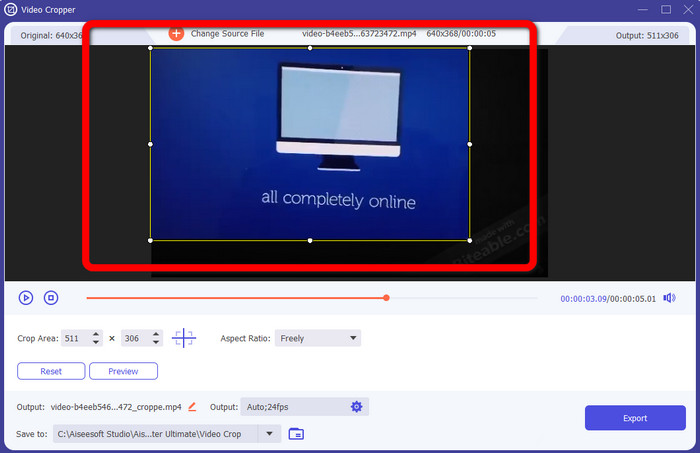
Vaihe 3: Kun olet lisännyt videosi, voit nyt rajata (Crop) sen poistaaksesi vesileimat.
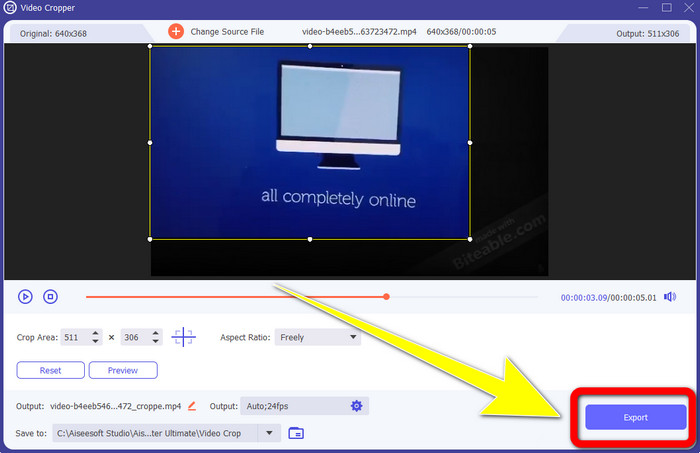
Vaihe 4: Kun olet saanut videon rajattua, napsauta Export-painiketta ja tallenna video ilman Biteablen vesileimaa.
Osa 2: Purettavan vesileiman poistaminen Online-videoista
1. BeeCutin käyttö
Jos haluat poistaa purettavan vesileiman ilmaiseksi verkossa, BeeCut on paras online-sovellus, jota voit käyttää. Se pystyy poistamaan vesileimat videoistasi. Se on yksinkertainen online-työkalu, jota voit käyttää ja joka on täydellinen aloittelijoille. Voit poistaa purevia vesileimoja neljästä videosta muutamassa vaiheessa.
Lisäksi BeeCutissa on monia muokkaustyökaluja, kuten videoiden leikkaaminen, leikkaaminen, jakaminen ja yhdistäminen. Lisäksi, jos haluat tehdä videon, voit lisätä videoosi tekstityksen alta, mikä on katsojien kannalta kätevää. Tiedostojen lataaminen ja prosessien tallentaminen tämän työkalun avulla on kuitenkin hidasta. Et myöskään voi käyttää tätä työkalua, jos sinulla ei ole Internet-yhteyttä. Jos haluat poistaa purevia vesileimoja videostasi tällä verkkotyökalulla, noudata alla olevia ohjeita.
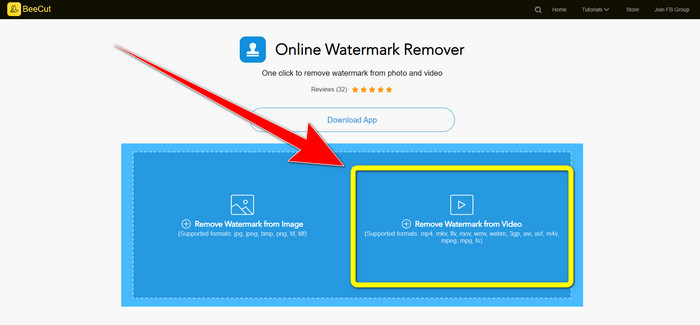
Vaihe 1: Vieraile BeeCut-verkkosivulla. Napsauta sitten Remove Watermark from Video -painiketta ja lisää videosi, jossa on Biteablen vesileima.
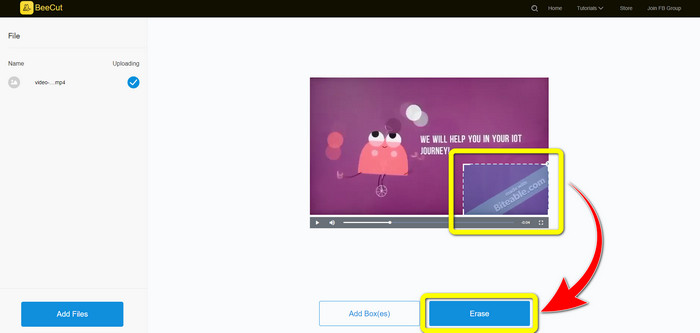
Vaihe 2: Kun olet lisännyt tiedoston, videolle ilmestyy pieni laatikko. Vedä sitä ja peitä Biteablen vesileima. Kun olet peittänyt vesileimat, napsauta Erase-painiketta.
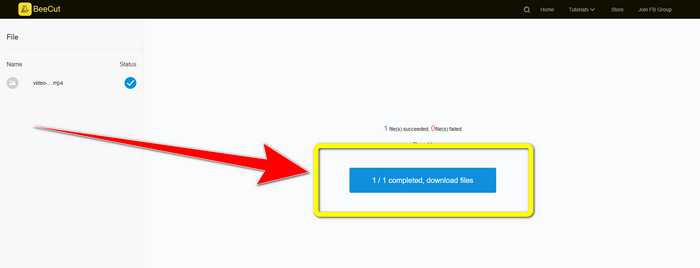
Vaihe 3: Kun olet napsauttanut Erase-painiketta, odota poistoprosessin valmistumista. Sen jälkeen voit ladata tiedoston ja nauttia videon katselusta ilman Biteablen vesileimaa.
2. Blur Video Online -toiminnon käyttäminen
Jos etsit edelleen toista sovellusta, jonka avulla voit poistaa purettavan vesileiman videostasi verkossa, Blur Video Online on loistava työkalu sinulle. Ja Blur Video Online on saatavilla melkein kaikille laitteille ja selaimille, kuten Google Chromelle, Operalle, IE:lle, Mozilla Firefoxille ja muille. Tämä web-riippuvainen sovellus on kuitenkin liian hidas tuomaan videotiedostoja, ja vesileimojen poistaminen on aikaa vievää. Se on myös Internet-riippuvainen työkalu, mikä tarkoittaa, että se toimii vain, jos sinulla on Internet-yhteys. Noudata alla olevia yksinkertaisia ohjeita poistaaksesi tai sumentaaksesi Biteable-vesileiman videostasi.
Vaihe 1: Siirry Blur Video Online -verkkosivulle. Napsauta sitten Click to Add File -painiketta ja lisää videosi, jossa on vesileima.

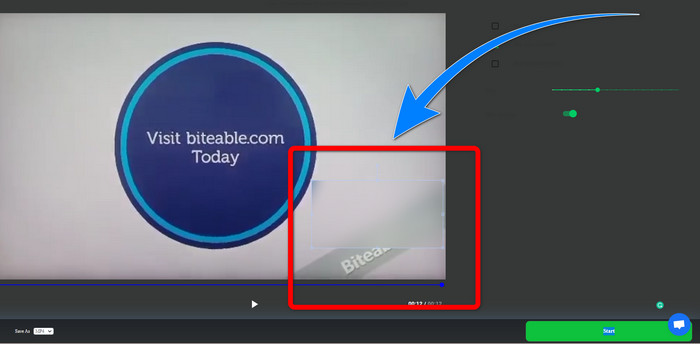
Vaihe 2: Kun olet jo lisännyt videosi, videolle ilmestyy laatikko. Vedä sitä vesileimojen peittämiseksi ja tallenna lopullinen tulos.
Liittyy aiheeseen:
Paras tapa poistaa vesileima Camtasia 9:stä Windowsissa
Kuinka poistaa vesileimabanneri AVS Video Editorista nopeasti
Osa 3: Usein kysytyt kysymykset purevien vesileimojen poistamisesta videoista
Voinko poistaa päivämääräleiman Video Converter Ultimatella?
Kyllä sinä voit! Video Converter Ultimate voi auttaa sinua poistamaan videoistasi häiritsevät kohteet, kuten päivämääräleimat, vesileimat, tekstit jne.
Viekö vesileimojen poistaminen videoistani aikaa?
Se riippuu käyttämistäsi sovelluksista. Jotkut sovellukset voivat poistaa vesileimat videoistasi välittömästi, ja joissakin sovelluksissa vesileimojen poistaminen kestää jonkin aikaa.
Onko olemassa vesileimanpoistoainetta, jota voin käyttää menettämättä videoideni laatua?
Kyllä on! Voit käyttää Video Converter Ultimatea. Se ei ole hyvä ainoastaan vesileimojen poistamisessa ja videoiden muokkaamisessa. Tämän sovelluksen avulla voit poistaa vesileimat videoistasi ilman laadun heikkenemistä.
Johtopäätös
Vesileiman poistaminen videoistasi on erinomainen ratkaisu, varsinkin jos haluat katsoa lempivideoitasi ilman tarpeettomia elementtejä. Tässä artikkelissa esiteltiin käteviä sovelluksia, joita voit käyttää Biteablen vesileimojen poistamiseen videoistasi. Lopuksi, jos etsit parasta ja huomattavinta sovellusta vesileimojen poistamiseen videoistasi, Video Converter Ultimaten käyttäminen on paras vaihtoehto.
-
 Powtoon-vesileiman poistaminen 4 tehokkaalla menetelmällä
 Lue tämä artikkeli oppiaksesi poistamaan Powtoon-vesileiman käyttämällä parhaita tähän sisällyttämiämme työkaluja ja opetusohjelmaa.
-
 Apowersoft Watermark Remover Review - Ominaisuudet, edut ja haitat sekä hinnat
 Apowersoft Watermark Remover on yksi parhaista vesileimoista, joka tukee online- ja offline-toimintoa. Napsauta tätä saadaksesi lisätietoja!
-
 Kolme uusinta Shutterstockin vesileimanpoistoainetta, joita tulet koskaan tarvitsemaan
 Eikö viety videoon liitetty Shutterstock-vesileima pidä? Voit käyttää Shutterstock-vesileimanpoistoainetta poistaaksesi sen tehokkaasti.
