


 Video Converter Ultimate
 Näytön tallennin
 Videon korjaus
 Suojattu lataus
Upeita tapoja poistaa logo videosta laitteillasi
Lempivideoidesi katsominen on tyydyttävää – paitsi silloin, kun videossa on tarpeeton elementti, kuten logo, vesileima, teksti jne. Jos etsit erinomaisia ja hyödyllisiä menetelmiä, sinun kannattaa lukea tämä artikkeli saadaksesi käsityksen eri tavoista. Käyttämällä tehokkaita sovelluksia voit kokeilla monia tapoja poistaa logoja videoista sekä ilman internetiä että verkossa. Näiden logonpoisto-ohjelmien avulla voit nauttia suosikkielokuviesi, videoklippiesi, diaesitystesi ja muun katsomisesta. Näin et joudu enää kohtaamaan samaa ongelmaa uudelleen. Jos haluat oppia tehokkaita tapoja poistaa logo videoistasi, älä jätä tätä informatiivista artikkelia väliin.

Osa 1: Paras tapa poistaa logo videosta
Jos etsit ilmaista logonpoisto-ohjelmaa, paras sovellus, jota voit käyttää, on Video Converter Ultimate. Tämän sovelluksen avulla voit poistaa logon videostasi. Et vain logoa, vaan myös muita tarpeettomia elementtejä videoissasi, kuten vesileimat, tekstit, kuvat jne. Lisäksi voit poistaa logon helposti, koska toimenpiteet ovat yksinkertaiset ja jopa aloittelijan helppo seurata.
Lisäksi Video Converter Ultimatella on nopea poistoprosessi, toisin kuin muissa sovelluksissa, jotka vievät paljon aikaa logojen poistamiseen videosta. Tämän sovelluksen avulla voit poistaa logon kahdella helpolla työkalulla, videon vesileimanpoistolaitteella ja videon rajauslaitteella. Lisäksi siinä on ominaisuuksia, joista voit nauttia, kuten videomuunnin, videon nopeuden säädin, videokompressori, värinkorjaus, videon rajaus, kollaasivalmistaja ja paljon muuta. Jos haluat tietää nämä kaksi tapaa poistaa logot Video Converter Ultimatella, noudata alla olevia ohjeita.
1. Video Watermark Remover -toiminnon käyttäminen
Vaihe 1: Siirry ensin Video Converter Ultimate -verkkosivulle ja lataa ohjelma. Siirry latauksen jälkeen asennukseen ja käynnistä Video Converter Ultimate tietokoneellasi.
Ilmainen latausWindows 7 tai uudempiTurvallinen lataus
Ilmainen latausMacOS 10.7 tai uudempiTurvallinen lataus
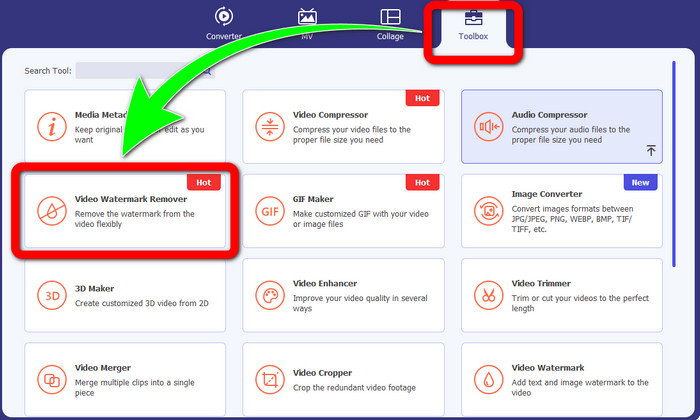
Vaihe 2: Kun olet käynnistänyt ohjelman, siirry Toolbox-osioon. Etsi sitten Video Watermark Remover ja napsauta sitä.
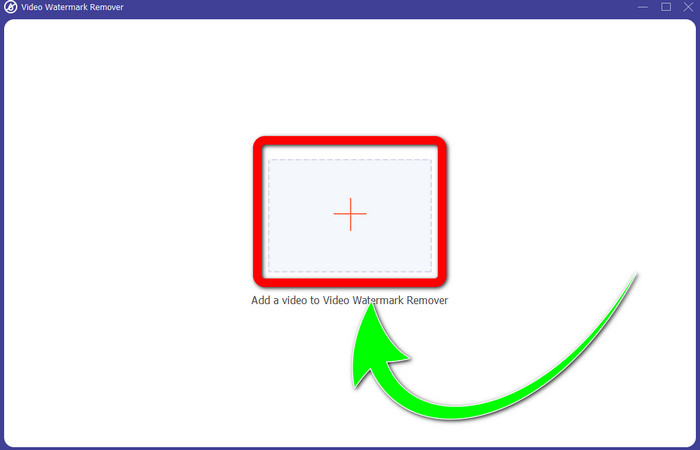
Vaihe 3: Kun olet napsauttanut Video Watermark Remover -toimintoa, työpöydällesi avautuu uusi ikkuna. Valitse Plus-painike ja tuo video, jossa on logo.
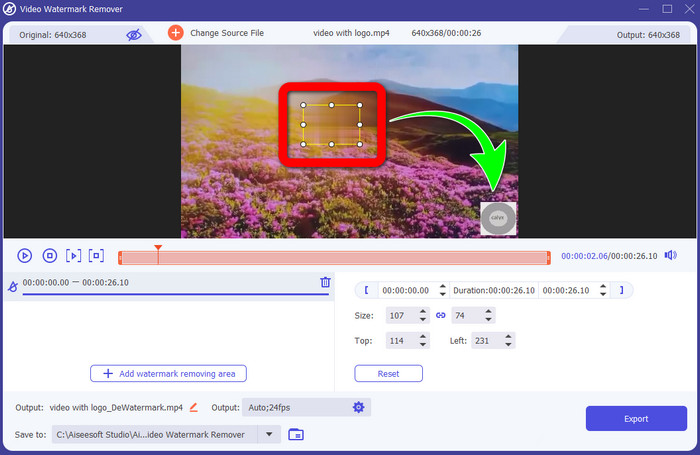
Vaihe 4: Valitse Add Watermark Removing Area -painike. Pieni laatikko ilmestyy videon päälle. Siirrä laatikko logon kohdalle peittääksesi sen.
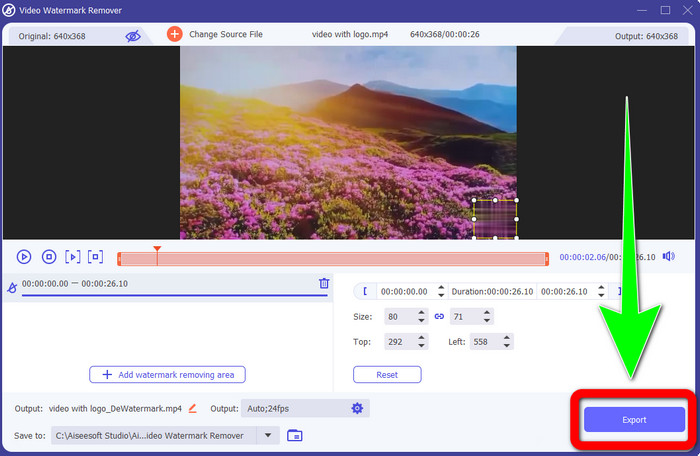
Vaihe 5: Kun olet siirtänyt laatikon peittämään logon, valitse Export-painike tallentaaksesi valmiin videosi.
1. Video Cropper -toiminnon käyttäminen
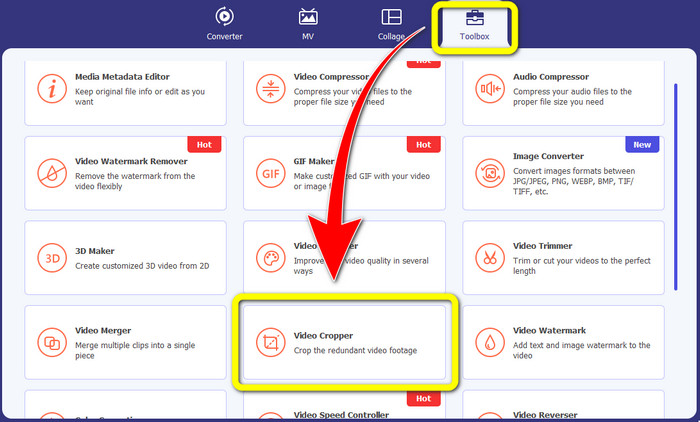
Vaihe 1: Avaa Video Converter Ultimate, siirry Toolbox-osioon ja napsauta Video Cropper -painiketta. Tämän jälkeen näytöllesi avautuu uusi käyttöliittymä.
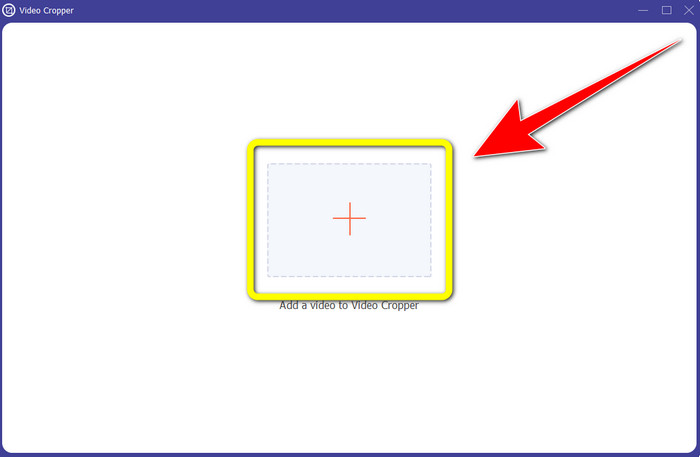
Vaihe 2: Kun uusi ikkuna on avautunut, valitse Plus-painike ja tuo video, jossa on logo.
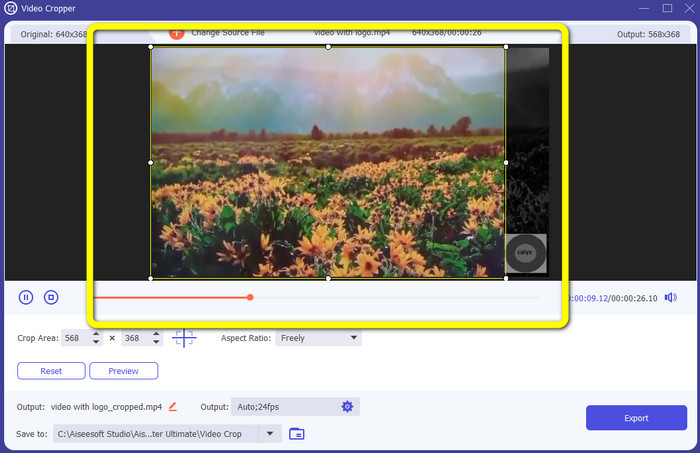
Vaihe 3: Kun video on tuotu, voit rajata videota niin, että logo poistuu kuvasta.
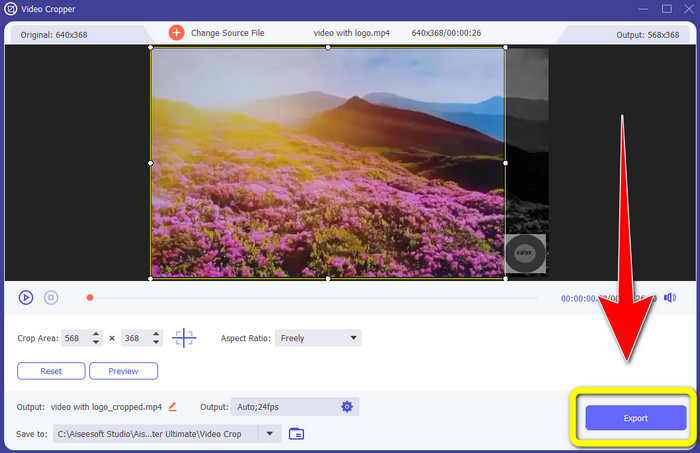
Vaihe 4: Napsauta Export-painiketta rajauksen jälkeen.
Osa 2: Logon poistaminen Online-videosta
Jos etsit erinomaista sovellusta, joka auttaa sinua poistamaan logon videosta, voit käyttää palvelua 123APPS. Tällä sovelluksella voit poistaa logon videostasi nopeasti ja vaivattomasti, mikä sopii erinomaisesti aloittelijoille. Lisäksi tämä verkkotyökalu on ilmainen, joten sinun ei tarvitse miettiä, ostatko sitä vai et. Yksi tämän sovelluksen hyvistä toiminnoista on häiritsevien elementtien poistaminen videoista, kuten vesileimat, tekstit, kuvat jne. Lisäksi se tukee monia tiedostomuotoja, kuten MOV, WMV, AVI, MP4 ja muita. Haittapuolena on, että jokaisen tiedoston lataaminen vie paljon aikaa. Myös poistoprosessi on melko hidas. Jos haluat poistaa logon videoistasi, seuraa näitä yksinkertaisia ohjeita.
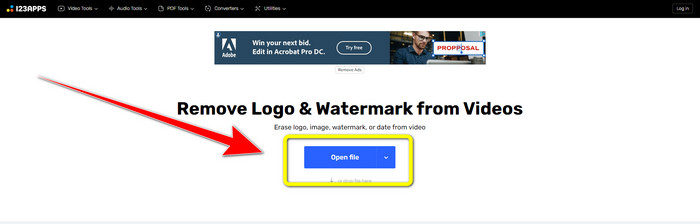
Vaihe 1: Siirry 123APPS-verkkosivulle. Napsauta Open file -painiketta ja lisää videosi, jossa on TikTok-logo.
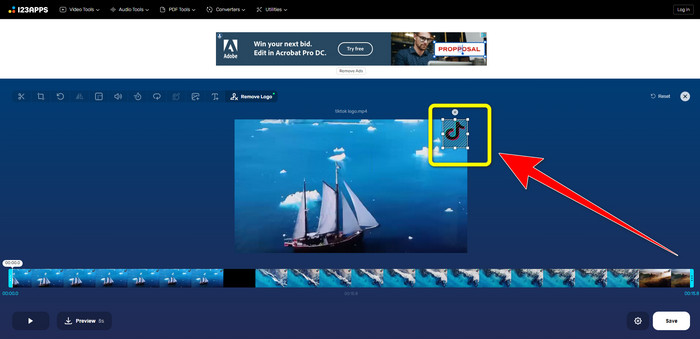
Vaihe 2: Kun olet lisännyt videosi, piirrä näytölle hiirellä laatikko logon päälle peittääksesi sen ja poistaaksesi logon.
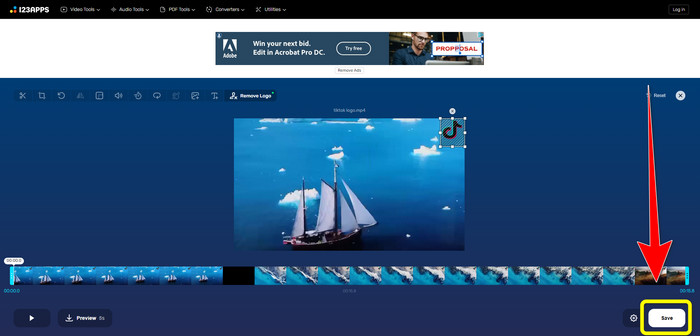
Vaihe 3: Kun logo on peitetty, voit napsauttaa Save-painiketta tallentaaksesi lopullisen videon ilman logoa.
Osa 3: Logon poistaminen videosta iPhonessa ja Androidissa
Logon poistaminen videosta Androidissa
Jos haluat tietää, miten logon voi poistaa videosta Android-laitteella, sovellus Remove and Add Watermark on hyvä vaihtoehto. Tämä ohjelma voi auttaa poistamaan logon videoistasi välittömästi. Se ei ole hyödyllinen ainoastaan tarpeettomien elementtien poistamiseen videoista, vaan sen avulla voit myös poistaa logoja kuvistasi, mikä on käyttäjille kätevää. Lisäksi poistotyökalu on yksinkertainen ja helppokäyttöinen. Lopuksi, se tallentaa videosi nopeasti. Jos haluat poistaa logon videoistasi, seuraa alla olevia helppoja ohjeita.
Vaihe 1: Lataa Remove and Add Watermark -sovellus Android-laitteeseesi.
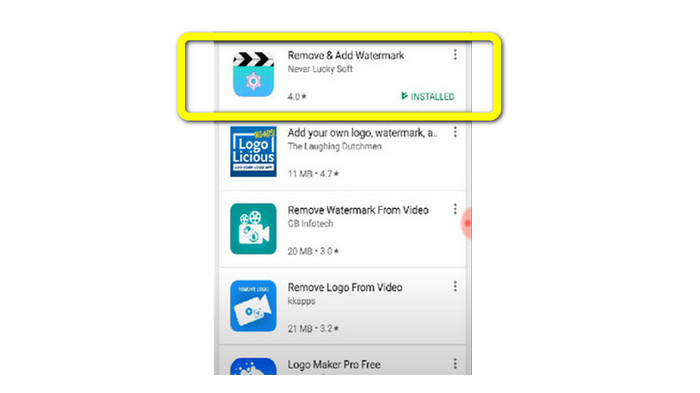
Vaihe 2: Kun olet ladannut sovelluksen, napsauta Select Video > Remove Logo -painiketta lisätäksesi videon, jossa on logo.
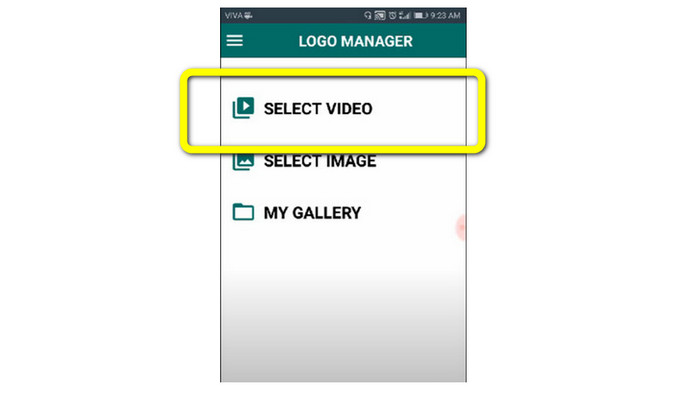
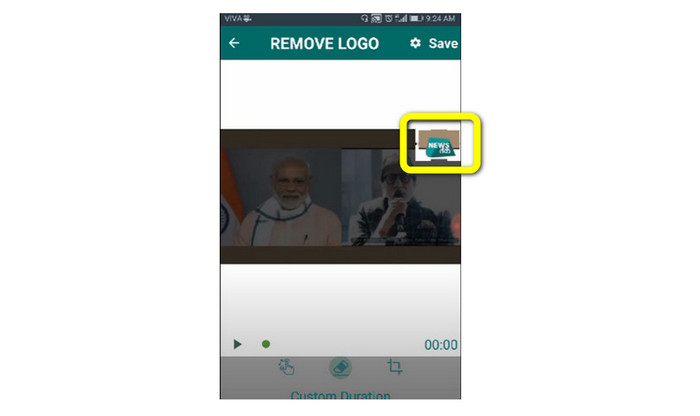
Vaihe 3: Kun video on lisätty, näytölle ilmestyy pieni laatikko. Käytä laatikkoa logon poistamiseen.
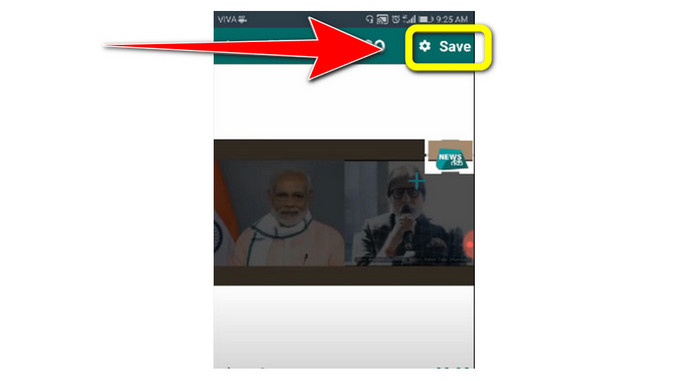
Vaihe 4: Kun olet peittänyt logon, napsauta Save -painiketta tallentaaksesi videosi ilman logoa.
Logon poistaminen videosta iPhonessa
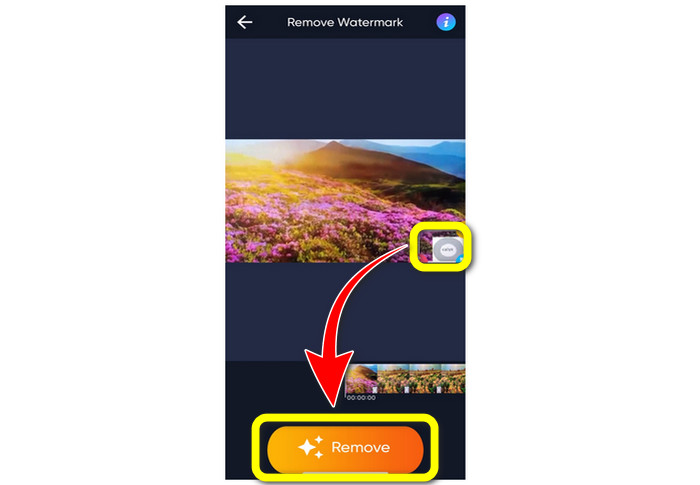
Jos haluat poistaa logon videoistasi iPhonella, paras sovellus siihen on Watermark Remover Retouch. Tämän sovelluksen avulla voit poistaa videoista tarpeettomia elementtejä, kuten logoja, vesileimoja, tekstejä, kuvia jne. Lisäksi poistaminen käy nopeasti, mikä sopii hyvin uusille käyttäjille. Sovelluksessa on myös selkeä ja yksinkertainen käyttöliittymä, joten sitä on helppo käyttää. Jos haluat käyttää tätä sovellusta logon poistamiseen iPhone-videostasi, noudata alla olevia yksinkertaisia ohjeita.
Vaihe 1: Lataa Watermark Remover Retouch iPhonellesi. Käynnistä sovellus ja lisää video, jossa on logo.
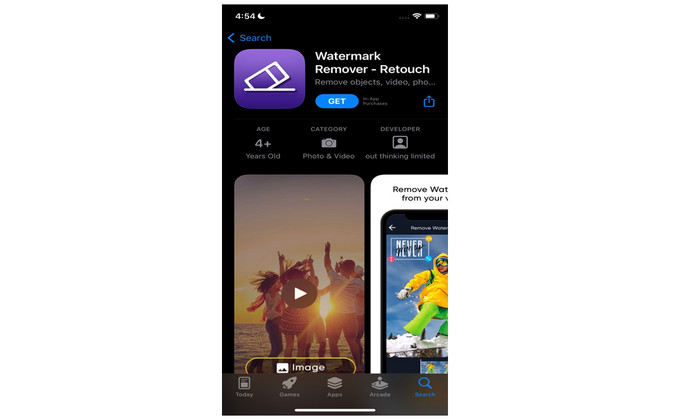
Vaihe 2: Kun video on lisätty, sen päälle ilmestyy pieni laatikko. Käytä tätä laatikkoa logon peittämiseen. Napsauta sitten Remove-painiketta ja tallenna videosi ilman vesileimaa.
Liittyy aiheeseen:
Kuinka poistaa Filmora-vesileima videoistasi tai projekteistasi ilmaiseksi
Nopein tapa poistaa Adobe Stock -vesileima videosta [ohje
Osa 4: Usein kysytyt kysymykset logon poistamisesta videosta
Onko logon poistaminen verkossa turvallista?
Kyllä se on! Verkkosovellukset ovat turvallisia ja turvallisia käyttää. Parasta, mitä sinun on tehtävä, on etsiä sovellus, joka auttaa sinua poistamaan logoja ja hyödyntämään niitä.
Onko mahdollista poistaa allekirjoitukset videoistani?
Kyllä. Voit poistaa allekirjoitukset videoistasi käyttämällä Video Converter Ultimate -ohjelmaa. Allekirjoitukset, vesileimat, logot ja tekstit voidaan poistaa helposti tämän erinomaisen sovelluksen avulla.
Mikä on paras sovellus, jolla voin poistaa logoja Macillani?
Paras sovellus logojen poistamiseen Macilla on Video Converter Ultimate. Tämä sovellus on saatavilla sekä Windowsille että Macille, mikä on käyttäjille kätevää.
Johtopäätös
Tässä artikkelissa esiteltiin tehokkaita ja luotettavia tapoja poistaa logot videoistasi. Näin voit nauttia suosikkivideoidesi katsomisesta ilman logoja. Jos haluat kaikista yksinkertaisimman ja vaivattomimman tavan poistaa logot videoistasi, sinun kannattaa käyttää Video Converter Ultimatea.
-
 Kuinka poistaa Animaker-vesileima ilman kustannuksia [todistettuja tapoja]
 Kuinka poistaa Animaker-vesileima? Tässä blogissa käyttämiemme parhaiden työkalujen avulla voit käyttää niitä vesileiman poistamiseen.
-
 Opetusohjelma vesileiman poistamisesta alkuperäkaaviosta [100% toimii]
 Tarvitset apua vesileiman poistamiseen Origin Graphista. Tarvitsemasi apu sisältyy tähän artikkeliin, voit lukea tämän tietääksesi.
-
 Kuinka poistaa vesileima SmartDrawsta helposti [2 todistettua tapaa]
 Kuinka poistaa vesileima Smart Drawssa? Jos sinulla on sama kysymys, voit luottaa tähän artikkeliin, sillä olemme käsitelleet sinut!
