


 Video Converter Ultimate
 Näytön tallennin
 Videon korjaus
 Suojattu lataus
Parhaat temput Snapchat-tekstin poistamiseen kuvakaappauksesta
Haluatko tietää, miten poistaa Snapchat-tekstin kuvakaappauksesta? Olet oikeassa paikassa. Tässä artikkelissa esitellään helpoimmat menetelmät, joilla voit poistaa Snapchat-tekstin valokuvistasi ja videoistasi. Nämä menetelmät ovat erittäin helppoja seurata, erinomaisia ja sopivat myös ei-ammattilaisille. Jos olet kiinnostunut näistä helpoista tavoista, sinun kannattaa keskeyttää puuhasi ja keskittyä tämän informatiivisen artikkelin lukemiseen.

Osa 1: Kuinka poistaa Snapchat-teksti ja kuvatekstit kuvista
Paras tapa poistaa Snapchat-teksti valokuvasta on käyttää vesileimanpoisto-ohjelmaa. Näin voit poistaa kuvistasi mitä tahansa elementtejä, kuten tekstejä, logoja, vesileimoja ja niin edelleen. Jos etsit erinomaista ja luotettavaa työkalua, voit käyttää FVC Free Watermark Remover -ohjelmaa. Sen avulla voit poistaa Snapchat-tekstin kuvista verkossa välittömästi. Sovelluksen käyttö on helppo ymmärtää sen selkeän käyttöliittymän, yksityiskohtaisen ohjeistuksen ja yksinkertaisten painikkeiden ansiosta.
Lisäksi FVC Free Watermark Remover tukee yleisesti käytettyjä syöttö- ja tulostustiedostomuotoja, kuten PNG, JPG, JPEG, BMP ja paljon muuta. Lisäksi tämä työkalu on saatavilla Windows 7, 8, 10, 11 ja macOS 10.7 uudemmissa käyttöjärjestelmissä. Lopuksi tämä sovellus lupaa taata jokaisen käyttäjän yksityisyyden, joten sinun ei tarvitse huolehtia kuvistasi tai tiedoistasi. Jos haluat poistaa Snapchat-tekstin valokuvistasi, seuraa alla olevaa yksinkertaista ohjetta.
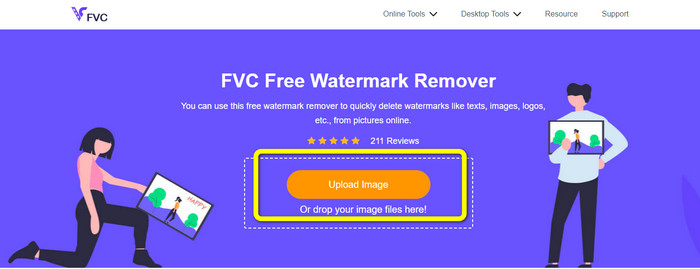
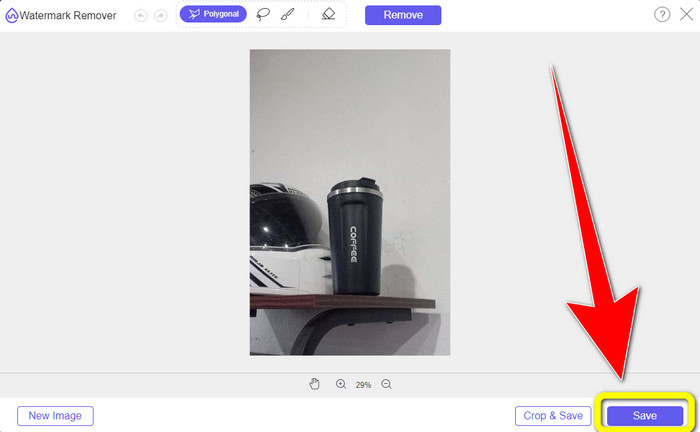
Vaihe 1: Siirry FVC:n Free Watermark Remover -sivustolle. Napsauta Upload Image -painiketta ja lisää kuva, josta haluat poistaa Snapchat-tekstin.
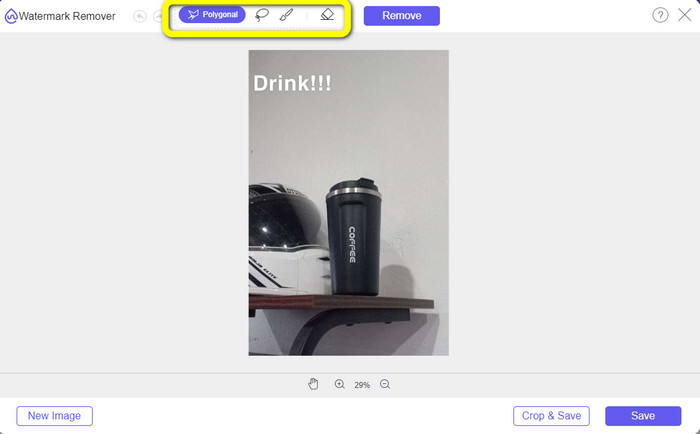
Vaihe 2: Kun olet lisännyt kuvasi, voit käyttää vesileimanpoistotyökaluja: monikulmiotyökaluja, lassotyökalua ja sivellintyökalua.
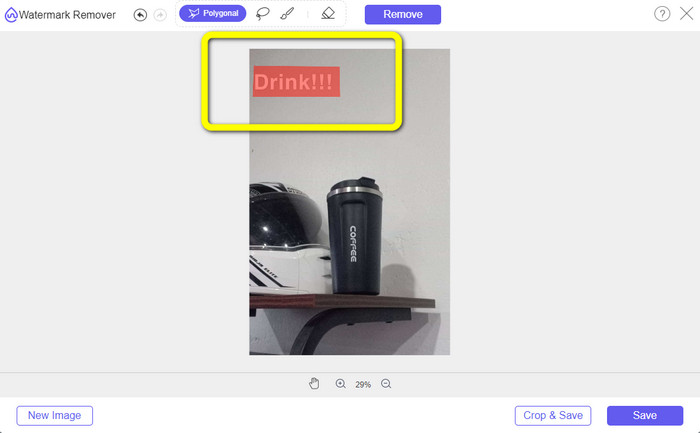
Vaihe 3: Näiden työkalujen avulla voit rajata ja korostaa tekstin, jonka haluat poistaa.
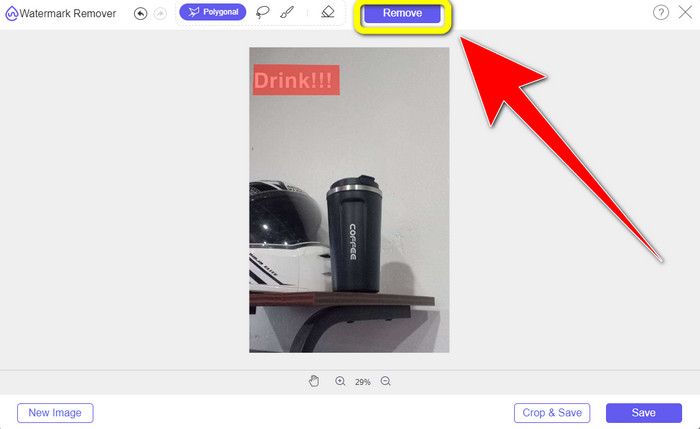
Vaihe 4: Kun olet saanut tekstin korostettua kuvassa, voit napsauttaa Remove-painiketta poistaaksesi tekstin kuvastasi. Odota sitten poistoprosessin valmistumista.
Vaihe 5: Kun teksti on poistettu kuvastasi, voit napsauttaa Save-painiketta ladataksesi tekstittömän kuvan.
Osa 2: Kuinka poistaa Snapchat-teksti videosta
Kun Snapchat-teksti on poistettu valokuvastasi, voimme auttaa sinua myös oppimaan, miten Snapchat-teksti poistetaan videosta. Tässä osassa paras käytettävä ohjelma on Video Converter Ultimate. Tämän sovelluksen avulla voit poistaa videoistasi tarpeettomia kohteita, kuten tekstiä, vesileimoja, logoja jne. Voit poistaa tekstin kahdella helpolla tavalla: käyttämällä videon vesileimanpoistotyökalua tai videon rajaus -työkalua. Jos Snapchat-teksti on videon kulmassa tai reunassa, voit käyttää rajaus-työkalua. Ja jos teksti on videon keskiosassa, voit käyttää videon vesileimanpoistotyökalua.
Lisäksi tässä sovelluksessa on erilaisia muokkaustyökaluja, joista voit nauttia, kuten videon tehostin, videokompressori, videon kääntäjä, vesileiman lisääminen ja poistaminen, videoleikkuri, leikkuri, rotaattori, GIF-valmistaja ja paljon muuta. Se tukee myös lukuisia videotiedostomuotoja, kuten MP4, FLV, MKV, MOV jne. Voit myös käyttää tätä sovellusta Macissa ja Windowsissa, mikä on kätevä käyttäjille. Jos haluat poistaa Snapchat-tekstin videoistasi kahdella helpolla tavalla, sinun on noudatettava alla olevia yksinkertaisia ohjeita.
Video Watermark Remover -toiminnon käyttäminen
Vaihe 1: Lataa Video Converter Ultimate Windows- tai Mac-tietokoneellesi. Suorita ohjelma asennuksen jälkeen.
Ilmainen latausWindows 7 tai uudempiTurvallinen lataus
Ilmainen latausMacOS 10.7 tai uudempiTurvallinen lataus
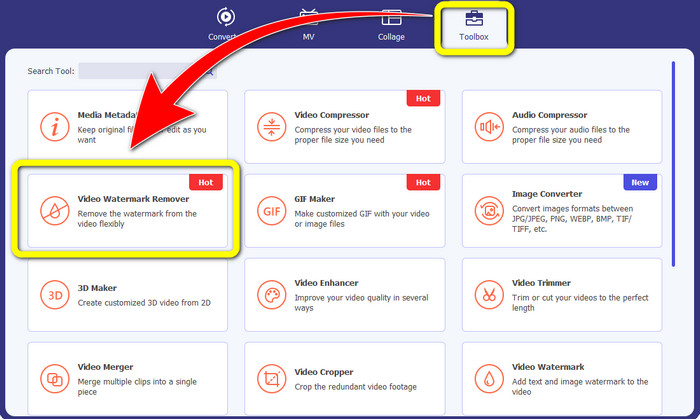
Vaihe 2: Tämän jälkeen näet neljä vaihtoehtoa käyttöliittymän yläosassa. Napsauta Toolbox-välilehteä ja valitse Video Watermark Remover -työkalu.
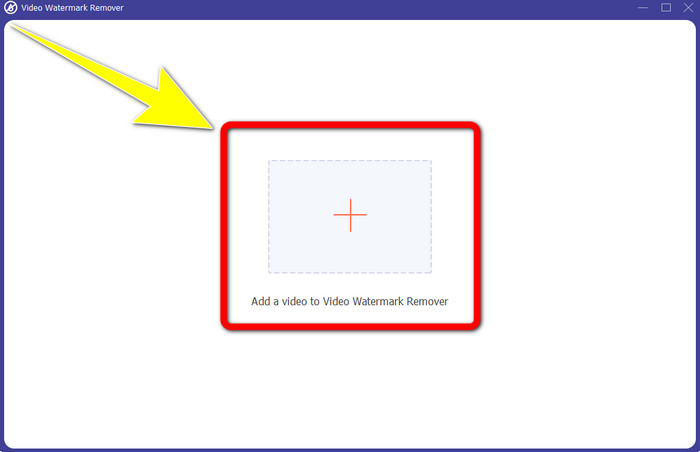
Vaihe 3: Sen jälkeen näytölle ilmestyy uusi ikkuna. Napsauta +-kuvaketta ja lisää videosi, jossa on Snapchat-teksti.
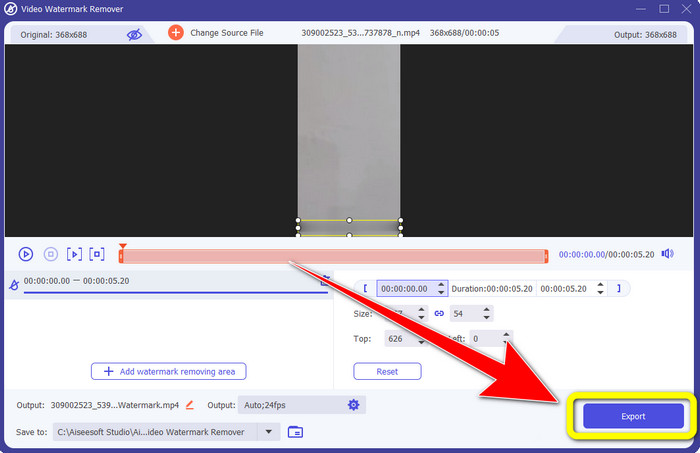
Vaihe 4: Kun olet lisännyt videosi, napsauta Add Watermark Removing Area -toimintoa. Videon päälle ilmestyy pieni laatikko; vedä se Snapchat-tekstin päälle peittääksesi sen.
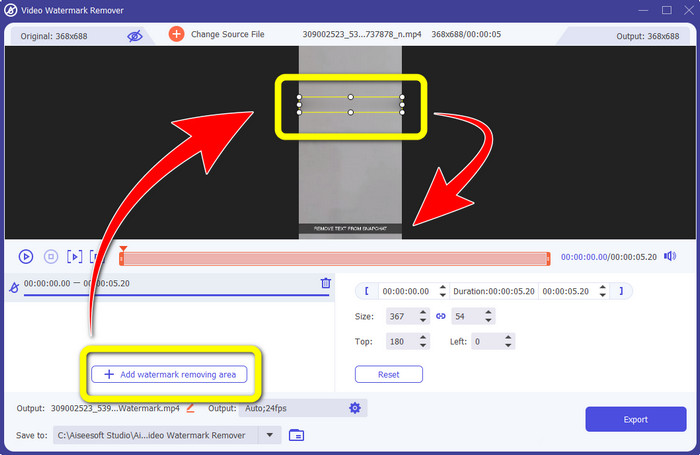
Vaihe 5: Kun olet vetänyt pienen laatikon Snapchat-tekstin päälle, huomaat, että teksti on jo poissa. Napsauta Export-painiketta tallentaaksesi videosi kokonaan.
Videon rajaustoiminnon käyttäminen
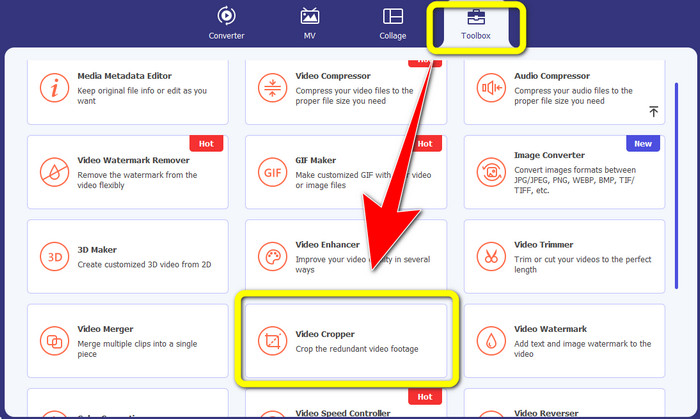
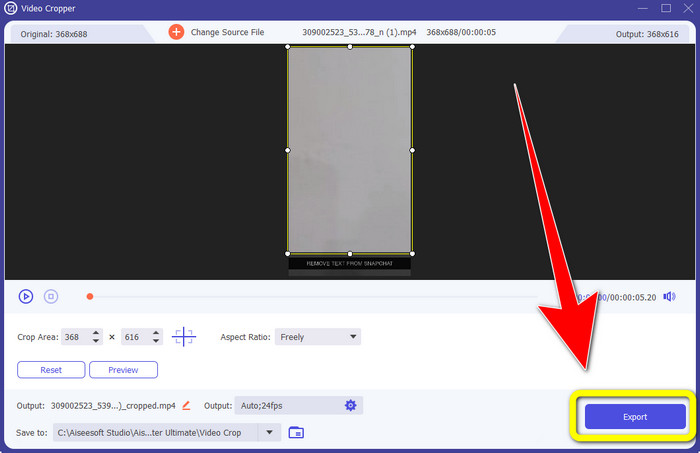
Vaihe 1: Käynnistä Video Converter Ultimate tietokoneellasi. Valitse Toolbox-paneeli ja siirry Video Cropper -työkaluun.
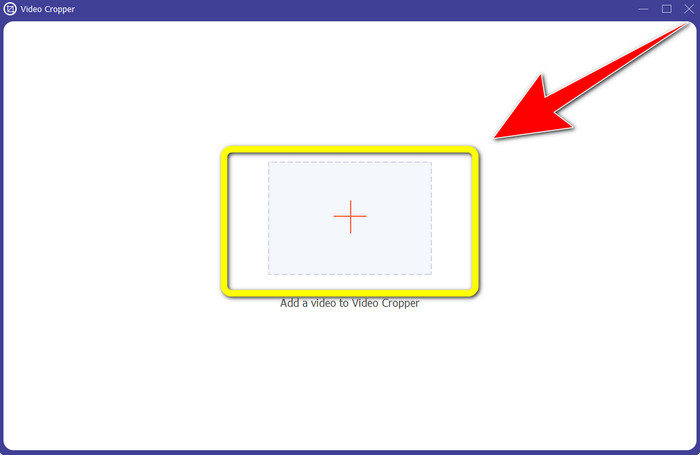
Vaihe 2: Kun olet napsauttanut Video Cropper -työkalua, näytölle tulee uusi käyttöliittymä. Napsauta +-painiketta tuodaksesi videon, josta haluat poistaa Snapchat-tekstin.
Vaihe 3: Tässä vaiheessa voit rajata videota poistaaksesi Snapchat-tekstin vetämällä rajausreunaa hiirelläsi. Voit leikata videon reunoja.
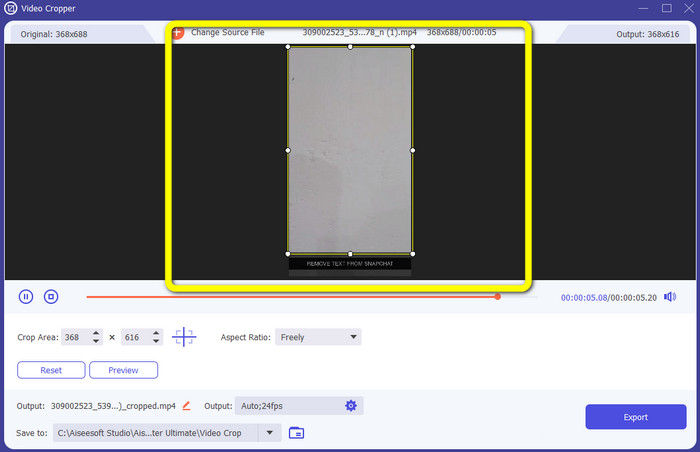
Vaihe 4: Viimeisessä vaiheessa voit napsauttaa Export-painiketta tallentaaksesi videosi ilman Snapchat-tekstiä.
Osa 3: Usein kysytyt kysymykset Snapchat-tekstin poistamisesta valokuvista ja videoista
Voinko myös poistaa Snapchat-tekstiä valokuvista puhelimellani?
Kyllä sinä voit. Voit käyttää monia sovelluksia vesileimanpoistoaineen kanssa, kuten PicLab, Photo Retouch-Object Removal, Airbrush ja paljon muuta.
Voinko poistaa Snapchat-tekstin valokuvastani menettämättä kuvani laatua?
Jos et halua menettää valokuvasi laatua Snapchat-tekstin poiston jälkeen, sinun kannattaa käyttää FVC Free Watermark Remover -ohjelmaa. Poistoprosessin jälkeen saat edelleen kuvasi alkuperäisessä laadussa.
Kuinka saan Snapchat-tekstitykset pois päältä?
Julkaisija lataa Snapchat-tekstitykset manuaalisesti, mikä parantaa tekstitystarkkuutta. Näytön alareunassa olevaa puhekuplakytkintä voidaan käyttää tekstityksen kytkemiseen päälle tai pois päältä.
Mikä on paras vesileimanpoistoainesovellus, jota voin käyttää työpöydälleni?
Jos etsit sovellusta, jonka avulla voit työskennellä videosi kanssa, voit käyttää Video Converter Ultimate -ohjelmaa. Tämän sovelluksen avulla voit poistaa vesileimat videoistasi vaivattomasti. Lisäksi siinä on monia muita ominaisuuksia, joista voit nauttia.
Mikä on valokuvan tai videon vesileima?
Vesileimat ovat valokuvassa tai videossa näkyviä allekirjoituksia, logoja ja tekstejä. Se kertoo vain muille ihmisille, kuka on kuvien tai videoiden todellinen omistaja. Vesileima on yksi parhaista tavoista suojata valokuva ja mainostaa tuotteen nimeä.
Johtopäätös
Kuten huomaat, paras tapa poistaa Snapchat-teksti valokuvista ja videoista on käyttää laadukasta vesileimanpoisto-ominaisuudella varustettua sovellusta. Tässä artikkelissa näytetään, miten Snapchat-teksti poistetaan valokuvista hyödyntämällä FVC Free Watermark Remover -ohjelmaa. Lisäksi siinä kerrotaan, miten Snapchat-teksti poistetaan videoista käyttämällä Video Converter Ultimate -ohjelmaa, jossa on kaksi erinomaista tapaa: videon vesileimanpoistotyökalu ja videon rajaus -työkalu.
-
 Logon poistaminen videosta Windows Movie Makerin avulla
 Jos haluat oppia logojen poistamisesta videoista Windows Movie Makerin avulla ja muilla vaihtoehtoisilla tavoilla, lue tämä artikkeli. Meillä on sinulle helppoja tapoja.
-
 Kuinka poistaa VideoScribe-logo videosta vaivattomasti
 Sinun ei enää tarvitse huolehtia VideoScribe-logon poistamisesta videoistasi. Tämä artikkeli antaa ongelmattomia menetelmiä. Lue tämä viesti saadaksesi lisätietoja
-
 Nopein tapa poistaa logo videosta Adobe Premiere Prossa
 Kokeile näitä helppoja ja nopeimpia tapoja poistaa logot videosta Adobe Premiere Prossa. Tämä artikkeli tarjoaa sinulle parhaat tavat, joilla voit kokeilla laitettasi.
