


 Video Converter Ultimate
 Näytön tallennin
 Videon korjaus
 Suojattu lataus
Parhaat menetelmät VideoScribe-logon poistamiseksi videosta
Do you desire to learn how to remove the VideoScribe logo from your videos? There are instances when you encounter a logo from your videos. You can’t avoid it, especially when the video owner wants to protect their videos and promote their brands. You can also encounter a logo using the free version of a particular application. The best example is the VideoScribe application. If you are using the free version of this application, your video will get a VideoScribe logo unless you purchase it. But, before that, you can use other free applications to remove the logo from your videos. You must read this article to find out how to remove a logo without purchasing anything.

Osa 1: VideScribe-logon poistaminen Offline-videosta
If you want to remove a VideoScribe logo from your videos offline, you can use Video Converter Ultimate. This application can help you remove the VideoScribe logo from your videos easily and quickly. You can also use this software to edit videos without losing quality. Besides, it has a simple GUI that offers high-quality output. Video Converter Ultimate is reachable on both Mac and Windows. Although it has many features, it is still good for beginners. This application can support many file formats, like FLV, MOV, MP4, MTS, DivX, XviD, and many more. In addition, this application has many editing tools you can use to enhance your videos, like enhancing, trimming, cropping, correcting color, rotating videos, and much more. Video Converter Ultimate can also give you two ways to remove the VideoScribe logo from your videos.
Video Watermark Removerin käyttö
Step 1: Click the downloading button below to download the Video Converter Ultimate on your Windows or Mac. After that, install the software on your device and run the application.
Ilmainen latausWindows 7 tai uudempiTurvallinen lataus
Ilmainen latausMacOS 10.7 tai uudempiTurvallinen lataus
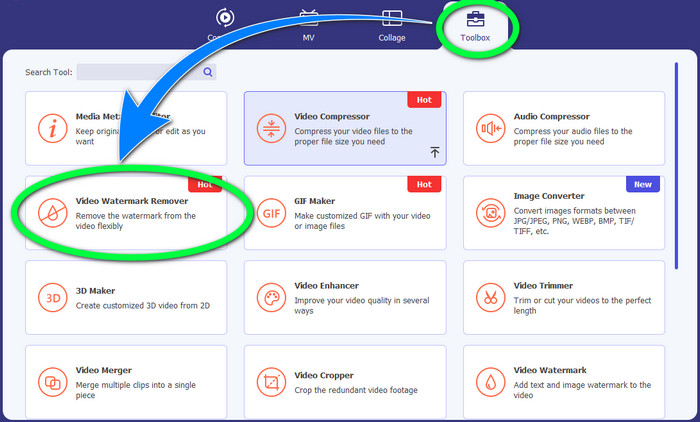
Step 2: After that, proceed to the Toolbox panel and click the Video Watermark Remover button. A new interface will pop up on your screen.
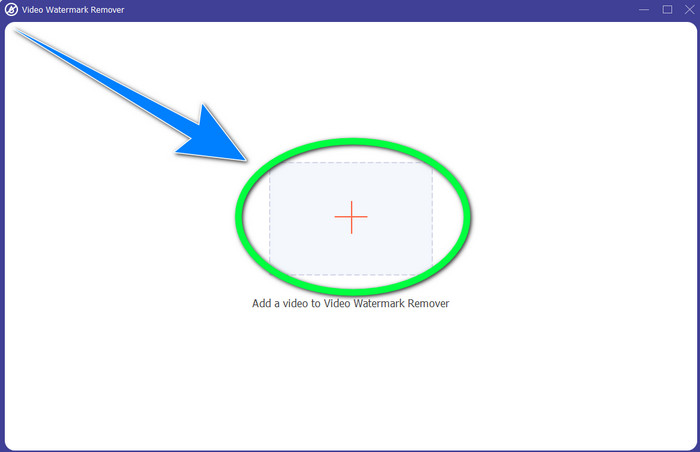
Step 3: Click the + button to import the video file with the VideoScribe logo you want to remove.
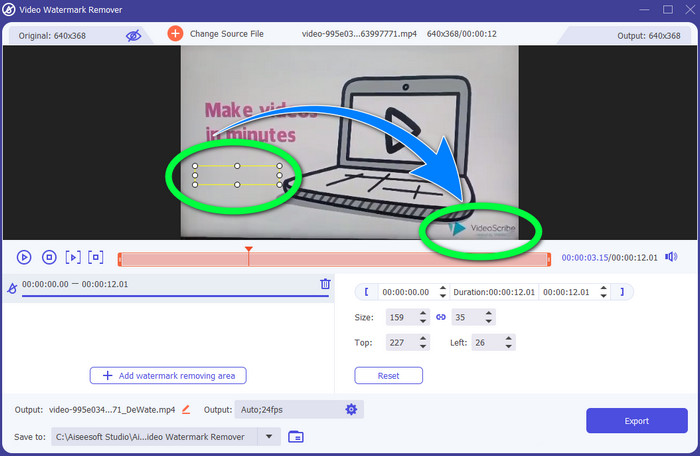
Step 4: When finished importing the video, click Add Watermark Removing Area and put the mini selection box to the logo. You can adjust the size of the box.
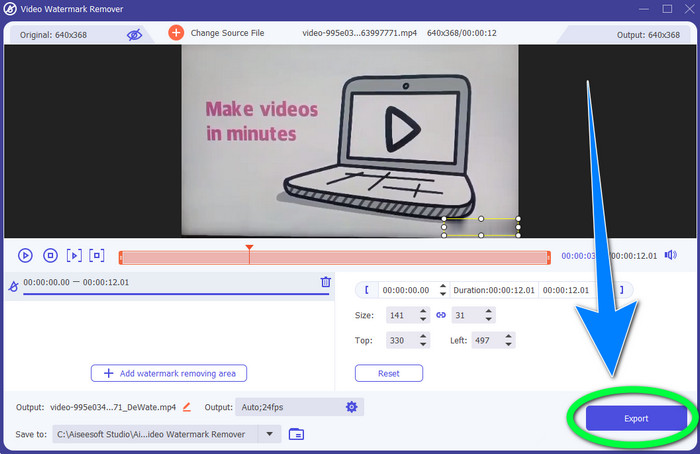
Step 5: In your final step, you can click the Export button so that you can save the video without encountering the logo.
Video Cropper -toiminnon käyttäminen
Step 1: The cropping tool is another way to remove the VideoScribe logo. Under the Toolbox, click the Video Cropper button.
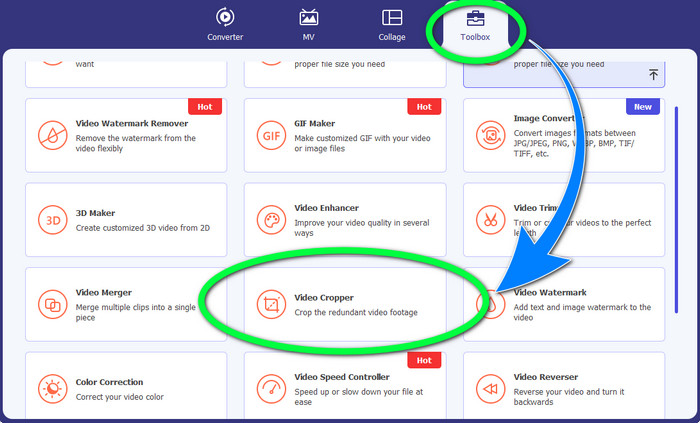
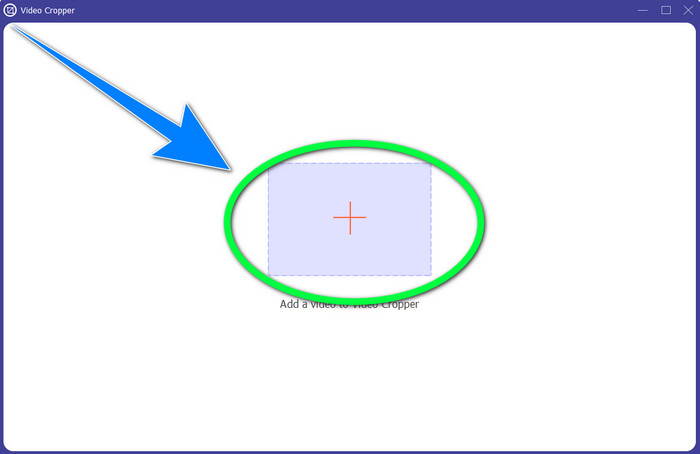
Step 2: New interface will appear on your screen. Select the + sign button and insert your video with the VideoScribe logo.
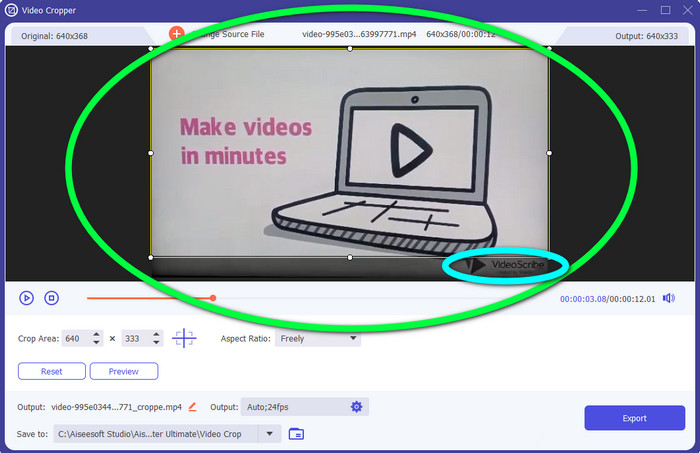
Step 3: The cropping tool can let you crop the edge of your video. If the logo was on the edge of your video, you could cut it to remove the logo.
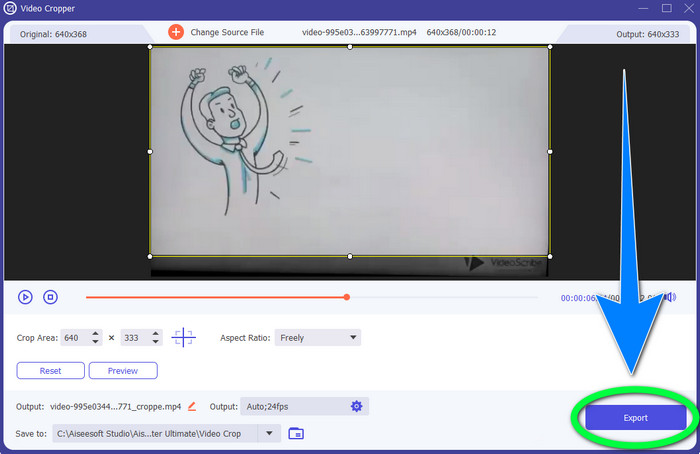
Step 4: Next, if you think that you have already removed the VideoScribe logo, you can select the Export button and save your final video on your device.
Osa 2: VideoScribe-logon poistaminen Video Onlinesta
BeeCut-Online Watermark Removerin käyttö
Do you want to remove the VideoScribe logo from your videos online? BeeCut-Online Watermark Remover is one of the fantastic and valuable online tools you can utilize. This online tool can help you remove annoying objects from your videos, such as logos, watermarks, texts, date stamps, and more. Hence, you can remove the VideoScribe logo from your videos effortlessly because of its simple interface. Also, BeeCut-Online Watermark Remover supports numerous file formats, such as FLV, MOV, MP4, WebM, ASF, AVI, 3GP, MPG, and more. Moreover, you can also remove disturbing elements from your images with this tool.Sadly, this application is an internet-dependent tool, which means you can’t operate this online tool if you don’t have internet access or an internet connection. When it comes to the removal process, sometimes it is time-consuming, which depends if you have a fast or slow internet connection. We provided you with the steps below orderly.
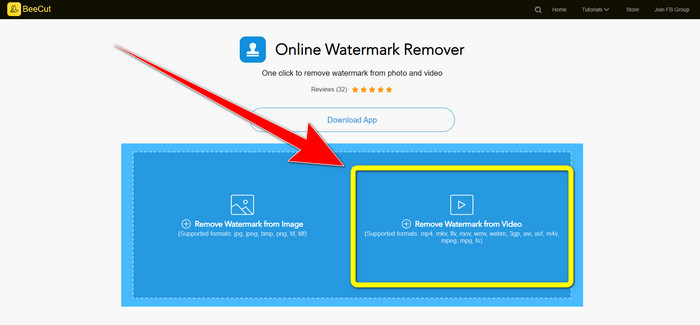
Step 1: Go to the website of BeeCut-Online Watermark Remover. Click the Remove Watermark from Video button and attach your video with a VideoScribe logo.
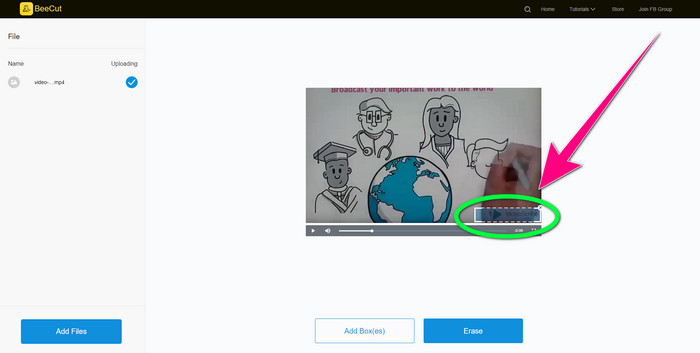
Step 2: After adding your video, use the small box you can see on your video and drag it to cover the logo.
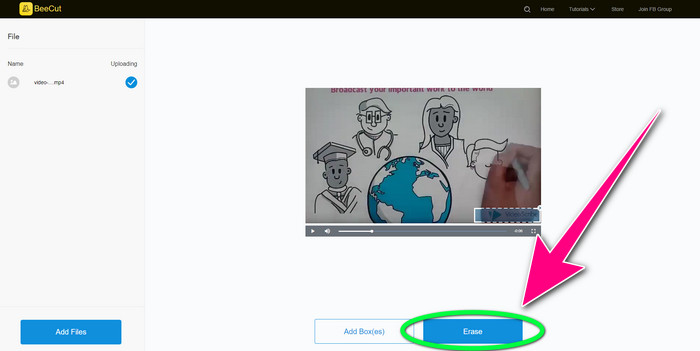
Step 3: When you are done covering the logo using the small box, select the Erase button to save and download your video without the VideoScribe logo.
Video Watermark Remover Onlinen käyttö
Video Watermark Remover Online is another online tool you can utilize to remove the VideoScribe logo from your videos. It has a simple interface and is good for beginners. In addition, you can remove logos from your videos without losing quality, which is excellent. However, this online tool has limited features using the free version. You can only remove logos from 5 videos and can’t export them to other file formats. And since this is an online application, you can’t operate it without an internet connection. Also, sometimes, the tool is not working well. If you want to learn about removing logos from your videos, follow the easy steps below.
Step 1: Go to the website of Video Watermark Remover Online. Click the Click or Drag Videos Here Button to insert your video with a videoscribe logo.

Step 2: Click the Remove Watermark button and wait for the removal process. Then, you can now save your video.
Osa 3: Usein kysytyt kysymykset VideoScribe-logon poistamisesta videosta
Voinko luottaa online-työkaluihin logojen poistamiseksi videoistani?
Kyllä sinä voit. Verkkotyökalut ovat turvallisia ja voivat suojata videotiedostosi. Jotkut työkalut voivat poistaa tiedostosi automaattisesti prosessin jälkeen, joten sinun ei tarvitse huolehtia. Kaikki verkkotyökalut eivät kuitenkaan ole samoja, joten sinun on silti etsittävä arvosteluja tietääksesi, voitko luottaa tiettyyn työkaluun.
Miten videon logot saa eroon?
Jos haluat päästä eroon logosta, lataa Video Converter Ultimate tietokoneellesi tai Macille. Voit käyttää videon vesileimanpoistoainetta tai videon rajaustyökalua. Nämä kaksi tapaa voivat auttaa sinua poistamaan logon videostasi.
Voinko poistaa VideoScribe-logon ilman tilausta?
Tottakai! Voit poistaa VideoScribe-logon käyttämällä Video Converter Ultimatea. Sinun ei tarvitse ostaa tätä sovellusta logon poistamiseksi, koska se on ilmainen.
Johtopäätös
This article gave you information about removing the VideoScribe logo from video using your downloadable tool and online tools. But, if you want to remove a logo from your videos quickly and effortlessly, you can use the Video Converter Ultimate.
-
 Kolme uusinta Shutterstockin vesileimanpoistoainetta, joita tulet koskaan tarvitsemaan
 Eikö viety videoon liitetty Shutterstock-vesileima pidä? Voit käyttää Shutterstock-vesileimanpoistoainetta poistaaksesi sen tehokkaasti.
-
 Powtoon-vesileiman poistaminen 4 tehokkaalla menetelmällä
 Lue tämä artikkeli oppiaksesi poistamaan Powtoon-vesileiman käyttämällä parhaita tähän sisällyttämiämme työkaluja ja opetusohjelmaa.
-
 Apowersoft Watermark Remover Review - Ominaisuudet, edut ja haitat sekä hinnat
 Apowersoft Watermark Remover on yksi parhaista vesileimoista, joka tukee online- ja offline-toimintoa. Napsauta tätä saadaksesi lisätietoja!
