


 Video Converter Ultimate
 Näytön tallennin
 Videon korjaus
Kerää ajatuksesi omaksumalla videon nopeuttaminen iMoviessa
Rakastat dokumenttien katsomista uudella iPhonellasi ja katsot niitä aina niiden tarjoamien tarinoiden vuoksi. Ilman mitään erityistä syytä haluat koota jokaisen niistä ja muokata niitä nopeasti. Etsit parasta sovellusta, joka voi sekä muokata videoitasi että nopeuttaa niitä, ja löydät iMovien. Koska olet kuitenkin sekä iPhonen että itse sovelluksen uusi käyttäjä, et tiedä, miten sitä käytetään etkä sitä, kuinka videota nopeutetaan iMoviella. Jatka lukemista, sillä tämä artikkeli tarjoaa runsaasti tietoa, jonka avulla opit lisää tästä sovelluksesta.

Osa 1. Videon nopeuttaminen iMoviessa
Kysymykseen videon nopeuttamisesta voidaan vastata iMovien ominaisuuksien avulla. Sen korkealaatuinen videolähtö, erilaiset mallit ja käsillä olevat viimeistelytyökalut voivat tuoda toistonopeuden ohjauksen iPhoneen ensimmäistä kertaa. iMovie voi myös nopeuttaa videota muiden sovellusten tapaan. Yksi sen työkaluista voi tehdä muutoksia videoosi muiden käytettävissä olevien työkalujen kanssa. Nyt on helppo käyttää videoita, joita haluat nopeuttaa tällä sovelluksella, joka on saatavilla vain iOS-käyttöjärjestelmissä ja Macissa. Nyt kun tiedät työkalusta, mennään ja puhutaan toimenpiteistä, joita sinun on noudatettava.
iPhone-käyttäjille
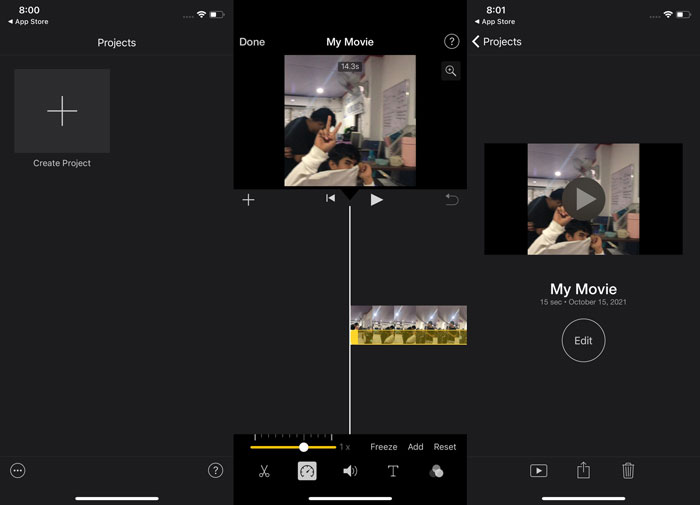
Vaihe 1: Siirry iPhonesi tai iPadisi App Storeen ja lataa siihen iMovie-sovellus. Kun käyttöliittymän yleiskuvaus tulee näkyviin, valitse Jatka. Kun olet Projektit-sivulla, napauta +-kuvaketta aloittaaksesi täysin uuden videoleikkeen. Jatka valitsemalla Elokuva New Projects -ikkunassa.
Vaihe 2: Kun olet valinnut videon kameran rullasta, napauta näytön alareunassa olevaa Luo elokuva -painiketta. Napauta aikajanaa ja odota, että muokkaustyökalut tulevat näkyviin, ennen kuin käytät nopeustyökalua, joka näyttää nopeusmittarilta. Nopeuttaaksesi tai hidastaaksesi videota siirrä vain keltaista alaosan liukusäädintä. Voit nopeuttaa videota jopa kaksinkertaiseksi tai hidastaa sen kahdeksasosaan alkuperäisestä nopeudesta.
Vaihe 3: Kun olet valmis, siirry puhelimesi näytön vasempaan yläkulmaan ja napsauta Valmis. Tallentaaksesi valmiin videosi siirry Jaa-valikkoon ja valitse näkyviin tulevista vaihtoehdoista, mihin haluat tallentaa sen.
Mac-käyttäjille
Vaihe 1: Valitse leike aikajanalla iMovie-sovelluksessa Macilla ja muuta sitten leikkeen nopeutta.
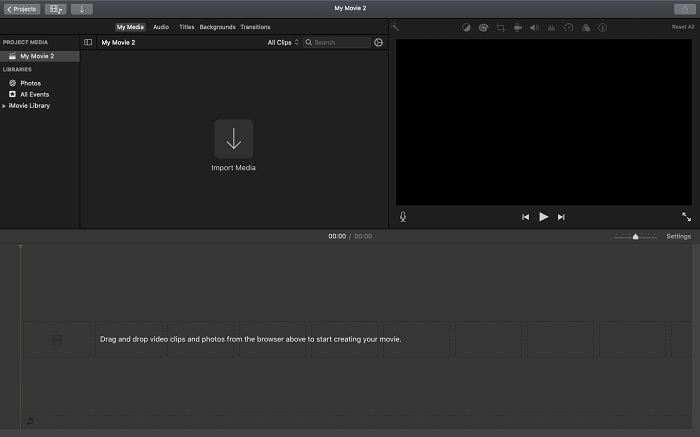
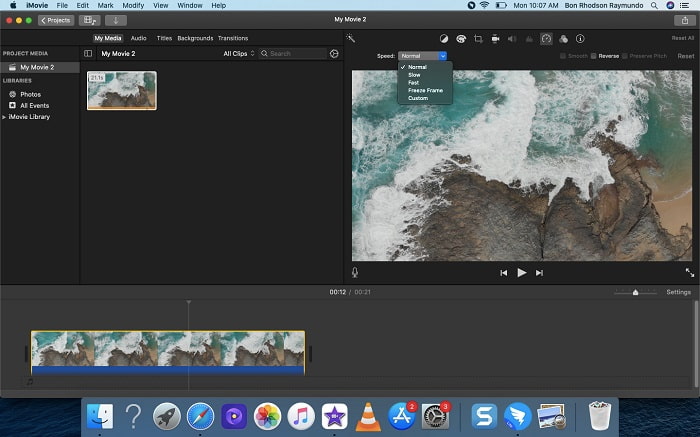
Vaihe 2: Napsauttamalla käyttöliittymän yläreunassa olevaa Nopeus-painiketta saat nopeusasetukset näkyviin. Voit hienosäätää toistonopeutta valitsemalla nopeuspainikkeesta joko Hidas tai Nopea.
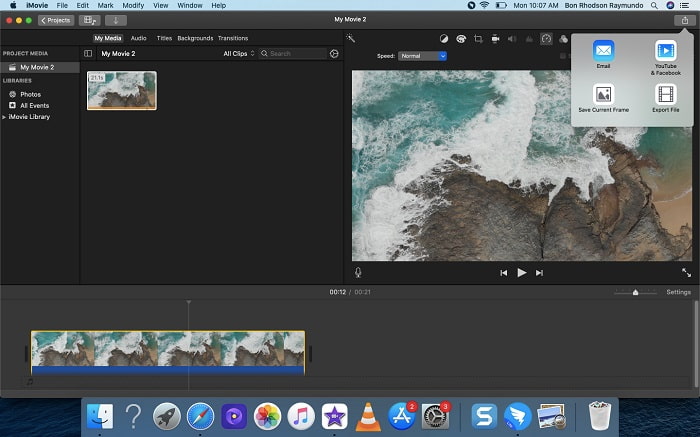
Vaihe 3: Napsauta käyttöliittymän oikeassa yläkulmassa olevaa Lataa-kuvaketta viedäksesi tiedoston työpöydällesi.
Osa 2. Toinen helpompi tapa nopeuttaa videota
iPhonen tai muiden vain iPhonelle saatavilla olevien verkkosovellusten käyttäminen videosi editorina voi olla hankalaa, jos haluat nopeuttaa videosi toistonopeutta. Video Converter Ultimate on paras vaihtoehto harkittavaksesi, sillä sen avulla voit nopeuttaa videotasi pysyvästi. Tällä työkalulla, jonka voit ladata ilmaiseksi, voit säätää videosi toistonopeutta. Siinä on useita eri työkaluja, muun muassa Video Speed Controller, jonka avulla voit kiihdyttää videosi toistonopeutta laadukkaalla lopputuloksella ja erittäin nopealla muunnoksella. Saadaksesi lisätietoja, noudata seuraavia vaiheita:
Vaihe 1: Napsauta Ilmainen lataus tallentaaksesi ohjelman tietokoneellesi. Mukauta sitten ohjelmaa asentamalla se.
Ilmainen latausWindows 7 tai uudempiTurvallinen lataus
Ilmainen latausMacOS 10.7 tai uudempiTurvallinen lataus
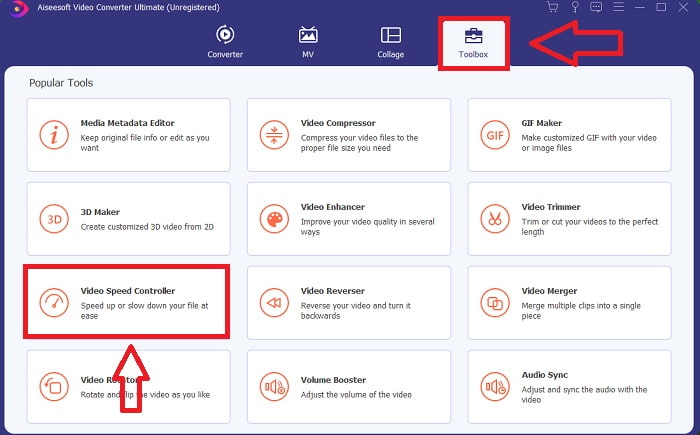
Vaihe 2: Kun olet käynnistänyt ohjelman ensimmäistä kertaa asennuksen jälkeen, valitse Työkalupakki-ominaisuus ja sen jälkeen Video Speed Controller -ominaisuus.
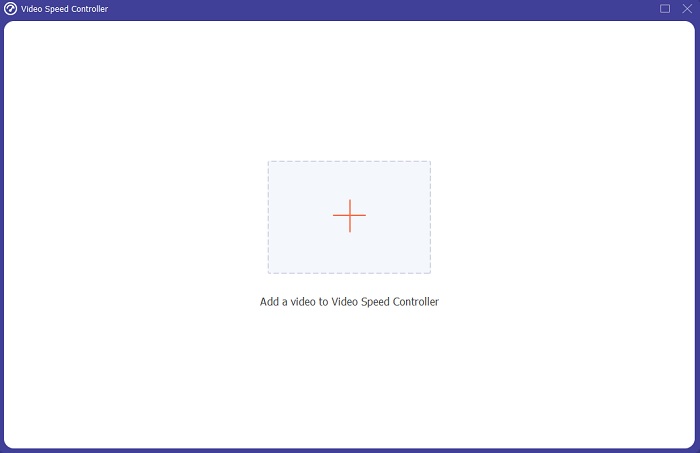
Vaihe 3: Aloittaaksesi muokkausvaiheen voit nyt ladata videon tietokoneeltasi napsauttamalla +-merkkiä, joka tulee näkyviin sen jälkeen, kun olet valinnut Video Speed Controller -työkalun.
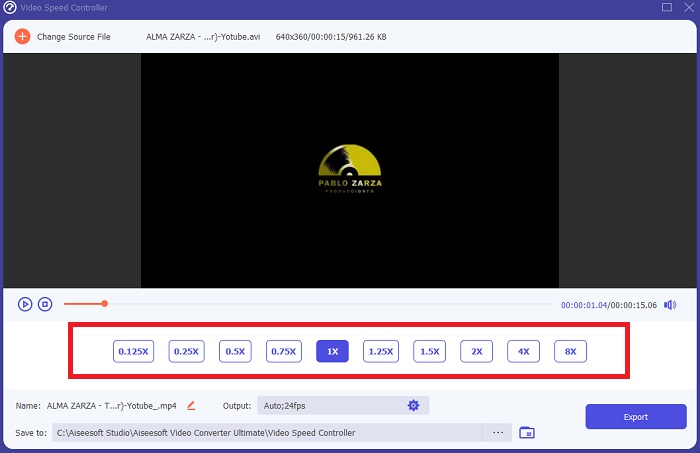
Vaihe 4: Voit nyt nopeuttaa videota enemmän kuin iMoviella, koska tämä työkalu antaa sinulle useita vaihtoehtoja siitä, kuinka suuren nopeuskertoimen haluat videoosi. Voit myös toistaa videon esikatselun valitsemasi nopeussäädön jälkeen nähdäksesi, vastaako se toiveitasi.
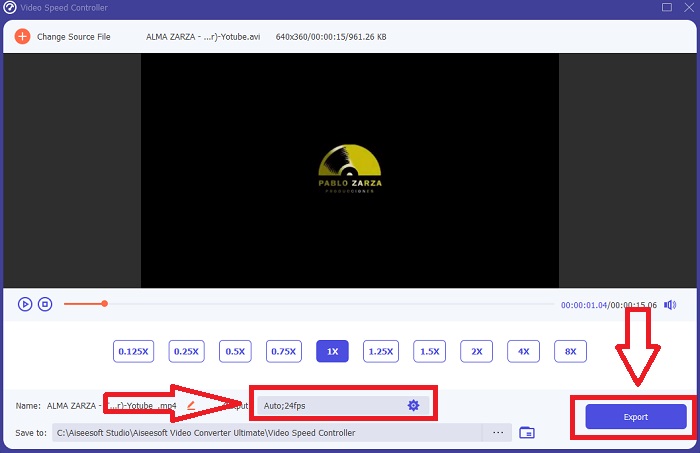
Vaihe 5: Voit valita haluamasi lopputuloksen muuttamalla videosi muotoa, resoluutiota ja laatua sen jälkeen, kun olet säätänyt videoleikkeen toistonopeuden ja tehnyt muut tarvittavat muutokset. Kun olet valmis tallentamaan työsi, valitse Vie ja määritä tallennuspaikka.
Aiheeseen liittyvää:
Kuinka yhdistää videoita iPhonessa
Osa 3. Usein kysyttyä videoiden nopeuttamisesta
Mitä jos lähetän nopean videon ja vastaanotan hitaan videon pienentääkseni videon kokoa?
Ei, se vaikuttaa vain tietojen esittämiseen, ei itse tiedon määrään. On kuitenkin mahdollista pienentää videon kokoa saattamalla se toimimaan pienemmällä kuvanopeudella. Vähemmän kuvia sekunnissa se säilyttää saman nopeuden kuin alkuperäinen. 60 vs. 30 kuvaa sekunnissa on merkittävä vaikutus videotiedoston kokoon. Koska videokoodauksen aikana otetaan huomioon kehysten väliset vaihtelut. Pienennä videon resoluutiota esimerkiksi 1080p:stä 720p:iin pienentääksesi sen kokoa entisestään. Tämän vuoksi tiedostokoko pienenee huomattavasti.
Mitä vaihtoehtoja sinulla on nopeuttaa videon toistoa Macissa?
Voit lisätä toistonopeutta kahdella tai useammalla kertaa (5 tai enemmän) napsauttamalla eteenpäin- tai taaksepäin-painiketta, kunnes video toistetaan haluamallasi nopeudella, esimerkiksi 30 tai 60 kertaa. Kun videota toistetaan, voit muuttaa toistonopeutta 1,1x:n välein napsauttamalla Optio-napsauttamalla eteenpäin- tai taaksepäin-painiketta.
Kuinka voin muuttaa videon toistonopeutta pysyvästi?
Mieti, kuinka monta vaihetta tarvitaan videosi toistonopeuden muuttamiseen. Vaikka videot työkalut ja videomuokkaimet ovat helposti saatavilla verkossa, etsit silti parasta työkalua videosi toistonopeusongelmien korjaamiseen. Verkossa on lukuisia verkkotyökaluja, joista osa on ilmaisia käyttää, mutta vaatii maksun kaikkien ominaisuuksien avaamiseksi. Video Converter Ultimate, ilmainen ohjelma videoiden nopeuttamiseen, on paras vaihtoehto, jos haluat muuttaa toistonopeuden pysyvästi.
Johtopäätös
Yhteenvetona voidaan todeta, että iMovie on erinomainen sovellus iOS-laitteille, kuten Macille ja iPhonelle, ratkaisemaan videon toistonopeuteen liittyvät ongelmat. Se on monien käyttäjien saatavilla, helppokäyttöinen ja ilmainen. Kyllä, se on hyvä toistonopeuden muokkaamiseen – entä muut videon kannalta tärkeät tekijät? Siksi suosittelemme Video Converter Ultimate -ohjelmaa parhaaksi ohjelmistoksi videon toistonopeuden korjaamiseen; eikä vain sitä, siinä on myös runsaasti muita ominaisuuksia, joiden avulla voit luoda vaikuttavia videoita, joita et olisi osannut kuvitellakaan.
-
 Android -DVD -soitin - DVD -videoiden toistaminen Android -matkapuhelimissa
 Kuinka toistaa DVD -tiedostoja Android -matkapuhelimissa? Onko Android -DVD -soittimia? Tässä artikkelissa opit kolmesta tavasta toistaa DVD -videoita Android -matkapuhelimissa ulkoisen ohjaimen kanssa tai ilman.
-
 Paras 10 ilmaista Android MP4 -soitinta HD/4K -videoiden toistamiseen
 Vaikka Android-puhelimissa on oletussoittimet MP4-videoiden toistamiseen, ne eivät tue toistoasetusten ja muiden toimintojen säätämistä. Siten voit oppia 10 parhaasta Android MP4 -soittimesta tästä artikkelista.
-
 Samsungin videosoitin jumissa: Top 5 parasta videosoitinta Samsungille
 Kun toistat videoita Samsungin oletusvideosoittimen kautta, se saattaa aina juuttua. Jotta saat sujuvan ja paremman katselukokemuksen, voit oppia Samsungin viidestä parhaasta videosoittimesta tästä artikkelista.
