


 Video Converter Ultimate
 Näytön tallennin
 Videon korjaus
Videon nopeuttaminen monin tavoin iPhonen avulla
Aiot tehdä kouluprojektissasi kaikkien aikojen parhaan musiikkivideon ja haluat esittää siinä elämänkaaren. Haluat pikakelaata koko musiikkivideon nopeuttamalla toistoa ja toteuttaa nuoruudesta aikuisuuteen siirtymisen tyylikkäästi, mutta käytössäsi on vain puhelin. Sinulla on ainoastaan iPhone – tarkemmin sanottuna – jolla aiot nopeuttaa toistoa ja editoida koko musiikkivideon. iPhone on kuitenkin tunnettu rajoittavasta suhtautumisestaan sovellusten lataamiseen, sillä joistakin sen sovelluksista on ostettava täysversio, jotta kaikki ominaisuudet avautuvat. Jatka tämän artikkelin lukemista, jotta ymmärrät perusteellisesti, miten nopeutat videota iPhonessa.

Osa 1. Paras tapa nopeuttaa videota iPhonessa
Aiemmin nimellä iPhone OS tunnettu iOS on Apple Inc.:n mobiilikäyttöjärjestelmä, joka on kehitetty yksinomaan yhtiön laitteille. Se on tunnettu myös sovellusten lataamisen eksklusiivisuudesta, toisin kuin Android. iPhone tarjoaa kuitenkin muita sovelluksia, joilla voi muokata ja räätälöidä videoleikkeitä ja jotka ovat saatavilla sen käyttöjärjestelmässä. Osa näistä sovelluksista pystyy myös hallitsemaan toistonopeutta; kun puhutaan iPhonen videon toistonopeuden säädöstä, nämä sovellukset ovat helppokäyttöisiä ja ilmaiseksi ladattavissa mille tahansa iOS-laitteelle. Jos haluat tietää lisää videon nopeudensäädöstä iPhonessa, alla on vaiheet yksityiskohtaisesti:
Tapa 1. Käytä iMovie-ohjelmaa videon nopeuttamiseen iPhonessa
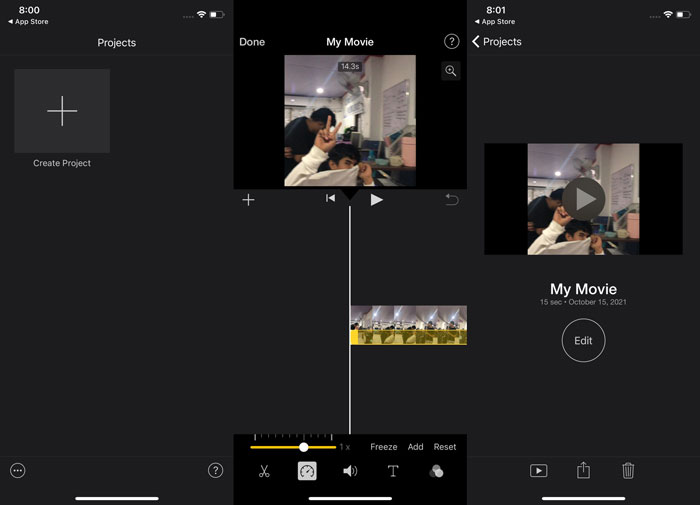
Voit luoda Hollywood-tyylisiä trailereita 4K-tarkkuudella iPhonen iMovie-sovelluksella. Kun olet editoinut kaikki videosi, voit lisätä niihin animoituja tekstejä, musiikkia sekä viimeistelyjä, kuten suotimia ja tehosteita. Applen iMovie-ohjelmisto helpottaa tarinasi kertomista hiotusti ja ammattimaisesti, minkä jälkeen voit jakaa työsi ystäville ja perheelle. iMovie tarjoaa ominaisuuksia, jotka parantavat videon laatua sen erilaisten mallipohjien ja viimeistelytyökalujen avulla; lisäksi se tuo iPhoneen mahdollisuuden hallita toistonopeutta. Koska useimpien editoijien täytyy kiinnittää huomiota esitettyihin asioihin, seuraavat vaiheet auttavat saavuttamaan haluamasi nopeuden tätä työkalua käyttäen iPhonessa.
Vaihe 1: Käynnistä iMovie-sovellus iPhonessa tai iPadissa. Jos näyttöön tulee käyttöliittymän esittely, valitse Jatka. Aloittaaksesi uuden videoleikkeen mene Projektit-sivulle ja napauta plus-kuvaketta (+). Siirry Uusi projekti -ikkunaan ja valitse Elokuva jatkaaksesi.
Vaihe 2: Napauta näytön alareunassa Luo elokuva, kun olet valinnut videon Kameran rullasta. Nopeustyökalu näyttää nopeusmittarilta ja löytyy napauttamalla aikajanalla olevaa videoleikettä ja odottamalla, että muokkaustyökalut ilmestyvät. Siirrä sitten alareunassa olevaa keltaista liukusäädintä eteen- tai taaksepäin pikakelataksesi videota. Voit nopeuttaa videota jopa kaksinkertaiseksi tai hidastaa sen alkuperäisestä kahdeksasosaan.
Vaihe 3: Kun kaikki on kohdallaan, napauta Valmis puhelimesi näytön vasemmassa yläkulmassa. Tallenna valmis video napauttamalla näytön alareunassa olevaa Jaa-painiketta ja valitse, mihin haluat tallentaa sen.
Tapa 2. Käytä Videoshopia videon nopeuttamiseen iPhonessa
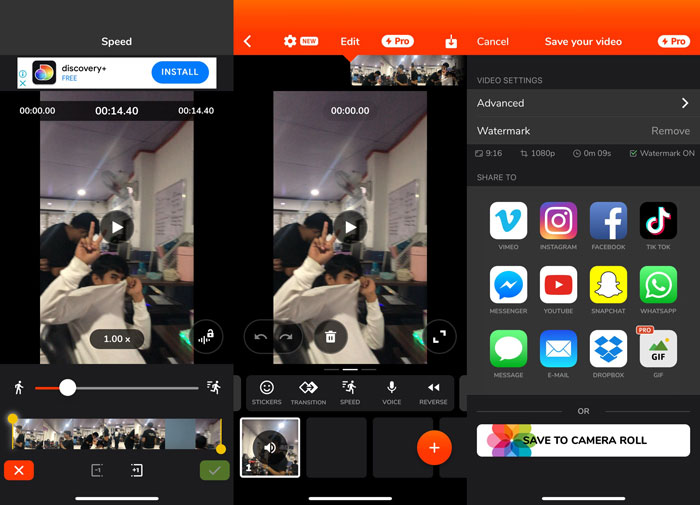
Videoeditointiohjelmista vain harvat yltävät samalle tasolle kuin Videoshop. Sen avulla voit nopeasti muokata videotasi lisäämällä tehosteita, kuten musiikkia, puheäänen, tekstiä ja kuvia. Voit myös vaivattomasti lisätä näyttäviä suotimia videoihin, luoda valokuvadiashow’ita sekä leikata, yhdistää, kopioida, liittää, kiertää ja peilata videoitasi. Lisäksi voit säätää videon toistonopeutta nopeasti ja luoda nopeutettuja tai hidastettuja videoita tämän sovelluksen avulla. Vain muutamalla helpolla vaiheella voit muuttaa videon toistonopeutta, kunnes saavutat halutun vauhdin. Jos haluat oppia lisää videon nopeuttamisesta Videoshopilla iPhonessa, alla on luettelo vaiheista, joiden avulla käytät sovellusta vaivattomasti.
Vaihe 1: Kun avaat videoeditorin ensimmäistä kertaa iPhonessa, voit valita, haluatko nauhoittaa uuden videon vai tuoda aiemmin tallennetun videon. Kun olet lisännyt videon editorin ikkunaan, avautuu uusi käyttöliittymä. Videoeditorin alaosassa on työkalupalkki, jossa on useita työkaluja. Pyyhkäise tai napauta näyttöäsi vasemmalle ja oikealle tämän työkalupalkin alueella. Kun valitset kohdan Nopeus, näyttöön avautuu videon nopeudensäätövalikko.
Vaihe 2: Tämän videoeditorin avulla voit iPhonessa muuttaa videon nopeutta helposti. Vedä Speed Handle -nopeussäädintä vasemmalle tai oikealle hidastaaksesi tai nopeuttaaksesi videon toistoa. Esikatsele muutosta painamalla Toista-painiketta. Voit sen jälkeen säätää videon nopeutta uudelleen, kunnes olet tyytyväinen muokattuun videoon.
Vaihe 3: Tallenna työsi napauttamalla Valmis-painiketta oikeassa yläkulmassa.
Osa 2. Vaihtoehtoinen tapa nopeuttaa videota iPhonessa
Jos aiemman työkalun vaiheet tuntuvat hankalilta, tämä artikkeli esittelee vaihtoehdon, joka auttaa kysymykseen, miten videon nopeutta voi nostaa jopa 2x iPhonessa. Et välttämättä ole tottunut käyttämään iPhonea videon editointiin, varsinkaan kun haluat lisätä videon toistonopeutta. Video Converter Ultimate on paras vaihtoehto, joka kannattaa ottaa huomioon, sillä sen avulla voit nopeuttaa videota pysyvästi. Lataa ja käytä Video Converter Ultimatea videoidesi nopeudensäätimenä. Tässä ohjelmistossa on lukuisia ominaisuuksia ja työkaluja, jotka parantavat editointitaitojasi. Siihen sisältyy myös Video Speed Controller -työkalu, joka ratkaisee monen iOS-käyttäjän ongelman. Tämän työkalun avulla voit säätää videon nopeutta vaivatta ja tuottaa hyvälaatuisen videon. Lisäksi se pystyy muuttamaan videon nopeutta vain muutamassa sekunnissa nopean muunnosprosessinsa ansiosta. Kaiken kaikkiaan ohjelmisto toimii ammattimaisesti esittämästään selkeästä käyttöliittymästä huolimatta. Koska tämä vaihtoehto on tietokoneelle asennettavaa ohjelmistoa, sinun täytyy opetella, miten siirrät videon iPhonesta tietokoneelle, jotta voit hyödyntää tätä ratkaisua.
1. Aloita yhdistämällä iPhone tietokoneeseen USB-kaapelilla.
2. Avaa Valokuvat-sovellus tietokoneellasi napsauttamalla Käynnistä-painiketta ja sitten Valokuvat.
3. Noudata näytön ohjeita, kun olet valinnut Tuo USB-laitteesta. Voit hallita täysin, mitä tuot ja mihin se tallennetaan. Anna itsellesi tilaa hengittää, kun havaitsemis- ja siirtoprosessit tapahtuvat.
Nyt voit nopeuttaa videoitasi iPhonessa noudattamalla alla olevia ohjeita.
Vaihe 1: Jotta voit käyttää ohjelmistoa tietokoneellasi, sinun täytyy ensin ladata se napsauttamalla alla olevaa Ilmainen lataus -painiketta. Kun lataus on valmis, asenna ohjelma tietokoneellesi ja napsauta Aloita nyt viimeistelläksesi asennuksen.
Ilmainen latausWindows 7 tai uudempiTurvallinen lataus
Ilmainen latausMacOS 10.7 tai uudempiTurvallinen lataus
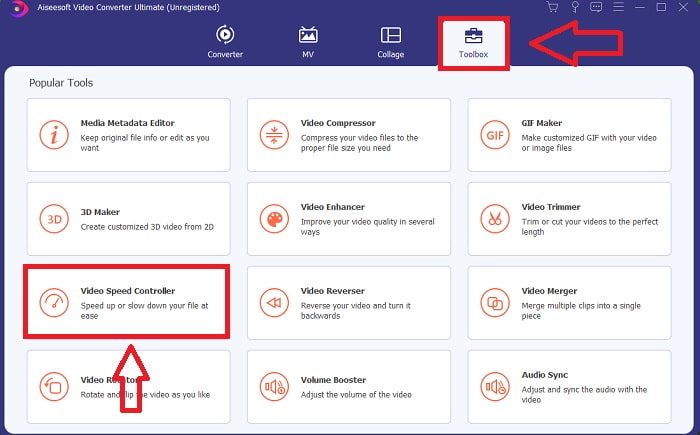
Vaihe 2: Kun olet asentanut ohjelmiston, käynnistä se. Näet ohjelman pääikkunassa muunnosvaiheen. Siirry sen jälkeen Työkalupakki-osioon. Näet siellä erilaisia ohjelmiston tarjoamia työkaluja; valitse Video Speed Controller säätääksesi videon nopeutta.
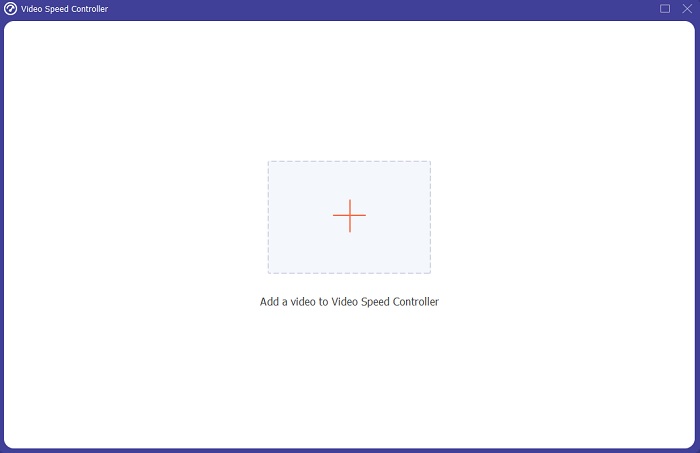
Vaihe 3: Kun jatkat eteenpäin, näytölle avautuu uusi välilehti. Aloita editointi painamalla plus-merkkiä (+).
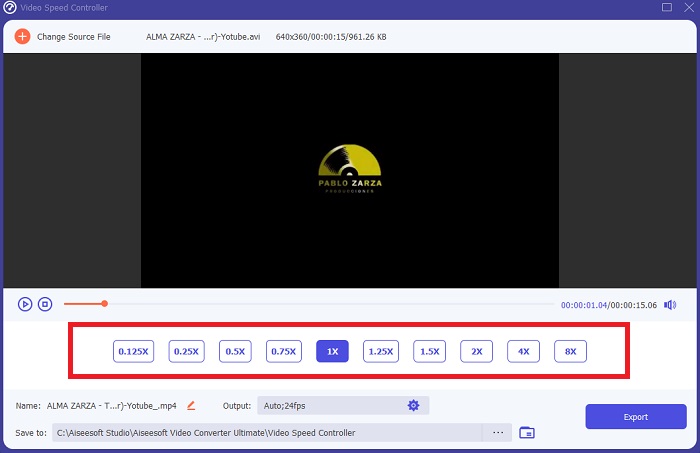
Vaihe 4: Voit aloittaa varsinaisen editoinnin valitsemalla, kuinka moninkertaiseksi tai kuinka paljon pienemmäksi videon kuvataajuus muutetaan toistonopeuden muuttamiseksi. Kun olet tyytyväinen videon nopeuteen, voit muokata lopullisen videon laatua säätämällä muun muassa formaattia, resoluutiota, kuvataajuutta jne. Saat myös mahdollisuuden nimetä video-otoksen uudelleen.
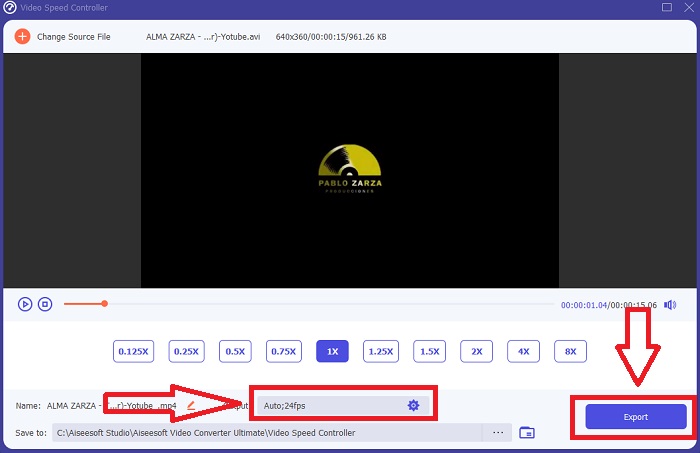
Vaihe 5: Tallenna työsi napsauttamalla Vie ja valitse sijainti tietokoneesi tiedostojärjestelmästä.
Aiheeseen liittyvää:
Osa 3. Usein kysyttyä videon nopeuttamisesta iPhonessa
Miten videoohjain toimii?
Videosoittimen nopeussäädin määrittää videon toistonopeuden. Kun katsot elokuvaa mediasoittimella, video toistetaan samalla nopeudella kuin tavallinen video. Videosoittimen nopeussäätimen tarkoitus on antaa käyttäjän muuttaa videon toistonopeutta. Joitakin videoita on hidastettava, jotta voit seurata toimintaa.
Kuinka voin muuttaa videon toistonopeutta pysyvästi?
Mieti, kuinka monta vaihetta videoidesi toistonopeuden muuttaminen vaatii. Huolimatta siitä, että videotyökalut ja videoeditorit ovat helposti saatavilla verkossa, etsit edelleen parasta työkalua videoleikkeen toistonopeusongelmien korjaamiseen. Internetissä on saatavilla lukuisia verkkotyökaluja, joista jotkin ovat ilmaisia, mutta vaativat maksun kaikkien ominaisuuksien avaamiseksi. Video Converter Ultimate, ilmainen ohjelma videoiden nopeuttamiseen, on paras tapa muuttaa toistonopeutta pysyvästi.
Kuinka nopeuttaa MP4-videota?
Ladattavissa ja offline-tilassa on lukuisia muuntimia. Voit nopeuttaa videon toistoa käyttämällä Video Converter Ultimatea vaihtoehtona muille videomuuntimille. Videon nopeuden tehostin on vain yksi monista saatavilla olevista ominaisuuksista, koska se on ilmainen avoimen lähdekoodin ohjelmisto.
Johtopäätös
Kuten sanoin, iPhone-käyttäjien, jotka haaveilevat videonsa toistonopeuden ratkaisemisesta, ei tarvitse ostaa erilaisia työkaluja. Saatavilla on monia ilmaisia muokkausohjelmia, joita sinun tulee etsiä; Jotkut tarvitsevat kriittistä ymmärrystä käyttääkseen sitä oikein, mutta useimmat niistä ovat saatavilla. Parhaista käytettävissä olevista työkaluista puhuttaessa suosittelemme Video Converter Ultimaten käyttöä videoleikkeiden nopeuttamiseen jopa 2x normaalinopeudella tai jopa 8x nopeammin. Lisäksi video voidaan hidastaa neljännekseen sen normaalista nopeudesta tällä ominaisuudella. Tässä ohjelmistossa on kaikki mitä ammattieditori haluaa, ja käyttämällä sitä voit tehdä itsestäsi ammattilaisen.
-
 [2 parasta ratkaisua] Kuinka toistaa AVI-elokuvia iPhonella/iPadilla helposti
 Etkö pysty toistamaan AVI-elokuvia iPhonella/iPadilla etkä halua ladata kolmannen osapuolen videosoittimia? Voit oppia 2 tehokasta tapaa muuntaa AVI-videoita toistettavaksi iPhonessa.
-
 [Ratkaistu] Kuinka korjata videot, jotka eivät toistu iPhonessa yksityiskohtaisilla vaiheilla
 Gallerian paikallisia videoita ei voi toistaa iPhonellasi oletusvideosoitimen kautta? Tapahtuuko aina online -YouTube -videoita, joita ei toisteta iPhonessa? Tässä on 5 ratkaisua, jotka auttavat sinua tässä artikkelissa.
-
 Top 5 parasta videosoitinta iPhonelle, jota sinun ei kannata jättää väliin vuonna 2021
 Jos haluat toistaa videoita kaikissa muodoissa ja saada paremman katselukokemuksen iPhonellasi, sinun kannattaa lukea tämä artikkeli ja oppia viidestä parhaasta videosoittimesta iPhonelle 12/11/ X/8/7/6.
