


 Video Converter Ultimate
 Näytön tallennin
 Videon korjaus
Opettele videoiden nopeuttaminen Windows Media Playerissa parhailla mahdollisilla tavoilla [todisteisiin perustuva]
Kaikkien videokohtausten toistonopeus vaihtelee, mutta myös niiden tarkoitus nopeuden muuttuessa on erilainen. Kun nopeutat videota, se symboloi elokuvassa tai videossa epäolennaisia ja vähemmän kiinnostavia tapahtumia. Sitä vastoin, kun hidastat videota, se korostaa hetkiä tai kohtauksia, jotka ovat hyvin tärkeitä kuvattavaksi. Nämä toistonopeuden muutokset ovat erittäin tärkeitä toteuttaa videoita muokattaessa tai luotaessa. Lue tämä artikkeli opettaaksesi käyttäjille, miten videoita voi nopeuttaa, erityisesti joillakin tavallisilla mediasoittimilla pöytäkoneellamme, kuten Windows Media Playerilla.

Osa 1. Windows Media Player: Videoiden nopeuttaminen
Windows Media Player on ilmainen Microsoftin mediasoitin, joka tulee jokaisen Windows-kopion mukana. Microsoft tuntee sen myös WMP- tai WM-soittimena. Sen lisäksi, että he voivat katsella valokuvia ja kuunnella musiikkia, he voivat katsella videoita. Ääni-CD-levyjen kopiointi ja musiikkikirjaston järjestäminen ovat molemmat mahdollisia Windows Media Playerin (WMP) avulla. Siinä on myös muokkausvälilehti, joka auttaa säätämään videoita, kuvia ja musiikkia. Jos haluat nopeuttaa videota Windows Media Playerin avulla, noudata seuraavia ohjeita:
Vaihe 1: Avaa Windows Media Player; vasemmasta kulmasta valitse Video-välilehti.
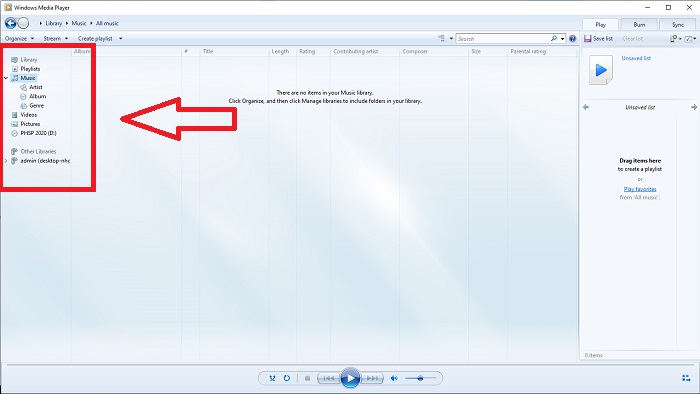
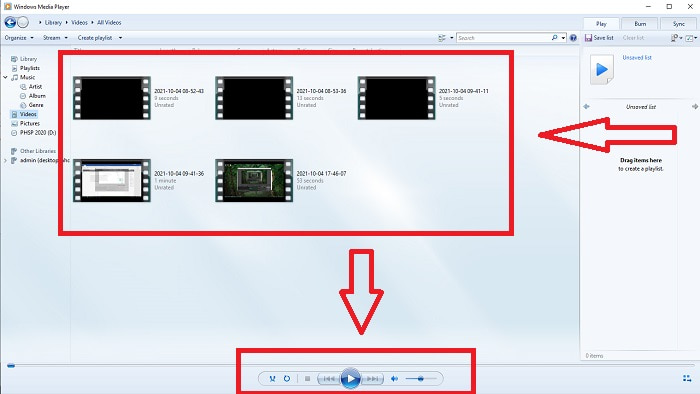
Vaihe 2: Toista video kaksoisnapsauttamalla vasemmalla painikkeella tai napsauttamalla hiiren oikealla painikkeella, tai voit painaa Toista-painiketta käyttöliittymän alareunan keskikohdasta.
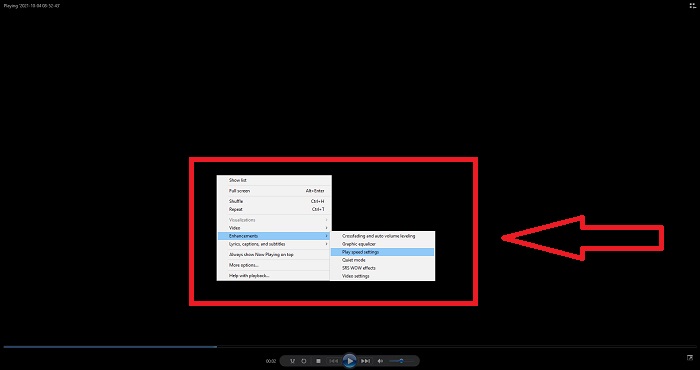
Vaihe 3: Napsauta sitten näyttöä hiiren oikealla painikkeella päästäksesi muokkausvälilehteen. Jatka napsauttamalla Enhancements ja Play Speed Settings. Tämän jälkeen voit säätää videoleikkeen toistonopeutta vetämällä Slider-liukusäädintä.
Osa 2. Mitä jos Windows Media Playerin toistonopeus ei toimi?
Kun toistat AVI-, WAV- tai MOV-videotiedostoja, saatat törmätä Windowsin mediasoittimeen ja kohdata ongelman toistettaessa tiedostovirhettä. Keskinkertaisen laatuista videota katsotaan usein AVI-muodossa. Muilla mediasoittimilla ei ole ongelmia AVI:n toistamisessa. Toisaalta WMP:ssä voi olla häiriö toistettaessa AVI-tiedostoa. Windows Media Player ei tue AVI-tiedostoja, koska ne on koodattu koodekeilla. Olet ehkä saanut seuraavan ilmoituksen: Windows Media Player ei voi toistaa tiedostoa. Player ei ehkä tue tiedostotyyppiä tai pakkauksenhallintaa, jota käytettiin tiedoston pakkaamiseen. Tälle ilmiölle on kaksi mahdollista selitystä.
1. Koska se ei vastaa vaadittua tiedostoa, Windows Media Player (WMP) ei voi tukea tiedoston koodekkia.
2. Windows Media Player ei tue pakkauskoodekkeja.
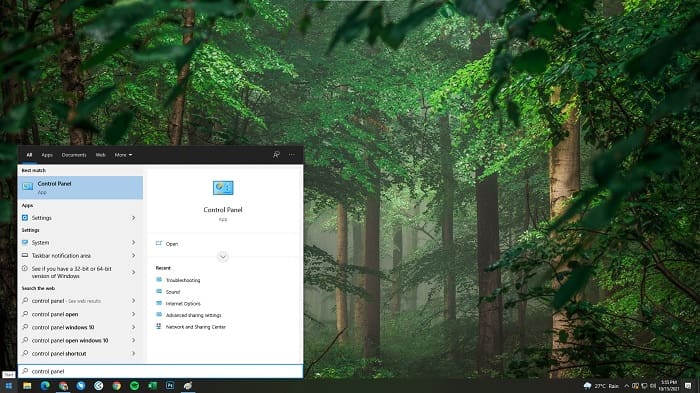
Vaihe 1: Avaa tietokoneesi Ohjauspaneeli ja etsi View By, napsauta sitten Large Icons päästäksesi käsiksi kaikkiin ohjauspaneelin täysiin ominaisuuksiin.
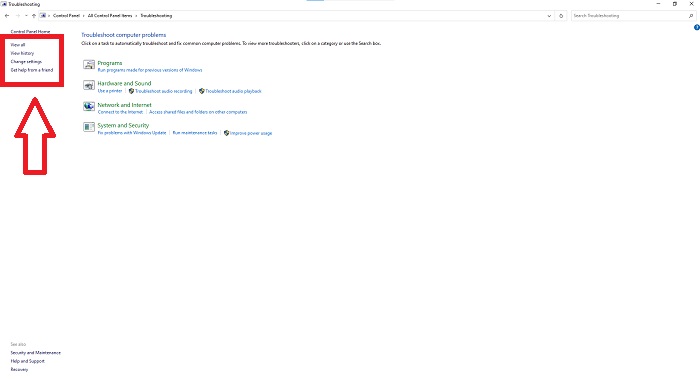
Vaihe 2: Jatka napsauttamalla Troubleshooting. Vasemmasta kulmasta napsauta View all ja etsi Windows Media Player Library.
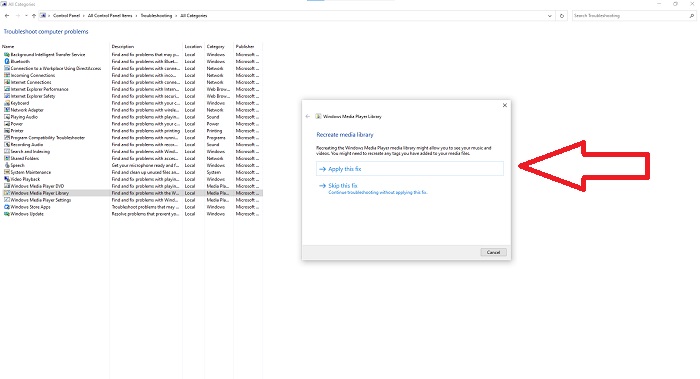
Vaihe 3: Lopuksi vianmääritä Windows Media Player napsauttamalla Seuraava, kun välilehti tulee näkyviin. Jatka sitten valitsemalla Apply this Fix. Kun vianmääritys on valmis, valitse suljetko vianmäärityksen vai annatko siitä palautetta.
Osa 3. Toinen mahdollinen tapa nopeuttaa videoita
Oletetaan, että sinulla on vaikeuksia korjata videoidesi toistonopeutta monimutkaisten vaiheiden vuoksi. Lisäksi, jos vianmääritys ei toimi, etkä silti voi toistaa videota. Internetissä on saatavilla verkkotyökaluja, ja osa niistä on ostettava ennen kuin pääset käyttämään koko työkalua. Video Converter Ultimate on paras vaihtoehto videoiden nopeuttamiseen, ja sen käyttö on ilmaista. Tämä ohjelmisto voi muokata videotasi seuraavalle tasolle, ja seuraavat vaiheet:
Vaihe 1: Valitse Ilmainen lataus -vaihtoehto ladataksesi ohjelmiston suoraan tietokoneellesi. Mukauta ja asenna ohjelma tämän jälkeen.
Ilmainen latausWindows 7 tai uudempiTurvallinen lataus
Ilmainen latausMacOS 10.7 tai uudempiTurvallinen lataus
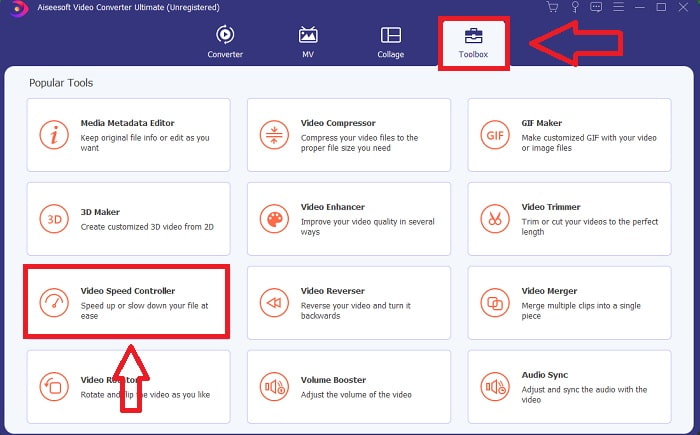
Vaihe 2: Kun ohjelmisto on asennettu, käynnistä se valitsemalla valikkoriviltä Toolbox ja sitten listasta Video Speed Controller.
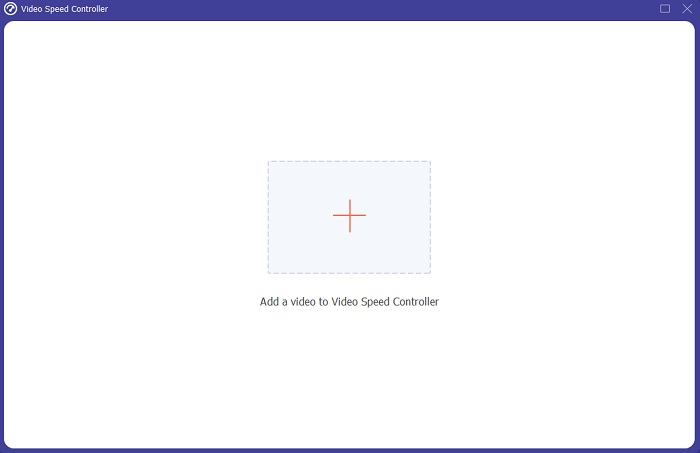
Vaihe 3: Napsauta + -painiketta mieltymyksesi mukaan lisätäksesi tiedoston ja jatka sitten videon muokkaamista.
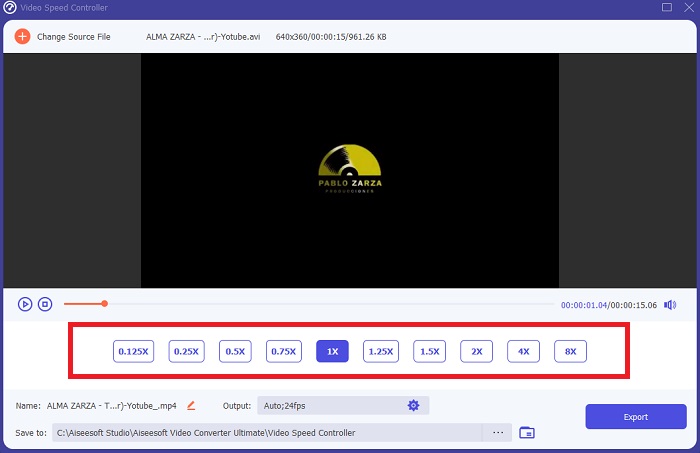
Vaihe 4: Valitse, montako kertaa videon kuvanopeutta kasvatetaan tai pienennetään toistonopeuden muuttamiseksi.
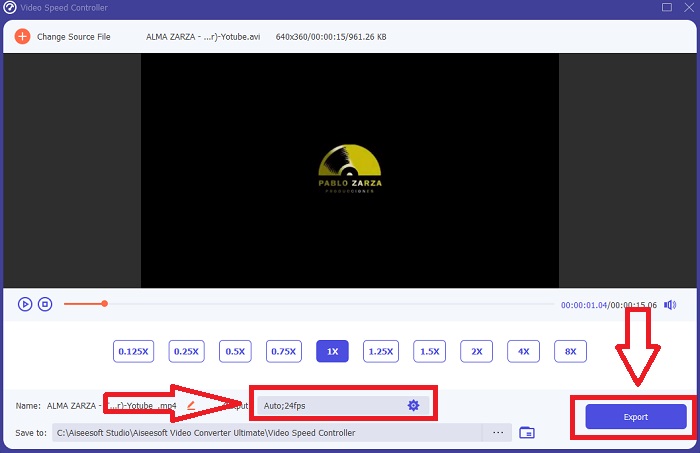
Vaihe 5: Muuttamalla formaattia, resoluutiota, laatua ja niin edelleen voit valita haluamasi lopputuloksen, kun olet saanut videon toistonopeuden säädettyä. Napsauta Export ja valitse sitten sijainti, johon työ tallennetaan, kun olet valmis.
Osa 4. Usein kysyttyä videoiden nopeuttamisesta Windows Media Playerissa
Kuinka korjata MP4-videoita, joita ei voi toistaa Windows Media Playerissa?
Kuten artikkelissa aiemmin todettiin, Windows Media Player ei tue laajaa valikoimaa videoformaatteja. Koska se tukee vain useimpia Windowsille sopivia formaatteja, virheiden korjaaminen tämän mediasoittimen avulla on hankalaa. Siksi sinun täytyy opetella, miten tiedostot muunnetaan tai miten MP4-videoformaatteja toistetaan. Tämä linkki on hyödyllinen artikkeli tämän ongelman ratkaisemiseksi.
Kuinka toistaa DVD-levyä Windows Media Playerissa?
Jotkin elokuvat ovat DVD-levyillä, ja niiden toistamiseen tarvitset oikean mediasoittimen. Windows Media Player on yksi tavallisista mediasoittimista, joka toistaa DVD-levyjä. Lisäksi tämä mediasoitin tarjoaa joitakin asetuksia, jotka auttavat DVD-levyjen toiston aikaisessa muokkaamisessa. Tässä on lisätietoja siitä, miten DVD-levyjä toistetaan Windows Media Playerissa.
Pieneneekö videon tiedostokoko, jos lisäät toistonopeutta?
Vain kehys jaetaan aina, kun lisäät tai vähennät videosi toistonopeutta. Jos nostat sitä 0,5x nopeammin, kuva on 60 kuvaa 1/120 sekunnissa. Lyhyesti sanottuna se ei voi vaikuttaa videoon, ellei videolla ole jo alhainen kuvataajuus.
Johtopäätös
Yhteenvetona voidaan todeta, että Windows Media Player saattaa olla puutteellinen ohjelmisto, joka rajoittuu vain harvoihin formaatteihin. Silti siinä on joitakin ominaisuuksia, joiden avulla voidaan korjata videoformaatteihin liittyviä ongelmia. Jos kuitenkin haluat lisätä videoleikkeesi toistonopeutta, lataa Video Converter Ultimate; se ei ainoastaan nopeuta videoitasi. Tämä ohjelmisto voi viedä videosi aivan uudelle tasolle. Kaikkien tarjolla olevien ominaisuuksien ansiosta tämä on paras ja helposti saatavilla oleva ohjelma, jota suosittelemme käyttämään.
-
 WebM -GIF - 3 ilmaista WebM -GIF -muunninta omien GIF -tiedostojen luomiseen
 Onko WebM GIF? Kuinka tehdä videosta GIF? Onko olemassa ilmaista WebM -GIF -muunninta? Tämä viesti jakaa 3 ilmaista tapaa muuntaa WebM GIF -muotoon.
-
 Kuinka muuntaa MKV -videot animoiduiksi GIF -tiedostoiksi ilman Photoshop/FFmpeg -tiedostoa
 Kun olet ladannut ja katsellut MKV -elokuvia tietokoneellasi, saatat haluta jakaa upeita hetkiä ystävien kanssa tai Internetissä GIF -tiedostoina. Tässä artikkelissa voit oppia kahdesta helpoimmasta tavasta muuntaa MKV GIF -muotoon.
-
 Luo paras animoitu GIF Online GIF Makerin avulla [2021]
 Informatiivinen katsaus siitä, kuinka voit tehdä GIF:n näillä yksinkertaisilla online-GIF-valmistajilla, joita jo kohtaat verkossa tai et.
