


 Video Converter Ultimate
 Näytön tallennin
 Videon korjaus
Opi synkronoimaan ääni ja video oikein iMoviessa annettujen ohjeiden avulla
Eikö olekin todella ärsyttävää katsoa videota, jossa ääni ja kuva eivät ole synkassa? Tämä käy usein meille kaikille. Jos kohtaat tämän ongelman Macilla, se kannattaa korjata iMovien avulla. Sinun ei myöskään tarvitse huolehtia, sillä et tarvitse tuntia oppiaksesi, miten ääni ja kuva synkataan iMoviessa. Riittää, että keskityt noin 4 minuutin ajan lukemaan tämän artikkelin ja teet käytännön vaiheet alle 3 minuutissa. Jos siis olet valmis saamaan äänesi ja videosi synkkaan, jatketaan eteenpäin ja katsotaan, miten iMovieta käytetään iPhonessa ja Macissa.

Osa 1. Äänen ja videon synkronointi iMoviessa iOS:ssä
iPhonellasi voit luoda lähes kaikkea samaan tapaan kuin Macilla. Hyvä esimerkki on iMovie, vaikka iPhonen iMovien käyttöliittymä ei ole samanlainen kuin Macissa. Silti voit saada äänen ja kuvan synkkaan ilman Maciakin. Jos siis haluat tietää, miten ääni ja video synkataan iPhonessa iMovien avulla, seuraa alla annettuja ohjeita.
Vaihe 1. Etsi iMovie App Storesta ja lataa se iPhoneesi. Kun työkalu on asennettu, napauta sitä avataksesi sen.
Vaihe 2. Napauta + -painiketta lisätäksesi videon ja valitse sitten Movie. Etsi video, jonka haluat synkata, ja napauta Create Movie.
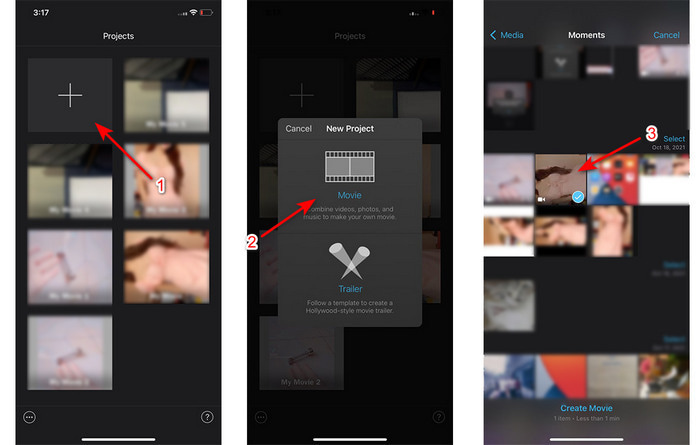
Napauta sitten + -kuvaketta etsiäksesi saman videon, mutta nyt lisäämme vain äänen. Kun olet löytänyt videon, napauta kolmea pistettä ja valitse Audio Only.
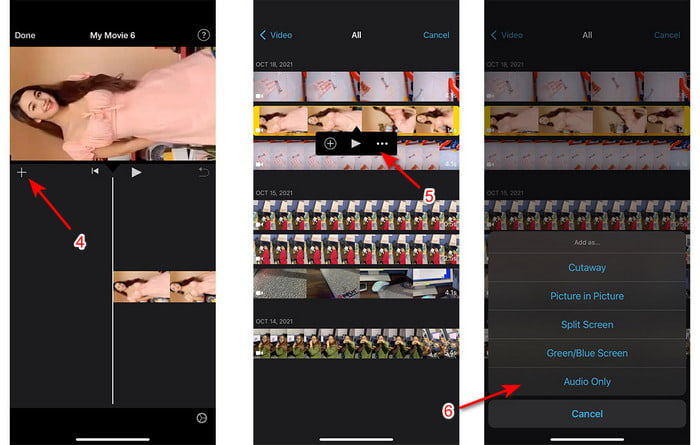
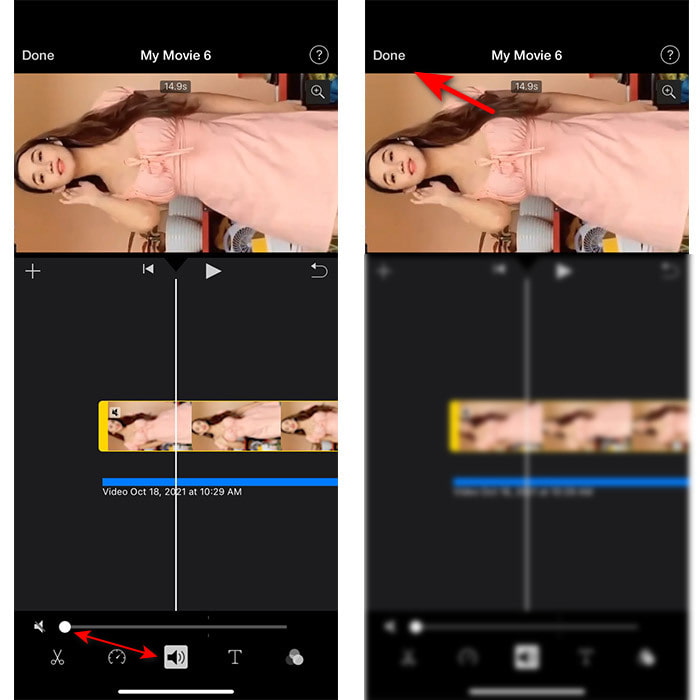
Vaihe 3. Napauta videota aikajanalla ja napauta kaiutin-kuvaketta, aseta äänenvoimakkuus nollaan. Säädä sitten äänitiedostoa, kunnes se on synkassa videon kanssa. Napauta lopuksi Done tallentaaksesi tekemäsi muokkaukset.
Osa 2. Äänen ja videon synkronointi Macin iMoviessa
Jos haluat hyödyntää iMovien kaikki täysimittaiset editointiominaisuudet, käytä mieluummin Macia. Tämä ohjelmisto on erittäin tyylikäs ja toimii erinomaisesti Macilla. Jos haluat synkata äänen ja videon, se onnistuu täällä helposti. Mac-versio on kuitenkin hieman hankalampi käyttää kuin iPhone-versio. Jos siis haluat tietää, miten ääni ja video synkataan iMoviessa Macilla, kopioi ja seuraa näitä kolmea helppoa vaihetta.
Vaihe 1. Etsi iMovie Finderista ja käynnistä se. Kun työkalu on käynnissä, napsauta File ja siirry kohtaan Import Media. Valitse tiedosto kansiosta ja napsauta Import Selected.
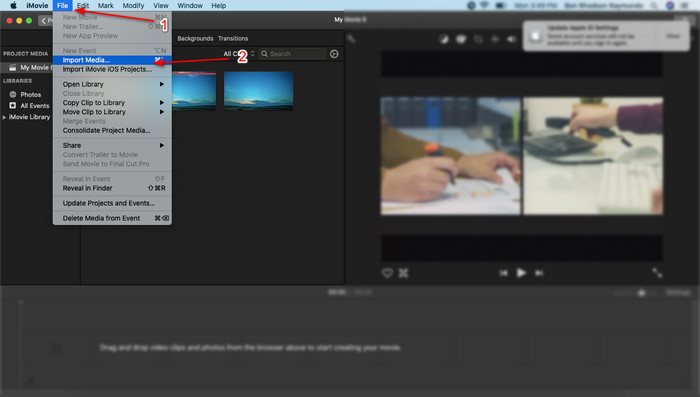
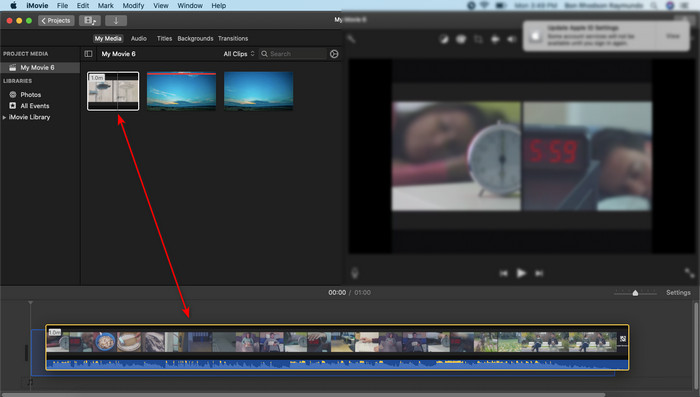
Vaihe 2. Vedä ensin videotiedosto aikajanalle ja tee sama myös äänitiedostolle.
Napsauta videotiedostoa ja napsauta kaiutin-painiketta poistaaksesi videon oman äänen.
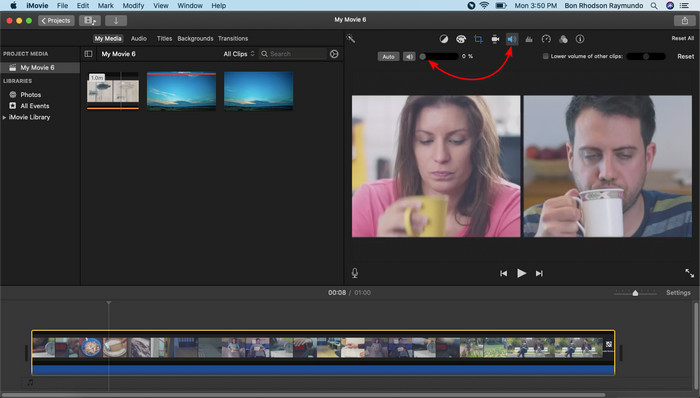
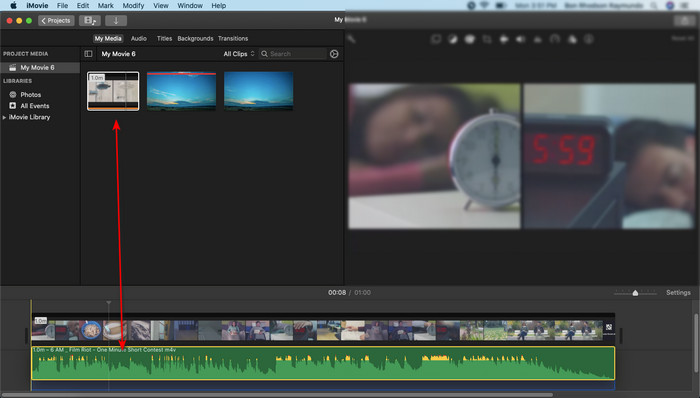
Lisää sama tiedosto, mutta nyt ääneen, ja säädä sitten ääntä, jotta se synkronoituu videon kanssa.
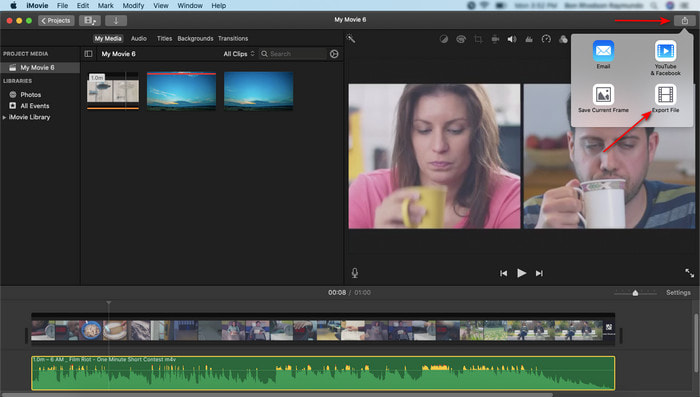
Vaihe 3. Tallentaaksesi videon levylle napsauta share-painiketta ja valitse Export File.
Osa 3. Äänen ja videon synkronointi Windows Phenomenal Editorilla
Vaikka sinulla ei olisi Macia tai iPhonea, voit silti synkata äänen ja videon tehokkaasti ja jopa helpommin Video Converter Ultimate -ohjelmalla. Tämä ilmiömäinen ohjelmisto on parempi kuin iMovie, ja se on saatavilla kaikille alustoille, tosin ei mobiililaitteille. Olitpa aloittelija tai kokenut, pystyt silti tekemään videostasi upean ja luomaan katsojalle wow-efektin. Jos siis haluat oppia, miten ääni ja video synkataan iMovie-vaihtoehdossa, seuraa kirjoittajan sinua varten laatimia yksityiskohtaisia ohjeita ja jatketaan eteenpäin.
Vaiheet äänen ja videon synkkaamiseen Windowsissa Video Converter Ultimate -ohjelmalla:
Vaihe 1. Ennen kuin voit käyttää työkalua, sinun on ladattava se. Asenna sen jälkeen ohjelma ja napsauta Finish jatkaaksesi.
Ilmainen latausWindows 7 tai uudempiTurvallinen lataus
Ilmainen latausMacOS 10.7 tai uudempiTurvallinen lataus
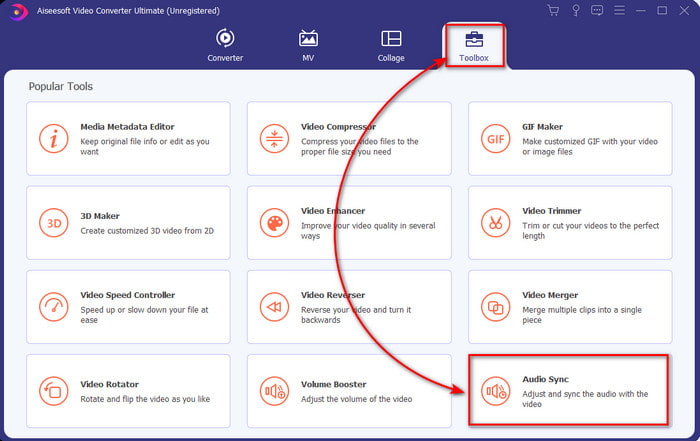
Vaihe 2. Asennuksen jälkeen on aika käynnistää työkalu. Siirry sitten kohtaan Toolbox ja napsauta Audio Sync.
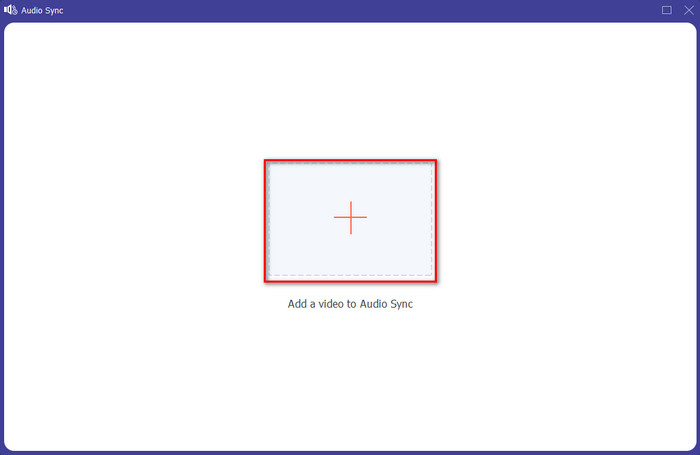
Vaihe 3. Lisätäksesi epäsynkassa olevan äänen, napsauta + -painiketta, valitse tiedosto kansiosta ja napsauta sitten Open.
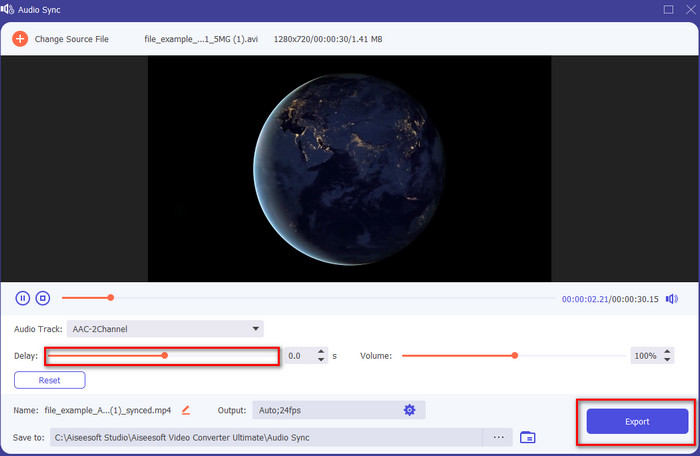
Vaihe 4. Säädä viiveen liukusäädintä, kunnes se vastaa videota. Kun olet saanut äänen sopimaan videoon, napsauta Export-painiketta käynnistääksesi prosessin.
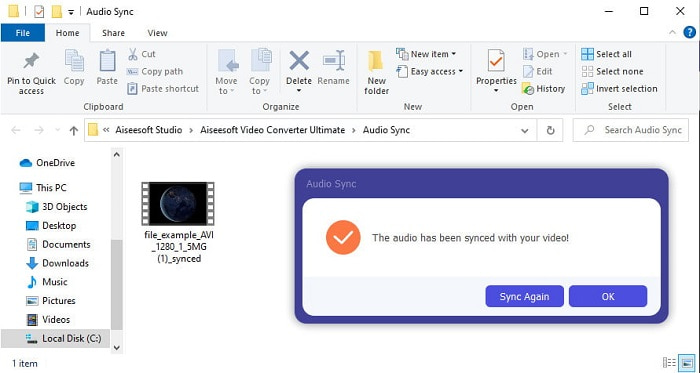
Vaihe 5. Kun prosessi on valmis, näytölle avautuu kansio, jossa on synkattu tiedosto. Napsauta tiedostoa nauttiaksesi synkassa olevasta äänestä ja videosta.
Osa 4. Usein kysytyt kysymykset iMovien äänen ja videon synkronoinnista
Voinko käyttää iMoviea Windowsissa?
Valitettavasti iMovieta ei voi ladata Windowsille. Voit kuitenkin käyttää jotakin muuta vaihtoehtoa, joka toimii samalla tavalla tai jopa paremmin, kuten näitä 5 iMovieta vastaavaa videoeditoria.
Miksi iMovie ei tue AVI:ta?
AVI-formaattia ei tueta iMoviessa sen monimutkaisen rakenteen vuoksi. Paras tapa muokata AVI-videotiedostoa on siis muuntaa se MOV-muotoon. Jos sinulla ei ole aavistustakaan, miten muuntaa AVI MOViksi, lue tämä artikkeli saadaksesi lisätietoa.
Onko iMoviessa viedyssä tiedostossa vesileima?
Kaikissa iMovie-palvelussa vietävissä projekteissa ei ole vesileimaa tähän päivään asti. Vaikka työkalu on ilmainen Apple-laitteissa, vesileimoja ei sisällytetä lopulliseen tulosteeseen. Voit kuitenkin lisätä siihen oman vesileiman, jos haluat sen olevan.
Voinko käyttää iMovie-ohjelmaa videon tallentamiseen kameran ollessa päällä?
Itse asiassa voit tehdä myös näytönkaappauksen helposti iMoviella. Jos haluat vinkkejä tähän, napsauta tätä linkkiä jatkaaksesi.
Johtopäätös
Nyt kun meille on selvää, että voit käyttää sekä iPhonea että Macia videon ja äänen synkkaamiseen iMovien avulla. Vaikka työkalun käyttöliittymä ja osa toiminnoista eivät ole samat iPhonessa, voit silti hallita sen käyttöä helposti ilman erityistä asiantuntemusta. Jos kuitenkin haluat vielä helpomman tavan, käytä Video Converter Ultimate -ohjelmaa. Sen sijaan, että tekisit hankalia säätöjä, voit hoitaa kaiken muutamalla napsautuksella tämän ohjelmiston avulla. Tänään on siis onnenpäiväsi: jos seuraat ohjeita äänen ja videon synkkaamiseen Ultimate-muuntimella, takaamme onnistumisen.
-
 Tuo ja muunna AVI iMovien tukemaan muotoon [2021]
 Onko sinulla ongelma, koska et voi tuoda AVI-tiedostoasi iMoviessa? Jos luet tämän artikkelin, olet jo valinnut oikean ratkaisun tähän ongelmaan.
-
 Konkreettinen opetusohjelma - Kuinka yhdistää kaksi ääniraitaa Audacityyn
 Audacity nauttii maineesta äänen muokkaamisesta. Latasit Audacityn, mutta et tiedä miten yhdistää ääniraitoja Audacityyn? Tämä viesti kertoo kuinka yhdistää kappaleita Audacityyn.
-
 Kuinka rajata MP4-tiedosto menettämättä videon laatua [2021]
 Opi leikkaamaan MP4 yksinkertaisilla vaiheilla, jotka on tarkoitettu vain sinulle. Jatka siis vauhtia, koska esittelemme sinulle parhaat mahdolliset rajaustyökalut.
