


 Video Converter Ultimate
 Näytön tallennin
 Videon korjaus
 Suojattu lataus
Videoiden leikkaaminen TikTokin avulla: Sisältää offline-ohjelmia videoiden leikkaamiseen TikTokille
Onko sinulla puhelimessasi video, jonka haluat julkaista TikTokissa? Mutta ongelma on, että video on liian pitkä. Siinä tapauksessa tämä opas tarjoaa sinulle kaikkein suoraviivaisimmat tavat lyhentää video TikTokia varten. Lisäksi opit helpot tavat leikata videoita TikTokilla. Tämän lisäksi tarjoamme sinulle offline‑ohjelman videosi rajaamiseen. Jos siis haluat innokkaasti tutustua kaikkiin näihin aiheisiin, lue tämä artikkeli.

Osa 1. Videon leikkaaminen TikTokille työpöydällä
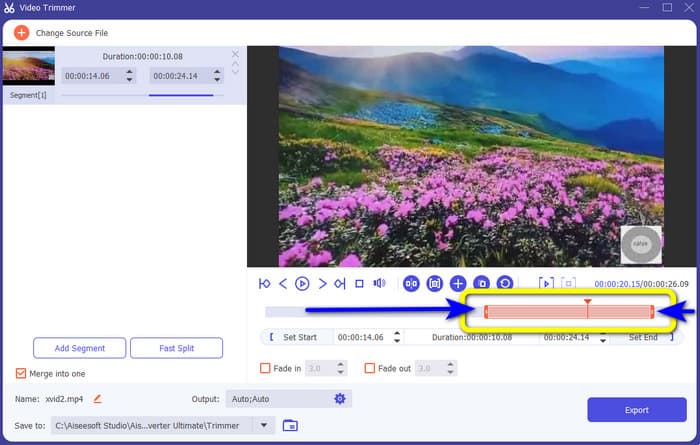
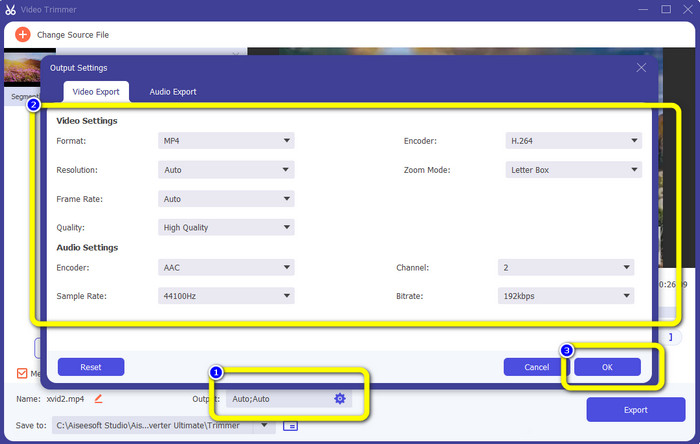
Jos käytät tietokonetta videosi leikkaamiseen TikTokia varten, sinulle on erinomainen ohjelma. Leikataksesi videon tietokoneellasi käytä Video Converter Ultimatea. Videoiden leikkaamisen osalta se tarjoaa hyvin yksinkertaisen menetelmän. Voit leikata videoita vain muutamalla napsautuksella, mikä tekee siitä kätevän kaikille käyttäjille. Voit myös säätää videon reunoja rajataksesi tai leikataksesi sitä. Toinen tapa on käyttää Set Start- ja Set End -vaihtoehtoja. Lisäksi voit napsauttaa Fade In- ja Fade Out -vaihtoehtoja antaaksesi videollesi lisää tehoa. Voit edelleen siirtyä kohtiin Asetukset tai Tuloste leikkaamisen aikana tehdäksesi muutoksia. Ohjelma antaa sinun muuttaa resoluutiota, kuvanopeutta, zoomaustilaa ja videon laatua. Voit jopa muuttaa videon äänen näytteenottotaajuutta ja bittinopeutta.
Lisäksi Mac- ja Windows-käyttäjät voivat käyttää tätä ladattavaa ohjelmistoa. Video Converter Ultimate on saatavilla Windows- ja Mac-tietokoneille, mikä tekee siitä kätevän käyttäjille. Voit kohdata muita ominaisuuksia, kun käytät tätä offline-ohjelmaa. Jos haluat kokea sen ominaisuuksia, kokeile sitä itse. Katso alla olevat yksinkertaiset vaiheet lyhentääksesi TikTok-videota Video Converter Ultimate -sovelluksella.
Vaihe 1. Voit napsauttaa alla olevaa Lataa-painiketta päästäksesi käsiksi ohjelmaan Video Converter Ultimate. Alla olevat painikkeet ovat käytettävissä sekä Windows- että Mac‑tietokoneille. Asennettuasi ohjelman käynnistä se tietokoneellasi.
Ilmainen latausWindows 7 tai uudempiTurvallinen lataus
Ilmainen latausMacOS 10.7 tai uudempiTurvallinen lataus
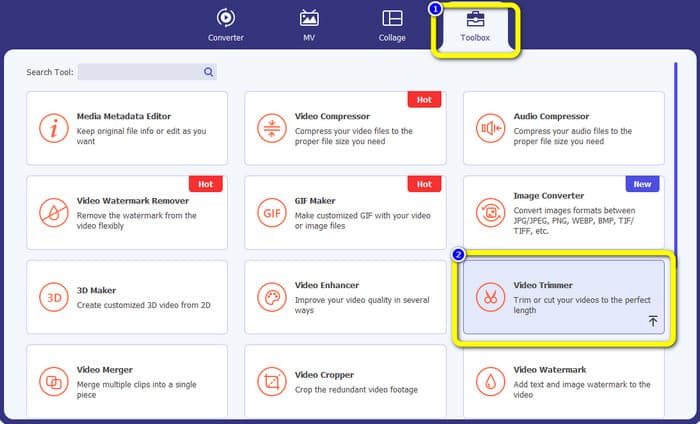
Vaihe 2. Kun käyttöliittymä tulee näkyviin, katso yläosaa ja napsauta Toolbox-paneelia. Valitse sitten Video Trimmer -työkalu jatkaaksesi leikkausprosessia. Varmista, että video on jo tietokoneellasi ennen kuin käytät offline‑ohjelmaa.
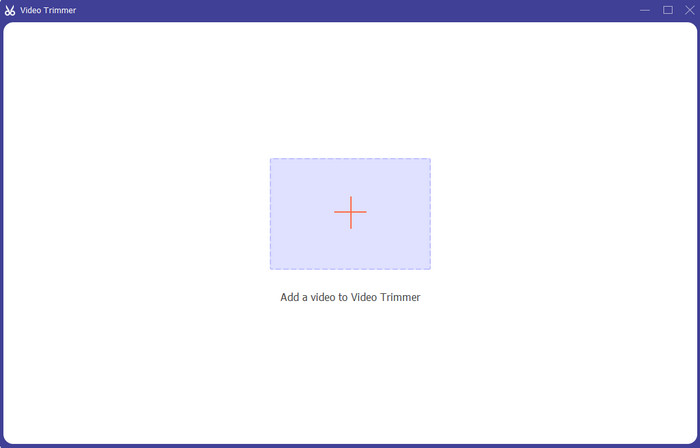
Vaihe 3. Napsauta Plus-kuvaketta keskellä olevaa käyttöliittymää ja lisää video tiedostokansiosta.
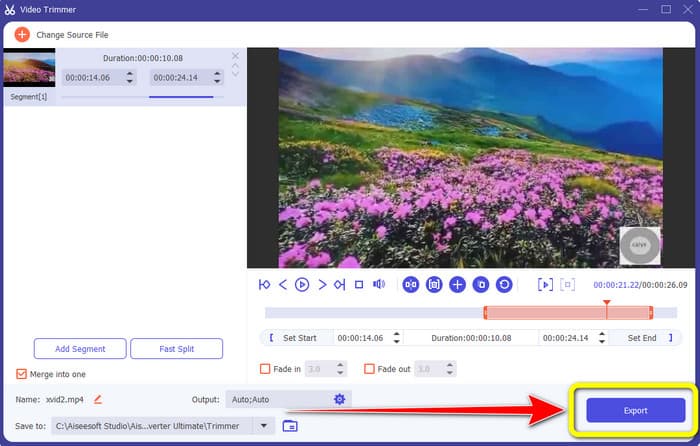
Vaihe 4. Sen jälkeen voit aloittaa leikkausprosessin. Siirry videon toistopäähän. Tämän jälkeen voit vetää videon kumpaakin reunaa aloittaaksesi leikkaamisen.
Vaihe 5. Voit myös siirtyä Output Settings -asetuksiin, joissa voit muuttaa videon resoluutiota, tulostusmuotoa, laatua ja kuvanopeutta. Lisäksi voit jopa muuttaa äänen bittinopeutta, näytteenottotaajuutta ja muita parametreja.
Vaihe 6. Kun olet valmis leikkausprosessin kanssa, napsauta Export-vaihtoehtoa tallentaaksesi muokatun videon. Tämän jälkeen odota vientiprosessin valmistumista – sitten kaikki on valmista.
Osa 2. Videon leikkaaminen TikTokille mobiilisovelluksella
Jos haluat käyttää matkapuhelintasi videosi leikkaamiseen, käytä sovellusta Easy Video Cutter. Tällä mobiilisovelluksella voit lyhentää videoleikkeitäsi helposti ja nopeasti. Siinä on myös selkeä käyttöprosessi, mikä tekee siitä sopivan kaikille käyttäjille. Lisäksi Android‑käyttäjille se on saatavilla Play Kaupasta. Se on enemmänkin kaiken kattava paketti videoeditointiin. Tämän sovelluksen videoleikkaustyökalu erottuu kuitenkin edukseen helppokäyttöisyytensä ansiosta. Myöskään käsiteltyihin videoihin ei lisätä vesileimoja. Tämän ohjelman avulla voit myös yhdistää useita videoita yhdeksi. Muokattavan videon löytäminen on helppoa, ja voit jopa lajitella videot ajan, päivämäärän, albumin, artistin, keston ja muiden tekijöiden mukaan. Näin vältät turhan vaivan etsiessäsi videota, joka näyttäisi olevan listan häntäpäässä.
Easy Video Cutterilla on kuitenkin haittoja. Tämä mobiilisovellus on käytettävissä vain Androidille. Jos olet iPhone-käyttäjä, et voi käyttää sovellusta. Sovellus näyttää myös ärsyttäviä mainoksia videota muokatessaan. Leikkaa video tällä mobiilisovelluksella noudattamalla alla olevia ohjeita.
Vaihe 1. Siirry Google Play Kauppaan ja lataa Easy Video Cutter -sovellus. Asennuksen jälkeen käynnistä sovellus puhelimessasi.
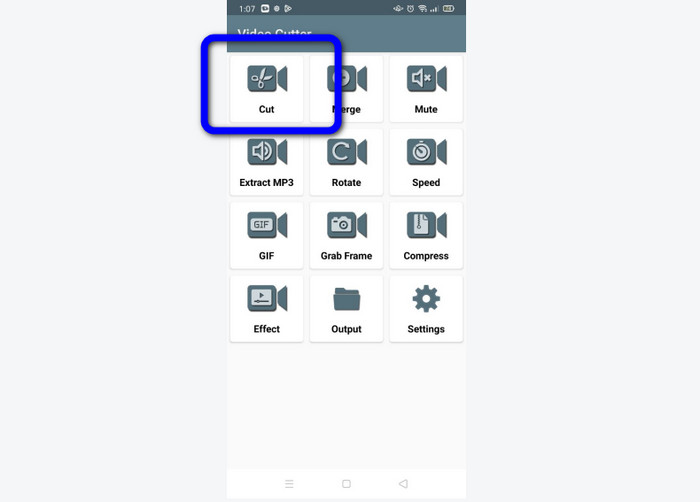
Vaihe 2. Kun sovellus on käynnistynyt, sen pääkäyttöliittymä tulee näkyviin puhelimesi näytölle. Näet käyttöliittymässä monia työkaluja. Napsauta Cut-vaihtoehtoa. Avaa sitten video tiedostoistasi.
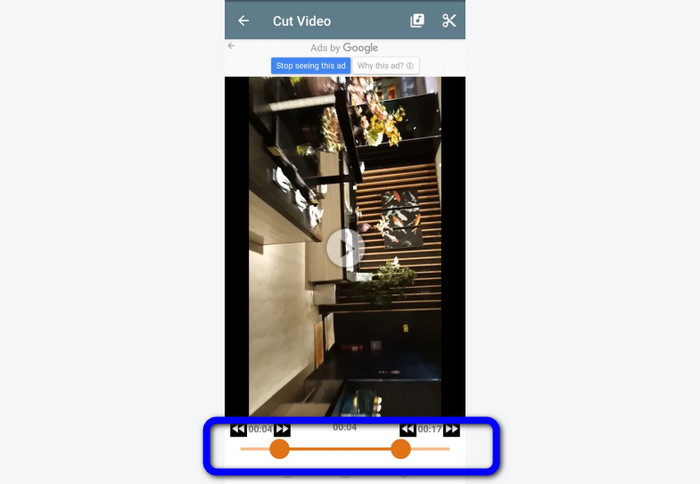
Vaihe 3. Tässä vaiheessa voit rajata videota säätämällä videon liukusäädintä käyttöliittymän alaosassa. Voit säätää aloitus- ja lopetuskohtaa.
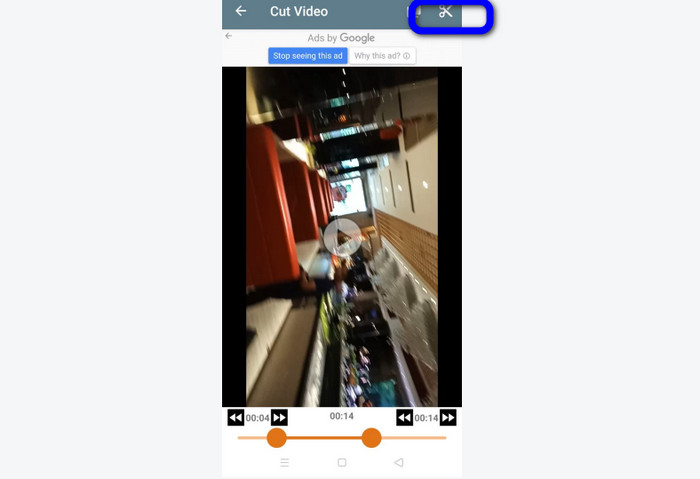
Vaihe 4. Napsauta näytön oikeassa yläkulmassa olevaa Sakset-kuvaketta leikataksesi videon. Tämän jälkeen tallenna muokattu video puhelimeesi. Tässä kaikki siitä, miten videoita rajataan Androidilla.
Osa 3. Videon leikkaaminen TikTokin avulla
Haluatko oppia tapoja leikata videoita TikTokissa? Löydät vastauksen tästä osiosta. Seuraa alla olevia ohjeita tietääksesi menetelmän videon leikkaamiseen TikTokin luonnoksissa.
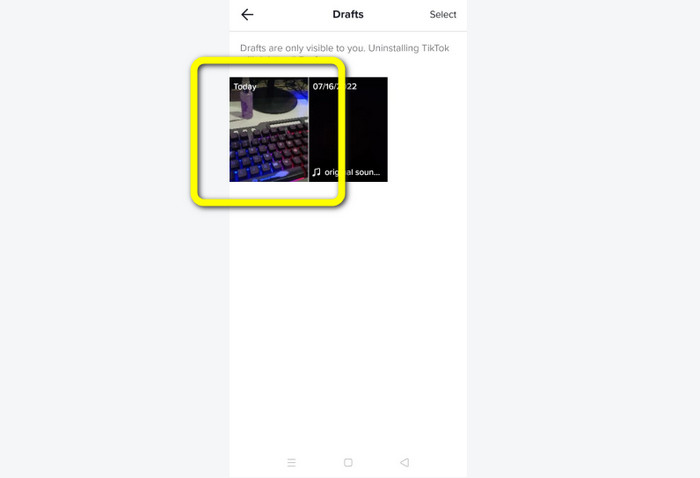
Vaihe 1. Avaa TikTok-sovellus matkapuhelimessasi. Mene sen jälkeen Profiili-osioon ja avaa Luonnokset-kohdassa oleva video.
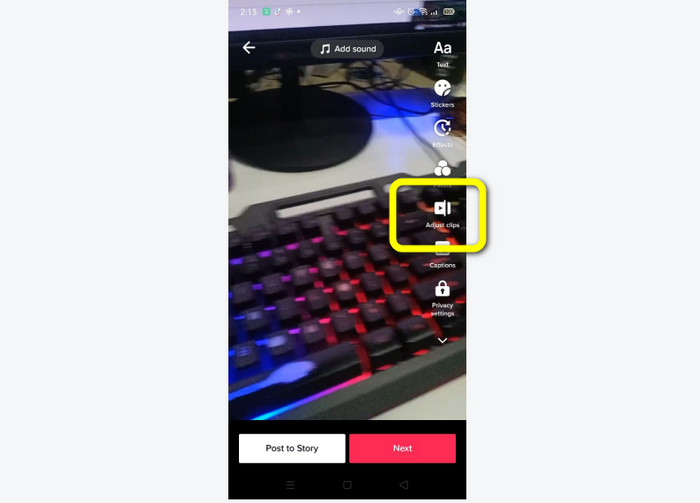
Vaihe 2. Kun olet avannut videon, siirry näytön oikeaan reunaan ja napsauta Adjust Clip -vaihtoehtoa.
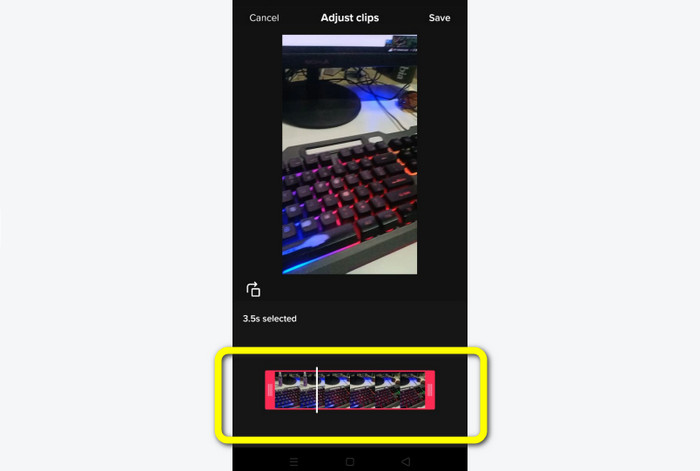
Vaihe 3. Sitten voit rajata videota säätämällä toistopään reunoja. Voit siirtää videon oikeaa ja vasenta reunaa.
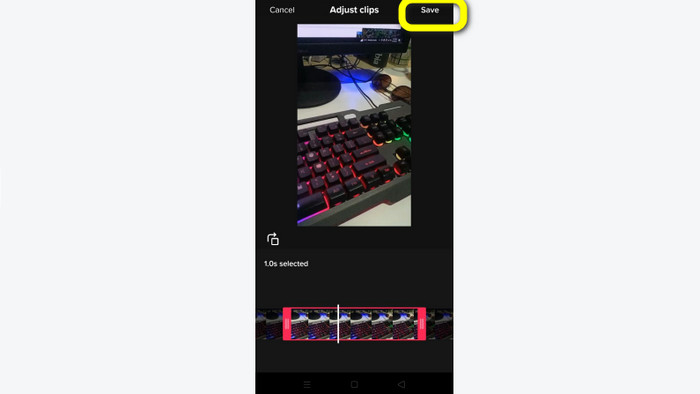
Vaihe 4. Kun olet leikannut videon, napsauta Save-painiketta matkapuhelimesi näytön oikeassa yläkulmassa. Näin voit tallentaa muokatun videon ja julkaista sen TikTokissa.
Osa 4. Usein kysyttyä videon leikkaamisesta TikTokin avulla
1. Miksi TikTok ei anna minun leikata videota?
Yksi syy on se, että et näe oletuspainiketta tai olet jo lähettänyt videon.
2. Miksi TikTok leikkaa leikkeet lyhyiksi?
TikTokilla on videon enimmäispituus. Jos videosi ei täytä vaatimuksia, TikTok leikkaa leikkeet. Se tarkoittaa, että TikTok varmistaa, että videot ovat oikean pituisia.
3. Kuinka pitkiä TikTok-videoideni tulisi olla?
Voit lähettää enintään 3 minuutin videon aiemmin. Mutta nyt TikTokin avulla voit ladata jopa 10 minuuttia pidemmän videon.
Johtopäätös
Siinä kaikki! Osaat nyt rajata videoitasi TikTokilla. Jos siis haluat tietää, miten leikata video TikTokilla, lue yllä oleva yksityiskohtainen ohje. Lisäksi, jos haluat lyhentää videosi TikTokia varten, paras tarjoamamme videoeditointiohjelma on Video Converter Ultimate. Tässä ohjelmassa on helpot työkalut ja selkeä käyttöliittymä, mikä tekee siitä täydellisen kaikille käyttäjille.
-
 2 vaivatonta tapaa videon nopeuttamiseen TikTokissa
 Haluatko tietää salaisuuden videon nopeuttamisesta TikTokissa? Lue sitten tämä artikkeli saadaksesi idean sen tekemiseen ja tiedä, mitkä ovat kaksi muuta työkalua, jotka auttavat sinua
-
 4 tehokasta tapaa poistaa Tiktok-vesileimat Tiktok-videoista
 Pitääkö sinun poistaa Tiktok-vesileima vietyistä Tiktok-videoistasi? Voit tehdä sen täällä esittelemiemme työkalujen avulla; voit tehdä sen helposti.
-
 3 tehokasta tapaa lisätä videoita ja kuvia yhdessä Tiktokissa
 Haluatko tietää kuinka lisätä kuvia Tiktok-videoihin? Siinä tapauksessa napsauta ja lue tämä artikkeli oppiaksesi lisäämään kuvat Tiktok-videoosi helposti.
