


 ממיר וידאו אולטימטיבי
 מקליט מסך
 תיקון וידאו
כיצד להוסיף כתוביות לסרטונים שאתה שומר בשולחן העבודה שלך
Subtitles are the best way to translate dialogues of other countries into your native language to a text. This is created for those who don't understand the dialogues of the actor or actresses. Also, they improve the overall engagement of the audience to the film, series, and movies as well. But in some cases, the video you download has no subtitles or has a separate file for it. So, the best way to add subtitles to videos is presented in this article. So, keep on reading this write-up as we provide steps on how to insert your subtitles and what are the different tools you can use.

חלק 1. 4 של הכלים הטובים ביותר שבהם אתה יכול להשתמש כדי להוסיף כתוביות לסרטון שלך
1. Video Converter Ultimate (Windows ו-Mac)
Did you know that you can add subtitles to Video Converter Ultimate? This phenomenal converter has a lot of different features that keep us amaze every time. The overall performance of this software is phenomenal in the line of converting files, editing, making, adding and more. But for now, we will now be going to explain how to add subtitles to a video on a perfect sequence of text. In addition, this tool supports all of the subtitle formats you can use to add it to your video. So, without any more delays, let's proceed on how to add the subtitles by following this step provided only for you below.
5 Easy Steps on How to Add Subtitles on your Video with the Video Converter Ultimate
Step 1. Download the software into your Windows or Mac drive. Next, install it and do the quick set-up then click finish.
הורדה חינמיתל-Windows 7 ומעלההורדה מאובטחת
הורדה חינמיתל-MacOS 10.7 ומעלההורדה מאובטחת
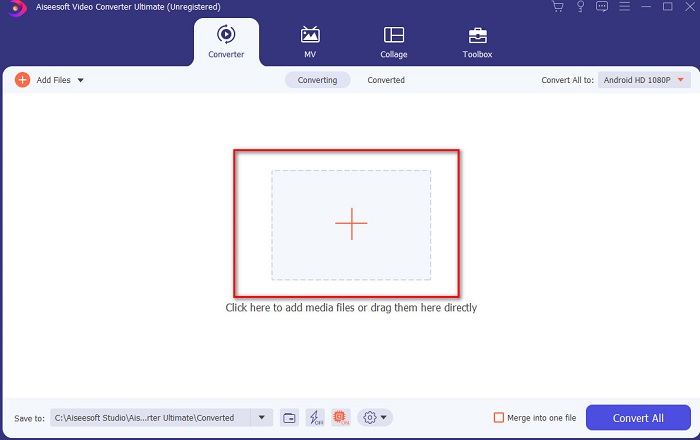
Step 2. Launch the tool, and click the plus button at the middle of the interface. Then locate the video on the folder and click Open.
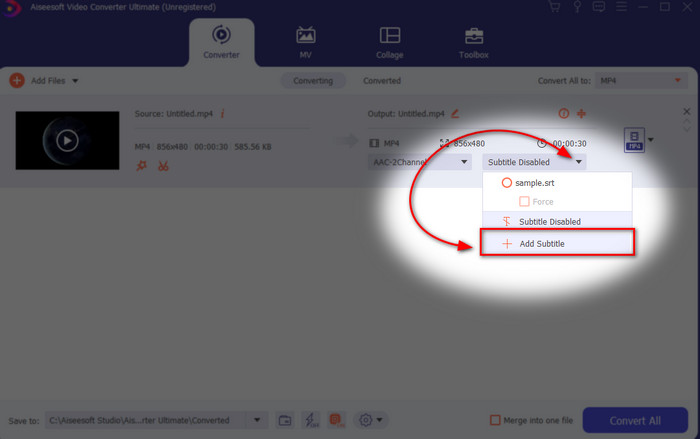
Step 3. On the interface, click the drop-down button for Subtitle and click Add Subtitle. Select the subtitle file on the file folder and click open.
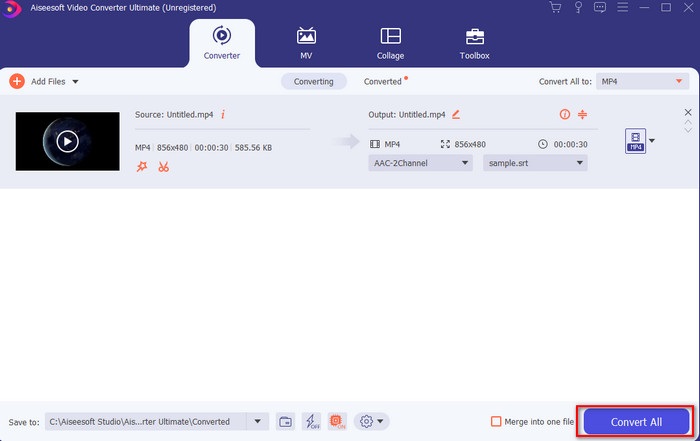
Step 4. After you add the subtitle you can now export it by clicking the Convert All.
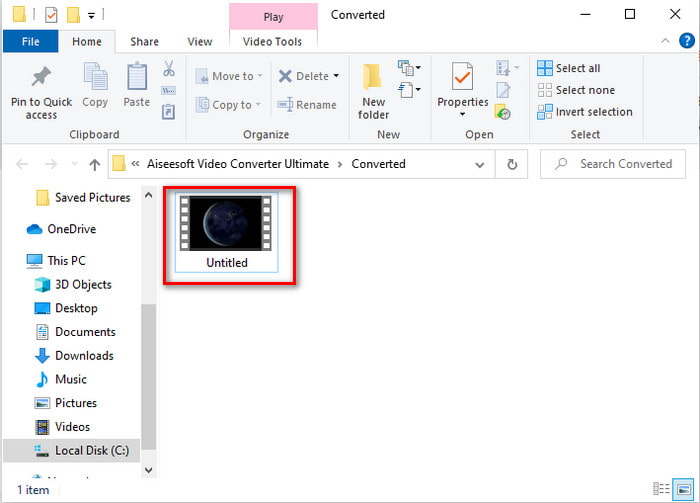
Step 5. The file explorer will pop up next to your screen with the video file that has a subtitle on it. Hit the file to watch and read the subtitle without delays.
קשור:
How to Cut and Merge Songs Online
2. iMovie (Mac ו-iPhone)
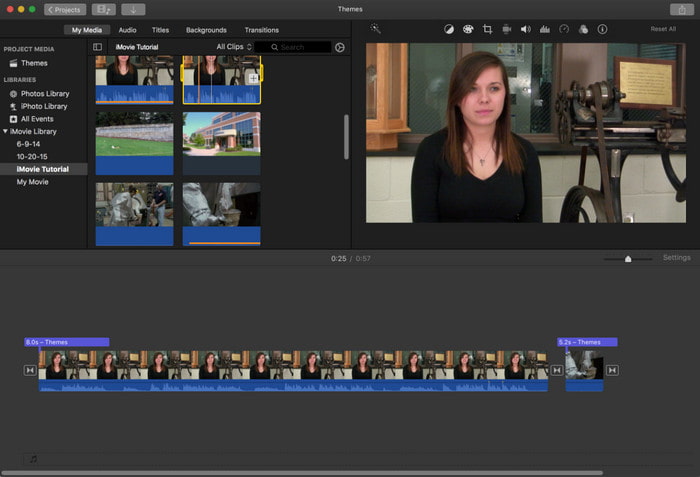
One of the best tools Apple can offer to their users, so adding subtitles to a video on iMovie is easy and free. This default tool is the best in editing and more on Mac, so adding subtitles here is easy as it is. But you can't use SRT subtitle format and add it to your video because this format is not supported by the iMovie. However, the overall performance of this Mac default editor is great to be used by anyone who is on a tight budget. Also, this tool offers a premium version that supports a lot of editing features you can use.
3. Adobe Premiere Pro (Windows ו-Mac)
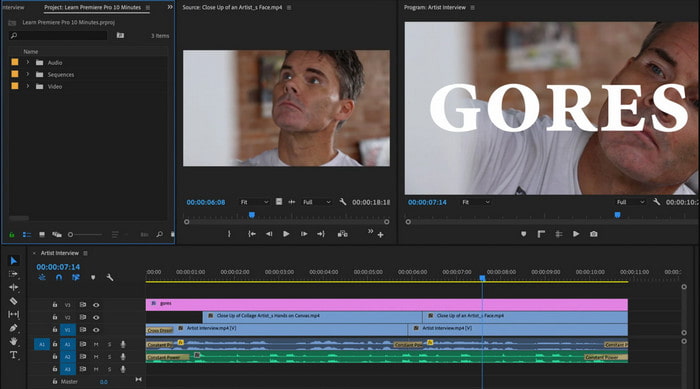
Adobe Premiere Pro offers the best editing features used by professionals in the editing industry. Also, this tool can add SRT subtitle format unlike on iMovie you can't. Moreover, this tool supports almost all of the subtitle formats you can use. Although the tool seems flawless, the price of it is enormous and if you just want to add subtitles to video on Adobe Premiere Pro this is an okay choice but not the best. Especially if you are on a tight budget and don't want to spend a lot. Also, if you are a beginner this is not the best choice because you will need a lot of time to study it first.
4. Clideo (מקוון)
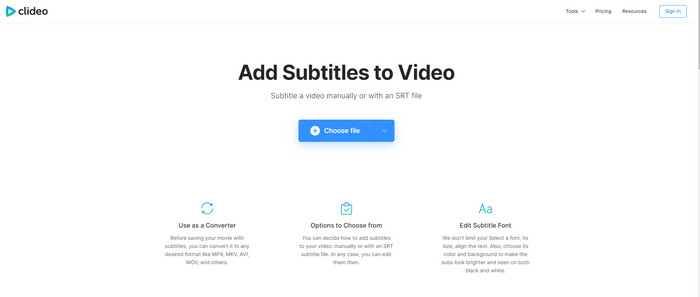
Clideo supports editing features you can use for free if you have an internet connection. This tool can be used in all devices as long as you have a browser. Although the tool is flexible the subtitle format it supports is only .srt. So, if your subtitle is not in the format of SRT then you must manually do it here which is a bit of a hassle for you. Also, the process of adding the video here will depend on your internet. With that being said, if you have a slow internet then expect a lot of time waiting than adding subtitles to video online.
חלק 2. שאלות נפוצות לגבי הוספת כתוביות בווידאו
מהם הסוגים השונים של פורמט כתוביות?
באינטרנט, יש הרבה פורמטים שונים של כתוביות אבל הפורמט הנפוץ ביותר שאתה כבר נתקל בו הוא פורמט הכתוביות SRT, WEBVTT ו-SBV. מכיוון שאלו הפורמטים הטובים והגמישים שבהם אתה יכול להשתמש בקלות אבל יש SSA, TTML, DFXB, TXT ועוד. למרות שהם עובדים נהדר, עדיין פורמט הכתוביות הראשון שהוזכר הוא הטוב ביותר שאתה יכול להשתמש בו.
מה ההבדל העיקרי בין כיתובים וכתוביות?
למרות שהם משתמשים באותו פורמט עדיין יש הבדלים עיקריים בין כיתובים וכתוביות. ראשית, כתוביות כלולות בסרטון כדי לתרגם את שפת הדיבור של השחקן או השחקנית לשפת הצופה. זה משמש לרוב לאלה שיכולים לשמוע את האודיו אך אינם יכולים להבין מה הם אומרים. בעוד כתוביות נוצרות כדי לתאר את המתרחש ובאמצעות טקסט כמו אפקטים קוליים. אלה מיועדים לאלה שיכולים לצפות בסרטונים אבל לא שומעים את האודיו בבירור או חירשים.
דיבוב לעומת סאב; איזה יותר טוב?
יש צופים אחרים שמעדיפים Dub מאשר סאב בעוד שאחרים הם להיפך. למרות שהם דרך עוצמתית לתרגם את המדיום טוב יותר לקהל. לדאב ולסאבים יש הרבה הבדלים, למשל כתוביות הן גרסאות מתורגמות של האודיו והופכות לטקסט בסרטון. בעוד דיבובים משמשים את הצופים שמתקשים לקרוא. אז, במקום לקרוא את ההקשר הם משתמשים בדובבים כדי להתמקד טוב יותר במה שהם צופים. אז זה תמיד תלוי בך במה אתה מעדיף להשתמש, אם אתה יכול להצליח לקרוא תוך כדי צפייה סאבים הם הטובים ביותר אבל אם אתה רוצה להתמקד בלייזר על הסרטון עצמו אז השתמש בדיבוב..
סיכום
Finally, we now understand and learn how to add subtitle files to your video permanently. As we make your searching easier and present different solutions for you to use. Still, it is undeniable that the Video Converter Ultimate is the best choice on the list. Because it supports all of the subtitle formats for you to use. So, instead of a huge amount of money to the other tool that has the same function or even better than the other tool. Then why don't you acquire it first and try it for yourself? To know what we are talking about.
-
 הדרכה - 4 דרכים חינם למיזוג סרטונים באייפון לחדש
 קרא וקבל 4 דרכים קלות למזג קטעי וידאו ב- iPhone. כל דגמי ה- iPhone וגרסאות ה- iOS נתמכים. אתה יכול לשלב 2 ויותר סרטונים באייפון לסרטון חדש במהירות.
-
 כיצד לדחוס קבצי M4V לגודל קטן יותר (חינם ומקוון)
 אם אתה מחפש דרך פשוטה להקטין את גודל קובץ M4V שלך, עליך לבוא ולקרוא מאמר זה. כאן נשתף את הדרך הקלה ביותר לדחוס איתך קבצי M4V.
-
 דחיסת WebM - כיצד לדחוס קובץ WebM באופן מקוון
 כיצד לדחוס קובץ WebM באופן מקוון? מהי הדרך המהירה ביותר לדחוס קבצים גדולים? פוסט זה מציג שתי דרכים בחינם לדחיסת WebM.
