


 ממיר וידאו אולטימטיבי
 מקליט מסך
 תיקון וידאו
דיון קצר על איך להוסיף תמונה לפוסט וידאו של Tiktok כמו מקצוען
Tiktok has already received more than one billion downloads worldwide, and it is still growing up to date. Users became delighted to use this app because it allows us to film videos for 3 minutes or less and watch other people in the entire world. As it pursues to become better, there are many features you can use to make your Tiktok video unique; one of them is to add an image on a video. However, adding images while filming on Tiktok could be a little bit tricky for some users. Luckily, we found a way to teach you how to add a picture to a Tiktok video with the three methods and learn from it.

חלק 1. כיצד לשים תמונה בסרטון TikTok באמצעות שתי התכונות המובנות של Tiktok
לפני שנתחיל, ברצוננו להודיע לך ששתי הדרכים שהוספנו במאמר זה כבר נמצאות בטיקטוק. אז עכשיו, אנא בחר באיזו דרך אתה הכי מתאים ותהנה לצלם את הסרטון שלך עם התמונה שלו.
דרך 1. כיצד להשתמש בתמונה כרקע בסרטון Tiktok
נניח שאתה רוצה להשתמש בתמונה שיש לך כרקע; ובכן, סיכסנו אותך. אנא קרא את השלבים המפורטים שסיפקנו להלן ולמד כיצד לחבר סרטונים ותמונות יחד ב-Tiktok.
Step 1. Download the Tiktok app from the Play Store or App Store, then open it next.
Step 2. After that, click the + button, and go to the Effects.
Step 3. Slide the menu to see the options, look for the Green Screen and click it. Hit the choose one in the options, then choose the image you want to use as a background.
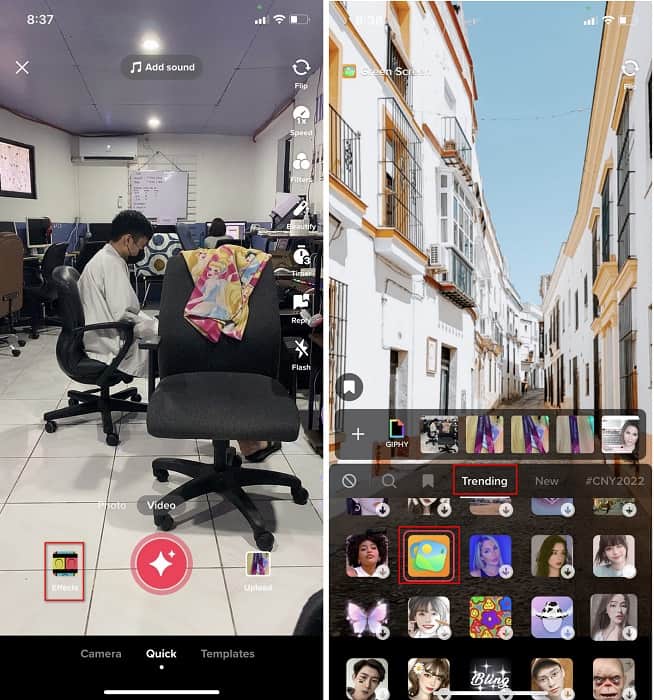
Step 4. Click the round REC button to record the video with the image background, re-click it to stop, click Next, then Drafts to save it on your accounts folder.
דרך 2. כיצד להוסיף תמונה ב- Tiktok בזמן צילום הסרטונים
דרך זו היא אופנתית מכיוון שרוב המשתמשים משתמשים בתמונה הנוספת הזו של האמן האהוב עליהם, החברים, המשפחה, הגאדג'טים וכו'. אולי כבר יש לך את הרעיון, ועכשיו כדי ללמד אותך איך להוסיף תמונות לסרטון TikTok, בצע את השלבים הבאים.
Step 1. On your Play Store or App Store, download the Tiktok, and after that, open it to follow the following steps.
Step 2. Press the + button and click the Effects next.
Step 3. Click the Trending and look for this image icon and click it. Next, please select the image you want and place it where you desire on the screen.
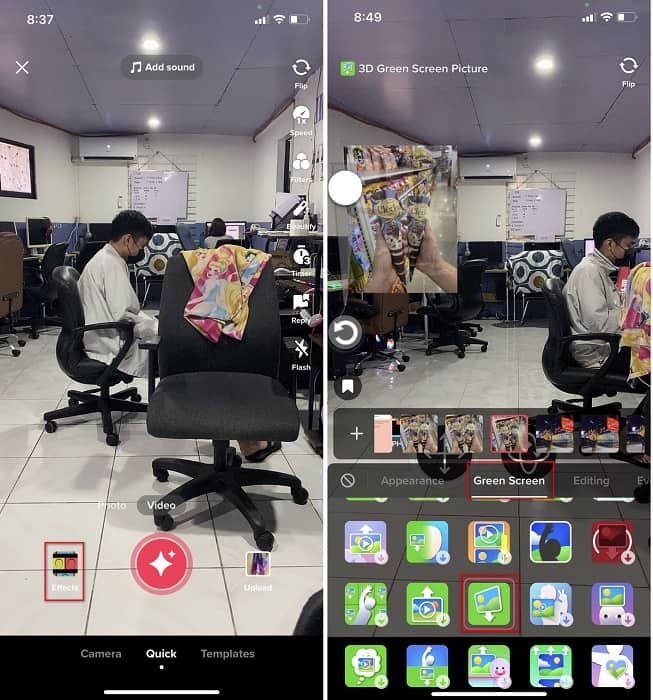
Step 4. Tap the red button to start the recording; if you've done recording, click the same button again to stop it. Press Next then Drafts to not post it yet on your TikTok account.
חלק 2. כיצד להוסיף תמונה לסרטון TikTok באמצעות הדרך האולטימטיבית ב-Windows וב-Mac
Want to know the secret and learn how to put a picture in a TikTok video? Not satisfied with the built-in editor Tiktok provides? In that case, you must use the Video Converter Ultimate. If you enjoy doing editing, you can use this tool to add images, effects, filters, and more to your Tiktok videos before posting them on Tiktok.
עם הכלי הזה, אתה יכול לעשות סרטון מרשים כדי להרשים את המשתמשים האחרים עם הפלט הסופי. עם זאת, אינך יכול להוריד את הכלי בטלפון שלך מכיוון שהוא אינו נתמך. אבל אתה יכול לעשות יותר אם יש לך שולחן עבודה וכלי זה. האם אתה רוצה להוסיף את התמונה לסרטוני הטיקטוק שלך? עקוב אחר המדריך למטה כדי לדעת איך להוסיף תמונה לסרטון Tiktok.
Step 1. You can now directly download the ultimate on your Windows and Mac by clicking the download button below. Next, install it promptly, then run the tool on your system by opening the tool. Before we proceed to the following steps, you'll need to get familiarized with the tool interface first. If you've already gotten familiarized, move to the next step.
הורדה חינמיתל-Windows 7 ומעלההורדה מאובטחת
הורדה חינמיתל-MacOS 10.7 ומעלההורדה מאובטחת
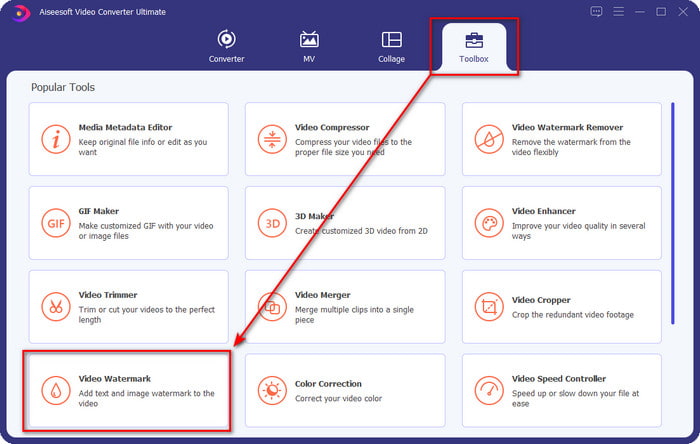
Step 2. Click the Toolbox part and find the Video Watermark.
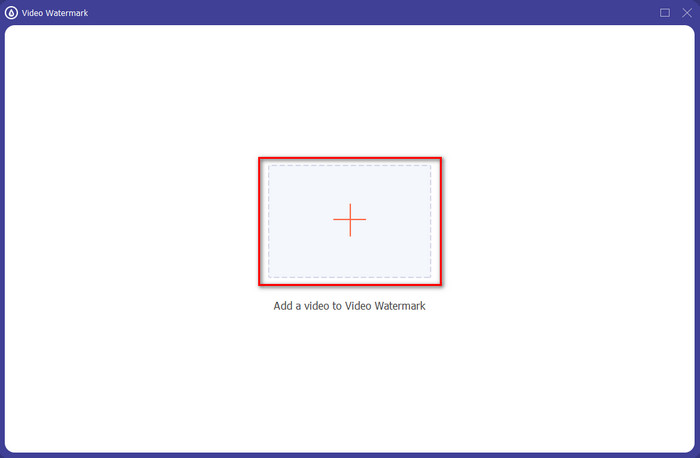
Step 3. Add the video file by clicking the + sign, locate the file on the folder that will show on your screen, click it, and press Open to upload the file.
Step 4. On the new window, click the Image Watermark. Another computer folder will show on your screen; find the image you've wanted to add and press Open.
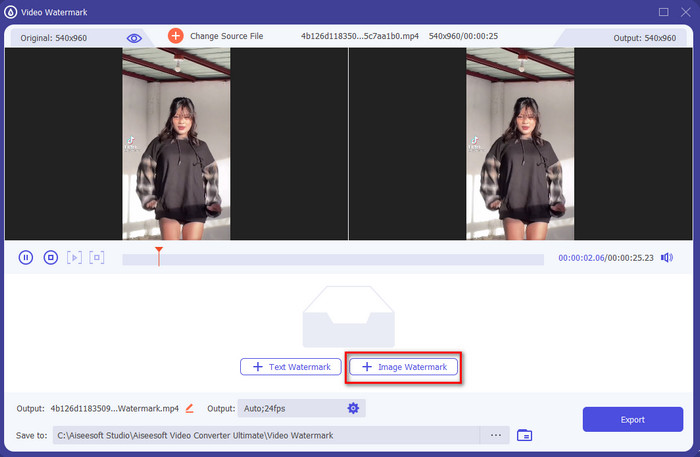
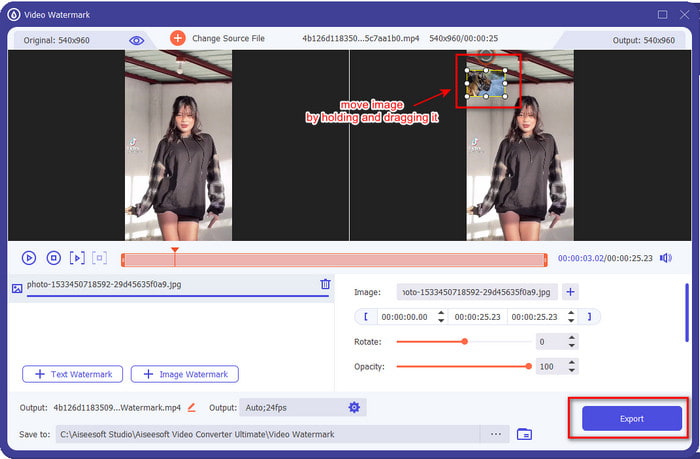
Step 5. Adjust the image size by dragging the frame ratio of the image. Hold and move the image and place it where you want it to be. After all, click the Export button to save the TikTok video with the picture included.
חלק 3. שאלות נפוצות לגבי איך להוסיף תמונות בסרטוני TikTok
כיצד אוכל להסיר את סימן המים של Tiktok?
To learn how to remove the watermark of the Tiktok, you can click and read this article to know the method on how to do it. The details in this post will provide an effective way of removing the watermark of the TikTok on the exported video; no need to worry because it is easy to follow and understand.
האם זה בטוח להשתמש ב- TikTok?
זה בטוח להשתמש ב- TikTok. עם זאת, סרטונים מסוימים מאתגרים את המשתמשים האחרים לעשות פעלולים מתריסים למוות שאינם בטוחים לכל גיל. כמו כן, לאפליקציה אין הצפנה מקצה לקצה, כך שהתקשורת בין המקלט לשולח אינה מוצפנת או, אם לומר, היא פשוט מוגנת. בנוסף לכך, כמה פיסות ראיות אומרות כי TikTok אספה ביומטריה של המשתמשים; ליתר דיוק, זה גונב טביעות קול ופנים. לכן, זכור להשתמש באפליקציה בחוכמה ולעולם אל תוסיף יותר מדי מידע חשוב על עצמך.
מדוע הפך Tiktok לרעיל?
התרבות שמשתמשי Tiktok יצרו בדור הזה הפכה רעילה, וחלק מהמשתמשים רואים באפליקציית שיתוף הווידאו כלא בריאה, במיוחד עבור ילדים צעירים. זה הפך להיות בלתי נמנע לראות תוכן לא הולם כמו דעות קדומות לגבי הלאום של אדם, סקסיזם, רמת יופי לכולם ובריונות. למרות שזה בלתי נמנע, עדיין יש תוכן שמוכיח שלא כל משתמשי TikTok הם רעילים. ואנחנו עדיין מאמינים שיש סיכוי לשנות את הרעילות הזו ולהפוך אותה לקהילה שלווה ואוהבת.
סיכום
Now that we know how to add a picture to a Tiktok video, it is time to share your Tiktok videos with images to bring good vibes or unique videos to everyone. However, filming with the picture will limit your movements because the image becomes a blockage on the screen. But wait, don't be sad, because you can film first, transfer it to your computer, and use the Video Converter Ultimate to add the image later. With it, you can do more on your Tiktok videos and make them look outstanding than the other videos. So, what are you waiting for? Download it now on your desktop to start making the ultimate and most impressive Tiktok video ever!
-
 הדרך הטובה ביותר כיצד להוסיף סימן מים לסרטון בפוטושופ ב-Windows ו-Mac
 רוצים לדעת איך מוסיפים סימן מים לסרטון בפוטושופ? במקרה כזה, מאמר זה יספק לך את הדבר או שניים שתצטרך לדעת.
-
 3 הפתרונות הטובים ביותר כיצד להסיר סימן מים מסרטונים בקלות
 רוצה להסיר את סימן המים המעצבן בסרטון? עם הבלוג הזה, אתה יכול ללמוד את הרעיונות השונים להסרת סימן המים בסרטון.
-
 4 הדרכים הטובות ביותר כיצד להוסיף סימן מים לסרטוני וידאו במהירות
 בואו ללמוד כיצד להוסיף סימן מים לכל סרטוני וידאו ב-Windows, Mac, Online, iOS ו-Android עם שלבים מפורטים אם תקרא מאמר זה.
