


 ממיר וידאו אולטימטיבי
 מקליט מסך
 תיקון וידאו
למד כיצד לערוך תגי iD3 ב-iTunes [הדרך המהירה והקלה ביותר]
iTunes is multi-purpose software that you can use as a media player, media library, manage utility, client app for Apple devices. Initially, the software will only focus on a collection of purchasable kinds of music. However, the demand for other features expanded, so the software did a massive upgrade on its system. Like that, the tool can now do other things as mentioned above. So, if you want to know how to edit iD3 tags on iTunes, this is the right post for you; keep on reading to learn more about it.

חלק 1. דרכים יעילות לעריכת תגיות ID3 ב-iTunes באמצעות 3 שיטות שונות
אתה יכול להשתמש בשלוש שיטות שונות כדי לערוך מטא נתונים של iTunes ב-Mac אם אינך יודע כיצד לערוך את המטא נתונים באמצעות iTunes. אתה יכול לבדוק את השלבים שלהלן ולבחור באיזו שיטה ברצונך להשתמש; אנו מבטיחים שתעדכנו את המטא נתונים באמצעות iTunes עבור אף אחד מהשלושה שתבחר.
שיטה 1. השתמש בעריכה ב-iTunes
Step 1. Open the iTunes app on your Mac.
Step 2. Click the media file once, click Edit, and click the Album Info under it.
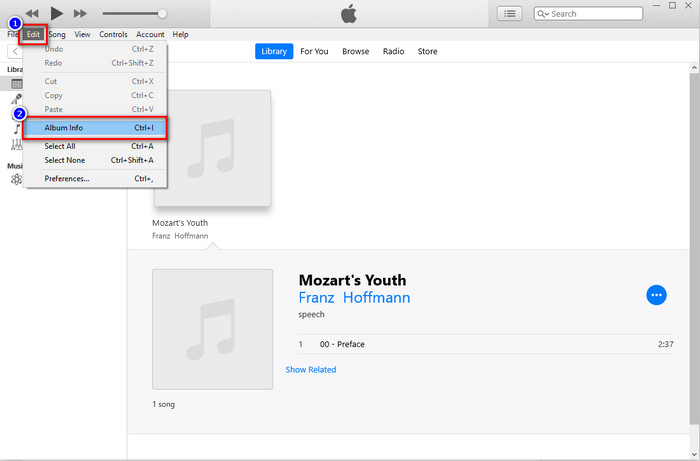
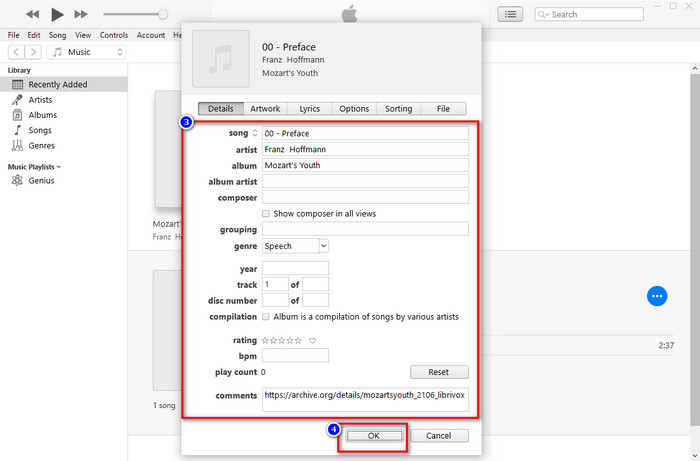
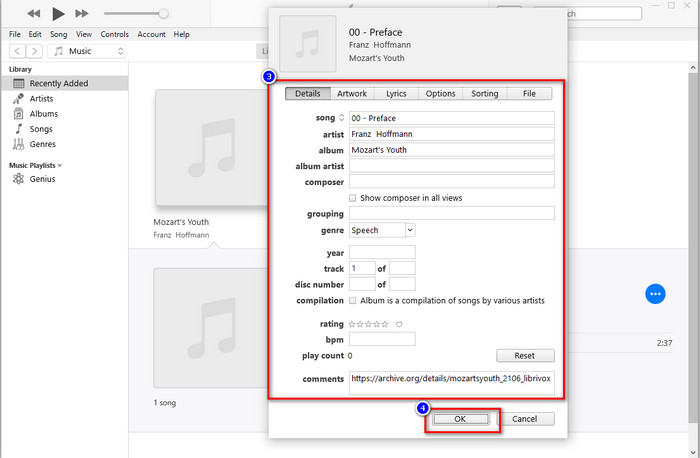
Step 3. A new panel will show where you can change the tags on the files on your screen. If you've edited the information, you can now click OK to save the changes you've made.
שיטה 2. השתמש בלחצן העכבר הימני על iTunes
Step 1. Launch iTunes and find the media file.
Step 2. Instead of going to Edit, you can press the right-click of your mouse and click the Album Info.
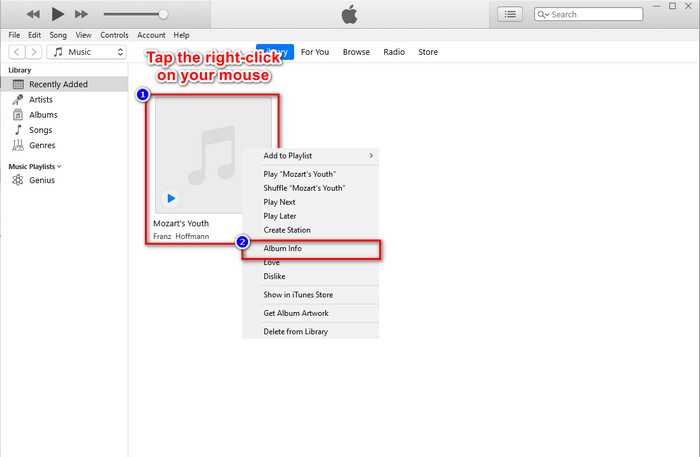
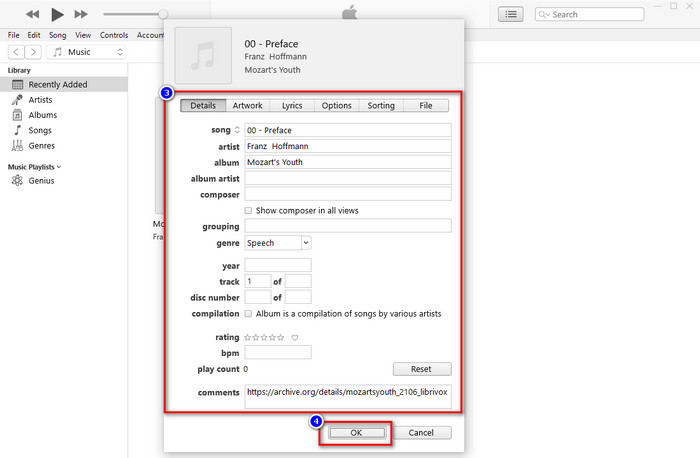
Step 3. Change the metadata on the panel by filling the textbox to update metadata on iTunes, and if you are done, you can now click OK to save.
שיטה 3. השתמש בשלוש הנקודות ב-iTunes
Step 1. Look for iTunes on the Finder, and click it to open.
Step 2. Once you've launched the software, click the file once. A three-dots will show on your screen, click it, and select Album Info.
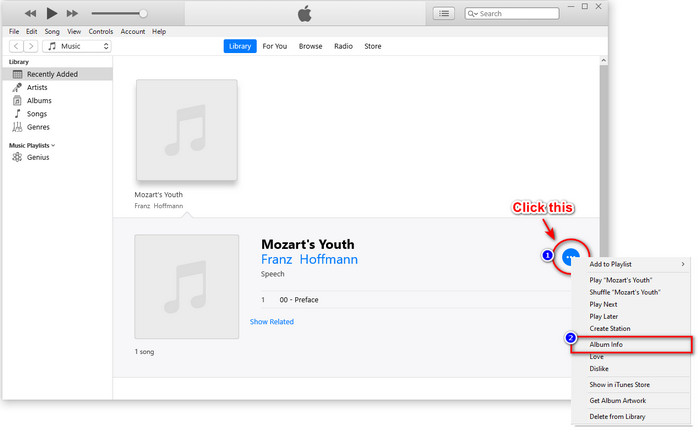
Step 3. A panel will show onto your screen to fill the critical data you need as your iD3 tag, then press OK if you want to save the changes.
אם תשים לב, אין שינוי משמעותי בשיטות, אבל אנחנו עדיין כוללים את כולן לבחירתך. למרות ש-iTunes זמין ב-Mac, גרסת השדרוג של Mac לא תומכת יותר ב-iTunes; אז במה כדאי להשתמש? למרבה המזל, אנו כוללים תוכנה שתוכל להשתמש בה במקום לתקן מטא נתונים של iTunes ב-Mac. כדי לדעת יותר על חלופת תוכנה זו, אתה יכול להמשיך לקרוא את חלק 2 להלן וללמוד כיצד להשתמש בו.
חלק 2. חלופה אולטימטיבית לעריכת מטא נתונים של MP3 ב-Mac ללא iTunes בקלות [מומלץ]
באופן מקורי, iTunes עוקפת שלוש תכונות שונות באפל: מוזיקה, פודקאסט ותוכניות או סרטים. אז עכשיו, בגרסה המודרנית של Mac, אתה לא יכול להשתמש ב-iTunes כי הם החליפו אותו. אז מה עליך לעשות כדי לערוך מטא נתונים של MP3 ב-Mac ללא iTunes? האם זה עדיין אפשרי? ובכן, בעזרת הכלי האולטימטיבי הכל אפשרי.
FVC Video Converter Ultimate is the best alternative you can use to change the metadata on your Mac or Windows. With this tool, you can easily upload your MOV, M4V, WMV, FLV, RMVB, MP4, and 1000+ more formats. Even if you have the most uncommon format, this tool supports that format of yours. Another fantastic thing this tool offers that you can't have on iTunes is all on the Toolbox related to videos. If you want to use this wonderful tool on your Mac to change your metadata, you can read the tutorial below and follow it accordingly.
Step 1. Kindly click the download button below and choose the Mac, but you must click the appropriate button if you are a Windows user. After that, install and follow the process quickly, then open now the tool.
הורדה חינמיתל-Windows 7 ומעלההורדה מאובטחת
הורדה חינמיתל-MacOS 10.7 ומעלההורדה מאובטחת
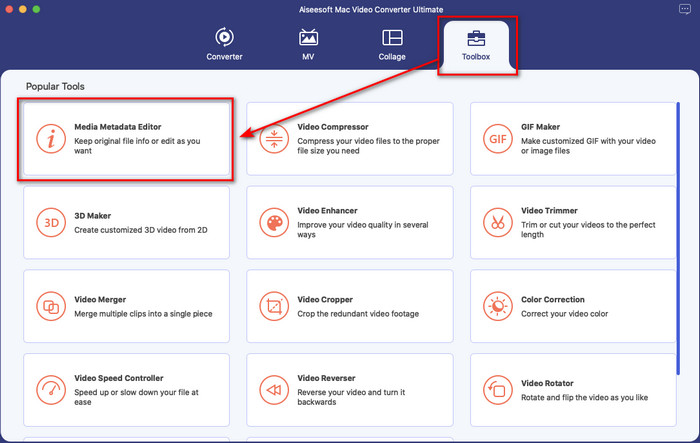
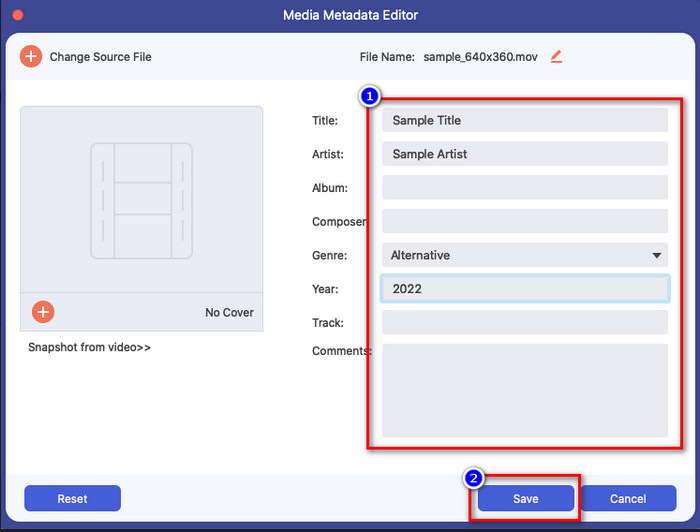
Step 2. Open the Toolbox of the ultimate tool and locate the Media Metadata Editor there.
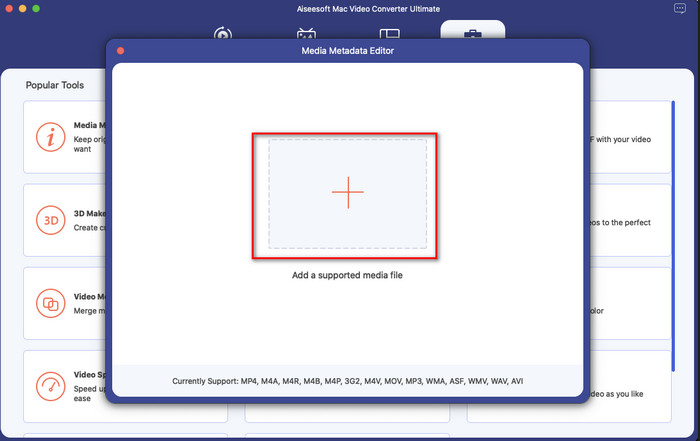
Step 3. Click the + button then a file folder will show on your Mac screen; select the media file, click it, and hit Open to proceed.
Step 4. Fill the metadata of each textbox accordingly, then hit Save to apply all of the metadata you've added using the ultimate software. Easy isn't it? Thanks to the ultimate tool, you can use this freely at a low cost instead of the iTunes music metadata editor.
יתרונות
- זה מציע לך להעלות בקלות כל קבצי מדיה שיש לך.
- אחד מעורכי המטא נתונים הטובים ביותר של 2022, על פי הביקורות.
- הוא מסוגל לבצע עריכת וידאו ואודיו גם להמיר.
- הוא זמין בכל מערכות ההפעלה, כגון Windows 10/11 או macOS.
חסרונות
- זה לא מובנה, אז תצטרך להוריד את הכלי.
- רכישה חיונית למיצוי מלוא הפוטנציאל של התוכנה.
חלק 3. שאלות נפוצות לגבי עריכת תגיות iD3 ב-iTunes
למה אני לא מוצא את iTunes ב-Mac שלי?
אם הגרסה של ה-Mac שלך היא 10.14 ומעלה, אז iTunes לא זמין שם מכיוון שהאפליקציה המובנית מופרדת לשלושה כלים שונים: תוכניות או סרטים, מוזיקה ופודקאסט. עם זאת, אתה עדיין יכול להשתמש ב-iTunes ב-10.13 או בגרסה הנמוכה יותר של Mac.
האם iTunes תומך במערכת ההפעלה Windows בשינוי מטא נתונים?
למרבה המזל, אתה יכול להוריד את iTunes במערכת ההפעלה Windows אם אתה רוצה את זה על שולחן העבודה שלך. לכן, אם אתה מתכוון להשתמש בשינוי מטא נתונים של iTunes ב-Windows, אתה יכול לבצע את אותם השלבים לעיל. למרות שהתמונות הן כלים ב-Mac, עדיין אפשר להעתיק את השלבים שלמעלה כדי לשנות את המטא נתונים בקובץ המדיה שלך בקלות.
האם הקבצים שלי ב-iTunes מוסרים?
שם המותג שונה, אבל הקובץ שיש לך ב-iTunes שלך נמצא באפליקציית Apple Music. כמו כן, כרטיס המתנה של iTunes עדיין ניתן לשימוש לקניית מוזיקה בחנות המוזיקה החדשה. למרות שהמוזיקה, הפודקאסטים והסרטים מפוצלים, הפונקציה שלהם עדיין זהה, אבל ה-GUI שלהם הרבה יותר טוב עכשיו מה-iTunes הקודם.
מתי ההשקה הראשונה של iTunes?
זה היה 9 בינואר 2001; אפל פתחה את נגן המולטימדיה הטוב ביותר שמכיל קבצי מדיה שונים, כגון מוזיקה, וידאו ופודקאסטים.
סיכום
Now that we know how to edit id3 tags on iTunes, it is time to do it by following the steps above. If you are not satisfied using iTunes or can't find it, we suggest you use the best alternative that you can find, which is the FVC Video Converter Ultimate. With this tool, you can easily add or remove the metadata on any video or audio protected by DRM on Apple. So, if you want to know it better, you must download it now and try it yourself.
-
 סקירה מלאה עבור מטא נתונים של FFmpeg על שימוש ופונקציונליות
 האם אתה רוצה לדעת איך להשתמש בעורך המטא נתונים של FFmpeg? אין ספק שהתוכנה אינה קלה לשימוש, אך בעזרת מאמר זה תוכלו לבצע זאת בקלות.
-
 כיצד להציג בקלות מטא נתונים של תמונות וסרטונים ב- iOS
 האם אתה רוצה לדעת איך לראות מטא נתונים באייפון ובאייפד? לאחר מכן, קריאת מאמר זה עשויה לעזור לך לפתור בעיה זו ללא מאמץ.
-
 4 עורכי מטא נתונים של ספרי אודיו מוצעים בשנת 2022
 אם אין לך מושג לגבי עורך תגיות אודיו, מאמר זה יעזור לך. דע את זה טוב יותר על ידי קריאת כל פרט למטה והכלים לשימוש.
