


 ממיר וידאו אולטימטיבי
 מקליט מסך
 תיקון וידאו
 הורדה מאובטחת
כיצד להסיר את סימן המים של Viva Video בסרטונים בקלות וביעילות
Viva Video היא אפליקציית עריכת וידאו ויצירת וידאו שתוכל להוריד במכשירים הניידים שלך כדי ליצור סרטון וידאו יוצא מן הכלל שלא תוכל להשיג עם עורך הווידאו האחר. עם זה, אתה יכול להשתמש בגרסה החינמית שלו או בעריכת וידאו פרימיום לטובתך. לפיכך, משתמשים נתקלים בבעיות בשימוש בגרסה החינמית מכיוון שהיא משאירה סימן מים, ותכונות עריכה אחרות אינן זהות לגרסת המקצוענים. סימן המים המוטבע בסרטון עלול להפריע לחזות, והסרתו טובה יותר.
עם זאת, אפשר להשתמש בכמה כלים להסרת סימן המים שניתן למצוא ב‑PlayStore וב‑App Store, אבל מהו הטוב ביותר? המשך לקרוא את המאמר, שבו נציג את הכלי שבו תוכל להשתמש כדי להסיר את סימן המים, יחד עם מדריך כיצד להסיר את סימן המים של Viva Video מהווידאו שלך.

חלק 1. כיצד להסיר את סימן המים של Viva Video באמצעות האפליקציות הטובות ביותר להסרת סימני מים
מחק וידאו - הסר סימן מים/לוגו מהסרטון [אנדרואיד]
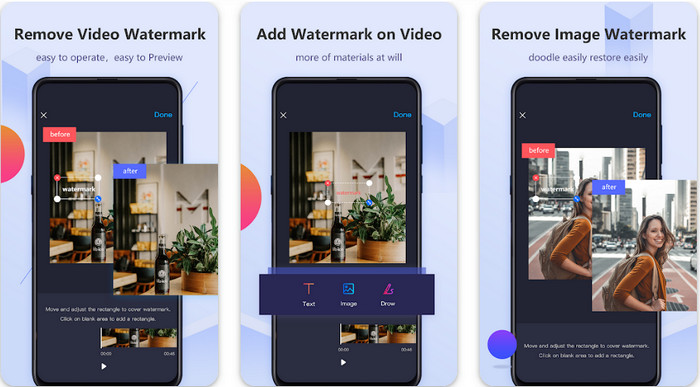
Video Eraser - Remove Watermark/Logo from Video הוא מסיר סימני מים עוצמתי שניתן להוריד למכשיר האנדרואיד שלך כדי להסיר את סימן המים המוטמע בווידאו. האפליקציה יכולה לעזור להסיר כל סוג של סימן מים מהווידאו שלך, כגון לוגו, טקסט, חותמות ועוד. אפשר גם לנצל אותה אם ברצונך להוסיף סימן מים אישי, לחתוך, לקצר, להפוך, לדחוס ולשנות את מהירות הווידאו. אף על פי שיש לה מגוון רחב של תכונות, אפשר להוריד את הכלי הזה בחינם. לכן, כדי להסיר את סימן המים של Viva Video באנדרואיד, ניתן לעקוב אחר השלבים שלהלן.
שלב 1. ראשית, הורד את האפליקציה לאנדרואיד שלך דרך ה‑PlayStore ולאחר מכן לחץ על Download.
שלב 2. פתח את מסיר סימני המים, לחץ על Remove Watermark from Video, אפשר לכלי לגשת לווידאו שלך ולאחר מכן העלה את הווידאו עם סימן המים.
שלב 3. מקם את המלבן על גבי סימן המים כדי לכסות אותו.
שלב 4. לחץ על Done כדי לשמור את הווידאו ללא סימן המים.
קשור:
מחק וידאו - הסרת ריטוש [iOS]
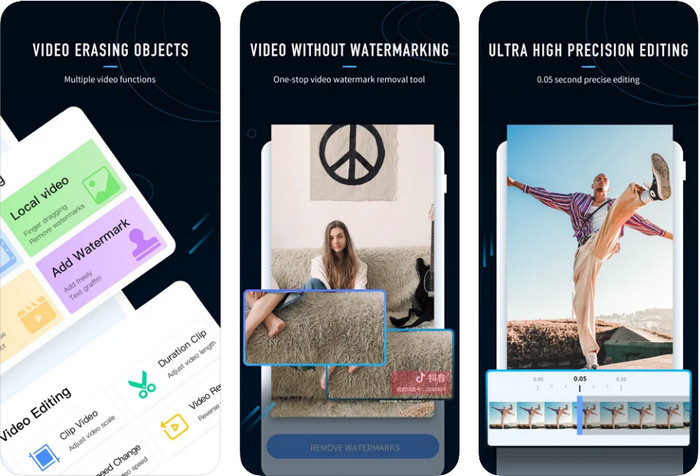
ב‑iOS אפשר להוריד מה‑App Store את Video Eraser- Retouch Removal. זהו אחד מכלי הסרת סימני המים ל‑Viva Video שניתן להוריד בחינם, ומאפשר להסיר ביעילות את הסימן מהווידאו שלך. כמו מסיר סימני המים לאנדרואיד שהצגנו כאן, גם הוא תומך בפונקציות עריכה נוספות שאפשר להשתמש בהן, כגון שיפור איכות הווידאו, הוספת סימן מים, חיתוך, קיצור, דחיסה והיפוך. כל אלה זמינים כאן. אף על פי שיש לו תכונות דומות לאפליקציית האנדרואיד, הפונקציונליות שלו שונה, ולפני שתוכל להשתמש בכלי הזה כדי להסיר את סימן המים, עליך לרכוש אותו. תוכל לעקוב אחר השלבים שלהלן כדי ללמוד כיצד להסיר את סימן המים מהווידאו שייצאת מ‑Viva Video; אפשר לעקוב אחר השלבים המצוינים למטה.
שלב 1. הורד את האפליקציה מ‑App Store ולאחר מכן פתח אותה לאחר סיום ההורדה.
שלב 2. לאחר פתיחת התוכנה, לחץ על Local Video/GIF כדי להעלות את הווידאו עם סימן המים. ודא שאתה מאפשר לאפליקציה גישה ל"תמונות" שלך.
שלב 3. הקש על החלק בווידאו שבו מופיע סימן המים; לאחר מכן יופיע מלבן על המסך.
שלב 4. הקש על Eliminate Watermark כדי לייצא את הווידאו ולשמור אותו ללא הפרעה של סימן המים.
חלק 2. כיצד להסיר את סימן המים של Viva Video ב-Windows ו-Mac [תוכנה אולטימטיבית]
כמשתמש Windows ו‑Mac, תזדקק לתוכנה יעילה שתסיר את סימן המים מהווידאו שלך בצורה נקייה, בלי להשאיר פסי שארית. FVC Video Converter Ultimate יכולה ללמד אותך כיצד להסיר את סימן המים של Viva Video בחינם, עם תוצאה מקצועית בסיום. כמו אפליקציות מסירי סימני המים שניתן להוריד באנדרואיד וב‑iOS, גם כלי זה תומך בפונקציות ותכונות נוספות שמהן תוכל ליהנות. הכלי הזה מציע יותר משתי אפליקציות מסירי סימני המים שהזכרנו.
מה הופך את הכלי הזה למרשים? תכונות ההסרה שבהן תומך הכלי טובות יותר ממסירי סימני מים אחרים שבהם אתה יכול להשתמש בסרטון שלך. אז אם אתה משתמש בזה, אתה יכול ליהנות מצפייה בסרטון ללא סימן המים לאחר הסרתו כאן. צריך הדרכה איך להשתמש בזה? הפרטים הבאים יאפשרו לך לדעת איך להשתמש בכלי זה בקלות כמו 1-2-3.
שלב 1. כדי להוריד את התוכנה האולטימטיבית, לחץ על כפתור ההורדה למטה ולאחר מכן התקן את התוכנה במכשיר שלך. עקוב אחר ההתקנה באמצעות WinRAR ואז לחץ על Start Now.
הורדה חינמיתל-Windows 7 ומעלההורדה מאובטחת
הורדה חינמיתל-MacOS 10.7 ומעלההורדה מאובטחת
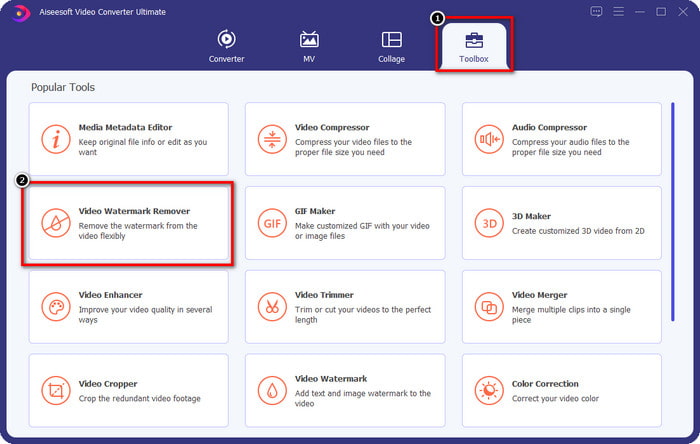
שלב 2. עבור אל Toolbox ולאחר מכן לחץ על Video Watermark Remover כדי להתחיל להשתמש במסיר סימני המים היעיל של הכלי הזה.
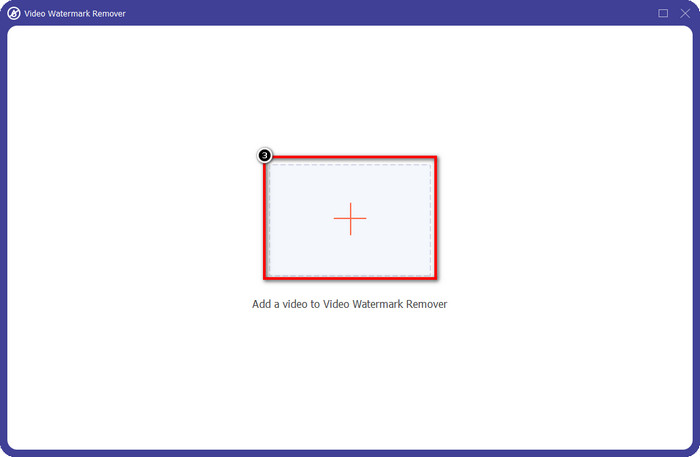
שלב 3. באפשרותך להעלות את קובץ ה‑Viva Video עם סימן המים השמור על שולחן העבודה שלך על ידי לחיצה על סמל ה‑+. אתר את קובץ הווידאו בתיקייה שתופיע על המסך ולחץ על Open כדי להעלות אותו בהצלחה.
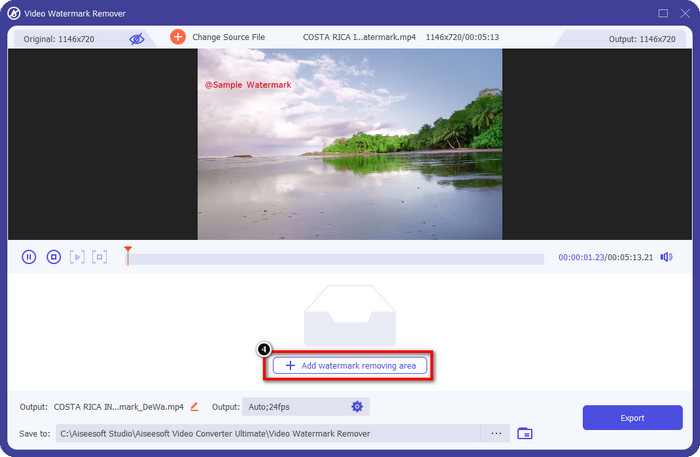
שלב 4. לחץ על Add Watermark Removing Area כדי להתחיל להשתמש בפונקציית הסרת סימן המים.
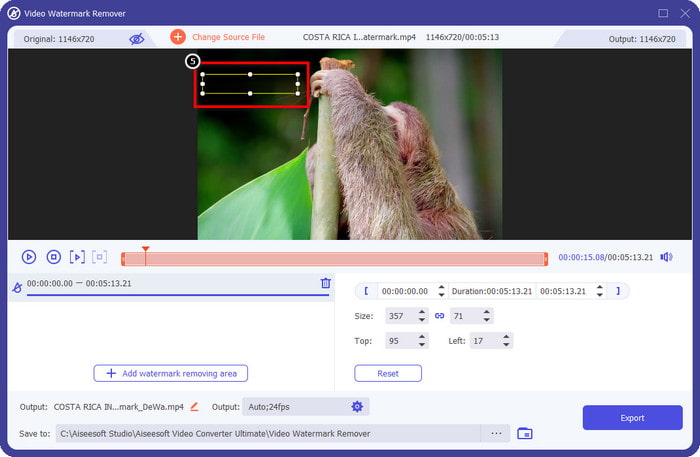
שלב 5. גרור והנח את הצורה המלבנית על סימן המים בווידאו שלך וכסה אותו כולו. חשוב לכסות אותו במלואו, משום שאם לא תעשה זאת, תישאר שארית של סימן המים, וניתן לשנות את גודל הצורה בהתאם לצורך.
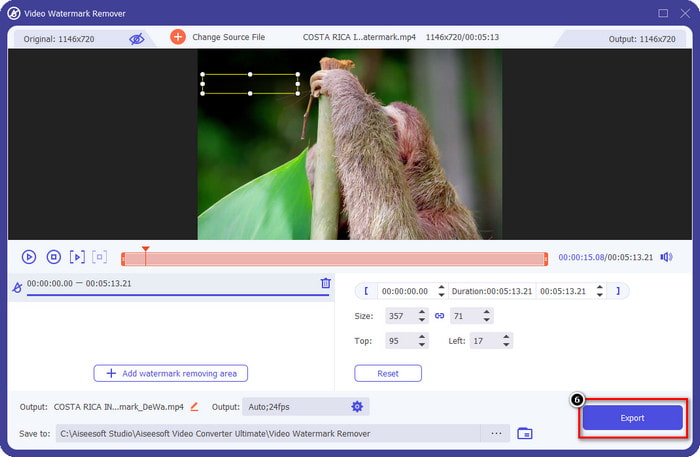
שלב 6. לאחר מכן לחץ על Export כדי לשמור את הווידאו ללא סימן המים. פשוט, נכון? בדיוק לשם כך נוצר הכלי האולטימטיבי – פשוט אבל יעיל לכל דבר.
חלק 3. שאלות נפוצות כיצד להסיר את סימן המים של Viva Video
האם אוכל להוריד את Viva Video ללא סימן מים?
כן, אתה יכול לרכוש את גרסת המקצוענים של הכלי הזה כדי שכאשר אתה מייצא את הסרטון שאתה עורך כאן לא ישאיר סימן מים על הסרטון. כמו כן, לאחר שתרכוש את גרסת המקצוענים של הכלי הזה, תשתמש בתכונת הפרימיום האחרת שיש לכלי זה שאינה זמינה בחינם.
האם ל-Viva Video יש גרסה למחשב שולחני?
אתה יכול להוריד את גרסת Viva Video רק באנדרואיד ו-iOS. אז אם אתה רוצה להוריד את גרסת שולחן העבודה, לא תמצא, אבל אתה יכול לחפש את האלטרנטיבות הטובות ביותר לעריכת וידאו כמו מה שה-Viva Video מציע.
האם ל-Viva Video יש תוכנות ריגול?
ב-2017, דיווחים על אפליקציה זו אישרו מאוחר יותר שיש לה תוכנה זדונית. לכן, אנשים שהורידו את התוכנה הזו מחקו בכוח את האפליקציה הזו במכשירים שלהם כדי למנוע השלכות נוספות.
סיכום
עם מסיר סימני המים של Viva Video של מאמר זה, אתה יכול לבטל את סימן המים שמטמיע Viva Video בסרטון המיוצא. אתה יכול לנסות להשתמש באפליקציות שהוזכרו לעיל ולעקוב אחר ההוראות שאנו כוללים כיצד להסיר את סימן המים. אבל עבור משתמשי Windows ו-Mac עם סימן מים של Viva Video, עדיף להשתמש בתוכנה האולטימטיבית כדי להסיר את סימן המים במהירות וביעילות ולקבל תוצאה מקצועית. למה אתה מחכה? לחץ על לחצן ההורדה כדי להסיר את סימן המים האולטימטיבי מהמכשיר שלך עכשיו, והשתמש בו על ידי ביצוע השלבים שלמעלה.
-
 כיצד להסיר סימן מים של Lomotif באמצעות הכלים המדהימים האלה
 האם אתה רוצה ללמוד כיצד להסיר סימן מים של Lomotif מהסרטון שלך? קרא מאמר זה כדי לדעת מהן השיטות הבולטות ביותר להסרתו באופן מקוון ולא מקוון.
-
 כיצד להסיר תיירים מתמונות באמצעות מסירי סימני מים
 כיצד להסיר תיירים מתמונות? אם אתה רוצה ללמוד כיצד להסיר דברים לא רצויים מהתמונה שלך, הכלים האלה יעזרו לך. קרא מאמר זה כדי לדעת יותר.
-
 מסירי סימני מים 123rf - סקירה יסודית של הכלים האולטימטיביים
 אם אתה רוצה לדעת מהם מסירי סימני המים הבולטים ביותר של 123rf, קרא את המאמר הזה ביסודיות. מאמר זה מספק סקירה מעמיקה של הכלים.
