


 ממיר וידאו אולטימטיבי
 מקליט מסך
 תיקון וידאו
 הורדה מאובטחת
MP4 ל- M4V - 4 ממירים יעילים ל- MP4 ל- M4V שאסור לך לפספס
האם אתה יכול פשוט לשנות את סיומת הקובץ מ- MP4 ל- M4V ישירות? מה ההבדלים בין MP4 ל- M4V? כשאתה משנה שם MP4 ל- M4V, אתה כנראה יכול להשמיע את קבצי M4V עם רוב נגן המדיה ללא שום בעיה. אך שינוי סיומת הקובץ אינו ממיר את הקובץ ל- M4V במקום זאת. פשוט למד עוד על 4 ממירי MP4 ל M4V יעילים מהמאמר ובחר את הרצוי בהתאם.

שלב 1: 4 שיטות להמרת MP4 ל- M4V ב- Windows / Mac
שיטה 1: כיצד להמיר MP4 ל- M4V באופן מקוון בחינם
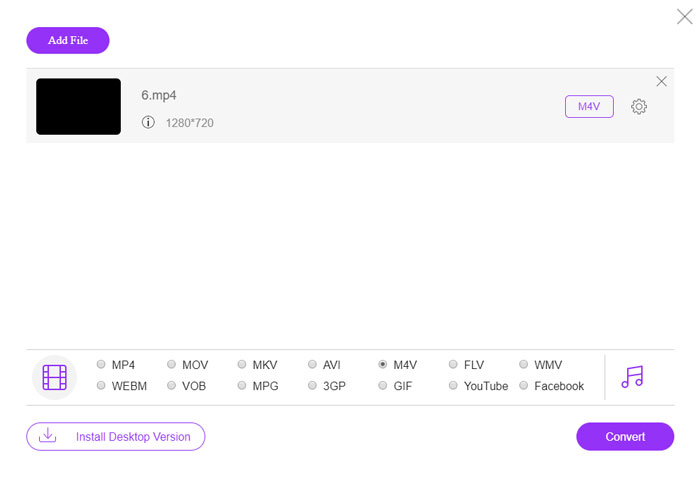
כאשר אתה רוצה להמיר קובצי MP4 ל‑M4V אונליין, בחינם וללא שום הגבלה, FVC Free Online Video converter הוא ממיר וידאו רב‑תכליתי שמסוגל להמיר את רוב פורמטי הווידאו, לכוונן את הגדרות הווידאו/אודיו, ואף לשמור בקלות על איכות הווידאו המקורית.
- 1. המרת MP4 ל- M4V, אבי, MKV ועוד אחרים באיכות המקורית.
- 2. כוונן את קצב המסגרות, codec הווידאו, איכות הווידאו, codec השמע ועוד.
- 3. ספק ממשק פשוט ואינטואיטיבי להמרת קבצי הווידאו תוך קליקים.
- 4. אפשר לך להמיר את הסרטונים ללא סימן מים, הגבלת גודל וכו '.
שלב 1. עבור לממיר המקוון מ‑MP4 ל‑M4V, ותוכל ללחוץ על הכפתור Add Files to Convert כדי לטעון את קובצי ה‑MP4 שברצונך להמיר. בפעם הראשונה עליך להוריד את מתקין ממיר הווידאו.
הורד את גרסת הדסקטופ כדי להמיר קבצים במצב אצווה.

שלב 2. בחר את פורמט הקובץ M4V מממשק המשתמש. כאשר עליך לכוונן את הגדרות הווידאו, תוכל להגדיר מקודד וידאו (video encoder), רזולוציה, קצב סיביות (video bitrate), קצב פריימים, קצב דגימה ועוד הגדרות נוספות לפי הצורך.

שלב 3. לאחר מכן, באפשרותך ללחוץ על הכפתור Convert כדי להמיר MP4 ל‑M4V. ייתכן שיידרשו מספר שניות לקבלת הקובץ הרצוי, שתוכל לשמור אותו במחשב או לשתף אותו לאתרי מדיה חברתית.
שיטה 2: כיצד להמיר MP4 ל- M4V באמצעות נגן המדיה VLC
נגן המדיה VLC הוא ממיר קוד פתוח ל- MP4 ל- M4V המאפשר לך להמיר את הסרטונים ב- Windows ו- Mac. זה עובד ברוב הפורמטים והקודקים, שאותם תוכלו להמיר קטעי וידאו בין פורמטים שונים. הנה התהליך המפורט שעליך לדעת.
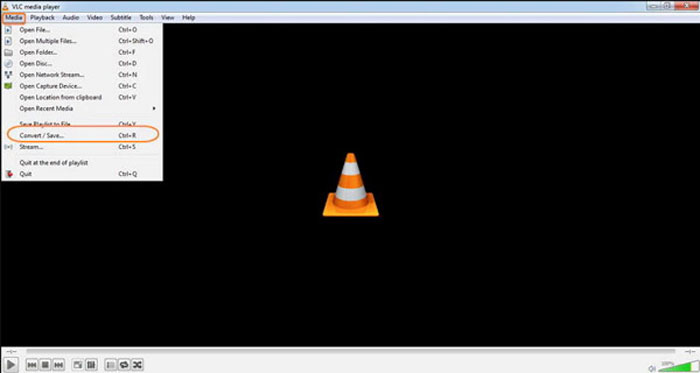
שלב 1. פתח את VLC Media Player במחשבך, בחר בתפריט Media ובחר באפשרות Convert/Save כדי להיכנס לתיבת הדו‑שיח Media. לאחר מכן ניתן ללחוץ על הכפתור Add כדי לעיין ולאתר את הקבצים.
שלב 2. לאחר שייבאת את הסרטונים, תוכל ללחוץ על הכפתור Convert/Save או פשוט ללחוץ Enter במקלדת. לאחר מכן תוכל לבחור ב‑M4V כפורמט הפלט ולכוונן את שאר הפרמטרים.
שלב 3. בחר שם קובץ יעד, זה שיהומר ויישמר. לחץ על האפשרות Browse כדי לבחור מיקום. ספק שם כמו 'final' ולחץ על Save לפני שתלחץ על הכפתור Start כדי להמיר MP4 ל‑M4V.
שיטה 3: כיצד להמיר MP4 ל- M4V באמצעות FFmpeg
FFmpeg הוא ממיר MP4 ל- M4V המאפשר לך להמיר את הווידאו באמצעות codec. אם אתה מכיר את ה- codec, אתה יכול לשנות את קבצי הווידאו באיכות המקורית. פשוט למד פרטים נוספים על השיטה להמיר MP4 ל- M4V כמפורט להלן.
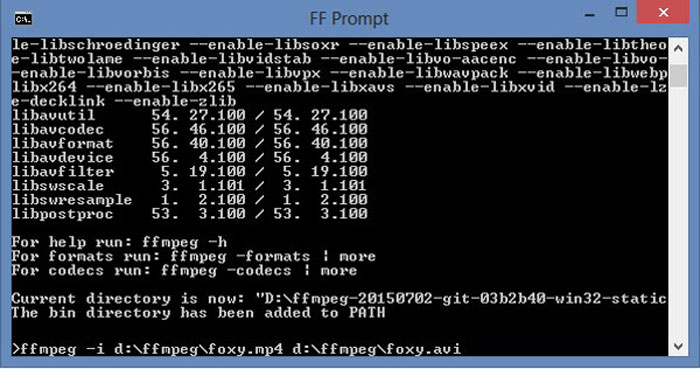
שלב 1. פתח את חלון שורת הפקודה (Command Prompt) במחשב ה‑Windows שלך והתקן את FFmpeg באמצעות שורת פקודה כדי להתקין את ממיר הווידאו החינמי. קיימת בו סדרה שלמה של פקודות שורת פקודה לקידוד (transcode) וידאו.
שלב 2. הזן את הפקודה הבאה כדי להמיר MP4 ל‑M4V. בנוסף, תוכל לכוונן גם את מקודד הווידאו, קצב הפריימים ועוד הגדרות אחרות כדי לקבל את הווידאו הרצוי.
ffmpeg \-i input.mp4 \
העתק vcodec \
העתק קודקוד \
פלט. m4v
שיטה 4: כיצד להמיר MP4 ל- M4V באמצעות בלם יד
בלם יד הוא ממיר קוד פתוח נוסף ל- MP4 ל- M4V. זה לא רק מאפשר לך להמיר את קבצי הווידאו, אלא גם מסיר את הגנת ה- DRM ב- Windows וב- Mac שלך. כמובן, תוכלו גם לחלץ את קבצי הווידיאו מדיסק DVD בהתאם לדרישתכם.
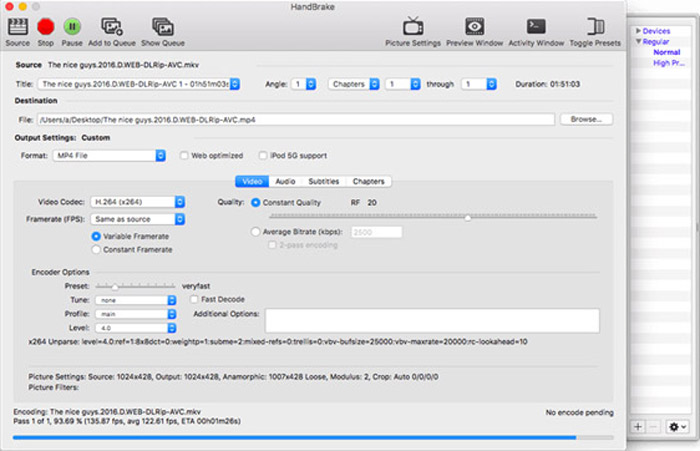
שלב 1. הורד והתקן את HandBrake, ואז הפעל את התוכנה במחשבך. בחר באפשרות Source בחלק העליון כדי לבחור את סרטוני ה‑MP4 לתוך התוכנה.
שלב 2. עבור אל האפשרות Output Settings, והגדר את הפורמט כקובצי MP4. כמובן, באפשרותך גם לכוונן את מקודד הווידאו, האיכות, ה‑FPS, קצב הסיביות, ה‑preset ועוד אפשרויות קידוד נוספות.
שלב 3. לאחר מכן, תוכל ללחוץ על כפתור Start כדי להמיר MP4 ל‑M4V בקלות. כאשר תקבל את קובצי ה‑M4V הרצויים, תוכל פשוט לשמור את הסרטונים ב‑iTunes או להעביר אותם למכשירי iOS.
MP4 לעומת M4V
פורמט MP4 שוחרר על ידי Moving Picture Experts Group (MPEG) בשנת 2001, ופורמט MP4 יכול לעזור לך לשמור נתוני וידאו, אודיו, כתוביות ותמונה ברצועות נפרדות. זה קיצור של MPEG-4 Part 14. בנוסף, זהו אחד הפורמטים הפופולריים ביותר המשמשים להזרמת ושיתוף סרטונים.
ה-M4V פותח על ידי אפל, אשר משתמשת גם ב-MPEG 4. קבצי M4V משמשים לעתים קרובות לאחסון סרטונים אלו שהורדו מחנות ה-iTunes של Apple, כמו סרטוני מוזיקה, פרקי טלוויזיה וכו'. ייתכן שתמצא כמה קבצי M4V מוגנים מפני העתקה מכיוון שהוא משתמש הגנת זכויות יוצרים של FairPlay DRM של אפל.
שלב 2: שאלות נפוצות בנושא המרת MP4 ל- M4V
1. מהם ההבדלים בין MP4 ל- M4V?
בדיוק כפי שצוין לעיל, ההבדל העיקרי בין MP4 ל- M4V הוא הגבלת ה- DRM Fairplay. פורמט הקובץ M4V הוא פורמט מכלי וידאו שפותח על ידי אפל לקידוד קבצי וידאו בחנות iTunes שלה. כאשר אתה צריך להפעיל את קטעי הווידאו למכשירי iOS או ל- MacBook שלך, אתה יכול להמיר במקום זאת MP4 ל- M4V.
2. האם אתה יכול להשתמש באותן שיטות כדי להמיר M4V ל MP4?
לא. בגלל הגנת ה‑DRM של חנות iTunes אינך יכול להמיר M4V ל‑MP4 ישירות. ניתן פשוט לשנות את סיומת הקובץ מ‑MP4 ל‑M4V, מה שעובד ברוב הנגני המדיה. אך הגנת ה‑DRM של קובצי M4V מאפשרת להפעיל את הסרטונים רק במכשיר מאושר. במקום זאת עליך להשתמש בממיר וידאו מקצועי כדי להסיר את ההגנה.
3. האם אני יכול להמיר MP4 ל- M4V עם נגן QuickTime ב- Mac?
כן. מכיוון ש- QuickTime Player אינו תומך ב- M4V כפורמט הפלט, כאשר אתה צריך להמיר MP4 ל- M4V עם QuickTime Player, עליך להתקין כמה תוספים כדי לקבל את הווידאו הרצוי ב- MacBook שלך בקלות.
סיכום
כאשר אתה צריך לייבא קטעי וידאו לספריית iTunes עבור מכשירי iOS אחרים, עליך להמיר במקום זאת MP4 ל- M4V. פשוט למד פרטים נוספים על 4 שיטות הנפוצות ביותר להמרת קבצי M4V בקלות. אם אתה רק צריך להמיר קטעי וידאו מקוונים באיכות הווידאו המקורית, ממיר וידאו מקוון חינם של FVC הוא האפשרות הטובה ביותר שעליך לקחת בחשבון.
-
 כיצד להמיר M4V ל MP4 עם / בלי DRM
 פוסט זה הוא המדריך המפורט להמרת M4V ל MP4 עבור כל נגן. ניתן לשנות את M4V ל- MP4, אפילו את קבצי ה- M4V המוגנים, כך שתוכלו להפעיל קטעי וידאו M4V ללא הגבלה.
-
 מה ההבדל בין MP3 ל MP4
 MP3 או MP4, מה עדיף? מה ההבדל בין MP3 ו- MP4? מאמר זה ישווה MP3 עם MP4 מכל ההיבטים שתוכלו לדמות.
-
 כיצד להמיר MP4 ל- WMV עבור Mac / Windows
 פוסט זה משתף כיצד להמיר וידאו MP4 לפורמט WMV ב- Mac או Windows. אנו מציעים לך גם מספר אפשרויות, כולל תוכנות שולחן עבודה וגם ממירים מקוונים מבוססי אינטרנט. מוכנים לדעת את הכלים הטובים ביותר להמרת MP4 ל WMV?

