


 ממיר וידאו אולטימטיבי
 מקליט מסך
 תיקון וידאו
 הורדה מאובטחת
שימוש ב-GIMP להסרת סימני מים וחלופות מצוינות אחרות
כל אמן דיגיטלי שמעוניין לפרסם את עבודתו ברשת צריך להשתמש בסימני מים. הם מסייעים בביסוס המוניטין שלך, באיחוד גוף העבודות שלך, ובהבטחה שתקבל קרדיט ראוי על כל חלק וחלק. אבל יש לנו סיבות רבות שבגללן נרצה להסיר סימני מים מתמונה. במאמר זה נדון ונדגים שיטות יעילות ללמוד כיצד להסיר סימני מים באמצעות GIMP. בנוסף, נציג יישומים מצוינים נוספים שניתן להשתמש בהם כחלופה ל‑GIMP. אם הנושא הזה כבר מסקרן אותך, קרא את המדריך הזה ולמד פרטים חשובים נוספים שאתה צריך לדעת.

חלק 1: כיצד להסיר סימני מים מתמונות באמצעות GIMP
באמצעות עורך התמונות בקוד פתוח GIMP ניתן לערוך תמונות בקלות. אפשר להשתמש בו לעריכה, ציור ועיצוב גרפי. זהו תוכנת עריכת תמונות מרשימה. אחת המשימות העיקריות בעריכת תמונות היא הסרת סימן מים מהצילום. מעבר לסימן מים, היא יכולה להסיר לוגואים, טקסט, מדבקות ועוד, מה שהופך אותה לנוחה לכל משתמש שרוצה להסיר אובייקטים לא רצויים מהתמונות שלו. בנוסף, GIMP הוא עורך תמונות חוצה‑פלטפורמות, זמין עבור Linux, macOS, Windows ומערכות הפעלה אחרות. עם זאת, השימוש ב‑GIMP מורכב, במיוחד אם אין לך מיומנויות בתחום. יש בה מגוון רחב של אפשרויות וכלים, מה שמבלבל משתמשים. מומלץ מאוד לבקש מאנשי מקצוע להשתמש בתוכנה הזו. כמו כן, תהליך ההורדה של היישום הזה גוזל זמן.
בצע את השלבים שלהלן, ובואו נסיר סימני מים באמצעות GIMP.
שלב 1: עליך להוריד ולהתקין את GIMP במחשב שלך.
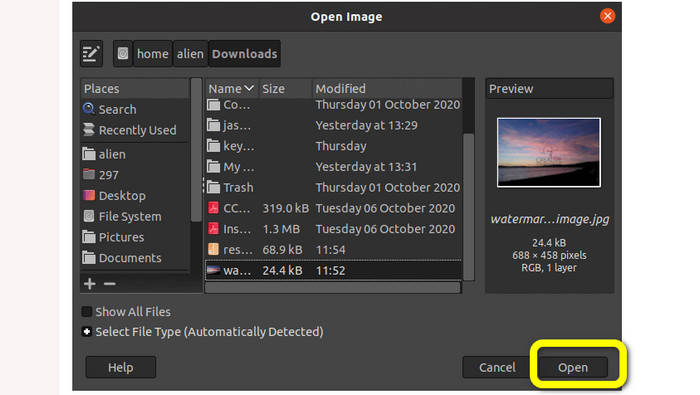
שלב 2: לחץ על אפשרות File או הקש Ctrl+O. תיבה קופצת תופיע על המסך. בחר את קובץ התמונה עם סימן המים שברצונך להסיר. לאחר מכן לחץ על Open.
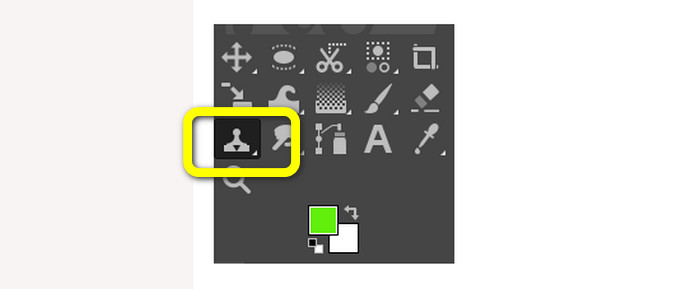
שלב 3: לאחר הוספת התמונה, בחר את כלי השכפול (Clone) מתוך Tools > Paint Tools > Clone.
שלב 4: לאחר מכן בחר אזור דומה מתוך התמונה. בחר אזור נקי שמתאים לאזור שבו נמצא סימן המים בתמונה, מאותה תמונה או מתמונה אחרת. לחץ על מקש CTRL בעת לחיצה על מיקום מסוים כדי לבחור אזור. בעת הצביעה, הוא ישחזר את האזור הספציפי הזה.
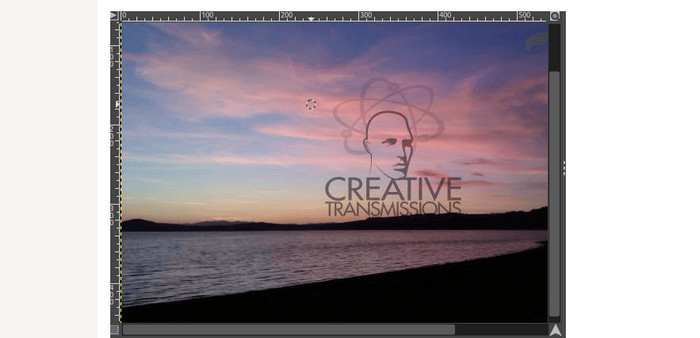
שלב 5: התחל כעת לצבוע מעל אזור סימן המים. שחרר את מקש CTRL והתחל להחליק את הסמן על האזור הרצוי כדי לצבוע אותו. זה פועל כמו מברשת. הוא יצבע את האזור המשוכפל; אפשר לחזור על פעולת השכפול על‑ידי בחירת אזורים שונים. לתוצאה טובה יותר מומלץ לבצע תקריב (Zoom) לתמונה ולהתאים את גודל המברשת לפי הצורך.
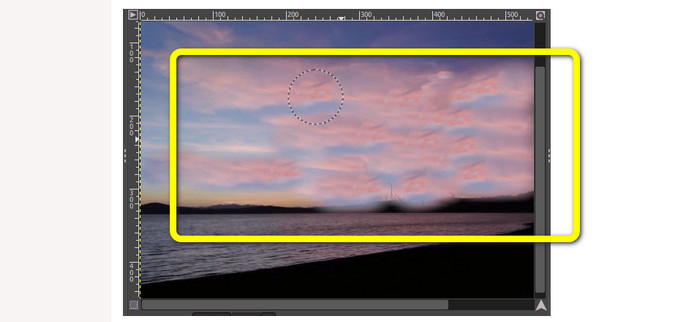
שלב 6: וזהו! לאחר הסרת סימני המים מהתמונה באמצעות GIMP, ניתן לגשת לתפריט File ולחפש את כפתור Save כדי לשמור את התמונה ללא סימן מים.
חלק 2: החלופה הטובה ביותר ל-GIMP להסרת סימני מים מתמונות
כדי להסיר סימני מים מתמונה בשיטות פשוטות יותר, ניתן להשתמש ב‑FVC Free Watermark Remover. לכלי הזה יש יכולת להסיר כל אובייקט לא רצוי מהתמונה שלך, ובייחוד סימני מים. בנוסף, הכלי תומך במספר פורמטים של קובצי תמונה, כגון PNG, JPG, BMP ועוד. בעזרת FVC Free Watermark Remover אפשר להשתמש בעכבר כדי לבחור את האזור החופשי מסימן מים בתמונה שלך על‑ידי שרטוט קו מתאר פוליגונלי או שימוש בלאסו סביבו. בנוסף, אפשר להזיז את העכבר כדי לבחור אזור באמצעות מברשת בגדלים שונים. כתוצאה מכך, תכונה זו ידידותית למשתמש ומאפשרת למחוק סימני מים מטקסט או מתמונה מהתמונות בהתאם לצרכים שלך. כך אפשר להבין שמסיר סימני המים הזה מושלם למשתמשים שאינם מקצועיים, והרבה יותר קל לשימוש לעומת GIMP. יתרה מזאת, FVC מבטיח את פרטיות כל המשתמשים, כך שאין צורך לחשוש מדליפת המידע שלך בזמן השימוש בשירות. יש לו שתי שיטות להסרת סימני מים מהתמונה שלך. השתמש בהנחיות הפשוטות למטה.
בשיטה הראשונה הזו, אתה יכול להשתמש באחד מהכלים הרבים להסרת סימני מים, כגון Polygonal, Lasso, ו-Brush. בשיטה השנייה, השתמשו בכלי החיתוך.
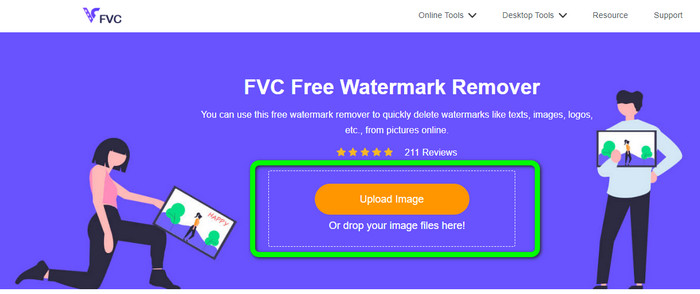
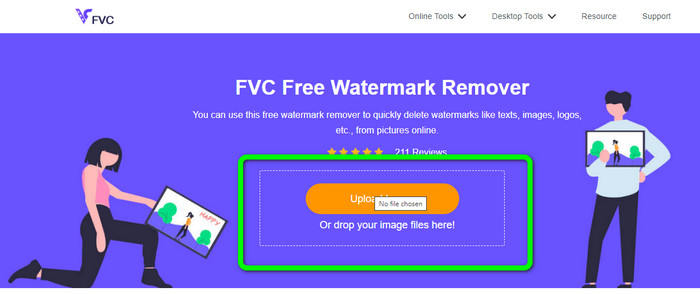
שלב 1: חפש בדפדפן את FVC Free Watermark Remover. לאחר מכן לחץ על כפתור Upload Image או גרור את קובץ התמונה לתיבה כדי לצרף את התמונה עם סימן המים.
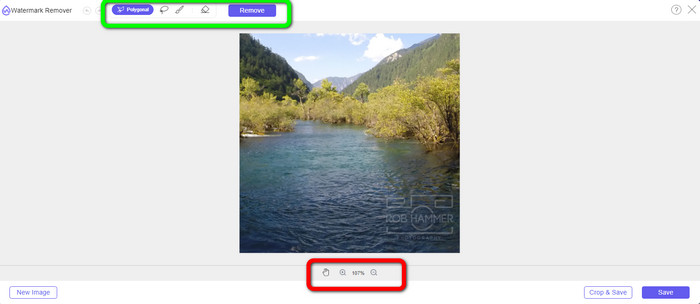
שלב 2: כפי שניתן לראות בחלק העליון של הממשק, אלו הכלים שבעזרתם אפשר לסמן את סימן המים שברצונך להסיר. הכלים הם Brush, Polygonal ו‑Lasso. בחלק התחתון של התמונה אפשר ללחוץ על סמל Hand כדי להזיז את התמונה; ניתן גם ללחוץ על הסמלים + ו‑‑ כדי לבצע תקריב/התרחקות על סימני המים.
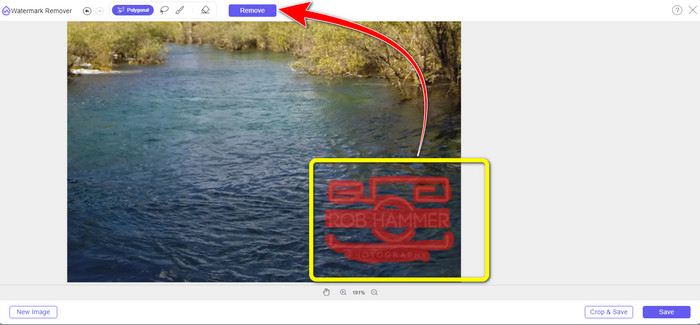
שלב 3: סמן את סימני המים באמצעות כלי מסיר סימני המים. לאחר מכן לחץ על כפתור Remove והמתן לסיום תהליך הסרת סימני המים.
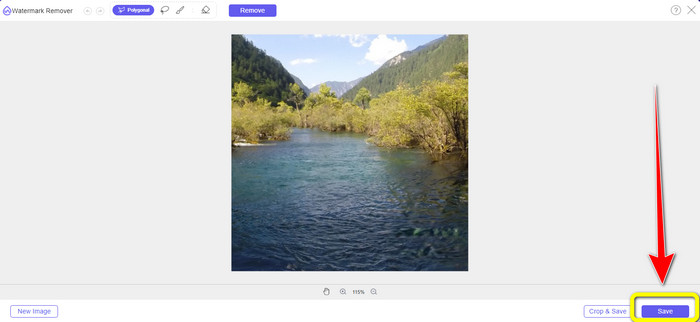
שלב 4: לחץ על כפתור Save כדי להוריד את התמונה. כעת כבר ניתן להשתמש בתמונה הזו משום שסימן המים המטריד נעלם.
שלב 5: בשיטה השנייה ניתן להשתמש בפיצ’ר החיתוך (Cropping) כדי להסיר את סימן המים מהתמונה. כדי לצרף את התמונה הרצויה, לחץ על כפתור Upload Image. ניתן גם לגרור את קובץ התמונה ישירות לתיבה.
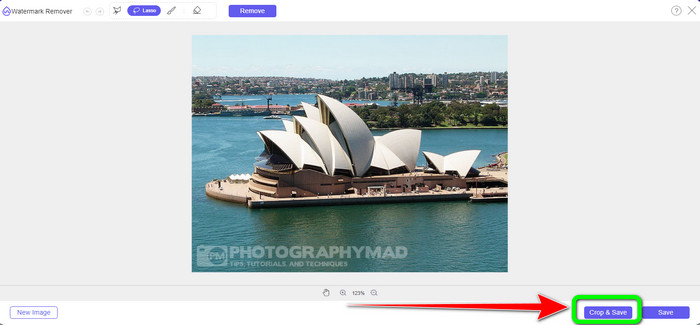
שלב 6: כאשר התמונה כבר על המסך, בחר בכפתור Crop&Save. לאחר מכן אפשר להמשיך לתהליך החיתוך.
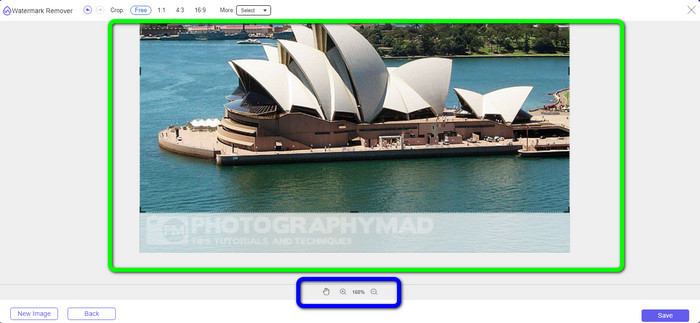
שלב 7: בתהליך זה אפשר לחתוך את התמונה כדי לגזור החוצה את סימן המים. אם ברצונך לבצע תקריב לתמונה כדי לחתוך בצורה מדויקת יותר, עבור אל התיבה הכחולה ולחץ על סמל ה‑+.
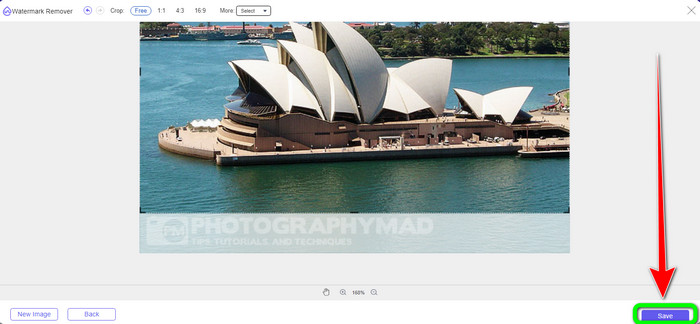
שלב 8: בשלב זה אפשר כבר לשמור את התמונה הסופית על‑ידי לחיצה על כפתור Save.
חלק 3: שאלות נפוצות לגבי הסרת סימני מים באמצעות GIMP
1. כיצד אוכל להסיר את חותמת התאריך מתמונה באמצעות GIMP?
כדי להסיר את חותמת התאריך, תוכל לבחור בכלי Clone. לחץ על חותמת התאריך עד שהיא תיעלם. אם חותמת התאריך נמצאת בקצה התמונה שלך, תוכל להשתמש בכלי החיתוך GIMP בצד שמאל של הממשק.
2. האם GIMP משאיר סימן מים לאחר השימוש בו?
למרבה המזל, לא. GIMP הוא יישום קוד פתוח שבו אתה יכול ליהנות משימוש במסיר סימן מים זה מבלי לדאוג אם הוא ישאיר סימן מים או לא.
3. איך אני מוחק סימן מים שקוף?
יש הרבה יישומים שניתן להשתמש בהם כדי למחוק סימני מים שקופים מהתמונות שלך. אפשר להשתמש ב‑FVC Free Watermark Remover. בעזרת התוכנה הזו ניתן להסיר בקלות כל אובייקט מפריע, כמו סימני מים שקופים.
סיכום
שימוש ב‑GIMP להסרת סימני מים מתמונה הוא יעיל. ניתן להסיר סימני מים מיידית בעזרת כלי ההסרה. עם זאת, התוכנה אינה אידאלית למתחילים. לכן, אם אתה רוצה יישום המתאים לכל משתמש, אפשר להשתמש ב‑FVC Free Watermark Remover.
-
 כיצד להסיר סימן מים ב-Lightroom Mobile [נפתר]
 האם אתה רוצה ללמוד כיצד להסיר סימני מים מתמונות ב-lightroom? להלן השיטות הקלות ביותר שתוכל לנסות באמצעות הטלפונים הניידים והמחשבים שלך
-
 סקירה כנה של מסיר סימני מים Inpaint ו-Alternative
 האם אתה רוצה לדעת כיצד להשתמש ב-Inpaint כדי להסיר סימן מים? קריאת מאמר זה היא הבחירה הנכונה. תלמד גם את החלופות הטובות ביותר שתוכל להשתמש בהן
-
 כיצד להסיר את סימן המים ב-Lunapic עם השלבים הכלולים [3 דרכים]
 דע כיצד להסיר את סימן המים ב- Lunapic באמצעות הדרכים שאנו מוסיפים בבלוג זה. המשך לקרוא את המידע כדי לדעת אותו טוב יותר
