


 ממיר וידאו אולטימטיבי
 מקליט מסך
 תיקון וידאו
 הורדה מאובטחת
שילובי GIF מובילים במצב לא מקוון ומקוון | כיצד למזג קובצי GIF בצורה חלקה
Have you ever wanted to make an amusing and memorable image by splicing together several GIFs? Good news! Merging GIFs has never been simpler or more convenient than using the top-rated online and offline GIF combiner tools. With these potent apps, you can easily combine your preferred GIFs to make something totally new and unique that is sure to attract people's attention. In this tutorial guide, we'll demonstrate both online and offline methods for combining GIFs and offer advice on how to maximize the effectiveness of each method. Now is the time to begin exploring the fascinating field of GIF mashups.

חלק 1. Combiner GIF הטוב ביותר במצב לא מקוון
Using an offline program for combining GIFs offers several advantages for users, such as not requiring an internet connection, providing better control over the process, ensuring more privacy and security, and allowing for faster processing. With an offline program, you can create and combine GIFs at your own pace and customize the output to your liking. That said, we would like to recommend FVC Video Converter Ultimate.
כלי זה מאפשר למשתמשים למזג מספר GIF יחד ולהתאים את הגדרות הגודל, המהירות וההשמעה של ה-GIF שנוצר. מה שמייחד אותו מהמתחרים שלו הוא שמדובר בתוכנת עריכת וידאו רב תכליתית הכוללת תכונת GIF Maker, המאפשרת למשתמשים לבצע משימות עריכת וידאו אחרות מלבד מיזוג קובצי GIF. בנוסף, הוא מתהדר בממשק ידידותי למשתמש המספק הוראות שלב אחר שלב, מה שהופך אותו לנגיש למשתמשים מתקדמים ומתחילים. למד כיצד למזג קובצי GIF מרובים ל-MP4 במחשב או בפורמטים אחרים על ידי ביצוע המדריך הפשוט.
Compatibility: Windows 11/10/8/7 & Mac OS X 10.12 or higher
Rating: 9.8 / 10
Pricing: $49.96 Lifetime
תכונות מרכזיות:
◆ המרת וידאו: FVC Video Converter Ultimate יכול להפוך סרטונים למגוון רחב של פורמטים, כולל MP4, AVI, WMV, MKV ועוד.
◆ חילוץ שמע: משתמשים יכולים לחלץ רצועות שמע מקבצי וידאו.
◆ מיזוג GIFs: FVC Video Converter Ultimate כולל כלי GIF Maker מובנה המאפשר למשתמשים למזג מספר GIFs, להתאים את מהירות ההשמעה ולהתאים אישית הגדרות אחרות.
◆ פלט באיכות גבוהה: FVC Video Converter Ultimate טוען לשמר את האיכות המקורית של קבצי המקור במהלך תהליך ההמרה, מה שמבטיח פלט באיכות גבוהה.
◆ עיבוד אצווה: משתמשים יכולים להמיר ולמזג קבצים רבים בבת אחת, לחסוך זמן ולהגדיל את היעילות.
Steps on how to combine GIFs with this GIF merger:
Step 1. First you have to get the program by ticking any of the Free Download buttons below corresponding to your computer’s operating system. After that, open the installer and follow the setup wizard to properly install the GIF merger on your computer. Launch the program afterward.
הורדה חינמיתעבור Windows 7 או גרסה מאוחרת יותרהורדה מאובטחת
הורדה חינמיתעבור MacOS 10.7 או גרסה מאוחרת יותרהורדה מאובטחת
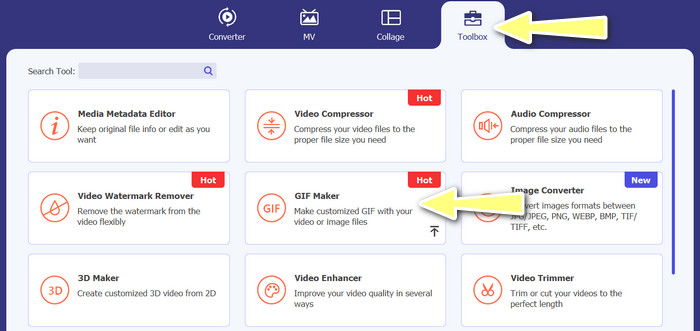
Step 2. Next, go to the Toolbox tab located from the upper interface of the program. Then, you will be redirected to a collection of options offered by the program. From here, select GIF Maker and add GIF files by ticking the Photos to GIF button. Afterward, choose all the GIF files you wish to merge into one.
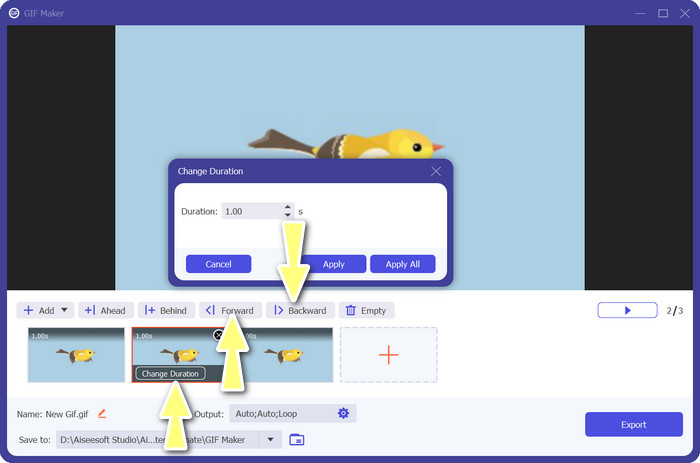
Step 3. From the editing panel, hover your mouse to each GIF to see the Change Duration option and adjust the length of each GIF. Also, you can change the sequence by choosing between the Backward and Forward buttons from the main menu.
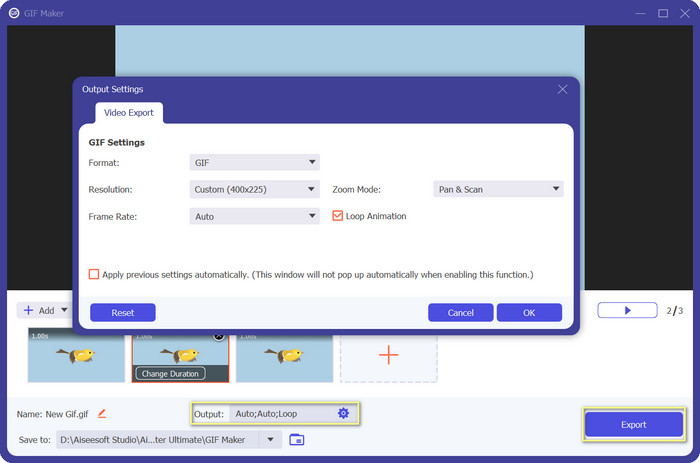
Step 4. Next, you may adjust other settings, such as the format, resolution, frame rate, and zoom mode, from the Output settings. Finally, hit the Export button to produce the final output.
חלק 2. Top 4 GIF Combiner באינטרנט
יש גם כמה חלופות מקוונות לשילוב GIF לאחד. לכן, אתה יכול בקלות להצטרף לקובצי ה-GIF שלך מבלי להוריד תוכנית כלשהי במחשב שלך. בדוק אותם על ידי בדיקת התוכניות שהוצגו להלן.
1. EZGIF
EZGIF הוא שירות אינטרנט בשימוש נרחב ליצירה ושינוי של קובצי GIF. פונקציית GIF Joiner מאפשרת לשלב קובצי GIF רבים לאחד, עם אפשרות לשנות את מהירות ההשמעה ופרמטרים נוספים. להלן מדריך פשוט כיצד להשתמש ב-EZGIF כדי לשלב קובצי GIF לאחד.
Step 1. Launch your favorite web browser and visit the program's official site. From here, go to the GIF Maker option.
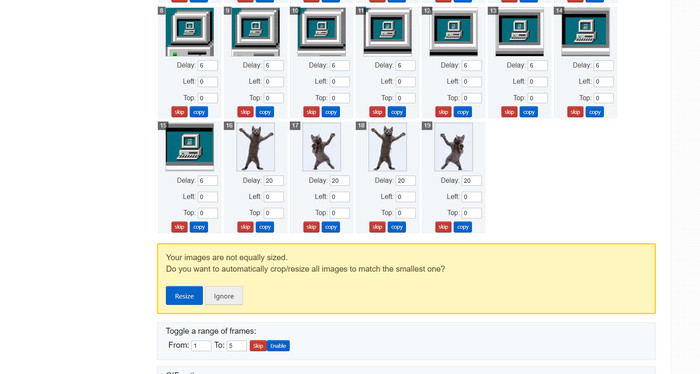
Step 2. Next, upload the GIF files you'd like to combine, and the tool will load each and every frame of your GIF file from the next page.
Step 3. Now, you can adjust which frame of a GIF you wish to include or exclude.
Step 4. Other options are available on the below page. If you are satisfied with the settings, tick the Make a GIF button.
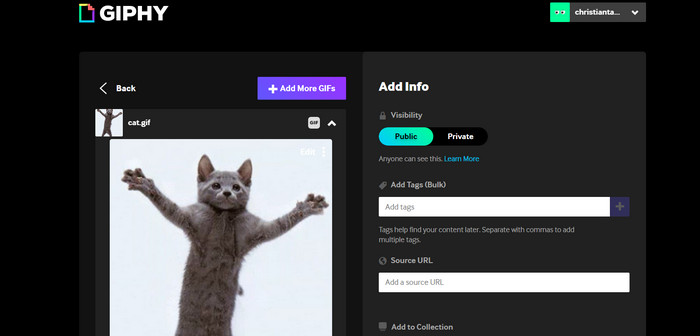
2. GIPHY
בעוד שרוב האנשים מכירים את GIPHY כמקום לחפש ולשתף קובצי GIF, הם אולי לא מבינים שהאתר כולל גם יוצר GIF שמאפשר למשתמשים לשלב קובצי GIF ולהוסיף טקסט או מדבקות. מצד שני, הנה תהליך שלב אחר שלב להצטרפות לקובצי GIF עם GIPHY.
Step 1. To start making GIFs, head over to the GIPHY website and use the Create tab. Choose GIF Creator from the menu that appears.
Step 2. Select the GIFs you wish to combine from your computer by clicking the Choose Files button.
Step 3. The selected GIFs can be dropped onto the timeline at the screen's base. Simply by dragging the GIFs into a new order, you can change their display order.
Step 4. To change the length of each GIF, use the slider provided. Using GIPHY's editing tools, you can personalize your GIF with text, stickers, and more. After you're happy with the outcome, select Create GIF to save the combined GIF to your computer.
3. קאפווינג
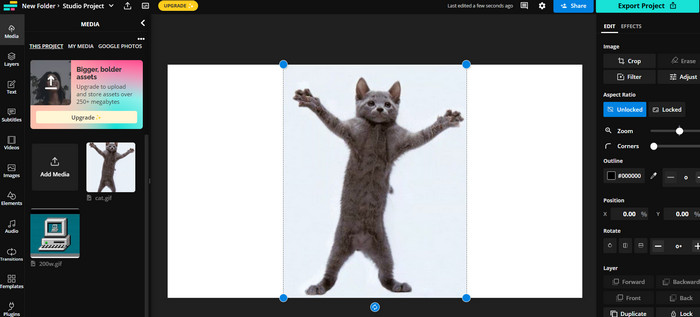
Kapwing is a free, web-based service that allows users to edit videos and create GIF from images. It allows users to submit several GIFs, combine them into one, select the playback speed, and change other parameters. To learn how to put two GIFs together with Kapwing, take a look at the instructions below.
Step 1. Go to Kapwing's website and click on Get Started to get started. Click on Click to Upload and select the GIFs you want to merge from your computer.
Step 2. Drag and drop the selected GIFs onto the timeline at the bottom of the screen. You can rearrange the order of the GIFs by dragging them to the desired position.
Step 3. Adjust the playback speed and duration of each GIF by using the editing tools provided by Kapwing. You can also add text, stickers, and other elements to your GIF by using the editing tools provided by Kapwing.
Step 4. Once you are satisfied, click on Publish to save your merged GIF to your computer.
4. Imgflip
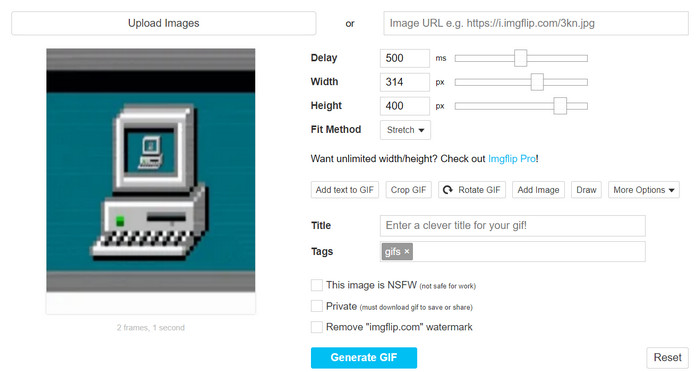
יוצר הממים וה-GIF הפופולריים Imgflip כולל גם מחולל GIF. משתמשים יכולים להוסיף שכבות טקסט, לשנות את מהירות ההשמעה ולפרסם מספר GIF בו-זמנית. עיין בשלבים וקבל מידע כיצד לשלב GIF לאחד.
Step 1. Go to Imgflip's website and click on Create at the top of the page. Click on Video to GIF in the dropdown menu.
Step 2. Click on Upload Video and select the GIFs you want to merge from your computer. After your GIFs are uploaded, click on Join GIFs at the top of the page.
Step 3. Arrange the order of the GIFs by dragging and dropping them to the desired position. Adjust the playback speed and other settings as desired.
Step 4. Once satisfied with the final result, click Create GIF to save your merged GIF to your computer.
חלק 3. שאלות נפוצות על שילובי GIF
האם אוכל לשלב קובצי GIF בגדלים שונים?
כן, רוב מיזוגי GIF מאפשרים לך לשלב קובצי GIF בגדלים וביחסי גובה-רוחב שונים. עם זאת, חשוב לשים לב שהפלט הסופי עשוי להיחתך או לשנות את גודלו בהתאם לממדים של קובצי ה-GIF הבודדים.
האם זה חוקי למזג קובצי GIF שאינם שלי?
חשוב לכבד את חוקי זכויות היוצרים ולמזג רק קובצי GIF שיש לך את הזכות להשתמש בהם. זה עשוי לכלול קובצי GIF שהם ברשות הציבור או כאלה שיצרת בעצמך.
האם אוכל להוסיף טקסט או מדבקות ל-GIF הממוזג שלי?
Yes, most GIF mergers offer editing features that allow you to add text, stickers, and watermarks to your GIF. This can help enhance the visual appeal and message of your GIF.
סיכום
In a world where visual content is becoming increasingly important, GIF merging is a valuable skill to acquire. With the ability to combine GIFs into one file, you can create something truly unique that will grab the audience's attention and make them want to engage with your content.
-
 5 ממכוני ה-GIF הטובים ביותר הזמינים בכל הפלטפורמות [2023]
 רוצה לדעת את מכשירי שינוי ה-GIF שבהם אתה יכול להשתמש? במקרה כזה, המידע שסופק להלן ידבר על השינויים שבהם אתה יכול להשתמש ב-GIF שלך בכל הפלטפורמות.
-
 Loop GIF עם Looper ה-GIF המונפש הטוב ביותר ב-Windows ו-Mac
 רוצה לדעת את הסוד ל-GIF הלולאה הטוב ביותר? רוצה להכין אחד? אם כן, אתה במקום הנכון. אז, למד כיצד ליצור לולאה עם הלופר הטוב ביותר שיש.
-
 6 הדרכים המובילות לשלב קבצי MP4 ב- Windows / Mac / Online
 רוצה למזג את קבצי MP4 הגולמיים שלך לפרויקט שלך? פוסט זה אוסף את 6 הדרכים המובילות שיעזרו לך לשלב קטעי וידאו MP4 ב- Windows, Mac ובאינטרנט בקלות.
