


 ממיר וידאו אולטימטיבי
 מקליט מסך
 תיקון וידאו
 הורדה מאובטחת
3 פתרונות לתיקון בעיות ב-Windows Media Player שאינן מנגנות תקליטורי DVD
מחשבי Windows מגיעים עם נגן DVD ברירת מחדל – Windows Media Player. יש לך דיסק מוכן ליהנות ממנו? עם זאת, משתמשים רבים מדווחים על תקלה נפוצה: הם נתקלים במסך שחור בעת ניגון וידאו, או מקבלים הודעה שהסוג קובץ אינו נתמך. יש סיבות שונות לבעיה של Windows Media Player אינו מנגן DVD.
נסביר בפירוט מדוע מתרחשת תקלה כזו ונספק כאן פתרון ספציפי. תוכלו גם לזהות את הנגן הטוב ביותר כאן. עקבו אחר המדריך שלנו שלב אחר שלב ותיהנו מחוויית ניגון DVD חלקה ביותר.

חלק 1. האם Windows Media Player ינגן DVD
האם Windows Media Player ינגן DVD? כן, אבל לא כל דיסק.
לאחר שנתקלת בבעיה שאי‑אפשר לנגן, אל תמהר עדיין. בוא נראה מהם הגורמים האפשריים.
מדוע ייתכן שחלק מה-DVD לא יפעלו ב-Windows Media Player
• Windows Media Player אינו תומך ב‑DVD
לא כל נגני Windows Media Player במערכות Windows תומכים בקריאת תקליטורי DVD; אם אתם משתמשים ב-Windows Vista או Windows 7, אינכם צריכים לדאוג בקשר לכך; עם זאת, Windows Media Player ב-Windows 8, Windows 10 ו-Windows 11 אינו תומך בקריאת תקליטורי DVD. עם זאת, Windows Media Player ב-Windows 8, Windows 10 ו-Windows 11 אינו תומך כרגע בנגינה של תקליטורי DVD, וייתכן שתצטרכו להוריד נגן DVD מיוחד מ-App Store.
• חוסר במפענח DVD (Decoder) תואם
האם ה-DVD לא מופיע ב-Windows Media Player? חלק מהמשתמשים מקבלים הודעה המתריעה בפניהם כי מפענח DVD תואם אינו מותקן במכשיר שלהם. במקרה זה, עליך לפעול לפי העצות כיצד להשיג את ה-codec הנכון. אם הבעיה נמשכת לאחר ההתקנה, נסה להסיר את ההתקנה ולהתקין אותה מחדש.
• קיימת בעיית הגנת העתקה דיגיטלית
סביר להניח שתיתקלו גם בחלון קופץ מסוג אחר שיודיע לכם שיש בעיה בין כונן ה-DVD, המפענח וההגנה מפני העתקה דיגיטלית. זה עשוי גם להצביע על כך שכונן ה-DVD שלכם אינו פעיל.
• זיכרון לא מספיק
כאשר במחשב שלך פועלות יותר מדי תוכניות ברקע, הדבר עלול לגרום לכך שה-DVD לא יופעל ב-Windows Media Player. באפשרותך לבדוק את התוכניות הפועלות במנהל המשימות.
• הדיסק שלך פגום
אם יש כתמים או שריטות על הדיסק שלך, כונן ה-DVD לא יוכל לקרוא את התוכן כראוי.
חלק 2. כיצד להפעיל DVD ב-Windows Media Player ב-Windows 7
איך מנגנים DVD ב‑Windows Media Player?
כפי שכבר הבנו מהאמור לעיל, Windows Media Player ב‑Windows 7 מסוגל לנגן דיסקי DVD. אינך צריך לבצע הרבה פעולות נוספות. בחלק זה יש הוראות מפורטות צעד‑אחר‑צעד.
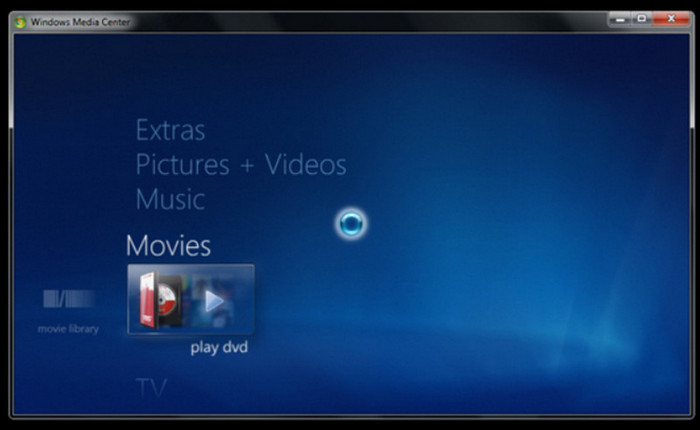
שלב 1. ודא שיש לך כונן CD וחבר אותו למחשב. הכנס את הדיסק שברצונך לנגן.
שלב 2. סגור את כונן ה‑CD. כעת ה‑DVD שהוכנס אמור להתחיל להתנגן אוטומטית.
שלב 3. אם ה‑DVD אינו מתנגן, עבור אל Windows Media Player. מצא את Player Library ולחץ על הדיסק או הפרק שברצונך לצפות בו.
חלק 3. DVD לא מתנגן ב-Windows Media Player ב-Windows 8/10
פתרון 1: שימוש בקודק DVD
Windows 8 ו-10 אינם תומכים בהפעלת תקליטורי DVD, אך הם עדיין תואמים ל-DVD. כדי להפעיל דיסקים דרך שתי המערכות הללו, תצטרכו להוריד קודק של צד שלישי.
כך משיגים מפענח DVD עבור Windows Media Player. עקוב אחר השלבים ונסה לנגן DVD ב‑Windows Media Player.
שלב 1. עבור לפינה השמאלית התחתונה. לחץ על Start והקלד troubleshooter בתיבת החיפוש. לאחר מכן בחר Troubleshooter > View All > Windows Media Player.
שלב 2. תופיע חלונית קופצת שתבקש ממך להתקין מפענח (decoder) ל‑Windows Media Player. עקוב אחר ההנחיות על המסך וסיים את ההתקנה.
שלב 3. הפעל את כונן ה‑CD במחשב. הכנס את הדיסק וסגור את הכונן. Windows Media Player יתחיל לנגן את סרט ה‑DVD. אם לא, פתח את Windows Media Player ובחר Player Library. בחר את ה‑DVD שברצונך לנגן.
פתרון 2: שימוש בחלופה לנגן: נגן Blu-Ray של Aiseesoft
למרות ש‑Windows Media Player ב‑Windows 8 ו‑10 אינו תומך כברירת מחדל בניגון DVD, הוא עדיין מסוגל לקרוא אותם. לכן באפשרותך לחפש נגן דיסקי DVD ייעודי יותר, כגון Aiseesoft Blu-Ray Player.
נגן ה-Blu-Ray של Aiseesoft תומך בנגינה של דיסקי DVD, דיסקי Blu-ray, תיקיות Blu-ray, קבצי תמונה ISO וכן הלאה. הוא יכול להציג קטעי וידאו HD ברזולוציה של 1080p, 720p ואפילו 4K UHD. ניתן להשתמש בו גם להפעלת קבצי וידאו או שמע בפורמטים רגילים, כגון MP4, MPG, WMV, MKV, AVI, FLV וכו'.
Aiseesoft Blu-Ray Player מאפשר גם להתאים אישית רשימות השמעת וידאו. מכל בחינה, זהו התחליף הטוב ביותר ל‑Windows Media Player, והעוזר הטוב ביותר שלך לניגון דיסקי CD.
הורדה חינמיתל־Windows 7 ומעלההורדה מאובטחת
הורדה חינמיתל־MacOS 10.7 ומעלההורדה מאובטחת
כך תנגנו את ה-DVD שלכם עם נגן Blu-Ray של Aiseesoft.
שלב 1. הורד והתקן את Aiseesoft Blu-Ray Player במחשב ה‑Windows שלך. הכנס את דיסק ה‑DVD לכונן.
שלב 2. היכנס לממשק הראשי של Aiseesoft Blu-Ray Player. לחץ על Open Disc ובחר את ה‑DVD שברצונך לנגן.
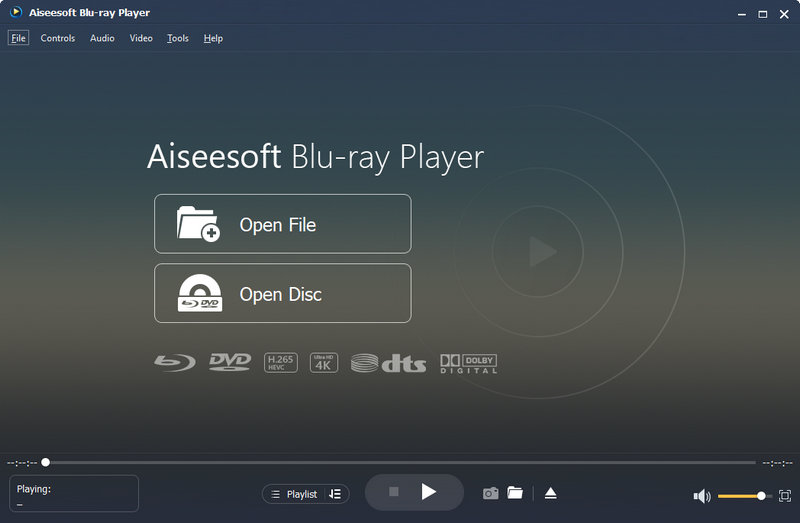
שלב 3. כאשר ה‑DVD נטען, הווידאו יוצג. באפשרותך להגדיר את ניגון הווידאו, השמע והכתוביות בתפריט.
פתרון 3: שימוש בתוספים ותוספות להפעלת DVD
יש לך גם אפשרות להוסיף תוספים או תוספים למכשיר שלך לצורך הפעלת DVD.
יש אפליקציית נגן DVD ייעודית של Windows הזמינה בחנות האפליקציות Play עבור Windows 10. ניתן להשתמש בה כדי להפעיל תקליטורי DVD, אם כי היא בחינם לזמן מוגבל בלבד.
ב-Windows 8.1, התוספים שתוכלו לבחור מהם כוללים את Pure Player X, DVD Media Player, Movie Video Player, Coole VLLC Media Player ו-Fast Player for DVD.
משתמשי Windows XP או Vista עשויים לשקול שיפורי שמע של SRS או DFX.
חלק 4. שאלות נפוצות לגבי נגן המדיה של Windows שאינו מנגן תקליטורי DVD
מתי Windows Media Player הפסיק לנגן תקליטורי DVD?
החל מ-Windows 8, מיקרוסופט הסירה את קודקן ה-DVD; ב-Windows 10, התכונה הוסרה לחלוטין. אבל ניתן להוריד אותה ידנית מחנות התוכנה כדי להפעיל תקליטורי DVD כרגיל.
האם Windows Media Player מנגן תקליטורי DVD?
נגן המדיה של Windows ב-Windows 7 יכול לנגן תקליטורי DVD, אך Windows 8 ו-10 לאחר מכן לא יתמכו בו. ייתכן שתצטרכו להוריד תוספים נוספים.
מהו נגן ה-DVD החינמי הטוב ביותר עבור Windows 11?
אנו ממליצים לנסות את נגן ה-Blu-Ray של Aiseesoft. הוא תומך בקריאת DVD, Blu-ray וקבצי וידאו רגילים. הוא קל לשימוש ובעל ביצועים מצוינים.
סיכום
הבעיה של Windows Media Player אינו מנגן DVD מתרחשת לעיתים קרובות. הסיבה יכולה להיות חוסר בקודקים (codecs) הנדרשים. באפשרותך להשיג את הקודקים מחדש מחנות האפליקציות של Microsoft או להתקין תוסף שיכול לנגן DVD. הדרך הטובה ביותר לפתור זאת אחת ולתמיד היא להשתמש בכלי מקצועי כמו Aiseesoft Blu-ray Player. יש לו איכות ניגון גבוהה ותאימות טובה.
-
 העתקת DVD ל-AVI: 3 תוכנות ה-DVD הטובות ביותר [סקירה]
 רוצה לקרוע את תקליטורי ה-DVD שלך ל-AVI להשמעה ואחסון קלים יותר? קרא את הסקירה המפורטת שלנו של ממירי DVD ל-AVI הטובים ביותר כדי למצוא את הכלי המושלם עבורך.
-
 נגן DVD אנדרואיד - כיצד לנגן סרטוני DVD בניידים של אנדרואיד
 כיצד לנגן קבצי DVD בניידים של אנדרואיד? האם יש נגני DVD של אנדרואיד? במאמר זה תלמדו על 3 דרכים לנגן סרטוני DVD בניידים של אנדרואיד עם או בלי מנהל ההתקן החיצוני.
-
 כל מה שאתה צריך לדעת על פורמטים של נגן DVD
 זהו מדריך המציע את הידע על פורמט נגן DVD כולל כיצד לפתוח את הקבצים בפורמט נגן DVD וכיצד להמיר לפורמטים אחרים.
