


 ממיר וידאו אולטימטיבי
 מקליט מסך
 תיקון וידאו
 הורדה מאובטחת
הדרך הקלה ביותר למזג רצועות ב-Audacity [מדריך 2025]
מיזוג אלמנטים כמו צלילים אחרים, מוזיקה או רצועות חיוני להפיכת פרויקט שמע ליצירתי וייחודי. תהליך זה נעשה בדרך כלל באמצעות אפליקציית עורך אודיו ייעודית הכוללת תכונה למזג רצועות לאחת. כיום, כלי אחד משמש בדרך כלל למיזוג מסלולים מרובים, והוא Audacity.
כלי זה מוכר לרבים בגלל היותו חינמי וקוד־פתוח, אך הוא מציע גם מערך מצוין של אפשרויות עריכה שאליהן המשתמשים נמשכים. לכן, אם אתה מחפש מדריך על איך למזג רצועות ב‑Audacity או דרך חלופית ופשוטה לעשות זאת, המשך לקרוא את המאמר הזה.

חלק 1. כיצד למזג רצועות ב-Audacity
Audacity היא תוכנה חינמית לעריכת אודיו בשימוש נרחב המציעה תכונות עריכה רבות, כולל רצועת המיזוג המפורסמת של Audacity.
עם תכונה זו, משתמשים יכולים לייבא בקלות אלמנטים קוליים שונים לציר הזמן של העריכה. לאחר מכן, מציר הזמן של העריכה, הם יכולים ליישר את הרצועות לרצועה אחת על ידי העברה ידנית לסדר הרצוי. מלבד זאת, לכלי הזה יש תכונות עריכה נהדרות שחיוניות לליטוש המסלול המשולב. תכונות הדהייה והדעיכה יכולות ליצור מעבר חלק בין רצועות. בינתיים, תכונת התאמת עוצמת הקול תגרום לכל הרצועות להישמע מאוזנות כשהן מתמזגות.
עכשיו, מדוע עורכי אודיו ממזגים רצועות?
כדי ליצור מעברים חלקים. מיזוג מספר רצועות מאפשר ליצור מעברים חלקים יותר בלי חיתוכים ברורים או פערים בין רצועות אודיו שונות.
כדי לפשט את זרימת העבודה. שילוב כמה רצועות מאחד שכבות אודיו מרובות לרצועה אחת. תהליך זה מקל על ניהול ועריכת הרצועות בלי צורך להתעסק עם קבצים נפרדים.
כדי ליצור צליל מאוזן. מיזוג רכיבי צליל אודיו שונים מאפשר לעורכי אודיו להתאים את עוצמת הקול, לסנכרן זמנים ולמזג רצועות שונות.
כך ניתן למזג רצועות ב-Audacity:
שלב 1: קודם כל, הורד והתקן את Audacity במחשב שלך.
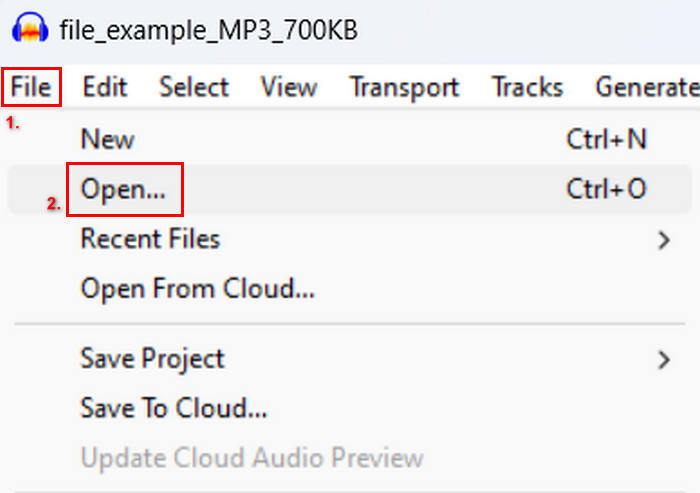
שלב 2: פתח את הכלי, עבור ללשונית File, לחץ על Open, וייבא את הרצועות שברצונך למזג.
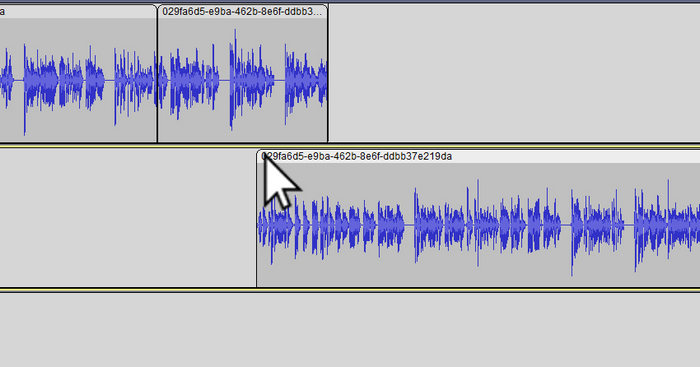
שלב 3: כעת, לאחר שכל הרצועות יובאו לציר הזמן שלך, השלב הבא שעליך לעשות הוא ללחוץ על ראש הקליפ של הרצועה כדי להזיז ולסדר אותן לפי הסדר הרצוי לך.
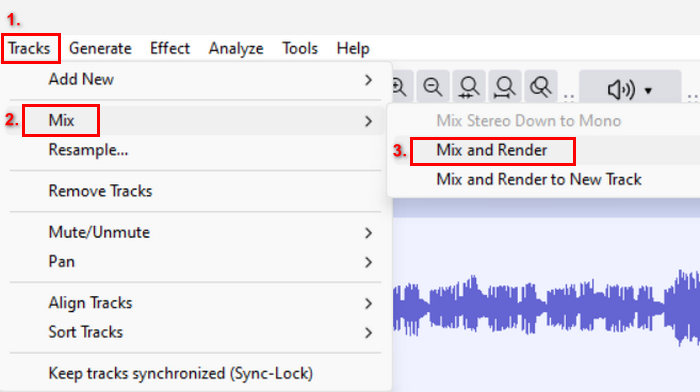
שלב 4: אחרי שיישרת את הרצועות שלך, ערבב אותן להרכבה אחת. כדי לבחור את הרצועות שברצונך למזג, לחץ והחזק Ctrl תוך כדי לחיצה עליהן. לאחר מכן, כדי למזג את הרצועות שנבחרו לרצועה אחת, עבור אל Tracks, לחץ על Mix, ובחר Mix and Render.
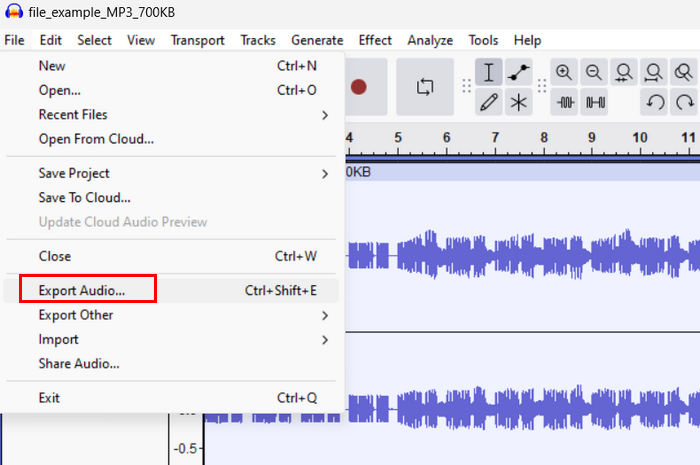
שלב 5: כדי לייצא את הקובץ, עבור ללשונית File ובחר Export Audio.
כדי להבטיח מעבר חלק וצליל מאוזן עבור רצועות האודיו המשולבות, השתמש באפקטים Amplify או Normalize בתוך הכלי. בנוסף, השתמש בכניסות ויציאות הדרגתיות (fade‑in ו‑fade‑out) כדי ליצור מעברים חלקים בין הרצועות לצליל מקצועי ומלוטש יותר. לחץ כאן כדי ללמוד איך לבצע Fade לאודיו ב‑Audacity.
חלק 2. מיזוג רצועות עם Audacity Alternative
אם אתה מחפש חלופה מצוינת משום שאתה מתקשה להבין איך אפשרות מיזוג הרצועות ב‑Audacity עובדת, תוכל להשתמש ב‑Video Converter Ultimate שנבחר על ידי FVC. זהו כלי מלא־יכולות שמציע מערך כלים לצורכי אודיו ווידאו, כולל ממזג אודיו. מה שהכלי עושה הוא שלאחר ייבוא קובצי האודיו שברצונך למזג, תוכל לשנות בקלות את סדר הרצועות לפי רצונך ולערוך אותן מיד לפני מיזוגן בלחיצה אחת.
תכונות עיקריות:
• זה יכול למזג קבצי אודיו מרובים ב-1,000 פורמטים כמו MP3, AAC, WAV, FLAC, OGG, ועוד.
• מכיל תכונות עריכה בסיסיות כמו חיתוך, פיצול מהיר, אפקטים של דהייה ודעיכה.
• מאפשר לערוך פלט אודיו בדיוק כמו המקודד, קצב הדגימה, קצב הסיביות, הערוץ וכו'.
• תהליך מיזוג מהיר.
• זמין עבור Windows ו-MacOS.
הנה איך למזג רצועות עם FVC Video Converter Ultimate שנבחר:
שלב 1: תחילה עליך להוריד ולהתקין את הכלי במכשיר שלך.
הורדה חינמיתל-Windows 7 ומעלההורדה מאובטחת
הורדה חינמיתל-MacOS 10.7 ומעלההורדה מאובטחת
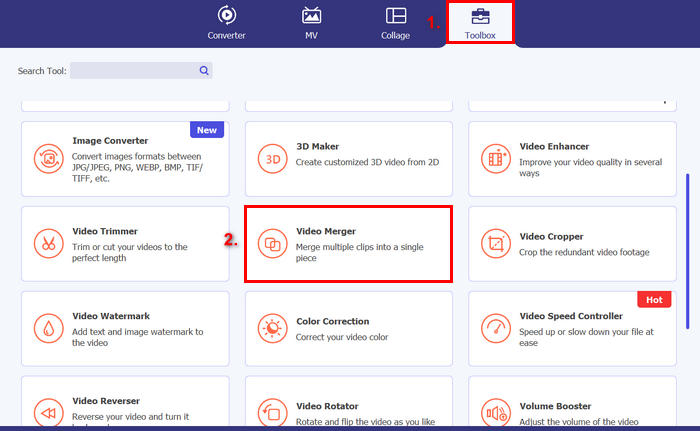
שלב 2: פתח את הכלי, עבור ללשונית Toolbox, ובחר Video Merger. לאחר מכן, לחץ על סמל הפלוס כדי לייבא בקלות את קובצי האודיו שברצונך למזג.
שלב 3: כעת כל רצועות האודיו שייבאת מוצגות בתחתית. אם עליך להתאים את סדרן, פשוט גרור את קליפ האודיו למקום המתאים. לחלופין, תוכל לבחור את הקליפ וללחוץ על כפתור Forward או Backward. לאחר מכן לחץ על כפתור Export כדי לשמור את הפרויקט.
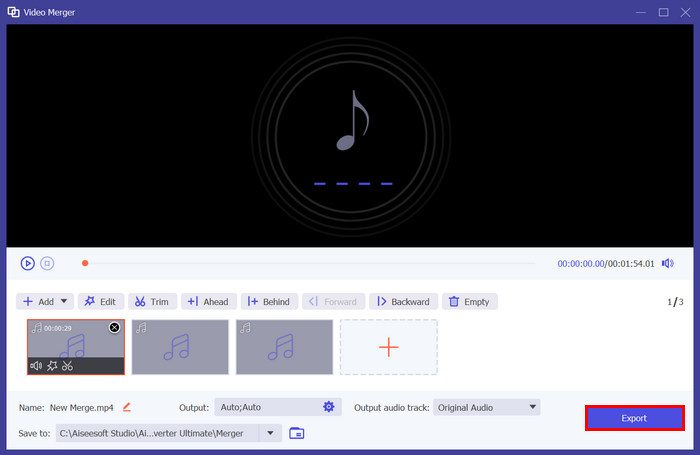
הערה: במקרה שעליך לשנות את פורמט האודיו או להתאים חלק מהגדרות האודיו, עבור אל הגדרת Output. משם תוכל לשנות את הפורמט, המקודד, קצב הדגימה (sample rate), הערוץ וה‑bitrate של רצועות האודיו שלך. בסיום לחץ על כפתור Export.
הנה לך. ה-Video Converter Ultimate שנבחר ב-FVC הוא באמת אלטרנטיבה מצוינת עבור Audacity. עם הממשק הידידותי והאינטואיטיבי שלו, אפילו מתחילים יכולים להשתמש בכלי בקלות בעת מיזוג רצועות מרובות.
חלק 3. שאלות נפוצות לגבי מיזוג רצועות ב-Audacity
כיצד אוכל לייבא קבצי אודיו מרובים לרצועה אחת ב-Audacity?
כדי לייבא מספר קובצי אודיו ב‑Audacity, עבור ללשונית File, לחץ על Open, ובחר את קובצי האודיו שברצונך למזג. כל קובץ יופיע כרצועה נפרדת על ציר הזמן. משם תוכל ליישר ולמזג ידנית את הרצועות באמצעות האפשרות Mix and Render שבתפריט Tracks.
כיצד אוכל להעביר אודיו מרצועה אחת לאחרת ב-Audacity?
ישנן שתי דרכים להעביר רצועה בעת מיזוג רצועות מרובות ב-Audacity. כדי להזיז רצועה בודדת, לחץ וגרור את נקודת האחיזה של הרצועה והצב אותה בכל הסדר שתרצה. בינתיים, כדי להעביר מספר רצועות, בחר את כל הרצועות שברצונך להעביר באמצעות כלי הבחירה. לאחר מכן, גרור כל ידית קליפ בתוך האזור שנבחר כדי להזיז את כל הקליפים שנבחרו בו-זמנית.
כמה רצועות יש ל-Audacity?
ל-Audacity אין הגבלה קבועה על מספר הרצועות שאתה יכול לערוך. עם זה, אתה יכול ליצור ולייבא כמה רצועות שאתה רוצה. עם זאת, כאשר עובדים עם מספר רצועות, עליך לשקול את הקיבולת של המחשב שלך מכיוון שהביצועים עשויים להיות תלויים בכוח העיבוד ובזיכרון של המערכת שלך.
סיכום
כעת, לאחר שאתה יודע איך למזג רצועות ב‑Audacity, תוכל ליצור בקלות מעברים חלקים ואודיו מאוזן עבור הפרויקטים שלך. בנוסף, תוכל לחקור אפשרויות נוספות כמו כניסות ויציאות הדרגתיות (fade‑in, fade‑out) והתאמות עוצמה לצליל טוב יותר. במקביל, אם אתה רוצה אפשרות פשוטה יותר או מתקדמת יותר, נסה את Video Converter Ultimate שנבחר על ידי FVC. הוא קל לשימוש ומציע אפשרויות התאמה נוספות לקובצי האודיו שלך.
-
 כיצד להשתמש ב-Audacity כדי להפוך אודיו ב-Windows 10/11
 אם אתה עורך קובץ שמע ב-Audacity ותוהה כיצד להפוך את כולו או חלק ממנו, קרא כאן ולמד כיצד להפוך שמע ב-Audacity בקלות.
-
 כיצד לדעוך אודיו באודיסיטי: 4 דרכים שונות [2025]
 גלה שלבים כיצד לדעוך אודיו ב-Audacity ביעילות וקצת ידע נוסף על אפקטי הדה-אין/אאוט של Audacity. חגור עכשיו, ובואו נצלול פנימה.
-
 כיצד לפצל אודיו בחוצפה עם דיוק רב [מדריך]
 מנסה ללמוד איך לפצל רצועות באודסיטי? אתה בעמוד הנכון! במאמר זה למד כיצד ניתן להפריד מסלול אחד לשניים בקלות רבה.
