


 ממיר וידאו אולטימטיבי
 מקליט מסך
 תיקון וידאו
היה ביקורת נרחבת בפתרון לא מסונכרן [אודיו ווידאו]
מחר עליך להציג פרויקט דיווח מקוון לכיתה. אתה מחפש את היישומים או התוכנות הטובים ביותר שבהם תוכל להשתמש כדי להקליט את הווידאו, כדי להשיג את הדיווח שעליך להגיש מחר. אבל במקום למצוא פתרון לבעיה שלך, מתחילים בלגן וצרות שגורמים לך לחשוב יותר מדי, מפני שהאודיו והווידאו אינם מסונכרנים. אין צורך לדאוג למצבך, כי זה היום המזל שלך; המאמר הזה כולל כל מה שאתה צריך לדעת כדי לפתור את הבעיה שלך.

חלק 1. מדוע האודיו אינו מסונכרן עם הסרטון?
אודיו ווידאו יכולים להיות לא מסונכרנים מכמה סיבות, כולל הבאות: השידור או החיבור בין ממיר הכבלים/הלווין שלך עלולים להיות הבעיה בעת צפייה בתוכנית טלוויזיה. נגן DVD או Blu-ray DiscTM לא אמין או הדיסק עצמו עשויים להיות האשמים אם יש לך אחד מהמכשירים האלה שמחובר לטלוויזיה שלך. אם מערכת הקולנוע הביתית שלך מחוברת לטלוויזיה שלך באמצעות כבל אופטי, ייתכן שתבחין בפיגור שמע שיש לתקן באופן ידני. מצד שני, הגדרות הטלוויזיה שלך יכולות להיות אשמות.
חלק 2. 3 הכלים המוכחים הטובים ביותר: כיצד לסנכרן אודיו ווידאו
1. השתמש ב-Video Converter Ultimate
יש הרבה דרכים ותוכנות זמינות באינטרנט שיכולות לעזור עם הבעיה הנתונה, וזהו אחד הכלים הטובים ביותר שאנו ממליצים להשתמש בהם. הורד את FVC Video Converter Ultimate במחשב שלך, תוכנה עם תכונות שונות המשפרות סרטון וידאו. אחת התכונות המוצעות יכולה לתקן בעיית וידאו קליפ של סינכרון אודיו ווידאו ב-Windows 10 - למשל - על ידי התאמת ההשהיה שלו. בצע את השלבים הבאים כדי לדעת כיצד להשתמש בתוכנה:
שלב 1: כדי להוריד את התוכנה למחשב השולחני שלך, לחץ על כפתור ההורדה החינמית (Free Download). לאחר מכן התקן את התוכנה והתאם את ההגדרות לפי רצונך. אם הכול תקין, הפעל את התוכנה לאחר ההתקנה.
הורדה חינמיתל-Windows 7 ומעלההורדה מאובטחת
הורדה חינמיתל-MacOS 10.7 ומעלההורדה מאובטחת
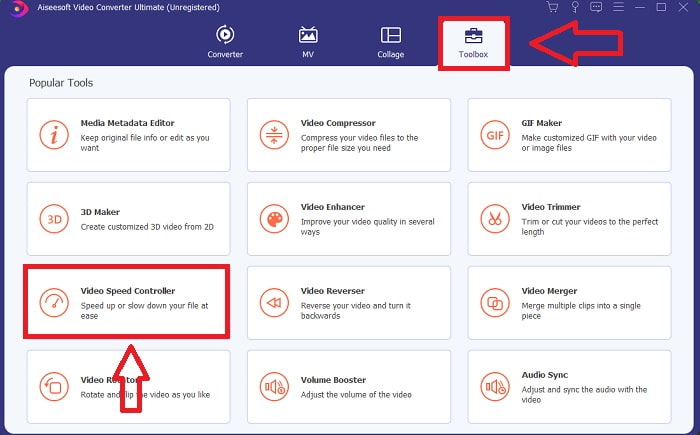
שלב 2: בממשק הראשי, לחץ על פונקציית Toolbox והמשך אל Audio Sync.
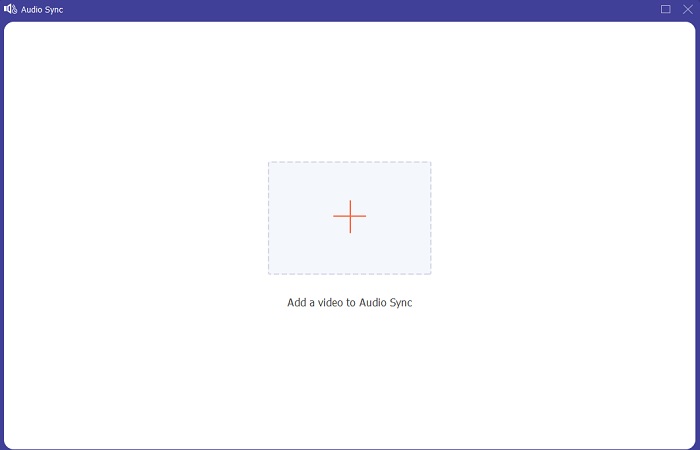
שלב 3: הוסף כל קובץ שתרצה על‑ידי לחיצה על כפתור ה‑+ בהתאם להעדפתך, והמשך לעריכת קטע הווידאו.
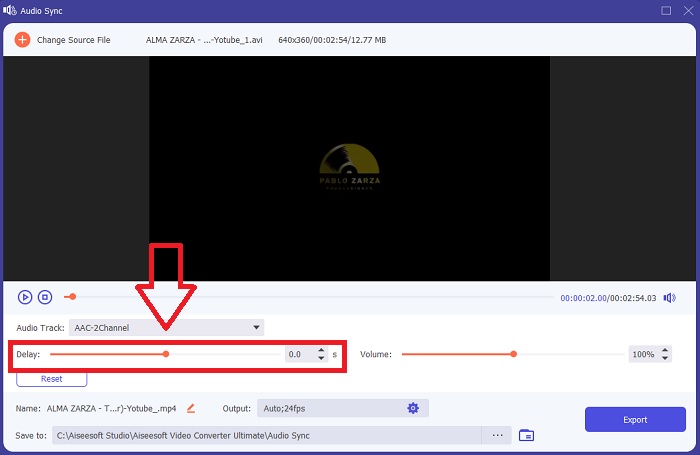
שלב 4: התאם את המחוון של האודיו כדי לסנכרן אותו עם קליפ הווידאו. באפשרותך גם לשנות את התקן הפלט ולהתאים אישית את עוצמת הקול של קליפ הווידאו שלך.
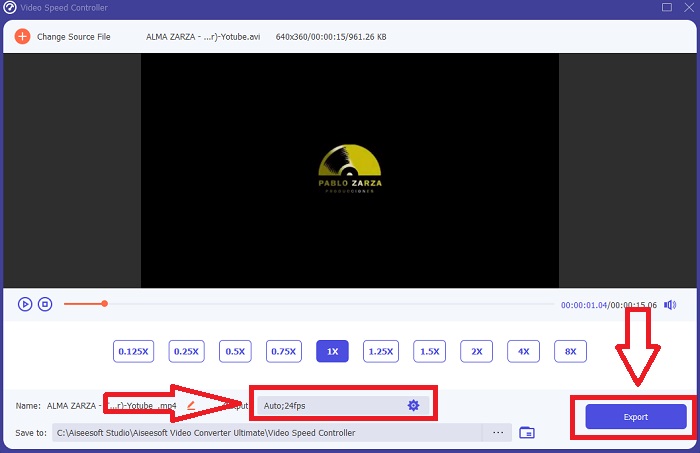
שלב 5: לאחר שסיימת לערוך את הסנכרון של קליפ הווידאו, לחץ על Export ובחר היכן יישמר הקובץ שלך.
2. השתמש ב-VLC Media Player
נגן המדיה VLC הוא יישום הזמין בכל מערכת הפעלה: Windows, Mac, iPhone ו‑Android. אף על פי שהוא נגיש בכל מכשיר, לכל אחד מהם יש דרכים שונות לתקן את השהיית האודיו ולסנכרן את האודיו של קליפ הווידאו. נגן מדיה זה ידוע לעיתים במערכת ההפעלה הבעייתית שלו, אך ניתן להשתמש בו גם כדי לתקן לצמיתות חוסר סנכרון בין אודיו לווידאו.
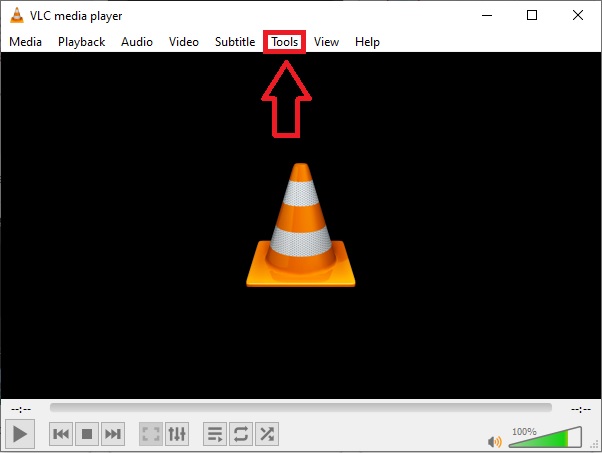
שלב 1: פתח את נגן המדיה VLC ב‑Windows ולחץ על לשונית Tools. לאחר הלחיצה על לשונית Tools, לחץ על Preference.
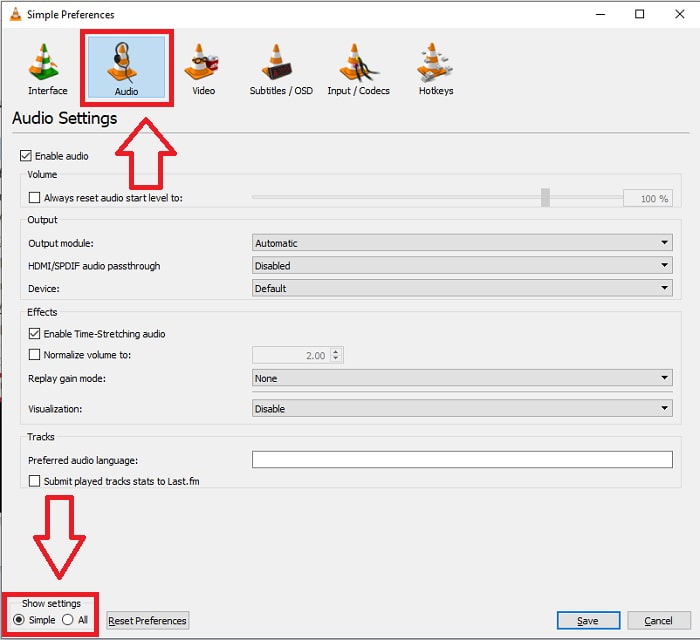
שלב 2: ממשק נוסף יופיע על המסך שלך. המשך בתהליך על‑ידי לחיצה על לשונית Audio. בפינה השמאלית התחתונה, בחר All כדי לגשת להגדרות המתקדמות.
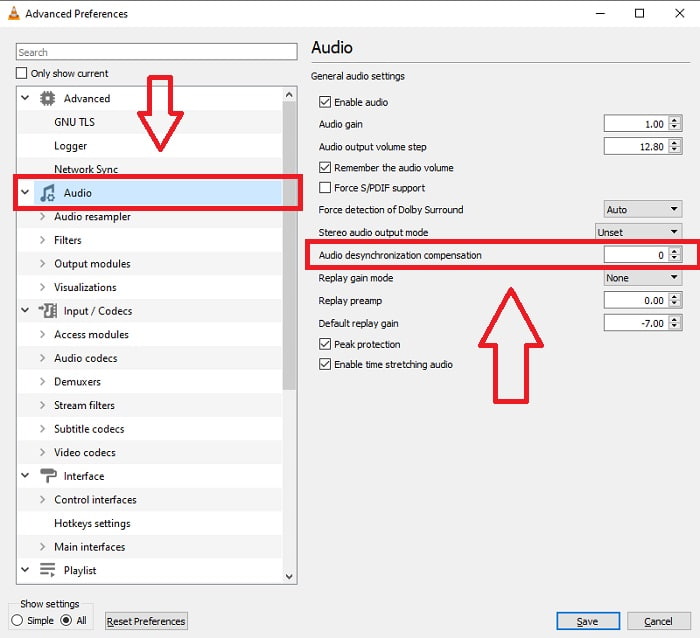
שלב 3: ההגדרות המתקדמות יספקו לך את כל האפשרויות. המשך באיתור Audio בלשונית ההגדרות המתקדמות. לאחר שתלחץ עליה, תראה את הגדרות האודיו הכלליות ותוכל לכוונן את Audio Desynchronization Compensation. אם האודיו מפגר מאחורי הווידאו, שנה את הערך לערך חיובי כדי לפצות. אם האודיו מנגן לפני הווידאו, יש להשתמש בערכים שליליים. חוסר הסנכרון VLC out of sync יתוקן לצמיתות באמצעות תהליך זה.
קשור:
כיצד לתקן מצב שבו VLC אינו מנגן קובצי MKV
כיצד לתקן בעיה ש‑VLC לא מנגן DVD
3. השתמש ב-Premiere Pro
כאשר מדובר ביצירת וידאו לשידור באיכות גבוהה (High Definition), Premiere Pro היא הכלי המועדף. ניתן להשתמש בתוכנה זו לייבוא כל סוגי המדיה, כולל וידאו ואודיו. לאחר מכן ניתן לערוך מדיה זו ולייצא אותה בפורמט הנדרש להפצה. בעת שימוש ב‑Premiere Pro ניתן לערוך יחד קטעי וידאו ותמונות סטילס שונים כדי ליצור סרטונים. ניתן להוסיף לסרטונים כותרות, פילטרים ואפקטים נוספים. תוכנה זו מסייעת מאוד כאשר האודיו והווידאו אינם מסונכרנים, במיוחד עבור משתמשי מחש桌 או מחשב נייד. להלן השלבים לביצוע ההליך כראוי.
שלב 1: ודא שאתה מציב את קבצי האודיו והווידאו שלך בשכבות בציר הזמן (Timeline), כפי שמוצג באיור.
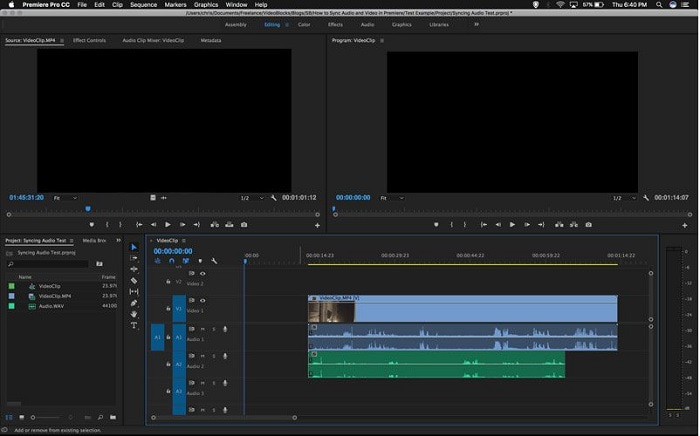
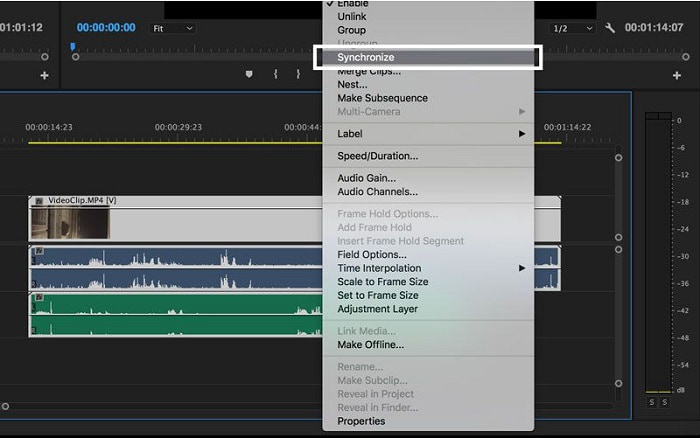
שלב 2: לחץ לחיצה ימנית כדי לבחור גם את רצועת האודיו וגם את רצועת הווידאו. תופיע תיבה נפתחת. בחר Synchronize מתפריט הבחירה שמופיע.
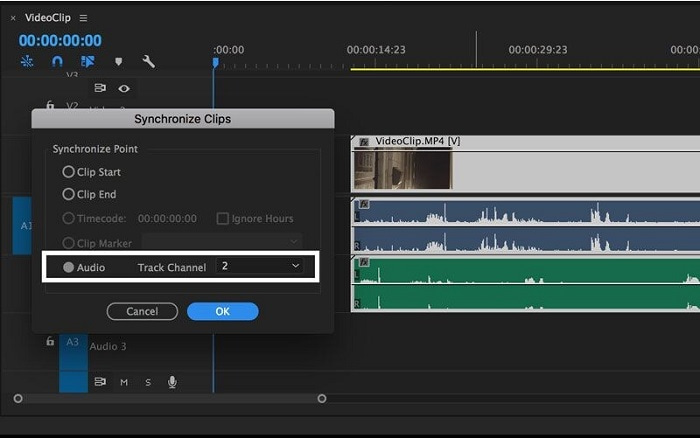
שלב 3: כעת בחר Audio כנקודת הסנכרון. בחר את הרצועה שברצונך לסנכרן. לבסוף, מחק את רצועת הסקראץ' (scratch track) ובחר באפשרות Link כדי לקשר בין הקליפים.
חלק 3. שאלות נפוצות לגבי אודיו ווידאו לא מסונכרנים
אם אשנה את קצב הדגימה, האם איכות השמע תיפגע?
אם אתה רוצה להאזין רק לאודיו בווידאו קליפ שלך ולא לבצע שינויים, עליך לשנות את קצב הדגימה כדי לעמוד בקצב. תוכל לסנכרן את השמע של הווידאו רק על ידי התאמת השהיית השמע של הווידאו ב-FVC Video Converter Ultimate. לא תהיה מודאג יותר מהידרדרות באיכות השמע בעת התאמת קצב הדגימה. עם תוכנה זו, לא תדאג לאודיו שאינו מסונכרן בסרטון. תוכנה זו מכילה תכונה שיכולה לפתור את הבעיה הנתונה; יש לו גם תכונות אחרות שיכולות להועיל לכל משתמש ולהשתמש בהן בנוחות.
מהו פיצוי ביטול סנכרון אודיו?
הגדר עיכוב זמן לפיצוי ביטול סנכרון אודיו חיובי או שלילי באלפיות שניות בהעדפות VLC על ידי לחיצה על אודיו ולאחר מכן סימון תיבת הסימון אפשרויות מתקדמות.
מהי הסיבה הנוספת לכך שהווידאו והשמע אינם מסונכרנים?
הסיבה האחרת שהווידאו והשמע אינם מסונכרנים היא בגלל פלט הווידאו הלא נתמך שהתקן האודיו לא יכול להשתמש בו, ולהיפך.
סיכום
לסיכום, השהיה בין אודיו לווידאו היא מצב בעייתי שאנשים רבים חווים בעולם המקוון. במיוחד מאז תקופת המגפה, שבה גאדג'טים וצרכים מקוונים הפכו לנפוצים, עולה השאלה: כיצד תוכל לתפקד כראוי או לבצע את המשימות שלך כנדרש אם יש מכשול בכל העניין המקוון הזה, כמו בעיית איך לסנכרן אודיו ווידאו? כאשר מתרחשת השהיה. כדי לסכם, כל הדרכים והחלופות שנועדו להבהיר את כל השאלות הוצגו כאן במאמר. אנו ממליצים להשתמש ב‑Video Converter Ultimate כדי לטפל במצבים מיותרים כאלה בעתיד.
-
 חמשת נגני הווידיאו בהילוך איטי במחשב (Windows / Mac / Linux)
 תנועה איטית היא תכונה שימושית מאוד במצבים רבים. כדי לצפות בסרטונים במהירות איטית בכדי לדעת מידע מפורט יותר על הצילומים החולפים, תוכלו ללמוד על חמשת נגני הווידיאו בהילוך איטי במאמר זה.
-
 [2 הפתרונות הטובים ביותר] כיצד לנגן סרטי AVI באייפון/אייפד בקלות
 לא מצליח לנגן סרטי AVI באייפון/אייפד שלך ולא רוצה להוריד נגני וידאו של צד שלישי? אתה יכול ללמוד 2 דרכים יעילות להמיר סרטוני AVI להפעלה באייפון.
-
 האם Wii / Wii U יכול לשחק תקליטורי DVD ללא Homebrew? 2 פתרונות בשבילך
 כאשר אתה מכניס תקליטורי DVD ל-Wii, תגלה ש-Wii לא יכול לקרוא ולהפעיל תקליטורי DVD בגלל הנעילה האזורית. במאמר זה, תלמדו כיצד לנגן תקליטורי DVD ב-Wii/Wii U בקלות ללא פריצת Homebrew.
