


 ממיר וידאו אולטימטיבי
 מקליט מסך
 תיקון וידאו
 הורדה מאובטחת
מיזוג קבצי WAV בצורה חלקה עם כלי תוכנה וטיפים
בין אם אתה חדש בעריכת אודיו או מקצוען, שימוש בכלים ובטכניקות הנכונים כדי לשלב קובצי WAV הוא חיוני, כדי להבטיח ששני קובצי WAV שונים ישולבו וייוצאו באיכות ללא אובדן. מצד שני, חיפוש אחר הכלי המתאים עלול לגזול מזמנו וממאמציו של המשתמש. עם זאת, בעזרת מאמר זה נבחן מגוון כלים, כולל השלבים לשימוש יעיל בכלי וטיפים שיעזרו לך להתחיל ולהפוך את התהליך לפשוט ויעיל יותר.

חלק 1. שלב קבצי WAV ללא אובדן בשניות [עם האצת GPU]
כאשר ברצונך לשלב שני קובצי WAV לייצוא כקובץ יחיד, הדרך הטובה והפשוטה ביותר לעשות זאת היא להשתמש ב-Video Converter Ultimate שנבחר על‑ידי FVC. כלי תוכנה זה מבית Aiseesoft נגיש לכל סוגי המשתמשים, והוא חינמי לחלוטין להורדה מהאתר הרשמי. בכלי זה ישנן יכולות לעריכת וידאו ואודיו, כולל אפשרות למזג מספר קובצי WAV לקובץ יחיד. בנוסף, התוכנה משלבת טכנולוגיית עיבוד מהיר ההופכת את מיזוג קובצי ה‑WAV והייצוא ליעילים בהרבה מצד המשתמש. כדי לנווט בקלות במשימת מיזוג קובצי ה‑WAV, עקוב אחר המדריך שלהלן.
שלב 1. הורד והתקן את ממזג קובצי ה‑WAV על שולחן העבודה שלך, ולאחר מכן פתח אותו.
הורדה חינמיתל-Windows 7 ומעלההורדה מאובטחת
הורדה חינמיתל-MacOS 10.7 ומעלההורדה מאובטחת
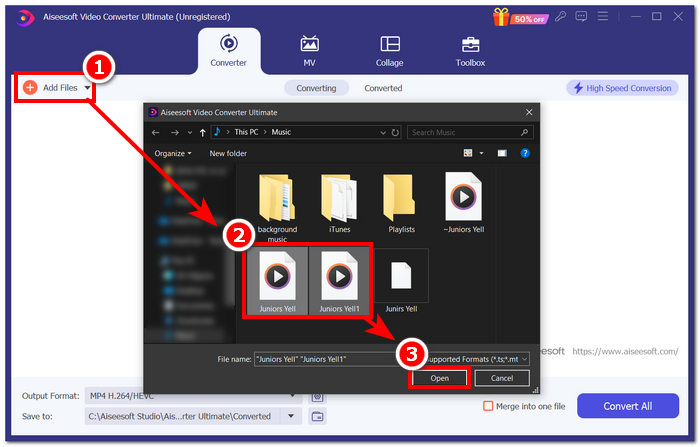
שלב 2. לאחר שאתה בממשק התוכנה, לחץ על כפתור Add Files בפינה השמאלית העליונה. לאחר מכן פתח ובחר את קובצי ה‑WAV שברצונך למזג לקובץ יחיד והמשך בלחיצה על כפתור Open.
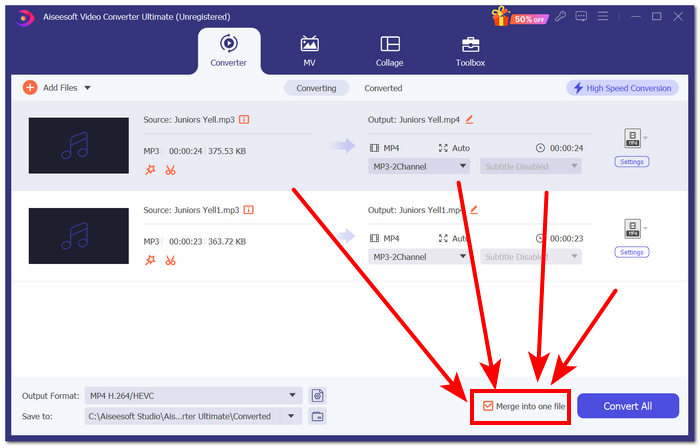
שלב 3. לאחר שהעלית את קובצי ה‑WAV, תוכל למזג אותם בתוך התוכנה. כדי לעשות זאת, סמן את התיבה Merge into one file, הממוקמת לצד הכפתור Convert All בחלק הימני‑תחתון של ממשק התוכנה.
שלב 4. לחץ על כפתור Convert All כדי להתחיל בתהליך המיזוג ולייצא את הקובץ החדש באופן אוטומטי לתיקיית ההורדות שלך.

טיפים
• ניתן למזג מספר קובצי WAV בכלי התוכנה בו זמנית.
• בפינה השמאלית התחתונה של ממשק התוכנה, תוכל לשלוט בפורמט הפלט לפורמט הקובץ הרצוי ביותר לפני ייצוא שלו.
• תוכל גם לשנות את היעד של קובץ ה-WAV הממוזג שלך על ידי גישה ובחירה בתיקייה המיועדת שלך הממוקמת בפינה השמאלית התחתונה של ממשק התוכנה.
• כדי למקסם את טכנולוגיית העיבוד המהיר בעת מיזוג וייצוא של קובץ ה-WAV שלך, הפעל את הגדרת המרה במהירות גבוהה הממוקמת בפינה השמאלית העליונה של ממשק התוכנה.
• בנוסף, הכלי תומך במגוון פורמטים, ותוכל לשלב MP4, קובצי MKV, FLV, MP3, FLAC ועוד פורמטים ביחד.
חלק 2. שלב קבצי WAV באינטרנט
כאשר אתה מוצא את מיזוג קבצי ה-WAV שלך דרך כלי מבוסס תוכנה קשה למדי, פתרון מקוון עשוי להיות הפתרון שאתה צריך. Descript הוא כלי מבוסס אינטרנט שמתפקד ככלי עורך אודיו, וידאו ותמלול באחד. מיזוג קובצי WAV הוא קל יחסית מכיוון שהכלי מבוסס האינטרנט משתמש בבינה מלאכותית כדי למזג אוטומטית את קבצי ה-WAV הקלט שלך ברגע שאתה מעלה אותם ולתת למשתמשים להציג אותם בתצוגה מקדימה לפני הורדתם.
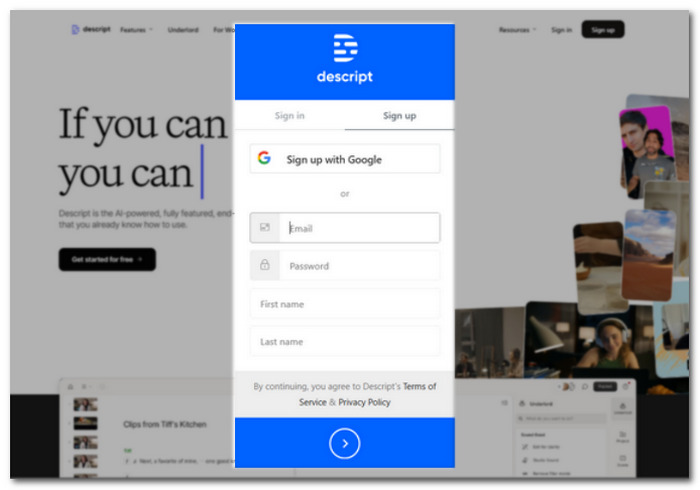
שלב 1. עבור לאתר הרשמי של Descript וצור חשבון, כדי שתוכל להשתמש בכלי התוכנה לשילוב קובצי ה‑WAV שלך.
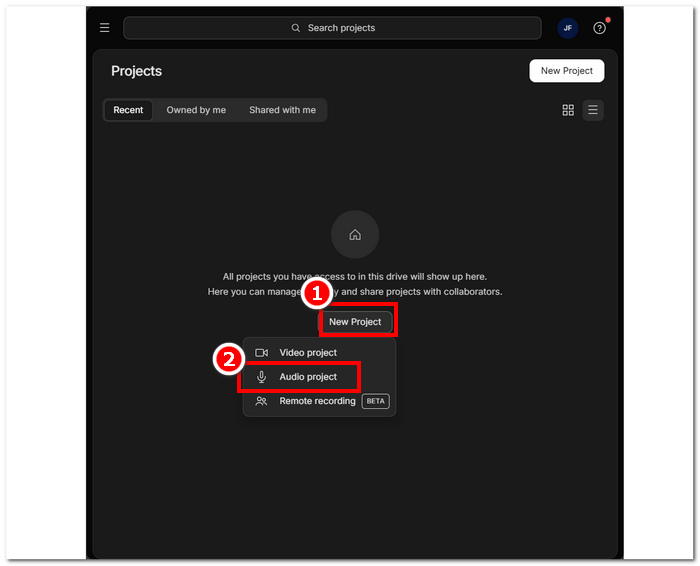
שלב 2. לאחר שתיכנס לממשק הכלי, לחץ על New Project > Audio Project.
שלב 3. העלה את קובצי ה‑WAV שברצונך לשלב ולמזג לקובץ יחיד בשדה Upload a file הזמין בממשק הכלי.
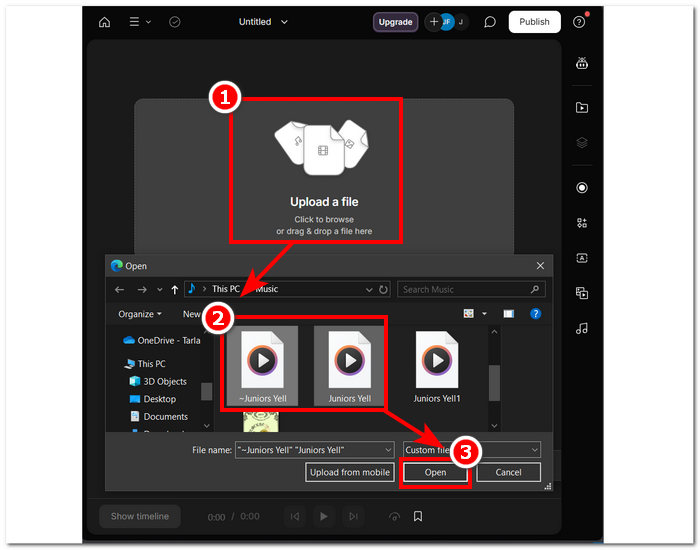
שלב 4. בזמן שקובצי ה‑WAV שלך נטענים בממשק הכלי, יופיע חלון שיאפשר לך להחליט אם ברצונך שהם ישולבו באופן אוטומטי. סמן כדי לאפשר את תהליך השילוב באמצעות ה‑AI ולאחר מכן לחץ על כפתור Done.
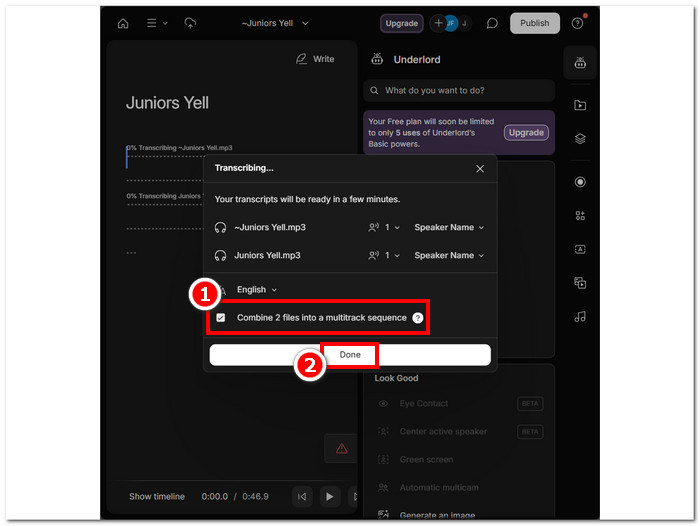
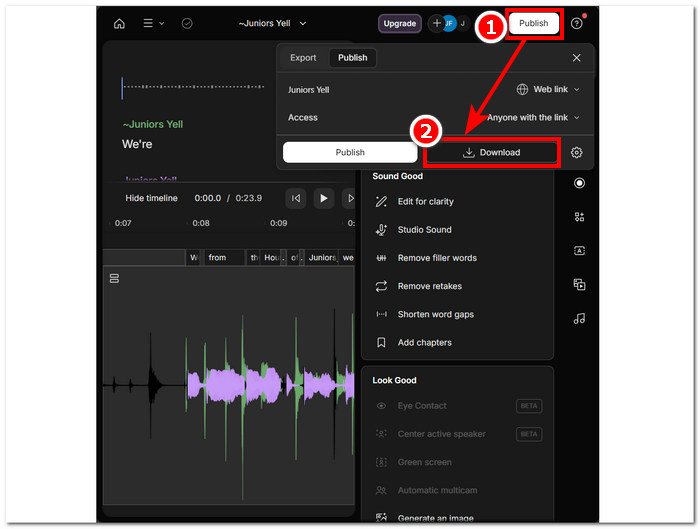
שלב 5. המתן עד שהכלי יסיים למזג את קובצי ה‑WAV שלך. עם סיום, תוכל לנגן את התוצאה המוגמרת כדי לבדוק אם ה‑AI עשה עבודה טובה בשילוב קובצי ה‑WAV שלך, ולבצע התאמות במידת הצורך. לאחר שאתה מרוצה, המשך ללחוץ על Publish > Download כדי להוריד את קובץ ה‑WAV המשולב למחשב השולחני שלך.
טיפים
• לפני הורדת קובצי ה-WAV המשולבים שלך, הקפד לבדוק היטב את רצועת השמע כדי למנוע חריצים.
• היכרות עם הכלי יכולה לעזור להדק ביעילות את תהליך מיזוג קבצי ה-WAV שלך.
חלק 3. שלב קבצי WAV עם Audacity
כעורך אודיו בקוד פתוח, Audacity יכול גם למזג רצועות כמו קובצי WAV ללא עלויות נוספות. תוכנה חינמית זו מסייעת למשתמשים במשימות עריכת האודיו שלהם והפכה את מיזוג קובצי ה‑WAV לפשוט בהרבה. Audacity מאפשר למשתמשים להוסיף מספר קובצי WAV בבת אחת, ותומך גם ביבוא של פורמטי אודיו שונים. נוסף על כך, יש בו פונקציה מהירה לסידור כל רצועה כך שתתחיל בדיוק בסיום הרצועה הקודמת, מה שמקל מאוד על המיזוג בלי לחשוש מדריסה. לפיכך, עקיבה אחר המדריך המפורט שלהלן תסייע לך לנווט בתוכנה טוב יותר.
שלב 1. הורד את תוכנת Audacity למחשב השולחני שלך. לאחר שסיימת, פתח אותה וטען את קובצי ה‑WAV שברצונך למזג לקובץ אחד.
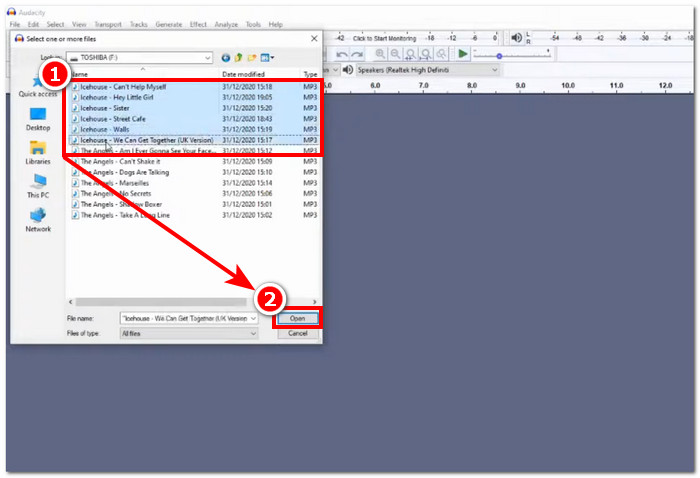
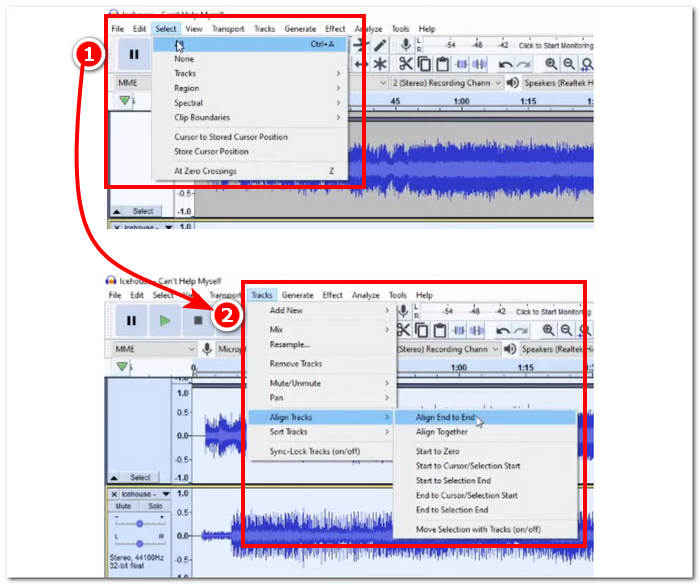
שלב 2. לאחר שקובצי ה‑WAV שלך נטענו בממשק הכלי, התחל בבחירת כל הרצועות על‑ידי לחיצה על Select > All הממוקם בתפריט העליון ביותר של הכלי. לאחר מכן יש ליישר את רצועות ה‑WAV שנבחרו: לחץ על חלק ה‑Track, ותחת Align Tracks לחץ על Align End to End.
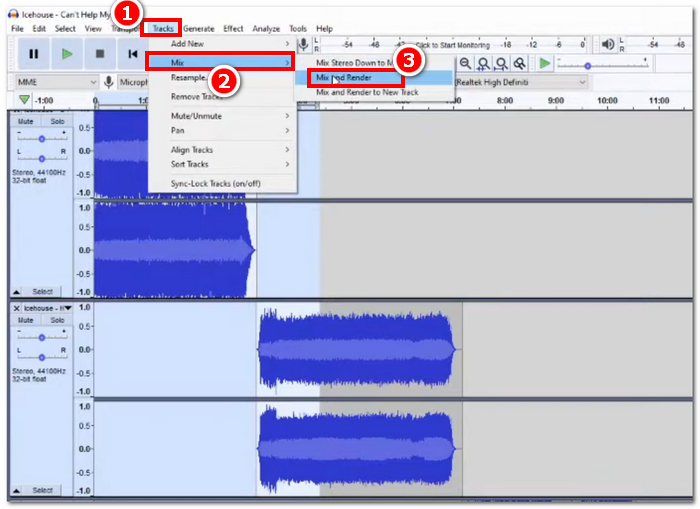
שלב 3. לאחר שרצועות ה‑WAV שלך מיושרות מסוף כל רצועה, לחץ על חלק ה‑Track, ותחת האפשרות Mix לחץ על Mix and Render כדי להתחיל בתהליך המיזוג.
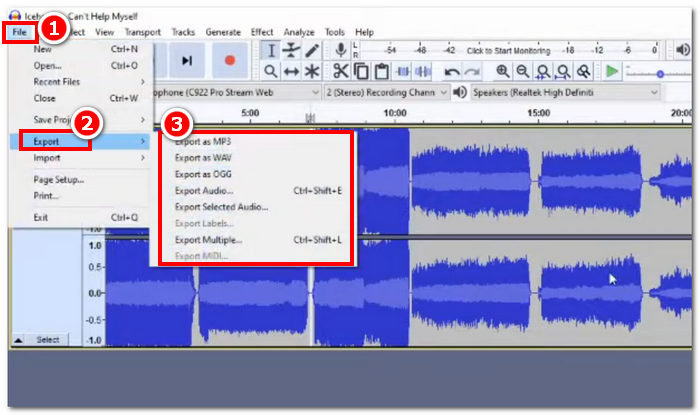
שלב 4. לאחר שתהליך המיזוג יסתיים, תוכל לייצא את קובץ ה‑WAV שלך על‑ידי לחיצה על File > Export, ולבחור בחופשיות את פורמט הפלט הרצוי מתוך האפשרויות הזמינות.
טיפים
• בעת ייצוא קובצי WAV משולבים, בחר לייצא כ-WAV, מכיוון שהוא שומר על איכות השמע המקורית.
חלק 4. שלב קבצי WAV באמצעות FFmpeg
כלי תוכנה נוסף בקוד פתוח למניפולציה של אודיו ווידאו הוא FFmpeg. מסגרת מולטימדיה רבת עוצמה זו יכולה לשמש כממיר ועבור עריכת מולטימדיה, כגון וידאו, אודיו וקבצי מדיה אחרים. בטיפול במשימות כגון מיזוג קבצי WAV, התוכנה מכניסה קוד ספציפי בשורת הפקודה כדי להתחיל בתהליך המיזוג הנקרא שרשור קבצי WAV לקובץ פלט בודד. להלן מדריך מפורט כיצד להשתמש ב-FFmpeg כמיזוג קבצי WAV.
שלב 1. עבור לאתר FFmpeg והתקן את התוכנה בהתאם לסוג המכשיר שבו אתה משתמש.
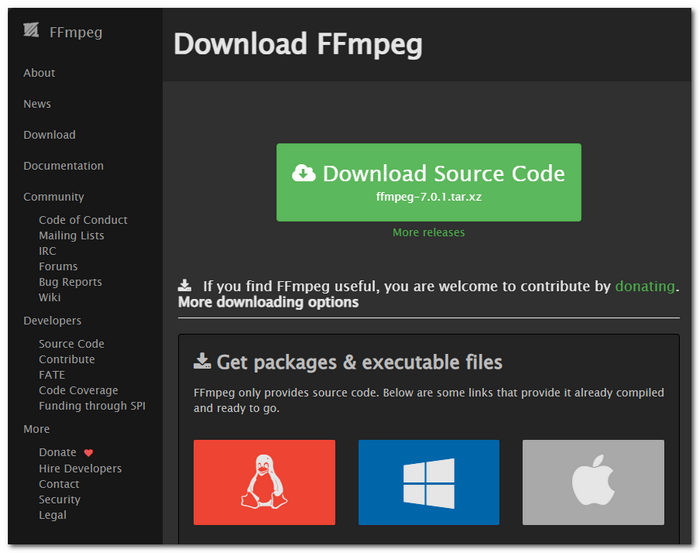
הורד את קובץ ה-zip מהאתר וצור תיקיה חדשה בנתיב המערכת שלך כדי לאחסן את כל קובצי ההפעלה של FFmpeg, כולל העברת קובץ ה-zip לתיקיה.
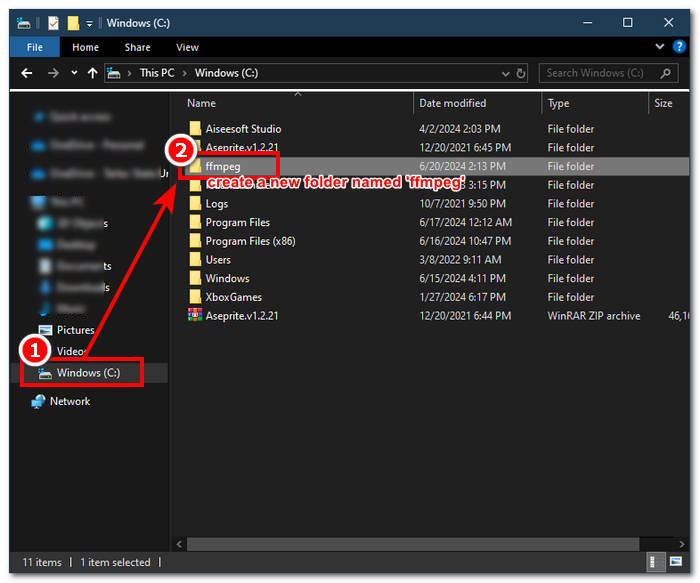
שלב 2. העבר את קובץ ה‑WAV שלך לתיקיית ffmpeg שיצרת זה עתה והכן את קובצי ה‑WAV שלך על‑ידי שינוי שמם ל‑‘input1.wav’ ו‑‘input2.wav’ בספרייה.

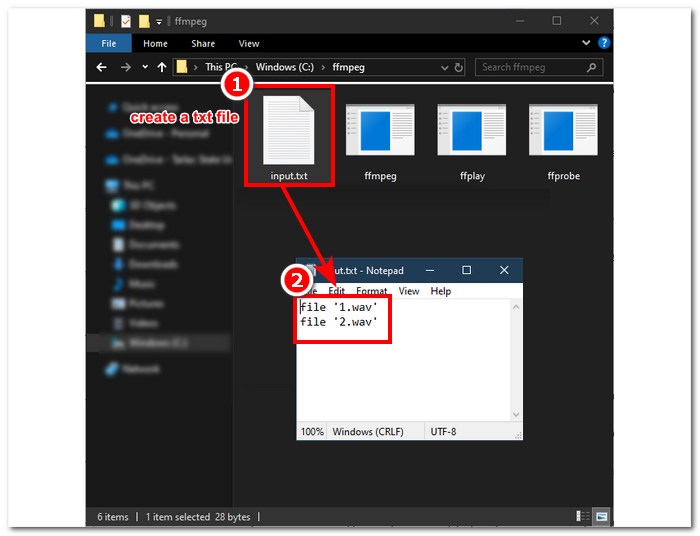
הערה: לאחר מכן, באותה תיקייה, צור קובץ בשם ‘input.txt’ והכנס לתוכו את התוכן הבא:;
file 'input1.wav'
file 'input2.wav'
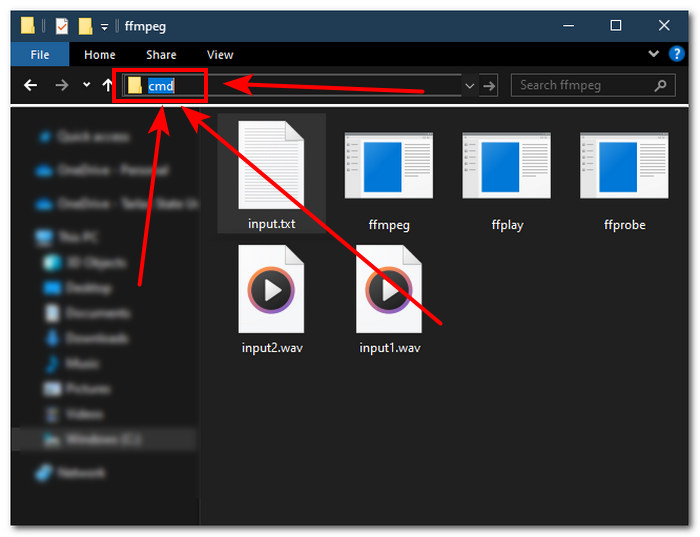
שלב 3. הפעל את חלון הפקודה של FFmpeg על‑ידי הקלדת ‘cmd’ בשדה נתיב התיקייה שממוקם בחלקו העליון של החלון ולחיצה על Enter.
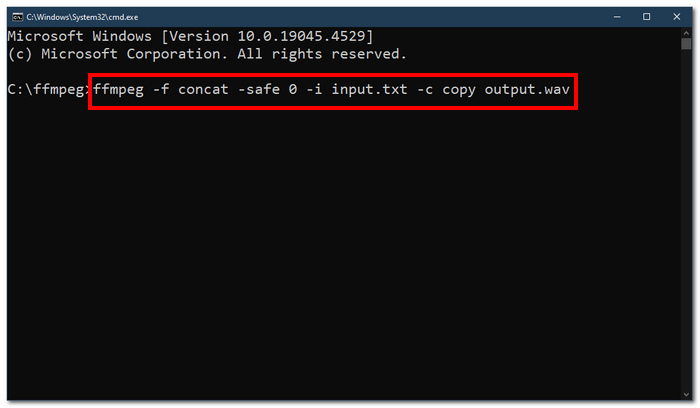
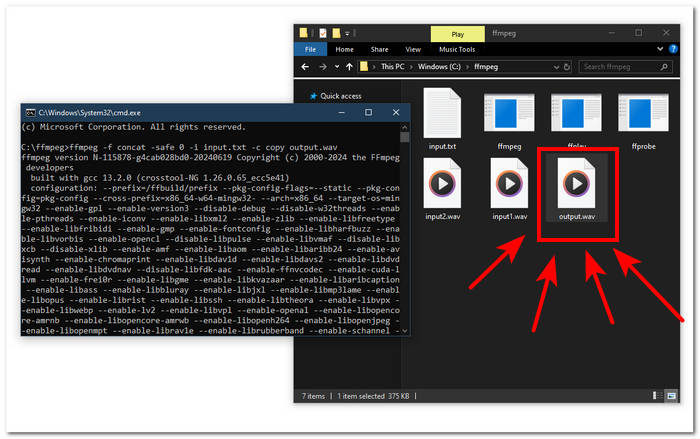
שלב 4. לאחר שנכנסת לחלון הפקודה של FFmpeg, הקלד את הפקודה הבאה ולחץ Enter:;
ffmpeg -f concat -safe 0 -i input.txt -c copy output.wav
שלב 5. קובץ WAV חדש יופיע בתיקייה שלך, מה שמצביע על כך שהצלחת למזג את קובצי ה‑WAV שלך לקובץ יחיד.
טיפים
• מכיוון שהכלי מבוסס על שורת פקודה, חשוב להכיר ולהכיר את שורת הפקודה הבסיסית לניווט יעיל של הכלי.
• שמור את כל התיקיות והקבצים הקשורים ל-FFmpeg תחת תיקיה אחת לארגון וגישה נוחה.
• צפה במדריכים וקרא מדריכים באינטרנט כאשר אתה רוצה לבצע משימות מלבד מיזוג קבצי WAV.
חלק 5. שאלות נפוצות לגבי איך לשלב קבצי WAV
האם אתה יכול לערבב קבצי WAV?
כן, אתה יכול לערבב קבצי WAV באמצעות תוכנת צד שלישי המיועדת למיזוג קבצי WAV, כגון Video Converter Ultimate ו-Audacity שנבחרו ב-FVC.
האם VLC יכול למזג קבצי אודיו?
לנגן המדיה VLC אין את היכולת למזג קבצי WAV מכיוון שהוא מיועד אך ורק להזרמת מדיה והמרת מדיה.
כיצד למזג קבצי וידאו ב-Windows Media Player?
נגן המדיה של Windows אינו תומך בעריכה של קבצי WAV שלא לדבר על מיזוג של קבצי WAV. Windows Media Player היא תוכנה שנבנתה עבור התקני Windows המיועדת לנגן תוכן מדיה.
מהי הדרך הקלה ביותר לשלב קבצי אודיו?
הדרך הקלה ביותר למזג קבצי WAV היא להשתמש ב-Video Converter Ultimate שנבחר ב-FVC; תוכנה זו מתוכננת עם טכנולוגיית עיבוד במהירות גבוהה כדי להיות נוחה למשתמשים עם מינימום ניסיון במשימות עריכת אודיו, כגון שילוב קבצי WAV.
האם שילוב קבצי WAV יכול להשפיע על איכות השמע?
כן, כלי תוכנה יכולים להשפיע מאוד על איכות קובץ WAV בהתאם לאיכות התוכנה שבה אתה משתמש. זה יכול להיות באיכות ירודה ביותר בעת שימוש בכלי שרטוט. כאשר אתה משתמש בכלי תוכנה מהימנים ואמינים כגון FVC Video Converter Ultimate, Audacity ועוד, זה יכול לעזור לשמור על האיכות המקורית.
סיכום
לסיכום, מזג קובצי WAV באמצעות כלי התוכנה שסופקו, כדי לשלב אותם ביעילות ולייצא באיכות ללא אובדן. חשוב לציין שמציאת הכלים המתאימים ולמידת אופן השימוש בהם הם חלק קריטי מהתהליך. לכן, החל מכלי תוכנה עשירים בפונקציות כמו Video Converter Ultimate שנבחר על‑ידי FVC ועד לכלי שורת הפקודה המתקדם FFmpeg, המאמר הקפיד לפרט שלבים וטיפים שימושיים, כך שכל מה שעליך לעשות הוא לעקוב אחריהם בהתאם, לתהליך מיזוג ישיר וחלק ללא טרחה.
-
 כיצד אוכל להמיר MP4 ל- WAV באופן מקוון בחינם
 מנסה קשה להמיר MP4 ל- WAV? לא יודע איזה ממיר יכול לעזור לך בזה בצורה מושלמת מבלי לשלם שקל? קרא את הפוסט הזה וכל השאלות שלך ייענו.
-
 סקירה של 10 נגני MP3 הטובים ביותר בחינם
 מהו נגן ה- MP3 הטוב ביותר? כיצד ניתן לשים מוסיקה בנגן MP3? כיצד ניתן להוריד את נגן המוזיקה MP3? פוסט זה נותן לך סקירה מפורטת של 10 נגני MP3 הטובים ביותר בחינם עבור Windows PC ו- Mac.
-
 8 נגני ה- MOV הטובים ביותר למחשב ו- Mac להפעלת קבצי וידיאו MOV של QuickTime
 פשוט למד עוד על 8 נגני ה- MOV הטובים ביותר הזמינים עבור Windows ו- Mac. אתה יכול לבחור את אחד הרצוי והמתאים להפעלת קבצי MOV באיכות המקורית.
