


 ממיר וידאו אולטימטיבי
 מקליט מסך
 תיקון וידאו
 הורדה מאובטחת
כיצד לדחוס קבצי שמע WAV מבלי לאבד שום איכות
כאשר אנשים רוצים לשמור את קובצי המוזיקה שלהם בצורה איכותית, הם לעיתים קרובות בוחרים בפורמט WAV עבור האודיו שלהם. עם זאת, ככלל אצבע, ככל שהאיכות גבוהה יותר – כך הקובץ תופס יותר מקום אחסון. בהשוואה ל‑MP3, WAV יכול לספק צליל באיכות גבוהה, אך גודל הקובץ יהיה גדול יותר. לכן, אם ברצונך לשתף קובץ WAV עם חבריך או להעלות אותו לרשתות חברתיות, עדיף להקטין תחילה את הגודל שלו. נציג בפניך שלושה כלים שונים לדחיסת קובצי WAV. יוצגו גם היתרונות, החסרונות ואופן השימוש המפורט שלהם. המשך לקרוא כדי לגלות עוד.

חלק 1. הדרך הטובה ביותר לדחוס קובץ WAV
נפתח בהמלצה על כלי עריכת וידאו ואודיו רב־תכליתי למדי, FVC-picked Video Converter Ultimate. הוא מצויד בכלי ניתוח מתקדמים שיכולים להתחיל לעבד את הקבצים שלך מיד לאחר ההעלאה. אם אתה מחפש כלי שמאפשר לך להתאים באופן חופשי את אחוז דחיסת אודיו ה‑WAV, זה יהיה העוזר הטוב ביותר שלך. תוכל אפילו לערוך את אורך האודיו, לכוונן את ערוץ האודיו ולשנות את עוצמת הקול לפני ייצוא הקובץ. לאחר שתפתח את מדחס האודיו המובנה, יופיע חלון חדש לחלוטין. שם, תוכל לראות שלל הגדרות לבחירה. הוא מציע רמת התאמה אישית גבוהה ומאפשר לך שליטה מדויקת בפרמטרי האודיו. אם אתה סבור שגודל קובץ ה‑WAV עדיין גדול מדי, תוכל להשתמש בממיר שמספקת FVC כדי להמיר את האודיו לפורמט נוח יותר לשיתוף, כגון MP3.
הורדה חינמיתל-Windows 7 ומעלההורדה מאובטחת
הורדה חינמיתל-MacOS 10.7 ומעלההורדה מאובטחת
כאן, נלמד אותך כיצד לדחוס קבצי WAV עם FVC Video Converter Ultimate.
שלב 1. הורד והתקן את FVC Video Converter Ultimate במחשב שלך.
שלב 2. היכנס לממשק הראשי של תוכנה זו, ובחר Toolbox > Audio Compressor.
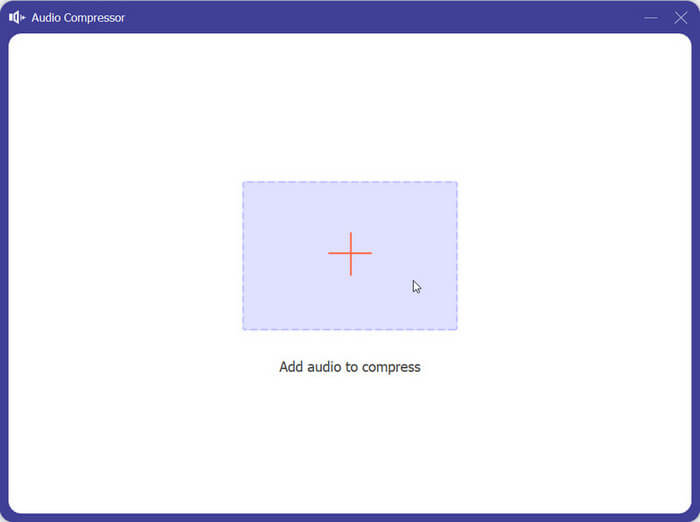
שלב 3. לאחר הכניסה לחלון Audio Compressor, לחץ על כפתור הפלוס הגדול כדי להעלות את קובץ ה‑WAV הרצוי.
שלב 4. באפשרותך להגדיר את גודל הקובץ לאחר הדחיסה על‑ידי שינוי הערך של Size. לאחר ההתאמה, תוכל לראות את אחוז הקובץ שנדחס.
אתה גם רשאי להגדיר את שם הקובץ, הפורמט, ערוץ הקול, קצב הדגימה וקצב הסיביות של האודיו שלך כאן.
שלב 5. כדי לבדוק את קובץ האודיו המיוצא, לחץ על Preview. אם אתה מרוצה מהתוצאה, לחץ על Compress.
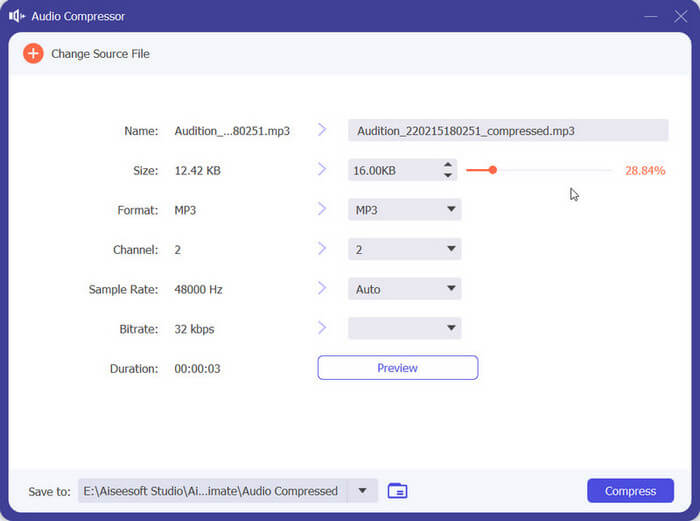
נכון לעכשיו, זה יכול לדחוס אודיו WAV עד 50% בגודל של קובץ המקור. מהירות הדחיסה שלו כל כך מהירה שאנחנו בקושי צריכים לחכות לייצא את הקובץ הדחוס. אין כמעט אובדן איכות. עם זאת, יש לנו רק 5 הזדמנויות בחינם, ואם אנחנו רוצים יותר, אנחנו צריכים לשלם.
חלק 2. דחוס קובץ WAV באינטרנט
תוכנת שולחן העבודה מציעה יותר תכונות עריכה אך מחייבת אותך להוריד ולהתקין אותן במחשב שלך. זה גם תופס חלק מהזיכרון של המחשב שלך ולוקח קצת זמן להפעיל את התוכנה. אם אתה רוצה לחוות דחיסת קבצי WAV מהירה יותר, נסה כלים מקוונים. בין המוצרים הרבים הזמינים, אנו ממליצים לך לנסות את FreeConvert WAV Compressor, מדחס בגודל חופשי עם ממשק ידידותי מאוד. כל שעליכם לעשות הוא להיכנס לאתר הרשמי שלו, ומיד תמצאו את כפתור היעד. גם אם מעולם לא השתמשת בו בעבר, תוכל להתחיל תוך זמן קצר.
כאן, נלמד אותך כיצד להקטין את גודל קובץ WAV עם FreeConvert WAV Compressor.
שלב 1. פתח את FreeConvert WAV Compressor בדפדפן שלך.
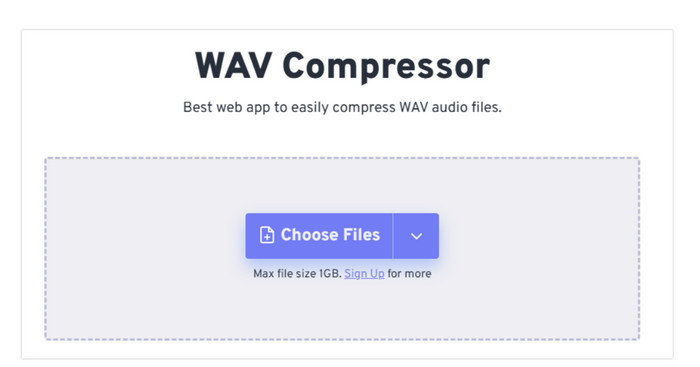
שלב 2. לחץ על Choose Files כדי להעלות את קובץ האודיו שברצונך לדחוס.
.
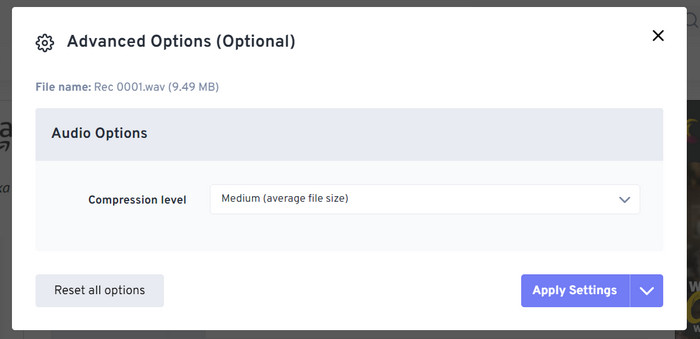
שלב 3. כדי להתאים את רמת הדחיסה, לחץ על Advanced settings (optional). תוכל לבחור בין Low, Medium ו‑Strong. לאחר מכן בחר Apply Settings.
שלב 4. לבסוף, לחץ על Compress Now. התוכנה תתחיל לפעול כדי לדחוס את קובץ ה‑WAV שלך באופן מקוון.
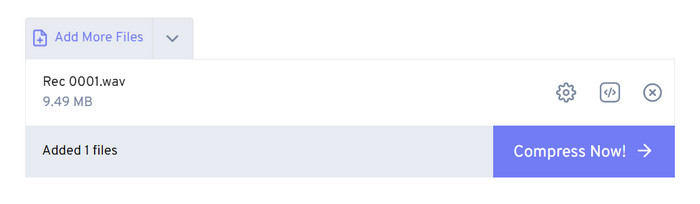
לאחר הניסיונות שלנו, גילינו שזה עובד בצורה יעילה למדי, ואיכות הצליל של קובץ הפלט אינה שונה בהרבה מקובץ המקור. עם זאת, יש רק שלושה שיעורי דחיסה שאתה יכול לבחור, ואתה לא יכול לדמיין את אחוז הדחיסה ואת גודל הקובץ הדחוס. נכון לעכשיו, משתמשים יכולים להשתמש בו רק כדי לדחוס קבצים עד 1GB.
חלק 3. דחוס קובץ WAV ב-Audacity
בנוסף לתוכנות עיבוד מולטימדיה הכול‑באחד, קיימים גם כלים רבים המיועדים במיוחד לאודיו. בכלים אלו תורגש יותר מקצועיות ומעודנות בכל הנוגע לעריכת מוזיקה. אם תשתמש בכלי מקצועי להקטנת גודל קובץ WAV, איכות הצליל עשויה להישמר במידה המרבית. כאחד הטובים ביותר, Audacity נשארת מובילה כל השנה. משתמשים יכולים להיעזר בה לביצוע תהליך מלא של הקלטת אודיו ועריכתו. פעולות העריכה שניתן לבצע כוללות התאמת אורך המוזיקה, דחיסת גודל הקובץ, המרת פורמט האודיו והוספת אפקטים קוליים מיוחדים – כולן פשוטות לביצוע עבורה.
לאחר מכן, אנו נדריך אותך בדחיסת קבצי WAV עם Audacity.
שלב 1. הורד והתקן את Audacity במכשיר שלך.
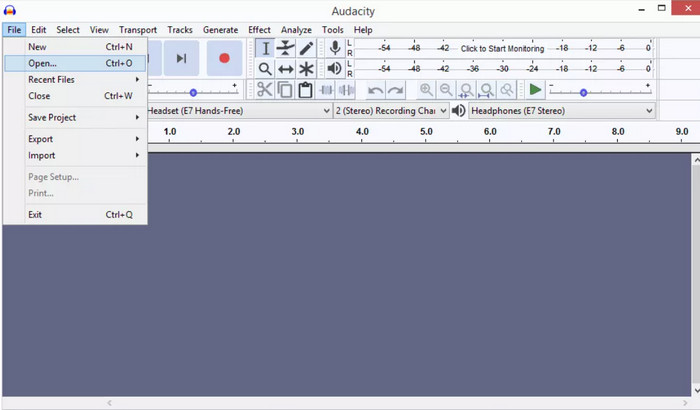
שלב 2. פתח את התוכנה ולחץ על File > Open.
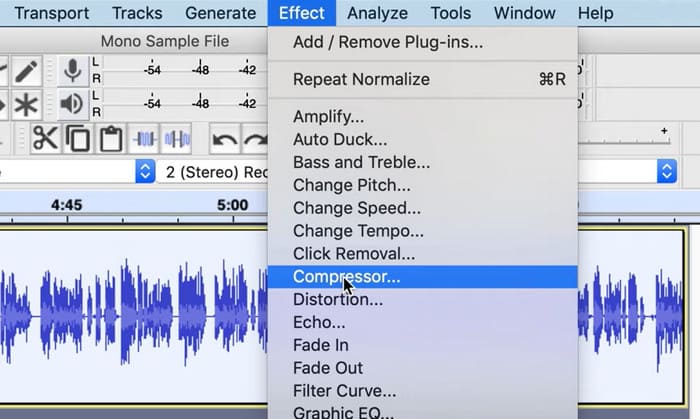
שלב 3. העלה את הקובץ שברצונך לדחוס ולחץ על Ctrl + A במקלדת כדי לבחור את רצועת האודיו. לאחר מכן לחץ על Effect > Compressor.
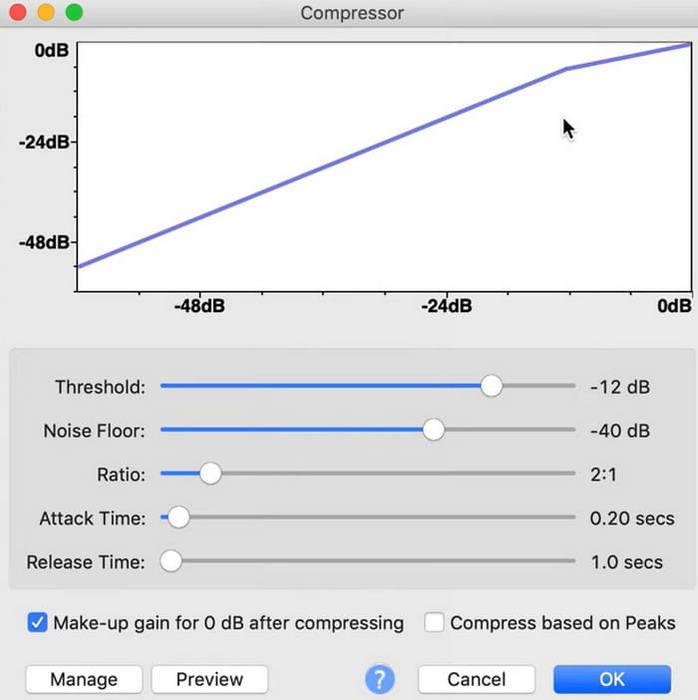
שלב 4. כעת תוכל לשנות את הפרמטרים של קובץ ה‑WAV שלך, כולל סף (threshold), רעש רצפה (noise floor), יחס (ratio), זמן התקפה (attack) וזמן שחרור (release).
שלב 5. לבסוף, לחץ שוב על File ובחר Export.
זה מאפשר לך לדחוס קבצי WAV בחינם וללא מגבלות גודל קובץ. אתה יכול לשלוט במדויק על קצב הדחיסה ולייצא את המוצר המוגמר ברגע שתחיל את ההגדרות. הממשק שלו מורכב למדי, ומשתמשים לא מנוסים יתקשו למצוא את הפיצ'רים שהם צריכים. ייקח קצת זמן ללמוד כיצד להשתמש בו במיומנות.
חלק 4. שאלות נפוצות של דחיסת קבצי WAV
למה קובץ ה-WAV שלי כל כך גדול?
קובצי WAV הם בדרך כלל קובצי אודיו לא דחוסים, המאחסנים נתוני שמע בפורמט גולמי ללא כל אובדן איכות. בנוסף, לקובצי WAV לעיתים קרובות יש עומק סיביות (bit depth) וקצב דגימה (sample rate) גבוהים יותר מאשר פורמטי אודיו דחוסים. אם עליך להקטין את גודל קובץ ה‑WAV שלך, תוכל לשקול לדחוס אותו או להמיר WAV ל‑MP3.
האם דחיסת קובץ WAV מפחיתה את האיכות?
כאשר אתה דוחס קובץ WAV לפורמט אודיו מאבד כמו MP3, AAC או OGG, זה בדרך כלל מביא לירידה באיכות השמע. עם זאת, בחירה בכלי דחיסה טוב יכולה לפצות על בעיה זו במידה מסוימת. חשוב לקחת בחשבון את האיזון בין גודל הקובץ לאיכות השמע.
האם אתה יכול לחתוך קובץ WAV ב-Windows Media Player?
ל-Windows Media Player אין יכולות מובנות לעריכה ישירה או חיתוך קבצי שמע כמו קובצי WAV. כדי לחתוך קובץ WAV ב-Windows, אתה יכול להשתמש ביישומי תוכנה אחרים המציעים תכונות עריכת אודיו, כגון FVC Video Converter Ultimate ו-Audacity.
סיכום
מאמר זה נועד לסייע לך לפתור את בעיית דחיסת קובצי WAV. הצגנו בפניך שלושה כלים לבחירה. אם ברצונך ליהנות משירות עריכת אודיו מקיף יותר, השתמש ב‑FVC-picked Video Converter Ultimate. אם אינך מעוניין להוריד תוכנה נוספת למחשב שלך, תוכל לשקול את FreeConvert WAV Compressor. אם אתה רוצה את תוכנת עיבוד האודיו המקצועית ביותר לצורך דחיסת הקבצים שלך, Audacity תענה על הצרכים שלך.
-
 נגן WAV - חמשת אפליקציות הנגן WAV המובילות לאנדרואיד, אייפון, PC ו- Mac
 איך מנגנים קבצי WAV בטלפון אנדרואיד? איזה שחקן יכול לשחק WAV? פוסט זה משתף 5 נגני WAV בחינם הטובים ביותר עבור Android, iPhone, Mac ו- PC.
-
 מדריך דחיסת אודיו מעמיק בשנת 2024 (שלב אחר שלב)
 האם אתה צריך לדחוס אודיו אבל צריך עזרה להבין מאיפה להתחיל? בפוסט זה נציג את האפשרויות הטובות ביותר להקטנת גודל הקובץ של הרצועות שלך.
-
 מדחסי אודיו יעילים למשתמשים לא מקוונים ומקוונים
 יש לך בעיה עם קבצי אודיו גדולים? ישנם מדחסי קבצי אודיו רבים זמינים למשתמשים לא מקוונים ומקוונים. בדוק אותם כאן.
