


 ממיר וידאו אולטימטיבי
 מקליט מסך
 תיקון וידאו
 הורדה מאובטחת
ערוך קבצי M4A עבור Windows, macOS, מקוון וטלפונים ניידים
מכיוון שקובץ M4A אינו מיועד לכל המכשירים, רבים מעורכי האודיו מתקשים לטפל בפורמט קובץ אודיו זה, מה שמקשה על המשתמשים לערוך אותם. באופן בסיסי, M4A נתמך על‑ידי כל המכשירים; הוא עובד בצורה קלה יותר על המכשיר שלך מאחר שהוא דחוס, מה שמבטיח גודל קובץ קטן יותר, ובדרך‑כלל שומר על איכות צליל טובה. אין צורך לדאוג, כיוון שעריכת קובצי M4A עדיין אפשרית בעזרת כלי התוכנה שנבחרו בקפידה עבור Windows ו‑macOS, כלים מקוונים לדפדפני אינטרנט, ויישומים למובייל.

חלק 1. ערוך קבצי M4A ב-Windows 11/10/8/7 ו-macOS
1. All-in-One M4A Editor
Video Converter Ultimate שנבחר על‑ידי FVC הוא עורך M4A רב‑תכליתי וקל לשימוש. זהו כלי מבוסס תוכנה, ונחשב לעורך M4A הכול‑באחד, כיוון שהוא כולל תכונות כגון חותך M4A, ממזג, מדחס, מסיר רעשים, מגבר עוצמה ועוד. מאחר שהוא מתפקד גם כעורך אודיו וגם כעורך וידאו עם ממשק פשוט, זוהי תוכנה מצוינת עבור מכשירי Windows ו‑Mac כאחד. כדי לעזור לך להתחיל להשתמש בעורך ה‑M4A הכול‑באחד, הנה מדריך קצר שיעזור לך לנווט בתוכנה ביעילות.
שלב 1. הורד והתקן את Video Converter Ultimate שנבחר על‑ידי FVC למחשב השולחני שלך.
הורדה חינמיתל-Windows 7 ומעלההורדה מאובטחת
הורדה חינמיתל-MacOS 10.7 ומעלההורדה מאובטחת
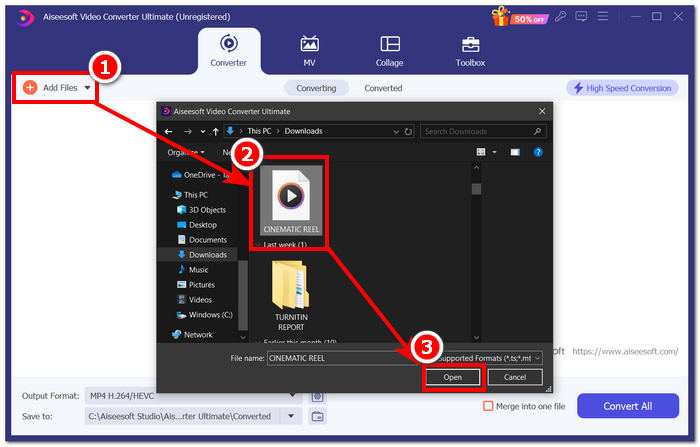
שלב 2. בממשק הכלי, לחץ על הכפתור Add Files כדי להוסיף את קובץ ה‑M4A שלך לתוכנה.
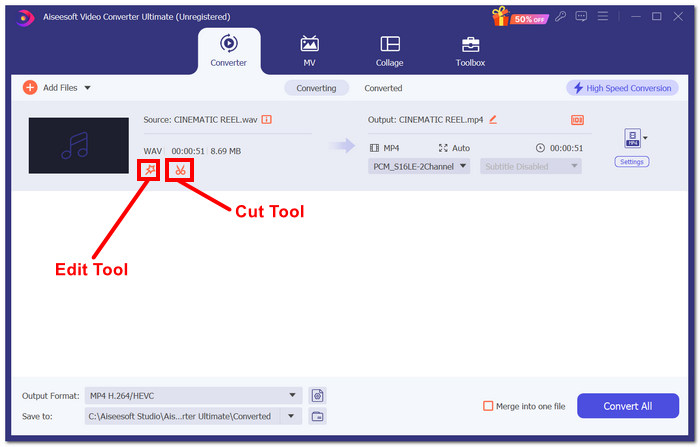
שלב 3. כעת באפשרותך לערוך את קובץ ה‑M4A שלך על‑ידי בחירת הכלים Edit ו‑Cut, הממוקמים לצד קובץ ה‑M4A שהעלית לאחר שנכנס לכלי.
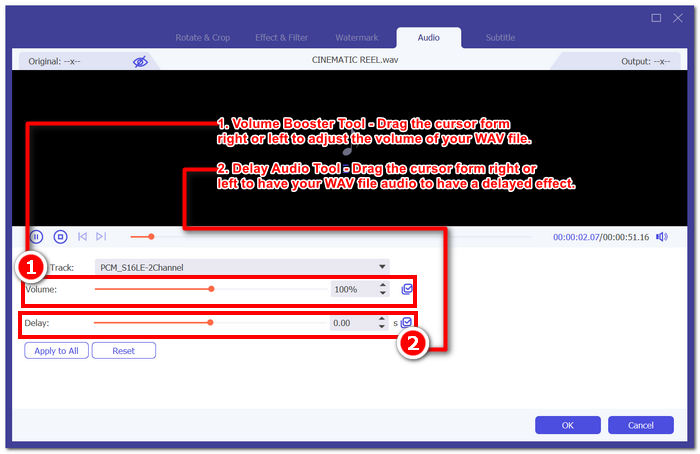
הערה: לחץ על סמל Magic Wand אם ברצונך להשתמש בפונקציות Volume Booster ו‑Audio Delay עבור קובץ ה‑M4A שלך.
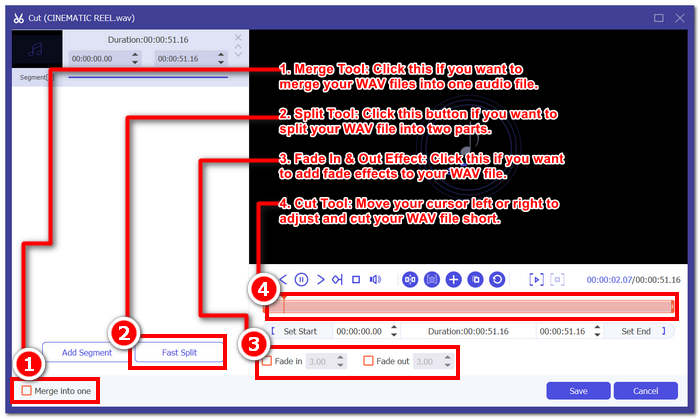
אחרת, לחץ על סמל המספריים כדי להשתמש בתכונות כגון הוסף אפקטים של דהייה, חיתוך, פיצול ומיזוג לקובץ ה-M4A שלך.
שלב 4. לאחר שערכת וחתכת בהצלחה את קובץ ה‑M4A בהתאם להעדפותיך, לחץ על הכפתור Convert All כדי להתחיל בהורדתו לתיקייה שבחרת במחשב השולחני שלך.

התוכנה שנבחרה ב-FVC באמת עומדת במוניטין שלה ככלי עורך M4A הכל-באחד. הכלי תומך באופן מפתיע במגוון רחב של פורמטי אודיו ווידאו, כמו MP3, M4A, MP4, AAC, WMA, WAV ועוד. בנוסף, מובטח למשתמשים שתמיד יקבלו ייצוא באיכות גבוהה שכן הכלי מציע העלאה בלתי מוגבלת של גודל קובץ עם טכנולוגיית ייצוא במהירות גבוהה לעיבוד ויצוא מהירים יותר של קובץ ה-WAV שלך תוך שמירה על איכות הקובץ.
2. עורך M4A בקוד פתוח ועוצמתי
עורך M4A בקוד פתוח, Audacity, שיכול לשמש גם להקלטה אינו אחר מאשר Audacity הפופולרי. עם שנים של מומחיות בהפקת אודיו, תוכנית זו היא הכלי האהוב והנפוץ ביותר ברשימה. הוא ידוע ביכולתו להקליט מוזיקה, לערוך, לערבב ולשלב שירים. ניתן להשתמש בו גם כדי לערוך ולהפיק קובץ M4A לשימוש בפודקאסטים. התאימות שלו עם פורמטי קבצים אחרים, WAV, MP3, MP2 וכן הלאה; גם הופך אותו לכלי גמיש לעריכה והקלטה של M4A ללא מאמץ.
שלב 1. הורד והתקן את Audacity למחשב השולחני שלך.
שלב 2. לאחר ש‑Audacity מותקן, פתח את התוכנה. בממשק, פתח את קובץ ה‑M4A שברצונך לערוך על‑ידי לחיצה על אזור File הממוקם בפינה השמאלית‑עליונה של המסך והמשך בלחיצה על Open.
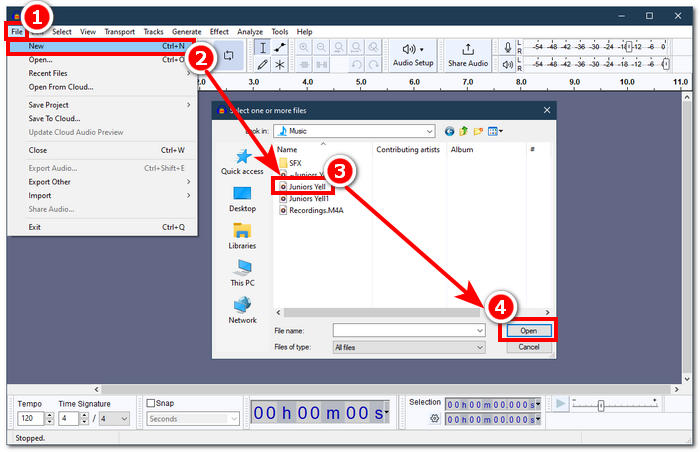
יש צורך בתוסף FFmpeg כדי להשתמש בקבצי M4A עם Audacity. הקפד להתקין את הפלאגין לפני שתמשיך לעריכת M4A.
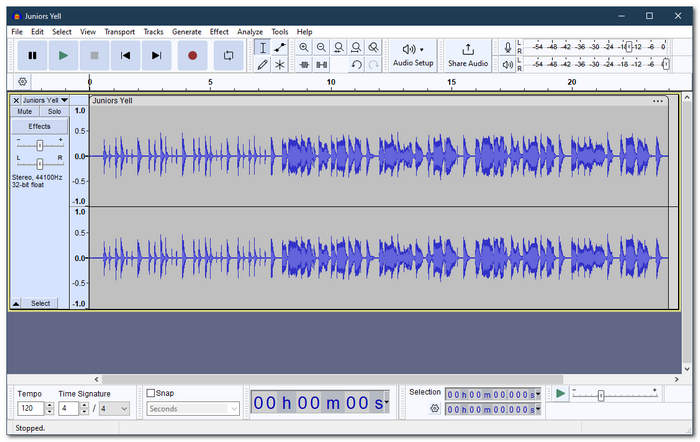
שלב 3. לאחר שקובץ ה‑M4A נטען לכלי, תוכל לערוך אותו באמצעות הכלים המובנים.
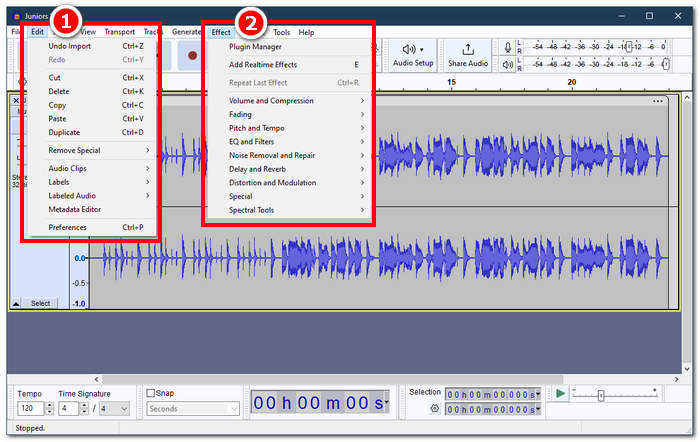
הערה: כדי ליצור חיתוכים, למחוק חלקים, להחיל אפקטים, להעתיק, להדביק, לשכפל או למזג רצועות אודיו ב‑Audacity, לחץ על אזור Edit הממוקם בתפריט העליון‑שמאלי של הכלי. כדי לשנות את עוצמת הקול, להחיל אפקטי Fade, לכוונן גובה צליל וקצב ועוד, הקפד ללחוץ על אזור Effect הממוקם באותו מקום.
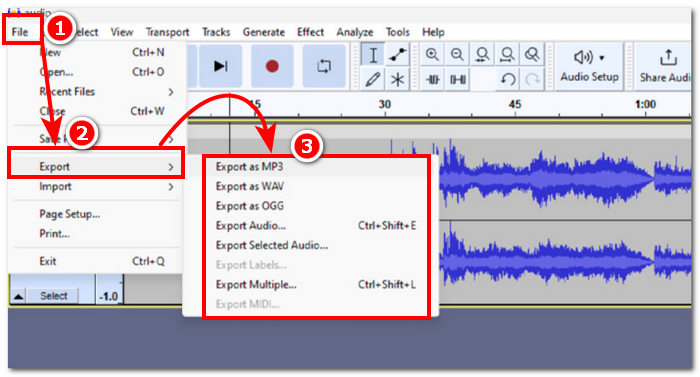
שלב 4. לאחר שאתה מרוצה מכל השינויים שביצעת בקובצי ה‑M4A שלך, המשך לייצא את האודיו דרך File > Export Audio.
לעריכת M4A פשוטה, Audacity היא אפליקציה מצוינת מכיוון שהיא ללא עלות ומאפשרת עבודה יעילה. בנוסף, מאפייני מעקב הצבע שימושיים מכיוון שהם מאפשרים ריבוי מעקבים של חלקי התווית. החיסרון של עבודה על מספר מסלולים בבת אחת הוא שהתוכנית יכולה לנהל רק כמות מסוימת של רצועות בבת אחת.
חלק 2. ערוך קבצי M4A באינטרנט
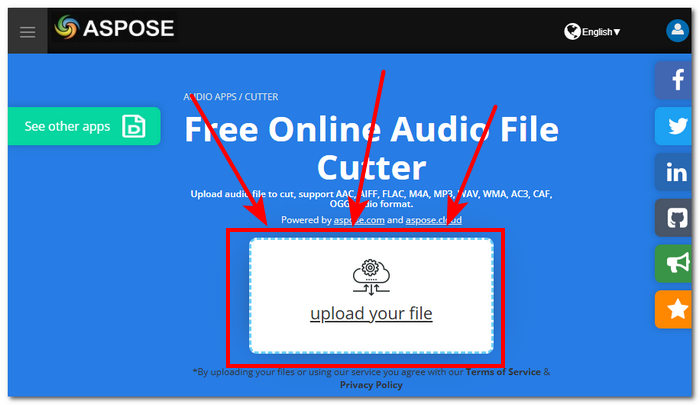
כדי לערוך קובצי M4A באמצעות כלי מקוון או מבוסס־אינטרנט, Aspose Audio Cutter מהווה פתרון אידיאלי לעריכת M4A מהירה ומיידית. הוא משמש במיוחד ליצירת חיתוכים מדויקים בקובץ M4A, ותומך בפורמטים כגון AAC, AIFF, FLAC, M4A, MP3, WAV ועוד. הכלי פועל בפשטות: מעלים את קובץ ה‑M4A ובוחרים זמן/משך מסוים בקובץ ה‑M4A שברצונך לחתוך ולשמור.
שלב 1. עבור לאתר הרשמי של Aspose Audio Cutter.
שלב 2. העלה או גרור את קובץ ה‑M4A שברצונך לערוך באמצעות הכלי אל השדה המיועד באתר.
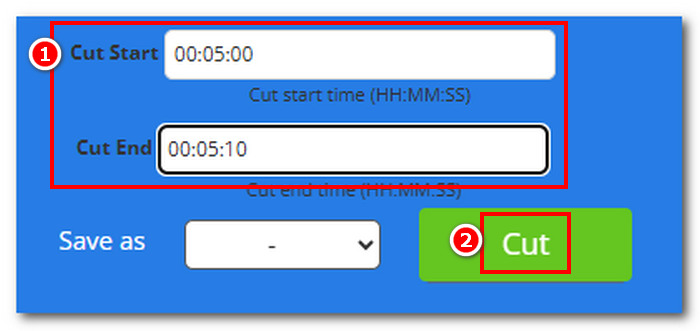
שלב 3. הזן את זמני Cut Start ו‑Cut End הרצויים כדי להחריג במדויק את החלקים בקובץ ה‑M4A שברצונך להסיר, ופשוט לחץ על כפתור Cut כדי להתחיל בתהליך.
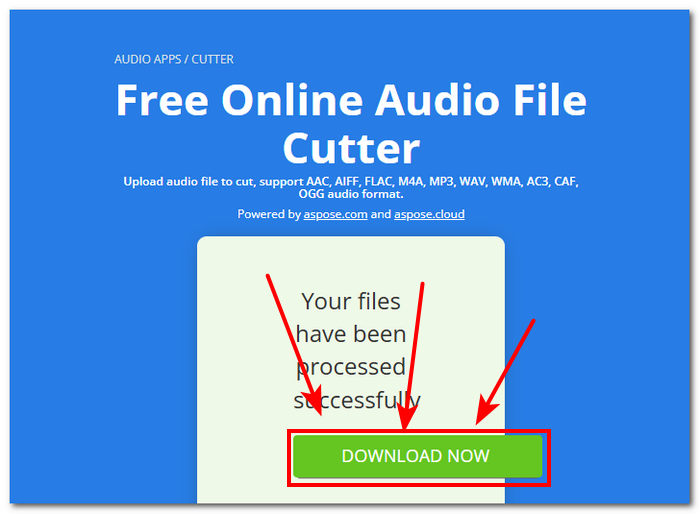
שלב 4. לאחר שחתכת את קובץ ה‑M4A שלך, לחץ על הכפתור Download Now כדי לשמור אותו במחשב השולחני שלך.
באפשרותך לפתוח אותו בנגן ה‑M4A שלך כדי לבדוק את התוצאה.
Aspose Audi Cutter הוא אכן כלי ידידותי למשתמש עם ממשק פשוט שנוצר במיוחד ליצירת חיתוך מדויק לקבצי M4A. השירות מהיר, ולא נדרשת התקנת אפליקציה כדי להשתמש בו. לפיכך, התכונות שלו מוגבלות רק לתכונות חיתוך ואינן יכולות לבצע משימות עריכה אחרות של M4A כגון הוספת אפקטי דהייה, חיתוך, פיצול ועוד.
חלק 3. ערוך קבצי M4A בטלפונים ניידים
בהשראת גרסת תוכנת שולחן העבודה שלו, ל-WavePad mobile יש את אותו ממשק, מה שמקל על ההיכרות עם האפליקציה. אפליקציה זו לנייד ניתנת להורדה בחינם במכשירי אנדרואיד ו-iOS, עם תמיכה רחבה בפורמטים של אודיו כדי להבטיח את הרבגוניות של הכלי בעת עריכת קובצי אודיו. בנוסף, יכולות העריכה של M4A מציעות מגוון רחב של תכונות ואפקטים, כגון חיתוך, חיתוך, העתקה, הדבקה, הוספה, השתקה וחיתוך אוטומטי של קובץ ה-M4A שלך ללא מאמץ.
שלב 1. עבור לחנות האפליקציות במובייל שלך והורד שם את WavePad למובייל.
שלב 2. לאחר שהאפליקציה מותקנת, טען את קובץ ה‑M4A שלך לאפליקציה על‑ידי לחיצה על סמל ה‑Open הממוקם בחלק העליון של ממשק האפליקציה והמתן לטעינה.
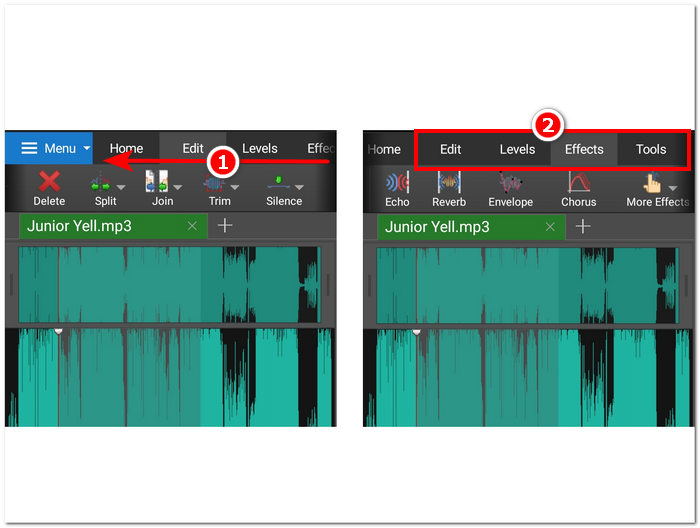
שלב 3. לאחר שקובץ ה‑M4A נטען באפליקציה, המשך לחקור את תכונות האפליקציה כדי לערוך את קובץ ה‑M4A שלך. ניתן לעשות זאת על‑ידי הנחת האצבע בחלקה העליון ביותר של הכלי והחלקת האצבע מימין לשמאל כדי לראות תכונות כגון חיתוך, העתקה, הצטרפות, הדבקה ועוד. לאחר שתמצא את הכלים הדרושים לקובץ ה‑M4A שלך, פשוט הקש עליהם כדי להחיל אותם על הקובץ.
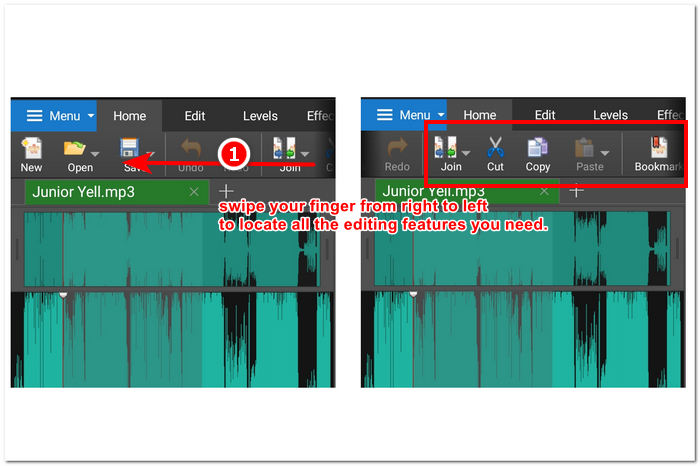
אתה יכול גם לחקור ולהציג אפקטים ותכונות אחרות הזמינות לעריכת קובץ ה-M4A שלך על ידי החלקת האצבע מימין לשמאל בשדה שבו ממוקם קטע העריכה. שם תוכל להחיל אפקטים על קובץ ה-M4A שלך ועוד.
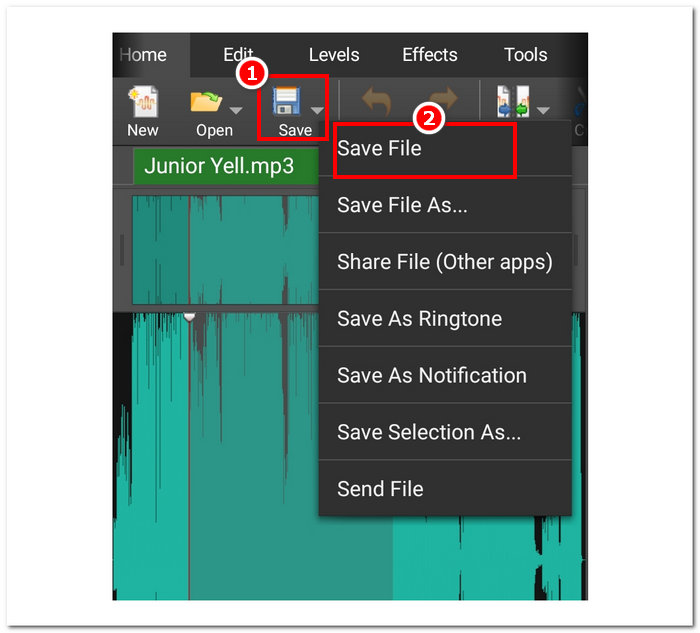
שלב 4. לאחר שסיימת לערוך את קובץ ה‑M4A שלך, חזור למדור Home, לחץ על כפתור השמירה ולבסוף על Save File כדי להוריד את קובץ ה‑M4A הערוך למכשיר הנייד שלך.
עם זאת, WavePad mobile היא ללא ספק אפליקציית עורך M4A ניידת רבת עוצמה המאפשרת למשתמשים לעשות כמעט כל דבר אפשרי עם קבצי ה-M4A שלהם. אפליקציה זו אידיאלית למשתמשים שיש להם רק מכשירים ניידים והם תמיד בדרכים.
חלק 4. שאלות נפוצות לגבי איך לערוך קבצי M4A
האם M4A גרוע יותר מ-MP3?
הוא לא נחשב לגרוע יותר מ‑MP3, אך בהתאם למטרה, M4A בדרך‑כלל מציע איכות טובה יותר ובמקביל קצב סיביות (bitrate) טוב יותר, בזכות אלגוריתמי הדחיסה המתקדמים שלו. למידע נוסף על ההבדלים בין M4A ל‑MP3, תוכל למצוא אותם כאן.
מהם החסרונות של M4A?
קבצי M4A אינם נתמכים באופן נרחב על ידי מכשירים ופלטפורמות, לכן תצטרך להשתמש בכלי ממיר לפני שתוכל להשתמש בהם. בנוסף, משתמשים נתקלים לעתים קרובות בבעיות תאימות בעת שימוש ב-M4A כקובץ שמע, מה שהופך אותו לא לקובץ אידיאלי לעבוד איתו, במיוחד בעת שיתוף.
האם יש תוכנה חינמית להמרת M4A לטקסט?
כן, יש המון תוכנות חינמיות להמרת M4A, כמו Google Docs Voice Typeing ו-Otter.ai. כלים אלה אמינים מכיוון שהם משלבים טכנולוגיית זיהוי דיבור כדי לתמלל קבצי אודיו בקבצי M4A זה לטקסט.
האם אוכל להמיר קבצי M4A לפורמטים אחרים לאחר העריכה?
כן, עורכי M4A רבים, כמו Video Converter Ultimate שנבחרו ב-FVC, כוללים כלי ממיר מובנה המאפשר למשתמשים לשמור או לייצא את קבצי ה-M4A הערוכים עם פורמטי שמע שונים.
כיצד אוכל להבטיח שהאיכות של קובץ ה-M4A הערוך שלי נשמרת?
כדי להבטיח שתמיד תהיה לך את הייצוא האיכותי ביותר בעת שמירת קובצי M4A הערוכים שלך, הקפד להימנע מדחיסה מוגזמת והקפד להשתמש בכלים מהימנים התומכים באיכות ייצוא ללא אובדן,
סיכום
עקב חששות תאימות ותמיכה מוגבלת של עורכי אודיו מסוימים, עריכת קבצי M4A בכמה פלטפורמות, כולל Windows, macOS, כלי אינטרנט וטלפונים ניידים - יכולה להיות קשה. קבצי M4A מספקים פשרה מצוינת בין איכות לדחיסה, מה שהופך אותם ליעילים לאחסון תוך שמירה על נאמנות אודיו מכובדת, בניגוד לפורמטים מקובלים כמו WAV. עם זאת, אתה יכול בקלות לערוך את קבצי ה-M4A שלך, להבטיח פלט באיכות גבוהה ומגוון אפשרויות עריכה, עם הכלים והתוכניות הנכונות, כגון גרסת שולחן העבודה של FVC Video Converter Ultimate, גרסת האינטרנט של Aspose Audio Cutter, ו- גרסה ניידת של WavePad.
-
 למעלה 5 מקליטי העכבר והמקלדת הטובים ביותר עבור Windows ו- Mac
 להלן חמשת התוכניות הטובות ביותר להקליט עכבר ומקלדת שיכולות לשמור על תנועות העכבר ולחיצות המקלדת ולחזור על האירועים.
-
 למעלה 4 מקליטי מסך AVI בחינם לצילום סרטוני מסך כקבצי AVI
 כדי להקליט מסך בקבצי AVI איכותיים, המאמר מזהה ושיתף את 4 מקליטי המסך AVI החופשיים המובילים בפוסט זה. למד פרטים נוספים כדי למצוא את הרצוי בהתאם.
-
 פעולה! סקירת מקליט המסך - חסרונות, יתרונות והאלטרנטיבה הטובה ביותר שלה
 האם מקליט מסך פעולה הוא תוכנת הקלטת המשחק הרצויה לצילום סרטוני משחק? פשוט ללמוד פרטים נוספים מהסקירה והחלופה שלה מהמאמר.
