


 ממיר וידאו אולטימטיבי
 מקליט מסך
 תיקון וידאו
 הורדה מאובטחת
3 שיטות אולטימטיביות לערוך בקלות קבצי WMA [2024]
קובצי WMA, או Windows Media Audio, הם פורמט פופולרי לד压音, המספק איכות צליל גבוהה תוך שמירה על גודל קובץ סביר. עריכת קבצים אלה יכולה להיראות מאיימת, וזהו קושי נפוץ עבור חלק מהמשתמשים שצריכים לבצע בהם שינויים. אך עם הכלים והטכניקות המתאימים, עריכת קבצים כאלה היא פשוטה מאוד. במדריך זה נעבור איתך על שלוש שיטות יעילות לעריכת קובצי WMA בפלטפורמות שונות, כולל Windows, macOS ובאינטרנט. בין אם אתה חדש בתחום או עורך אודיו מנוסה, תמצא במאמר זה פתרון מושלם לצרכים שלך.

חלק 1: שלבים קלים לעריכת קובצי WMA ב-Windows 11/10/8/7 ו-macOS
הדרך הקלה ביותר לערוך קובצי WMA ב-Windows וב-macOS היא באמצעות הכלי שנבחר בקפידה Video Converter Ultimate. כלי הכל-באחד הזה תומך במגוון פורמטי אודיו, כולל WMA, ולכן הוא מצוין לעריכת קובצי WMA. נוסף על כך, יש לו ממשק ידידותי ואינטואיטיבי במיוחד, מה שהופך אותו לנגיש גם למתחילים. משתמשים יכולים גם לדחוס את האודיו שלהם, להגביר את עוצמת הקול וליישם ביטול רעשי רקע, מה שהופך אותו לפתרון כולל לכל צורכי עריכת האודיו שלך.
שלב 1. במחשב ה-Windows או ה-macOS שלך, התקן את Video Converter Ultimate.
הורדה חינמיתל-Windows 7 ומעלההורדה מאובטחת
הורדה חינמיתל-MacOS 10.7 ומעלההורדה מאובטחת
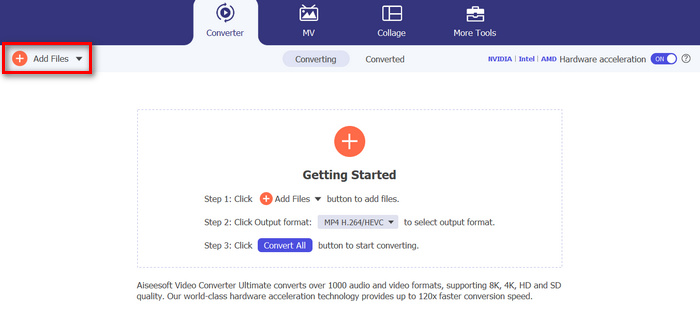
שלב 2. כדי לייבא את קובצי ה-WMA שברצונך לערוך, לחץ על כפתור Add Files.
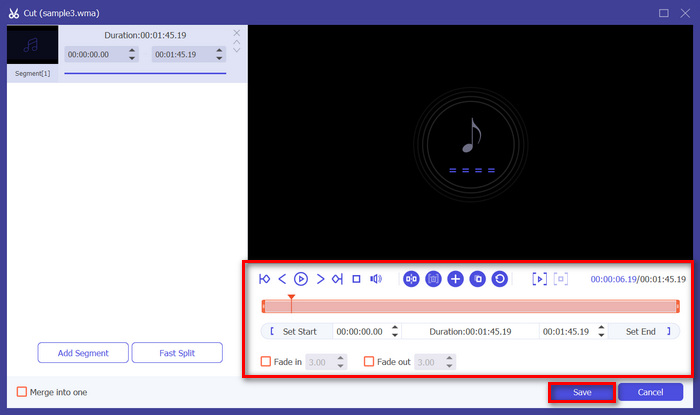
שלב 3. לאחר מכן לחץ על כפתור Cut. פעולה זו תעביר אותך לחלון נוסף שבו ניתן לערוך קובצי WMA, כגון פיצול, חיתוך, יצירת דהייה (fade) ועוד.
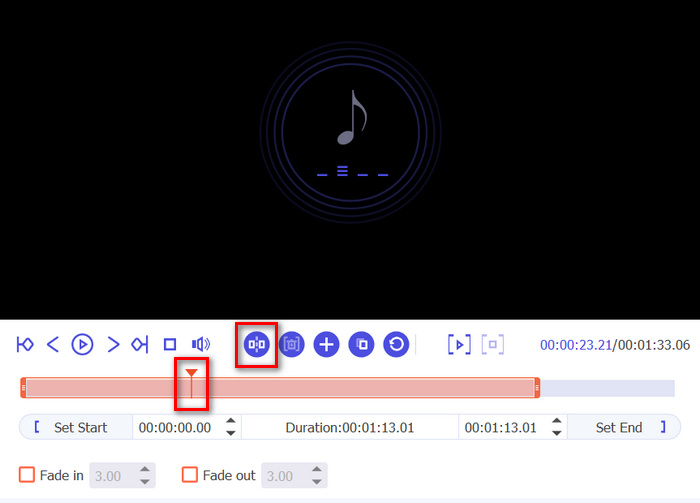
שלב 4. אם ברצונך לפצל קובצי אודיו, הזז את הקו האדום, מקם אותו בחלק של הרצועה שבו אתה רוצה לבצע את הפיצול ולחץ על כפתור Split. אותו הדבר תקף גם לחיתוך חלק מרצועת האודיו.
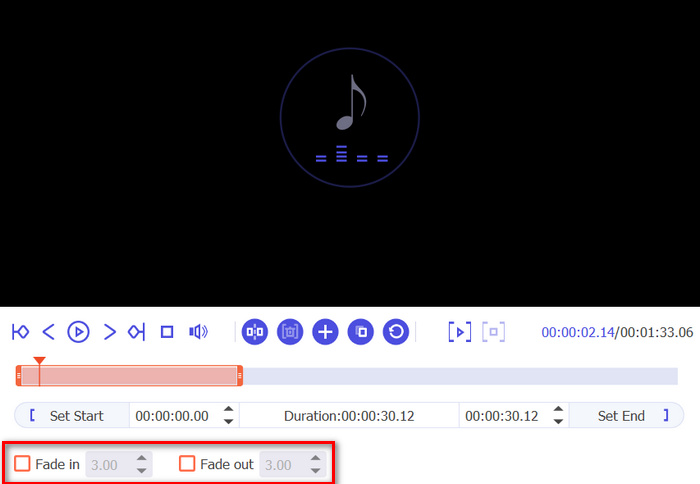
שלב 5. כמו כן, אם עליך להוסיף אפקט דהייה לאודיו, לחץ על Fade in ועל Fade out, סמן את התיבה שמתחת והגדר את הזמן שבו ברצונך שהאודיו ייכנס וייצא בהדרגה בקובצי ה-WMA שלך.
שלב 6. במקביל, אם ברצונך להגביר את עוצמת הקול ולהוסיף השהיות (delay), לחץ על כפתור Edit, ומשם תוכל לשנותם על-ידי התאמת הרמות המתאימות.
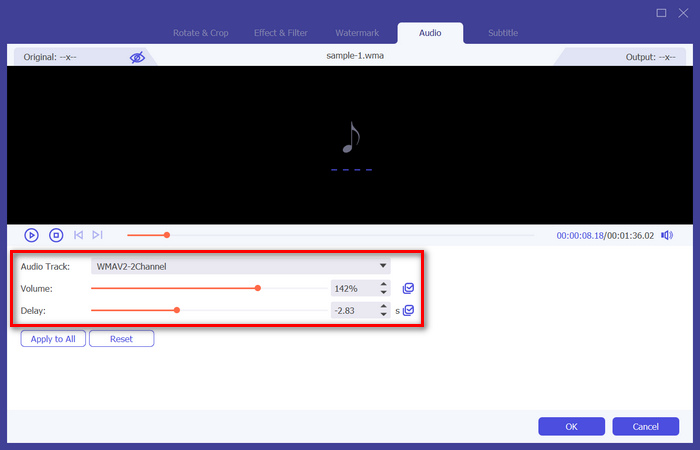
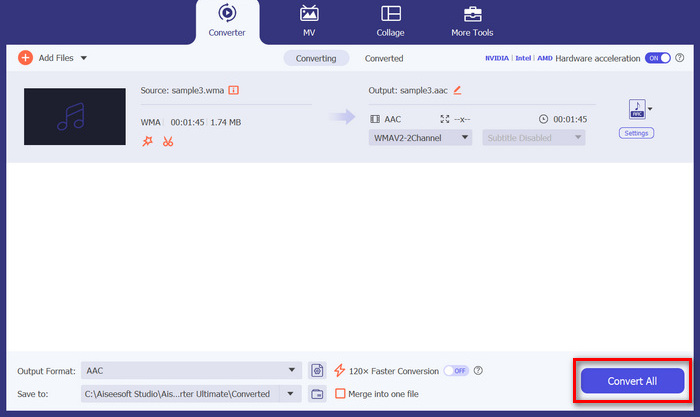
שלב 7. כשתסיים, לחץ על כפתור Save. לאחר מכן תוכל להאזין לקובצי ה-WMA שלך בתצוגה מקדימה, וכשהכול מוכן, לחץ על כפתור Convert All.
כדי לערוך קבצי WMA, אכן חשוב שיהיה כלי אמין המשלב פונקציונליות ונוחות שימוש. Video Converter Ultimate הוא אחת הבחירות הנהדרות בשל תכונות העריכה המקיפות והפלט האיכותי שלו. היכולת להתמודד עם פורמטי אודיו שונים מבטיחה צדדיות, מה שהופך אותו לפתרון חד פעמי לכל צרכי עריכת האודיו שלך. בנוסף, מהירות העיבוד המהירה שלו חוסכת זמן, בעוד שהממשק האינטואיטיבי מבטיח חווית עריכה חלקה למשתמשים בכל רמות המיומנות. בין אם אתה מבצע עריכות בסיסיות או שינויים מורכבים יותר, כלי זה מספק פלטפורמה חזקה אך פשוטה לשיפור קבצי ה-WMA שלך.
חלק 2: ערוך קבצי WMA ב-Audacity
Audacity הוא גם כלי נהדר לעריכת קבצי WMA. הכלי הזה חופשי לשימוש, והוא טוב בדיוק כמו כלים רבים בתשלום מראש. אתה יכול להשתמש בכלי זה כדי לערוך כל קובץ אודיו על ידי חיתוך, מיזוג ועוד. אתה יכול אפילו להסיר רעש או שירה מקבצי ה-WMA שלך אם תרצה. עם זאת, אפליקציה זו עשויה להיות מורכבת מדי עבור משתמשים מסוימים, אך עדיין, הכלי הזה נהדר בטיפול בקובצי WMA.
שלב 1. תחילה עליך לייבא את קובצי ה-WMA שלך על-ידי גרירתם לציר הזמן של הכלי.
שלב 2. לחץ על כלי ה-Editing כדי לערוך את קובצי ה-WMA שלך. בעזרתו תוכל לפצל, לחתוך ולבצע פעולות נוספות בקבצים.
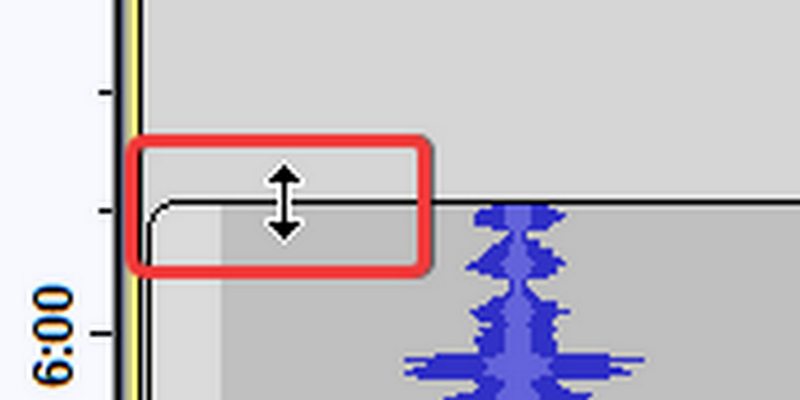
שלב 3. כדי לקצר (לגזור) קובצי WMA, רחף עם הסמן סביב השליש העליון של קצה הקליפ בצד שמאל או ימין.
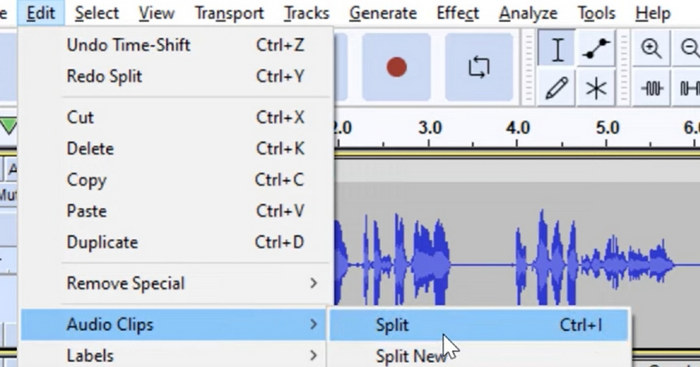
שלב 4. לעומת זאת, אם ברצונך לפצל את קובצי ה-WMA שלך, לחץ על החלק במסלול שבו תרצה לפצל את הקליפ, לחץ באמצעות לחצן ימני ובחר Split clip.
שלב 5. לאחר שתסיים לערוך את קובצי ה-WMA שלך, עבור ללשונית File ובחר Save Project כדי לייצא את קובץ הפלט הערוך.
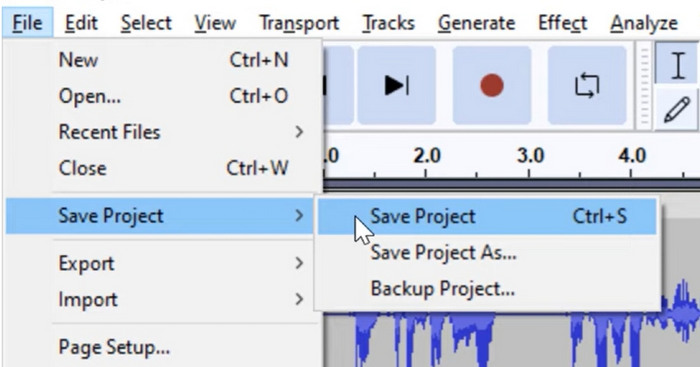
Audacity הוא כלי נהדר לעריכת קבצי WMA. החסרונות היחידים הם המורכבות שלו עבור משתמשים חדשים ודרישת המערכת למכשירים, מה שעלול להאט את הביצועים הכוללים שלה בהשוואה לכלים אחרים.
חלק 3: ערוך קבצי WMA באופן מקוון
Apps123 היא פלטפורמה מקוונת המציעה חבילת כלים לעריכת קובצי מולטימדיה, כולל קבצי WMA. שירות מבוסס אינטרנט זה מאפשר למשתמשים לבצע משימות עריכת אודיו שונות ישירות מהדפדפן ללא צורך להוריד או להתקין תוכנה. בעזרת כלי זה, משתמשים יכולים לערוך קבצי WMA באמצעות תכונות כמו חיתוך אודיו, שינוי עוצמת הקול, שינוי מהירות, גובה הצליל ועוד.
כדי להשתמש בכלי זה:
שלב 1. עבור לאתר הרשמי שלהם.
שלב 2. בממשק הראשי שלהם, לחץ על Audio tools ובחר את פונקציית העריכה שבה ברצונך להשתמש עבור קובצי ה-WMA שלך.
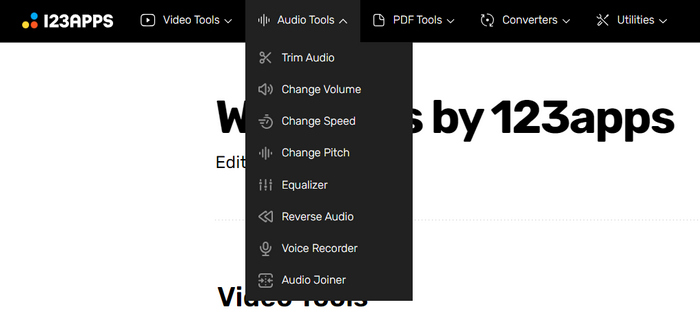
שלב 3. משם תוכל לבחור לקצר (trim), לשנות את עוצמת הקול, המהירות, הגובה (pitch), לחבר קובצי אודיו ועוד. כדי להשתמש בהם, לחץ על פונקציית עריכת האודיו המתאימה שברצונך להשתמש בה וייבא את קובץ ה-WMA.
שלב 4. לאחר מכן, עקוב אחר ההוראות שעל המסך.
שלב 5. לבסוף, כדי לייצא את קובץ ה-WMA הערוך שלך, לחץ על כפתור Save.
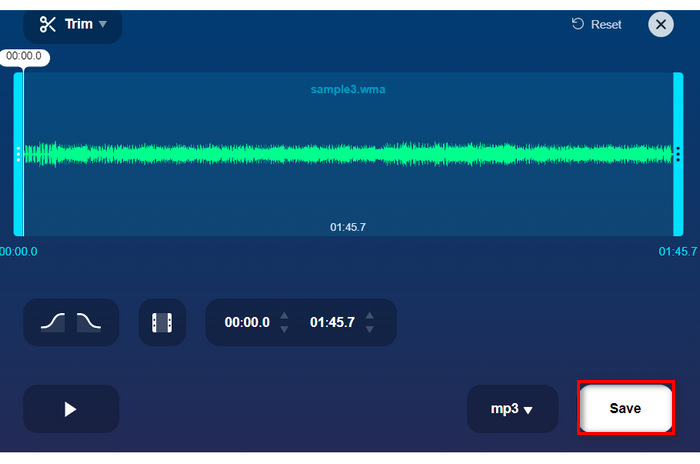
שימוש בכלי מקוון כגון Apps123 מציע דרך נוחה לערוך קבצי WMA, ויש הרבה תכונות לבחירה. עם זאת, אינך יכול להחיל את כל תכונות העריכה הללו בבת אחת, מכיוון שהן נוצרו בנפרד על סמך הפונקציות השונות שלהן. כמו כן, מהירות הייבוא והעיבוד לוקחת זמן. אולי עבור אחרים, זה לא דבר, אבל עבור חלק, מהירות ויעילות חשובות. עם זאת, כלי זה מהווה אלטרנטיבה מצוינת למשתמשים המחפשים שיטה מקוונת לעריכת קבצי WMA.
חלק 4: שאלות נפוצות לגבי עריכת קבצי WMA
האם WMA עובד עם Mac?
כן, קבצי WMA תואמים למערכות ההפעלה של Mac. עם זאת, ייתכן שחלק מיישומי ברירת המחדל של Mac לא יתמכו בהפעלת WMA ללא תוספים נוספים או תוכנות של צד שלישי.
עם איזו תוכנה אוכל לפתוח קבצי WMA?
ניתן לפתוח קבצי WMA עם תוכניות שונות על פני פלטפורמות שונות. עבור משתמשי Mac, יישומים כמו Audacity, VLC Media Player או QuickTime עם תוספים נוספים יכולים להתמודד עם קובצי WMA. ב-Windows, תוכניות מקוריות כמו Windows Media Player יכולות לפתוח קבצי WMA, יחד עם אפשרויות של צד שלישי כמו VLC ו-Audacity.
איזו אפליקציה ממירה WMA ל-WAV?
מספר יישומים זמינים להמרת WMA ל-WAV כמו Video Converter Ultimate המוזכר במאמר. כלי זה מציע ממשק פשוט ותומך בהמרת אצווה מטעמי נוחות.
סיכום
לסיכום, הצורך בכלי עריכת WMA אמין הוא מהותי, משום שכלים או פלטפורמות אחרות אינן תומכות בפורמט קובץ זה. לכן, שימוש באחד מהכלים שהוזכרו במאמר זה, כמו Video Converter Ultimate, Audacity ו-Apps123, מציע דרכים ותכונות שונות לעריכת קובצי WMA בהתאם להעדפות ולצרכים שלך. אז למה לחכות? נסה אחד מהכלים האלה עכשיו וערוך את הקבצים שלך בלי כאב ראש.
-
 5 עורכי הווידאו הבינה מלאכותיים המובילים לשיפור הצילומים שלך
 הכירו את פסגת טכנולוגיית עריכת הווידאו, עורך הווידאו הבינה המלאכותית שלנו. משלבים בצורה חלקה יצירתיות ויעילות תוך כדי עריכת סרטונים עם כלים המופעלים על ידי בינה מלאכותית.
-
 מדחסי אודיו יעילים למשתמשים לא מקוונים ומקוונים
 יש לך בעיה עם קבצי אודיו גדולים? ישנם מדחסי קבצי אודיו רבים זמינים למשתמשים לא מקוונים ומקוונים. בדוק אותם כאן.
-
 7 עורכי תגי מוזיקה פופולריים ב-Windows, Mac ומכשירים ניידים
 תגי מוזיקה פופולריים לסידור המוזיקה בספרייה שלך בהתאם לנתונים בפנים. מה אם אתה רוצה לשנות את זה? קרא את הפרטים למטה כדי לדעת יותר.
